


 Video Converter Ultimate
 ضبط صفحه
 تعمیر ویدیو
چگونه MP3 را به آهنگ زنگ در آیفون بدون دردسر تبدیل کنیم
آیا آهنگهای زنگ پیشفرض آیفون برایتان چندان دلنشین نیست و دوست دارید یکی از فایلهای MP3 خودتان را بهجای آن بهعنوان رینگتون آیفون داشته باشید؟ اگر بگوییم امکان تبدیل MP3 به رینگتون در آیفون وجود دارد، چه میگویید؟
در این مقاله 3 روش مختلف را بیاموزید تا فایل های موسیقی MP3 خود را در آیفون به آهنگ زنگ تبدیل کنید. تبدیل آنها کمی مشکل است، اما با ابزار و روش مناسب، بیایید این کار را به همان اندازه ساده و راحت کنیم. منتظر چی هستی؟ بیایید شیرجه بزنیم!

قسمت 1. تبدیل MP3 به آهنگ زنگ برای آیفون در مک/ویندوز
یکی از سادهترین و سریعترین روشها برای تبدیل MP3 به رینگتون در آیفون، استفاده از ابزار منتخب FVC یعنی Video Converter Ultimate روی کامپیوتر ویندوز یا مک است. این مبدل همهکاره از بیش از ۳۰۰ فرمت مختلف، از جمله فرمت M4R پشتیبانی میکند و همین موضوع آن را به ابزاری قابلاعتماد برای تبدیل فایلهای موسیقی MP3 به رینگتون آیفون تبدیل کرده است. علاوه بر این، سرعت این مبدل تا ۱۲۰ برابر بیشتر از بسیاری از ابزارهای دیگر است و فرایند تبدیل را بسیار سریع و بدون دردسر میکند.
نحوه استفاده از Video Converter Ultimate منتخب FVC برای تبدیل MP3 به رینگتون به این صورت است:
مرحله ۱. ابتدا این ابزار را روی کامپیوتر خود، چه ویندوز و چه مک، دانلود و نصب کنید.
مرحله ۲. برنامه را اجرا کنید و پس از ورود به رابط اصلی، روی دکمه Add Files کلیک کنید. با این کار میتوانید فایل MP3 موردنظرتان را برای تبدیل به رینگتون آیفون وارد کنید.
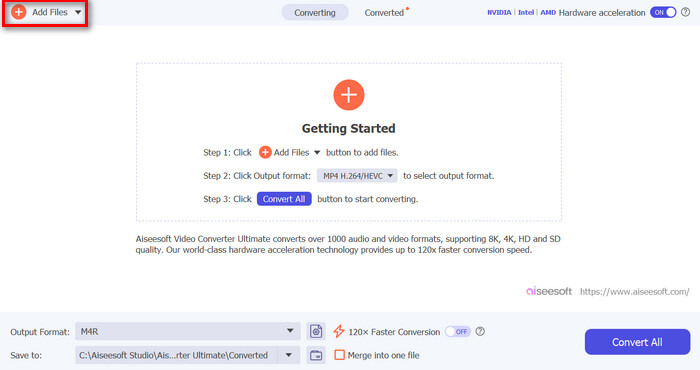
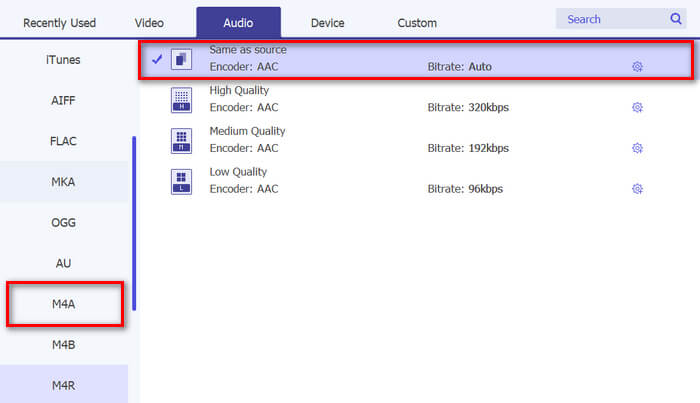
مرحله ۳. حالا به بخش Output format بروید و از میان فهرست فرمتهای صوتی مختلف، فرمت M4R را انتخاب کنید. M4R فرمت مخصوص رینگتون آیفون است.
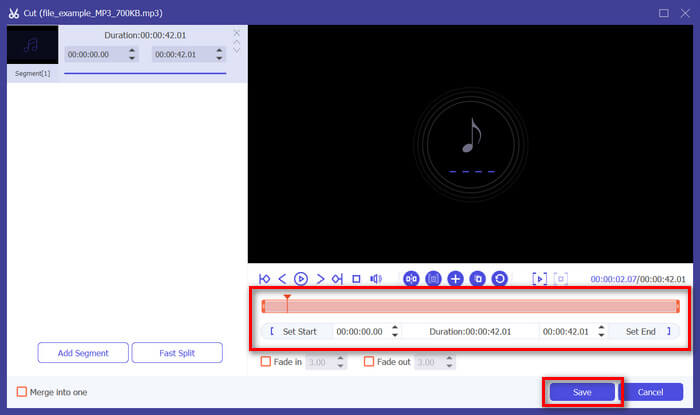
مرحله ۴. سپس مطمئن شوید که فایل MP3 شما حداکثر ۳۰ ثانیه طول دارد. اگر طول آن بیشتر است، روی دکمه Cut کلیک کنید و با جابهجا کردن نوار روی تایملاین یا تنظیم دستی زمان پایان، طول فایل را به ۳۰ ثانیه برسانید.
مرحله ۵. حالا روی دکمه Convert All کلیک کنید تا تبدیل فایلهای MP3 به رینگتون آیفون آغاز شود. فایلهای تبدیلشده مستقیماً در پوشهای روی کامپیوتر شما ذخیره میشوند.
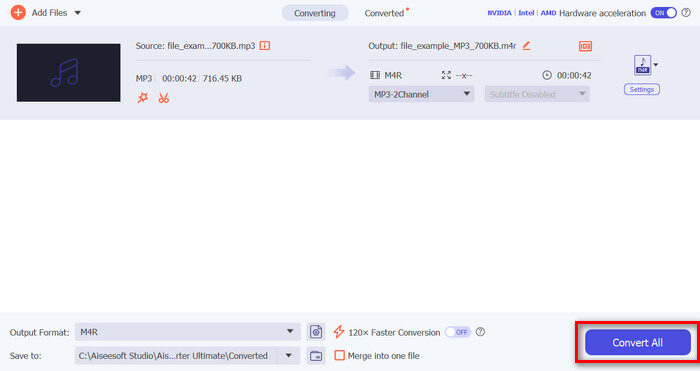
این سریع است، درست است؟ واقعاً باورنکردنی است که چگونه این ابزار FVC انتخاب شده Video Converter Ultimate تبدیل MP3 به آهنگ زنگ آیفون را آسان و سریع می کند. بنابراین، اگر به دنبال ابزار مبدلی هستید که بتواند در وقت شما صرفه جویی کند، اکنون این ابزار را امتحان کنید.
قسمت 2. تبدیل MP3 به آهنگ زنگ در آیفون
اگر روش مستقیم و بدون استفاده از رایانه را ترجیح می دهید، GarageBand راه حل مناسبی برای تبدیل MP3 به آهنگ های زنگ مستقیماً در آیفون شما ارائه می دهد. این ابزار یک برنامه قدرتمند ایجاد موسیقی است که در اکثر آیفون ها از قبل نصب شده است. این ابزار نه تنها کاربر پسند است بلکه ویژگی های مختلفی را برای شخصی سازی موثر فایل های صوتی شما ارائه می دهد.
نحوه استفاده از GarageBand برای تبدیل MP3 به رینگتون به این صورت است:
مرحله ۱. ابتدا برنامه GarageBand را روی آیفون خود اجرا کنید. اگر این برنامه را نصب ندارید، به App Store بروید و آن را نصب کنید.
مرحله ۲. روی آیکون Project و سپس روی آیکون Loop در نزدیکی گوشه بالا-سمت راست ضربه بزنید.
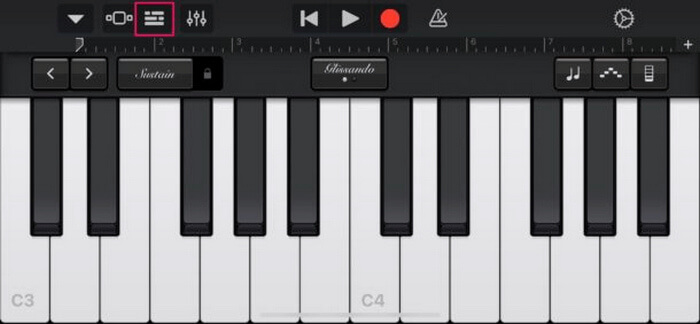
مرحله ۳. حالا روی Music or Files ضربه بزنید تا فایل MP3 را انتخاب کنید و با نگهداشتن انگشت، آن را به GarageBand وارد (Import) کنید.
مرحله ۴. سپس روی ترک ضربه بزنید و دو سر آن را بکشید تا صدا را برش دهید. مطمئن شوید رینگتون کمتر از ۳۰ ثانیه باشد.
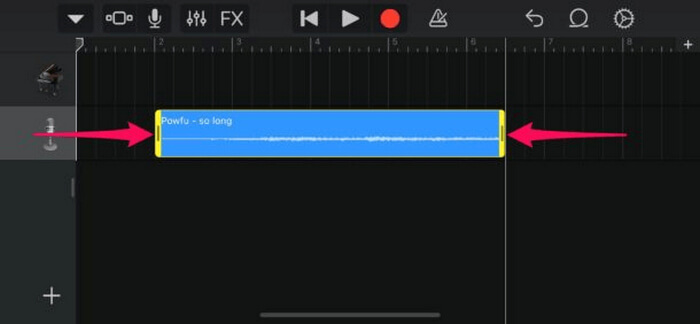
مرحله ۵. در گوشه بالا-سمت چپ، فلش رو به پایین را میبینید. روی آن ضربه بزنید و سپس گزینه My Songs را انتخاب کنید تا کلیپ ذخیره شود.
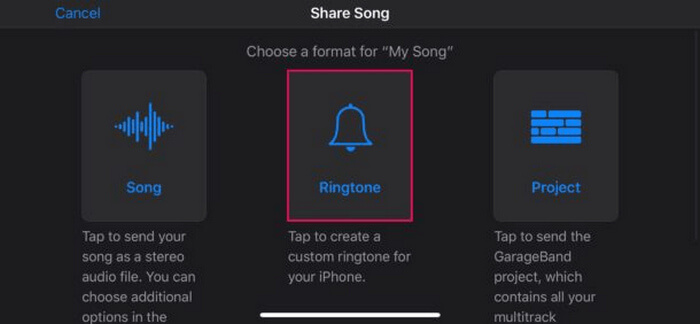
مرحله ۶. کلیپی را که ساختهاید پیدا کنید، انگشتتان را روی آن نگه دارید، روی Share ضربه بزنید و گزینه Ringtone را انتخاب کنید. فراموش نکنید برای رینگتون یک نام انتخاب کرده و روی Export ضربه بزنید.
مرحله ۷. برای استفاده از فایل MP3 تبدیلشده بهعنوان رینگتون در آیفون، روی Use Sound As ضربه بزنید تا آن را بهعنوان زنگ پیشفرض پیامک یا برای یک مخاطب خاص تنظیم کنید. همچنین میتوانید به Settings، سپس Sounds & Haptics و بعد Ringtone بروید و رینگتون آیفون خود را از آنجا تغییر دهید.
اگر ترجیح می دهید فایل های MP3 را مستقیماً به آهنگ های زنگ آیفون خود تبدیل کنید، این روش کاملاً برای شما مناسب است. با این حال، کاربران جدید برای یادگیری این موضوع به زمان نیاز دارند، زیرا دارای ویژگی های پیچیده ای است که در ابتدا ممکن است آنها را تحت تأثیر قرار دهد.
قسمت 3. تبدیل MP3 به آهنگ زنگ آیفون [آنلاین و رایگان]
اگر ترجیح میدهید با روشی رایگان و آنلاین MP3 را به رینگتون آیفون تبدیل کنید، FVC Free Audio Converter گزینه مناسب شماست. با این ابزار، میتوانید هر فرمتی از فایل صوتی، بهویژه MP3 به M4R را بهراحتی تبدیل کنید، زیرا از فرمتهای MP3، AAC، AC3، WMA، WAV، AIFF، FLAC، MKA، M4A، M4B و M4R پشتیبانی میکند. افزون بر این، بهخاطر رابط کاربری بسیار ساده و شهودی، این ابزار برای افرادی که به یک مبدل صوتی آنلاین و همیشه در دسترس نیاز دارند، کاملاً ایدهآل است.
نحوه استفاده از FVC Free Audio Converter برای تبدیل MP3 به رینگتون به این صورت است:
مرحله ۱. روی دکمه Add Files کلیک کنید تا فایلهای MP3 موردنظر برای تبدیل به رینگتون را وارد کنید.
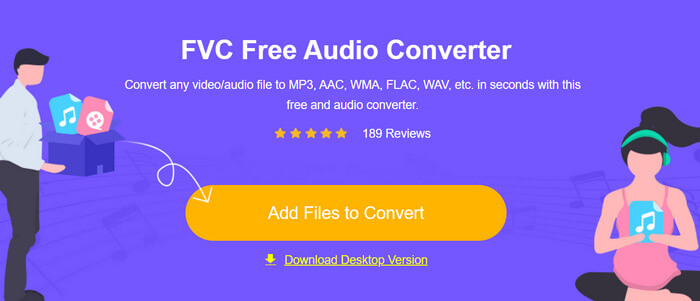
مرحله ۲. فرمت صوتی خروجی را روی M4R تنظیم کنید.
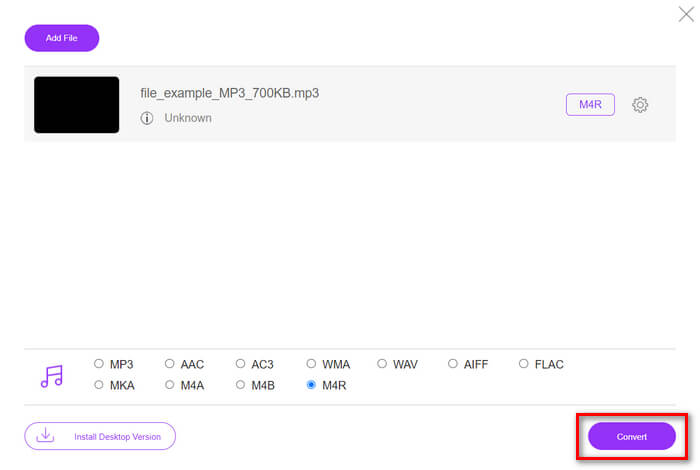
مرحله ۳. در نهایت، برای انجام فرایند تبدیل فایل MP3 به رینگتون، روی دکمه Convert کلیک کنید. فایل تبدیلشده مستقیماً روی کامپیوتر شما ذخیره خواهد شد.
اگر به دنبال یک روش رایگان و آنلاین جایگزین برای تبدیل MP3 به M4R و ساخت رینگتون برای آیفون هستید، FVC Free Audio Converter یک راهحل ایدهآل است. رابط کاربری ساده آن فرایند تبدیل را آسان میکند و پشتیبانی از فرمتهای صوتی متنوع، سازگاری با انواع مختلف فایلها را تضمین میکند.
قسمت 4. نحوه انتقال آهنگ های زنگ تبدیل شده به آیفون از رایانه
اکنون که بالاخره فایلهای MP3 خود را به آهنگهای زنگ در رایانهتان تبدیل کردهاید، سریعترین راه برای انتقال آنها به آیفون، استفاده از iTunes است.
نحوه انتقال رینگتونهای تبدیلشده به آیفون با استفاده از iTunes به این صورت است:
مرحله ۱. iTunes را روی کامپیوتر خود باز کنید و آیفون را با کابل USB متصل کنید.
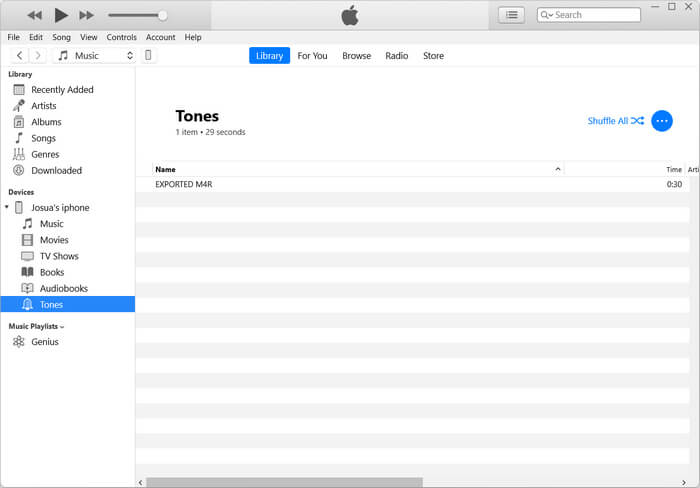
مرحله ۲. فایل رینگتون تبدیلشده را به کتابخانه iTunes بکشید و رها کنید. اطمینان حاصل کنید که زیر بخش Tones نمایش داده میشود.
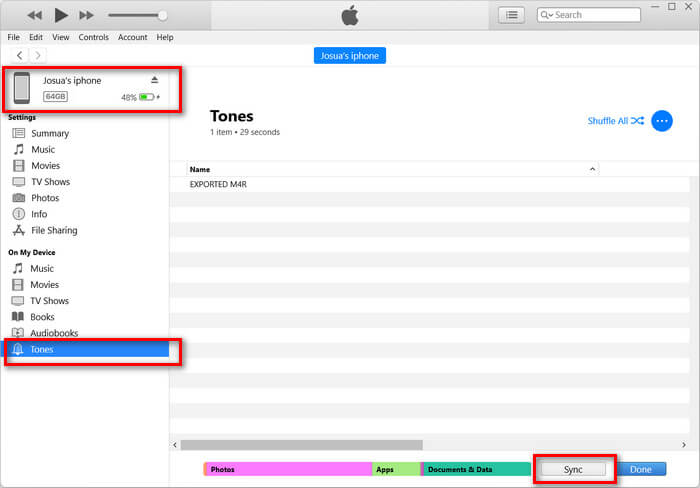
مرحله ۳. آیکون آیفون خود را در iTunes انتخاب کنید، به تب Tones بروید و گزینه Sync Tones را فعال کنید. سپس فایل رینگتونی را که وارد کردهاید انتخاب کرده و برای همگامسازی روی Apply کلیک کنید.
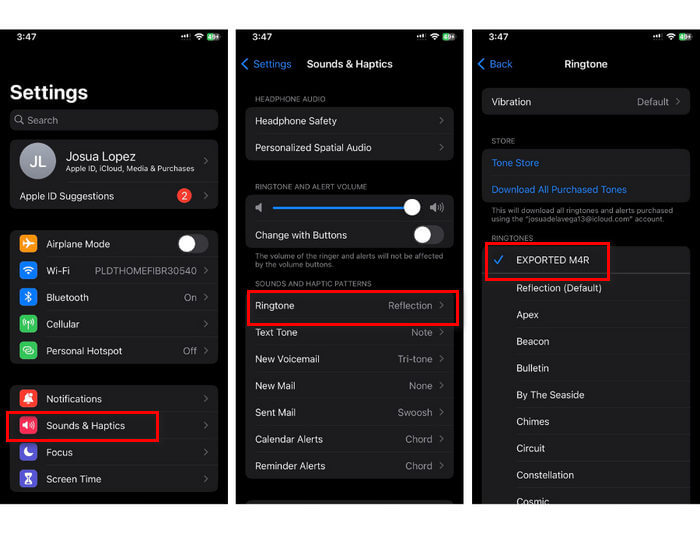
مرحله ۴. حالا در آیفون خود به Settings بروید، گزینه Sounds & Haptics را انتخاب کنید، روی Ringtone ضربه بزنید و رینگتون جدیدتان را برگزینید.
شما آن را دارید. اکنون می توانید به راحتی MP3 تبدیل شده را به آهنگ زنگ در آیفون خود انتقال داده و از آن استفاده کنید و به دستگاه خود لمس شخصی با صداهای مورد علاقه خود بدهید.
بخش 5. سوالات متداول در مورد تبدیل MP3 به آهنگ زنگ
بهترین سایت آهنگ زنگ رایگان چیست؟
بسیاری از وبسایتها آهنگهای زنگ رایگان ارائه میدهند، اما برخی از محبوبترین و مطمئنها عبارتند از Zedge، Mobile9 و Tones7. این سایت ها طیف گسترده ای از آهنگ های زنگ را ارائه می دهند که می توانید آنها را دانلود کرده و در تلفن خود استفاده کنید.
فرمت MP3 به آهنگ زنگ آیفون چیست؟
فرمت آهنگ زنگ آیفون M4R است. هنگام تبدیل یک فایل MP3 برای استفاده به عنوان آهنگ زنگ در آیفون، باید در فرمت M4R ذخیره شود.
چگونه MP3 را به آهنگ زنگ آیفون اضافه کنیم؟
برای افزودن MP3 به آهنگ زنگ آیفون خود، ابتدا باید فایل MP3 را با استفاده از یک ابزار مبدل مانند Video Converter Ultimate انتخاب شده توسط FVC به M4R تبدیل کنید. هنگامی که فایل MP3 را تبدیل کردید، از iTunes برای انتقال آن به آیفون خود استفاده کنید و از آن به عنوان آهنگ زنگ جدید خود استفاده کنید.
نتیجه
اکنون میتوانید از فایلهای MP3 دلخواه خود استفاده کرده و برای آیفون خود رینگتون بسازید. کافی است ابزار مبدلی را که بیشترین تناسب را با نیازهای شما دارد انتخاب کنید. هر یک از این ابزارها روشی سرراست برای تبدیل MP3 به رینگتون در آیفون در اختیارتان میگذارند. پس منتظر چه هستید؟ ساخت رینگتون منحصربهفرد خود را همین حالا شروع کنید و آیفونتان را واقعاً شخصیسازی کنید!
-
 MOV VS MP4 - کدام یک را انتخاب می کنید؟
 MOV VS MP4 ، کدام یک بهتر است؟ این پست تفاوت MP4 و MOV را بیان می کند ، بنابراین شما می توانید انتخاب بهتری برای استفاده برای پرونده های ویدیویی خود داشته باشید.
-
 FLAC در مقابل MP3: کدام فرمت فایل صوتی برتر است
 این پست تفاوت های کلیدی بین FLAC و MP3 را مقایسه می کند. این شامل کیفیت صدا، اندازه فایل، سازگاری و موارد دیگر می شود.
-
 نحوه تبدیل MP3 به M4A برای افزایش کیفیت صدا
 کیفیت فایل های موسیقی خود را با تبدیل MP3 به M4A با نکات و ترفندهای تخصصی ما بهبود بخشید. راهنمای ما دستورالعمل های گام به گام و نرم افزار توصیه شده را ارائه می دهد.
