


 Video Converter Ultimate
 ضبط صفحه
 تعمیر ویدیو
نحوه استخراج MP3 از M4V با 4 روش عالی که باید بدانید
اگر قبلاً چند فیلم M4V را از فروشگاه iTunes خریداری کرده اید ، چگونه M4V را به راحتی به MP3 تبدیل کنید؟ متفاوت از سایر فرمت های ویدیویی ، M4V یک قالب ویدیویی محافظت شده با Fair-Play DRM است. هنگامی که نیاز به استخراج فایل های MP3 از M4V دارید ، باید محافظت را از قبل رمزگشایی کنید. کافیست جزئیات بیشتری در مورد 4 بهترین مبدل M4V به MP3 بیاموزید و متناسب با نیاز خود مورد دلخواه خود را انتخاب کنید.

قسمت 1: روش نهایی برای تبدیل M4V به MP3
FVC Video Converter Ultimate is a desired M4V to MP3 converter, which not only turns M4V video into MP3 with a desired quality, but also enables you to decrypt the DRM protection. It also enables you to tweak the video and audio settings, or even convert the video files with advanced hardware acceleration.
- 1. فایل های صوتی MP3 را از فرمت های M4V ، MP4 و سایر فرمت های ویدیویی استخراج کنید.
- 2. نرخ فریم، کیفیت ویدیو، کدک ویدیو، تنظیمات صدا و موارد دیگر را تغییر دهید.
- 3. شتاب سخت افزاری پیشرفته برای تبدیل ویدیو با سرعت بالا.
دانلود رایگانبرای ویندوز 7 یا بالاتردانلود امن
دانلود رایگانبرای MacOS 10.7 یا بالاتردانلود امن
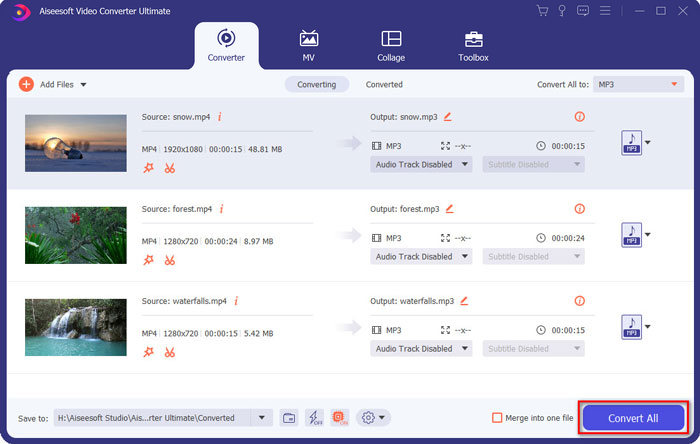
Step 1. Download and install the M4V to MP3 converter, you can launch the program on your computer. Click the Add Files menu or directly drag multiple M4V videos into this program.

Step 2. Once you have imported the M4V videos, choose MP3 as the output format. Of course, you can click the Gear icon to tweak the video and audio settings, such as sample rate, audio channel, etc.

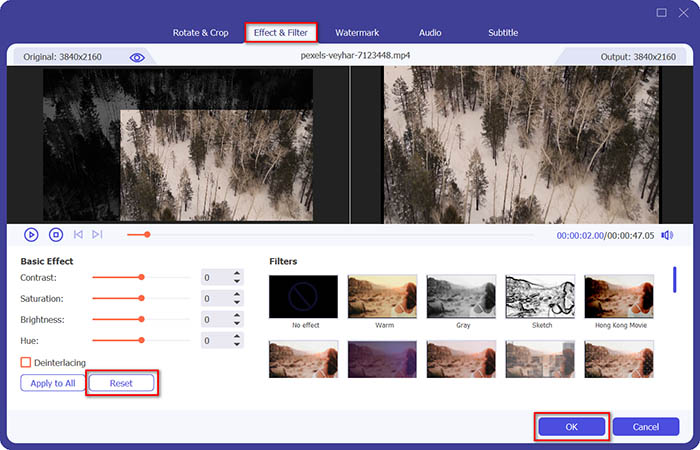
Step 3. Moreover, you can also click the Edit button or the Clip button to edit your output videos. It also enables to adjust brightness, contrast, saturation, hue and select de-interlacing as your requirement.
Step 4. If you are satisfied with the MP3 file, or need to merge the MP3 files, you can check the Merge into one file box and click the Convert button to start converting MP4 to MP3 with ease.
قسمت 2: 3 روش برای استخراج MP3 از M4V با سهولت
روش 1: نحوه تبدیل M4V به MP3 آنلاین
FVC Free Online Video Converter is a versatile online M4V to MP3 converter that enables you to extract the MP3 from MP4 with ease. Moreover, you can also adjust video bitrate, sample rate, frame rate, resolution, etc.
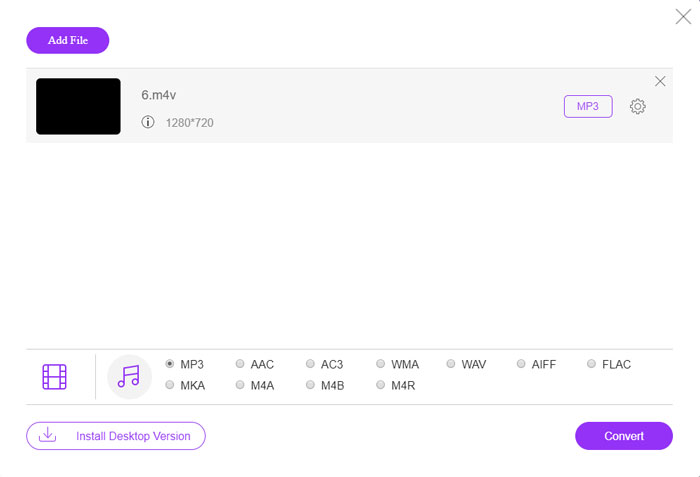
Step 1. Go to the M4V to MP3 online converter, you can click the Add Files to Convert button to load the M4V files into the program. For the first time, you should download the installer beforehand.

Step 2. Once you have loaded the M4V files, you can choose the MP3 option from the Audio menu. It also enables you to tweak the audio settings, such as the sample rate, audio codec and more.

Step 3. After that, you can click the Convert button to start the M4V to MP3 conversion. There will be no data will lose during the conversion process. You can save the output audio to your hard drive.
روش 2: نحوه تبدیل M4V به MP3 از طریق ترمز دستی
HandBrake یک مبدل منبع باز M4V به MP3 است که به شما امکان می دهد فرایند تبدیل را سفارشی کنید. این پارامترهای پیشرفته ای دارد که می توانید وضوح فیلم ، نرخ فریم و موارد دیگر را تنظیم کنید.
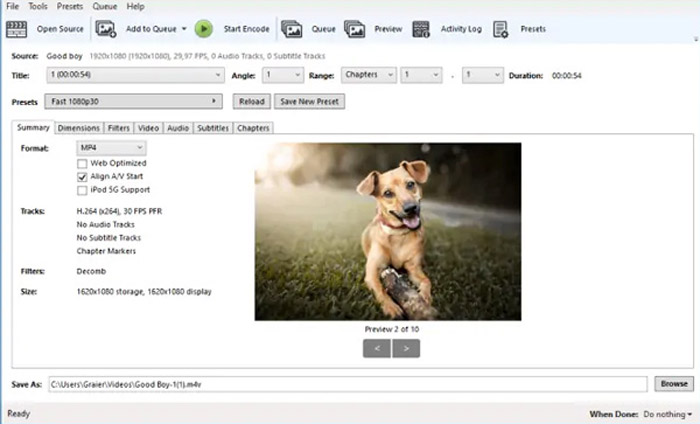
Step 1. Download and install the program on your computer, you can launch the program and locate the M4V file you want to convert. Then you can find the video within the user interface.
Step 2. After that, you can click the Browse button at the bottom and enter the new file name and destination folder. Then you can choose the MP3 as the output format and adjust the settings.
Step 3. Once you are satisfied with the output MP3, you can click the Start Encode button at the top menu to convert M4V to MP3 accordingly. It might take a period of time for the conversion.
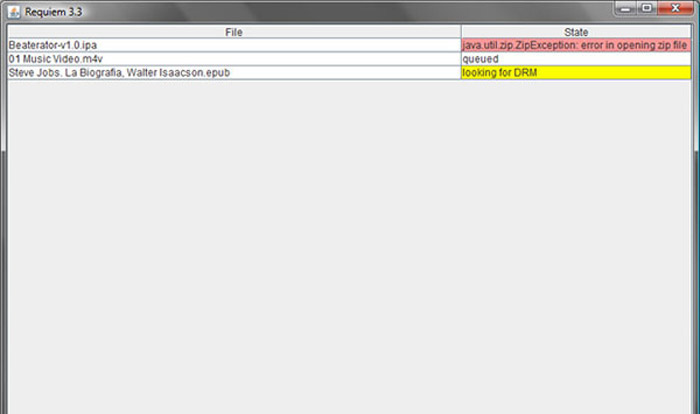
روش 3: نحوه تبدیل M4V به MP3 از طریق Requiem
ده ها مبدل آنلاین M4V به MP3 وجود دارد که باید از محافظت DRM در پرونده های M4V خلاص شوید. Requiem یکی از بهترین نرم افزارهایی است که می توانید مورد توجه قرار دهید.
Step 1. Once you have installed the DRM decrypter, you can launch the program to detect the DRM-protected files, including music, videos, or audiobooks on your iTunes Library.
Step 2. After that, you can begin to remove DRM from these M4V files. Your original files would be transferred to trash, and now your files in iTunes Library are DRM-free.
Step 3. When you get the desired M4V files without DRM protection, you can simply convert the video with the online M4V to MP3 converters, or transfer to a smartphone directly. (See how to convert FLV to MP3)
قسمت 2: س FAالات متداول درباره تبدیل M4V به MP3
1. فرمت فایل M4V چیست؟
پسوند پرونده M4V یک فیلم MPEG-4 است که به عنوان یک فایل ویدیویی iTunes نیز شناخته می شود. هنگام خرید یا اجاره فایل های ویدئویی از فروشگاه iTunes ، می توانید فیلم ها را در M4V با محافظت DRM دریافت کنید. اما فایل ویدئویی برای دستگاه های مجاز قابل اجرا است. هنگام تبدیل M4V به MP3 ، می توانید از فایل صوتی برای دستگاه های دیگر استفاده کنید.
2. یک روش عملی 100% برای تبدیل M4V به MP3 چیست؟
اگر نمی توانید M4V را مستقیماً به MP3 تبدیل کنید ، که با محافظت DRM محدود شده است ، می توانید از ضبط کننده صفحه نمایش فیلم M4V را به عنوان صدای MP3 استفاده کنید. FVC Free Screen Recorder یک راه حل آنلاین همه کاره است که به شما امکان می دهد فایل صوتی راضی و بدون هیچ گونه هزینه ای را دریافت کنید.
3. چگونه M4V را با DRM Protection از طریق ترمز دستی به MP3 تبدیل کنیم؟
در صورت نیاز به تبدیل M4V به MP3 با محافظت DRM ، آیا می توانید از ترمز دستی برای رمزگشایی فیلم ها استفاده کنید؟ بله ، می توانید چند پلاگین اضافی برای رمزگشایی فیلم ها قبل از تبدیل نصب کنید.
نتیجه
هنگامی که نیاز به تبدیل M4V به MP3 دارید ، باید فاکتورهای مهم را بیشتر بخوانید تا به راحتی فایلهای مورد نظر خود را بدست آورید. اگر فقط چند فایل M4V ساده و بدون محافظت DRM دارید ، می توانید به جای آن هر مبدل یا نرم افزار رایگان فیلم M4V آنلاین به MP3 را انتخاب کنید. FVC Video Converter Ultimate مبدل نهایی است که امکان تبدیل فیلم ها و رمزگشایی محافظت DRM را با سهولت فراهم می کند.
-
 نحوه تبدیل MP4 به MP3 در ویندوز / مک / آیفون / اندروید / آنلاین
 اگر می خواهید صوتی MP3 را از فیلم MP4 استخراج کنید ، می توانید این مقاله را بررسی کرده و 8 راه حل دریافت کنید. روش های آنلاین و آفلاین وجود دارد که MP4 را به راحتی در تلفن یا رایانه خود به MP3 تبدیل کنید.
-
 نحوه تبدیل فایل های M2TS به MP3 به صورت رایگان
 آیا یک فایل M2TS می تواند به MP3 تبدیل شود؟ در این پست ، ما 6 روش برتر آنلاین و رایگان را برای کمک به شما در تبدیل M2TS به فرمت های صوتی MP3 ، AAC ، AIFF و بیشتر فهرست کرده ایم.
-
 چه تفاوتی بین MP3 و MP4 وجود دارد
 MP3 یا MP4 ، کدوم بهتره؟ تفاوت MP3 و MP4 در چیست؟ در این مقاله MP3 از هر جنبه ای که می توانید تصویر کنید با MP4 مقایسه می شود.
