


 Video Converter Ultimate
 ضبط صفحه
 تعمیر ویدیو
با 3 روش موثر، PPT خود را به MP4 تبدیل کنید
PPT یک ابزار عالی برای ارائه سخنرانی است، چه در مدرسه، چه در محل کار، و غیره. گاهی اوقات، برخی ممکن است پس از ارائه یک کپی از مطالب PPT را برای مرجع خود درخواست کنند.
با این حال، مهم است که اذعان کنیم که برخی از افراد نمی توانند به فایل دسترسی داشته باشند زیرا برنامه یا ابزار نرم افزاری را روی دستگاه خود نصب نکرده اند. با این کار، اکثر ارائه دهندگان یک نسخه MP4 تبدیل شده ارائه دارند تا به راحتی مطالب را برای همه به اشتراک بگذارند.
پس اگر بهدنبال راهی برای تبدیل PPT به MP4 برای اشتراکگذاری سریع و دسترسی آسان به محتوای فایل هستید، در صفحه درستی قرار دارید. بنابراین، خواندن این مقاله را ادامه دهید و با ۳ روش مختلفی که میتوانید فایل PPT خود را به ویدیو تبدیل کنید، آشنا شوید.

قسمت 1: نحوه تبدیل پاورپوینت به MP4 در PPT
با استفاده از ارائه پاورپوینت، کاربران به راحتی می توانند PPT خود را به MP4 تبدیل کنند. این یک ویژگی داخلی عالی برای راحتی و انعطاف پذیری است.
مرحله 1. نمایش خود را با استفاده از نرمافزار پاورپوینت روی دستگاهتان باز کنید.
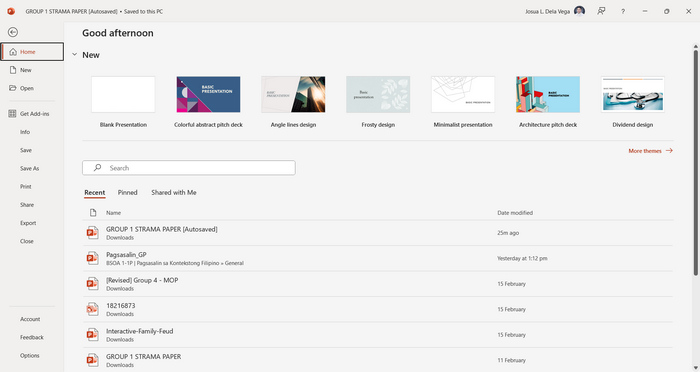
مرحله 2. به زبانه File بروید، دکمه Export را پیدا کرده و روی آن کلیک کنید.
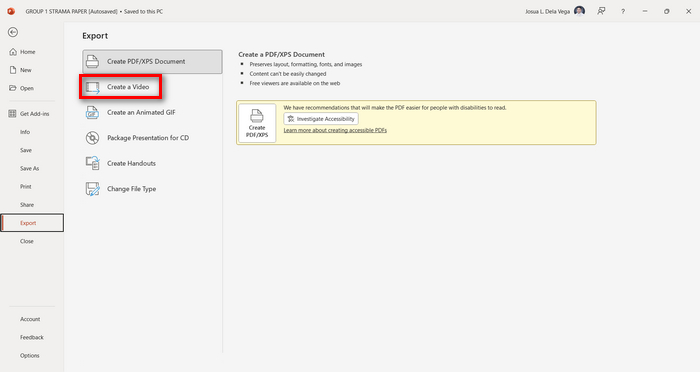
مرحله 3. وقتی در زبانه Export قرار گرفتید، روی گزینه Create a Video کلیک کنید.
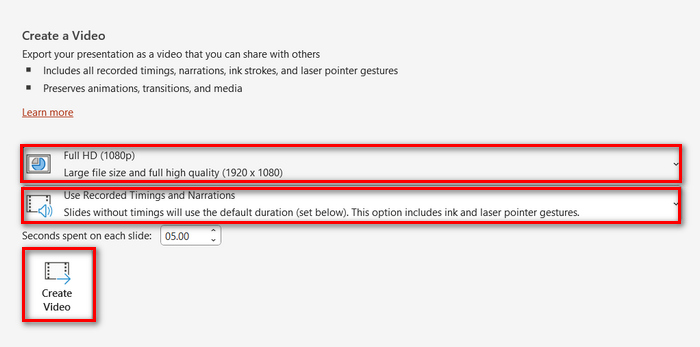
مرحله 4. حالا وضوح (رزولوشن) دلخواه ویدیو را تنظیم کنید. میتوانید بین 480p تا 4K انتخاب کنید. همچنین در بخش Use Recorded Timings and Narrations میتوانید زمانبندی اسلایدها را بهصورت دستی تنظیم کنید. پس از آن، روی دکمه Create Video کلیک کنید.
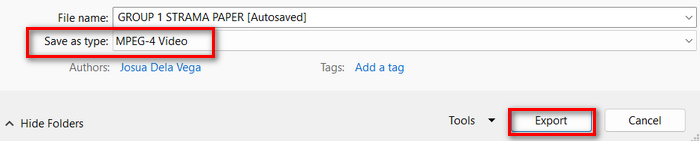
مرحله 5. بعد از کلیک روی دکمه Create a Video، پنجره جدیدی باز میشود که در آن میتوانید فرمت خروجی فایل و محل ذخیرهسازی آن را بررسی کنید. پس از تنظیم، فقط روی دکمه Export کلیک کنید و صبر کنید تا فرایند به پایان برسد.
تبدیل پاورپوینت به MP4 با استفاده از قابلیت داخلی آن واقعاً راحت است. با این حال، اگر بخواهید یک موسیقی پسزمینه اضافه کنید، این روش امکانات سفارشیسازی زیادی در اختیارتان نمیگذارد. با این وجود، اگر هدفتان فقط اشتراکگذاری است، این موضوع برای شما مشکلی ایجاد نمیکند.
قسمت 2: تبدیل PPT به MP4 با صوتی آنلاین رایگان
اگر فایل PPT را دارید و اگر میخواهید آن را به صورت آنلاین تبدیل کنید، زیرا برنامه یا ابزار نرمافزار ارائه پاورپوینت در دستگاه خود ندارید، میتوانید از MagicSlides استفاده کنید. این ابزار تبدیل آنلاین به شما این امکان را می دهد که به راحتی پاورپوینت را با وارد کردن فایل به سیستم آنها به MP4 تبدیل کنید.
مرحله 1. فایل PPT موردنظرتان برای تبدیل به MP4 را با کلیک روی دکمه Upload your source file بارگذاری کنید.
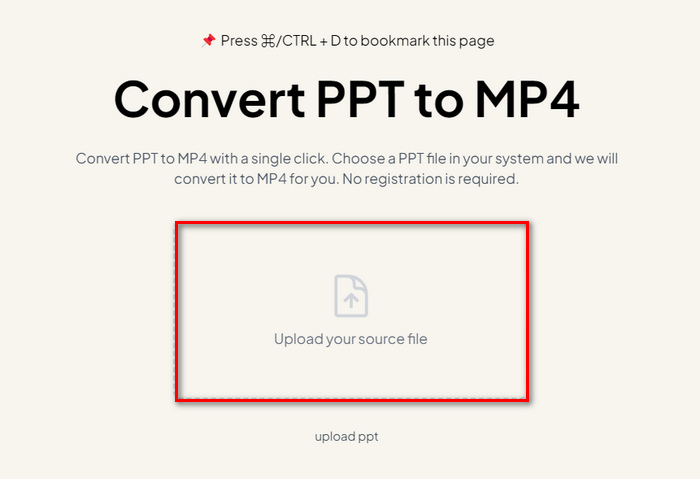
مرحله 2. پس از وارد شدن فایل، روی دکمه Create MP4 کلیک کنید تا فرایند تبدیل آغاز شود.
مرحله 3. وقتی تبدیل تمام شد، میتوانید ابتدا فایل PPT تبدیلشده را پیشنمایش کنید و هر زمان از نتیجه راضی بودید، فقط روی دکمه Download کلیک کنید تا مستقیماً در دستگاهتان ذخیره شود.
در حالی که این ابزار مراحل بسیار سادهای را برای تبدیل PPT به MP4 ارائه میدهد، وارد کردن فایلهای PPT زمان زیادی میبرد که میتواند ناراحتکننده باشد، به خصوص زمانی که عجله دارید. همچنین، هیچ گزینه سفارشی سازی ندارد. این فقط به معنای واقعی کلمه فایل های PPT را به یک ویدیو تبدیل کرد.
قسمت 3: نحوه تبدیل PPT به MP4 با جلوه ها و صدا
اگر میخواهید PPT خود را به MP4 تبدیل کنید، اما این بار همراه با افکتها و صدا، این روش دقیقاً مناسب شماست. با استفاده از FVC Screen Recorder میتوانید ارائه پاورپوینت خود را با بهرهگیری از قابلیتهای ویرایشی آن، به یک فایل MP4 خلاقانه و تعاملی تبدیل کنید. علاوه بر این، نگران کیفیت خروجی نباشید، زیرا این ابزار تا وضوح 4K را پشتیبانی میکند. برای استفاده از آن، دستورالعمل زیر را دنبال کنید:
گام ۱. ابتدا نرمافزار را دانلود کرده و روی رایانه خود نصب کنید.
مرحله 2. ارائه پاورپوینت خود را باز کرده و مطمئن شوید که در حالت تمامصفحه (Full Screen) اجرا شده است.
مرحله 3. حالا در ابزار ضبط صفحه، ویژگی Video Recorder را انتخاب کرده و ناحیه ضبط را روی Full تنظیم کنید.
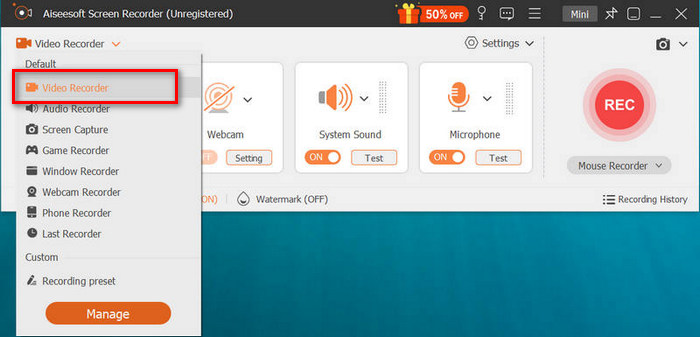
مرحله 4. پس از آن، نمایش اسلاید پاورپوینت را اجرا کنید. همزمان، روی دکمه REC کلیک کنید تا ضبط پاورپوینت آغاز شود.
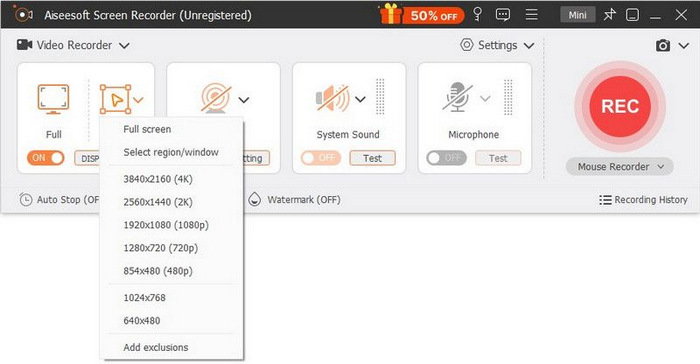
مرحله 5. وقتی کار تمام شد، فقط روی دکمه Stop کلیک کنید تا به رابط پیشنمایش منتقل شوید. از آنجا میتوانید در گوشه پایین، امکانات ویرایشی را پیدا کنید که برای ویرایش صدا و افکتها هنگام تبدیل PPT به MP4 در دسترس شماست.

مرحله 6. در نهایت، با کلیک روی دکمه Open Folder میتوانید به فایل خود دسترسی پیدا کنید.
خوبی استفاده از FVC Screen Recorder در تبدیل پاورپوینت به MP4 این است که می توانید کنترل زمان بندی و سرعت اسلایدها را در دست بگیرید. علاوه بر این، بر خلاف سایر ابزارهایی که فقط یک تبدیل اولیه را ارائه می دهند، این ابزار دارای ویژگی های ویرایشی است که می تواند برای بهبود بیشتر فایل MP4 تبدیل شده استفاده شود.
بخش 4: سوالات متداول در مورد تبدیل PPT به MP4
تبدیل PPT به MP4 چقدر طول می کشد؟
زمان فرآیند تبدیل به اندازه فایل در حال تبدیل بستگی دارد. اما معمولاً ارائه های ساده در طول تبدیل زمان زیادی را نمی گیرند.
آیا می توانم انیمیشن ها و انتقال ها را هنگام تبدیل PPT به MP4 در PPT حفظ کنم؟
بله. ویژگی داخلی به کاربران اجازه می دهد تا انیمیشن ها و انتقال ها را در طول فرآیند تبدیل حفظ کنند. این برای اطمینان از حفظ عناصر بصری موجود در ارائه، مانند انتقال و انیمیشن، در حین تبدیل به فرمت MP4 است. با این حال، توجه به این نکته مهم است که سازگاری انیمیشن ها و انتقال ها ممکن است بسته به نسخه پاورپوینت استفاده شده و پیچیدگی افکت های اعمال شده متفاوت باشد.
آیا کیفیت ارائه پاورپوینت من هنگام تبدیل به MP4 حفظ می شود؟
بله. ارائه پاورپوینت از وضوح تصویر تا 4K پشتیبانی می کند. بنابراین، انتخاب وضوح بالاتر به حفظ کیفیت ارائه کمک می کند. علاوه بر این، هنگامی که انتخاب میکنید PPT خود را با استفاده از ابزار مبدل پیشرفته تبدیل کنید که گزینههایی برای تنظیم میزان بیت و تنظیمات فشردهسازی برای بهینهسازی بیشتر کیفیت ویدیو ارائه میدهد، میتوانید خروجی با کیفیت را تضمین کنید.
نتیجه
تبدیل فرمت PPT به MP4 بدون تردید برای اشتراکگذاری فایل در پلتفرمها و دستگاههای مختلف، راحتی و دسترسی بیشتری فراهم میکند. حالا که با روشهای تبدیل آشنا شدهاید، وقت آن رسیده است که این دانش را به عمل تبدیل کنید. همین امروز شروع به تبدیل کنید و دامنه و تأثیر ارائههای خود را افزایش دهید!
-
 نحوه تغییر اندازه عکس در پاورپوینت [سریعترین راه برای تغییر اندازه]
 یادگیری نحوه تغییر اندازه تصاویر در پاورپوینت ضروری است به خصوص اگر می خواهید از آن در ارائه خود استفاده کنید. این مقاله را بخوانید تا بدانید چگونه این کار را انجام دهید.
-
 بررسی Apowersoft Watermark Remover – ویژگی، مزایا و معایب، و قیمت
 Apowersoft Watermark Remover یکی از بهترین حذف واترمارک است که به صورت آنلاین و آفلاین پشتیبانی می کند، برای اطلاعات بیشتر روی این کلیک کنید!
-
 نحوه رفع عدم پخش ویدیو در پاورپوینت | راهنمای سریع
 آیا ویدیوی پاورپوینت شما پخش نمی شود؟ با بهترین پنج راه حل ما برای حل آنها بدون زحمت، بر ناامیدی ناشی از پخش نشدن ویدیوهای جاسازی شده غلبه کنید.
