


 Video Converter Ultimate
 ضبط صفحه
 تعمیر ویدیو
3 راه برای پخش فایلهای MKV در Windows Media Player
نمیتوانید فایل MKV را در Windows Media Player باز کنید؟
MKV یکی از فرمتهای محبوب ویدئویی است. ممکن است تعداد زیادی فیلم، سریال تلویزیونی یا ویدئوهای باکیفیت دیگر با فرمت MKV داشته باشید. اما بهعنوان یک کاربر ویندوز، باید بدانید که پخشکنندهٔ پیشفرض این سیستم یعنی Windows Media Player بهصورت بومی از جداسازی (باز کردن) کانتینرهای MKV پشتیبانی نمیکند. حالا برمیگردیم به این سؤال که چگونه فایلهای MKV را در Windows Media Center پخش کنیم؟

حتی بعد از اینکه Windows Media Player را به آخرین نسخه ارتقا دادید ، هیچ تضمینی وجود ندارد که با مشکلات بازی MKV روبرو شوید. با در نظر گرفتن این موضوع ، این پست می خواهد 3 روش موثر را برای کمک به شما در پخش فایلهای MKV در رایانه ویندوزی به اشتراک بگذارد.
قسمت 1. نحوه باز کردن پرونده MKV در Windows Media Player
Windows Media Player عمدتاً به دلیل عدم تطابق کُدِک، نمیتواند فایلهای MKV را پخش کند. باید بدانید که MKV در واقع یک کانتینر چندرسانهای برای جریانهای ویدئو، صدا، زیرنویس و موارد بیشتر است. لازم است برای MKV، اسپیلیتر (Splitter) مناسب و همچنین کدکها و فیلترهای مربوط به ویدئو و صدا را به WMP اضافه کنید. در این بخش، شیوهٔ پخش فایل MKV در Windows Media Player را به شما نشان میدهیم.
مرحله 1. Windows Media Player را باز کنید و فایل MKV را با آن اجرا کنید. همچنین میتوانید روی فایل MKV راستکلیک کرده و گزینهٔ 'اجرا با' را انتخاب کنید و WMP را برگزینید.
مرحله 2. حالا پیغام خطایی میبینید که میگوید Windows Media Player نمیتواند این فایل را پخش کند. در پنجرهٔ پیغام، روی گزینهٔ Web Help کلیک کنید.
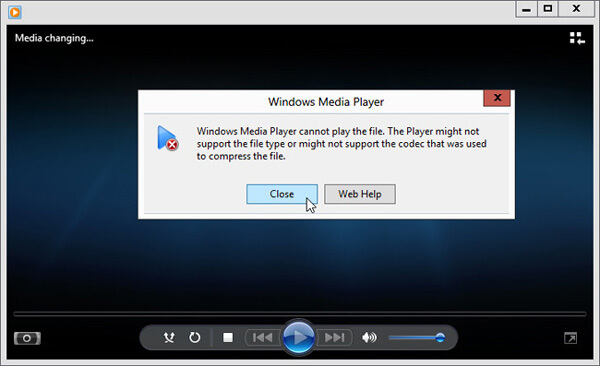
مرحله 3. روی لینک کدک که زیر بخش Codec is Missing قرار دارد کلیک کنید. این لینک را کپی کرده و در مرورگر خود paste کنید. این کار شما را برای دریافت کدک مناسب MKV برای Windows Media Player راهنمایی میکند. پس از دانلود، مطابق دستورالعملها عمل کنید تا فرایند نصب کدک MKV برای Windows Media Player تکمیل شود.
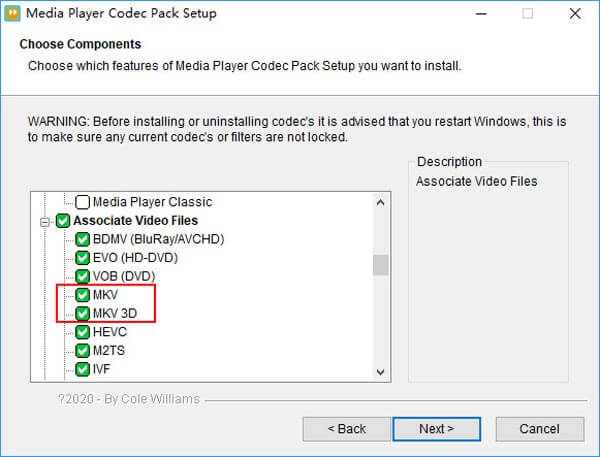
مرحله 4. Windows Media Player را مجدداً راهاندازی کنید و سپس دوباره تلاش کنید فایل MKV خود را پخش کنید.

قسمت 2. راه بهتر برای پخش فایلهای MKV در Windows Media Player Alternative
با کدک مناسب MKV ، می توانید فایل MKV را به راحتی در Windows Media Player باز کنید. با این حال ، بسیاری از کاربران گزارش دادند که هنگام پخش MKV با WMP هنوز مشکلات پخش دیگری وجود دارد. در این صورت ، می توانید یک گزینه Windows Media Player برای کمک به شما در پخش فایل های MKV انتخاب کنید.
FVC Free MKV Player یک ابزار جایگزین عالی برای Windows Media Player است. این پخشکننده بهصورت بومی از تقریباً همهٔ فرمتهای رایج ویدئو و صدا از جمله MKV، MOV، MP4، FLV، AVI، RMVB، MPEG، AAC، MP3، M4A، WMA و غیره پشتیبانی میکند. میتوانید برای تماشای فیلمهای MKV با کیفیت بالا روی آن حساب کنید.

مرحله 1. مرورگر خود را باز کنید و وارد وبسایت این پخشکنندهٔ رایگان MKV شوید. روی دکمهٔ Play Now کلیک کنید تا یک فایل راهانداز کمحجم برای پخش MKV نصب شود. پس از آن، پنجرهٔ اصلی پخش MKV روی صفحه ظاهر خواهد شد.

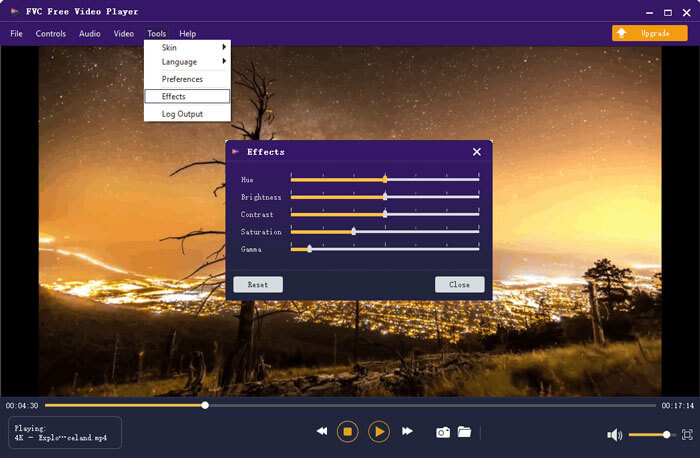
مرحله 2. روی دکمهٔ Open File کلیک کنید تا فایل MKV خود را جستوجو و به برنامه وارد کنید. پس از آن، ویدئو بهصورت خودکار پخش میشود. با توجه به بهرهگیری از فناوریهای پیشرفتهٔ کدگذاری ویدئو، این برنامه میتواند فایلهای MKV را روان و با کیفیت بالا پخش کند. علاوه بر این، از DTS-HD و Dolby TrueHD نیز پشتیبانی میکند.

تمام کنترل های پخش MKV به شما داده می شود. علاوه بر عملکردهای اساسی مانند پخش ، مکث ، عقب ، جلو ، تنظیم میزان صدا و موارد دیگر ، به شما امکان می دهد جلوه ها را تغییر دهید ، آهنگ و زیرنویس صوتی را تغییر دهید و سایر تنظیمات را به صورت سفارشی انجام دهید.
قسمت 3. تبدیل MKV برای پخش در Windows Media Player
برای پخش فایل MKV در Windows Media Player میتوانید آن را به یک فرمت ویدئویی پشتیبانیشده مانند MP4 نیز تبدیل کنید. در اینجا Free Online Video Converter را به شما معرفی میکنیم تا بتوانید بدون افت کیفیت، MKV را به MP4 تبدیل کنید.
مرحله 1. در مرورگر خود وارد صفحهٔ این مبدل آنلاین رایگان MKV به MP4 شوید. این ابزار با همهٔ مرورگرهای محبوب از جمله Chrome، IE، Safari و Firefox سازگار است.
مرحله 2. پس از ورود به صفحه، روی دکمهٔ Add File to Convert کلیک کنید. در این مرحله باید یک لانچر کوچک برای انجام تبدیل MKV نصب کنید. پس از آن، یک پنجرهٔ پاپآپ روی صفحه ظاهر میشود تا بتوانید فایل MKV خود را انتخاب کنید.
مرحله 3. در این بخش، فهرستی از فرمتهای محبوب ویدئویی مانند MP4، MOV، AVI، MKV، FLV و غیره را میبینید. مطمئن شوید که فرمت خروجی روی MP4 تنظیم شده است و سپس روی دکمهٔ Convert کلیک کنید.
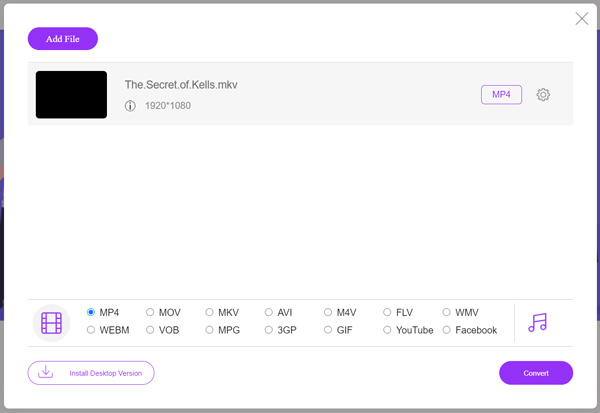
بعد از تبدیل MKV به MP4، میتوانید فایل تبدیلشده را با Windows Media Player پخش کنید. در طول فرایند تبدیل، هیچ افتی در کیفیت تصویر یا صدا رخ نخواهد داد.
قسمت 4. سQالات متداول پخش MKV در Windows Media Player
س 1.ال 1. چگونه می توان قالب یک فیلم را در Windows Media Player تغییر داد؟
Windows Media Player را باز کنید و فایل ویدیویی را که می خواهید تبدیل کنید بارگیری کنید. روی پیکان کوچک در زیر برگه Rip در فهرست بالا کلیک کنید. گزینه های بیشتر را انتخاب کنید و سپس روی منوی کشویی با عنوان Format کلیک کنید. در اینجا می توانید یک قالب خروجی مناسب انتخاب کرده و تبدیل را شروع کنید.
سوال 2. Windows Media Player چه قالب ویدیویی است؟
فرمت فایل پیش فرض Windows Media Player WMV ، Windows Media Video و WMA ، Windows Media Audio است. همچنین ، از Advanced Systems Format و قالب XL خود ، لیست پخش Windows ، پشتیبانی می کند.
سوال 3. آیا ویندوز 10 می تواند پرونده های MKV را پخش کند؟
خیر. Windows Media Player 12 داخلی در ویندوز 10 نمی تواند پرونده های MKV را پخش کند. برای دریافت پخش ، باید کدک MKV را نصب کنید.
نتیجه
وقتی Windows Media Player نتواند کدک MKV را تشخیص دهد، فقط یک خطا نمایش میدهد. برای پخش فایل MKV در Windows Media Player باید کدک مناسب را نصب کنید. همچنین میتوانید از یک پخشکنندهٔ شخصثالث استفاده کنید یا برای پخش، فرمت MKV را تبدیل نمایید. اگر هنوز دربارهٔ نحوهٔ باز کردن فایل MKV در Windows Media Player سؤالی دارید، بدون تردید برای ما پیام بگذارید.
-
 8 بازیکن برتر MKV برای پخش فایلهای MKV با زیرنویس مورد نظر
 وقتی می خواهید فیلم MKV را با زیرنویس مورد نظر پخش کنید ، می توانید در مورد 8 دستگاه پخش کننده برتر پرونده MKV برای PC / Mac اطلاعات بیشتری کسب کنید و متناسب با نیاز خود فیلم مورد نظر را انتخاب کنید.
-
 MKV به MOV - نحوه تبدیل MKV به MOV
 چگونه می توانم MKV را به MOV در Mac تبدیل کنم؟ آیا iMovie می تواند MKV را بخواند؟ فرمت MOV به چه معناست؟ در این پست 2 روش ساده برای کمک به شما در تبدیل MKV به MOV با مبدل های ویدیویی رایگان آنلاین و حرفه ای آورده شده است.
-
 پخش کننده AC3 - بررسی 10 بهترین بازیکن رایگان AC3 سال 2021
 بهترین پخش کننده AC3 چیست؟ آیا MX Player می تواند AC3 را باز کند؟ این پست لیستی از 10 پخش کننده AC3 رایگان برای دستگاه های مک ، ویندوز PC ، iOS و Android را ایجاد می کند.
