


 Video Converter Ultimate
 ضبط صفحه
 تعمیر ویدیو
علل و راه حل های خطای عدم پشتیبانی کدک ویدیویی
آیا تا به حال در موقعیتی قرار گرفتهاید که هنگام پخش یک ویدئو در مدیا پلیر یا تلویزیون خود با خطای “کُدِک ویدئو پشتیبانی نمیشود” مواجه شده باشید؟ اگر این خطا حتی روی ویدئوهای دیگر شما، مثل ویدئوهای ضبطشده، هم رخ دهد تعجب نکنید. واقعیت این است که حتی اگر دستگاه را ریاستارت کنید یا ویدئو را دوباره پخش کنید، باز هم ممکن است ویدئو اجرا نشود. پس دقیقاً این خطای ویدئویی چه معنایی دارد، چرا رخ میدهد و آیا راهحل منطقی برای آن وجود دارد؟ به طور کلی مشکل «کُدِکهای پشتیبانینشده» در ویدئو امروزه بسیار رایج است. خوشبختانه این مقاله قصد دارد دلایل بروز این خطا و راهحلهای آن را ارائه دهد. بنابراین با بهکارگیری راهکارهای مطرحشده، میتوانید مشکل کُدِک پشتیبانینشده را برطرف کنید و از یک تجربه پخش ویدئوی روان و لذتبخش برخوردار شوید.

بخش 1. چه و چرا خطای Unsupported Video Codec رخ می دهد
خطای پشتیبانی نشدن کدک ویدیو چیست؟
خطایی که خطای کدک ویدیو را بیان می کند، مشکل کمپرسور-دکمپرسور ویدیو است. کدک ها که مخفف عبارت compressor-decompressor هستند، فناوری هایی هستند که وظیفه رمزگذاری و رمزگشایی داده های صوتی و تصویری را بر عهده دارند. بنابراین، مشکل زمانی که نمیتوانید کدک ویدیویی را که پشتیبانی نمیشود پخش کنید، معمولاً زمانی ظاهر میشود که دستگاه یا پخشکننده رسانه با یک فایل ویدیویی با کدک ناسازگار با پخشکننده یا دستگاه مواجه میشود.
چرا خطای کدک ویدیویی پشتیبانی نمیشود؟
اگر میخواهید کمی بیشتر بدانید و در مورد علت بروز این خطا صحبت کنیم، این بخش را ادامه دهید. همانطور که پیشتر اشاره شد، این نوع خطا زمانی رخ میدهد که پخشکننده ویدئو یا پلتفرم، با فایل ویدئوییای روبهرو شود که با کُدِکی رمزگذاری شده که دستگاه قادر به تفسیر آن نیست. به عبارت دیگر، اگر دستگاه یا مدیا پلیر شما اجزای لازم برای رمزگشایی فایل ویدئویی را نداشته باشد، این خطا رخ میدهد. علاوه بر این، تفاوت در پشتیبانی از کُدِکها معمولاً به دلیل اختلاف در نرمافزار، محدودیتهای لایسنس، یا فریمور است. برای نمونه، اگر یک فایل ویدئویی با کُدِک H.265 یا HEVC رمزگذاری شده باشد، ممکن است با دستگاه یا برنامه مدیا پلیری که فقط برای پشتیبانی از H.264 یا کُدِکهای قدیمیتر طراحی شده، سازگار نباشد.
جدا از اینکه ویدیوی کدک توسط پخش کننده پشتیبانی نمی شود، کدک صوتی از دست رفته نیز می تواند یکی از دلایل این خطا باشد.
قسمت 2. نحوه رفع کدک ویدیویی پشتیبانی نشده
راه حل 1. از یک مدیا پلیر جایگزین استفاده کنید
اگر در پخش فایلهای ویدئویی خود روی یک پخشکننده خاص مشکل دارید، بهترین و سریعترین راهحل این است که ویدئوها را با یک مدیا پلیر جایگزین امتحان کنید. چندین پخشکننده ویدئوی عالی وجود دارد، مانند VLC، ویندوز مدیا پلیر، کوئیکتایم و بسیاری گزینههای دیگر. هر مدیا پلیر قادر است طیف گستردهای از فرمتها و کُدِکهای اصلی ویدئویی را بهخوبی مدیریت کند. با این حال باید بدانید که حتی با یک پخشکننده جدید هم ممکن است گاهی با خطای 'فرمت ویدئویی پشتیبانی نمیشود' مواجه شوید. اما در مجموع، استفاده از چند مدیا پلیر مختلف، یکی پس از دیگری، میتواند به شما در رفع مشکل «کُدِکهای پشتیبانینشده» کمک کند.
راه حل 2. پخش کننده رسانه فعلی خود را به روز کنید
اگر به پخش کننده رسانه فعلی خود وفادار هستید و نمی خواهید آن را جایگزین کنید، حداقل آن را به آخرین نسخه خود به روز کنید. بهروزرسانیهای پخشکنندههای رسانه اغلب شامل سازگاری بهبود یافته با طیف وسیعی از کدکهای ویدیویی است. در اینجا چند راهنمای آموزشی در مورد نحوه به روز رسانی پخش کننده های رسانه ای خاص در رایانه شما آورده شده است.
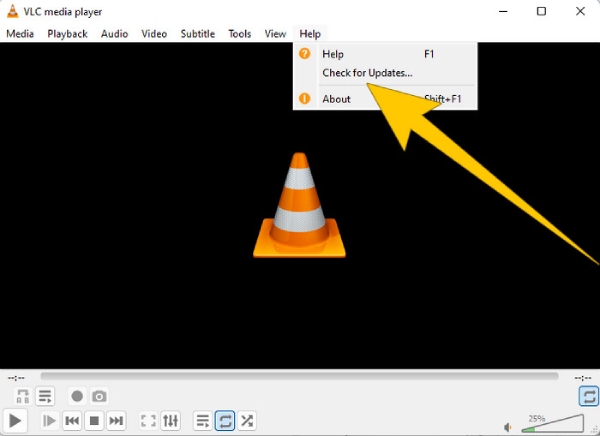
برای VLC Media Player
مرحله ۱. مدیا پلیر خود را باز کنید.
مرحله ۲. به زبانه منوی Help بروید.
مرحله ۳. گزینه Check for Updates را انتخاب کنید.
برای Windows Media Player
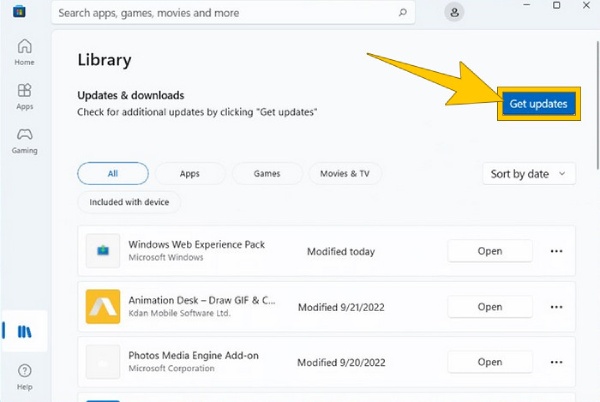
مرحله ۱. به Microsoft Store خود بروید.
مرحله ۲. وارد بخش Library شوید تا فهرست برنامههایتان را ببینید.
مرحله ۳. سپس روی دکمه Get Updates کلیک کنید تا نصب بهروزرسانیها برای برنامهها، از جمله Windows Media Player، آغاز شود.
راه حل 3. فیلم را به فرمت دیگری تبدیل کنید
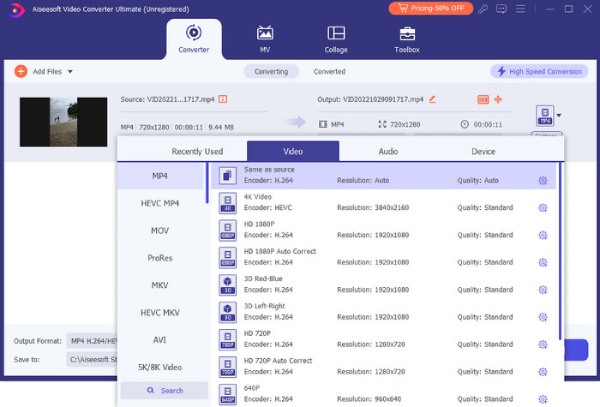
اگر برای نمونه، کُدِک ویدئوی شما در دستگاه سامسونگ پشتیبانی نمیشود، ممکن است مشکل از ناسازگاری فرمت فایل ویدئویی باشد. در چنین مواردی، تبدیل فرمت ویدئو به فرمتهای دیگری که سامسونگ یا دستگاه خاص شما از آنها پشتیبانی میکند، میتواند راهحلی عملی باشد. بنابراین اگر بهدنبال بهترین مبدّل ویدئو برای کمک در این زمینه هستید، FVC Video Converter Ultimate را بهشدت توصیه میکنیم. دلیل آن امکانات فوقالعاده این ابزار است؛ از تبدیل فوقسریع، حتی برای ویدئوهای دستهای، گرفته تا گزینههای فراوان در ابزارهای ویرایش و انواع فرمتها.
دانلود رایگانبرای ویندوز 7 یا بالاتردانلود ایمن
Free Downloadبرای macOS 10.7 یا جدیدتردانلود ایمن
راه حل 4. فایل ویدیویی پشتیبانی نشده را برطرف کنید
اگر تبدیل فایل مورد علاقهتان نیست، به جای آن، تعمیر خود ویدئو را در نظر بگیرید. زیرا نمیتوان از این واقعیت چشمپوشی کرد که اگر ویدئو قابل پخش نباشد، ممکن است خراب شده باشد. در چنین حالتی، استفاده از ابزار تعمیر ویدئو مانند FVC Video Repair را برای حل مشکل مد نظر قرار دهید. این ابزار تعمیر میتواند فقط در چند ثانیه پس از آغاز فرایند، فایلهای ویدئویی شما را ترمیم کند. این برنامه به شما اجازه میدهد بدون دردسر، فایل خود را بارگذاری و تعمیر کنید. نوع فرایندی که این ابزار تعمیر ویدئو ارائه میدهد، آن را برای استفاده بسیار برجسته کرده است. علاوه بر این، گزینه پیشنمایش دارد که به شما امکان میدهد پیش از ذخیره ویدئو پس از تعمیر، آن را بررسی کنید. چگونه با استفاده از FVC Video Repair مشکل کُدِک را برطرف کنید؟ مراحل زیر را دنبال کنید.
مرحله ۱. ابزار را بهصورت رایگان با کلیک روی دکمه Download زیر نصب کنید.
دانلود رایگانبرای Windows 7 یا نسخههای جدیدتردانلود ایمن
دانلود رایگانبرای MacOS 10.7 یا جدیدتردانلود امن
مرحله ۲. آن را اجرا کرده و با کلیک روی دکمههای Add در رابط برنامه، فرایند را آغاز کنید. برای بارگذاری ویدئوی خراب، روی دکمه قرمز کلیک کنید. سپس برای بارگذاری یک ویدئوی نمونه، دکمه بنفش را بزنید.
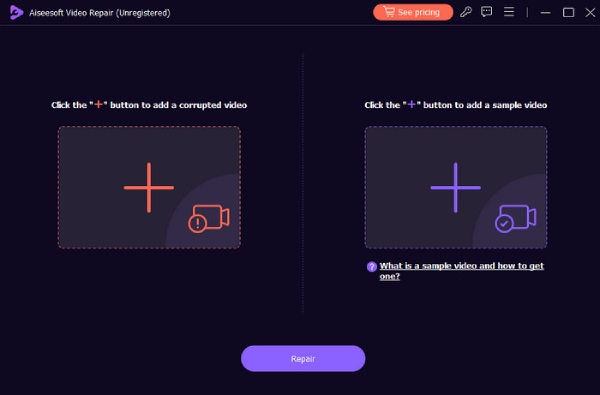
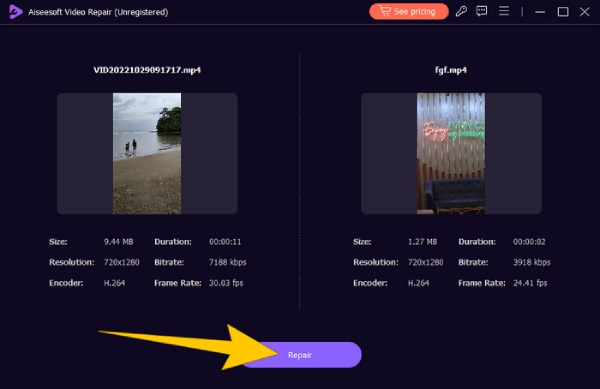
مرحله ۳. وقتی ویدئوها بارگذاری شدند، روی دکمه Repair کلیک کنید.
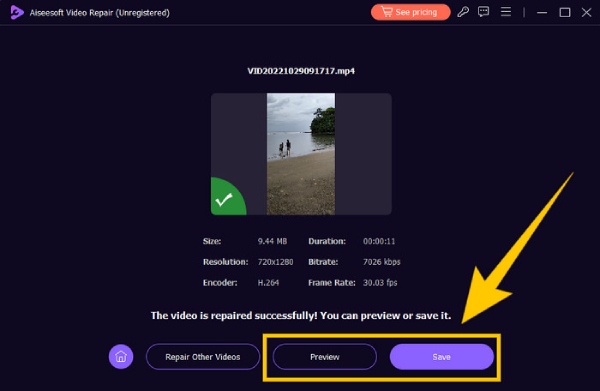
مرحله ۴. پسازآن، اگر میخواهید ویدئوی تعمیرشده را بررسی کنید، میتوانید روی دکمه Preview کلیک کنید. در غیر این صورت، برای خروجی گرفتن، روی دکمه Save بزنید.
بخش 3. سؤالات متداول در مورد خطای کدک ویدیویی
چگونه یک فایل ویدیویی پشتیبانی نشده را تعمیر کنم؟
برای اینکه مطمئناً فایل ویدیویی را تعمیر کنید، از یک ابزار مبدل ویدیویی برای تبدیل فرمت پشتیبانی نشده به یک فرمت سازگار استفاده کنید. یا به جای آن از یک ابزار تصحیح ویدیو استفاده کنید.
چگونه کدک های ویدئویی را تبدیل کنم؟
برای تبدیل کدک ویدیویی، میتوانید با کمک ابزار مبدل ویدیو را به فرمتی تبدیل کنید که از کدک متفاوتی استفاده میکند.
چگونه کدک یک ویدیو را پیدا کنم؟
مشخصات فایل ویدئویی را بررسی کنید تا ببینید از چه کُدِکی استفاده میکند. میتوانید بسیاری کُدِک رایگان برای پخشکننده ویندوز خود بیابید، مانند MKV codec for Windows Media Player.
نتیجه
مواجهه با خطاهای ویدئویی مانند “Video codec not supported” واقعاً آزاردهنده است. اما به لطف راهحلهایی که در بالا برای شما آماده شده، میتوانید با اعتمادبهنفس با این مشکل روبهرو شوید. ما چهار راهحل رایج را برجسته کردیم، بهویژه تعمیر ویدئوی غیرقابلپخش با کمک FVC Video Repair.
-
 خطای 0xc10100bf در ویدیو چیست و چگونه آن را برطرف کنیم
 آیا ویدیوی شما به دلیل خطای 0xc10100bf پخش نمی شود و به دنبال راه هایی برای رفع آن هستید؟ در این مقاله، یاد خواهید گرفت که چیست و چگونه آن را برطرف کنید.
-
 EaseUS Video Repair – بررسی عمیق در سال 2025
 بررسی جامع EaseUS Video Repair را بررسی کنید. بیاموزید که چگونه این نرم افزار همه کاره می تواند به شما کمک کند ویدیوهای خراب یا آسیب دیده را سریع و آسان ترمیم کنید.
-
 بررسی استاد ویدیوی تعمیر: در اینجا همه چیزهایی است که باید بدانید
 اکنون ویدیوهای خود را با Repair Video Master اصلاح کنید! همچنین، در این بررسی جامع با ویژگیها، مزایا و راهنمای سریع نحوه استفاده از آنها آشنا شوید.
