


 Video Converter Ultimate
 ضبط صفحه
 تعمیر ویدیو
نحوه ضبط MP4 در آیفون: تنظیمات و بهترین راه حل ها برای کشف
آیا آیفون با فرمت MP4 ضبط میکند؟ به طور معمول، آیفونها ویدیوها را با فرمت MOV ضبط میکنند که معمولاً بدون مشکل کار میکند. اما اگر بخواهید این ویدیوهای آیفون را با دستگاههایی که از MOV پشتیبانی نمیکنند به اشتراک بگذارید، دچار دردسر میشوید. بنابراین، چه در حال تماشا، چه فیلمبرداری و چه ویرایش یک ویدیو روی آیفون خود باشید، مهم است که فرمتهای ویدیویی آن را بشناسید. این درک و آگاهی میتواند با استفاده از نوع فایل و کُدکهای درست، به شما کمک کند از مشکلات پخش جلوگیری کنید. پس در این مقاله، سه روش ساده برای ضبط ویدیو با فرمت MP4 در آیفون به شما نشان میدهم تا ویدیوها برای پخش و ویرایش، سازگار باشند.

قسمت 1. آیا آیفون فیلم ها را به صورت MP4 ضبط می کند؟
بسیاری از مردم، به خصوص کاربران غیر آیفون، تعجب می کنند که آیا آیفون با فرمت MP4 ضبط می کند یا خیر. خوب، برای پاسخ سریع به آن، آیفونها میتوانند ویدیوها را در دو فرمت ضبط کنند. اما این هنوز به تنظیمات بستگی دارد. گزینه پیشفرض MOV است که فرمتی پرکاربرد برای دستگاههای اپل است که در برخی دستگاهها به خوبی پخش میشود. با این حال، آیفون ها همچنین گزینه ای برای صرفه جویی در فضا به نام کارایی بالا یا HEVC ارائه می دهند. این از فرمت متفاوتی استفاده می کند، اما همچنان می توانید آن ضبط ها را مستقیماً در آیفون خود مشاهده کنید.
اکنون در مورد ضبط صفحه، ضبط کننده داخلی صفحه نمایش آیفون فقط ضبط ها را با فرمت MOV ذخیره می کند. بنابراین، اگر به ضبطهای MP4 نیاز دارید و اگر میخواهید این ویدیوهای MP4 را مستقیماً بر روی آیفون خود ویرایش کنید، باید به دلیل محدودیتهای موجود در اپ استور به یک ضبط کننده صفحه نمایش حرفهای یا نرمافزار ویرایش روی رایانه خود متوسل شوید.
قسمت 2. نحوه ضبط MP4 در آیفون بدون تبدیل
در راستای ضبط ویدیو با فرمت MP4 در آیفون، در اینجا یک نرمافزار حرفهای به نام FVC Screen Recorder معرفی میشود که به شما کمک میکند همهچیز، حتی ویدیوها را، روی آیفون خود اسکرین رکورد کنید و خروجی MP4 بگیرید. FVC Screen Recorder شامل رکوردرهای مختلفی است، از جمله رکورد مخصوص آیفون شما. این برنامه با آینهکردن (میرور کردن) صفحهنمایش گوشیتان کار میکند و سپس همهچیز، از جمله صدای سیستم را ضبط میکند. آنچه این ابزار را منحصربهفرد میکند، ارائه ابزارهای حاشیهنویسی (Annotation) است که به شما امکان میدهد ضبطهای خود را شخصیسازی کنید. واقعاً با این FVC Screen Recorder دیگر نیازی ندارید برای داشتن کیفیت عالی ویدیوی MP4، ویدیوهای آیفون را تبدیل کنید. فقط کافی است آموزش زیر درباره نحوه ضبط MP4 در آیفون را دنبال کنید و کار تمام است.
مرحله 1. اولین کاری که باید انجام دهید این است که ضبطکننده را برای کامپیوتر خود تهیه کنید. میتوانید با کلیک روی دکمههای Download زیر، آن را برای دسکتاپ یا مک بگیرید. نکته: میتوانید آیفون خود را از قبل آماده کرده و آن را به همان شبکه WLAN که کامپیوترتان به آن متصل است، وصل کنید.
دانلود رایگانبرای Windows 7 یا بالاتردانلود امن
دانلود رایگانبرای MacOS 10.7 یا بالاتردانلود امن
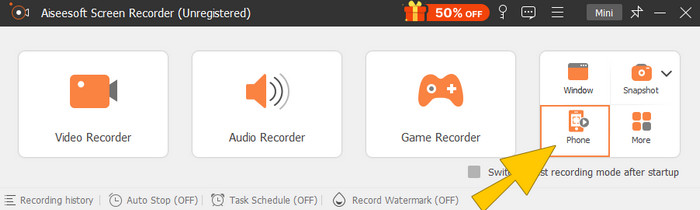
مرحله 2. اسکرین رکوردر را اجرا کرده و روی ابزار ضبط Phone کلیک کنید. سپس، گزینه iOS را انتخاب کنید. به کنترل سنتر (Control Center) خود بروید، روی قابلیت Screen Mirroring ضربه بزنید و گزینه Screen Recorder را آنجا انتخاب کنید. با این کار دو دستگاه شما برای شروع ضبط به هم متصل میشوند.
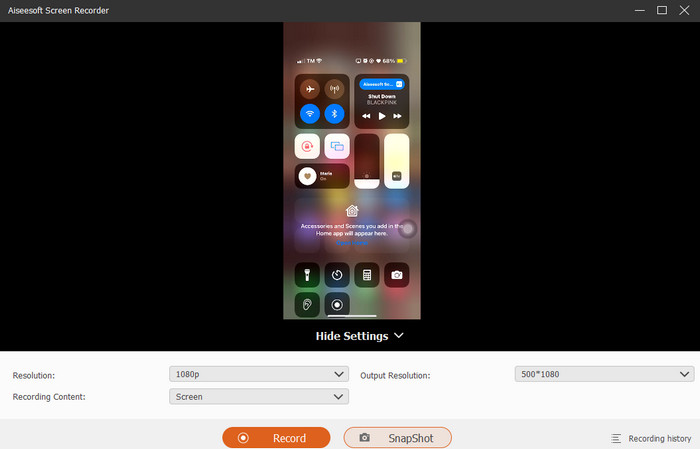
مرحله 3. وقتی اتصال برقرار شد، اکنون میتوانید روی دکمه Record کلیک کنید. پس از پایان کار، روی دکمه Stop کلیک کنید.
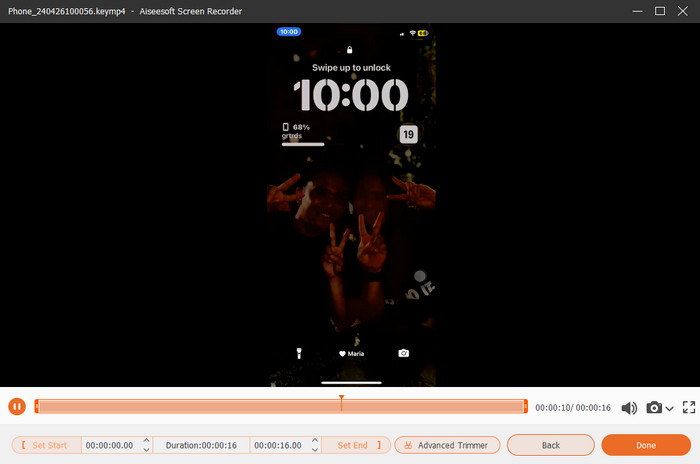
مرحله 4. بعد از ضبط، ابزار شما را به بخش ذخیرهسازی میبرد، جایی که میتوانید ضبط خام را ویرایش کنید. این ویرایشها شامل تنظیم حجم صدا، برش (Trim) و گرفتن اسکرینشات است. در غیر این صورت، برای ذخیره MP4 ضبطشده، روی دکمه Done کلیک کنید.
قسمت 3. نحوه ضبط MP4 از طریق تنظیمات آیفون
به طور معمول، ویدیوهایی که با آیفون خود می گیرید به عنوان فایل های MP4 ذخیره نمی شوند. با این حال، اگر آنها را در فرمت MP4 می خواهید، باید تنظیمات را تغییر دهید، که احتمالاً ساده ترین راه برای انجام این کار است. اما صبر کنید، مهم است که توجه داشته باشید که تغییر به MP4 ممکن است فضای ذخیره سازی زیادی را در تلفن شما ایجاد کند. بنابراین، قبل از اینکه تنظیمات را تغییر دهید، در نظر بگیرید که آیا ارزش امتحان کردن را دارد یا خیر. در غیر این صورت، به مراحل ارائه شده در زیر نگاه کنید.
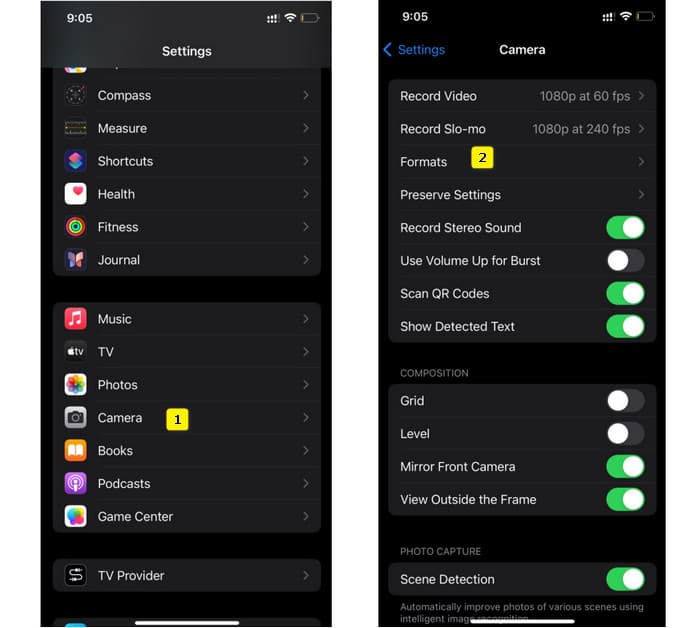
مرحله 1. به اپلیکیشن Settings گوشی خود بروید و بهدنبال برنامه Camera بگردید، سپس روی آن ضربه بزنید تا باز شود.
مرحله 2. اکنون به بخش Format بروید و روی آن ضربه بزنید. سپس آن را روی گزینه Most Compatibility تنظیم کنید تا MP4 بهصورت پیشفرض داشته باشید.
مرحله 3. بعد از آن، میتوانید با استفاده از ضبطکننده صفحه داخلی آیفون، شروع به ضبط کنید.
قسمت 4. تبدیل فایل های ضبط شده آیفون به MP4 آنلاین به صورت رایگان
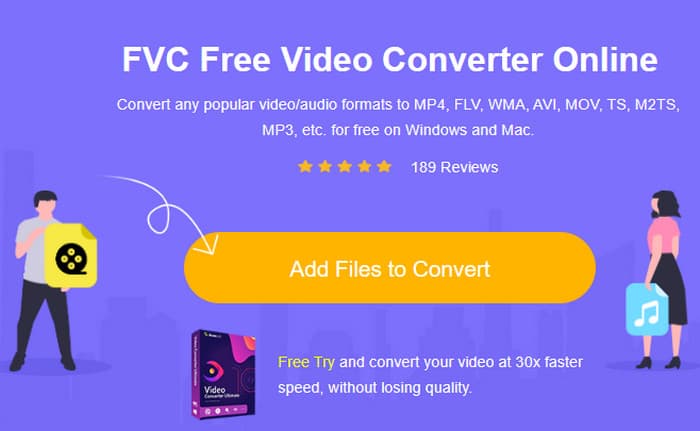
بپذیرید، وقتی ضبط مستقیم به MP4 گزینه مورد علاقهتان نباشد، آخرین راهحل شما تبدیل فرمت خواهد بود. با این حساب، میتوانید از یک مبدل آنلاین رایگان برای داشتن راهحلی آسانتر و سریعتر برای ویدیوی خود استفاده کنید. با FVC Free Video Converter Online آشنا شوید؛ برنامهای رایگان که به شما اجازه میدهد ویدیوها و موسیقی خود را به فرمتهای مختلف تبدیل کنید. این ابزار با فایلهای محبوب ویدیویی و صوتی کار میکند و میتواند آنها را به فرمتهایی مانند MP4، FLV، AVI، WMV، MOV، MKV و بسیاری موارد دیگر تبدیل کند. حتی ویدیوهای با وضوح بالا نیز میتوانند بدون افت کیفیت و به سرعت تبدیل شوند! همچنین میتوانید چندین ویدیو را بهطور همزمان تبدیل کنید تا زمان بیشتری در تبدیل صرفهجویی شود. چیزی که استفاده از آن را راحتتر میکند این است که لازم نیست فایلهای تبدیلشده خود را جداگانه دانلود کنید، زیرا فقط از شما میخواهد محل ذخیره فایل را انتخاب کنید تا خروجیها مستقیماً در همانجا ذخیره شوند! پس بیایید این ابزار شگفتانگیز را امتحان کنیم و ویدیوهای آیفون خود را سریع تبدیل کنیم!
مرحله 1. در مرورگر دسکتاپ خود، به وبسایت رسمی ابزار بروید. سپس روی دکمه Add Files to Convert کلیک کنید تا لانچر را بگیرید. پس از دریافت، دوباره روی دکمه کلیک کنید تا ویدیوهای آیفون خود را آپلود کنید.
مرحله 2. وقتی به رابط اصلی رسیدید و خواستید ویدیوهای آیفون بیشتری برای تبدیل اضافه کنید، فقط روی دکمه Add File کلیک کنید. سپس با کلیک روی فایلها و انتخاب فرمت در پایین، آنها را روی MP4 تنظیم کنید.
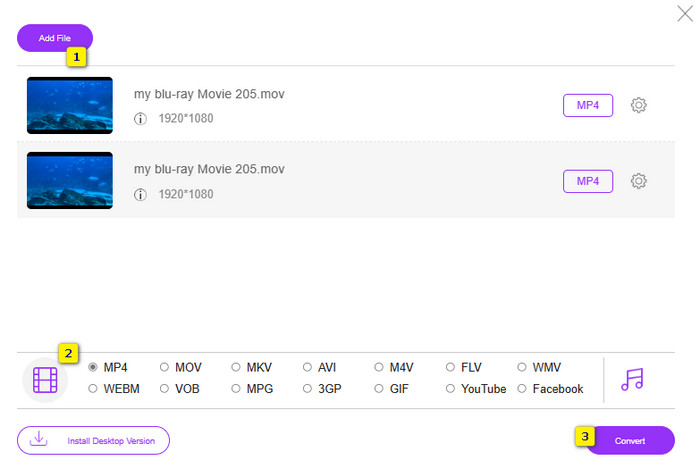
مرحله 3. پس از اتمام، روی دکمه Convert کلیک کرده و محل ذخیره فایل را انتخاب کنید. بلافاصله بعد از انتخاب، فرایند تبدیل شروع میشود.
با مراحل بالا، میتوانید بهراحتی ویدیوی MOV آیفون را به MP4 بهصورت رایگان تبدیل کنید.
بخش 5. سوالات متداول در مورد ضبط ویدئو MP4 آیفون
آیا می توانم فیلم های MP4 ضبط شده در آیفون خود را ویرایش کنم؟
بله، می توانید ویدیوهای MP4 را در آیفون خود ویرایش کنید. برای انجام این کار، از برنامه های مختلف ویرایش ویدیوی موجود در فروشگاه App خود استفاده کنید. در غیر این صورت می توانید فیلم ها را به کامپیوتر خود منتقل کرده و با استفاده از نرم افزارهای حرفه ای ویرایش فیلم، آنها را ویرایش کنید.
چگونه می توانم فیلم های MP4 را از آیفون به رایانه شخصی منتقل کنم؟
چندین روش وجود دارد که می توانید برای انتقال ویدیوهای خود از آیفون به رایانه شخصی استفاده کنید. میتوانید از کابل USB استفاده کنید، ویدیوها را در فضای ذخیرهسازی ابری آپلود کنید یا از نرمافزاری استفاده کنید که به شما در انتقال آنها کمک میکند.
آیفون با چه کیفیت و وضوح تصویر MP4 ضبط می کند؟
این بستگی به مدل آیفون شما دارد. آیفون ها معمولا با فرمت MP4 با رزولوشن های مختلف و گزینه های کیفیت فیلم ضبط می کنند. گزینه ها از کیفیت استاندارد تا کیفیت بالا و حتی 4K در مدل های جدیدتر متغیر است.
نتیجه
اینها روش هایی هستند که به شما راهنمایی می کنند که چگونه MP4 را به راحتی بر روی آیفون خود ضبط کنید. آنچه را که برای شما مناسب تر است انتخاب کنید و آن را با دوستان خود نیز به اشتراک بگذارید!
-
 نحوه تبدیل MP4 به MOV در Mac / PC / Online
 چگونه MP4 را به MOV در Mac تبدیل کنیم؟ آیا راهی رایگان برای تبدیل MP4 به MOV بدون افت کیفیت وجود دارد؟ این پست 4 روش ساده برای کمک به شما در تبدیل ویدیو از MP4 به MOV در Mac ، Windows PC و آنلاین را به اشتراک می گذارد.
-
 آموزش - 4 روش رایگان برای ادغام فیلم ها در iPhone در یک مورد جدید
 آیا می خواهید ویدیوها را در آیفون خود با هم ترکیب کنید؟ با همه مدلهای آیفون و نسخههای iOS پشتیبانیشده، ۴ راه آسان را بخوانید و دریافت کنید.
-
 [حل شد] نحوه رفع عدم پخش ویدیوها در آیفون با مراحل دقیق
 ویدیوهای محلی موجود در گالری را نمی توان از طریق پخش کننده پیش فرض ویدئو در iPhone شما پخش کرد؟ فیلم های آنلاین YouTube که در iPhone پخش نمی شوند همیشه اتفاق می افتد؟ در اینجا 5 راه حل وجود دارد که در این مقاله به شما کمک می کند.
