


 Video Converter Ultimate
 ضبط صفحه
 تعمیر ویدیو
راهنمای نهایی نحوه گرفتن اسکرین شات از FaceTime [2025]
فیستایم یک برنامه تماس ویدئویی پرکاربرد است که توسط اپل توسعه داده شده تا کاربرانش بتوانند روی آیفون، آیپد یا مک، مکالمه ویدئویی زنده داشته باشند. حالا گرفتن اسکرینشات هنگام تماسهای فیستایم راهی عالی برای ذخیره لحظات با فردی است که با او صحبت میکنیم، بهخصوص وقتی آن شخص مدتهاست از ما دور بوده است. بنابراین اگر میخواهید لحظات ارزشمند را در طول این تماسها ذخیره کنید، این مطلب برای شماست. کمی وقت بگذارید و ۳ روش گرفتن اسکرینشات فیستایم را بهسادگی یاد بگیرید. بیایید شروع کنیم!

قسمت 1: بهترین راه برای گرفتن اسکرین شات از FaceTime در iPhone/iPad/Mac
بهرهمند شدن از سادهترین روش برای گرفتن اسکرینشاتهای فیستایم در دستگاههای اپل با استفاده از FVC Screen Recorder ممکن است. این ابزار ضبط صفحه شخصثالث بهطور ویژه برای گرفتن اسکرینشات در آیفون، آیپد یا مک طراحی شده است. بنابراین اگر از هر کدام از این دستگاهها استفاده میکنید و میخواهید هنگام تماسهای ویدئویی فیستایم با خانواده، دوستان و عزیزانتان اسکرینشات بگیرید، از قابلیت اسنپشات و ضبطکننده تلفن آن بسیار بهره خواهید برد. علاوهبراین، بهدلیل رابط کاربری کاربرپسند، هر کاربری بهراحتی میتواند با این ابزار کار کند. در نهایت، اگر میخواهید با اسکرینشاتهای فیستایم خود خلاقیت به خرج دهید، بدون تردید از امکانات ویرایشی قابل شخصیسازی آن لذت خواهید برد.
روش 1: برای مک
مرحله ۱. ابتدا FVC Screen Recorder را روی مک خود دانلود و نصب کنید. این نرمافزار تقریباً از تمام نسخههای macOS، از جمله جدیدترین macOS 14 Sonoma پشتیبانی میکند.
مرحله ۲. سپس ابزار را اجرا کنید.
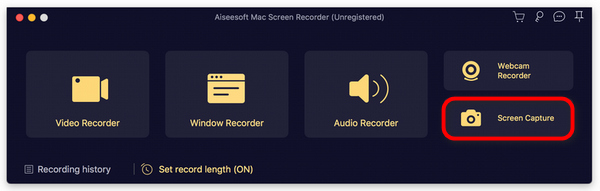
مرحله ۳. حالا، در حالی که روی مک خود در حال تماس ویدئویی فیستایم هستید، روی دکمه Screen Capture که در پنجره شناور رابط ابزار قرار دارد کلیک کنید.
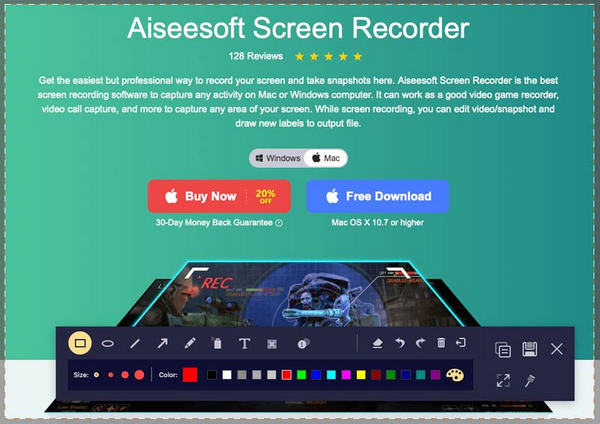
مرحله ۴. این مرحله اختیاری است، اما میتوانید با استفاده از ابزارهای ویرایشی متعدد در پایین، تصاویر اسکرینشات فیستایم خود را ویرایش کنید.
مرحله ۵. در نهایت روی Save کلیک کنید تا تصویر در مک شما ذخیره شود.
روش 2: برای iPhone و iPad
مرحله ۱. FVC Screen Recorder را این بار روی رایانه ویندوز خود دانلود و اجرا کنید.
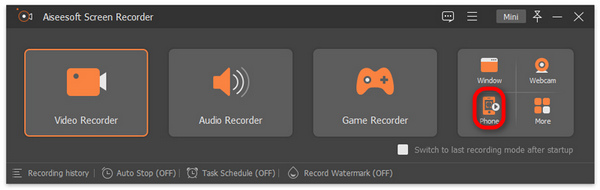
مرحله ۲. پس از نصب ابزار، آن را باز کنید و در سمت راست پنجره شناور رابط ابزار، در کنار ۳ گزینه دیگر، روی گزینه Phone کلیک کنید.
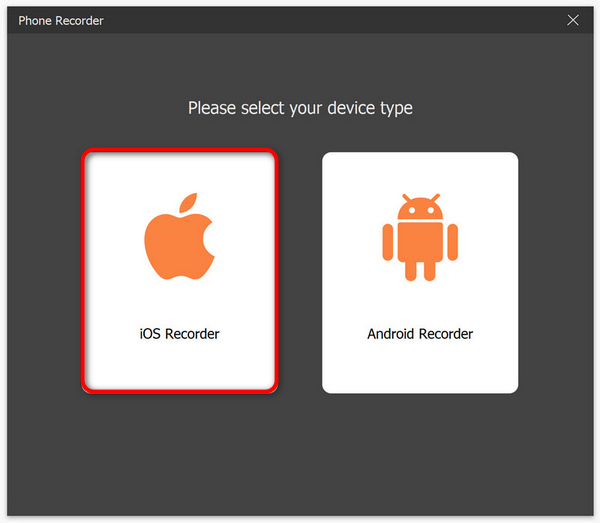
مرحله ۳. سپس روی گزینه iOS Recorder کلیک کنید.
مرحله ۴. اکنون یک پنجره جدید با دستورالعمل روی صفحه ظاهر میشود که در آن از شما خواسته میشود بین Screen Mirroring یا Audio Mirroring یکی را انتخاب کنید. در این حالت، گزینه Screen Mirroring را انتخاب کنید.
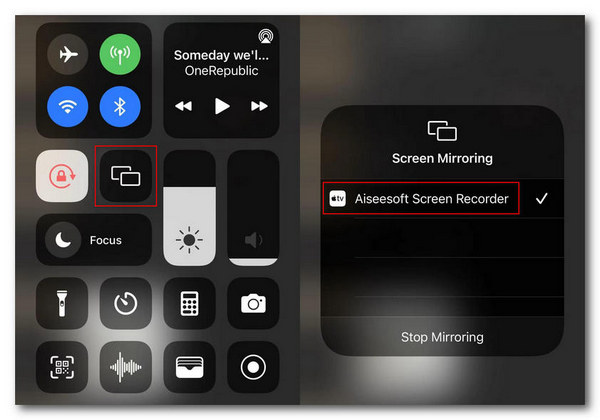
مرحله ۵. حالا در آیفون یا آیپد خود، Control Center را باز کرده و روی Screen Mirroring ضربه بزنید. سپس روی Aiseesoft Screen Recorder بزنید تا آیفون یا آیپد خود را به رایانه متصل کنید.
مرحله ۶. در نهایت، برای گرفتن اسکرینشات از آیفون یا آیپد خود، فقط روی آیکون Snapshot کلیک کنید.
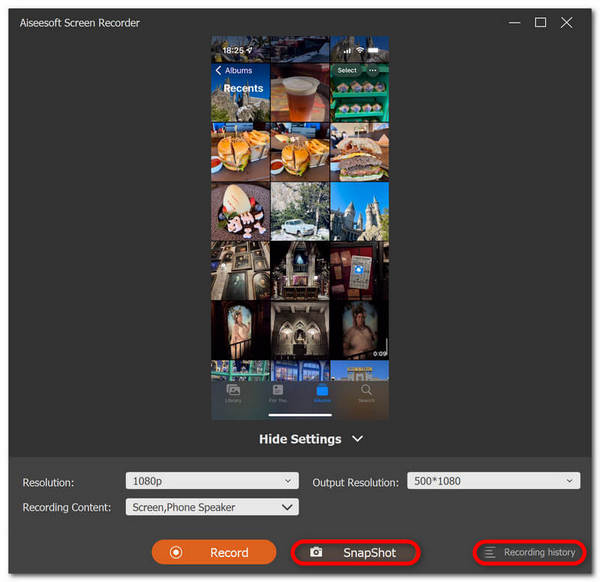
FVC Screen Recorder در واقع یک ابزار همه کاره برای گرفتن اسکرین شات است. یک ابزار را تصور کنید که می تواند چندین دستگاه iOS را پشتیبانی کند. خیلی خوبه که درست باشه، اما هست. بنابراین، صرف نظر از اینکه از چه دستگاه iOS استفاده می کنید، گرفتن اسکرین شات از FaceTime در حین تماس های ویدیویی با این ابزار ضبط صفحه امکان پذیر است.
قسمت 2: نحوه گرفتن اسکرین شات از FaceTime در iPhone/iPad
گرفتن اسکرین شات از FaceTime در آیفون یا آی پد را می توان با استفاده از ویژگی های اسکرین شات داخلی آن ها به صورت یکپارچه انجام داد.
مرحله ۱. دستگاه iOS یا iPadOS که در حین تماس ویدئویی فیستایم از آن استفاده میکنید را بررسی کنید.
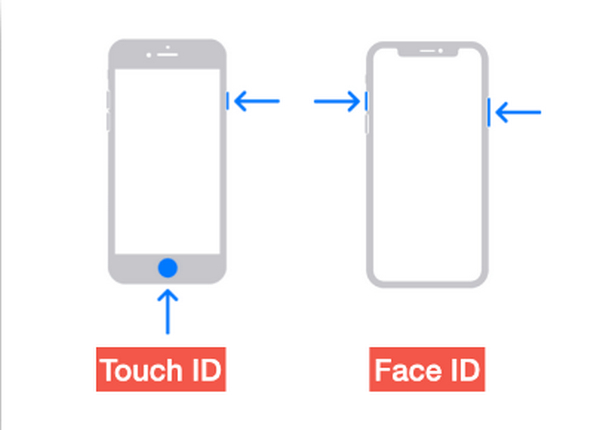
مرحله ۲. اگر دستگاه شما Touch ID دارد، برای گرفتن اسکرینشات از تماس ویدئویی فیستایم باید همزمان دکمههای Home و Power را فشار دهید. در مقابل، اگر آیفون یا آیپد شما Face ID دارد، میتوانید با فشار همزمان دکمههای Volume Up و Power از تماس فیستایم اسکرینشات بگیرید.
مرحله ۳. اسکرینشات خود را در اپلیکیشن Photos و در پوشه Screenshot پیدا کنید،,
در حالی که گرفتن اسکرین شات از FaceTime به دلیل ویژگی های اسکرین شات داخلی آن فقط یک تکه کیک در iPhone یا iPad است. با این حال، باید در مورد فشار دادن دکمه های مورد نیاز در طول تماس فعال FaceTime محتاط بود زیرا ممکن است خطر وقفه تصادفی مانند پایان دادن به تماس یا خاموش کردن ناخودآگاه صدا را به همراه داشته باشد.
قسمت 3: نحوه گرفتن اسکرین شات از FaceTime در مک
هنگامی که در مک خود تماس تصویری FaceTime دارید، ساده ترین راه برای انجام این کار این است که با استفاده از کلیدهای میانبر فیس تایم از آن اسکرین شات بگیرید.
مرحله ۱. ابتدا تماس ویدئویی فیستایم را روی مک خود باز کنید.
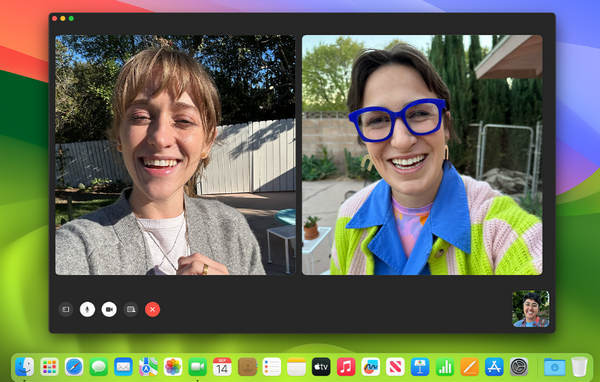
مرحله ۲. حالا در حین تماس ویدئویی، با استفاده از کلیدهای میانبر از فیستایم اسکرینشات بگیرید.
توجه: برای گرفتن اسکرینشات از کل صفحه تماس ویدئویی فیستایم، دکمههای Command، Shift و ۳ را با هم نگه دارید. در عین حال، اگر فقط میخواهید بخشی از صفحه را ثبت کنید، دکمههای Command، Shift و ۴ را همزمان فشار دهید و نگه دارید. در نهایت، اگر میخواهید فقط پنجره فیستایم را ثبت کنید، کلیدهای Command، Shift، ۴ و Space bar را همزمان فشار دهید.
مرحله ۳. اسکرینشات مستقیماً روی دسکتاپ شما ذخیره خواهد شد.
تنها چیزی که در مورد استفاده از کلیدهای میانبر در طول اسکرین شات FaceTime در مک این است که اگر بخواهید تصاویر اسکرین شات خود را سفارشی کنید، نمی توانید آن را ویرایش کنید. با این وجود، اگر فقط می خواهید از آن اسکرین شات بگیرید، خوب است، اما اگر می خواهید خلاق باشید، می توانید از ابزارهای شخص ثالث مانند FVC Screen Recorder استفاده کنید.
قسمت 4: سوالات متداول در مورد گرفتن عکس از صفحه FaceTime
اسکرین شات های FaceTime کجا می روند؟
می توانید به اسکرین شات های FaceTime خود در برنامه Photos دستگاه خود دسترسی داشته باشید. معمولاً پس از گرفتن اسکرین شات در حین تماس FaceTime، مستقیماً در آن ذخیره می شود، مخصوصاً در پوشه اسکرین شات های آن برنامه.
آیا FaceTime به شما می گوید که چه زمانی کسی از صفحه اسکرین شات می گیرد؟
خیر. FaceTime قابلیتی ندارد که به کسی که در طول تماس ویدیویی FaceTime اسکرین شات می گیرد، اطلاع دهد. بنابراین، اگر شخصی در حین تماس FaceTime شما اسکرین شات بگیرد، هیچ اعلانی دریافت نخواهید کرد.
اسکرین شات های FaceTime ذخیره نمی شوند؟
اگر با مشکل ذخیره نشدن اسکرین شات های FaceTime در دستگاه iOS خود مواجه هستید، ممکن است دلایل مختلفی برای این وجود داشته باشد. ابتدا باید مطمئن شوید که فضای ذخیره سازی دستگاه شما پر نیست، زیرا این می تواند دلیل اصلی ذخیره نشدن اسکرین شات های FaceTime باشد. اساساً این کار از ذخیره اسکرین شات های جدید جلوگیری می کند. علاوه بر این، تنظیمات حریم خصوصی دستگاه خود را بررسی کنید، شاید به این دلیل که برنامه Photos اجازه ذخیره اسکرین شات را ندارد. اگر مشکل همچنان ادامه داشت، راهاندازی مجدد دستگاه یا بهروزرسانی نرمافزار ممکن است به حل مشکل کمک کند.
نتیجه
در نهایت، گرفتن اسکرینشات فیستایم در طول تماسهای ویدئویی، سادهترین راه برای ذخیره و ثبت لحظات بهیادماندنی با عزیزان از راه دور است. چه از قابلیتهای داخلی دستگاههای iOS استفاده کنید و چه از ابزارهای شخصثالثی مانند FVC Screen Recorder، روشهای مختلفی برای ثبت این لحظات بهراحتی در دسترس شماست. بنابراین در استفاده از این ابزارها و امکانات تردید نکنید تا بیشترین بهره را از تجربههای فیستایم خود ببرید. همین حالا با عزیزانتان فیستایم کنید و با گرفتن یک اسکرینشات، آن لحظه را برای خود نگه دارید.
-
 چگونه اسکرین شات را حل کنیم که در آیفون کار نمی کند [2025]
 آیا برای گرفتن اسکرین شات در آیفون خود مشکل دارید؟ ما تو را گرفتیم! راهنمای جامع ما را بیاموزید تا به شما در رفع سریع و آسان اسکرینشاتهایی که در آیفونها کار نمیکنند کمک کند.
-
 اسکرین شات در ویندوز بدون چاپ صفحه [راهنمای 2025]
 به دنبال راه هایی برای گرفتن اسکرین شات در ویندوز بدون صفحه نمایش چاپی هستید. این مقاله کار را برای شما آسان کرده است. اکنون این را بخوانید و بدون دردسر از صفحه نمایش خود عکس بگیرید!
-
 4 روش برای گرفتن اسکرین شات در اسنپ چت بدون اینکه آنها بدانند
 آیا می خواهید در اسنپ چت بدون اینکه آنها بدانند اسکرین شات بگیرید؟ این مقاله دارای 4 روش موثر است که فقط برای شما طراحی شده است. اکنون آن را بررسی کنید و خودتان آن را امتحان کنید!
