


 Video Converter Ultimate
 ضبط صفحه
 تعمیر ویدیو
نحوه وارد کردن فایل های AVI به iMovie در سیستم عامل مک را بدانید
همانطور که همه میدانیم، iMovie در مک ابزاری بسیار شناختهشده برای ویرایش ویدیو است. اگر از این ابزار استفاده کنید، میبینید که چرا یکی از بهترینها در زمینه ویرایش است. اما در کنار همه مزیتهای iMovie، گاهی پیش میآید که نمیتوانید ویدیوها را برای ویرایش وارد برنامه کنید. این اتفاق بهویژه زمانی رایج است که فایل با فرمت AVI وارد میکنید. بهخاطر پشتیبانی گسترده از کُدِکها، فرمت AVI در میان کاربران محبوب شده است. با این حال، استفاده از این فرمت میتواند چالشبرانگیز باشد، مخصوصاً وقتی کُدِکی که فایل با آن کدگذاری شده توسط ابزاری که استفاده میکنید پشتیبانی نشود. بنابراین احتمالاً این سؤال برایتان پیش آمده که چطور AVI را به فرمتی سازگار با iMovie تبدیل کنید تا بعداً بتوانید ویدیو را ویرایش کنید. در فهرست زیر، چند ابزار معرفی شده که میتوانید از آنها برای تبدیل فرمت AVI استفاده کنید و همچنین دلیل اینکه چرا نمیتوانید فایلهای ویدیویی را در iMovie بارگذاری کنید را خواهید آموخت.

قسمت 1. چرا iMovie نتوانست فرمت فایل AVI را وارد کند
اگرچه، iMovie فقط در مک معتبر است، بنابراین انتظار داشته باشید که کدک های ویندوز اولویت کمتری داشته باشد. اما دلایلی وجود دارد که چرا نمی توانید ویدیوها را وارد کنید. در اینجا در لیست، ما در مورد 2 دلیل صحبت خواهیم کرد که چرا نمی توانید فرمت دیگری را به iMovie وارد کنید.
دلیل اول: iMovie فقط از طیف محدودی از کُدِکها پشتیبانی میکند. این میتواند دلیل آن باشد که بهخاطر ناسازگاری کُدِک، نمیتوانید در iMovie ویرایش انجام دهید. در مورد فرمت AVI، ویدیو باید به دادههای MJPEG کدگذاری شده باشد، در غیر این صورت فایل وارد برنامه نخواهد شد.
دلیل دوم: iMovie یا سیستمعامل مک شما بهروز نیست. این دلیل ساده است؛ چون اگر نرمافزار یا سیستمعامل شما بهروزرسانی نشده باشد، احتمال دارد نتواند فرمتهای جدیدتر را پشتیبانی کند.
اینها رایجترین دلایلی است که باعث میشود نتوانید در iMovie ویرایش انجام دهید؛ اما برای هر مشکلی، راهحلی هم وجود دارد. بر همین اساس، در ادامه چند روش برای رفع این مشکل آورده شده و لازم است یاد بگیرید چطور فایلهای AVI را به فرمتی قابل دسترس برای iMovie و با کُدِک مناسب تبدیل کنید.
قسمت 2. تبدیل AVI به فرمت سازگار با iMovie با کمک بهترین مبدل های AVI
1. مبدل ویدیوی آنلاین رایگان FVC
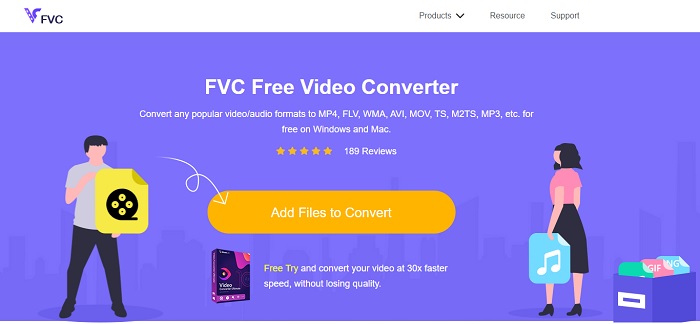
این ابزار رایگان تبدیل AVI به iMovie میتواند کار تبدیل را برایتان انجام دهد. برخلاف ابزار زیر، FVC Free Video Converter کاملاً رایگان و تحت وب است و نیازی به دانلود ندارد. همچنین، این ابزار آنلاین نسخه رایگان ابزار معرفیشده در بخش بعدی است. همانطور که گفته شد، این سرویس فشردهسازی خوبی ارائه میدهد، اما تفاوت آن با نسخه پرمیوم این است که امکانات حرفهای و فرمتهای متنوع نسخه پولی را در اختیار ندارد. با این وجود، همچنان یکی از بهترین ابزارهای آنلاین در مقایسه با سایر مبدلهایی است که میتوانید روی آنها حساب کنید. پس قبل از هر چیز، بیایید ببینیم این ابزار چگونه کار میکند؛ کافی است مراحل ساده زیر را دنبال کنید.
مرحله ۱. روی این لینک کلیک کنید تا به صفحه اصلی ابزار بروید.
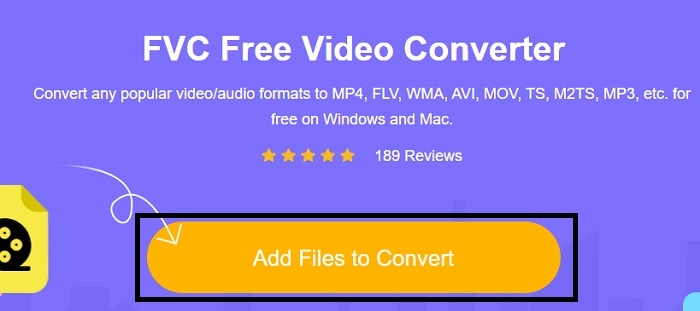
مرحله ۲. روی گزینه Add Files to Convert کلیک کنید تا مبدل آنلاین اجرا شود.
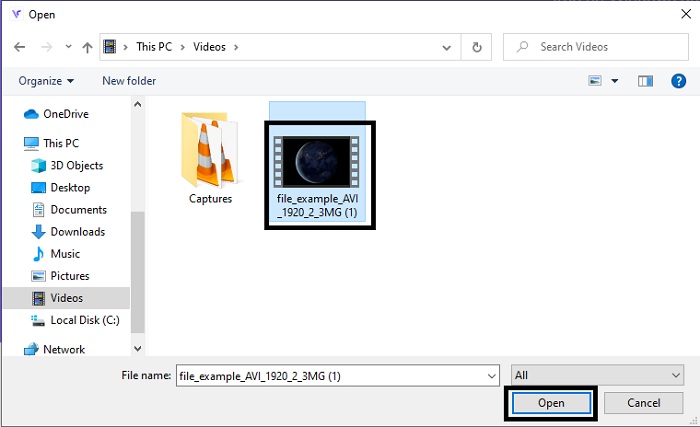
مرحله ۳. در ادامه، فایل AVI را انتخاب کرده و روی open کلیک کنید تا به رابط کاربری ابزار اضافه شود.
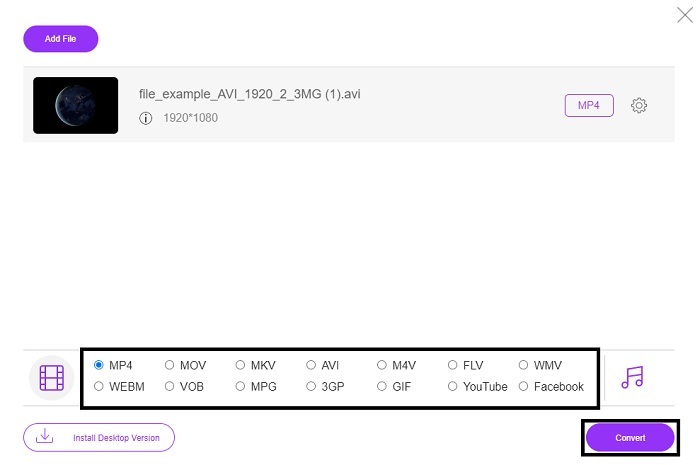
مرحله ۴. فرمتی را که میخواهید برای iMovie باشد انتخاب کنید. بعد از انتخاب، روی Convert کلیک کنید تا فرایند تبدیل شروع شود.
مرحله ۵. به فایلمنیجر (مدیریت فایل) بروید و فایل خروجی را پیدا کنید.
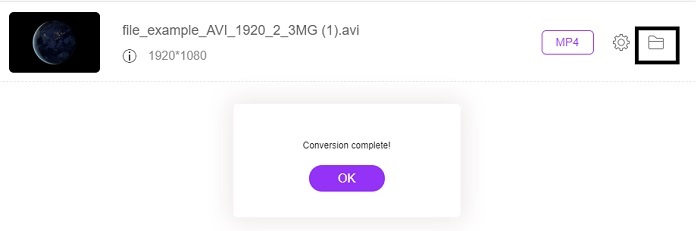
2. FVC Video Converter Ultimate
همانطور که قبلاً گفتیم، ابزار آنلاین ویژگی های ویرایش و فرمت های دیگر را نیز در اختیار شما قرار نمی دهد. FVC Video Converter Ultimate می تواند به عنوان جایگزینی برای iMovie به خصوص در ویرایش نیز استفاده شود. این به کاربران و مشتریان این امکان را می دهد که هر فایل رسانه ای را دستکاری کرده و نسخه جدیدی را بهبود بخشند، ویرایش کنند یا ایجاد کنند. اما این ابزار نیاز به پرداخت دارد اما پرهزینه نیست، بنابراین جای نگرانی نیست زیرا هر پنی که برای این ابزار می پردازید هنوز ارزشش را دارد.
پس از آنکه AVI را به فرمتی سازگار با iMovie تبدیل کردید، میتوانید قبل از انتقال به iMovie آن را بهتر ویرایش کنید یا حتی اصلاً آن را به iMovie نیاورید و ویرایش را همینجا انجام دهید. اگر بخواهیم درباره کامل بودن این ابزار صحبت کنیم، احتمالاً به دو یا چند مقاله دیگر نیاز داریم تا آن را بهدرستی توضیح دهیم. بنابراین بدون اتلاف وقت، بیایید ادامه بدهیم و با تکرار مراحل زیر، AVI را با موفقیت به فرمتی جدید تبدیل کنیم.
مرحله ۱. قبل از استفاده از این ابزار، باید آن را روی دسکتاپ خود دانلود کنید. سیستمعاملی را انتخاب کنید که با کامپیوتر شما سازگار است. پس از اتمام دانلود، مراحل نصب را دنبال کرده و در پایان روی Finish کلیک کنید تا ابزار اجرا شود.
دانلود رایگانبرای ویندوز 7 یا بالاتردانلود امن
دانلود رایگانبرای MacOS 10.7 یا بالاتردانلود امن
مرحله ۲. برای اضافه کردن فایل AVI جهت تبدیل، روی Add Files یا علامت بعلاوه کلیک کنید؛ انتخاب هر کدام تفاوتی ندارد. فایلی را که میخواهید تبدیل شود انتخاب کرده و برای ادامه روی open کلیک کنید.
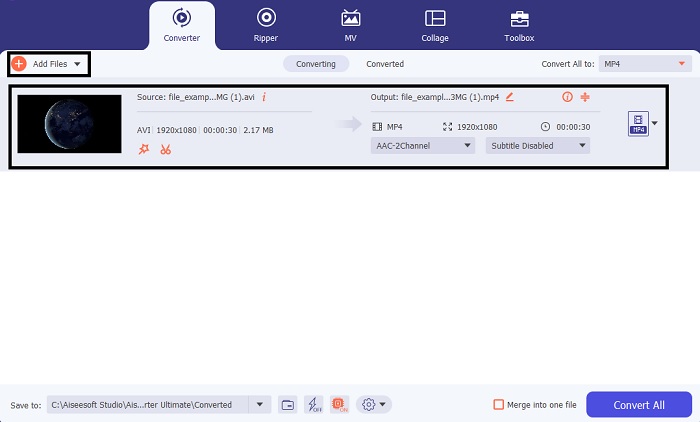
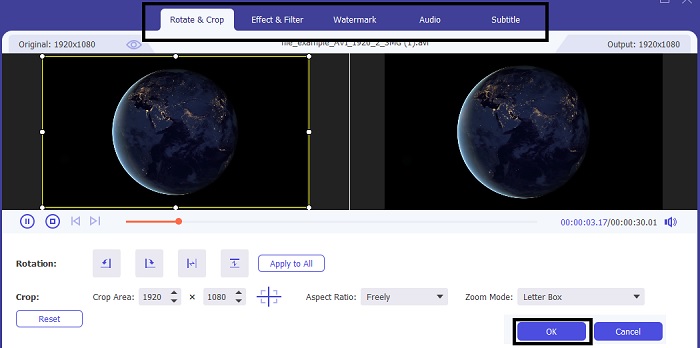
مرحله ۳. در رابط کاربری ابزار FVC، دکمهای به شکل چوبدستی جادویی خواهید دید؛ روی آن کلیک کنید. پنجره جدیدی روی صفحه ظاهر میشود که در آن میتوانید ویدیو را بهتر ویرایش کنید. یادآوری: این مرحله فقط یک قابلیت اضافی است، اگر بخواهید قبل از تبدیل کمی ویرایش انجام دهید. در این صورت شاید بعداً دیگر نیازی به iMovie برای ویرایش نداشته باشید. برای ذخیره تغییرات روی OK کلیک کنید.
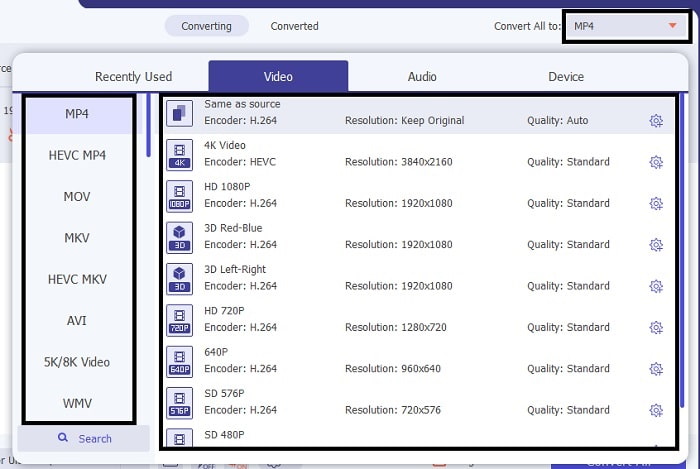
مرحله ۴. پس از انجام تمام مراحل، روی دکمه drop-down کلیک کنید و فرمتی را که میخواهید برای iMovie باشد انتخاب کنید. وقتی فرمت جدید برای فایل AVI را انتخاب کردید، باید روی Convert All کلیک کنید تا ابزار فرمان شروع تبدیل را دریافت کند.
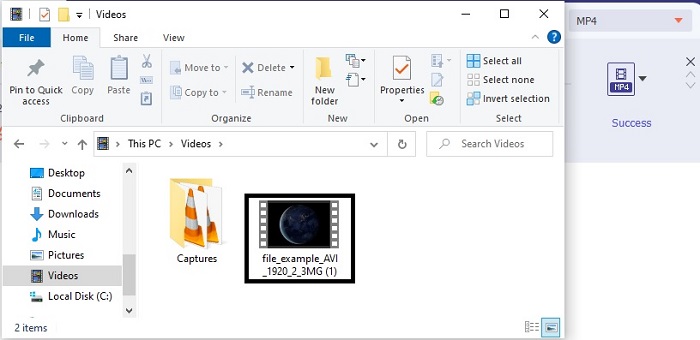
مرحله ۵. فرایند تبدیل فقط چند ثانیه طول میکشد و بعد از پایان، پوشهای شامل فایل با فرمت جدید روی صفحهتان نمایش داده میشود. روی فایل کلیک کنید تا آن را تماشا کنید و تبریک! حالا میتوانید آن را در iMovie ویرایش کنید.
بخش 3. سوالات متداول در مورد AVI به iMovie
خالق iMovie کیست؟
iMovie توسط شرکت اپل ایجاد شد تا ابزار ویرایش اختصاصی آنها باشد. حقایق دیگر در مورد Apple Inc. آنها همچنین پخش کننده QuickTime و فرمت MOV را به عنوان پخش کننده رسانه و قالب بومی خود برای کاربران مک توسعه دادند.
بهترین جایگزین برای فرمت AVI در مک چیست؟
احتمالاً بهترین گزینه فرمت MOV است، چون بهطور اختصاصی برای مک طراحی شده است. میخواهید بدانید چطور فایلهای AVI را به فرمت MOV تبدیل کنید؟ پس روی این لینک کلیک کنید تا درباره مبدلهای AVI به MOV بیشتر بدانید.
ضرر استفاده از فرمت AVI چیست؟
در بالا گفته شد که این فرمت می تواند حاوی کدک های مختلفی باشد که خوب است. اما فرمت AVI فشرده نشده است، بنابراین داشتن یک ویدیوی 2 تا 3 دقیقه ای حجم فایل عظیمی را انتظار دارد. با این وجود، اگر می خواهید در مورد AVI بیشتر بدانید، روی این کلیک کنید تا بدانید AVI چیست.
نتیجه
قبلاً در این زمینه سردرگم بودیم، چون هیچ ایدهای نداشتیم چطور باید با این مشکل برخورد کنیم. اما حالا برایمان روشن است که برای ویرایش فایل AVI در iMovie باید آن را تبدیل کنیم. بنابراین دیگر لازم نیست بپرسید چطور فایلهای AVI را در iMovie وارد کنیم و بعداً ویرایششان کنیم. اگر FVC Video Converter Ultimate را انتخاب کردهاید، شایسته تحسین هستید؛ چون ابزاری را برگزیدهاید که برای همه نیازهای تبدیل، ادغام، بهبود، فشردهسازی و سایر مشکلاتی که ممکن است در آینده با آن روبهرو شوید راهحل ارائه میدهد. تصمیم بگیرید چه چیزی برای شما بهترین است، و آن «بهترین» همان FVC Video Converter Ultimate است.
-
 راهنمای بتن برای کمک به شما در تبدیل AVI به FLV به صورت رایگان
 برای تبدیل AVI به FLV ، به یک مبدل ویدیویی قدرتمند نیاز دارید. خوشبختانه ، شما می توانید دو و راهنمای گام به گام آنها را از این مقاله واحد بیاموزید.
-
 نحوه تبدیل فیلم های AVI به پرونده های متحرک GIF در ویندوز / مک
 آیا می خواهید بخش های جالب AVI را برای ایجاد الگوهای رفتاری GIF انتخاب کنید؟ این مقاله به شما 2 روش مناسب برای کلیپ فیلم های AVI و تبدیل AVI به پرونده های GIF متحرک به صورت رایگان را به شما می گوید.
-
 [2 بهترین راه حل] نحوه پخش آسان فیلم های AVI در iPhone/iPad
 نمیتوانید فیلمهای AVI را در iPhone/iPad خود پخش کنید و نمیخواهید پخشکنندههای ویدیوی شخص ثالث را دانلود کنید؟ می توانید 2 روش کارآمد برای تبدیل ویدیوهای AVI برای پخش در آیفون یاد بگیرید.
