


 Video Converter Ultimate
 ضبط صفحه
 تعمیر ویدیو
کاهش صدا: نحوه تبدیل فرمت WAV به OGG برای اندازه فایل های کوچکتر
اگر با فایلهای صوتی بزرگ سر و کار دارید، ممکن است حجم زیادی از حافظه رایانه یا دستگاه همراه شما را اشغال کنند. تبدیل این فایلها از فرمت WAV به OGG اندازه آنها را بهطور چشمگیری کاهش میدهد و مدیریت و انتقالشان را آسانتر میکند. در این مطلب، به مزایای تبدیل فایلهای WAV به فرمت OGG میپردازیم و بهصورت گامبهگام روش انجام این کار را نشان میدهیم. همچنین برخی از بهترین برنامهها برای این کار را مرور میکنیم تا مطمئن شوید بهترین کیفیت صوتی ممکن را به دست میآورید. بنابراین، چه یک نوازنده باشید، چه پادکستر یا فقط فردی که میخواهد ضبطهای صوتی خود را ساماندهی کند، این مقاله برای شماست.

قسمت 1. مقایسه OGG در مقابل WAV
در اینجا نمودار مقایسه ای وجود دارد که تفاوت بین تبدیل WAV به OGG را نشان می دهد. شما می توانید آنها را برای مرجع خود بررسی کنید.
| WAV | OGG | |
| حجم فایل | بزرگ | کم اهمیت |
| فشرده سازی | فشرده نشده | فشرده شده |
| کیفیت صدا | کیفیت بالا | کیفیت بالا |
| سازگاری | به طور گسترده سازگار است | سازگاری کمتری دارد |
| پشتیبانی از پلتفرم | در تمامی پلتفرم ها پشتیبانی می شود | پشتیبانی محدود در برخی از سیستم عامل ها |
| ویرایش | آسان برای ویرایش | ویرایش کمی دشوارتر است |
قسمت 2. بهترین راه برای تبدیل WAV به OGG یا OGG به WAV
1. FVC Video Converter Ultimate
نرمافزار FVC Video Converter Ultimate یک برنامه قدرتمند تبدیل ویدیو است که میتواند به شما کمک کند فایلهای صوتی WAV خود را بهسرعت و بهآسانی به فرمت فشرده OGG تبدیل کنید. با رابط کاربری شهودی و کاربرپسند آن، بهراحتی میتوانید فایلهای WAV را انتخاب کنید، فرمت OGG را برگزینید و تنها با چند کلیک فرایند تبدیل را آغاز کنید.
علاوه بر این، FVC Video Converter Ultimate شامل ویژگیهای پیشرفته ویرایش ویدیو است که به شما امکان میدهد قبل از تبدیل، برش، برش، اضافه کردن واترمارک و فیلترهای مختلف روی فایلهای صوتی خود اعمال کنید. در صورتی که نیاز به انجام تنظیمات جزئی یا بهبود کیفیت فایل های صوتی خود قبل از تبدیل آنها به فرمت OGG دارید، این ویژگی می تواند مفید باشد. بنابراین، اگر می خواهید OGG را به صورت دسته ای به WAV یا برعکس تبدیل کنید، مراحل زیر را دنبال کنید:
گام 1. نصب برنامه و وارد کردن فایلهای OGG یا WAV
میتوانید FVC Video Converter را از وبسایت رسمی دانلود و نصب کنید. برنامه را اجرا کرده و برای وارد کردن فایل صوتی موردنظر جهت تبدیل، دکمه علامت بعلاوه را انتخاب کنید.
دانلود رایگانبرای ویندوز 7 یا بالاتردانلود ایمن
دانلود رایگانبرای macOS 10.7 یا بالاتردانلود ایمن
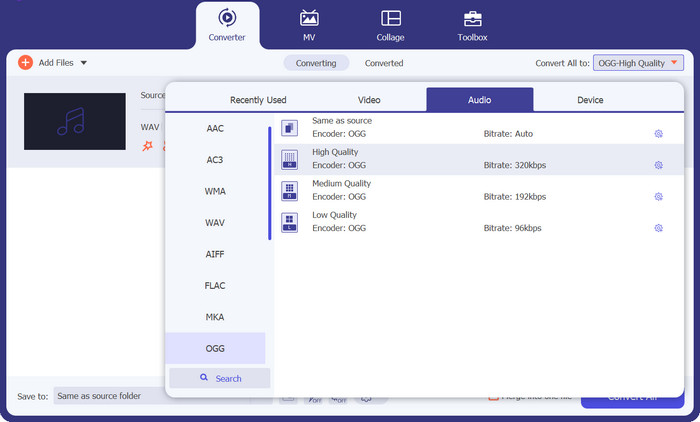
گام 2. انتخاب OGG بهعنوان فرمت خروجی
با کلیک روی منوی کشویی Profile و انتخاب OGG از فهرست فرمتهای موجود، میتوانید OGG را بهعنوان فرمت خروجی برگزینید. در صورت نیاز، با انتخاب دکمه Settings نیز میتوانید تنظیمات خروجی را تغییر دهید. این گزینه به شما اجازه میدهد پارامترهایی مانند نرخ بیت، نرخ نمونهبرداری و تعداد کانالها را تغییر دهید.
گام 3. وارد کردن محل ذخیره خروجی
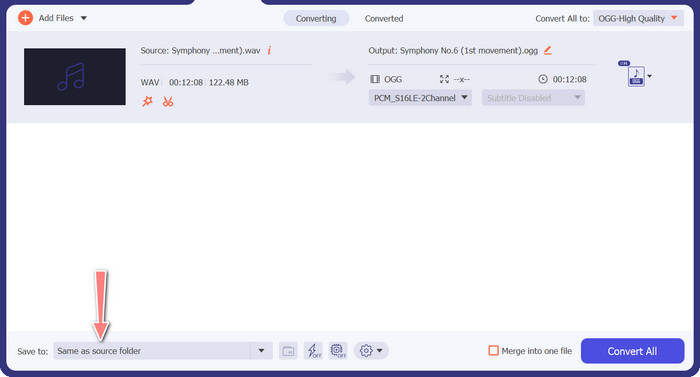
با انتخاب دکمه Browse در کنار بخش Output Folder، میتوانید پوشه خروجیای را که میخواهید فایل تبدیلشده در آن ذخیره شود انتخاب کنید.
گام 4. تبدیل فایل WAV به OGG
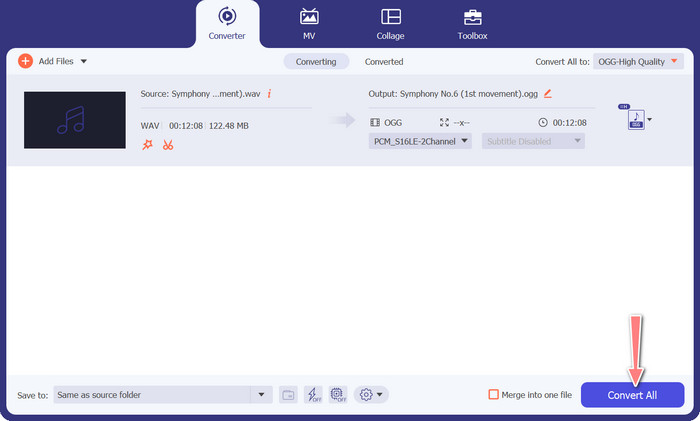
وقتی از تنظیمات خود راضی بودید، روی دکمه Convert All کلیک کنید تا فرایند تبدیل آغاز شود. FVC Free Video Converter تبدیل فایل WAV شما به فرمت OGG را شروع خواهد کرد. نوار پیشرفت میزان انجام فرایند تبدیل و همچنین زمان تخمینی باقیمانده را نشان میدهد.
2. مبدل صوتی رایگان آنلاین
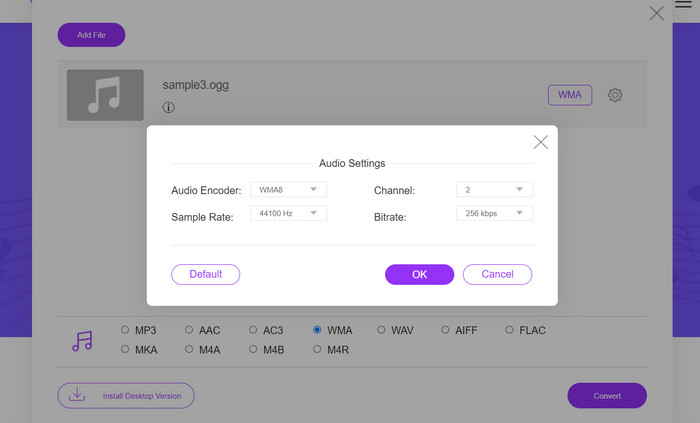
ابزار Free Audio Converter Online یک ابزار قدرتمند برای تبدیل آنلاین WAV به OGG است. کاربران میتوانند بهسرعت فایلهای WAV یا OGG را اضافه کرده و با استفاده از رابط ساده آن، آنها را به فرمت OGG تبدیل کنند. این مبدل همچنین اجازه میدهد تنظیمات خروجی مانند نرخ بیت و نرخ نمونهبرداری را برای دستیابی به کیفیت دلخواه فایلهای OGG تغییر دهید. فرایند تبدیل سریع و ساده است و کاربران میتوانند فایلهای تبدیلشده خود را مستقیماً از وبسایت دانلود کنند.
گام 1. با مرورگر وب دلخواه خود به وبسایت Free Video Converter Online بروید.
گام 2. با کلیک روی دکمه Add Files to Convert، فایل OGG موردنظری را که میخواهید به WAV تبدیل کنید، بارگذاری کنید.
گام 3. از فهرست فرمتهای پشتیبانیشده در منوی فرمت Audio، OGG را بهعنوان فرمت خروجی انتخاب کنید. همچنین میتوانید نرخ بیت و کیفیت خروجی فایل OGG را مشخص کنید.
گام 4. برای آغاز فرایند تبدیل، روی دکمه Convert کلیک کنید. به این ترتیب است که میتوانید OGG را بهصورت آنلاین به WAV تبدیل کنید.
قسمت 2. OGG را به WAV یا WAV به OGG با Audacity تبدیل کنید
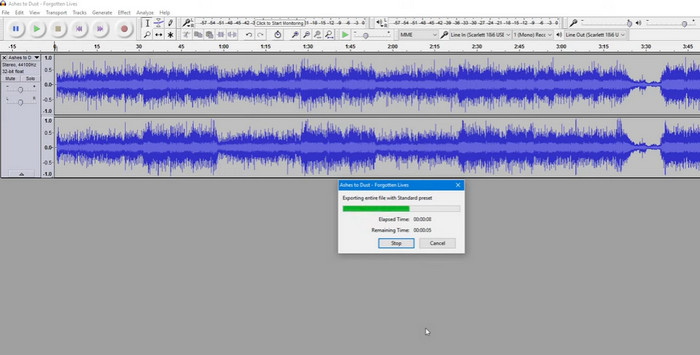
این ابزار یک نرم افزار ویرایش صدا منبع باز است که می تواند فایل های MP3 را به فایل های OGG تبدیل کند. Audacity علاوه بر تبدیل، ابزارها و افکتهای ویرایشی مختلفی را ارائه میکند که به کاربران اجازه میدهد فایلهای صوتی خود را تغییر داده و بهبود بخشند و آن را به ابزاری همهکاره برای عملیات ویرایش و تبدیل صدا تبدیل میکند.
علاوه بر این، Audacity برای ویندوز، macOS و لینوکس در دسترس است و به طور گسترده در دسترس است. Audacity به دلیل قابلیت های پیچیده و سهولت استفاده، جایگزین خوبی برای هرکسی است که مایل به تبدیل فایل های WAV به فرمت OGG است. راهنمای زیر را بررسی کنید تا با نحوه کار این برنامه آشنا شوید.
گام 1. برنامه Audacity را روی رایانه خود دانلود و نصب کنید. Audacity را باز کنید، سپس فایل OGG یا WAV موردنظر برای ویرایش را باز کنید. برای این کار، گزینه File > Open را انتخاب کرده و سپس به فایل WAV در رایانه خود رفته و آن را انتخاب کنید.
گام 2. پس از باز شدن فایل WAV در Audacity، روی File و سپس Export کلیک کنید. در پنجره Export Audio، نوع فایل را روی OGG Vorbis Files قرار دهید.
گام 3. میتوانید با کشیدن نوار لغزنده Quality کیفیت فایل OGG خود را تنظیم کنید. تنظیمات کیفیت بالاتر اندازه فایل را افزایش میدهد، در حالی که تنظیمات کیفیت پایینتر اندازه فایل را کاهش میدهد اما ممکن است از کیفیت آهنگ بکاهد.
طرفداران
- قابلیت تبدیل دسته ای WAV به OGG را دارد.
- OGG را به WAV در ویندوز، macOS و لینوکس تبدیل کنید.
منفی ها
- این برنامه انجمن پشتیبانی اختصاصی ندارد.
قسمت 3. OGG را به WAV یا WAV به OGG با VLC تبدیل کنید
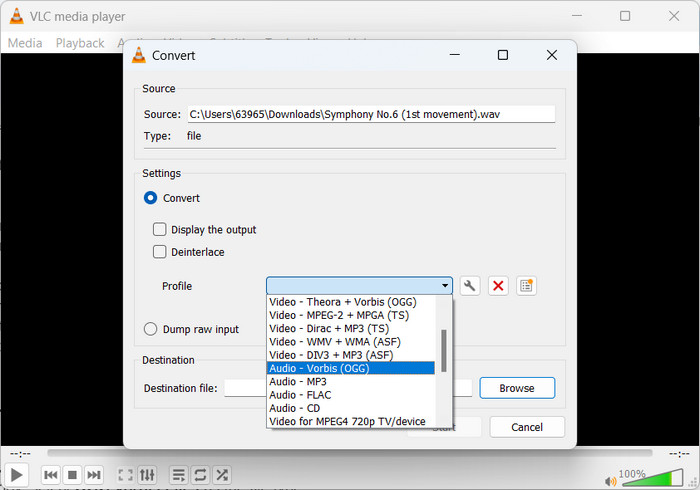
پخش کننده رسانه VLC یک ابزار چند رسانه ای قدرتمند است که به طور گسترده برای پخش انواع فایل های رسانه ای استفاده می شود. ممکن است بسیاری از کاربران ندانند که این برنامه همچنین به خوبی کار می کند و OGG را به WAV برای ابزار مک تبدیل می کند. با ابزار مبدل داخلی خود، پخش کننده رسانه VLC می تواند به سرعت و به راحتی فایل های WAV را به فرمت OGG تبدیل کند و به کاربران این امکان را می دهد تا از موسیقی مورد علاقه خود در فرمت های مختلف لذت ببرند. برای تمام نیازهای تبدیل صوتی شما، پخش کننده رسانه VLC راه حلی ساده و کاربرپسند ارائه می دهد، چه به دنبال تبدیل یک فایل واحد یا یک دسته از فایل ها باشید. برای یادگیری نحوه تبدیل فایل MP3 به فایل OGG مراحل زیر را دنبال کنید:
گام 1. برای پخش یک ویدیو، VLC را اجرا کرده و آن را از نوار منوی پخشکننده انتخاب کنید. گزینه Convert / Save در یک منوی کشویی ظاهر میشود؛ آن را برگزینید.
گام 2. با کلیک روی دکمه Add، از بخش File Selection فایل WAV موردنظر برای تبدیل را انتخاب کنید. وقتی آماده تبدیل یا ذخیره فایل هستید، وقت آن است که روی دکمه Convert / Save کلیک کنید.
گام 3. منوی کشویی Profile را باز کرده و گزینه Audio - Vorbis (OGG) را بهعنوان پروفایل دلخواه خود انتخاب کنید.
گام 4. برای تعیین محل و نام فایل جدیدِ تبدیلشده، روی دکمه Browse در سمت راست بخش فایل Destination کلیک کنید. با کلیک روی دکمه Start در پایین پنجره میتوانید فرایند تبدیل را آغاز کنید.
طرفداران
- رابط کاربر پسند.
- بسیاری از فرمت های صوتی و تصویری را پشتیبانی می کند.
منفی ها
- افت احتمالی کیفیت صدا
مطالعه بیشتر:
تبدیل MP3 به OGG و لذت بردن از کیفیت صدای برتر
چگونه MP4 را بهصورت رایگان روی دسکتاپ یا آنلاین به WAV تبدیل کنیم [2023]
بخش 4. سوالات متداول در مورد تبدیل OGG به WAV
آیا می توانم چندین فایل WAV را همزمان به فرمت OGG تبدیل کنم؟
بله، بسیاری از نرم افزارهای تبدیل صدا، از جمله FVC Video Converter Ultimate، از تبدیل دسته ای پشتیبانی می کنند که به شما امکان تبدیل دسته ای WAV به فرمت OGG را به طور همزمان می دهد.
آیا امکان تبدیل فایل های OGG به فرمت WAV وجود دارد؟
بله، امکان تبدیل فایل های OGG به فرمت WAV با استفاده از نرم افزار تبدیل صدا وجود دارد. با این حال، به خاطر داشته باشید که اگر فایل WAV اصلی به فرمت OGG فشرده شود، ممکن است کیفیت صدا تحت تأثیر قرار گیرد.
آیا می توانم فایل های WAV خود را علاوه بر OGG به فرمت های صوتی دیگر تبدیل کنم؟
بله، اکثر نرم افزارهای تبدیل صدا از طیف گسترده ای از فرمت های صوتی از جمله MP3، AAC، FLAC و غیره پشتیبانی می کنند.
نتیجه
تبدیل فرمت WAV به OGG میتواند مزایای متعددی داشته باشد، مانند کاهش اندازه فایل و درعینحال حفظ کیفیت بالای صدا. در همین حال، با داشتن ابزارهای مناسب تبدیل صوت و کمی آشنایی، بهراحتی میتوانید فایلهای صوتی خود را به فرمتی تبدیل کنید که بیشترین تناسب را با نیازهای شما دارد.
-
 بازیکنان عالی OGG برای ویندوز و مک که نباید آنها را از دست بدهید
 وقتی می خواهید صدای مورد علاقه خود را در قالب OGG پخش کنید ، مخصوصاً وقتی فضای ذخیره سازی کمتری وجود دارد. می توانید در مورد 5 بهترین بازیکن OGG از این مقاله بیشتر بدانید.
-
 با نحوه تبدیل MP3 به فرمت WAV آشنا شوید
 آیا می خواهید بدانید چگونه MP3 را به WAV تبدیل کنید؟ تعیین کنید کدام یک از ابزارها بهترین تبدیل را با کیفیتی که می توانید دریافت کنید ایجاد می کند.
-
 2 بهترین راه برای ویرایش فراداده OGG که باید به صورت رایگان امتحان کنید
 آیا نیاز به ویرایش فراداده OGG دارید؟ خوب، شما به راحتی می توانید با استفاده از نرم افزار صحیح، ویرایش برچسب ها را انجام دهید. اگر کسی ندارید خواندن این مقاله ضروری است.
