


 Video Converter Ultimate
 ضبط صفحه
 تعمیر ویدیو
نحوه تبدیل DivX به WMV به راحتی: روش های آفلاین و آنلاین
DivX یک کُدِک فشردهسازی ویدئو است که ویدئو را تا اندازهی دلخواه کاربر فشرده میکند. فایل WMV یک فایل Windows Media Video است که میتواند قالبهای فشردهسازی ویدئوی مایکروسافت را فشرده کند. به خاطر داشته باشید که DivX و WMV همیشه با هم سازگار نیستند. با اینکه امروزه بیشتر ویدئوها با DivX کُدگذاری و در قالب WMV ذخیره میشوند، بسته به موقعیت، گاهی لازم است DivX را به فرمت WMV تبدیل کنید. خوشبختانه ما مبدلهای DivX به WMV را در اختیار شما میگذاریم تا بتوانید این کار را بهسرعت انجام دهید – چه برای استفاده آفلاین و چه آنلاین.

قسمت 1. روشی عالی برای استفاده در تبدیل DivX به WMV [آفلاین]
اگر بهدنبال نرمافزاری هستید که بتواند تمام مراحل را یکجا انجام دهد و در عین حال امکانات اضافی برای دیگر نیازهای ویرایشی ارائه کند، شاید Video Converter Ultimate بهترین گزینه باشد. این نرمافزار نهتنها از تعداد زیادی فرمت مختلف ویدئویی پشتیبانی میکند، بلکه به شما اجازه میدهد کیفیت ویدئو و صدا را بیشتر ویرایش کنید و با افزودن افکتها کلیپهای خود را شخصیسازی نمایید. این نرمافزار یک مبدل همهکاره است. در ادامه مراحل استفاده از این برنامه را میبینید:
مرحله 1: با کلیک روی یکی از دکمههای دانلود رایگان زیر، متناسب با سیستمعامل خود، نرمافزار را روی رایانه نصب کنید. صبر کنید تا دانلود فایل .exe تمام شود، سپس آن را باز کنید تا فرایند نصب آغاز گردد. پس از اتمام نصب نرمافزار، روی Start Now کلیک کرده و برنامه را اجرا کنید.
دانلود رایگانبرای ویندوز 7 یا بالاتردانلود امن
دانلود رایگانبرای MacOS 10.7 یا بالاتردانلود امن
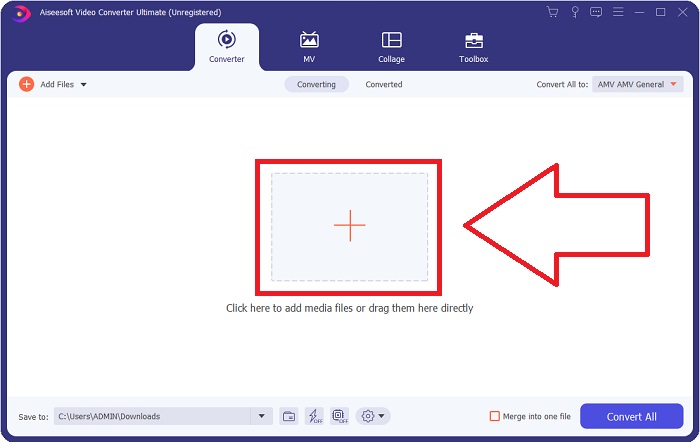
مرحله 2: پنجرهای با رابط کاربری باز میشود که در وسط آن دکمه + قرار دارد. روی آن کلیک کنید تا فایل ویدئویی که میخواهید تبدیل کنید وارد شود، یا میتوانید بهسادگی فایلها را بکشید و رها کنید.
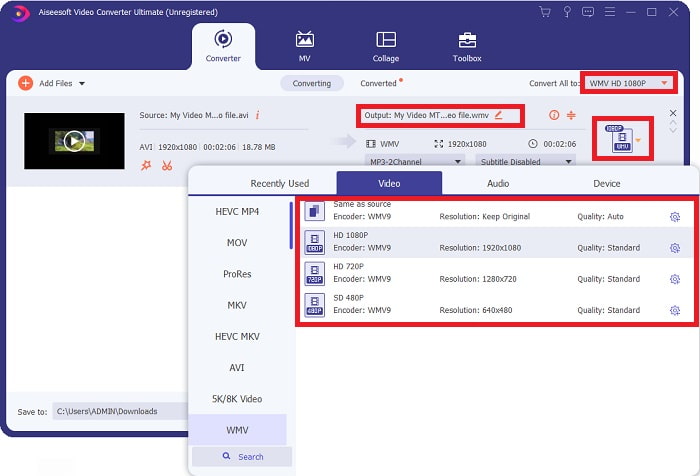
مرحله 3: پس از وارد کردن فایلها، در سمت راست هر فایل، فرمت فعلی فایل ویدئوییتان نمایش داده میشود. روی آن کلیک کنید تا همه فرمتهای موجود نشان داده شوند. میتوانید به پایین اسکرول کنید یا در نوار جستوجو WMV را تایپ کنید و آن را انتخاب نمایید. همچنین در سمت راست این زبانه، گزینههای مختلف کیفیت ویدئو برای انتخاب وجود خواهد داشت.
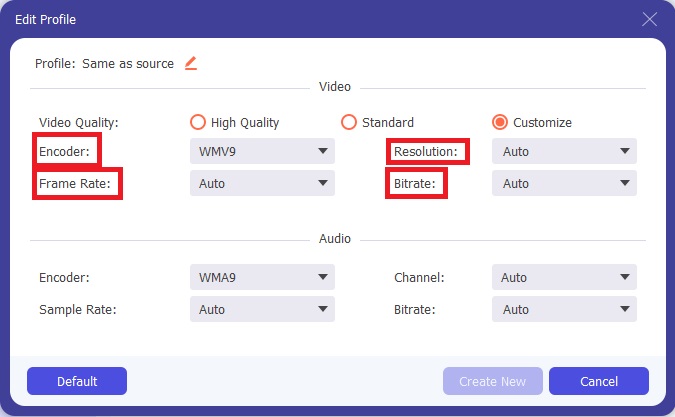
مرحله 4: برای گزینههای بیشتر، میتوانید روی آیکون چرخدنده کنار کیفیت ویدئویی که انتخاب کردهاید کلیک کنید تا پنجره دیگری باز شود. در آنجا میتوانید وضوح تصویر (رزولوشن)، نرخ فریم، بیتریت و موارد دیگر را مطابق سلیقه خود تنظیم کنید. اگر از همه تنظیمات راضی بودید، برای ذخیره تغییرات روی دکمه Create New در گوشه پایین سمت راست کلیک کنید.
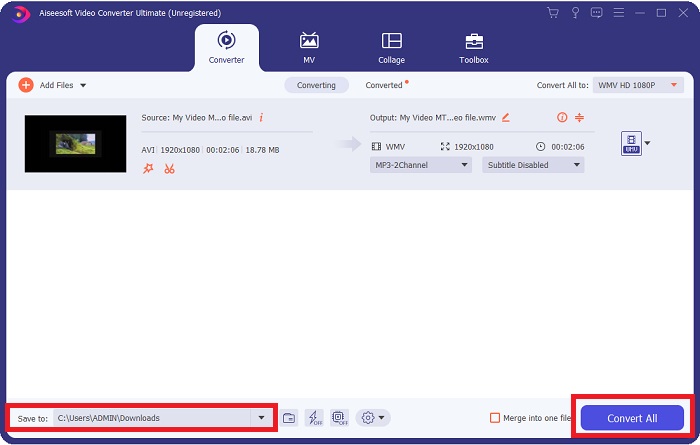
مرحله 5: وقتی تنظیمات ویدئو را مطابق میل خود ویرایش کردید، برای شروع فرایند تبدیل روی دکمه Convert All در گوشه پایین سمت راست کلیک کنید و تا پایان آن منتظر بمانید.
بخش 2. روش دیگری برای استفاده در تبدیل DivX به WMV [آنلاین]
این امکان وجود دارد که یک مبدل ویدیو را همیشه بدون نیاز به نصب نرم افزار در دسترس داشته باشید. با این حال، امکان تبدیل سریع و آسان یک ویدیو بدون نصب چیزی نیز وجود دارد. Video Converter Ultimate یک همتای آنلاین دارد که می توانید در یک حرکت از آن استفاده کنید. همچنان گزینه های اضافی را ارائه می دهد و فرمت های زیادی را پشتیبانی می کند. برای استفاده از این ابزار وب، این مراحل ساده را دنبال کنید:
مرحله 1: ابتدا روی این لینک کلیک کنید تا به ابزار آنلاین هدایت شوید. در آنجا دکمهای با عنوان Add Files to Convert در وسط صفحه خواهید دید. روی آن کلیک کنید تا لُانچر دانلود شود؛ به این لُانچر برای وارد کردن راحت فایلهای ویدئویی خود نیاز دارید.
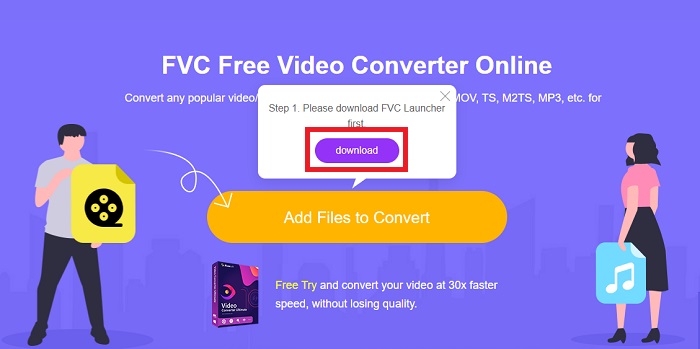
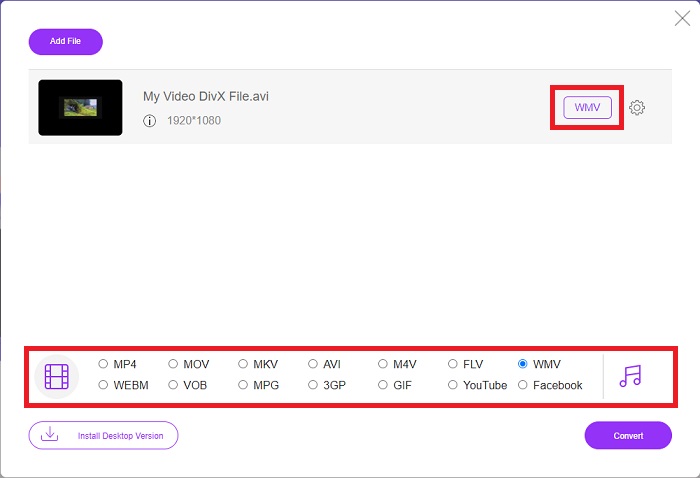
مرحله 2: وقتی دانلود لُانچر تمام شد، دوباره روی همان دکمه کلیک کنید تا فایل موردنظر برای تبدیل را وارد کنید. اکنون میتوانید در فهرست فرمتهای پایین پنجره، WMV را انتخاب نمایید.
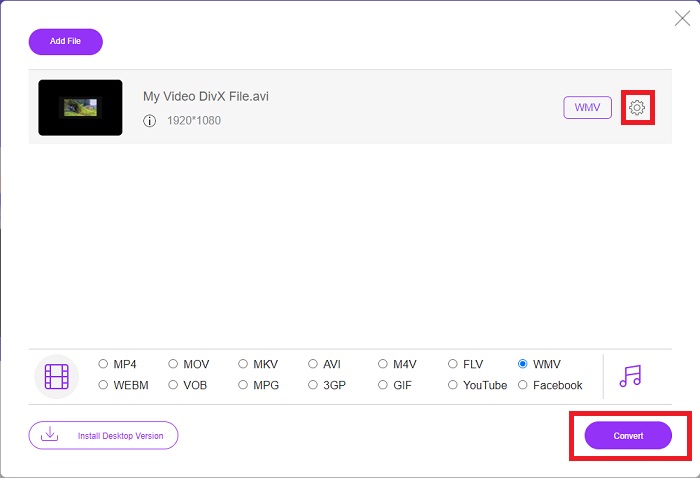
مرحله 3: در سمت راست نیز میتوانید آیکون چرخدنده را پیدا کنید تا مانند نسخه نرمافزار، تنظیماتی مثل وضوح تصویر، نرخ فریم و موارد دیگر را تغییر دهید. برای ذخیره تغییرات، روی Ok کلیک کنید و سپس میتوانید فرایند تبدیل را آغاز کنید. روی دکمه Convert در گوشه پایین سمت راست کلیک کرده و منتظر بمانید تا کار به پایان برسد.
مرتبط:
قسمت 3. DivX Vs. WMV: اطلاعاتی که باید بدانید
برای مقایسه بین دو قالب ذکر شده، می توانید فراتر از این قسمت را بخوانید تا تمام اطلاعات ضروری را بدانید:
DivX نام تجاری کدک ویدیویی است که توسط DivX, LLC ایجاد شده است. این کدک ویدیویی با برنامههای ویندوز بهترین کار را میکند، اگرچه کاربران ممکن است آن را در کنسولهای بازی، ساعتهای زنگ دار، استریو خودرو و سایر دستگاهها نیز بیابند. کدک های ویدیویی MPEG-4 Part 2، HEVC Ultra HD و H.264/MPEG-4 AVC DivX Plus با وضوح بالا سه کدک اصلی DivX هستند که امروزه استفاده می شوند.
از سوی دیگر، WMV (ویندوز مدیا ویدئو) مجموعه ای از کدک های ویدئویی و فرمت های کدگذاری است که توسط مایکروسافت به عنوان بخشی از چارچوب ویندوز مدیا آنها منتشر شده است. هدف آن رقابت با فرمت RM در برنامه های پخش اینترنتی است. هدف آن ذخیره فیلم های فشرده و حتی ارائه Blu-ray/DVD است.
| Digital Video Express (DivX) | ویدیوی ویندوز مدیا (WMV) | |
| فرمت فایل | .divx | wmv |
| توسعه دهنده | DivX Networks Inc. | مایکروسافت |
| برنامه های حمایتی | ◆ پخش کننده های DVD/Blu-ray ◆ ساعت های زنگ دار ◆ استریو ماشین ◆ ایکس باکس 360 | ◆ VLC Media Player ◆ MPplayer ◆ مدیا پلیر کلاسیک ◆ Windows Media Player |
بخش 4. سوالات متداول در مورد تبدیل DivX به WMV
آیا هنوز از DivX استفاده می شود؟
DIVX (Digital Video Express) یک فرمت ویدئوی دیجیتال متوقف شده است که تلاشی ناموفق در ایالات متحده برای ایجاد یک جایگزین مناسب برای اجاره ویدئو بود.
محدودیت های WMV چیست؟
از آنجایی که WMV یک فرمت ویندوز است، پیدا کردن پخش کننده های رسانه ای اپل یا لینوکس می تواند فیلم های WMV را پخش کند. به همین دلیل WMV یک فرمت جریان اصلی ویدیویی نبوده است.
کدام ضبط با وضوح بالاتری دارد؟
اگرچه WMV و DivX هر دو می توانند با وضوح 1280x720 ضبط کنند، اما یکی باید از کیفیت بالاتری نسبت به دیگری برخوردار باشد. این کدک ها می توانند در چندین سطح کیفیت با وضوح دقیق ضبط کنند، اما نرخ بیت برای ایجاد فایل های کوچکتر متفاوت است. اگرچه تصویر WMV برتر است، اما DivX یک فایل پنج برابر سریعتر و 50 درصد کوچکتر ایجاد کرد.
نتیجه
با در نظر گرفتن همه چیز، داشتن یک مبدل در کنار شما تشویق می شود تا در مواقع نیاز به آن، مجبور نشوید همه مشکلات پیدا کردن یک مبدل آنلاین مناسب را تحمل کنید. Video Converter Ultimate و همتای ابزار آنلاین آن برای یک مصرف کننده یا سازنده ویدیو توصیه می شود زیرا آنها بسیار بیشتر از مبدل های دیگر ارائه می دهند. بهعلاوه، راحتترین کار را به شما ارائه میدهد، زیرا دارای رابطی است که مبتدیان میتوانند به راحتی در آن حرکت کنند.
-
 4 روش برای تبدیل DivX به MOV به صورت رایگان [آنلاین و آفلاین]
 آیا با محدودیت های یک DivX دست و پنجه نرم می کنید یا پخش کننده های رسانه ای برای دسترسی به ویدیوها در این فرمت را ندارید؟ اگر می خواهید آن را به فرمت MOV تبدیل کنید، به خواندن این مقاله ادامه دهید تا شکاف ها را پر کنید.
-
 2 مبدل معتبر مورد استفاده برای تبدیل فایل های DivX به فرمت FLV [2022]
 آیا می خواهید بدانید چگونه فایل های DivX خود را به FLV تبدیل کنید؟ سپس این مقاله را بخوانید تا ایده ای در مورد نحوه انجام آن و مبدل های موجودی که می توانید استفاده کنید داشته باشید.
-
 راهنمای ساده نحوه تبدیل GIF به WMV در Windows/Mac
 آیا می خواهید بدانید چگونه GIF را به فرمت WMV تبدیل کنید؟ سپس این مقاله را دنبال کنید زیرا راه حل های مختلفی را که می توانید انتخاب کنید را نشان می دهد.
