


 Video Converter Ultimate
 ضبط صفحه
 تعمیر ویدیو
فرآیند تبدیل آنلاین و آفلاین: SWF به WMV
فرمت SWF یک قالب قدیمی است که توسط شرکت Adobe برای پخشکننده Shockwave Flash ایجاد شده است. Flash دیگر توسط بسیاری از مرورگرها پشتیبانی نمیشود، هرگز در دستگاههای iOS پشتیبانی نمیشد و امروزه بهدلیل مشکلات عملکرد و امنیت، فرمت فایل SWF بهندرت استفاده میشود. از سوی دیگر، WMV مجموعهای از کُدکهای فشردهسازی ویدئو است که برای پخش آنلاین ویدئوی اینترنتی در روزهای ابتدایی و همچنین رسانههای فیزیکی مانند HD-DVD و بلوری ساخته شده است. ویدئو با این فرمت روی دستگاههای ویندوزی بهصورت بومی قابل پخش است، بنابراین ممکن است بخواهید فایلهای SWF را به WMV تبدیل کنید؛ زیرا پخشکنندههای Flash روزبهروز کمتر پشتیبانی میشوند و دیگر نمیتوانید فایلهای SWF را پخش کنید. از اینرو، ما دو گزینه برای تبدیل SWF به WMV در اختیار شما قرار میدهیم.

قسمت 1. نحوه تبدیل SWF به WMV در ویندوز و مک به راحتی
Video Converter Ultimate یک مبدل چندرسانهای است که تقریباً تمام فایلهای اصلی ویدئو و صدا را به فرمت خروجی دلخواه شما تبدیل میکند. این برنامه میتواند فایلهای ویدئویی را بهصورت دستهای تبدیل کند و همین موضوع آن را قدرتمندتر از آنچه به نظر میرسد میسازد. قابلیت آن فقط به تبدیل محدود نمیشود؛ بلکه با در اختیار گذاشتن ابزارهای ویرایشی کاربردی، به کاربران امکان میدهد ویدئوهای خود را ویرایش کنند. افزون بر این، این مبدل ویدئویی از فرمتهای گوناگون، از جمله رایجترین فرمتهای امروزی، پشتیبانی میکند. مهمتر اینکه سرعت تبدیل آن از بسیاری از نرمافزارهای مشابه بیشتر است. برای استفاده از این نرمافزار، مراحل ساده زیر را دنبال کنید:
مرحله 1: روی دکمه Free Download کلیک کنید تا فایل .exe موردنیاز برای نصب نرمافزار را دانلود کنید. صبر کنید تا دانلود کامل شود، آن را باز کنید و مراحل نصب را بهسرعت دنبال کنید. سپس روی Start Now کلیک کرده و نرمافزار را اجرا کنید.
دانلود رایگانبرای ویندوز 7 یا بالاتردانلود امن
دانلود رایگانبرای MacOS 10.7 یا بالاتردانلود امن
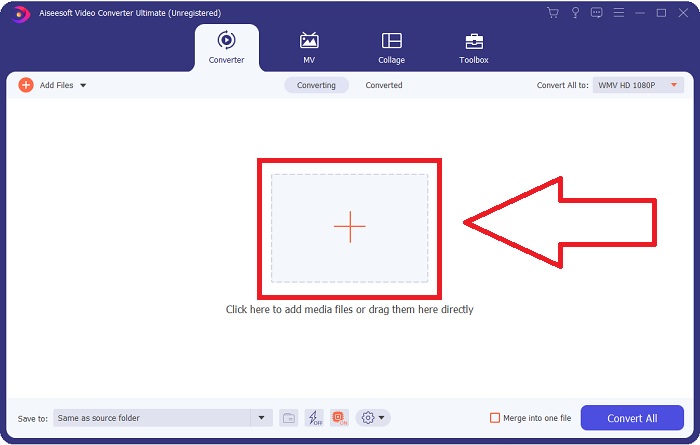
مرحله 2: با کلیک روی دکمه + در وسط رابط کاربری، فایل ویدئویی موردنظر خود را برای تبدیل بارگذاری کنید. همچنین میتوانید فایل را از دسکتاپ بکشید و روی رابط رها کنید تا بهطور خودکار وارد شود.
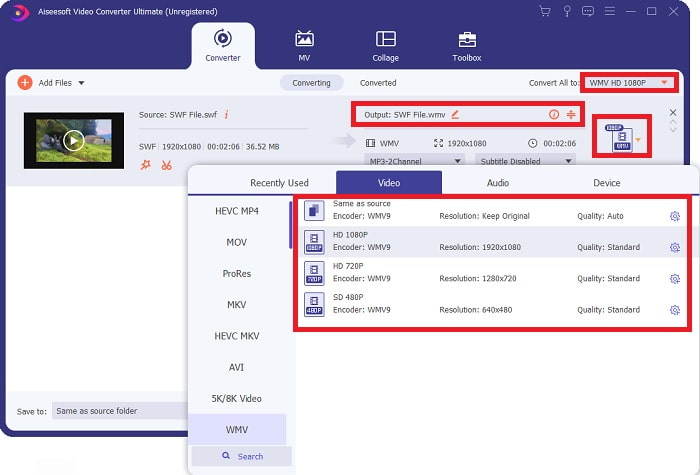
مرحله 3: روی فلش کشوییِ سمت راست کلیک کنید تا فرمت فعلی ویدئوی خود را ببینید؛ سپس همه فرمتهای موجود برای انتخاب نمایش داده میشوند. در این مورد، به پایین اسکرول کرده و WMV را انتخاب کنید یا آن را در نوار جستوجو تایپ کنید. همه کیفیتهای ویدئویی نیز در پنل سمت راست برای انتخاب در دسترساند.
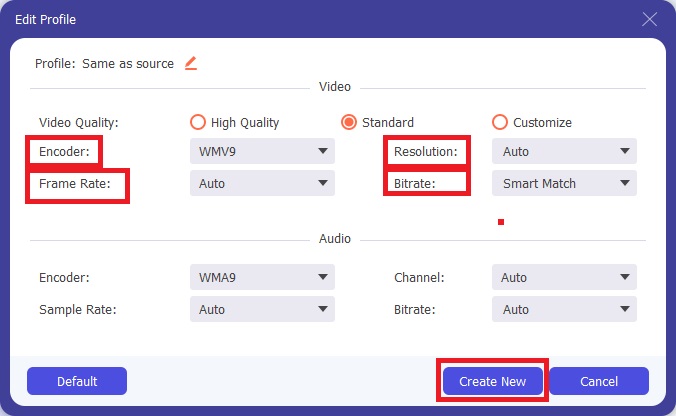
مرحله 4: برای ویرایش بیشتر ویدئو، روی آیکون چرخدنده در سمت راست کلیک کنید تا تمام ابزارهای ویرایشی کاربردی نمایش داده شوند. از آنجا میتوانید همه تنظیمات لازم را مطابق نیاز خود اعمال کنید. پس از اتمام، فقط روی دکمه Create New کلیک کنید.
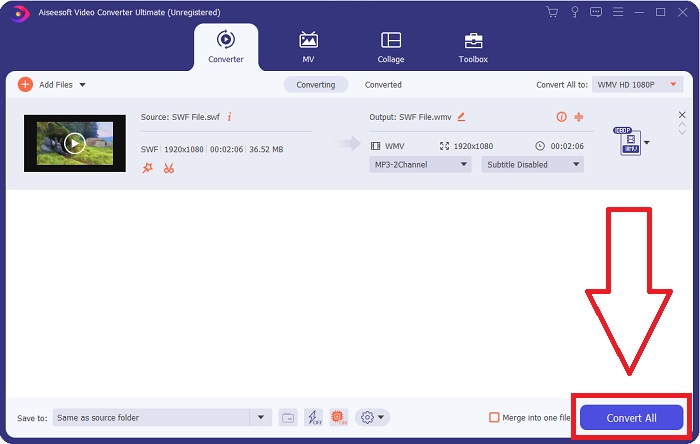
مرحله 5: با کلیک نهایی روی دکمه Convert All در گوشه پایینِ سمت راست پنجره و صبر کردن تا پایان فرآیند، تبدیل را به پایان برسانید.
بخش 2. نکته دیگری برای تبدیل SWF به WMV آنلاین
FVC Free Video Converter همیشه رایگان است و نیازی به ثبت نام ندارد. برخی از مبدلهای ویدیوی آنلاین رایگان، بازههای زمانی تبدیل یا اندازه فایل را محدود میکنند. اگر از تمام زمانهای تبدیل رایگان خود استفاده کردهاید یا فایل شما بسیار زیاد است، باید یک طرح بخرید، حتی اگر به ندرت ویدیوها را تبدیل کنید. اما FVC Free Video Converter چنین محدودیتی ندارد و می تواند در هر زمان فیلم ها را تبدیل کند.
علاوه بر این، این سرویس برای تبدیل فایلهای بزرگتر نیازی به ثبت نام ندارد، بر خلاف اکثر مبدلهای ویدیویی آنلاین برای تبدیل ویدیوهای بزرگتر از 1 گیگابایت به ثبت نام نیاز دارند. در اینجا مراحلی وجود دارد که باید برای این ابزار فوق العاده دنبال کنید:
مرحله 1: برای رفتن به وبسایت، روی این لینک کلیک کنید. سپس با کلیک روی دکمه Add Files to Convert بهسرعت لانچر را دانلود کنید و صبر کنید تا دانلود کامل شود.
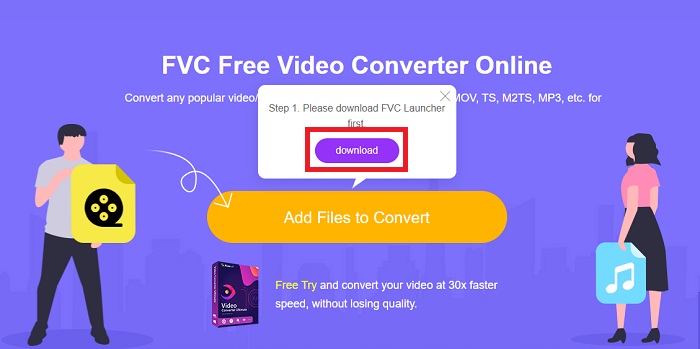
مرحله 2: دوباره روی همین دکمه کلیک کنید؛ این بار به شما اجازه میدهد فایل ویدئویی موردنظر برای تبدیل را بارگذاری کنید. پس از آن، از میان همه فرمتهای موجود، WMV را انتخاب کنید.
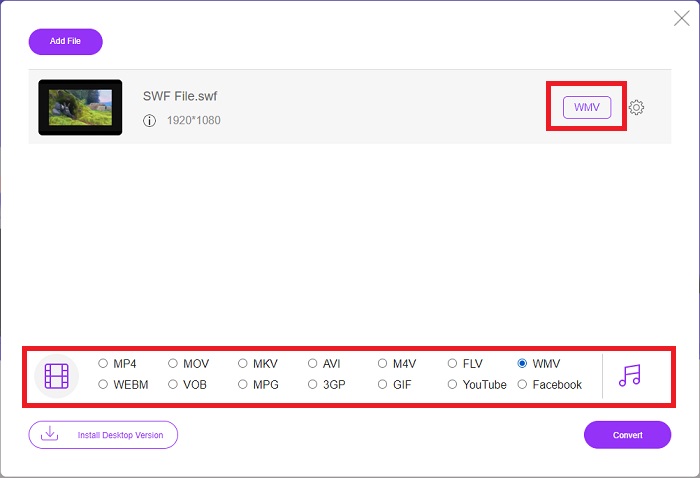
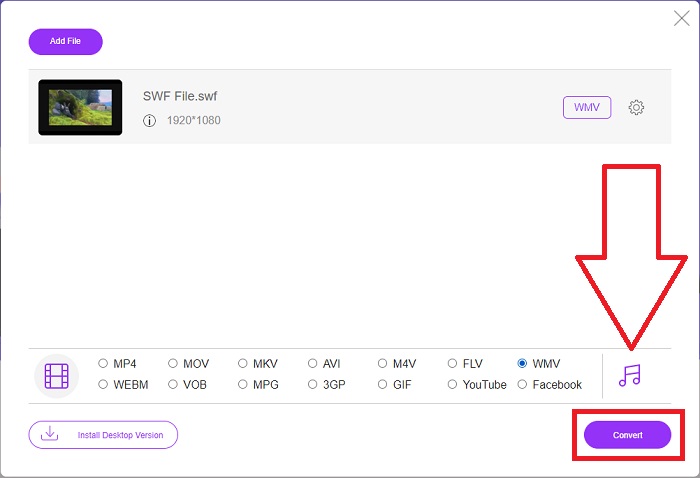
مرحله 3: همچنان میتوانید مانند نسخه نرمافزاری از ابزارهای ویرایشی کاربردی استفاده کنید. فقط روی آیکون چرخدنده کلیک کنید تا همه تنظیماتی را که میتوانید انجام دهید ببینید. برای ذخیره تغییرات، روی OK کلیک کنید و پس از پایان تنظیمات، برای شروع فرآیند روی Convert کلیک کنید.
مرتبط:
بخش 3. دانش گسترده در مورد فرمت های SWF و WMV
اگر می خواهید در مورد این دو فرمت بیشتر بدانید، به خواندن این مقاله ادامه دهید. ما تمام اطلاعات لازم و ضروری را که ممکن است به عنوان پیش زمینه نیاز داشته باشید، ارائه می کنیم.
Adobe از فرمت فایل SWF برای ذخیره فیلم ها و انیمیشن های مبتنی بر برداری استفاده می کند. Small Web Format مخفف آن است. با این حال، به آن فرمت شوک ویو نیز می گویند. معمولاً برای پخش ویدیو از طریق اینترنت، به ویژه بازی های مبتنی بر مرورگر استفاده می شود. متأسفانه، ادوبی اعلام کرد که به دلیل عملکرد و مشکلات امنیتی، پشتیبانی از فرمت Flash را تا پایان سال 2020 متوقف خواهد کرد.
از سوی دیگر، یک فایل WMV یک فایل ویدئویی Windows Media است که میتواند با استفاده از یک یا چند فرمت فشردهسازی ویدیوی مایکروسافت فشرده شود. این یک فرمت ذخیرهسازی ویدیویی محبوب در ویندوز است، به همین دلیل است که توسط برخی از برنامههای شخص ثالث برای مواردی مانند انیمیشنهای کوتاه استفاده میشود. این برای کار با پخش کننده های رسانه ای مایکروسافت مانند Windows Media Player و Movies & TV طراحی شده است. برای استفاده با سیستم های مدیریت حقوق دیجیتال (DRM)، فایل های WMV ممکن است رمزگذاری شوند.
| قالب وب کوچک | ویدیوی ویندوز مدیا | |
| فرمت فایل | .swf | wmv |
| توسعه دهنده | Adobe Systems Incorporated | مایکروسافت |
| برنامه های حمایتی | ◆ Adobe Flash Player ◆ Adobe Flash ◆ سی سی حرفه ای ◆ GOM Player ◆ Adobe Dreamweaver 2020 | ◆ VLC Media Player ◆ MPplayer ◆ مدیا پلیر کلاسیک ◆ Windows Media Player |
بخش 4. سوالات متداول در مورد تبدیل SWF و WMV
کاربرد فایل های WMV چیست؟
فایل های ویدئویی WMV بهترین فرمت برای فروش مواد ویدئویی به صورت آنلاین یا از طریق HD DVD و دیسک های Blu-ray هستند.
کاربرد فایل SWF چیست؟
فایلهای فلش یا فایلهای SWF اغلب برای توزیع کارآمد اطلاعات چندرسانهای در اینترنت استفاده میشوند.
آیا فایل های SWF قابل ویرایش هستند؟
Adobe Flash یک فرمت فایل است که توسط Adobe استفاده می شود. برخلاف سایر فایلهای چند رسانهای، و فایل SWF برای مشاهده مرورگر وب به پلاگین Flash Player نیاز دارد. علاوه بر این، کاربران نمی توانند مستقیماً فایل های SWF را ویرایش کنند.
نتیجه
FVC Video Converter Ultimate گزینه مناسبی برای شماست اگر مبتدی هستید یا صرفاً یک آماتور در بحث تبدیل ویدیو هستید. شما اغلب فرمت های ویدئویی را تبدیل نمی کنید. مزایای آن مانند تبدیل ثابت فرمت ویدئویی، تبدیل سریع فایل های ویدئویی در مقایسه با برنامه های مشابه، عملکرد ساده، پشتیبانی از فرمت های مختلف و غیره، به آن کمک می کند تا به بهترین مبدل ویدئویی تبدیل شود. وقتی صحبت از تبدیل ویدیو به میان می آید، Video Converter Ultimate و معادل آنلاین آن قابل قبول ترین گزینه ها هستند.
-
 [2 راه حل] نحوه تبدیل فایل های SWF به GIF به راحتی و به صورت رایگان
 وقتی نمی توانید قالب GIF را از طریق نرم افزار Flash صادر کنید ، می توانید ابتدا فایل ها را در قالب SWF ذخیره کنید. سپس می توانید 2 روش آسان برای تبدیل SWF به فایل های GIF را از این مقاله بیاموزید.
-
 Top of Line 5 بهترین مبدل های SWF رایگان به AVI [مبتنی بر وب و دسکتاپ]
 آیا می خواهید بدانید چگونه فایل SWF خود را به AVI تبدیل کنید؟ بنابراین اگر نه، پس این مقاله را بخوانید زیرا ما راه حلی برای تبدیل مشکل SWF ارائه می دهیم.
-
 [رایگان و آسان] ابزارهای استثنایی برای استفاده در تبدیل SWF به MOV
 آیا سعی کرده اید SWF را به MOV تبدیل کنید زیرا نمی توانید ویدیوها را ویرایش کنید؟ چه کسی برای ناسازگاری ویرایشگر ویدیوی شما مقصر است؟ برای راه حل خود به خواندن ادامه دهید.
