


 Video Converter Ultimate
 ضبط صفحه
 تعمیر ویدیو
3 راه آسان برای فوروارد سریع یک ویدیو در آیفون شما
آیا می خواهید سرعت پخش ویدیو را در آیفون رایگان افزایش دهید اما نمی دانید چگونه؟
After recording, while the basic editing, you often need to change the video playing speed. When it comes to speeding up a video on iPhone, you can rely on the built-in editing features in the Photos app, official video editor, iMovie, or some third-party video speed changer tools. This post will share 3 effective methods to fast forward a video on iPhone.

قسمت 1. چگونه یک ویدیوی Slo-mo را در آیفون با برنامه Photos سریع به جلو ببریم
iOS دارای برخی از ویژگی های ویرایش اولیه برای کاربران iPhone و iPad است تا مستقیماً یک ویدیو یا یک عکس را ویرایش کنند. هنگامی که می خواهید یک ویدیوی اسلو-مو را روی دستگاه iOS خود فوروارد کنید، می توانید از ویرایشگر داخلی در برنامه Photos استفاده کنید تا به راحتی سرعت پخش ویدیو را تغییر دهید. توجه داشته باشید که این روش فقط برای تغییر سرعت ویدئو از حالت آرام به سرعت معمولی کار می کند.
Step 1. Open the Photos app on your iPhone, tap Albums on the bottom screen, scroll down to the Media Types option, and then choose the Slo-mo. Here you can find the slo-mo video that you want to fast forward.
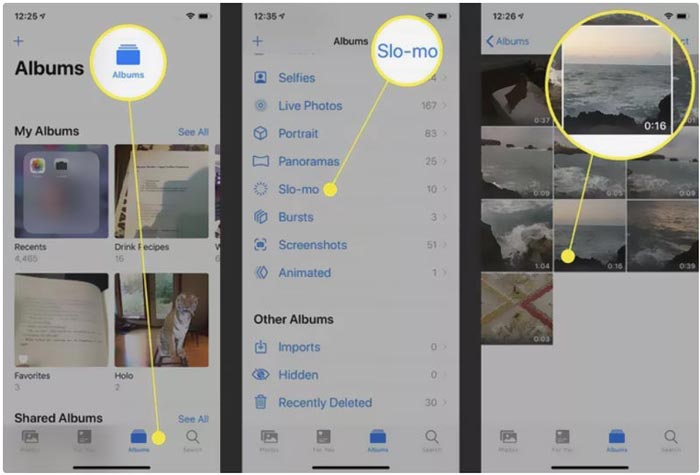
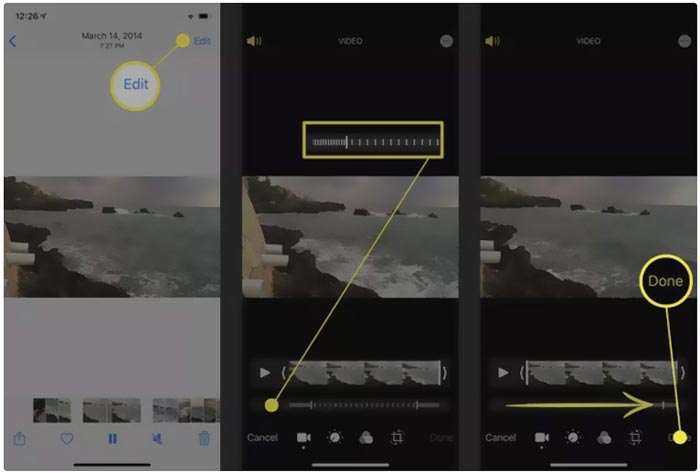
Step 2. Open the slo-mo video, and tap the Edit in the top-right corner to display more editing options.
Step 3. A set of vertical lines will appear under the slow motion video. Now you can tap on the lines and freely fast forward the video speed. After that, you can tap Done to confirm your operation and save the change.
قسمت 2. چگونه یک ویدیو را در iPhone و iPad با استفاده از iMovie سریع به جلو منتقل کنیم
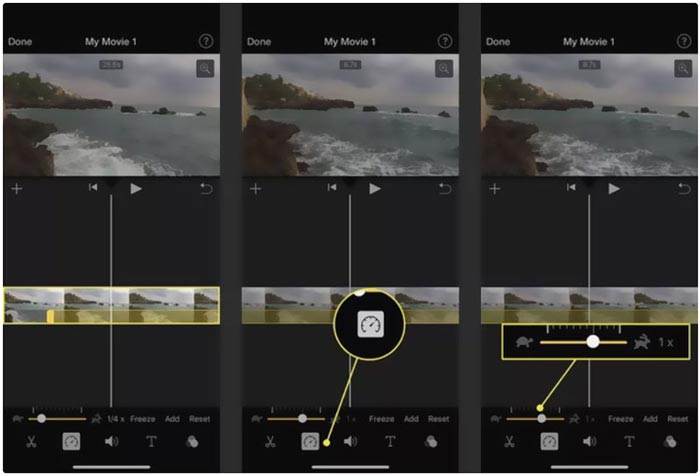
iMovie is the official video editor for iOS and macOS devices like iPhone, iPad, and Mac. It is equipped with many commonly-used editing features. You can easily fast forward or slow down a video on iPhone using iMovie.
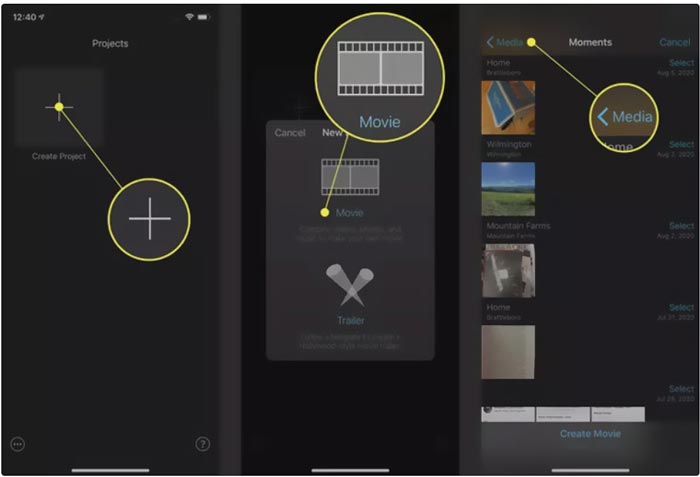
Step 1. To fast forward a video on your iPhone using iMovie, you should free install the app from App Store and then create a new project for the video speed changing. Select and load the video you want to speed up to the created project.
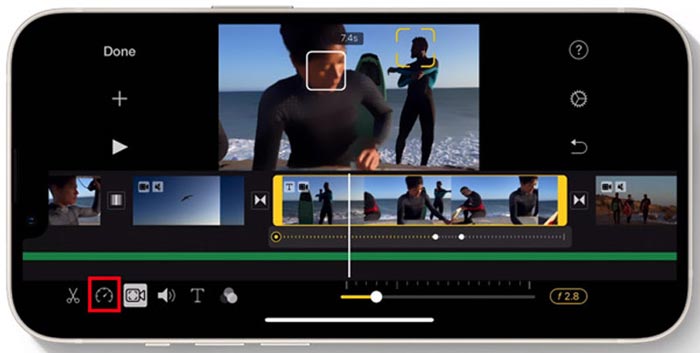
Step 2. Highlight the video clip on the timeline to reveal editing options at the bottom of the iPhone screen. You can tap on the second clock icon to access the playback speed controls. Now you can easily increase the video playback speed by dragging the bar to the right.
قسمت 3. چگونه یک ویدیوی ضبط شده توسط آیفون را سریع به جلو ببریم
For these videos captured by your iPhone, you can choose to edit them on your computer and handily change the playing speed. Here we introduce you to the all-featured video editing and converting software, Video Converter Ultimate to change the video speed.

FVC Video Converter Ultimate
5,689,200+ دانلود- ابزار کنترل سرعت ویدیو را برای جلو بردن سریع یا حرکت آهسته یک ویدیو ارائه دهید.
- پشتیبانی از تمام فرمت های ویدیویی محبوب از جمله MP4، MOV، AVI، FLV و MKV.
- 10 گزینه تغییر سرعت پخش ویدیو برای افزایش سرعت یا کاهش سرعت ویدیو.
- عملکردهای مختلف ویرایش برای ویرایش ویدیو، جلوه های تصویر/صدا سفارشی و افزایش کیفیت.
دانلود رایگانبرای ویندوز 7 یا بالاتردانلود امن
دانلود رایگانبرای MacOS 10.7 یا بالاتردانلود امن
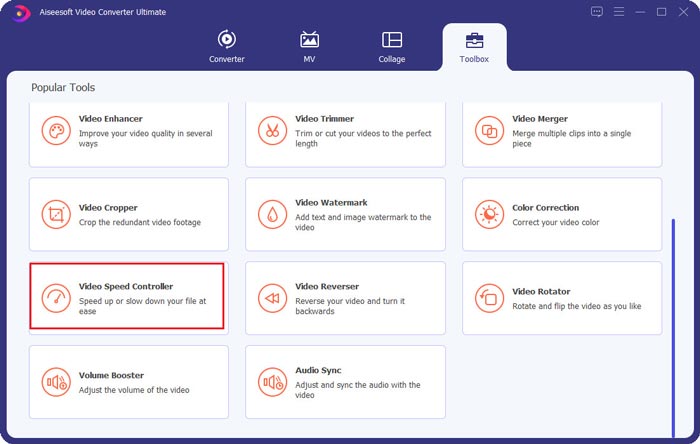
Step 1. Download and open this Video Converter Ultimate on your Windows 11/10/8/7 PC or Mac. Click on the Toolbox to access more tools. Locate and open the Video Speed Controller to fast forward a video.
Step 2. Add your video by clicking the big plus icon. After that, you have 10 options to fast forward or slow motion the video speed. With the built-in media player, you can directly view the speed changing. You can speed up a video to 1.25X, 1.5X, 2X, 4X, or 8X speed based on your need.
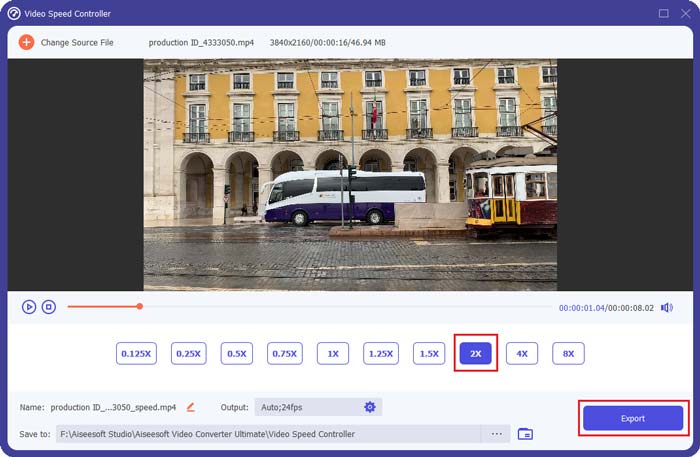
Step 3. When you are satisfied with the video playback speed, you can simply click on the Export button to save the edited video on your computer.
مرتبط:
2 Effortless Ways on How to Speed up a Video on TikTok
6 Trendy Video Speed Controllers to Speed up or Slow-down Videos
بخش 4. سوالات متداول تغییر سرعت پخش ویدیو در آیفون
چگونه یک ویدیو را در آیفون به صورت آنلاین فوروارد کنیم؟
هنگامی که نیاز به افزایش سرعت ویدیو در آیفون خود دارید، میتوانید از برخی از تغییر دهندههای سرعت ویدیوی آنلاین مانند Clideo، Kapwing، Media.io و موارد دیگر استفاده کنید تا به راحتی کار را انجام دهید.
آیا می توانم یک ویدیو را در برنامه TikTok فوروارد کنم؟
آره. میتوانید برنامه TikTok را باز کنید، روی ویدیوی مورد نظر ضربه بزنید و نگه دارید تا سرعت آن را افزایش دهید تا زمانی که منوهای بیشتری در صفحه پایین ظاهر شوند. حالا باید این منوها را از راست به چپ اسکرول کنید تا گزینه Speed را پیدا کنید. آن را برای فوروارد سریع ویدیوی TikTok انتخاب و استفاده کنید.
آیا می توانم یک ویدیو را در آیفون خود بیش از 2X سریع فوروارد کنم؟
iMovie فقط به شما امکان می دهد سرعت فیلم را تا 2 برابر افزایش دهید. وقتی میخواهید سرعت پخش ویدیویی را بیش از 2 برابر در آیفون سریع فوروارد کنید، باید به برخی از برنامههای شخص ثالث تکیه کنید. همچنین، میتوانید انتخاب کنید که ویدیوی آیفون خود را روی رایانه کپی کنید و سپس برای تنظیم سرعت ویدیو به کنترلکننده سرعت ویدیوی توصیهشده تکیه کنید.
نتیجه
This post covers how to fast forward a video speed on iPhone using the Photos app, iMovie, and third-party video speed changer. You can select your preferred method to speed up or slow down the video playback speed.
-
 8 مبدل رزولوشن ویدیویی برتر برای استفاده در چند پلتفرم [به روز شده در سال 2022]
 آیا هیچ ایده ای از بهترین مبدل وضوح تصویر در دستگاه خود ندارید؟ اگر چنین است، می توانید این مقاله را به طور کامل بخوانید تا درباره مبدل های ویدیویی موجود بیشتر بدانید.
-
 3 روش برتر برای افزودن فیلتر به GIF با بهترین ویرایشگرهای GIF [مورد علاقه]
 آیا می خواهید بدانید که چگونه یک فیلتر به GIF اضافه کنید تا آن را بهتر کنید؟ در این وبلاگ به راحتی تکنیک های مختلف برای افزودن فیلتر به فایل های GIF خود را یاد خواهید گرفت.
-
 6 برنامه برتر فیلتر ویدیویی که می توانید در اندروید و آیفون دانلود کنید [2022]
 آیا می خواهید بهترین برنامه های موبایل فیلتر ویدیو را داشته باشید؟ خوب، ما آنچه را که می خواهید به شما می دهیم. در این مقاله بررسی 6 آخرین برنامه فیلتری که می توانید دانلود کنید، ارائه می شود.
