


 Video Converter Ultimate
 ضبط صفحه
 تعمیر ویدیو
راه حل هایی برای برش آنلاین ویدیوها [آموزش گام به گام]
چطور ویدئوی طولانی خود را کوتاهتر میکنید؟ اگر بهترین روشهایی را که میتوانید انجام دهید نمیدانید، دلیلی وجود دارد که این راهنما را بخوانید. هنگام خواندن این مقاله، تمام اطلاعات ضروری درباره کاهش طول ویدئو را در اختیارتان میگذاریم. همچنین نرمافزارهای ویرایش ویدئوی آنلاین و آفلاین را به شما معرفی میکنیم که میتوانید از آنها استفاده کنید. به این ترتیب فرصت بیشتری برای رسیدن به هدف خود خواهید داشت. پس بدون مقدمه بیشتر، این مطلب را بخوانید و یاد بگیرید چگونه بهصورت آنلاین ویدئو را برش دهید.

بخش 1. روش های عالی برای برش ویدیوی آنلاین
1. InVideo
یکی از ابزارهای مفید ویرایش ویدیو که می توانید به صورت آنلاین پیدا کنید، دستگاه اصلاح ویدیو InVideo است. این نرم افزار مبتنی بر وب یک طرح بندی آسان برای استفاده را ارائه می دهد. پس از بازدید از وب سایت، نیازی به نصب ابزار ندارید. تنها کاری که باید انجام دهید این است که ویدیو را اضافه کنید و می توانید از قبل به برش دادن ادامه دهید. علاوه بر این، از آنجایی که طرح ساده ای دارد، یک روش قابل درک نیز وجود خواهد داشت. به این ترتیب، چه کاربر حرفه ای و چه غیرحرفه ای باشید، می توانید از InVideo استفاده کنید. علاوه بر این، InVideo تقریباً در تمام سیستم عامل های وب قابل دسترسی است. می توانید از این ابزار در گوگل کروم، موزیلا فایرفاکس، اینترنت اکسپلورر و غیره استفاده کنید. با این حال، InVideo دارای معایبی است. هنگام استفاده از نسخه رایگان، InVideo نمی تواند کیفیت ویدیویی بالایی ارائه دهد. همچنین، فقط می تواند کیفیت ویدیوی پایینی را ارائه دهد که رضایت بخش نیست. اگر می خواهید کیفیت ویدیویی عالی داشته باشید، باید یک طرح اشتراک خریداری کنید. مراحل زیر را دنبال کنید تا ویدیوی خود را با استفاده از دستگاه اصلاح ویدیو InVideo برش دهید.
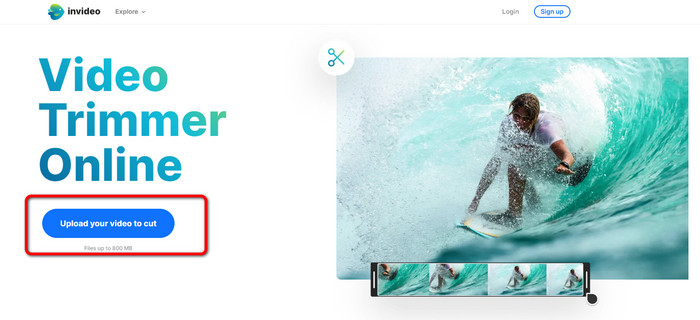
مرحله 1. مرورگر خود را باز کرده و به وبسایت رسمی InVideo بروید. سپس، اگر در صفحه وب هستید روی دکمه Upload your video to cut کلیک کنید. وقتی پنجره انتخاب فایل روی صفحه ظاهر شد، ویدئوی مورد نظر برای برش/کات را انتخاب کرده و آن را باز کنید.
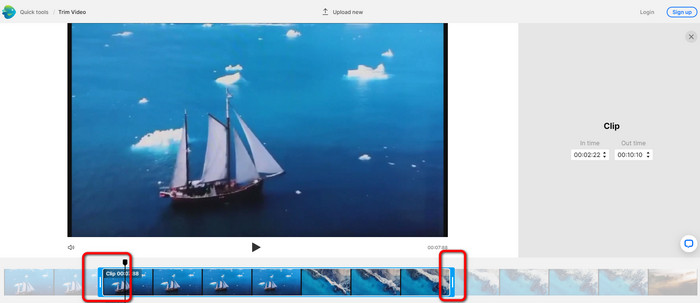
مرحله 2. پس از انتخاب ویدئو، به بخشی هدایت میشوید که میتوانید در آن ویدئو را برش دهید. برای کوتاه کردن ویدئو، نشانگرهای دو سر نوار ویدئو را به زمان مدنظر خود جابهجا کنید.
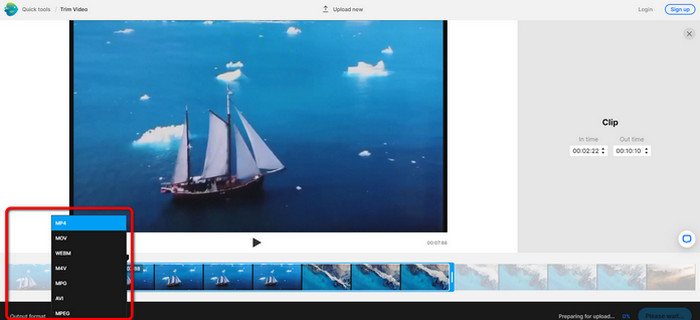
مرحله 3. وقتی ویدئوی خود را برش دادید، میتوانید آن را در قالبهای مختلف ذخیره کنید. به گزینه Output Format در قسمت پایینِ سمت چپ رابط بروید. سپس وقتی گزینههای فرمت ظاهر شد، فرمت خروجی دلخواه را انتخاب کنید. بعد روی Done کلیک کنید.
مرحله 4. پیش از ذخیره ویدئو باید در InVideo یک حساب کاربری بسازید یا با حسابی که از قبل دارید وارد شوید. چند ثانیه پس از وارد کردن اطلاعات حساب، ویدئوی شما برای ذخیرهسازی آماده خواهد شد.
2. ازگیف
یکی دیگر از ابزارهای آنلاین و رایگان برش ویدئو، سایت Ezgif است. این ابزار فرایند سادهای برای کوتاه کردن ویدئو دارد. Ezgif یک ابزار آنلاین رایگان است، بنابراین لازم نیست بابت آن هزینهای پرداخت کنید. علاوه بر این، میتوانید از همه مرورگرها به این ابزار آنلاین دسترسی داشته باشید؛ از جمله گوگل کروم، Edge، فایرفاکس، اکسپلورر و غیره. با این حال، نسخه آنلاین فقط از GIF پشتیبانی میکند. پس اگر قصد دارید ویدئویی با فرمتی دیگر را برش دهید، Ezgif ابزار مناسبی نیست. همچنین هنگام استفاده از این ابزار، تبلیغات مزاحم زیادی روی صفحه ظاهر میشود و حین ویرایش ویدئو آزاردهنده خواهد بود.
مرحله 1. به وبسایت Ezgif بروید و گزینه Cut را انتخاب کنید.
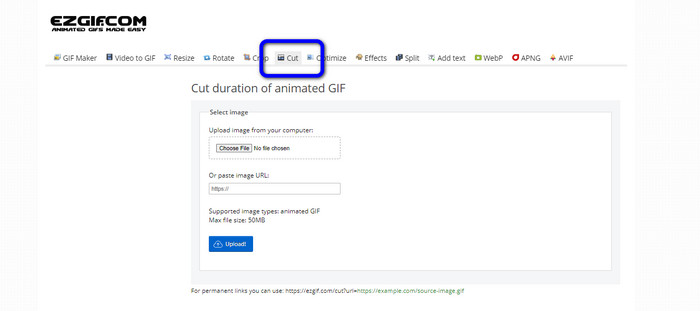
مرحله 2. بعد از آن، روی دکمه Choose File کلیک کنید. سپس فایل GIF مورد نظر را از پوشه کامپیوتر اضافه کنید.
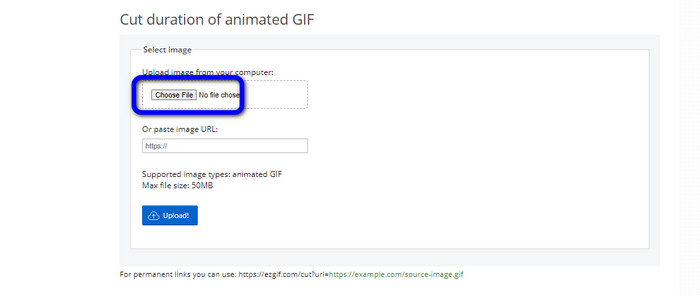
مرحله 3. پس از بارگذاری فایل GIF، میتوانید آن را برش دهید. دو روش برای برش GIF وجود دارد: برش بر اساس شماره فریم یا برش بر اساس زمان. مطابق روش مورد نظر خود آن را کوتاه کنید.
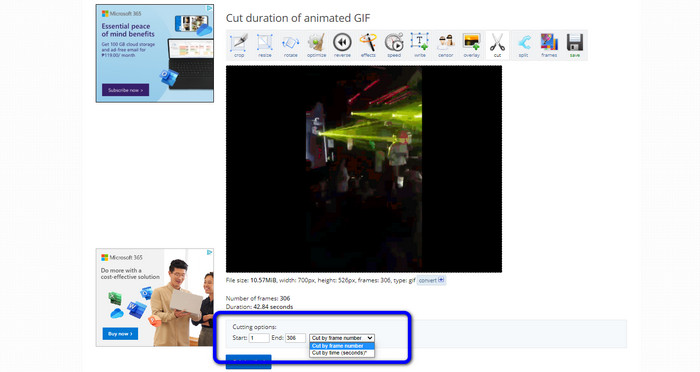
مرحله 4. برای شروع فرایند برش، روی دکمه Cut Duration کلیک کنید.
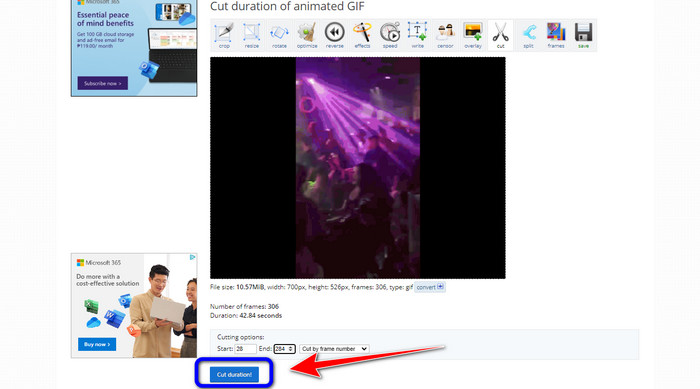
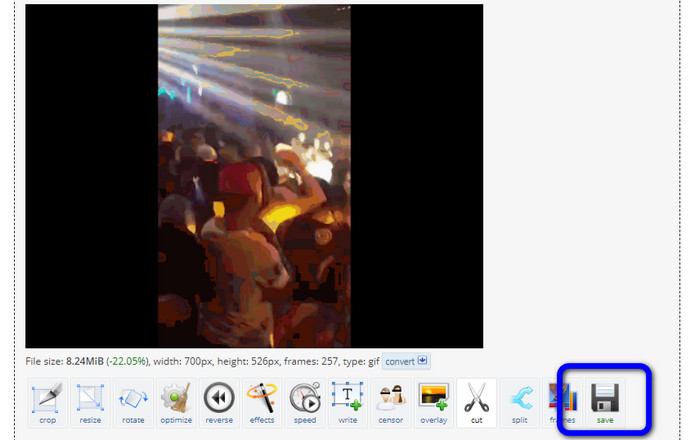
مرحله 5. بعد از آن نسخه ویرایششده نمایش داده میشود. برای دانلود خروجی نهایی روی کامپیوتر، گزینه Save را کلیک کنید.
3. کاپوینگ
برای برش ویدئو، میتوانید از برشدهنده ویدئوی Kapwing نیز استفاده کنید. این ابزار تحت وب میتواند با روشی بدون دردسر ویدئو را کوتاه کند. علاوه بر این، میتوانید روی مرورگرهای مختلف به آن دسترسی داشته باشید؛ از جمله کروم، موزیلا، Edge و غیره. همچنین Kapwing از فرمتهای مختلف ویدئویی مانند MP4، MOV، AVI، FLV، WEBM و غیره پشتیبانی میکند که آن را برای همه کاربران مناسب میسازد. با این حال Kapwing معایبی نیز دارد. تبلیغات آزاردهندهای دارد که مدام روی صفحه ظاهر میشوند. افزون بر این، در نسخه رایگان فقط اجازه میدهد ویدئو را با کیفیت 720p بارگذاری کنید. همچنین پس از ویرایش، روی ویدئو واترمارک میگذارد. اگر میخواهید ویدئو بدون واترمارک داشته باشید و از امکانات بیشتر بهرهمند شوید، باید اشتراک تهیه کنید.
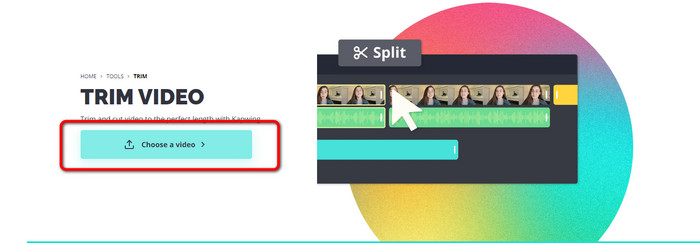
مرحله 1. به وبسایت Kapwing بروید. سپس روی گزینه Choose a video کلیک کنید تا وارد رابط اصلی ابزار شوید.
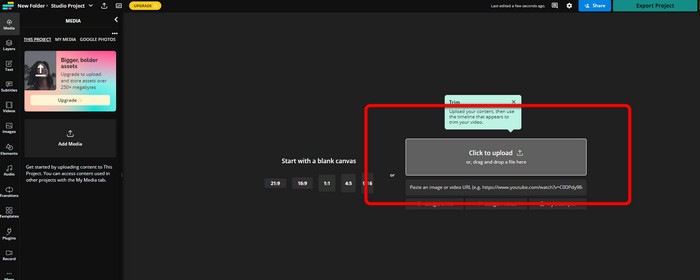
مرحله 2. روی دکمه Click to upload کلیک کنید تا ویدئو را از پوشه فایلها وارد کنید.
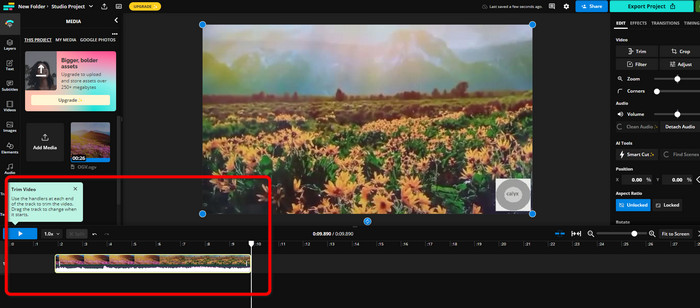
مرحله 3. وقتی ویدئو روی خط زمان قرار گرفت، میتوانید برای شروع برش ویدئو، دستگیرههای دو طرف آن را جابهجا کنید.
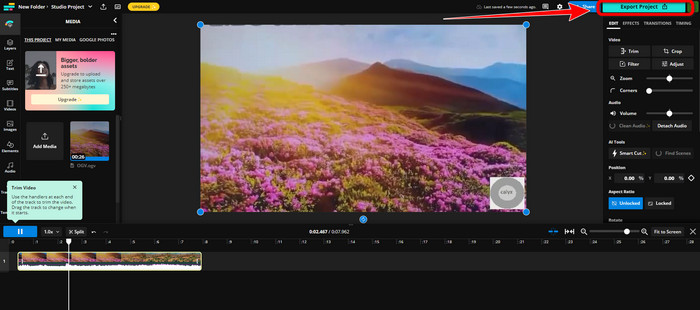
مرحله 4. اگر کارتان تمام شد، به گوشه بالا سمت راست رابط بروید و روی دکمه Export Project کلیک کنید. به این ترتیب میتوانید ویدئوی ویرایششده را روی دسکتاپ ذخیره کنید.
قسمت 2. روش جایگزین برای برش ویدیو آفلاین
برای ویرایش آفلاین ویدئوها به بهترین شکل، از Video Converter Ultimate استفاده کنید. این ابزار برش و تقسیم ویدئو را برای شما ساده میکند. رابط کاربری ساده و ناوبری سرراستی دارد که آن را برای همه کاربران مناسب میسازد. همچنین میتوانید خروجی نهایی را در قالبهای مختلف ذخیره کنید؛ از جمله MOV، AVI، MP4، MKV و دیگر فرمتها. هنگام برش ویدئو امکانات بیشتری هم در اختیار دارید. میتوانید با رفتن به تنظیمات خروجی، تغییرات گوناگونی اعمال کنید؛ مانند تغییر نرخ فریم، وضوح تصویر، کدک، کیفیت و غیره. علاوه بر این، Video Converter Ultimate روی ویدئوی ویرایششده واترمارک اضافه نمیکند. به این ترتیب میتوانید ویدئوی ویرایششده را بدون عناصر آزاردهنده تماشا کنید. همچنین کاربران ویندوز و مک، هر دو میتوانند از Video Converter Ultimate استفاده کنند. این یعنی برنامه هم برای ویندوز و هم برای مک ابزار مناسبی است. برای شروع برش ویدئو، راهنمای گامبهگام زیر را دنبال کنید.
مرحله 1. روی دکمه دانلودِ زیر کلیک کنید تا Video Converter Ultimate را روی کامپیوتر خود دریافت کنید. پس از اتمام نصب، برنامه را باز کنید.
دانلود رایگانبرای ویندوز 7 یا بالاتردانلود امن
دانلود رایگانبرای MacOS 10.7 یا بالاتردانلود امن
مرحله 2. در رابط برنامه، روی منوی Toolbox کلیک کرده و ابزار Video Trimmer را انتخاب کنید.
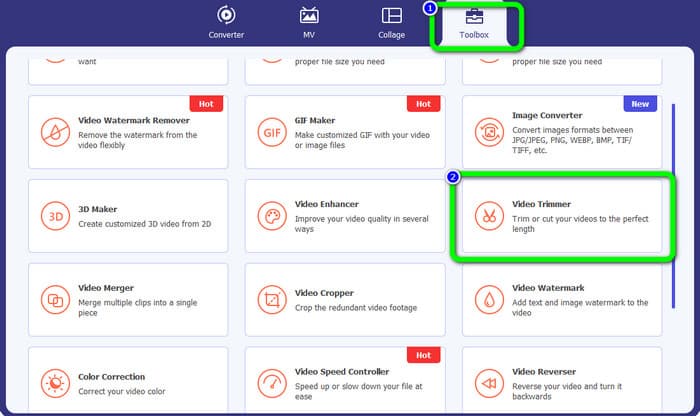
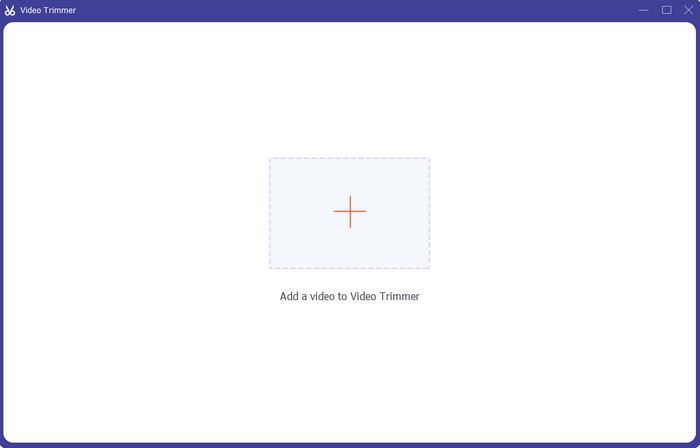
مرحله 3. وقتی رابط جدید روی صفحه ظاهر شد، روی علامت Plus کلیک کنید تا ویدئوی مورد نظر برای ویرایش را وارد کنید.
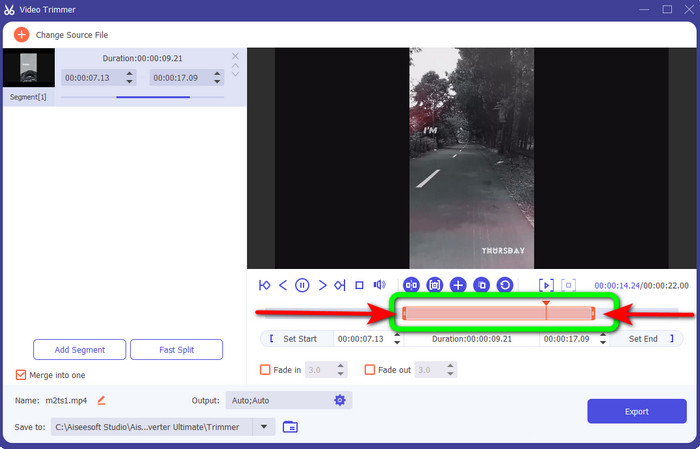
مرحله 4. سپس میتوانید در این بخش ویرایش ویدئو را آغاز کنید. میتوانید لبههای ویدئو را جابهجا کنید تا مشخص کنید ویدئو را چگونه میخواهید برش دهید/کوتاه کنید. میتوانید لبههای راست و چپ را بر اساس نیاز خود حرکت دهید.
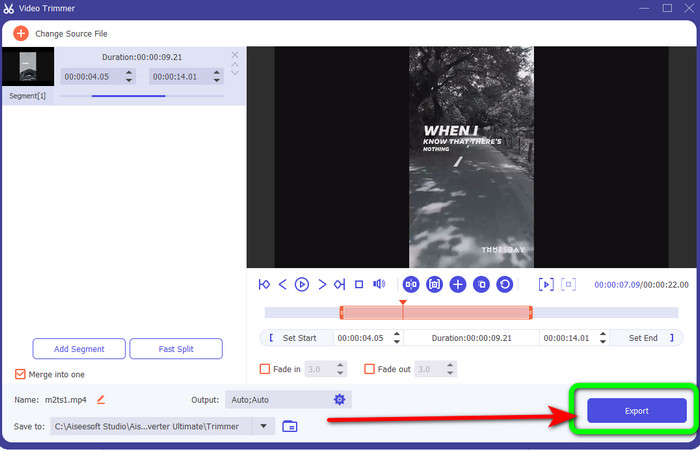
مرحله 5. وقتی از ویدئو راضی بودید، روی دکمه Export کلیک کنید تا فرایند خروجی گرفتن آغاز شود. سپس ویدئوی نهایی و ویرایششده خود را ذخیره کنید.
بخش 3. سوالات متداول در مورد نحوه برش ویدیوی آنلاین
چگونه یک ویدیو را در آیفون کوتاه کنیم؟
پس از شروع، روی ویدیوی مورد نظر برای ویرایش در برنامه Pictures ضربه بزنید. روی Edit کلیک کنید. زمان شروع و توقف را با کشیدن نوارهای لغزنده در هر طرف خط زمانی ویدیو تغییر دهید. از دکمه پخش برای مشاهده پیش نمایش ویدیوی ویرایش شده خود استفاده کنید. پس از انتخاب انجام شد گزینه Save Video یا Save Video as New Clip را انتخاب کنید.
چگونه فیلم ها را در شات کات برش دهیم؟
پس از وارد کردن فایل ویدئویی به شات کات، آن را به خط زمانی بکشید. سر پخش را در ابتدای قسمتی که می خواهید برش دهید قرار دهید. سپس کلید میانبر I را فشار دهید. پس از پیشبرد صفحه نمایش به پایان بخش، کلید O را فشار دهید. اکنون بخش از بقیه ویدیو جدا می شود.
بهترین نرم افزار برای برش فایل های MP4 به صورت آفلاین چیست؟
اگر میخواهید فایلهای MP4 را به صورت آفلاین برش دهید، از Video Converter Ultimate استفاده کنید. این برنامه رایگان برای دانلود، به شما امکان میدهد فایلهای MP4 را بدون دردسر کوتاه کنید.
نتیجه
اینها بهترین روشها برای برش آنلاین ویدئو هستند. میتوانید از تمام ابزارهای ویرایش ویدئویی ذکرشده برای کوتاه کردن ویدئو استفاده کنید. با این حال هنگام استفاده از ابزارهای آنلاین، گاهی به دلیل ضعف اتصال اینترنت عملکرد مناسبی ندارند. در این صورت، از Video Converter Ultimate استفاده کنید. این برنامه قابل دانلود به شما اجازه میدهد بدون اتصال اینترنت ویدئوها را ویرایش کنید.
-
 [4 راه] چگونه به راحتی ویدیوهای خود را به صورت آنلاین افزایش دهید
 آیا می خواهید سرعت یک ویدیوی آنلاین را افزایش دهید؟ این مقاله را بخوانید تا در مورد افزایش سرعت ویدیو به روش های مختلف بیشتر بدانید.
-
 نحوه قطع و ادغام آهنگ های آنلاین - 4 بهترین راهی که باید بدانید
 هنگامی که می خواهید آهنگ ها را به صورت آنلاین قطع و ادغام کنید تا یک قطعه موسیقی ایجاد کنید ، می توانید با 4 بهترین ابزار آنلاین برای کلیپ کردن آهنگ ها و ترکیب فایل ها از مقاله ، اطلاعات بیشتری کسب کنید.
-
 با روش و اطلاعات ، بهترین دستگاه برش MP4 را کشف کنید
 آیا می خواهید یاد بگیرید که چگونه ویدیوهایی را مانند ولاگرهایی که تماشا می کنید برش دهید؟ سپس به خواندن این پست ادامه دهید تا بدانید از چه تریمرهای MP4 می توانید استفاده کنید.
