


 Video Converter Ultimate
 ضبط صفحه
 تعمیر ویدیو
نحوه پیوستن به پرونده های MOV (QuickTime) به صورت رایگان
پس از جمع آوری بسیاری از مواد ویدئویی MOV ، ممکن است بخواهید مواد را مرتب کرده و در یک پرونده کامل به آنها بپیوندید. با این حال ، ممکن است برای مبتدیان یا تولیدکنندگان فیلم آماتور ، استفاده از یک ابزار فنی مانند Adobe Premiere Pro بسیار پیچیده باشد. شاید شما روزها یا حتی ماه ها وقت خود را صرف مطالعه نحوه اجرای برنامه کنید.
در واقع، اگر فقط میخواهید کلیپهای ویدیویی را ادغام کنید، میتوانید از یک ابزار ساده و کارآمد برای چسباندن ویدیو استفاده کنید که مشکل شما را حل میکند و تنها چند دقیقه زمان میبرد تا دو یا چند فایل MOV را با هم ادغام کنید.
با مراحل زیر میتوانید بهراحتی در هر دو سیستمعامل مک و ویندوز، فایلهای MOV را با هم ترکیب کنید. پس ادامه مطلب را بخوانید و این روشها را خودتان امتحان کنید.

قسمت 1. نحوه ادغام فیلم های MOV در QuickTime
فرمت MOV که با نام QuickTime File Format (QTFF) نیز شناخته میشود، یک ظرف دیجیتال ویدیو با کُدک MPEG-4 است. این فرمت در سال ۱۹۹۸ توسط اپل معرفی شد تا از QuickTime Player پشتیبانی کند. بنابراین، اگر مک دارید، در واقع میتوانید بهراحتی با استفاده از QuickTime Player، فایلهای mov را به هم وصل کنید.
در کمال تعجب ، QuickTime نه تنها یک media player است ، بلکه همچنین یک ویرایشگر ویدیو است که به شما امکان می دهد فیلم های جداگانه را ادغام کنید ، کلیپ های ویدیویی را ویرایش کنید و حتی صدا یا فیلم را در Mac ضبط کنید. علاوه بر این ، استفاده از آن آسان است و کیفیت اصلی فیلم ها را حفظ می کند.
در اینجا مراحل نحوه پیوستن به کلیپ های ویدیویی در QuickTime آورده شده است.
گام ۱. ویدیوهایی را که میخواهید ادغام کنید پیدا کرده و یکی از آنها را با QuickTime Player باز کنید. (برای راحتی میتوانید ابتدا همه را در یک پوشه یا روی دسکتاپ قرار دهید.)
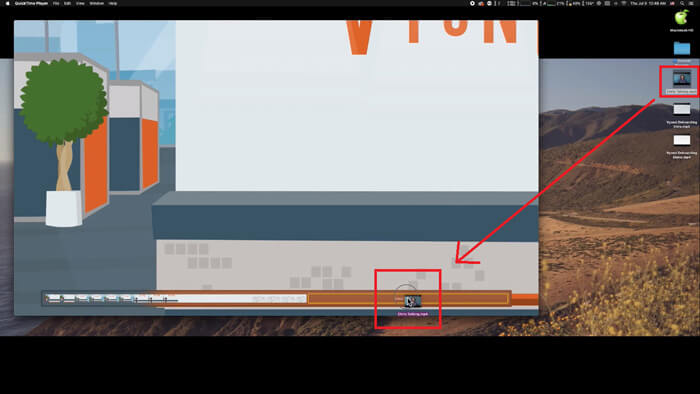
گام ۲. پس از باز کردن فایل، پنجره پخشکننده روی صفحه ظاهر میشود. اکنون کلیپ ویدیویی دیگر را به داخل QuickTime Player بکشید و رها کنید. میتوانید کلیپ ویدیویی را نگه دارید و به ترتیب دلخواه جابهجا کنید. وقتی ماوس را رها کنید، دکمه Done در کنار کلیپهای ویدیویی شما ظاهر میشود. روی آن کلیک کنید.
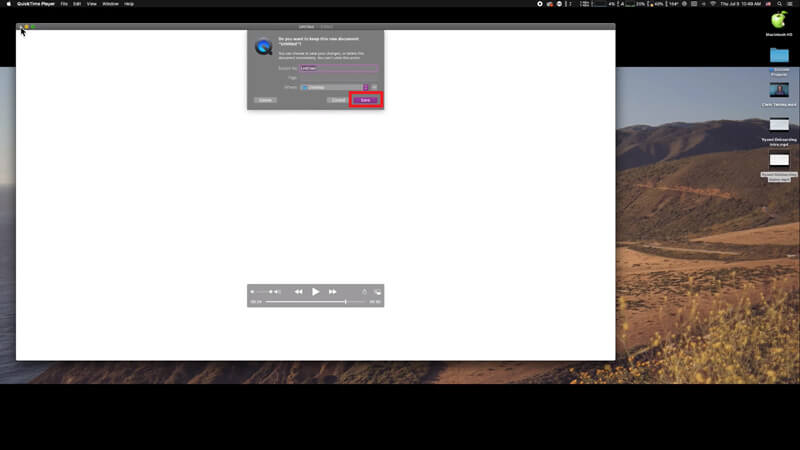
گام ۳. از QuickTime خارج شوید و بلافاصله پیغامی ظاهر میشود که به شما یادآوری میکند ویدیوی ادغامشده را ذخیره کنید. فقط یک نام جدید وارد کرده و محل ذخیره را انتخاب کنید، سپس روی دکمه Save کلیک کنید.
قسمت 2. نحوه ادغام فایلهای MOV به صورت آنلاین و رایگان
با این حال، QuickTime نمیتواند به شما کمک کند که انواع مختلف فایلهای ویدیویی با فرمتهای گوناگون مانند MP4، MOV، AVI، WMV، FLV و غیره را در یک فایل MOV ادغام کنید. در این حالت، لازم است از یک ابزار حرفهایتر برای ادغام ویدیو استفاده کنید که از چندین فرمت ویدیویی پشتیبانی میکند.
در اینجا با FVC Free Online Video Merger آشنا شوید؛ بهترین ابزار آنلاین رایگان برای چسباندن ویدیوها. با استفاده از این ابزار، میتوانید هر تعداد ویدیو که میخواهید بدون محدودیت بارگذاری کنید. علاوه بر MOV، میتوانید آن را به سایر فرمتهای محبوب ویدیو هم خروجی بگیرید که برای اشتراکگذاری ویدیو در سایتهای استریم مانند یوتیوب بسیار راحت است.
به جای نصب برنامه ای جدی و پرهزینه بر روی رایانه شخصی ، می توانید به هر ویدیویی بپیوندید تا یک ویدیوی شگفت انگیز بصورت آنلاین و با استفاده از این ترکیب کننده فیلم با کاربرد آسان تولید کنید ، همچنین به شما امکان می دهد یک فیلم بدون علامت ایجاد کنید. مهم نیست از چه سیستمی استفاده می کنید ، ویندوز ، مک یا لینوکس ، می تواند به خوبی کار کند. تمام آنچه شما نیاز دارید یک مرورگر و یک شبکه پایدار است.
مراحل زیر شما را در مورد نحوه کار با این ابزار ادغام ویدیو راهنمایی می کند.
گام ۱. روی لینک بالا کلیک کنید تا وبسایت FVC Free Online Video Merger را در مرورگر خود باز کنید.
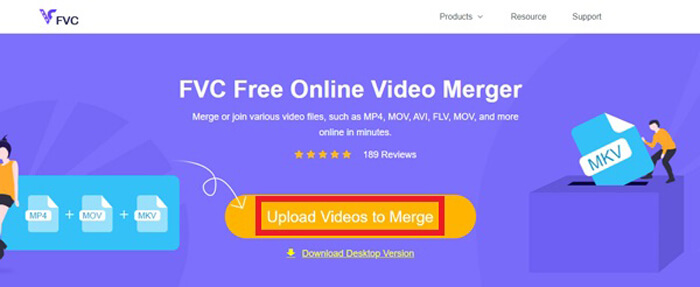
گام ۲. ابتدا روی دکمه Upload Videos to Merge در بنر کلیک کنید. سپس باید طبق راهنمای روی صفحه، یک لانچر را دانلود و روی کامپیوتر خود نصب کنید.
گام ۳. به محض پایان نصب، یک پنجره به طور خودکار باز میشود. اکنون میتوانید همه فایلهای MOV موردنظرتان برای ادغام را انتخاب کرده و به این ابزار اضافه کنید.
گام ۴. بعد از بارگذاری، بررسی کنید که ترتیب کلیپهای ویدیویی درست باشد. سپس Resolution (وضوح تصویر) را طبق نیاز خود تغییر دهید و Format را روی MOV یا هر فرمت دیگری که میخواهید قرار دهید.
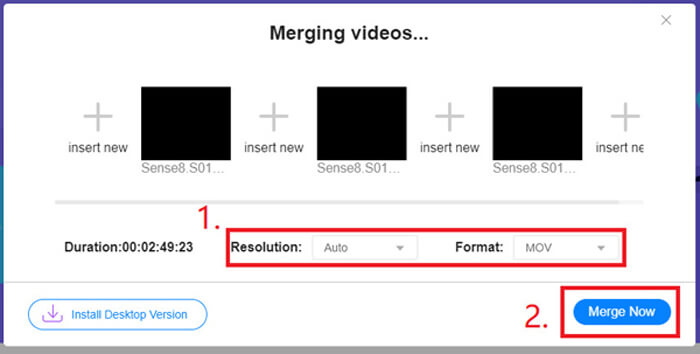
گام ۵. روی Merge Now کلیک کنید تا فرایند ادغام آغاز شود.
قسمت 3. نحوه ادغام فایلهای MOV در ویندوز 10
اگر Mac ندارید اما با ویندوز 10 رایانه شخصی دارید ، می توانید مراحل زیر را برای پیوستن به پرونده های MOV امتحان کنید.
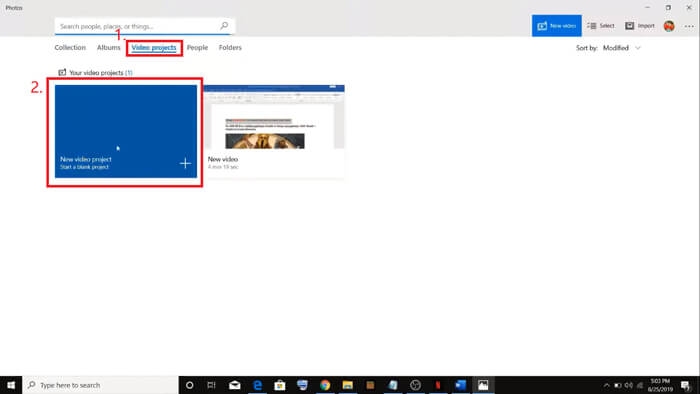
گام ۱. اپلیکیشن Photos را در رایانه ویندوزی خود باز کنید. میتوانید آن را با جستجو در نوار Search پیدا کنید. سپس زبانه Video projects را در بالا انتخاب کرده و روی New video project کلیک کنید. برای پروژه ویدیویی خود نامی انتخاب کنید.
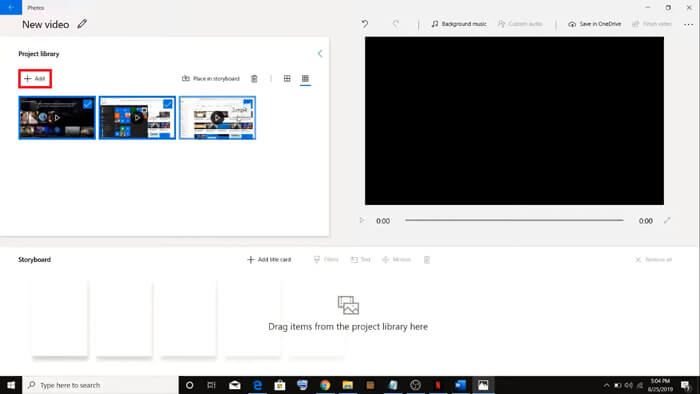
گام ۲. روی دکمه Add در گوشه بالا سمت چپ کلیک کرده و همه ویدیوهایی را که میخواهید تبدیل و ادغام کنید، از کامپیوتر خود انتخاب کنید.
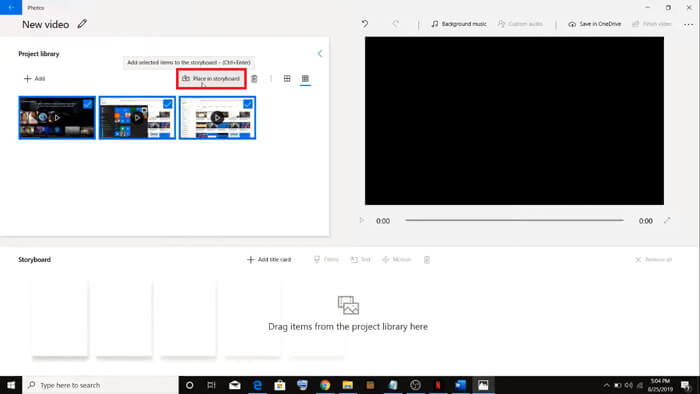
گام ۳. سپس روی دکمه Place in storyboard کلیک کنید تا همه فایلهای MOV شما با هم ترکیب شوند.
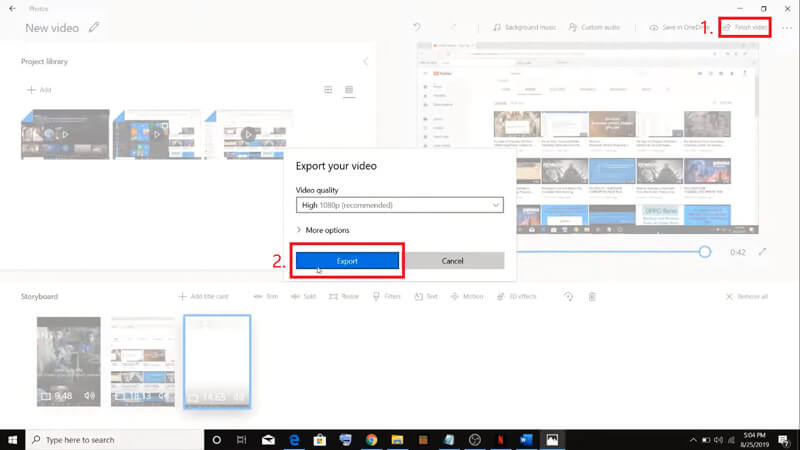
گام ۴. بعد از تنظیم ترتیب ویدیوها، روی Finish video در گوشه بالا سمت راست کلیک کنید. سپس ویدیوی ادغامشده را در رایانه خود Export (خروجی) بگیرید.
قسمت 4. سQالات متداول ادغام MOV
1. آیا می توانم از QuickTime Player در ویندوز استفاده کنم؟
با اینکه اپل دیگر از QuickTime برای ویندوز پشتیبانی نمیکند، هنوز میتوانید بسته نصب QuickTime را در اینترنت پیدا کنید. اما باید توجه داشته باشید که تنها میتوانید از آن برای پخش ویدیو استفاده کنید. بنابراین در عمل، فقط یک پخشکننده معمولی است و کمک چندانی به شما نمیکند.
اگر کاربر ویندوز هستید و میخواهید فایلهای MOV را ادغام کنید، میتوانید بهراحتی از ابزار قدرتمند FVC Free Online Video Merger استفاده کنید.
2. کدام یک برای YouTube ، MOV یا MP4 بهتر است؟
پس از ساخت یک ویدیوی عالی با ادغام همه مواد ویدیوییتان، ممکن است بخواهید آن را در یوتیوب، فیسبوک، اینستاگرام یا دیگر پلتفرمها آپلود کنید. در این صورت، فرمت MP4 انتخاب بهتری خواهد بود، چون حجم کمتری دارد و اشتراکگذاری آن در اینترنت آسانتر است.
شاید بخواهید تفاوتهای بیشتر بین MOV و MP4 را بدانید.
3. آیا QuickTime Player می تواند فیلم MP4 را صادر کند؟
هم نه و هم بله. چون خود QuickTime از خروجی گرفتن MP4 پشتیبانی نمیکند. اما اگر برای QuickTime هزینه کرده و آن را به QuickTime Pro ارتقا دهید، میتوانید از قابلیت ادغام فایلهای MOV لذت ببرید و بهطور خودکار فایل MP4 تبدیلشده را دریافت کنید. اگر نمیخواهید حتی یک سنت هم پرداخت کنید ولی همچنان میخواهید روی مک، فایل MOV را به MP4 تبدیل کنید، میتوانید یک مبدل رایگان آنلاین به نام FVC Free Online Video Converter را امتحان کنید که هم با مک و هم با ویندوز سازگار است.
نتیجه
بنابراین، اینها روشهایی هستند که میتوانید هنگام نیاز به ادغام فایلهای MOV در یک فایل واحد از آنها استفاده کنید. اگر از مک استفاده میکنید، میتوانید مستقیماً از نرمافزار داخلی QuickTime Player برای بهدست آوردن فایل MOV ادغامشده استفاده کنید. کاربران ویندوز ۱۰ میتوانند Photos را امتحان کنند. برای سایر رایانههای ویندوزی، کاربران میتوانند FVC Free Online Video Merger را انتخاب کنند و بدون محدودیت، بدون تبلیغ و بدون ویروس، یک تجربه عالی در ادغام ویدیو داشته باشند.
اگر این پست را دوست دارید و آن را عملی می دانید ، می توانید آن را با دوستان خود به اشتراک بگذارید. و دریغ نکنید که نظر خود را برای ما بگذارید. اکنون نوبت شماست که روش ها را امتحان کنید و پرونده های خود را ادغام کنید.
-
 نحوه تبدیل QuickTime به MP4 در ویندوز / مک / آنلاین / iOS / آندروید
 4 روش تبدیل QuickTime به فیلم های MP4 را به صورت رایگان در تلفن یا رایانه خود بخوانید و دریافت کنید. می توانید فرمت فایل را از MOV به MP4 در ویندوز / مک / آیفون / اندروید / آنلاین با سهولت تغییر دهید.
-
 4 روش برتر تبدیل MP4 به MOV
 چگونه MP4 را به MOV در Mac تبدیل کنیم؟ آیا راهی رایگان برای تبدیل MP4 به MOV بدون افت کیفیت وجود دارد؟ این پست 4 روش ساده برای کمک به شما در تبدیل ویدیو از MP4 به MOV در Mac ، Windows PC و آنلاین را به اشتراک می گذارد.
-
 نحوه تبدیل M2TS به MOV در ویندوز / مک (آنلاین / آفلاین)
 آیا برای پخش فایل های ویدئویی در تعدادی از پخش کننده ها و سیستم عامل ها ، باید M2TS را به MOV تبدیل کنید؟ این مقاله به شما کمک می کند تا بهترین روش آنلاین / آفلاین را برای تبدیل M2TS به MOV در ویندوز / مک پیدا کنید.
