


 Video Converter Ultimate
 ضبط صفحه
 تعمیر ویدیو
ساده ترین روش ها برای حذف لوگو ManyCam در دستگاه شما
آیا دوست دارید یاد بگیرید چگونه لوگوی ManyCam را حذف کنید در ویندوز و مک؟ در این صورت، این مطلب روشهای مختلفی را برای حذف لوگو از ویدیوهایتان در اختیارتان میگذارد که حتماً باید امتحان کنید. پخش ویدیوهای مورد علاقه با واترمارکها یا لوگوها کمی آزاردهنده است. نمیتوانید از ویدیوهایتان لذت ببرید و این موضوع باعث حواسپرتی میشود. حتی گاهی بهخاطر واترمارکها، تصاویر، متن یا لوگوها، بعضی قسمتهای ویدیو را هم نمیتوانید ببینید. خوشبختانه میتوانید از نرمافزارهای عالیِ مجهز به ابزار حذف واترمارک استفاده کنید تا این اشیای اضافی را از روی ویدیوهای خود بردارید.
با کمک این اپلیکیشن ها دیگر هرگز ناامید نخواهید شد. اگر علاقه مند به دانستن بهترین روش ها برای حذف لوگوی ManyCam هستید، بهترین انتخاب شما خواندن این مقاله است.

قسمت 1: نحوه حذف لوگو ManyCam با فعال کردن اشتراک
اگر میخواهید یاد بگیرید چگونه واترمارکها را از ManyCam حذف کنید، در جای درستی هستید. ManyCam یک نرمافزار لایو استریم است که هم در ویندوز و هم در مک در دسترس است. این برنامه به شما اجازه میدهد روی پلتفرمهای خود پخش زندهای منحصربهفرد ایجاد کنید، آموزش بسازید، ارائههای تجاری انجام دهید، استریم بازی داشته باشید و موارد دیگر. علاوه بر این، امکانات بیشتری هم دارد که میتوانید از آنها لذت ببرید، مثل افزودن موسیقی، ضبط صفحه، افزودن پرده سبز، استریم بازی و غیره. برای تولیدکنندگان محتوا، ManyCam بسیار ارزشمند و مفید است. این نرمافزار ابزارهای ضروریای مثل اسکرینکست و ضبط صفحه را فراهم میکند که کار را برای آنها بسیار راحت میسازد.
با این حال، هر بار که ویدیوی خود را ایجاد یا ویرایش می کنید، یک لوگوی manycam در قسمت پایینی ویدیو وجود دارد که آزاردهنده است. خوشبختانه با فعال کردن اشتراک ManyCam می توانید این لوگو را حذف کنید. مراحل زیر را دنبال کنید تا یاد بگیرید چگونه با فعال کردن اشتراک، لوگوی manycam را حذف کنید.
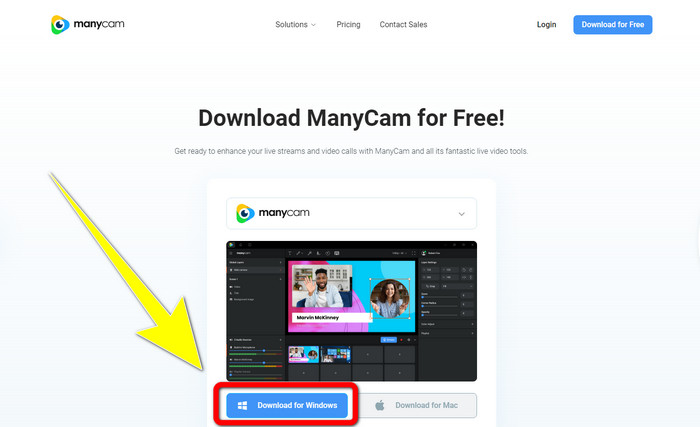
مرحله ۱: برای دانلود ManyCam، روی دکمه Download for Windows کلیک کنید. سپس به مرحله نصب ادامه دهید.
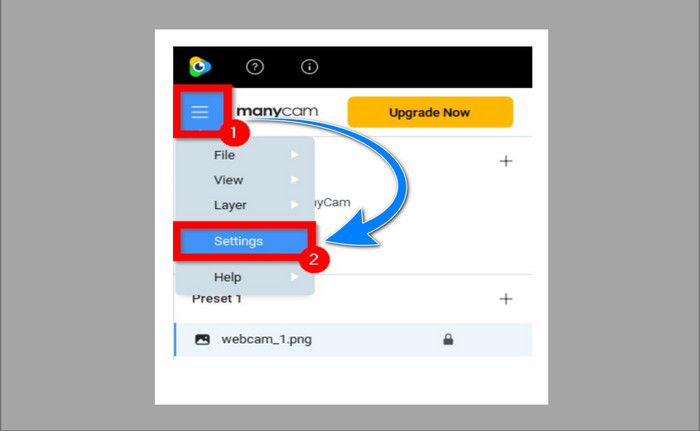
مرحله ۲: برنامه را روی رایانه خود اجرا کنید و روی آیکون منوی سهخطی ManyCam کلیک کنید، سپس به مسیر Settings > Account بروید و با حسابی که پس از خرید اشتراک ساختهاید وارد شوید.
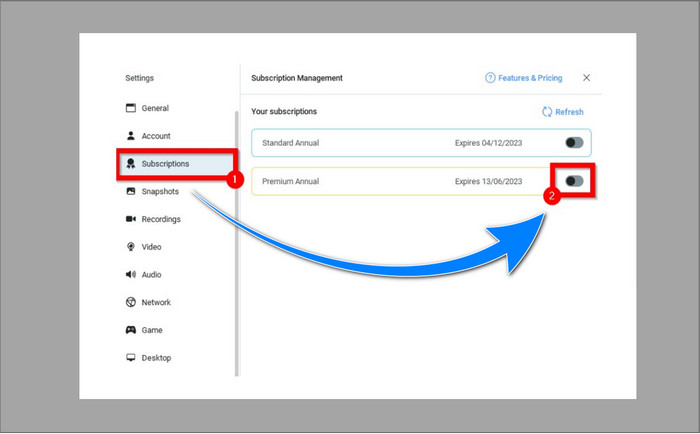
مرحله ۳: به برگه Subscription بروید تا مطمئن شوید اشتراک فعال است.
مرحله ۴: اگر اشتراک از قبل فعال شده باشد، یک پیام Pop-up ظاهر میشود و کار شما تمام است.
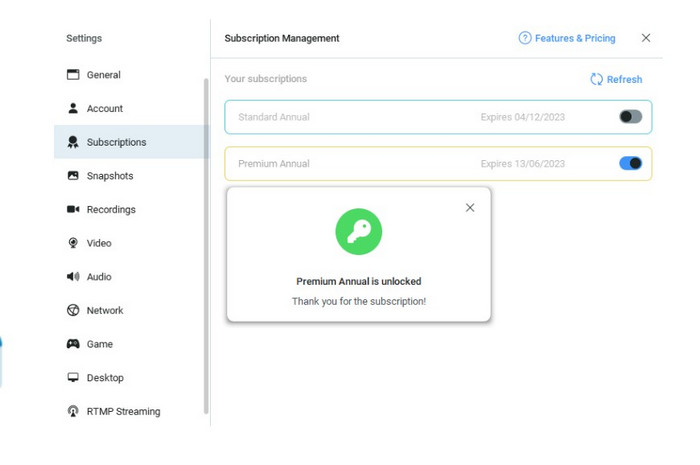
اگر برنامه ManyCam شما قبلاً فعال شده باشد، واترمارک یا لوگوی روی ویدیوهای شما به طور خودکار حذف خواهد شد. شما می توانید از تماشای فیلم های مورد علاقه خود بدون مواجهه با واترمارک روی آنها لذت ببرید.
قسمت 2: نحوه حذف لوگوی ManyCam بدون اشتراک
میخواهید واترمارک ManyCam را بهصورت رایگان حذف کنید؟ علاوه بر خودِ برنامه ManyCam، میتوانید از یک برنامه دیگر هم برای حذف لوگوی ManyCam استفاده کنید. بهترین برنامهای که میتوانید به کار بگیرید، Video Converter Ultimate است. این برنامه میتواند اشیای اضافی روی ویدیوهای شما مانند متن، واترمارک، لوگو و غیره را حذف کند. علاوه بر این، Video Converter Ultimate ابزارهای ویرایشی زیادی دارد که میتوانید از آنها استفاده کنید، مثل کنترلکننده سرعت ویدیو، بهبوددهنده ویدیو، افزودن و حذف واترمارک، اصلاح رنگ، تقویت صدا و موارد دیگر. بهترین ابزاری که برای حذف واترمارک در Video Converter Ultimate میتوانید استفاده کنید، ابزار Video Watermark Remover است.
این ابزار به شما کمک می کند تا به راحتی واترمارک ها را حذف کنید. علاوه بر این، این برنامه در هر دو ویندوز و مک در دسترس است. همچنین، استفاده از این اپلیکیشن برای شما سخت نخواهد بود. همچنین از چندین فرمت فایل صوتی و تصویری مانند MP4، FLV، MOV، MKV، MP3، AAC و غیره پشتیبانی می کند. اگر می خواهید لوگوی ManyCam را با استفاده از Video Converter Ultimate حذف کنید، این مقاله دو راه را به شما نشان می دهد. این روشها استفاده از برشدهنده ویدیو و حذفکننده واترمارک ویدیویی است.
1. استفاده از Video Cropper
مرحله ۱. FVC Video Converter Ultimate را دانلود کرده و به مرحله نصب ادامه دهید.
دانلود رایگانبرای ویندوز 7 یا بالاتردانلود امن
دانلود رایگانبرای MacOS 10.7 یا بالاتردانلود امن
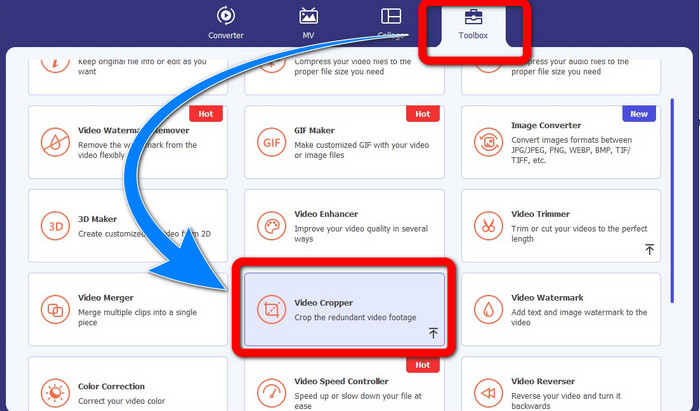
مرحله ۲: بعد از نصب، برنامه را اجرا کنید. روی Toolbox > Video Cropper کلیک کنید.
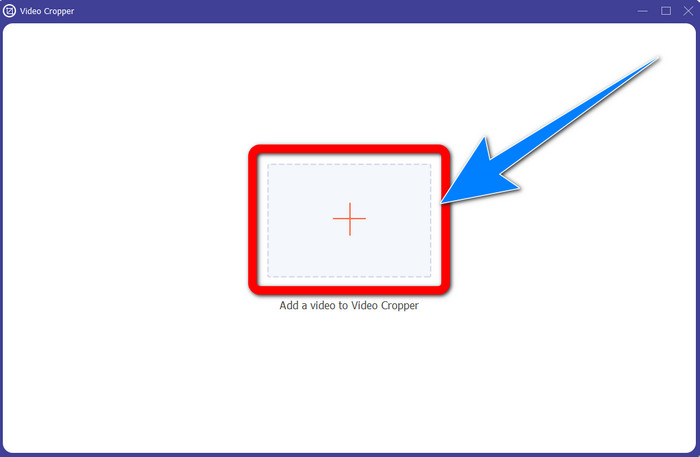
مرحله ۳: پس از کلیک روی Video Cropper، رابط کاربری دیگری باز میشود. روی دکمه علامت Plus کلیک کنید و ویدیوهای خود را که دارای واترمارک ManyCam هستند اضافه کنید.
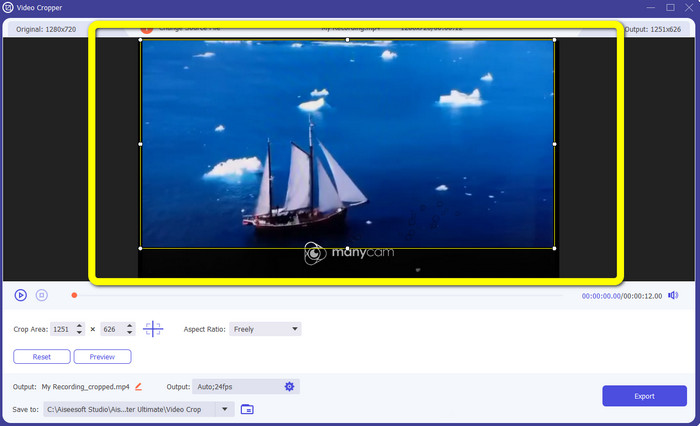
مرحله ۴: وقتی فایل شما اضافه شد، میتوانید ویدیوی خود را برش دهید و واترمارک را حذف کنید.
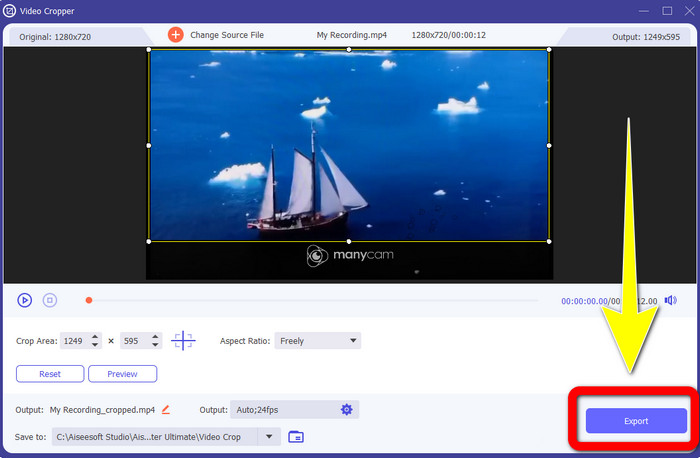
مرحله ۵: وقتی واترمارک حذف شد، برای ذخیره خروجی نهایی روی دکمه Export کلیک کنید. حالا میتوانید ویدیوی مورد علاقه خود را بدون واترمارک پخش کنید.
2. استفاده از Video Watermark Remover
مرحله ۱: برنامه را باز کنید. به مسیر Toolbox > Video Watermark Remover بروید.
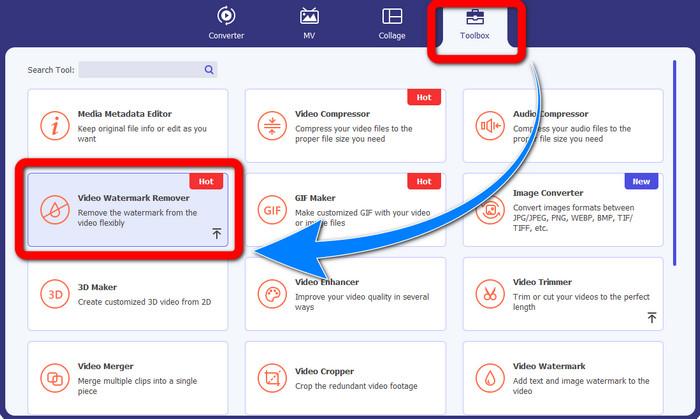
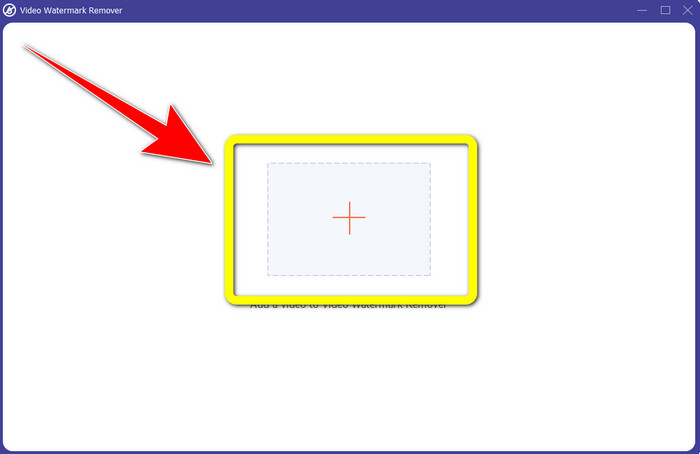
مرحله ۲: پس از کلیک روی Video Watermark Remover، رابط کاربری دیگری ظاهر میشود. برای پیوستکردن ویدیوی خود که دارای واترمارک ManyCam است، روی دکمه علامت Plus کلیک کنید.
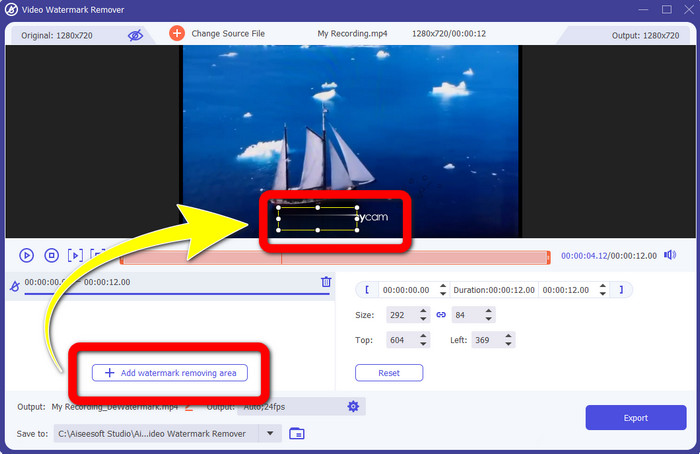
مرحله ۳: اگر ویدیو را اضافه کردهاید، روی Add Watermark Removing Area کلیک کنید؛ سپس یک box روی ویدیوی شما ظاهر میشود. این کادر را روی واترمارک بکشید تا آن را بپوشاند.
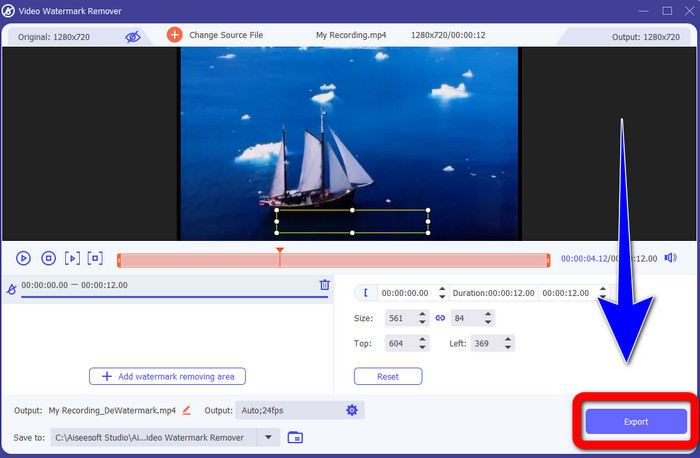
مرحله ۴: اگر کارِ حذف واترمارک از ویدیوهای خود را تمام کردهاید، روی Export کلیک کنید تا خروجی ذخیره شود. این بهترین روش برای حذف لوگوی ManyCam بهصورت رایگان است.
قسمت 3: سوالات متداول در مورد حذف لوگو ManyCam
چه مدت طول می کشد تا لوگو حذف شود؟
لازم نیست بیشتر منتظر بمانید زیرا فرآیند حذف لوگو یا هر چیز غیر ضروری فقط چند ثانیه طول می کشد.
آیا می توانم لوگوی ManyCam را روی گوشی خود حذف کنم؟
آره! میتوانید با استفاده از نرمافزارهای مختلف با پاککنندههای واترمارک، لوگوی ManyCam را در اندروید یا آیفون خود حذف کنید. به دنبال برنامه در فروشگاه بازی یا فروشگاه برنامه خود بگردید و سعی کنید از برنامه هایی استفاده کنید که می توانید در بالاترین نتایج مشاهده کنید.
آیا بهترین راه برای حذف واترمارک در مک من وجود دارد؟
قطعاً بله! میتوانید برای حذف واترمارکها روی مک از یک برنامه عالیِ مجهز به ابزار حذف واترمارک استفاده کنید. این برنامه Video Converter Ultimate است. این نرمافزار هم در ویندوز و هم در مک عالی عمل میکند. این نرمافزار میتواند به حذف اشیای اضافی روی ویدیوهای شما مانند لوگو، واترمارک، تصویر و متن کمک کند.
آیا می توانم از ابزار Cropping از برنامه ManyCam برای حذف لوگوی ManyCam استفاده کنم؟
متأسفانه خیر! استفاده از ابزار برش (Crop) برای حذف لوگو از ManyCam کارایی ندارد. حتی اگر برای حذف لوگو، ویدیو را برش دهید، باز هم لوگو نمایش داده میشود. تنها راه حذف لوگو این است که اشتراک ManyCam را فعال کنید.
به غیر از ManyCam، آیا راه دیگری برای حذف واترمارک روی ویدیوهای من وجود دارد؟
بله، وجود دارد! به غیر از ManyCam، برنامه های بیشتری با پاک کننده واترمارک وجود دارد که می توانید بدون خرید از آنها استفاده کنید. یکی از بهترین برنامه هایی که می توانید برای حذف واترمارک روی ویدیوهای خود استفاده کنید، Video Converter Ultimate است. این ساده و آسان برای استفاده است که برای مبتدیان مناسب است.
نتیجه
با توجه به توضیحات بالا، میتوانید یاد بگیرید چگونه لوگوی ManyCam را در ویندوز و مک حذف کنید. میتوانید با فعالکردن اشتراک خود در ManyCam، بهسادگی از خودِ برنامه برای حذف لوگو استفاده کنید. علاوه بر این، اگر میخواهید از یک برنامه دارای ابزار حذف واترمارک بهصورت رایگان استفاده کنید، باید از Video Converter Ultimate بهره ببرید. این برنامه در پاککردن اشیای اضافی از روی ویدیوهای شما کمک بزرگی خواهد بود.
-
 ساده ترین روش ها در مورد نحوه حذف واترمارک از عکس ها
 آیا از واترمارک روی عکس هایتان عصبانی هستید؟ نگران نباش! این مقاله روش های ساده و آسانی برای حذف واترمارک از عکس های شما ارائه می دهد.
-
 نحوه حذف واترمارک Powtoon با استفاده از 4 روش موثر
 این مقاله را بخوانید تا نحوه حذف واترمارک Powtoon را با استفاده از بهترین ابزارهایی که در اینجا قرار داده ایم و یک آموزش یاد بگیرید.
-
 بررسی Apowersoft Watermark Remover – ویژگی ها، مزایا و معایب، و قیمت ها
 Apowersoft Watermark Remover یکی از بهترین حذف واترمارک است که به صورت آنلاین و آفلاین پشتیبانی می کند، برای اطلاعات بیشتر روی این کلیک کنید!
