


 Video Converter Ultimate
 ضبط صفحه
 تعمیر ویدیو
راه های کامل برای حذف موثر واترمارک فیلتر Picsart در ویدیوهای شما
امروزه داشتن یک نرمافزار ویرایش رسانهی تصویری روی دسکتاپ، مثل Picsart، یک ابزار ضروری به شمار میآید. با آن میتوانید فقط با چند تنظیم ساده، تصویر معمولی خود را به عکسی حرفهای تبدیل کنید؛ طوری که تا به حال کسی مانند آن را ندیده باشد! با ساختن یک تصویر چشمگیر میتوانید مشتریان یا مخاطبان بیشتری جذب کنید. اما یک مشکل در استفاده از Picsart وجود دارد و آن واترمارکی است که بعد از خروجی گرفتن به تصویر اضافه میکند. این واترمارک آزاردهنده است و اگر حذف نشود، میتواند در ظاهر بصری کار بسیار حواسپرتکن باشد. پس اگر به دنبال نرمافزار و یک آموزش برای حذف واترمارک فیلتر Picsart هستید، خواندن این مقاله را ادامه دهید و بیشتر در مورد آن یاد بگیرید!

قسمت 1. نحوه حذف واترمارک فیلتر Picsart با استفاده از نرم افزار رایگان روی دسکتاپ
FVC Video Converter Ultimate - شماره یک حذف واترمارک در ویندوز و مک
بیایید معرفی نرمافزار را با انتخاب شماره یک خودمان شروع کنیم؛ نرمافزاری که میتواند کمک کند و به شما یاد بدهد چگونه واترمارک Picsart را حذف کنید. FVC Video Converter Ultimate سلاحی ضروری در مجموعه ابزار شماست که با آن میتوانید واترمارک روی ویدیوها را بهراحتی حذف کنید و در عین حال خروجی حرفهای داشته باشید. بهخاطر عملکرد و قابلیتهای بیرقیبش، کاربران زیادی آن را امتحان کردهاند و این ابزار آنها را ناامید نکرده است. اگر برای حذف واترمارک از روی ویدیوی خود کمک میخواهید، میتوانید مراحل زیر را مرحله به مرحله کپی و اجرا کنید.
مرحله ۱. با کلیک روی دکمه دانلود مناسب در پایین، میتوانید نسخه نهایی نرمافزار را روی دستگاه خود داشته باشید. بعد از آن، نرمافزار را روی کامپیوتر نصب کنید و برای باز کردن برنامه روی Start Now کلیک کنید.
دانلود رایگانبرای ویندوز 7 یا بالاتردانلود امن
دانلود رایگانبرای MacOS 10.7 یا بالاتردانلود امن
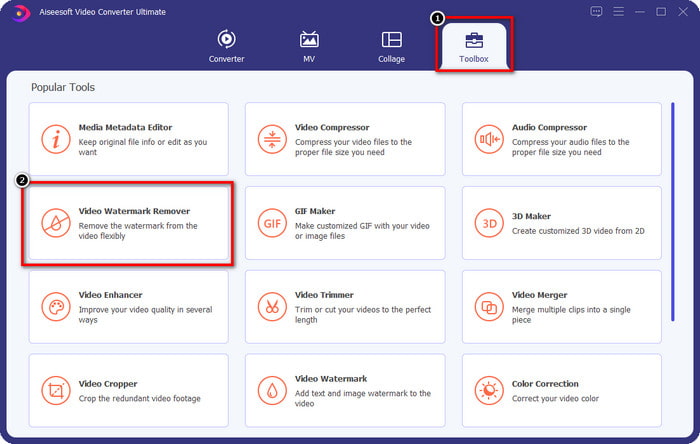
مرحله ۲. در بخش Toolbox، قابلیتهای دیگری را میبینید که میتوانند به شما کمک کنند تا جلوهای حرفهای به ویدیوی خود بدهید. اما امروز روی Video Watermark Remover کلیک کنید.
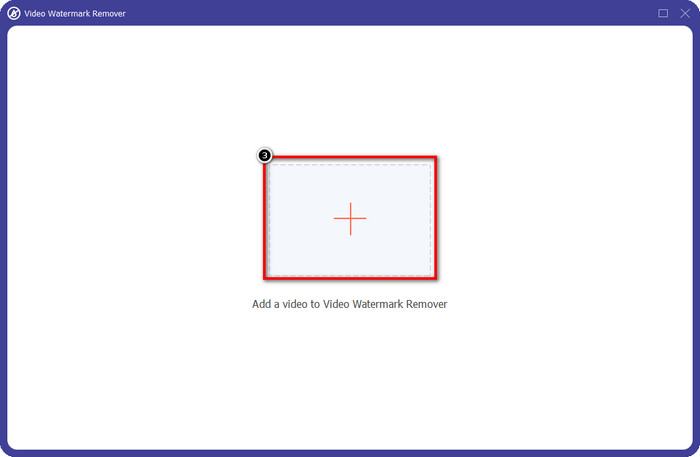
مرحله ۳. ویدیویی را که در Picsart ویرایش کردهاید، با کلیک روی آیکون + آپلود کنید. در پوشهای که روی صفحه نمایش داده میشود، فایل را جستوجو و سپس روی Open کلیک کنید.
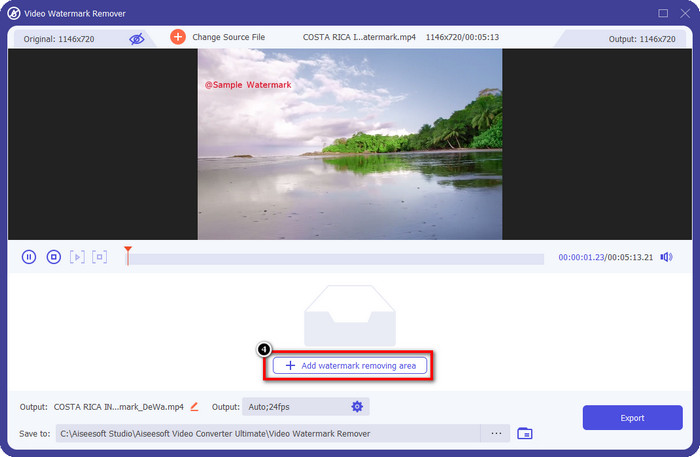
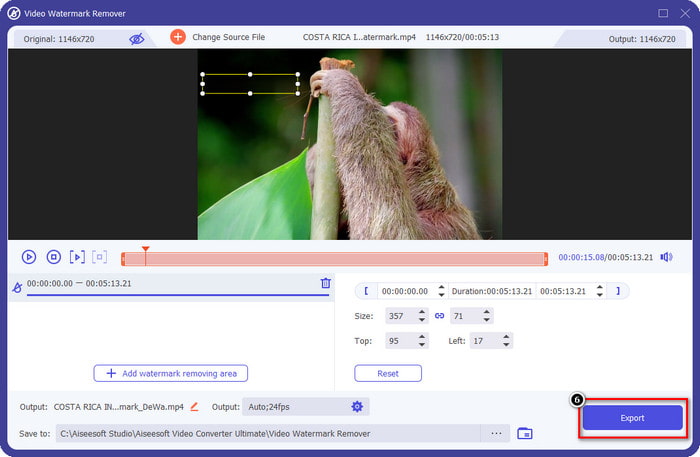
مرحله ۴. روی Add Watermark Removing Area فشار دهید تا ناحیهای برای حذف واترمارکِ قرارگرفته روی ویدیوی آپلودشده اضافه شود.
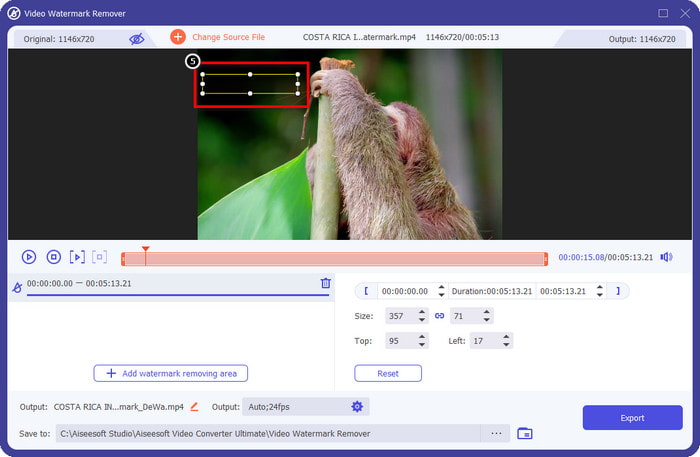
مرحله ۵. جعبه انتخاب را نگه دارید و روی واترمارک قرار دهید و آن را کاملاً بپوشانید. میتوانید این جعبه را بر اساس سلیقه خود بزرگتر یا کوچکتر کنید.
مرحله ۶. حالا که پوشاندن واترمارک را با جعبه انتخاب تمام کردهاید، روی Export کلیک کنید تا خروجی نهایی روی حافظه محلی دستگاه شما ذخیره شود.
عکس ها در ویندوز- واترمارک جلد با طراحی سه بعدی
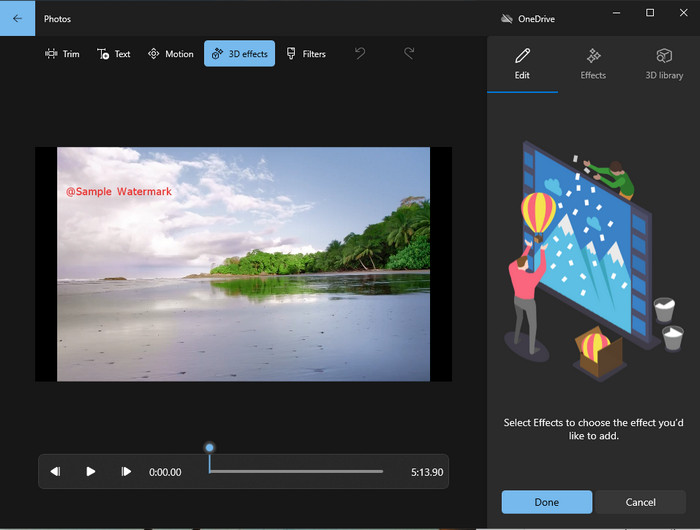
اگر دانلود نرمافزار سبک شما نیست و از کاربران ویندوز هستید، باید برای ویرایش واترمارک در ویدیو از برنامه Photos استفاده کنید. یادگیری نحوه حذف واترمارک Picsart با این ابزار بسیار سریعتر خواهد بود، چون لازم نیست وارد مرحله دانلود برنامه شوید. این ابزار واترمارک را از ویدیو پاک نمیکند، اما میتوانید با استفاده از طراحیهای سهبعدی (3D) آن را بپوشانید. با این حال، عملکرد این نمایشدهنده و ویرایشگر پیشفرض رسانه تصویری خوب است. هنوز مطمئن نیستید؟ پس میتوانید مراحل زیر را بخوانید و در صورت تمایل آنها را دنبال کنید.
مرحله ۱. روی دکمه ویندوز در نوار وظیفه کلیک کنید و نام Photos را جستوجو کنید تا برنامه باز شود.
مرحله ۲. بعد از باز کردن ویرایشگر داخلی، باید روی علامت + کلیک کنید تا ویدیویی را که میخواهید اینجا ویرایش کنید، آپلود کنید.
مرحله ۳. به بخش 3D Effects بروید، روی 3D Library کلیک کنید و طرحی را که میخواهید برای پوشاندن واترمارک استفاده کنید، جستوجو کنید. طرح انتخابی را روی بخشی که واترمارک دارد قرار دهید.
مرحله ۴. روی Finish Video کلیک کنید تا خروجی نهایی روی حافظه محلی ویندوز شما ذخیره شود.
PickFrom Blur Video Online
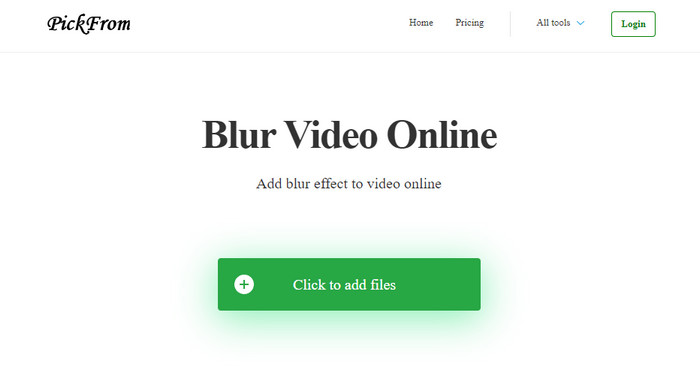
ابزار آنلاین PickFrom Blur Video Online میتواند به شما کمک کند تا واترمارک PicsArt را از روی ویدیوهایی که روی وب دارید، حذف کنید. این ابزار برای بسیاری از کاربران ناشناخته است، اما امروز آن را معرفی میکنیم. ما این نرمافزار را بهدلیل کاراییاش در حذف واترمارک از روی ویدیوهای آپلودشده اضافه کردهایم. رابط کاربری آن ساده و کاملاً سرراست است؛ اگر بخواهید از این نرمافزار استفاده کنید، سردرگم نخواهید شد. پس اگر میخواهید واترمارک را حذف کنید، وارد مراحل زیر شوید.
مرحله ۱. مرورگر وب خود را باز کنید، نام ابزار را جستوجو کنید و روی اولین نتیجه کلیک کنید تا وباپ حذف واترمارک باز شود.
مرحله ۲. روی Click to Add File کلیک کنید تا بتوانید ویدیو را اینجا آپلود کنید.
مرحله ۳. گزینه Blur Part of the Video را تیک بزنید و سپس جعبه انتخاب را روی واترمارک قرار دهید.
مرحله ۴. روی Start کلیک کنید تا ویدیوی بدون واترمارک دانلود شود.
قسمت 2. نحوه حذف واترمارک Picsart با خرید نسخه پریمیوم
اگر نمی خواهید با حذف واترمارک طلایی Picsart دچار مشکل شوید، باید نرم افزار را خریداری کنید. مقدار مشخصی برای شما هزینه خواهد داشت زیرا قبل از استفاده از آن باید هزینه آن را بپردازید و سپس ویدیو را بدون واترمارک تعبیه شده صادر کنید. بنابراین، اگر می خواهید یک آموزش گام به گام در مورد خرید Picsart داشته باشید، باید آموزش بعدی را که اضافه می کنیم دنبال کنید.
مرحله ۱. وبسایت رسمی Picsart را باز کرده و حساب کاربری خود را اینجا وارد کنید. اگر حساب کاربری ندارید، باید اینجا با زدن روی Sign up یک حساب ایجاد کنید.
مرحله ۲. در صفحه اصلی وبسایت، روی Pricing کلیک کنید و قیمت هر یک از محصولات موجود را ببینید.
مرحله ۳. پلانی را که میخواهید، ماهانه یا سالانه، انتخاب کرده و روی Go to Payment کلیک کنید.
مرحله ۴. با پر کردن اطلاعات موردنیاز، صورتحساب را تکمیل کنید و سپس روی Purchase Now. کلیک کنید.
مرتبط:
حذف واترمارک از عکسهای فارغالتحصیلی
بخش 3. سؤالات متداول در مورد نحوه حذف واترمارک Picsart
آیا می توانم Picsart Gold را به طور دائم خریداری کنم؟
این مبنا یا طرح پرداخت یکباره را پشتیبانی نمی کند، بنابراین اگر می خواهید از Picsart Gold استفاده کنید، باید از طرح ماهانه یا سالانه استفاده کنید. قیمت هر طرح را با مراجعه به وب سایت رسمی آن بررسی کنید.
آیا می توانم یک اشتراک سفارشی در Picsart ایجاد کنم؟
بله، می توانید برای یک تیم در Picsart اشتراک ایجاد کنید. می توانید تعداد افرادی که از برنامه استفاده می کنند را تعیین کنید.
از کجا می توانم به Picsart دسترسی داشته باشم؟
Picsart را می توانید در ویندوز، اندروید و iOS دانلود کنید. متأسفانه، برنامه در حال حاضر نسخه مک ندارد، اما ناراحت نباشید زیرا می توانید از سایر نرم افزارهای ویرایش رسانه موجود در سیستم خود استفاده کنید.
نتیجه
آموزشی که قبلا آموزش دادیم به شما ایده ای درباره حذف واترمارک با استفاده از PicsArt و بهترین پاک کننده های واترمارک که می توانید استفاده کنید می دهد. اکنون میتوانید از ویدیویی که در Picsart ویرایش میکنید، بدون اینکه از واترمارکی محصول که به خروجی نهایی اضافه میکند، خسته شوید، لذت ببرید. بنابراین، اگر هنوز با ابزارهایی که ارائه میدهیم قانع نشدهاید، ابتدا باید آنها را امتحان کنید، بهویژه FVC Video Converter Ultimate. روی دکمه دانلود کلیک کنید و آن را به صورت رایگان در ویندوز و مک خود داشته باشید، سپس از ویژگیها و عملکردهایی که میتوانید استفاده کنید، لذت ببرید.
-
 نحوه حذف واترمارک Pond5 با استفاده از ابزار نهایی
 با دنبال کردن مراحل ساده زیر، نحوه حذف واترمارک Pond5 را بیاموزید. با استفاده از این ابزارهای چشمگیر می توانید به راحتی واترمارک Pond5 را روی تصویر خود حذف کنید.
-
 2 روش قدرتمند برای حذف واترمارک Dxtory
 نحوه حذف واترمارک Dxtory را با دنبال کردن دو بهترین روش بیاموزید. اگر به دنبال مناسب ترین ابزار برای حذف واترمارک Dxtory هستید، اینجا را بخوانید.
-
 پاک کننده های برجسته آرنولد مایا واترمارک که نباید از دست بدهید
 بسیاری از پاک کننده های واترمارک می توانند واترمارک آرنولد مایا را حذف کنند. اما اگر می خواهید بدانید بهترین پاک کننده های واترمارک آرنولد مایا کدامند، این صفحه را بخوانید.
