


 Video Converter Ultimate
 ضبط صفحه
 تعمیر ویدیو
نحوه تغییر سرعت پخش VLC با استفاده از کنترل سرعت و کلیدهای میانبر [آشکار شده]
تغییر سرعت ویدیو در بیشتر پخشکنندههای رسانه میتواند کار دشواری باشد، اما با VLC Player این کار بسیار ساده است. فرض کنید یک ویدیوی یکساعته دارید و میخواهید آن را با سرعت بالا تماشا کنید تا در وقت خود صرفهجویی کنید؛ در این صورت، افزایش سرعت یک انتخاب مناسب است. از طرف دیگر، اگر میخواهید ویدیویی را با جزئیات بیشتری ببینید، باید آن را به صورت حرکت آهسته تماشا کنید. با VLC میتوانید بهراحتی سرعت پخش ویدیویی را که تماشا میکنید تغییر دهید؛ چه بخواهید آن را تندتر کنید و چه آهستهتر، همهچیز در اینجا ممکن است. به خواندن این مقاله ادامه دهید، زیرا شیوههای مخفیای را فاش میکند که میتوانید برای تغییر سرعت پخش VLC مطابق میل خود از آنها استفاده کنید.

قسمت 1. تغییر سرعت پخش VLC با استفاده از کنترل سرعت و کلیدهای میانبر
دو راه برای تغییر سرعت ویدیویی که در VLC پخش می کنید وجود دارد. اینها سرعت کنترل و کلیدهای میانبر هستند. خوشبختانه هر دوی آنها را به شما می دهیم. اگر آماده هستید که سرعت VLC را کم یا زیاد کنید، مسیری را که می خواهید بروید انتخاب کنید.
قبل از ادامه مراحل، مطمئن شوید که قبلاً پخش کننده رسانه را روی دسکتاپ خود دانلود کرده اید. اگر نه، می توانید از وب سایت رسمی آن بازدید کنید تا پخش کننده رسانه را داشته باشید.
راه 1. از Speed Control در VLC Player در ویندوز و مک استفاده کنید
حتی اگر کنترل سرعت هر دو در نسخه های ویندوز و مک VLC موجود است، مراحل هنوز برای هر یک متفاوت است. بنابراین، اگر کاربر ویندوز هستید و می خواهید سرعت ویدیو را تغییر دهید، در حال تماشا هستید، سپس مراحل را برای کاربر ویندوز بخوانید، اما اگر کاربر مک هستید، یکی دیگر را بخوانید.
برای کاربران ویندوز:
مرحله 1. پس از دانلود پخشکننده رسانه، آن را باز کنید، سپس فایل رسانهای را که میخواهید با سرعت تغییریافته پخش کنید باز کنید.
مرحله 2. به منوی Playback بروید و گزینه Speed را انتخاب کنید تا با استفاده از VLC سرعت پخش را تغییر دهید.
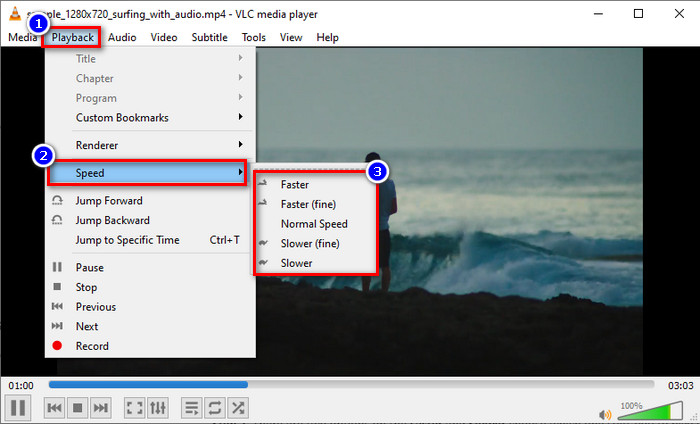
مرحله 3. سرعتی را که میخواهید انتخاب کنید و روی آن کلیک نمایید. ویدیویی را که بارگذاری کردهاید پخش کنید تا آن را با سرعت انتخابی خود تماشا کنید.
برای کاربران مک:
مرحله 1. هر ویدیو یا فایل صوتیای را که میخواهید در نسخه مک این نرمافزار پخش کنید، اجرا نمایید.
مرحله 2. برای استفاده از کنترلکننده سرعت، روی Playback کلیک کنید.
مرحله 3. دو گزینه برای تندتر و کندتر کردن وجود دارد؛ نوار لغزنده را بکشید تا سرعتی را که برای پخش ویدیو مناسب شماست انتخاب کنید.

راه دوم از کلیدهای میانبر برای تغییر سرعت در VLC Player استفاده کنید
فرض کنید از انجام مراحل بالا خسته شده اید، باید از کلید میانبر سرعت پخش VLC استفاده کنید. آنها همین کار را می کنند. کلیدهای میانبر می توانند سرعت یک ویدیو را مانند روش اولی که در این مقاله اضافه کرده ایم، افزایش یا کاهش دهند. هیچ چیز خاصی در مورد استفاده از کلیدهای میانبر وجود ندارد به جز اینکه کار را آسان تر و موثرتر می کند. اگرچه میتوانید سرعت ویدیو را با استفاده از میانبر کنترل کنید، مراحل ویندوز و کلید میانبر مک برای هر کدام متفاوت است. برای آگاهی از نحوه تغییر سرعت با استفاده از کلیدهای صفحه کلید، جزئیات بعدی را دنبال کنید.
برای کاربران ویندوز:
مرحله 1. فایل رسانهایای را که میخواهید در این پخشکننده اجرا کنید باز کنید.
مرحله 2. هنگام پخش، برای کند کردن ویدیو روی صفحهکلید خود دکمه [ را فشار دهید. اما اگر میخواهید کمی سرعت را افزایش دهید، روی ] کلیک کنید. برای برگرداندن سرعت ویدیوی در حال پخش به حالت عادی، دکمه = را فشار دهید.
برای کاربران مک:
مرحله 1. پخشکننده رسانه را اجرا کنید و فایل رسانهای را برای پخش در آن باز کنید.
مرحله 2. هنگام تماشای فایل، برای افزایش سرعت ویدیو روی command + کلیک کنید، و اگر میخواهید آن را کند کنید، دکمه command - را فشار دهید.
قسمت 2. سرعت ویدیو را برای همیشه در ویندوز و مک تغییر دهید
VLC میتواند سرعت پخش فعلی را تغییر دهد اما نمیتواند افزایش یا کاهش سرعتی را که تنظیم کردهاید به صورت دائمی روی فایل اعمال کند؛ پس برای ذخیره دائمی چه باید کرد؟ میتوانید از FVC Video Converter Ultimate استفاده کنید تا سرعت پخشی را که انتخاب کردهاید بهطور دائمی روی ویدیو ذخیره کنید. بنابراین دیگر نیازی نخواهید داشت برای رسیدن به سرعت دلخواه، هر بار سرعت پخش را تغییر داده و مراحلی را که در بالا گفتیم تکرار کنید. هرچند این نرمافزار میتواند در تغییر سرعت به شما کمک کند، اما از فرمانهای میانبر برای تغییر سریعتر سرعت پشتیبانی نمیکند.
همچنین اگر از این نرمافزار برای تغییر سرعت ویدیویی که میخواهید استفاده کنید، کنترل کامل ویدیو را در اختیار خواهید داشت. برای اعمال افزایش یا کاهش سرعتی مشابه VLC، میتوانید مراحل گامبهگامی را که در ادامه برای شما آوردهایم دنبال کنید.
مرحله 1. روی دکمه دانلود زیر کلیک کنید تا ویرایشگر را روی دسکتاپ خود داشته باشید، سپس مراحل نصب را دنبال کنید تا نرمافزار نصب شود. بعد از آن، روی آن کلیک کنید تا بلافاصله باز شود.
دانلود رایگانبرای ویندوز 7 یا بالاتردانلود امن
دانلود رایگانبرای MacOS 10.7 یا بالاتردانلود امن
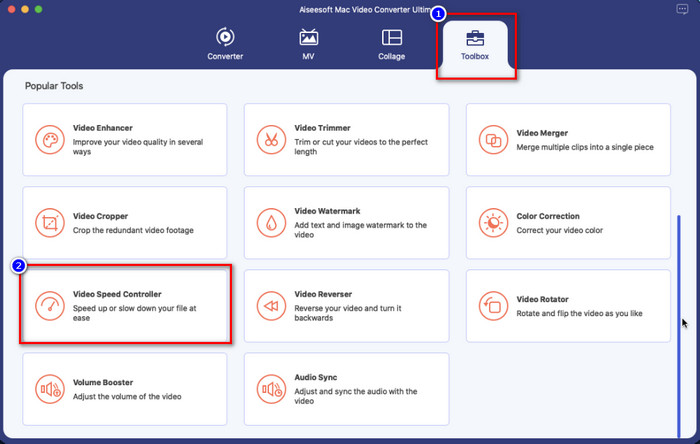
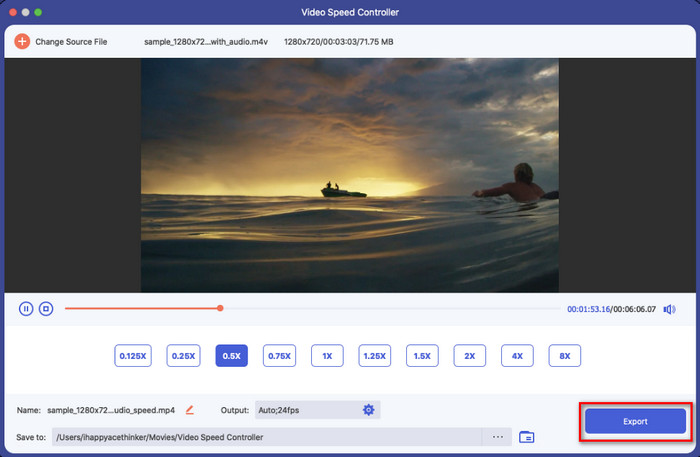
مرحله 2. Toolbox را باز کنید و در میان گزینههای موجود، Video Speed Controller را پیدا کنید.
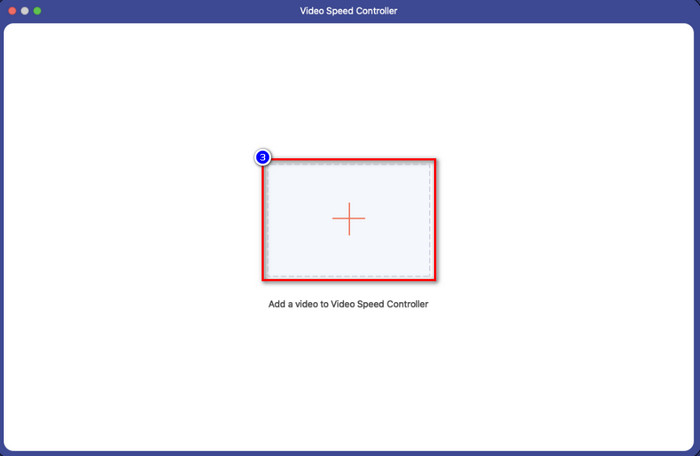
مرحله 3. اکنون میتوانید با کلیک روی دکمه + فایل مورد نظر خود را به پوشه اضافه کرده و با کلیک روی Open آن را بارگذاری کنید.
مرحله 4. سرعتی را که میخواهید روی ویدیوی خود اعمال کنید انتخاب کنید. به محض اینکه روی سرعت کلیک کنید، یک نمونه پیشنمایش از ویدیو بلافاصله پخش خواهد شد.
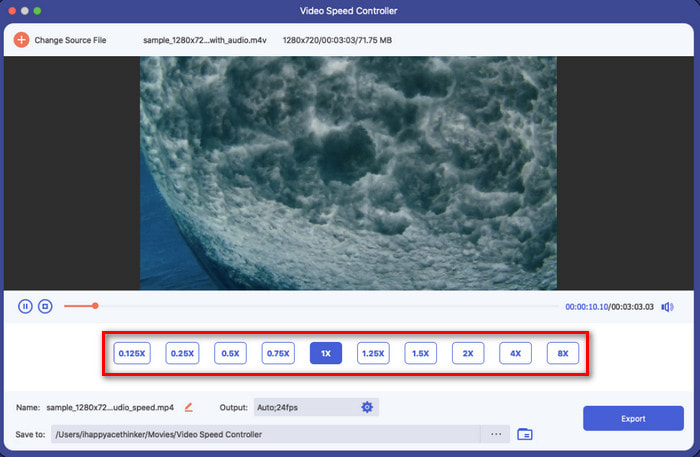
مرحله 5. اگر همهچیز انجام شد، روی Export کلیک کنید تا ویدیو با افزایش یا کاهش دائمی سرعت روی دسکتاپ شما ذخیره شود. اگر میخواهید تغییرات را به سرعت اصلی برگردانید، همان مراحل قبل را تکرار کنید و این بار مسیر برعکس را انتخاب نمایید.
بخش 3. سوالات متداول در مورد پخش سریع VLC
آیا محدودیتی در سرعت پخش در هنگام استفاده از VLC وجود دارد؟
به ویژه، هیچ چیز دیگری به جز اینکه نمیتوانید ویدیویی را که سرعت آن را افزایش میدهید برای همیشه ذخیره کنید، زیرا پخش کننده رسانه برای این کار ساخته نشده است. هنگامی که یک ویدیو را در اینجا سرعت دادید، پس از مکث و پخش آن به سرعت اولیه باز می گردد. برای جلوگیری از این امر، اگر تصمیم دارید سرعت ویدیوی خود را برای همیشه تغییر دهید، مراحلی را که در قسمت دوم اضافه کردهایم دنبال کنید.
چرا سرعت ویدئو برای رد شدن از بسیاری از صحنههای VLC کلیپ روی افزایش مییابد؟
به دلیل سرعتی که انتخاب کردهاید، اگر از کنترلکننده سرعت بیش از حد استفاده میکنید و از بالاترین سرعت بالا استفاده میکنید، انتظار داشته باشید که VLC بخشی را برای جبران سرعتی که انتخاب میکنید، رد کند. بنابراین، برای دوری از این مشکل، باید سرعتی را که انتخاب می کنید به درستی کنترل کنید و بیش از حد آن را اعمال نکنید.
چگونه می توانم سرعت را در VLC به حالت عادی برگردانم؟
میتوانید روی مکث و پخش کلیک کنید تا سرعت ویدیو به حالت عادی برگردد. اما شما همچنین می توانید = را در صفحه کلید خود برای ویندوز ضربه بزنید. برای مک، بهتر است روی دکمه مکث/پخش کلیک کنید تا آن را به سرعت عادی ویدیو برگردانید.
نتیجه
میتوانید برای کنترل سرعت پخش VLC، هم از کنترل سرعت و هم از کلیدهای میانبر استفاده کنید. هر روشی را که انتخاب کنید، هر دو کار مشابهی انجام میدهند، یعنی کنترل سرعت ویدیویی که در VLC پخش میکنید. با این حال، نمیتوانید ویدیوی تغییرسرعتدادهشده را روی دسکتاپ خود خروجی بگیرید، چون VLC برای ذخیره دائمی ویدیویی که سرعتش را تغییر دادهاید ساخته نشده است. اما وقتی ویدیو را با FVC Video Converter Ultimate تبدیل کنید، میتوانید سرعت ویدیو را برای همیشه ذخیره کنید. اگر بخواهید از گزینه Video Speed Controller استفاده کنید، از اینکه چقدر کار با آن آسان و سریع است شگفتزده خواهید شد.
-
 4 پخش کننده ویدیوی برتر با کنترل کننده سرعت در سال 2021
 آیا هنگام پخش ویدیو به سرعت پخش هر پخش کننده رسانه ای توجه نکرده اید؟ این مقاله برای یادگیری همه چیز در مورد پخش کننده های ویدئویی با کنترل سرعت مناسب است.
-
 3 راه برای افزایش سرعت ویدیو در آیفون [ثابت شده]
 آیا در تنظیم سرعت پخش ویدیوی خود به دلیل استفاده از آیفون مشکل دارید؟ این یک مقاله عالی برای کمک به شما در حل مشکل است.
-
 Windows Media Player | آموزش نحوه افزایش سرعت ویدیوها [ثابت شده]
 می خواهید با استفاده از Windows Media Player سرعت کلیپ ویدیوی خود را کاهش دهید، اما در مورد نحوه انجام آن مشکل دارید؟ این مقاله برای خواندن ایده آل است و می تواند دیدگاه شما را در مورد چگونگی افزایش سرعت ویدیوها با استفاده از Windows Media Player روشن کند.
