


 Video Converter Ultimate
 Näytön tallennin
 Videon korjaus
 Suojattu lataus
Toimenpiteet videon osien leikkaamiseksi iPhonessa
Saatat olla tallentanut kauniin videon iPhonellasi tai iPadillasi vapaa-ajallasi ja haluat jakaa sen ystävillesi tai julkaista sen sosiaalisessa mediassa. Ennen sitä on kuitenkin hyvä muokata videosta pois ne kohdat, joita et halua lähettää. Tässä tilanteessa voit nopeasti muokata videoita lyhentämällä tai leikkaamalla niitä laitteesi omilla työkaluilla. Siispä, miten videota lyhennetään iPhonessa? Tässä artikkelissa näet parhaat menetelmät. Jos haluat oppia kaikki vaiheet, lue alla oleva tieto kokonaan.

Osa 1. Tehokkaat menettelyt videon leikkaamiseen iPhonessa
Valokuvat-sovelluksen käyttäminen
Jos käytät iPhonea ja haluat lyhentää videosi pituutta, Valokuvat-sovellus saattaa auttaa sinua. Kuvat-sovellus ei ole hyvä vain kuvien ja videoiden näyttämiseen. Tämän valmiiksi rakennetun sovelluksen avulla voit myös leikata tai leikata videotasi. Koska se on yksinkertainen sovellus iPhonessa, voit lyhentää videota vain muutamalla kosketuksella. Näin kaikki käyttäjät, erityisesti aloittelijat, voivat hyödyntää sovellusta. Lisäksi, koska se on valmiiksi rakennettu sovellus, asennusta ei vaadita. Vaikka Valokuvat-sovelluksella on joitain rajoituksia, vaikka se on käytännöllinen sovellus videoiden leikkaamiseen. Sovellus ei sovellu, jos haluat edistyneitä muokkaustyökaluja parantaa videota videon pituuden lyhentämisen lisäksi. Kuvat-sovellus voi tarjota vain perusmuokkaustoimintoja, kuten leikkausta, suodattimien lisäämistä ja paljon muuta. Jos haluat tietää, kuinka videota leikataan iPhonessa, noudata alla olevia ohjeita.
Vaihe 1. Avaa iPhonesi ja käynnistä Kuvat-sovellus.
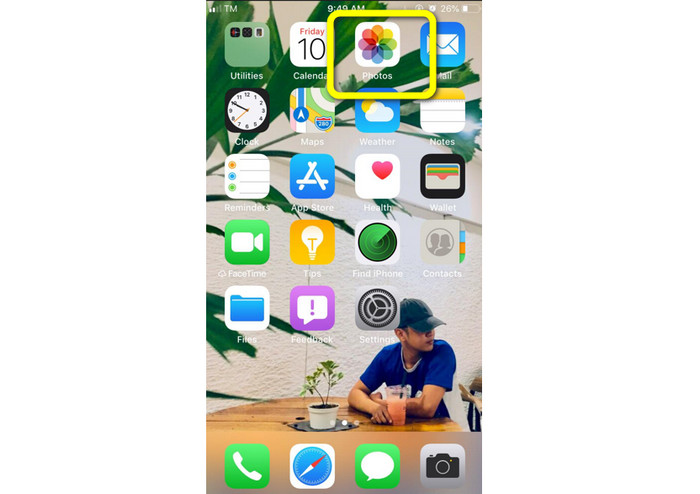
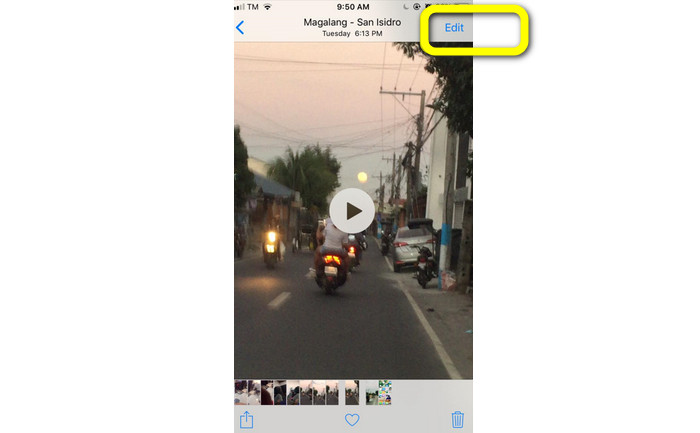
Vaihe 2. Tämän jälkeen napauta videota, jota haluat lyhentää. Sen jälkeen paina näytön oikeassa kulmassa olevaa Muokkaa-painiketta.
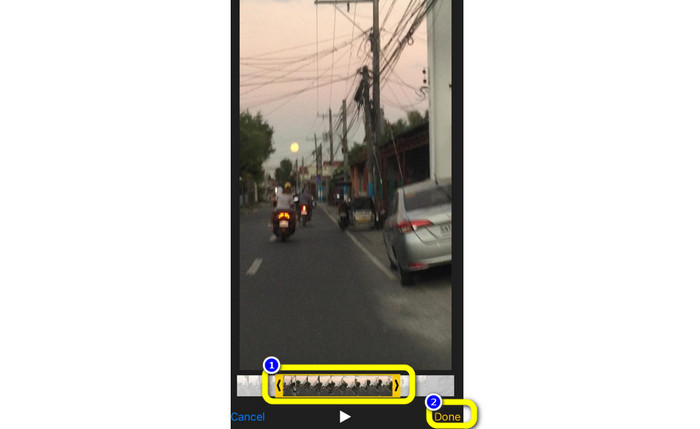
Vaihe 3. Nyt voit lyhentää videota vetämällä videon reunoja. Voit vetää sekä vasenta että oikeaa reunaa. Kun olet leikannut videon, napauta Valmis-painiketta tallentaaksesi sen puhelimeesi.
iMovien käyttäminen
Haluatko muokata joitakin iPhonellasi kuvaamiasi videoita, esimerkiksi poistaa turhat kohdat, tehdä niistä lyhyempiä tai visuaalisesti näyttävämpiä? Tämä on helppoa ja suoraviivaista iOS-laitteille saatavilla olevan iMovie-ohjelman avulla. Useimmille käyttäjille iPhonen Kuvat-sovelluksen sisäänrakennettu videoeditori riittää. Sillä ei kuitenkaan voi käyttää edistyneempiä toimintoja, kuten aikajanan tarkempaa hallintaa, siirtymien lisäämistä, useiden videoiden yhdistämistä jne. Tällöin erikoistunut videoeditointiohjelma, kuten iMovie, on erittäin hyödyllinen. Applen iMovie on parempi kuin monet muut App Storesta löytyvät videoeditointityökalut, ja sen avulla voit myös synkronoida äänen ja videon. iMoviessa on kuitenkin myös rajoituksia. iMovie on saatavilla vain iPhone-laitteille. Tämä tarkoittaa, että jos käytät Androidia, sinun on käytettävä jotain muuta sovellusta videon leikkaamiseen.
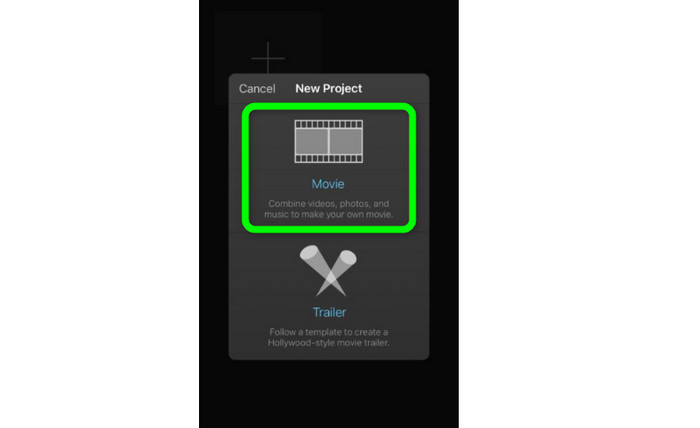
Vaihe 1. Lataa ja asenna iMovie-sovellus iPhoneen. Käynnistä sitten sovellus. Kun käyttöliittymä näkyy näytöllä, valitse Create Project > Movie ja lisää video.
Vaihe 2. Valitsemasi video lisätään nyt iMovien aikajanalle. Oletuksena osoitin on klipin lopussa, mutta voit vetää sitä vähitellen oikealle ja pysäyttää siihen kohtaan, johon haluat leikata videon.
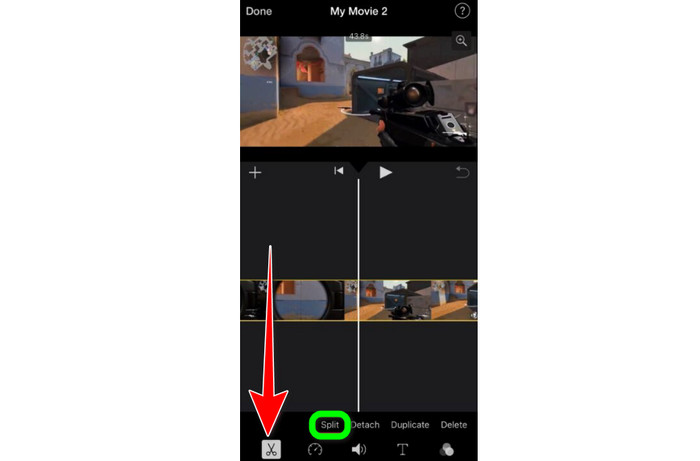
Vaihe 3. Voit nyt käyttää useita iMovien tarjoamia toimintoja. Kuten alla on esitetty, saksien kuvake tarkoittaa leikkaustyökalun valintaa. Valitse valikosta Split-työkalu (Jaa), jotta klippi leikataan tarkalleen kohdasta, jonka merkkasit.
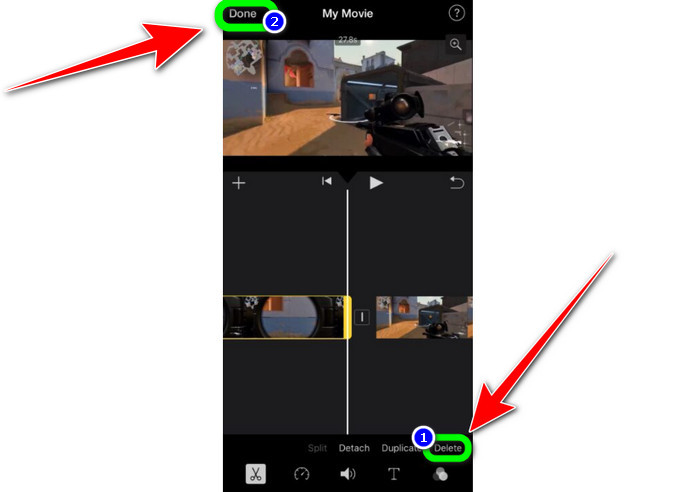
Vaihe 4. Napsauta sitten Delete-vaihtoehtoa poistaaksesi videon tarpeettoman osan. Kun olet valmis leikkaamaan videon, napsauta Done-painiketta.
Osa 2. Videoiden leikkaaminen iPadilla
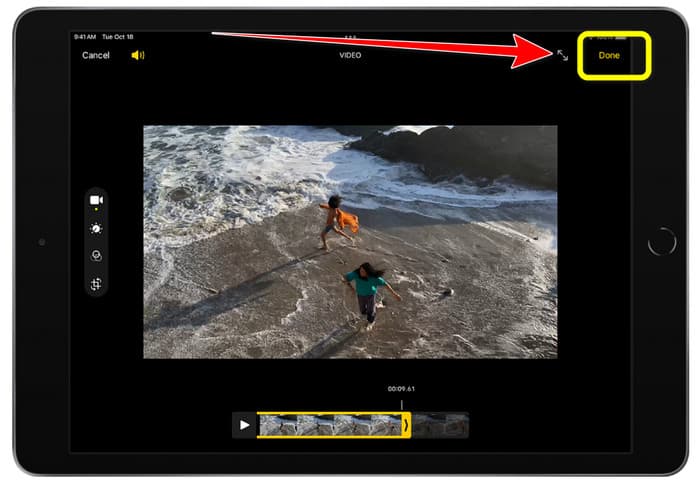
Jos haluat leikata tai trimmata videon iPadilla, sinun ei tarvitse etsiä erillistä ladattavaa sovellusta. Kuten iPhonessa, voit iPadillakin trimmata tai leikata videon Kuvat-sovelluksella. Kuvat-sovelluksessa on iPadilla silti joitakin rajoituksia. Jos tavoitteesi on pelkkä videon leikkaus, se toimii hyvin, mutta et voi käyttää sovellusta, jos tarvitset kehittyneempiä editointityökaluja. Seuraa alla olevia ohjeita videon leikkaamiseksi tai trimmaukseksi iPadilla.
Vaihe 1. Avaa Kuvat-sovellus iPadilla, napauta videoleikettä, jota haluat muokata, ja napsauta Muokkaa-vaihtoehtoa.
Vaihe 2. Vedä esikatseluruudun reunoja lyhentääksesi videon pituutta ja aloittaaksesi trimmauksen.
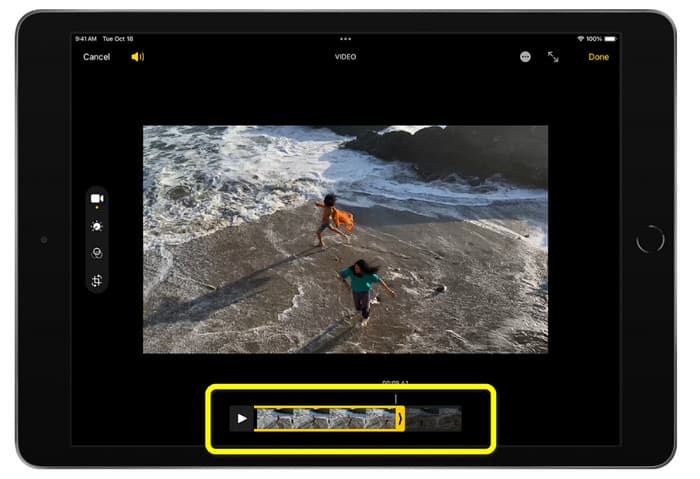
Vaihe 3. Kun olet valmis trimmamaan videon, napsauta Valmis-painiketta.
Osa 3. iPhone-videoiden leikkaaminen PC:llä
Etsitkö parasta tapaa leikata iPhone-videoita PC:llä? Siinä tapauksessa kokeile ohjelmaa Video Converter Ultimate. Sen avulla voit leikata iPhone-videosi vaivattomasti työpöytäsovelluksella. Ohjelmassa on myös helppokäyttöinen käyttöliittymä ja yksinkertaiset toiminnot, joten se sopii kaikille käyttäjille, erityisesti aloittelijoille. Voit muokata monia asetuksia Tulostus-asetuksista. Voit muuttaa videon tarkkuutta, terävyyttä ja kuvanopeutta. Voit myös muuttaa äänen bittinopeutta, näytteenottotaajuutta ja muita ominaisuuksia. Lopullisen videon voi tallentaa useissa eri muodoissa, kuten MP4, MOV, AVI, MKV ja niin edelleen. Käyttäjille on hyödyllistä, että Video Converter Ultimate toimii sekä Windows- että Mac-tietokoneilla. Lisäksi ohjelma ei lisää vesileimaa muokattuun videoon, joten voit katsoa sitä ilman häiritseviä merkintöjä.
Ilmainen latausWindows 7 tai uudempiTurvallinen lataus
Ilmainen latausMacOS 10.7 tai uudempiTurvallinen lataus
Vaihe 1. Lataa Video Converter Ultimate -ohjelma tietokoneellesi. Napsauta alla olevaa Lataa-painiketta päästäksesi ohjelmaan helposti.
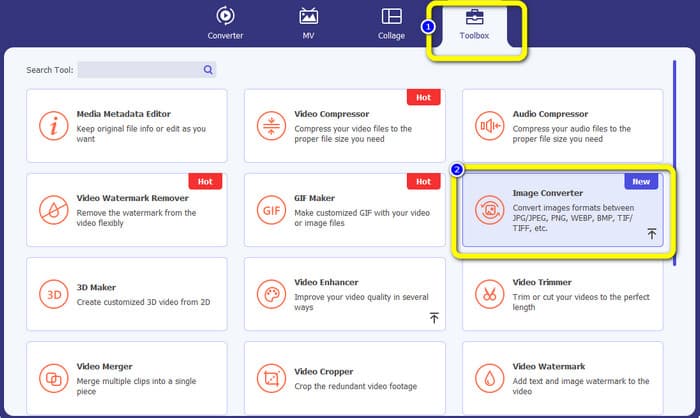
Vaihe 2. Kun lataus on valmis, käynnistä ohjelma nähdäksesi pääikkunan. Varmista, että iPhone-video on jo siirretty tietokoneelle. Tämän jälkeen napsauta, kun käyttöliittymä on avautunut, kohtaa Toolbox > Video Trimmer Tool.
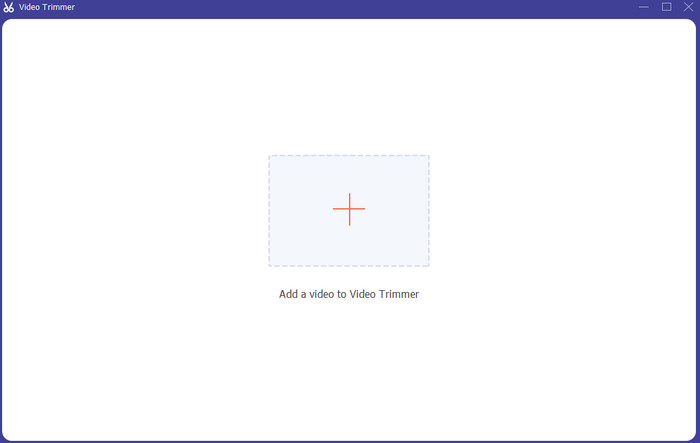
Vaihe 3. Kun uusi ikkuna ilmestyy näytölle, napsauta +-merkkiä lisätäksesi iPhone-videon.
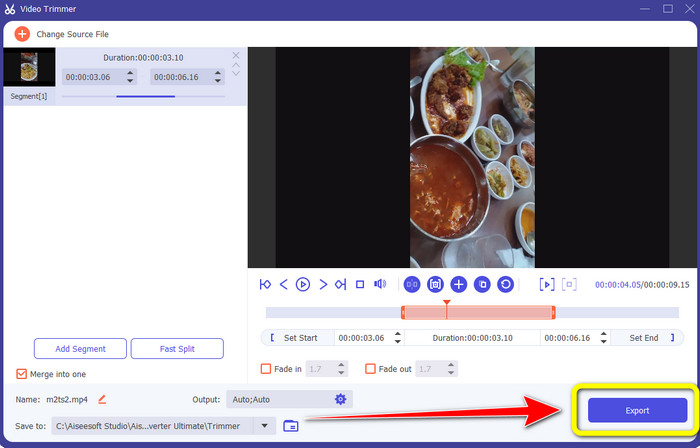
Vaihe 4. Nyt voit säätää videon reunoja trimmataaksesi sitä. Voit myös käyttää Set Start ja Set End -vaihtoehtoja leikataksesi videon tarkasti haluamaasi alku- ja loppukohtaan.
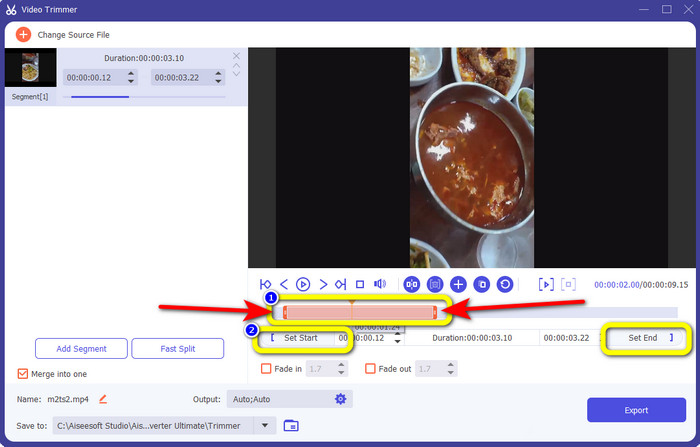
Vaihe 5. Lopuksi napsauta Export-painiketta tallentaaksesi videon trimmauksen jälkeen.
Osa 4. Usein kysyttyä videon lyhentämisestä iPhonessa
Kuinka leikata videon keskiosa iPhonessa?
Jos haluat leikata videosi keskiosan iPhonella, voit silti käyttää yllä mainittuja menetelmiä. Kuvat-sovellus ja iMovie voivat myös leikata videon keskiosan.
Kuinka leikata videota Android-puhelimella?
Voit siirtyä Galleria-sovellukseesi. Avaa sitten video ja napsauta Muokkaa-vaihtoehtoa. Tämän jälkeen voit jo leikata videota vetämällä videon reunoja.
Kuinka siirtää videota iPhoneen tietokoneesta?
Voit käyttää monia työkaluja videon siirtämiseen tietokoneesta iPhoneen. Voit käyttää iPhone Transfer Prota, Dropboxia, AirDropia ja muita.
Johtopäätös
Videon trimmaus on kätevää, kun haluat jakaa tai ladata videoleikkeen. Tässä tietopitoisessa artikkelissa käsiteltiin, miten videota lyhennetään iPhonessa. Lisäksi, jos haluat lyhentää iPhone-videon pituutta tietokoneella, voit käyttää ohjelmaa Video Converter Ultimate. Tämän offline-ohjelman avulla voit leikata iPhone-videota helposti ja nopeasti PC:llä.
-
 [4 ratkaisua] Kuinka hidastaa videota iPhonessa kuin ammattilainen
 Onko sinulla vaikeuksia hidastaa videota iPhonessa? Jos kohtaat tämän ongelman, älä enää huolehdi, sillä autamme sinua ratkaisemaan ongelman lukemalla tämän artikkelin.
-
 Videon kelaaminen eteenpäin iPhonessa – Säädä videon nopeutta
 Kuinka voin kelata videota eteenpäin iPhonessa? Kuinka kelata videota eteenpäin iPhonessa iMovien avulla? Opi kolme tapaa nopeuttaa videon katselua iPhone- ja iPad-laitteilla.
-
 Opetusohjelma - 4 ilmaista tapaa yhdistää iPhonen videot uuteen
 Lue ja hanki neljä helppoa tapaa yhdistää videoita iPhoneen. Kaikki iPhone-mallit ja iOS-versiot ovat tuettuja. Voit yhdistää vähintään kaksi iPhonen videota uudeksi videoksi nopeasti.
