


 Video Converter Ultimate
 Näytön tallennin
 Videon korjaus
 Suojattu lataus
GIF-jakajat: Suosituimmat työkalut animoitujen kuvien jakamiseen ja mukauttamiseen
Jos olet koskaan halunnut käyttää GIF-kuvan tiettyä osaa, mutta olet juuttunut koko animaatioon, et ole yksin. GIF-kuvat ovat suosittuja, koska ne pystyvät välittämään tunteita ja reaktioita lyhyessä ajassa, mutta joskus tarvitsemme vain osan asiasta viestimme perille saamiseen. Tässä tulee esiin GIF-tiedostojen jakamisen merkitys.
Voit GIF-jakajien avulla helposti poimia GIFistä juuri sen osan, jota tarvitset, ja käyttää sitä projektiisi tai some-julkaisuusi. Tässä artikkelissa tutustutaan joihinkin markkinoilla tällä hetkellä saatavilla oleviin parhaisiin GIF-jakajiin.

Osa 1. Helppo tapa jakaa GIF-tiedostoja
1. FVC Video Converter Ultimate
Jos sinun tarvitsee vain rajata pieni osa GIFistä, voit käyttää FVC Video Converter Ultimate -ohjelmaa. Se on monipuolinen ohjelmistotyökalu, joka tarjoaa joukon ominaisuuksia videonmuunnokseen ja -editointiin. Lisäksi työkalu tukee laajaa valikoimaa videoformaatteja ja antaa käyttäjien säätää videon asetuksia, kuten resoluutiota, bittinopeutta ja kuvataajuutta. Vaikka siinä ei ole erityistä GIF-tiedostojen jakoominaisuutta, videoleikkaustoiminto pystyy hoitamaan tämän tehtävän.
FVC Video Converter Ultimate voi olla arvokas työkalu niille, jotka etsivät yksinkertaista ja suoraviivaista tapaa jakaa GIF-tiedostoja. Intuitiivisen käyttöliittymän ja helppokäyttöisen videon leikkausominaisuuden ansiosta se tarjoaa kätevän ratkaisun käyttäjille, joiden tarvitsee tehdä vain pieniä muutoksia GIF-tiedostoihinsa. Lisäksi siinä on joukko muita ominaisuuksia, kuten eräkäsittely ja GPU-kiihdytys, jotka tekevät siitä kattavan videon muunnos- ja muokkaustyökalun. Jos haluat oppia jakamaan GIF-tiedostoja offline-tilassa, voit noudattaa seuraavia ohjeita:
Vaihe 1. Hanki ohjelmisto
Aloittaaksesi valitse jokin alla olevista ilmaisten Lataa-painikkeiden linkeistä. Noudata sitten näytöllä näkyviä ohjeita ohjelman asennuksen viimeistelemiseksi laitteellesi. Kun asennus on valmis, voit käynnistää sovelluksen ja siirtyä sen päävalikkoon.
Ilmainen latausWindows 7 tai uudempiSuojattu lataus
Ilmainen latausMacOS 10.7 tai uudempiSuojattu lataus
Vaihe 2. Tuo GIF-kuvatiedosto
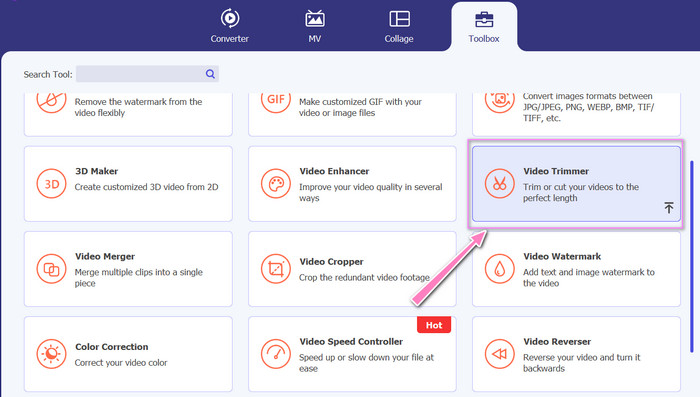
Valitse Toolbox-valikosta Video Trimmer -työkalu. Kun se on tehty, valitse +-painike ladataksesi GIFin.
Vaihe 3. Jaa GIF-tiedosto
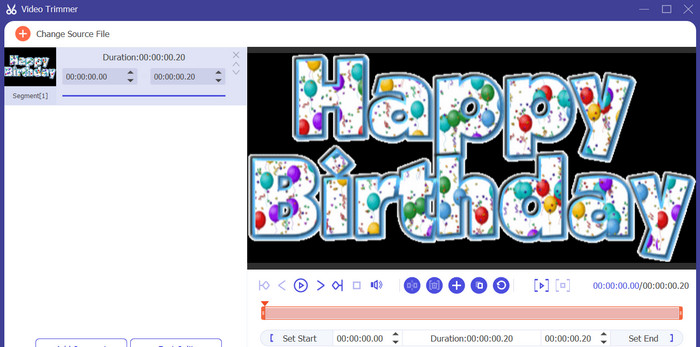
Kun GIF on ladattu, se näkyy ohjelman käyttöliittymässä muutosten tekemistä varten. Valitse liukusäätimellä poistettavan GIF-tiedoston alku- ja lopetuskohta.
Vaihe 4. Tallenna luomasi GIF
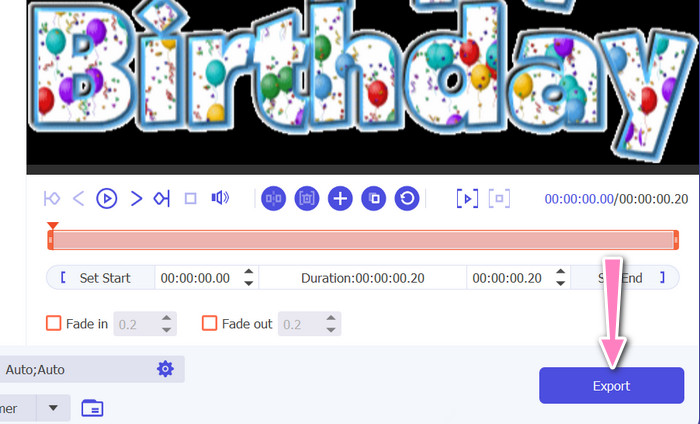
Kun olet saanut GIFin muokkauksen valmiiksi, napsauta työkalun oikeassa alakulmassa olevaa Export-painiketta käynnistääksesi renderöintiprosessin.
2. EZGIF
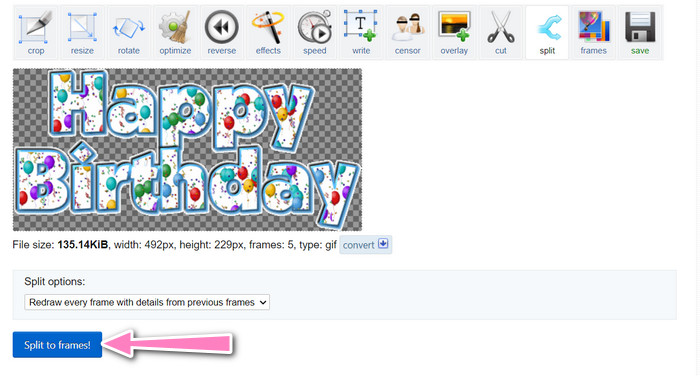
EZGIF on verkkotyökalu, joka tarjoaa joukon ominaisuuksia GIF-tiedostojen käsittelyyn. Sivustolla on monia työkaluja GIFien luomiseen, muokkaamiseen ja optimointiin, mukaan lukien GIF-koon muuttaminen, rajaus ja jako. Siinä on myös ominaisuuksia tekstin ja erikoistehosteiden lisäämiseen GIFeihin, ja sen avulla voi jopa muuntaa videoita ja kuvia GIF-muotoon. Jos siis haluat jakaa GIFin ruutuihin verkossa, tämä on erinomainen valinta. Lisäksi EZGIF on helppokäyttöinen alusta, joka ei vaadi latauksia tai asennuksia ja on siten helposti käytettävissä miltä tahansa verkkoselaimelta. Katso alta, miten työkalu toimii ja miten GIFit jaetaan kuviksi.
Vaihe 1. Jotta voit jakaa GIFin Ezgifillä, avaa EZGIF-sivusto selaimessasi.
Vaihe 2. Valitse ylävalikosta Split-vaihtoehto ja säädä asetuksia tarpeen mukaan.
Vaihe 3. Napsauta Choose File -painiketta ladataksesi sen GIF-tiedoston, jonka haluat jakaa. Vaihtoehtoisesti voit vetää ja pudottaa tiedoston EZGIFin käyttöliittymään.
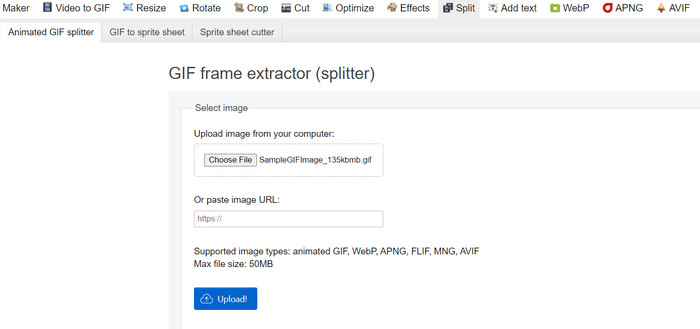
Vaihe 4. Valitse seuraavaksi jakomenetelmä, jota haluat käyttää. Voit jakaa GIFin tietyn ruutumäärän perusteella, tietyin aikavälein tai valitsemalla tietyt ruudut, jotka haluat säilyttää.
Vaihe 5. Säädä valitsemaasi jakomenetelmää koskevia asetuksia. Napsauta Split to frames! -painiketta aloittaaksesi jakoprosessin. Käytettävissä on myös vaihtoehdot jakaa GIF PNG- tai JPG-kuviksi tarpeesi mukaan.
Osa 2. Ammattimainen tapa jakaa GIF-tiedostoja
GIFin jakaminen ruutuihin Photoshopissa on mahdollista. Se tarjoaa paljon joustavuutta ja hallintaa animoitujen GIFien kanssa työskenneltäessä. Photoshopilla voit avata GIF-tiedoston ja muokata animaation jokaista yksittäistä ruutua, jolloin voit tehdä säätöjä ja lisätä suodattimia kuhunkin ruutuun erikseen. Näin voit luoda monimutkaisia animaatioita, lisätä tekstiä tai grafiikkaa ja säätää kunkin ruudun ajoitusta luodaksesi sulavan ja viimeistellyn animaation. Lisätietoja Photoshopin GIF-muokkausvaihtoehdoista saat seuraavista ohjeista:
Vaihe 1. Avaa GIF-tiedosto Photoshopissa valitsemalla File > Open ja valitsemalla tiedoston.
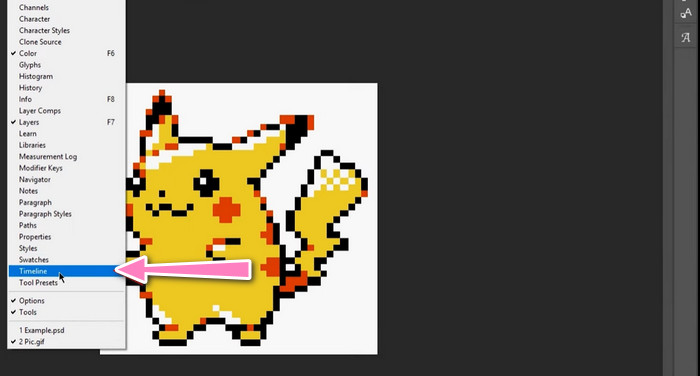
Vaihe 2. Kun tiedosto on auki, siirry kohtaan Window > Timeline avataksesi Timeline-paneelin.
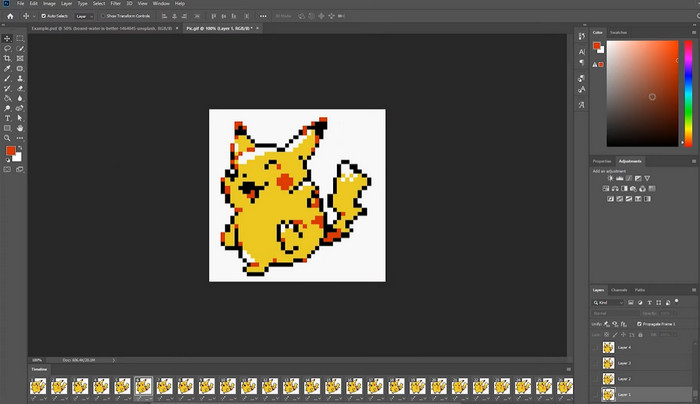
Vaihe 3. Timeline-paneelissa sinun pitäisi nähdä animaation jokainen ruutu omana tasonaan. Jos et näe Timeline-paneelia, napsauta paneelin oikeassa yläkulmassa olevaa valikkopainiketta ja valitse Create Frame Animation.
Vaihe 4. Jakaaksesi GIFin napsauta Timeline-paneelin valikkopainiketta ja valitse Make Frames From Layers. Tämä luo erillisen ruudun jokaisesta animaation tasosta.
Vaihe 5. Nyt voit muokata kutakin ruutua erikseen valitsemalla sen Timeline-paneelista ja tekemällä haluamasi muutokset.
Vaihe 6. Siirry kohtaan File > Export > Layers to Files viedäksesi jokaisen ruudun erillisenä tiedostona. Valitse vienti-ikkunassa haluamasi tiedostomuoto ja kohdekansio ja napsauta sitten Run viedäksesi tiedostot.
Osa 3. Usein kysyttyä GIF-tiedostojen jakamisesta
Voinko jakaa GIF-tiedoston tiettyihin osiin tai aikaväleihin?
Kyllä, voit jakaa GIF-tiedoston tiettyihin osiin tai aikaväleihin käyttämällä online-työkaluja tai kuvankäsittelyohjelmistoa.
Voinko käyttää videonmuokkausohjelmistoa GIF-tiedostojen jakamiseen?
Kyllä, monia videonmuokkausohjelmistosovelluksia voidaan käyttää GIF-tiedostojen jakamiseen. Esimerkiksi FVC Video Converter Ultimate, Adobe Premiere Pro ja Final Cut Pro X ovat suosittuja vaihtoehtoja.
Kuinka säädän yksittäisten kehysten ajoitusta GIF:ssä?
Voit säätää yksittäisten ruutujen ajoitusta GIF-tiedostossa käyttämällä online-työkalua tai kuvankäsittelyohjelmistoa, kuten Photoshopia.
Johtopäätös
GIF-tiedoston jakaminen voi olla hyödyllinen tekniikka uusien animaatioiden luomiseen, olemassa olevien muokkaamiseen tai tiettyjen ruutujen tai jaksojen jakamiseen. Käytitpä sitten verkkotyökaluja tai kuvankäsittelyohjelmia, kuten Photoshopia, tarjolla on useita vaihtoehtoja GIFien jakamiseen. Noudattamalla tässä artikkelissa esitettyjä ohjeita ja tutkimalla eri työkaluja voit helposti jakaa GIFejäsi ja luoda uusia animaatioita.
-
 Erinomaisia menetelmiä videoiden jakamiseen tehokkaasti
 Tässä artikkelissa kerrotaan, kuinka video jaetaan osiin. Joten jos olet kiinnostunut, napsauta tätä viestiä, koska tarjoamme sinulle yksinkertaisimmat tavat kokeilla.
-
 Opi 4 tapaa luoda GIF-tiedostoja kuvista [online ja offline]
 Haluatko tietää, kuinka voit luoda GIF-kuvia kuvien kokoamisesta? Napsauta sitten tätä linkkiä ja lue seuraavat esimerkit.
-
 3 helpointa tapaa lisätä vesileima GIF-tiedostoon verkossa ja offline-tilassa
 Vesileiman lisääminen GIF-tiedostoon voi olla yhtä helppoa kuin 1-2-3, jos käytät oikeaa työkalua oikein. Markkinoilla olevat työkalut ovat liian laajoja, mutta esittelemme kolme työkalua, joihin voit luottaa.
