


 Video Converter Ultimate
 Enregistreur d'écran
 Réparation vidéo
 Téléchargement sécurisé
Comment ajouter facilement un filigrane à une vidéo | 3 méthodes efficaces
Les filigranes jouent un rôle essentiel dans nos contenus numériques publiés : ils servent d’élément d’identification et de couche de protection contre toute utilisation non autorisée. Ainsi, si vous êtes un créateur de contenu qui publie des vidéos et que vous ne voulez pas que vos vidéos soient utilisées sans votre autorisation ni mention de votre nom, ajouter un filigrane est une solution à la fois simple et efficace. Par conséquent, dans cet article, nous allons vous aider à ajouter un filigrane à une vidéo de trois façons différentes. Si vous êtes prêt, commençons.

Partie 1. Ajouter un filigrane à une vidéo | Solution ultime
La solution idéale pour ajouter un filigrane à une vidéo consiste à utiliser FVC Screen Video Converter Ultimate. Avec cet outil, les utilisateurs peuvent facilement ajouter un filigrane à leurs vidéos grâce à l’outil Video Watermark. En effet, ce convertisseur vidéo dispose d’une boîte à outils (Toolbox) qui regroupe divers outils que les utilisateurs peuvent exploiter chaque fois qu’ils ont besoin d’une solution à un problème audio ou vidéo.
Caractéristiques principales
• Prise en charge de plus de 1000 formats d'entrée, couvrant ainsi la quasi-totalité des types de vidéos.
• Permet aux utilisateurs d'ajouter un filigrane image à une vidéo.
• Permet aux utilisateurs d'ajouter un filigrane textuel à une vidéo.
• Permet la personnalisation et la modification basique du filigrane ajouté.
• Prend en charge différentes options de sortie vidéo.
Voici comment ajouter un filigrane à une vidéo à l'aide de FVC Video Converter Ultimate :
Étape 1. Commencez par télécharger et installer FVC Video Converter Ultimate sur votre ordinateur. Veuillez noter qu’il est compatible à la fois avec Windows et macOS.
Téléchargement gratuit pour Windows 7 ou version ultérieure Téléchargement sécurisé
Téléchargement gratuit pour macOS 10.7 ou version ultérieure - Téléchargement sécurisé
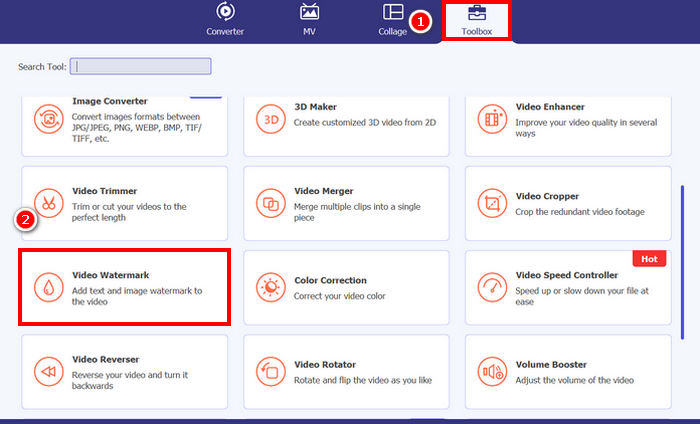
Étape 2. Lancez l’outil, cliquez sur l’onglet Boîte à outils, puis, à partir de là, sélectionnez Filigrane vidéo.
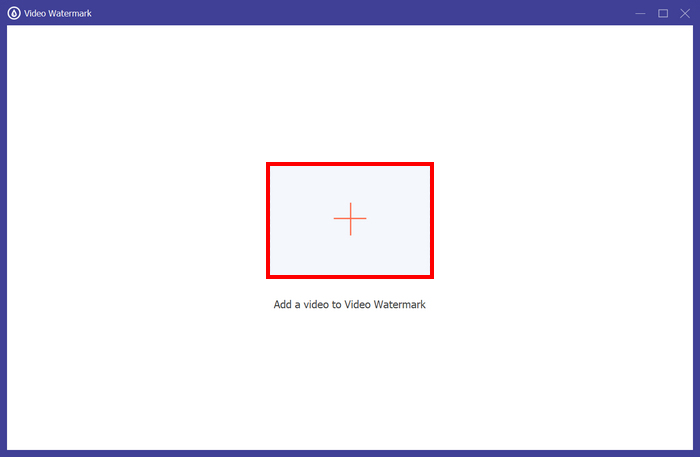
Étape 3. Ensuite, cliquez sur Add a Video to Video Watermark et sélectionnez la vidéo à laquelle vous souhaitez ajouter un filigrane sous forme d’image.
Étape 4. Choisissez maintenant + Filigrane image pour ajouter l’image que vous voulez utiliser comme filigrane pour votre vidéo. À partir de là, vous pouvez l’ajuster. Une fois que tout est prêt, cliquez sur le bouton Exporter.
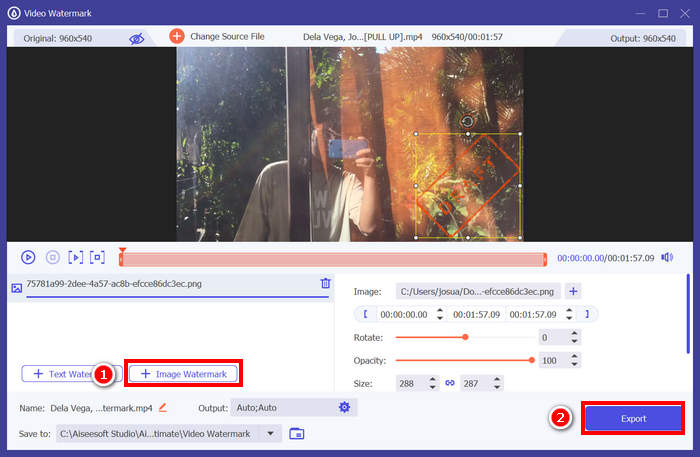
Avec FVC Video Converter Ultimate, vous pouvez facilement ajouter un filigrane à une vidéo, qu'il s'agisse de texte ou d'une image. Il propose également des fonctions d'édition basiques permettant d'ajuster l'opacité, la taille et même la rotation du filigrane. Enfin, son interface est très simple et intuitive, ce qui la rend accessible même aux débutants.
Partie 2. Comment ajouter un filigrane à une vidéo dans Canva ?
Canva est un outil de montage très populaire, dont vous avez certainement déjà entendu parler. Mais saviez-vous que cet outil peut aussi servir à ajouter un filigrane à une vidéo ? Oui, grâce à son interface conviviale et à ses puissantes fonctions de glisser‑déposer, Canva permet de téléverser facilement votre logo ou votre filigrane personnalisé et de le placer exactement où vous le souhaitez sur votre vidéo. Voici, ci‑dessous, un guide étape par étape pour ajouter un filigrane à une vidéo avec Canva :
Étape 1. Commencez par créer un compte Canva. Vous pouvez vous inscrire ou vous connecter avec votre compte Google.
Étape 2. Ensuite, ouvrez Canva, cliquez sur Create a Design, puis sélectionnez l’option Upload pour importer la vidéo que vous souhaitez protéger avec un filigrane.
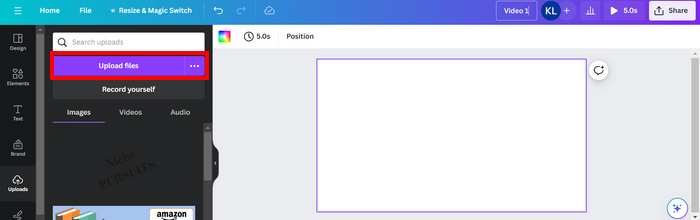
Étape 3. Maintenant, faites la même chose avec votre filigrane : importez‑le, puis faites‑le glisser sur la vidéo. Une fois en place, vous pouvez agrandir ou réduire le filigrane, et en modifier la couleur ainsi que la transparence.
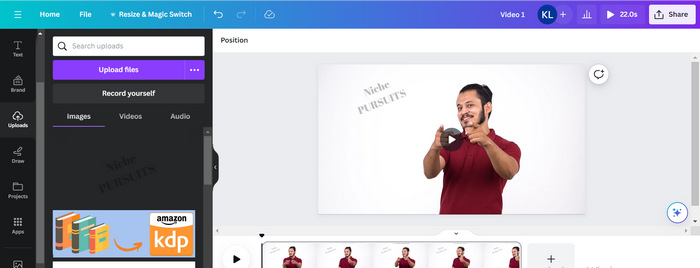
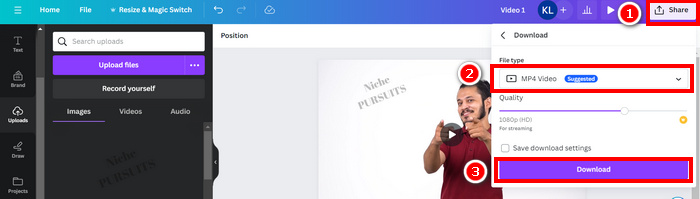
Étape 4. Lisez votre vidéo pour vérifier si le filigrane apparaît bien sur celle‑ci. Si tout est correct, cliquez sur le bouton Share et téléchargez le fichier au format vidéo MP4 en cliquant sur le bouton Download.
Remarque : Si l’image de votre filigrane est trop vive ou trop sombre par rapport à votre vidéo, vous pouvez ajuster sa transparence afin qu’il se fonde plus naturellement dans l’image sans dominer le visuel ni distraire les spectateurs.
Partie 3. Ajouter un filigrane texte à une vidéo en ligne [Gratuit]
Si vous préférez une méthode gratuite et en ligne pour ajouter un filigrane à une vidéo, echowave.io pourrait être une excellente option. Cette plateforme en ligne offre des fonctionnalités intuitives permettant de créer, modifier et visualiser du contenu audio et vidéo. De plus, grâce à sa fonction d'édition, vous pouvez ajouter un filigrane texte. Voici un guide étape par étape pour ajouter un filigrane texte à une vidéo en ligne :
Étape 1. Tout d’abord, sur Chrome, recherchez echowave.io.
Étape 2. Ensuite, une fois sur l’interface de l’outil, cliquez sur Create Watermarked Video.
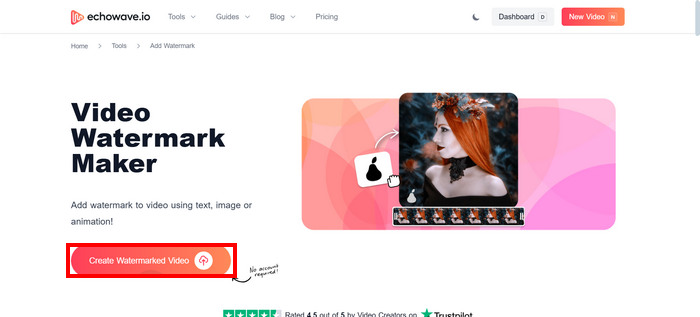
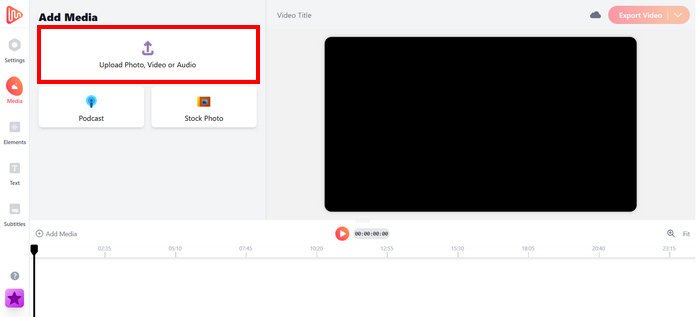
Étape 3. Après cela, cliquez sur Upload Photo, Video, or Audio pour téléverser la vidéo à laquelle vous souhaitez ajouter un filigrane.
Étape 4. Enfin, dans le panneau de gauche de votre écran, cliquez sur Text pour ajouter et rédiger le filigrane textuel que vous allez créer. Mais commencez d’abord par choisir le format que vous voulez utiliser. Ensuite, saisissez votre texte. Une fois que c’est fait, vous pouvez ajuster l’emplacement de votre filigrane et, lorsque tout vous convient, cliquez sur le bouton Export pour enregistrer le fichier.
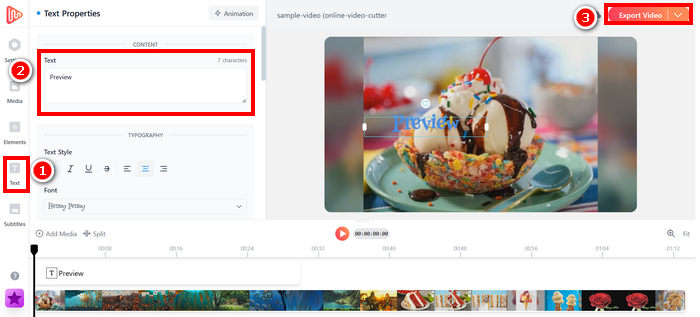
Bien qu'ajouter un filigrane à une vidéo avec echowave.io soit simple et accessible aux débutants, l'outil peut parfois présenter des ralentissements, même lors du traitement de vidéos courtes ou de fichiers de petite taille.
Cliquez ici pour en savoir plus sur l’ajout d’un filigrane à un GIF si cela vous intéresse.
Partie 4. FAQ sur l'ajout d'un filigrane à une vidéo
Est-il illégal de masquer un filigrane ?
Oui, c'est illégal. Les filigranes sont souvent utilisés comme protection du droit d'auteur, indiquant la propriété ou la paternité du contenu. Les masquer ou les supprimer intentionnellement peut constituer une violation du droit d'auteur et entraîner des poursuites judiciaires, notamment si le contenu modifié est redistribué, réutilisé ou exploité à des fins commerciales.
Comment ajouter un filigrane à une vidéo dans DaVinci Resolve ?
Pour ajouter un filigrane dans DaVinci Resolve, importez votre vidéo et votre image ou texte de filigrane. Placez la vidéo sur la timeline, puis faites glisser le filigrane au-dessus, sur une piste séparée. Utilisez le panneau Inspecteur pour redimensionner, déplacer et ajuster l'opacité. Une fois le résultat satisfaisant, exportez la vidéo avec le filigrane.
Comment ajouter un filigrane à une vidéo dans Lightroom ?
Pour ajouter un filigrane à une vidéo dans Lightroom, ouvrez Lightroom et sélectionnez l'image à filigraner. Cliquez ensuite sur l'onglet Lightroom en haut de l'écran et choisissez « Modifier les filigranes » dans le menu déroulant. Dans la fenêtre de l'éditeur de filigrane qui s'affiche, saisissez le texte de votre filigrane dans le champ situé sous l'aperçu. Vous pouvez également personnaliser le style, la police, la taille et l'emplacement de votre filigrane.
Conclusion
Ajouter un filigrane à une vidéo est vraiment important, et savoir le faire est essentiel pour protéger votre contenu et affirmer vos droits de propriété. Même s’il existe de nombreux outils, FVC Video Converter Ultimate offre un moyen simple et efficace d’ajouter un filigrane dans une vidéo. C’est en effet un choix pratique pour les débutants qui recherchent une solution rapide, mais explorer d’autres outils comme Canva ou des éditeurs en ligne peut aussi être utile selon vos besoins.
-
 5 façons de supprimer un filigrane d'une vidéo de manière professionnelle
 Besoin de supprimer un filigrane d'une vidéo pour lui donner un aspect professionnel ? Eh bien, lisez cet article car nous ajoutons un tutoriel sur la façon de le faire !
-
 2 excellentes applications que vous pouvez utiliser pour supprimer le filigrane des vidéos MP4
 Cet article vous proposera des moyens simples et simples de supprimer le filigrane des vidéos MP4 à l'aide de vos appareils tels que Windows et Mac.
-
 Supprimer le filigrane Animotica sur les vidéos exportées avec 3 méthodes éprouvées
 Vous êtes-vous déjà demandé s'il était possible de supprimer le filigrane Animotica sur les vidéos que vous avez exportées ? Cet article propose une marche à suivre.
