


 Video Converter Ultimate
 Enregistreur d'écran
 Réparation vidéo
 Téléchargement sécurisé
Comment convertir l'enregistrement Zoom en MP4 sur les ordinateurs Windows et Mac
Zoom est une plateforme qui permet de passer des appels vidéo, comme des réunions et des cours en ligne. Normalement, elle enregistre les vidéos dans un format lisible sur la plupart des appareils, comme le MP4. Cependant, si vous interrompez l’enregistrement trop tôt par accident, le fichier peut rester dans le format d’origine de la plateforme, à savoir .zoom, que vous ne pouvez pas ouvrir immédiatement. Cela se produit parce que Zoom n’a pas eu l’occasion de convertir automatiquement le fichier en MP4. Si cela vous arrive, vous devrez alors convertir le Zoom en MP4 sur ou en dehors de la plateforme. Heureusement, il existe plusieurs façons de permettre à Zoom de terminer ce processus de conversion. Nous allons vous expliquer comment le faire à l’aide du programme Zoom lui‑même et d’un outil spécial fourni avec Zoom. Si cela ne fonctionne pas pour vous, nous avons également répertorié un autre outil que vous pouvez utiliser à la place. Passons donc directement au contenu !

Partie 1. Les enregistrements Zoom sont-ils en MP4
Avant tout, Zoom produit des enregistrements MP4, qui constituent sa configuration par défaut. Toutefois, cela n’arrivera pas en un instant. Ce que nous voulons dire, c'est que, lors de l'enregistrement, votre séquence brute n'est pas encore au format MP4 que vous pensez. En fait, comme mentionné ci-dessus, les images du processus sont toujours au format .zoom, qui est le format propriétaire de la plateforme, et ne seront converties en MP4 qu'une fois l'enregistrement terminé et la conversion terminée. Cela est particulièrement vrai lorsque vous arrêtez accidentellement les enregistrements.
Partie 2. 3 façons de convertir un enregistrement Zoom en MP4 avec Zoom
Passons maintenant aux outils efficaces qui vous aideront à convertir les enregistrements Zoom en MP4 si vous n'en avez pas sur la plateforme.
1. Client Zoom (bureau)
Saviez-vous que Zoom garde une trace de tous vos enregistrements dans l'application client de bureau ? Non seulement vous pouvez accéder facilement à vos enregistrements, mais Zoom fournit également un convertisseur intégré. Cela garantira la compatibilité de lecture sur la plupart des appareils. Ainsi, si vous ne savez pas comment l'utiliser, voici une description détaillée de la façon de rechercher et de convertir vos enregistrements Zoom au format MP4.
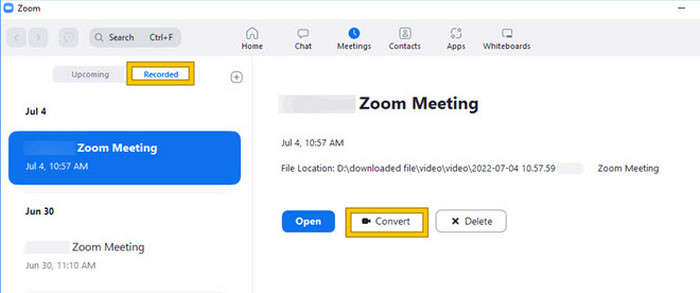
Étape 1. Lancez Zoom sur votre ordinateur de bureau et allez immédiatement dans la section Réunions pour ouvrir l’historique de vos réunions.
Étape 2. Une fois ouverte, vous verrez la liste de vos réunions enregistrées. Repérez l’enregistrement que vous souhaitez convertir et cliquez dessus pour le sélectionner.
Étape 3. Une fois la réunion sélectionnée, une section apparaît sur le côté droit de l’écran. Cliquez sur le bouton Convertir et attendez le résultat final converti en MP4.
2. Transcoder (macOS)
Si vous êtes un utilisateur Mac et que la conversion automatique de l'enregistrement de Zoom en MP4 échoue, voici un outil pratique appelé Transcode pour vous aider. Cet outil vous permet de convertir manuellement ces fichiers .zoom en fichiers MP4, qui pourraient ne pas être lus correctement en raison de l'échec de la conversion automatique. Essentiellement, Transcode fournit une solution manuelle aux utilisateurs de Mac pour garantir que leurs enregistrements Zoom sont accessibles et utilisables lorsque le processus automatique ne fonctionne pas comme prévu.
Étape 1. Repérez votre fichier .zoom, double‑cliquez dessus, puis sélectionnez Choisir une application dans la fenêtre qui s’affiche. Ensuite, ouvrez le fichier avec l’application Transcode, que vous pouvez aussi définir comme application par défaut pour vos fichiers.
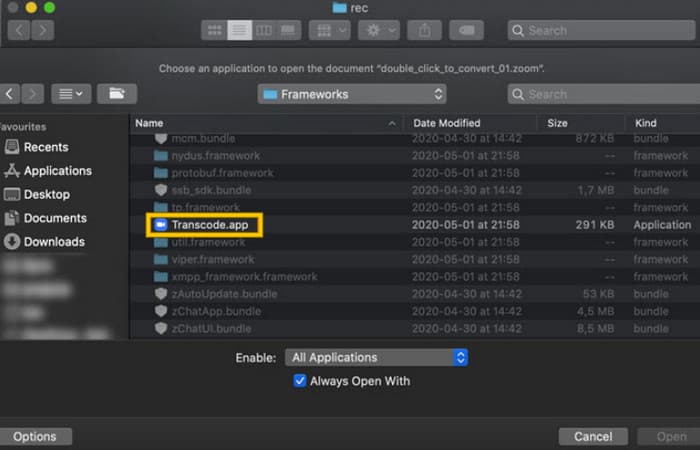
Étape 2. Juste après avoir choisi l’application, le processus de conversion démarre automatiquement.
Étape 3. Une fois la conversion terminée, choisissez le dossier dans lequel vous souhaitez enregistrer le fichier de sortie.
3. zTscoder (bureau)
Si vous souhaitez un outil similaire au précédent pour votre bureau, nous vous recommandons zTscoder. zTscoder est la version Windows de Transcode, le programme sur lequel les utilisateurs Mac s'appuient pour des situations similaires. Les deux outils vous permettent de convertir manuellement vos fichiers Zoom au format MP4 standard, qui risque de ne pas être lu correctement. Par conséquent, si vous êtes maintenant face à votre bureau, suivez les étapes ci-dessous.
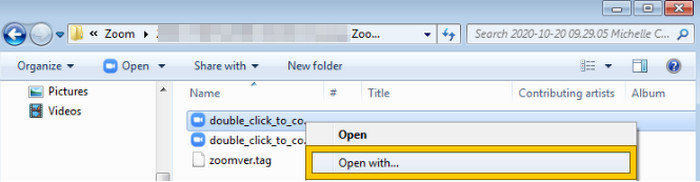
Étape 1. Repérez le dossier où vos enregistrements Zoom sont sauvegardés et choisissez celui que vous devez convertir. Faites un clic droit sur le fichier et ouvrez‑le avec zTscoder.
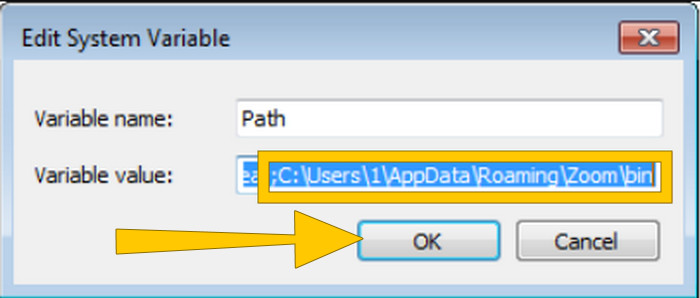
Étape 2. Si l’outil ne répond pas, vous pouvez aller dans le Panneau de configuration, puis dans Système et sécurité > Système, et ouvrir ensuite les paramètres système avancés. À partir de là, ajoutez C:\Users\*your username*\AppData\Roaming\Zoom\bin dans la valeur de la variable, puis cliquez sur OK.
Étape 3. Une fois le fichier configuré pour être ouvert avec l’outil, le processus de conversion démarre automatiquement.
Partie 3. Enregistrez des réunions Zoom en MP4 avec une qualité jusqu'à 4K
Vous voulez une bonne solution pour avoir vos réunions Zoom directement en MP4 ? Enregistrez‑les avec FVC Screen Recorder ! Cet enregistreur offre une solution polyvalente qui va bien au‑delà des réunions Zoom. Cet outil vous permet d’enregistrer vos cours en ligne, conférences, tutoriels, ou tout ce qui s’affiche sur votre écran Zoom. De plus, vous avez la flexibilité d’enregistrer l’intégralité de votre écran ou seulement une fenêtre spécifique, grâce aux paramètres prévus à cet effet. Il peut également capturer le son du microphone, l’audio système et même le flux de votre webcam, à condition de configurer les paramètres au préalable. Ce logiciel est compatible à la fois avec les ordinateurs Mac et Windows et vous permet d’enregistrer vos vidéos dans des formats de haute qualité, jusqu’à une résolution 4K. Une autre raison remarquable d’apprécier FVC est qu’il va encore plus loin en proposant des outils d’annotation qui vous permettent de mettre en évidence les points clés pendant l’enregistrement. Voici maintenant comment convertir des enregistrements Zoom en MP4.
Étape 1. Installez l’enregistreur sur votre ordinateur. Vous pouvez utiliser le bouton de téléchargement ci‑dessous. Pendant le processus d’installation, ouvrez la réunion Zoom que vous souhaitez enregistrer en MP4.
Téléchargement gratuitPour Windows 7 ou version ultérieureTéléchargement sécurisé
Téléchargement gratuitPour macOS 10.7 ou version ultérieureTéléchargement sécurisé
Étape 2. Lancez le convertisseur et cliquez sur l’outil Enregistreur vidéo. Ensuite, définissez l’affichage de l’écran de manière à couvrir toute l’interface de la réunion Zoom. Vous pouvez aussi régler le Son système et le Microphone si vous le souhaitez.
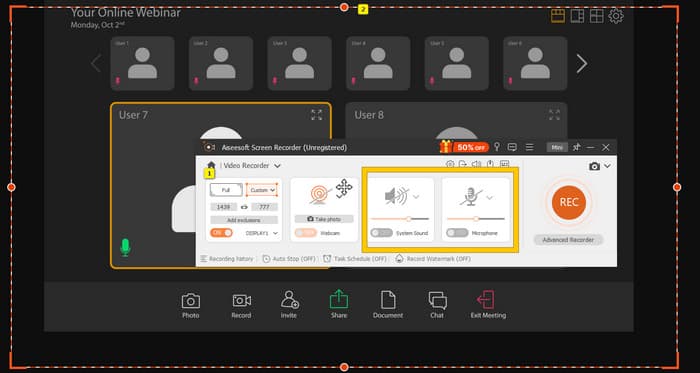
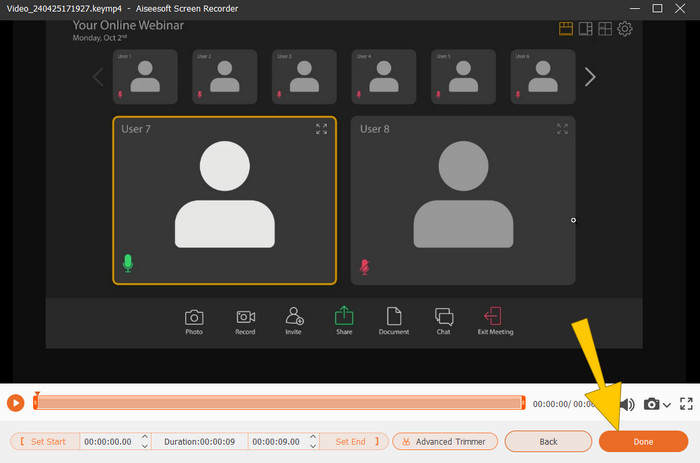
Étape 3. Ensuite, cliquez sur le bouton REC pour démarrer l’enregistrement. Quand la réunion est terminée, cliquez sur le bouton Stop dans la barre flottante. Puis, effectuez quelques petits réglages dans la nouvelle fenêtre. Sinon, cliquez sur le bouton DONE pour passer à l’enregistrement de la vidéo.
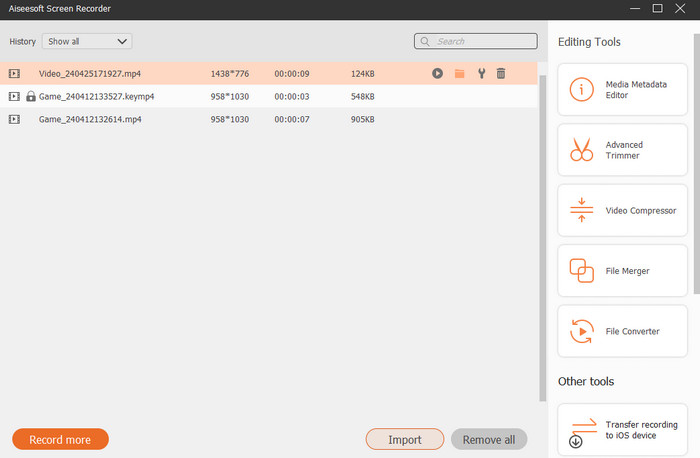
Étape 4. Pour plus d’options de montage, l’outil vous redirigera vers sa bibliothèque, où vous verrez la liste de vos enregistrements. Les outils d’édition auxquels vous avez librement accès y sont également disponibles.
Lecture complémentaire :
6 excellents enregistreurs MP4 en 2024 [Gratuits & Payants]
Top 5 des enregistreurs de réunions Zoom pour enregistrer vos réunions [2024]
Partie 4. FAQ sur la conversion d'enregistrement Zoom
Les enregistrements Zoom sont-ils MP4 ?
Oui. Cependant, les enregistrements peuvent ne pas être au format MP4 s'ils ont été accidentellement arrêtés.
Y a-t-il une limite à la durée des enregistrements que je peux convertir en MP4 ?
Ça dépend. Les comptes gratuits peuvent avoir des limites en termes d'espace de stockage et d'options de conversion, tandis que les forfaits payants offrent généralement plus de flexibilité et des limites plus élevées.
Comment puis-je convertir un enregistrement Zoom en MP4 ?
Vous pouvez convertir un enregistrement Zoom en MP4 avec le client Zoom car il dispose d'une fonction de conversion intégrée. Lorsque vous ouvrez l'enregistrement, il vous suffit de cliquer sur le bouton Convertir.
Conclusion
Par défaut, les réunions Zoom sont enregistrées en MP4, mais si les enregistrements ne sont pas correctement sauvegardés, vous devrez malgré tout convertir les enregistrements Zoom en MP4. Heureusement, des méthodes efficaces pour effectuer cette conversion sont présentées dans cet article. Nous espérons qu’il vous sera utile.
-
 7 du magnifique enregistreur vocal accessible sur toutes les plateformes
 Voulez-vous apprendre à faire de l'enregistrement audio? Alors allez à cet article car nous parlons du meilleur enregistreur audio qui peut s'adapter à vos besoins.
-
 Test de CamStudio 2025 : avantages et inconvénients
 CamStudio est un fantastique programme de capture d'écran gratuit et open source pour enregistrer votre écran. L'enregistreur d'écran CamStudio est-il sûr? Eh bien, cette revue vous aidera à découvrir toutes les fonctionnalités de CamStudio.
-
 Moyens réalisables sur la façon dont vous pouvez enregistrer de l'audio avec VLC Player
 Apprenez les meilleures façons d'enregistrer de l'audio avec le lecteur VLC et d'autres outils pratiques, en lisant l'article.
