


 Video Converter Ultimate
 Enregistreur d'écran
 Réparation vidéo
 Téléchargement sécurisé
Les moyens les plus rapides et les plus simples de raccourcir une vidéo avec les meilleurs outils
Couper ou raccourcir une vidéo est important car il ne met en évidence que les clips nécessaires de votre vidéo. Découper une vidéo signifie enlever le début de la fin d'un clip vidéo. Cet élément fondamental du montage est nécessaire pour ne pas perdre l'attention de votre public. Donc, si vous souhaitez couper ou raccourcir votre longue vidéo, vous apprendrez dans cet article comment raccourcir une vidéo.

Partie 1. 2 méthodes pour raccourcir une vidéo sur un trimmer à l'aide de la meilleure application
FVC Video Converter Ultimate est le meilleur outil de bureau pour couper vos vidéos. Cet outil possède une interface logicielle intuitive et est gratuit à utiliser. Ce convertisseur hors ligne vous permet d’ajouter des segments à votre fichier vidéo. De plus, il dispose d’une fonction qui vous permet de diviser rapidement votre vidéo en plusieurs parties selon vos préférences. Et si vous recherchez un outil capable de fusionner plusieurs formats de fichiers en un seul, cette application peut le faire pour vous.
En outre, cet outil offre de nombreuses fonctionnalités avancées, comme un créateur de GIF, un assembleur de vidéos, un suppresseur de filigrane vidéo, etc. Et ce qui est encore plus remarquable, c’est qu’il prend en charge de nombreux formats de fichiers, notamment MP4, WMV, FLV, AVI, MPG, WebM, MKV et plus de 1000 autres formats. Ainsi, si vous souhaitez utiliser cette application pour raccourcir votre vidéo, nous vous proposons deux méthodes à suivre.
Méthode 1. Utiliser le découpeur vidéo de FVC
Étape 1. Tout d’abord, téléchargez FVC Video Converter Ultimate en cliquant sur le bouton Download ci‑dessous. Suivez le processus d’installation, puis lancez l’application.
Téléchargement gratuit pour Windows 7 ou version ultérieure Téléchargement sécurisé
Téléchargement gratuit pour macOS 10.7 ou version ultérieure - Téléchargement sécurisé
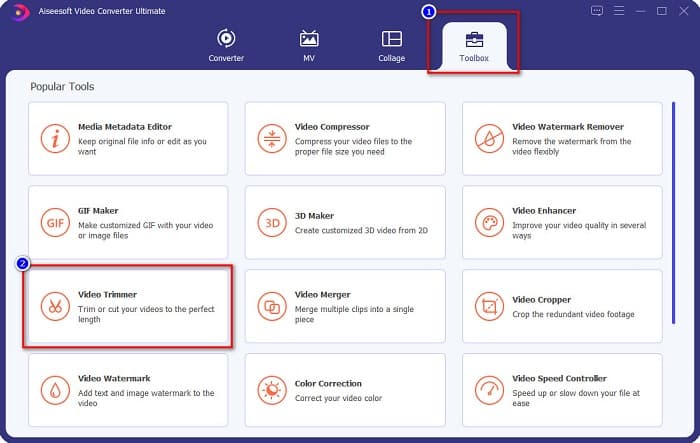
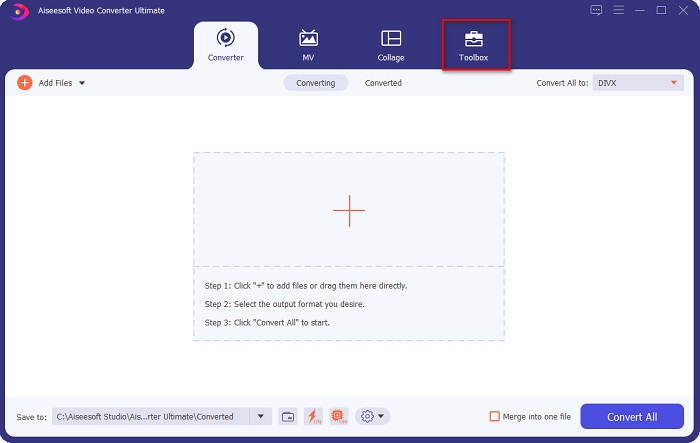
Étape 2. Ensuite, sélectionnez l’onglet Toolbox situé en haut de l’interface du logiciel. Puis, sur le panneau Toolbox, cliquez sur Video Trimmer.
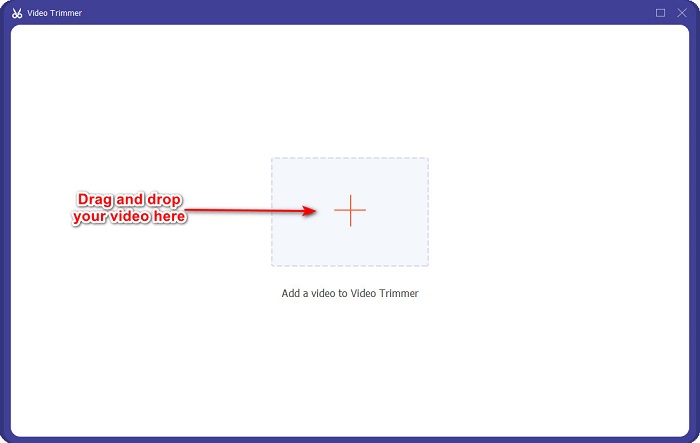
Étape 3. Sur l’interface suivante, cliquez sur le bouton avec le signe + ou glissez‑déposez votre vidéo sur le signe +.
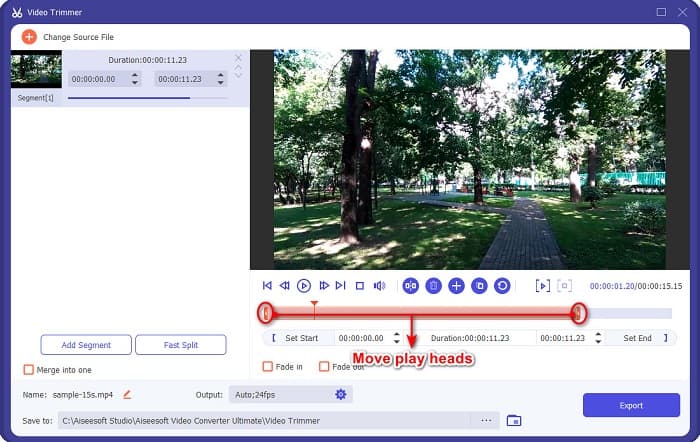
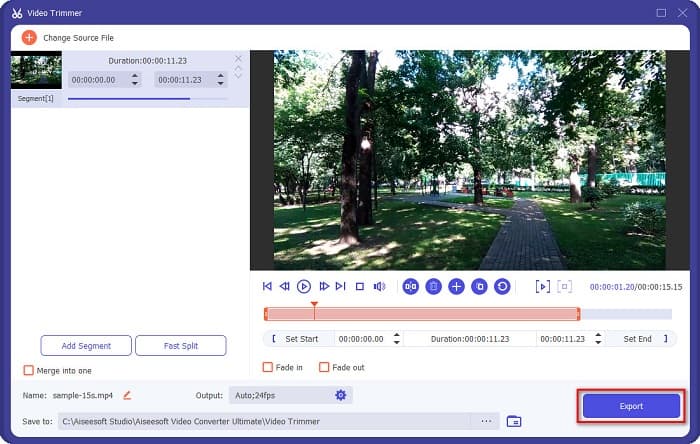
Étape 4. Déplacez ensuite les curseurs de lecture jusqu’à la longueur souhaitée. La flèche indique l’emplacement de l’aperçu de votre vidéo. Les curseurs de lecture indiquent la durée de votre vidéo. Vous pouvez voir les modifications temporaires apportées à votre vidéo dans la fenêtre d’aperçu.
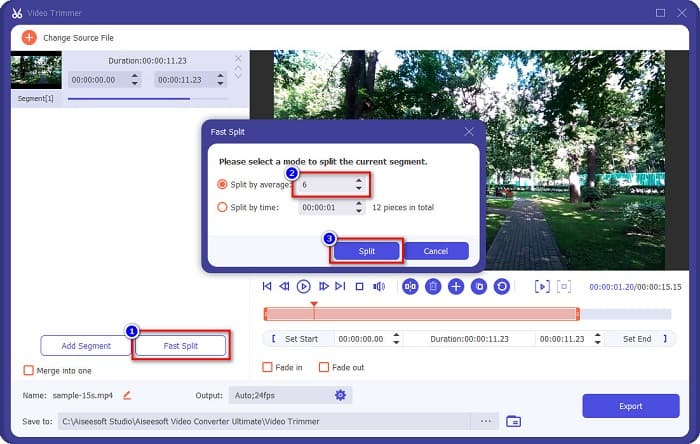
Optionnel. Si vous souhaitez un moyen plus simple de découper votre vidéo en segments :
1. Cliquez sur le bouton Fast Split.
2. Sélectionnez le nombre de segments que vous voulez pour votre vidéo, puis appuyez sur Split.
3. Si vous ne souhaitez pas diviser votre vidéo, passez à l'étape suivante.
Étape 5. Enfin, cliquez sur le bouton Export pour appliquer les modifications à votre vidéo. Votre fichier de sortie sera alors automatiquement enregistré sur votre ordinateur.
Méthode 2. Utiliser le changeur de vitesse vidéo de FVC
FVC Video Converter Ultimate dispose également d'une fonction permettant de modifier la vitesse de votre vidéo de 0,125x, 0,25x, 0,5x, 0,75x, 1,25x, 1,5x, 2x, 4x et 8x. Et si vous souhaitez raccourcir la durée de votre vidéo, ajustez votre vidéo à une vitesse rapide. Pour des étapes plus détaillées, suivez le guide ci-dessous.
Étape 1. Ouvrez FVC Video Converter Ultimate. Sur l’interface principale du logiciel, cliquez sur l’option Toolbox.
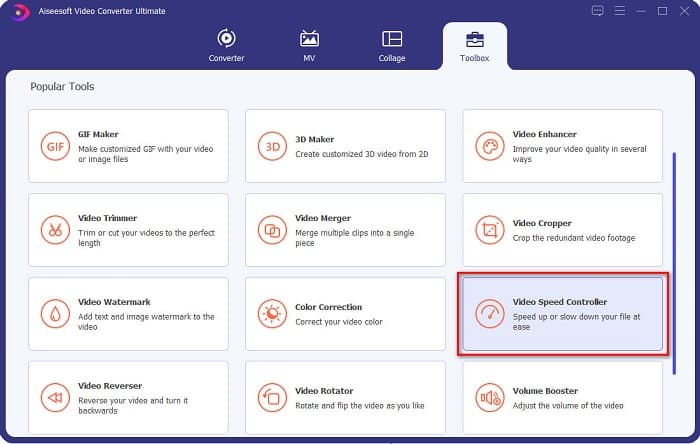
Étape 2. Puis cliquez sur Video Speed Controller et passez à l’étape suivante.
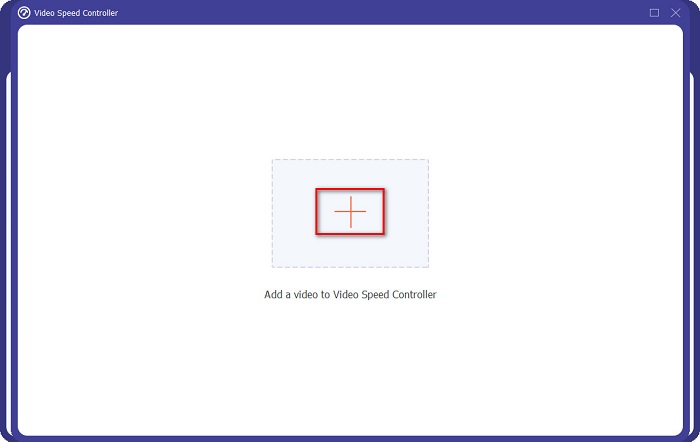
Étape 3. Ensuite, cliquez sur le bouton avec le signe + pour importer la vidéo que vous souhaitez raccourcir. Les dossiers de votre ordinateur apparaîtront, vous permettant de sélectionner la vidéo et de l’importer dans l’interface du logiciel.
Étape 4. Pour raccourcir votre vidéo, choisissez une vitesse comprise entre 1,25x et 8x.
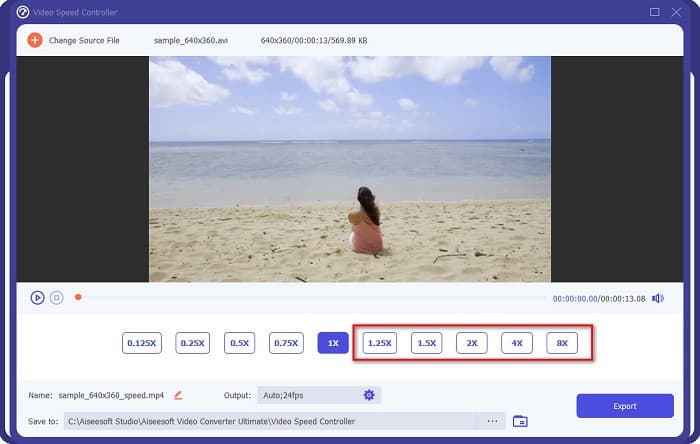
Étape 5. Pour la dernière étape, cliquez sur le bouton Export afin d’enregistrer les modifications apportées à votre vidéo. Votre fichier de sortie sera alors automatiquement enregistré sur votre ordinateur.
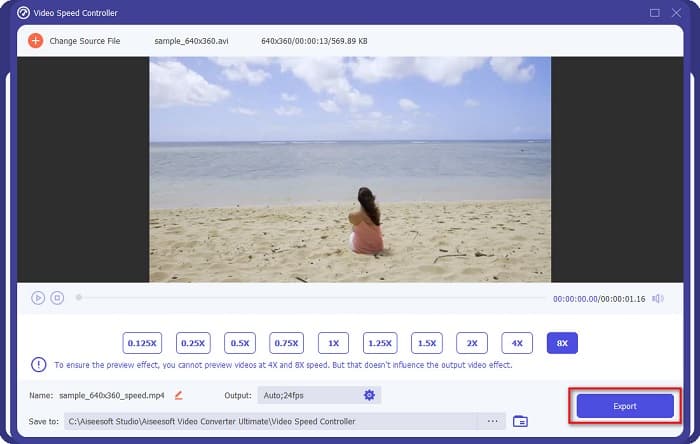
Pour une longueur de vidéo plus courte, sélectionnez la vitesse 8x.
Avantages
- Il prend en charge de nombreux formats de fichiers, notamment les formats MOV, MKV, AVI, MP4, WMV, WMA, MPEG et plus de 1000.
- Il dispose d'une interface logicielle facile à utiliser.
- Il vous permet de diviser rapidement votre vidéo en quelques clics.
- Téléchargeable sur toutes les plateformes cross-média, comme Windows, Mac et Linux.
Les inconvénients
- Achetez l'application avant d'accéder à ses autres fonctionnalités.
Partie 2. 2 Découpeur vidéo en ligne à essayer
Si vous souhaitez découper votre vidéo sans rien télécharger, il existe des découpeurs vidéo en ligne que vous pouvez utiliser. Nous avons répertorié les meilleurs découpeurs vidéo en ligne que de nombreuses personnes utilisent dans cette partie.
Couper la vidéo
Trim Video est un outil en ligne de découpe vidéo facile à utiliser grâce à son interface utilisateur intuitive. C’est un outil pratique, car il ne nécessite aucune installation, contrairement à d’autres outils en ligne. De plus, il dispose d’une fonction permettant de faire pivoter votre vidéo de 90, 180 ou 270 degrés. En outre, vous n’avez pas à douter de la sécurité de vos données, car cet outil protège votre confidentialité. Toutefois, comme il s’agit d’une application web, il contient des publicités susceptibles de vous distraire.
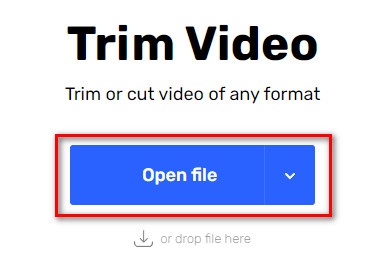
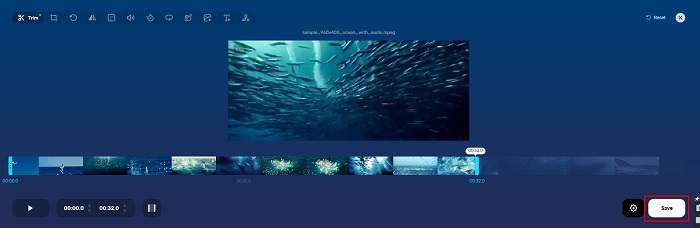
Étape 1. Dans votre navigateur, recherchez un découpeur vidéo en ligne, puis cliquez sur le site Trim Video. Sur l’interface principale du logiciel, cliquez sur le bouton Open File.
Étape 2. Ajustez ensuite les boutons du curseur de lecture jusqu’à la longueur souhaitée.
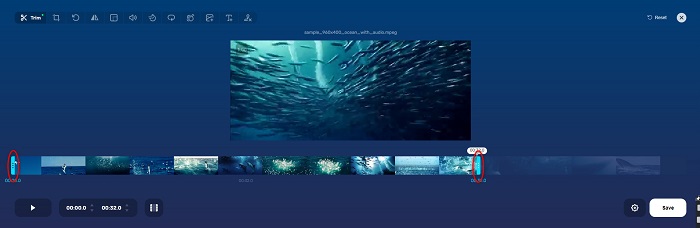
Étape 3. Cliquez sur le bouton Save pour modifier la durée de votre vidéo.
Avantages
- Il a une interface graphique facile à utiliser.
- Il a des fonctionnalités pour recadrer et faire pivoter votre vidéo.
- Il est sûr à utiliser.
Les inconvénients
- Il contient des publicités embêtantes.
- Il a un processus de chargement et de téléchargement lent.
Clidéo
Un autre outil de découpe vidéo en ligne est Clideo. Cet outil en ligne possède une interface simple, ce qui le rend très facile à utiliser. Il prend également en charge la plupart des formats de fichiers standards, comme AVI, MP4, VOB, MPG, MOV, etc. En outre, cet outil offre un haut niveau de sécurité, ce qui signifie que vos données sont protégées et ne peuvent pas être consultées par d’autres personnes. De plus, Clideo ne contient aucune publicité susceptible de vous distraire.
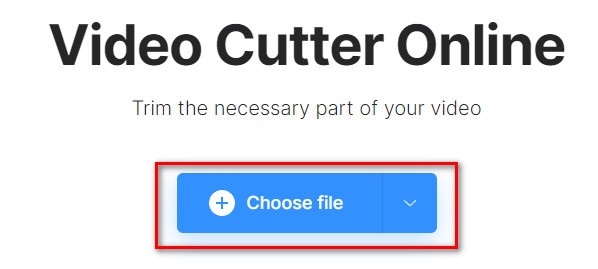
Étape 1. Dans le navigateur que vous utilisez, recherchez le découpeur vidéo Clideo. Sur la première interface du logiciel, cliquez sur le bouton Choose File. Les dossiers de votre ordinateur apparaîtront, vous permettant de sélectionner la vidéo que vous souhaitez raccourcir.
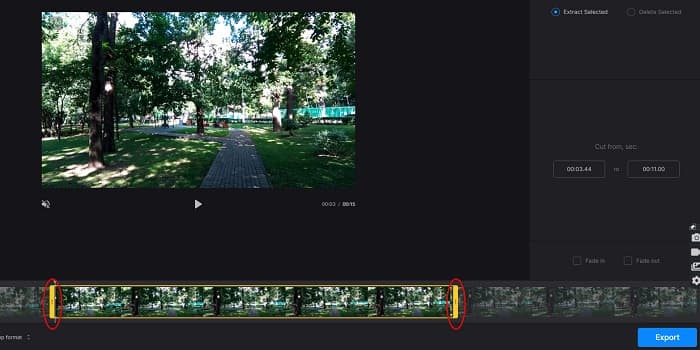
Étape 2. Déplacez les boutons du curseur de lecture jusqu’à la durée que vous souhaitez donner à votre vidéo.
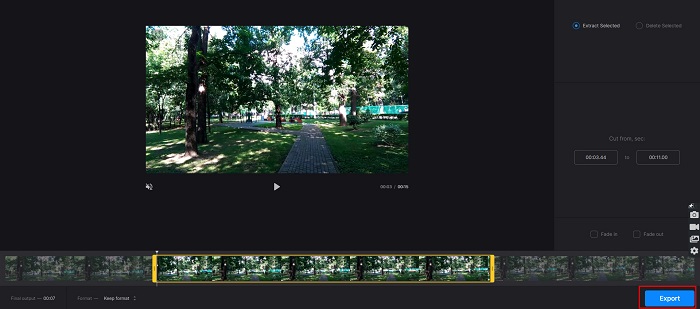
Étape 3. Pour la dernière étape, cliquez sur le bouton Export pour modifier la durée de votre vidéo.
Avantages
- Il a une interface facile à utiliser.
- Il est sûr à utiliser.
- Il ne contient aucune publicité.
Les inconvénients
- Vous pouvez rencontrer un processus lent lorsque votre connexion Internet est lente.
Partie 3. FAQ sur la façon de raccourcir une vidéo
Comment raccourcir une vidéo sur iPhone ?
Tout d'abord, ouvrez l'application Photo et sélectionnez la vidéo que vous souhaitez découper. Appuyez ensuite sur Modifier. Ensuite, déplacez les curseurs sur la longueur de vidéo souhaitée et appuyez sur Terminé pour enregistrer les modifications de votre vidéo.
Le découpage de votre vidéo affecte-t-il la qualité ?
Non. La plupart des outils de découpage n'affectent pas la qualité de votre vidéo. Mais si vous vous assurez d'un outil qui n'affecte pas la qualité lorsque vous raccourcissez votre vidéo, utilisez FVC Video Converter Ultimate.
Le raccourcissement de votre vidéo affecte-t-il la taille du fichier ?
Oui. Plus votre vidéo est courte, moins elle a de taille de fichier. En revanche, si votre vidéo est longue, elle contient une taille de fichier énorme.
Conclusion
Voilà tout ce qu’il faut savoir pour raccourcir une vidéo à l’aide d’un découpeur et d’un accélérateur de vitesse vidéo. Tous les outils répertoriés offrent d’excellents résultats et vous garantissent les meilleures performances. Mais si vous recherchez le meilleur outil, riche en fonctionnalités et très populaire pour raccourcir vos vidéos, FVC Video Converter Ultimate est l’outil idéal pour vous.
-
 Comment couper et fusionner des chansons en ligne - 4 meilleures façons de savoir
 Lorsque vous souhaitez couper et fusionner des chansons en ligne pour créer un morceau de musique, vous pouvez en savoir plus sur les 4 meilleurs outils en ligne pour couper les chansons et combiner les fichiers de l'article.
-
 Découvrez la meilleure tondeuse MP4 avec procédure et informations
 Voulez-vous apprendre à couper des vidéos comme les vloggers que vous regardez ? Continuez ensuite à lire cet article pour savoir quels trimmers MP4 vous pouvez utiliser.
-
 5 MP3 Cutters pour couper facilement n'importe quel audio [Mise à jour 2022]
 Avez-vous besoin d'un découpeur MP3 pour découper l'audio ? Dans ce cas, lisez cet article car nous fournissons les outils sur lesquels vous pouvez compter et qui permettent de couper facilement l'audio.
