


 Video Converter Ultimate
 Enregistreur d'écran
 Réparation vidéo
 Téléchargement sécurisé
Comment supprimer efficacement le filigrane iStock sur les vidéos et les images en quelques étapes
Lorsque vous avez besoin d’un fichier de média visuel sous licence à portée de main, vous pouvez aller sur iStock pour le télécharger. Tout le monde ne peut pas utiliser le site gratuitement, ce qui signifie que vous devrez acheter l’image avec de l’argent réel. Bien que vous puissiez y télécharger le fichier gratuitement, un filigrane sera ajouté au fichier que vous téléchargez. En ajoutant un filigrane par défaut sur le fichier, ce site indique que ce fichier appartient au site iStock. Ce filigrane ne vous agace-t‑il pas ? Si vous pensez comme nous, lisez cet article jusqu’au bout pour découvrir la solution que nous avons trouvée sur Internet. Nous présenterons également les formules auxquelles vous pouvez souscrire sur ce site et comment supprimer le filigrane iStock dans chaque cas.

Partie 1. Comment supprimer les vidéos et images iStock Watermarkon avec les 3 méthodes utiles
1ère Voie. Acheter un crédit sur iStock
Commençons par acheter du crédit sur iStock. Le crédit sur iStock est une monnaie ; ce site Web reconnaît le crédit égal à votre argent. Vous pouvez utiliser le crédit pour acheter n'importe quel fichier avec un certain montant. Vous pouvez enregistrer des images iStock sans filigrane si vous achetez un crédit. Pour savoir comment le faire, vous pouvez lire complètement les étapes que nous ajoutons ci-dessous pour vous aider à le faire.
Étape 1. Ouvrez le site officiel et connectez‑vous à votre compte. Si vous n’avez pas encore créé de compte, vous pouvez en créer un avant d’acheter les crédits nécessaires.
Étape 2. Sur le site, cliquez sur Pricing pour voir quelles formules cet outil propose.
Étape 3. Une liste de crédits que vous pouvez acheter s’affiche ; choisissez le nombre de crédits que vous voulez, puis cliquez sur Purchase Credits.
Étape 4. Renseignez ici les informations et les données de facturation que vous utiliserez pour acheter des crédits.
2ème Voie. Supprimer iStock Watermark sur les vidéos à l'aide de FVC Video Converter Ultimate
Pour retirer le filigrane iStock d’une vidéo, vous devrez utiliser un puissant outil de suppression de filigrane, le FVC Video Converter Ultimate. C’est l’un des suppressors de filigrane les plus prisés, qui élimine sans effort le filigrane de vos vidéos. Cet outil supprime le filigrane image par image et ne laisse aucun résidu une fois l’exportation terminée. Donc, si vous êtes sur le point d’utiliser ce logiciel sur votre ordinateur, nous pouvons vous assurer que vous obtiendrez rapidement une vidéo sans filigrane. Vous souhaitez utiliser ce logiciel ? Dans ce cas, poursuivez et suivez les étapes ci‑dessous pour vous aider à supprimer le filigrane de la vidéo que vous avez enregistrée sur iStock.
Étape 1. Cliquez sur le bouton de téléchargement ci‑dessous pour installer le programme sur votre ordinateur. Choisissez le système d’exploitation approprié pour obtenir la bonne version. Installez et configurez l’outil après le téléchargement, puis cliquez sur Start Now pour ouvrir le logiciel et commencer à l’utiliser.
Téléchargement gratuit pour Windows 7 ou version ultérieure Téléchargement sécurisé
Téléchargement gratuit pour macOS 10.7 ou version ultérieure - Téléchargement sécurisé
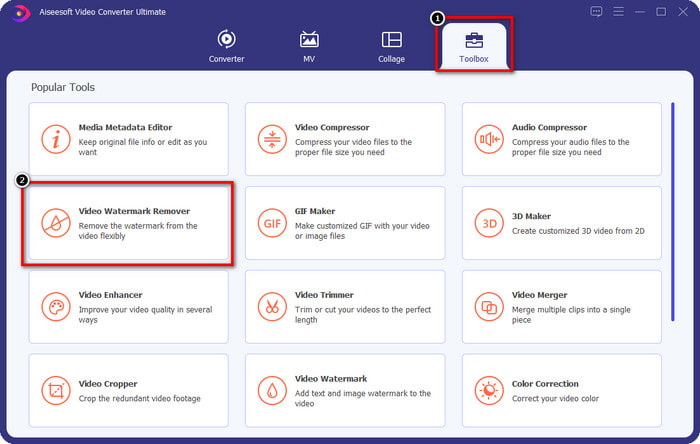
Étape 2. Maintenant que vous disposez de ce suppresseur de filigrane iStock, rendez‑vous dans la Toolbox. Recherchez Video Watermark Remover pour utiliser cette fonction.
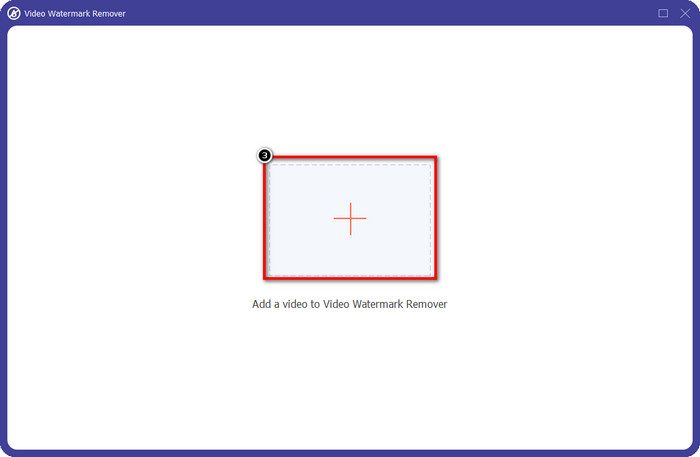
Étape 3. Appuyez sur le bouton + pour importer la vidéo téléchargée sur iStock qui contient un filigrane. Recherchez le fichier vidéo dans l’explorateur de fichiers qui s’affiche à l’écran, puis appuyez sur Open pour le téléverser.
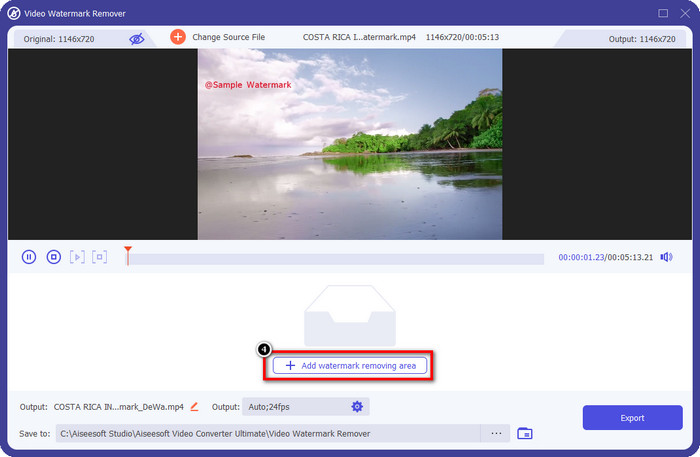
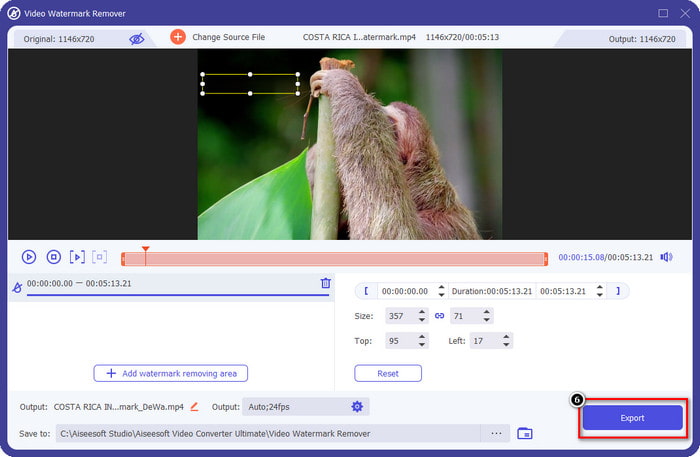
Étape 4. Dans la nouvelle fenêtre, sélectionnez Add Watermark Removing Area pour définir la zone du filigrane sur la vidéo que vous avez importée.
Étape 5. Dans la partie centrale supérieure, ajustez la forme rectangulaire et placez‑la sur le filigrane afin de définir la zone à traiter.
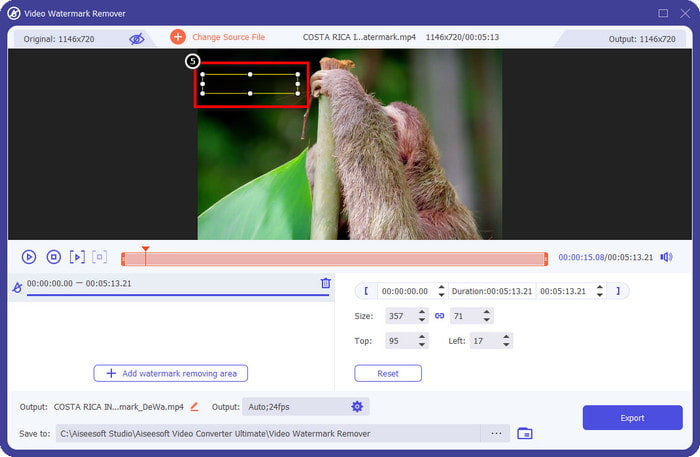
Étape 6. Commencez à exporter le fichier une fois que vous avez effectué tout ce qui est indiqué dans cette étape, en appuyant sur le bouton Export. Ainsi, vous venez de terminer la suppression du filigrane de votre vidéo à l’aide de cet outil ultime.
3ème Voie. Supprimer le filigrane iStock sur les images à l'aide du dissolvant de filigrane gratuit FVC
Pour traiter les filigranes sur les images, vous devrez utiliser le FVC Free Watermark Remover. C’est un utile suppresseur de filigrane iStock en ligne que vous pouvez utiliser pour supprimer efficacement le filigrane sur les images sans rien télécharger sur votre appareil. De plus, vous n’avez rien à acheter ou à souscrire ici, car il est gratuit. Malgré le fait qu’il s’agisse d’un outil en ligne, ses performances pour supprimer les filigranes sont indéniablement meilleures que celles d’autres outils de suppression de filigrane pour images. Vous ne croyez pas ce que nous affirmons ? Il n’y a qu’une seule façon de vous prouver qu’il fonctionne à merveille : en suivant les étapes que nous présentons ici.
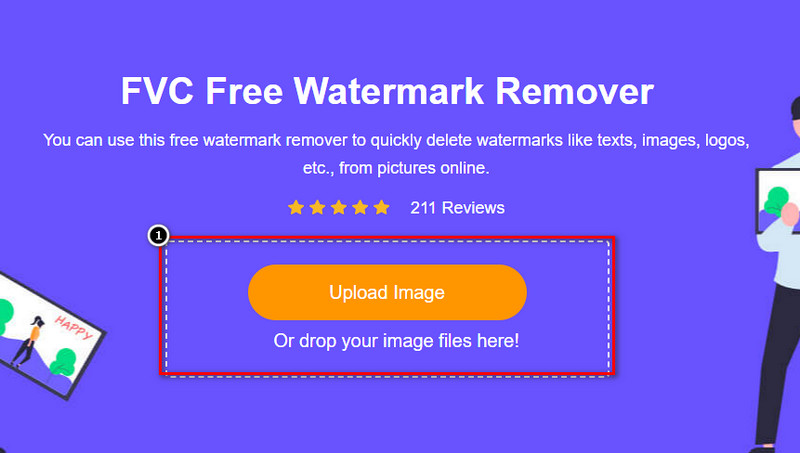
Étape 1. Veuillez cliquer sur ce lien pour utiliser immédiatement le suppresseur de filigrane en ligne pour les images.
Étape 2. Appuyez sur Upload Image, sélectionnez l’image comportant un filigrane et attendez la fin du téléversement.
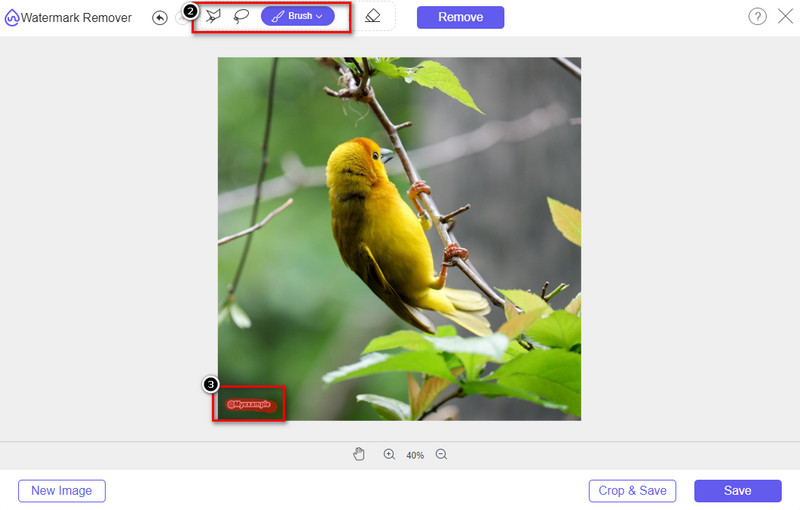
Étape 3. Draw sur le filigrane à l’aide de ces outils pour le surligner.
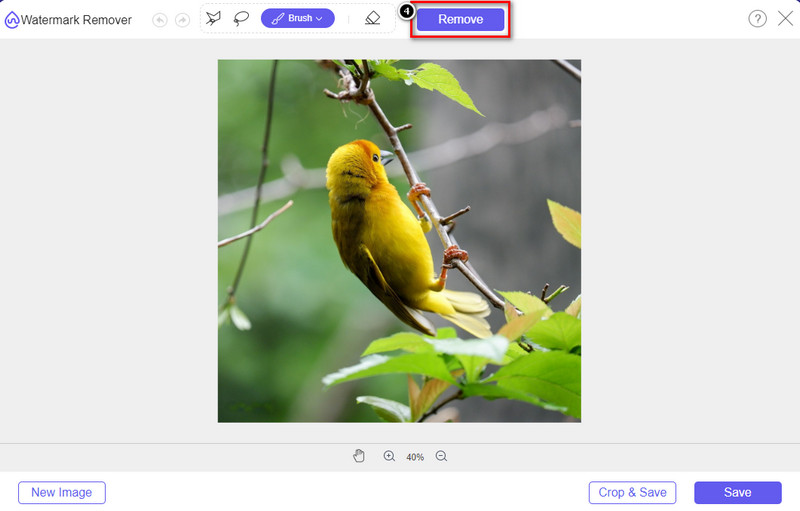
Étape 4. Cliquez sur Remove pour voir le résultat une fois le filigrane supprimé.
Étape 5. Enfin, pour enregistrer l’image, cliquez sur Save afin d’exporter l’image sans le filigrane iStock.

En rapport:
Comment supprimer le filigrane des vidéos exportées depuis Renderforest
Comment supprimer le filigrane Viva Video sur les vidéos
Partie 2. FAQ sur la suppression d'iStock Watermark
Comment télécharger gratuitement des images iStock sans filigrane ?
Si vous avez l'intention de télécharger immédiatement une image sur iStock, le site Web appliquera un filigrane à l'image. Ce site Web protège chaque fichier pour éviter les problèmes de droit d'auteur et l'utilisation excessive d'une certaine image. Si vous souhaitez télécharger une image sans filigrane, vous devez acheter du crédit ; vous pouvez suivre les étapes que nous ajoutons ci-dessus pour savoir comment procéder.
Combien coûte un seul crédit sur iStock ?
Le prix d'un seul crédit sur iStock vaut $12. Vous pouvez utiliser le crédit pour acheter un fichier multimédia ici et le télécharger sans filigrane sur le support visuel de votre choix. Plus vous achèterez de crédit, plus il y aura de remise par crédit ; vous pouvez consulter les crédits disponibles que vous pourriez aimer.
N'est-ce pas cher d'acheter un fichier sur iStock ?
Comparé à l'autre site Web qui fournit le même service, c'est l'un des sites Web les moins chers que vous pouvez utiliser pour acheter un fichier sous licence. Une fois que vous avez acheté un fichier ici, vous pouvez l'utiliser sans limite contrairement à l'autre, où une fois que vous avez acheté, il y a toujours des limitations sur l'utilisation du fichier.
Conclusion
Maintenant que vous savez comment supprimer efficacement le filigrane iStock sur les vidéos et les images, nous pouvons dire que le travail est fait. Alors, quelle voie préférez-vous le plus ? Voulez-vous acheter un crédit pour que le fichier soit prêt sans le filigrane ? Ou voulez-vous utiliser les outils que nous ajoutons ici qui pourraient traiter le filigrane sur les images et la vidéo ? Quel que soit votre choix, vous aurez toujours le fichier parfait et prêt à être utilisé sans la perturbation du filigrane.
-
 Comment supprimer un filigrane avec Pixlr en étapes détaillées [Effective]
 Vous voulez savoir comment supprimer un filigrane avec Pixlr ? Si tel est le cas, continuez à lire ci-dessous pour savoir comment procéder et les alternatives que vous pouvez utiliser.
-
 Supprimer le filigrane Animotica sur les vidéos exportées avec 3 méthodes éprouvées
 Vous êtes-vous déjà demandé s'il était possible de supprimer le filigrane Animotica sur les vidéos que vous avez exportées ? Cet article propose une marche à suivre.
-
 Des moyens gratuits pour supprimer le filigrane VideoShop sur les vidéos [sans effort]
 Pour supprimer le filigrane VideoShop, votre appareil aura besoin d'un dissolvant de filigrane. Pour savoir de quoi il s'agit, lisez cet article.
