


 Video Converter Ultimate
 Enregistreur d'écran
 Réparation vidéo
 Téléchargement sécurisé
Comment supprimer le filigrane dans Lunapic en utilisant 3 méthodes efficaces [gratuit]
Pour un éditeur d’images adapté aux débutants, vous pouvez essayer Lunapic en ligne pour retoucher vos images. En effet, cet outil peut ajouter et supprimer le filigrane présent sur vos images grâce à deux fonctions pratiques. Ici, nous allons préciser les techniques que vous pouvez appliquer aux images pour retirer le filigrane. Prenez le temps de lire cet article pour apprendre comment supprimer un filigrane avec Lunapic en suivant les étapes décrites ci‑dessous.

Partie 1. 2 techniques pour supprimer le filigrane de l'image à l'aide de Lunapic que vous devez connaître
Lunapic supprime les filigranes sur une image de deux manières différentes ; recadrage et suppression d'objets. Mais quel moyen est le plus efficace et lequel est le moins efficace ? Discutons-en d'abord avant de passer aux étapes.
1ère Méthode. Recadrer le filigrane sur les images
La fonction de recadrage qu'il fournit n'a rien de spécial, ce qui signifie qu'il fait ce que son nom indique pour recadrer une image. Vous pouvez utiliser cette fonctionnalité si le filigrane est sur les côtés. Recadrez le filigrane et enregistrez la partie de l'image sans filigrane. Si cela vous intéresse, vous pouvez suivre les étapes que nous avons ajoutées.
Étape 1. Ouvrez le site officiel de Lunapic en le recherchant dans votre navigateur, cliquez sur Upload, choisissez l’image dans le dossier qui s’affiche, puis appuyez sur Open pour la téléverser.
Étape 2. Cliquez sur Edit dans le menu du haut, puis sélectionnez Crop Image pour utiliser la fonction de recadrage.
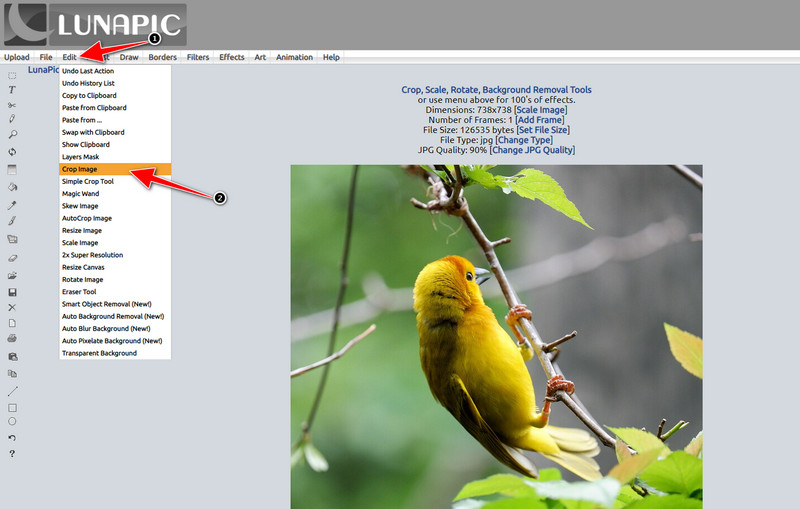
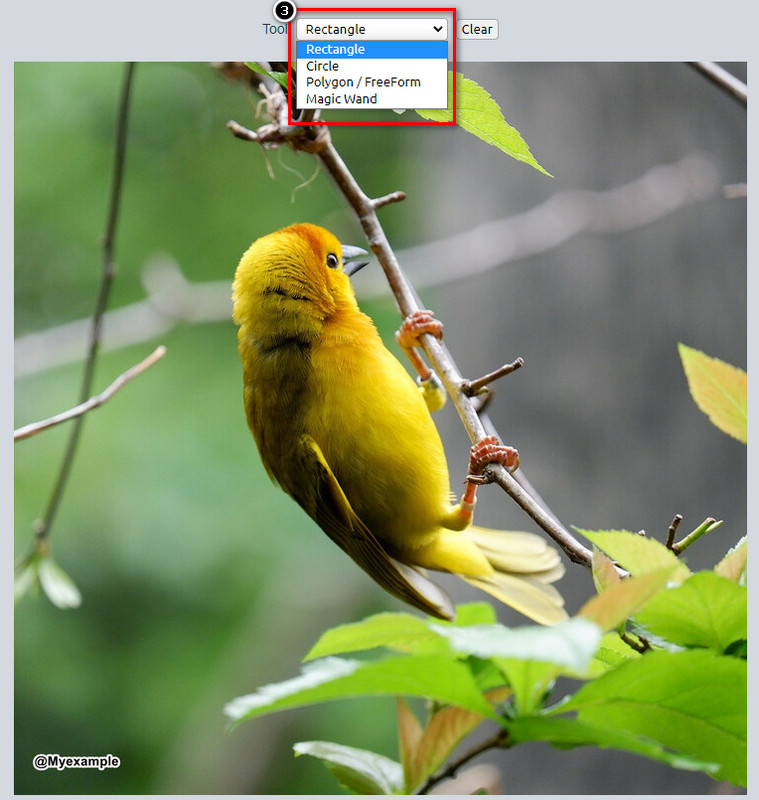
Étape 3. Appuyez sur le bouton drop-down de l’outil et choisissez l’outil de recadrage que vous souhaitez utiliser. Ajustez‑le et assurez‑vous que le filigrane n’est pas inclus.
Étape 4. En cliquant sur le bouton Crop, vous verrez un aperçu du résultat final une fois exporté. Si vous êtes satisfait du résultat, appuyez sur Save pour télécharger la version recadrée sur votre disque local.
2ème Méthode. Supprimer le filigrane sur l'image avec la suppression d'objets
Contrairement au recadrage, la suppression d'objet consiste davantage à supprimer l'objet sur l'image sans modifier la dimension de l'image. Dans cette fonctionnalité, vous devrez mettre en surbrillance le filigrane ; ensuite, vous pouvez le retirer avec l'outil. N'est-ce pas incroyable ? Si vous êtes suffisamment étonné pour vouloir l'utiliser, les étapes ci-dessous vous donneront des moyens complets d'effacer le filigrane avec Lunapic.
Étape 1. Répétez la même procédure que lors de la première étape de la fonction de recadrage pour importer l’image avec le filigrane.
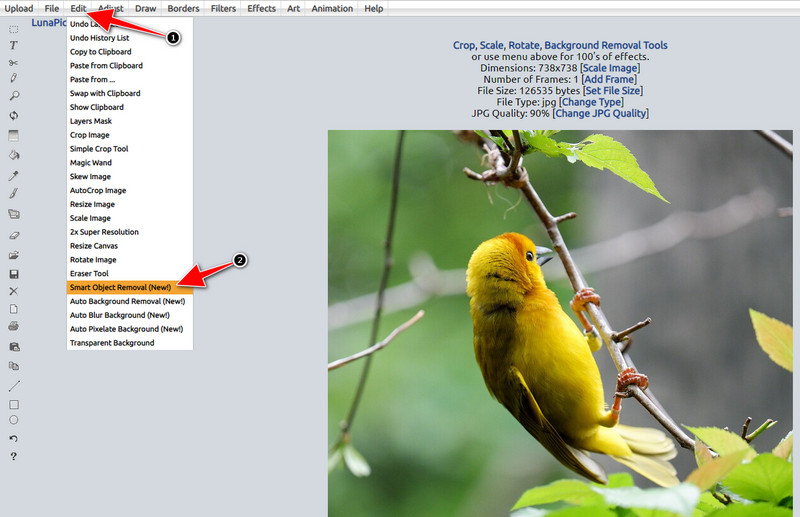
Étape 2. Ouvrez le menu Edit, mais cette fois sélectionnez Smart Object Removal pour utiliser l’autre fonction permettant de supprimer les filigranes.
Étape 3. Surlignez le filigrane à l’aide du pinceau fourni ; vous pouvez également ajuster la taille du pinceau selon vos préférences.
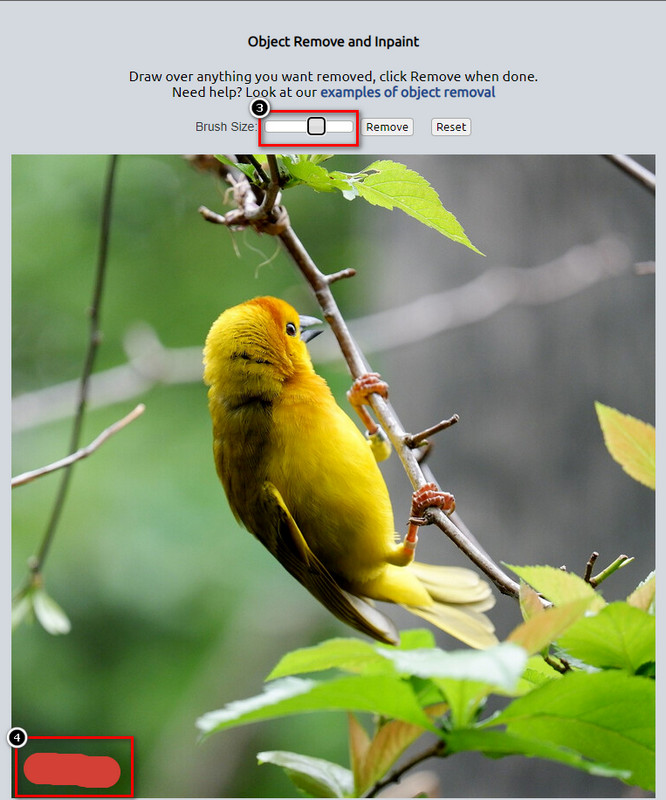
Étape 4. Cliquez sur le bouton Remove pour effacer le filigrane et voir à quoi l’image ressemblera avant de l’exporter.
Étape 5. Cliquez sur Save pour télécharger le résultat final sur votre disque local.
Partie 2. Meilleure alternative à Lunapic pour supprimer le filigrane en un clic gratuitement
Si vous avez besoin d’une alternative à Lunapic pour supprimer les filigranes, vous pouvez utiliser FVC Free Watermark Remover. Comme Lunapic, cet outil s’utilise en ligne sans inscription, sans téléchargement et sans publicité sur l’interface web. Vous pouvez profiter de cet outil sans aucune limitation, et ses performances sont efficaces depuis son lancement. Il a déjà aidé des millions d’utilisateurs sur le web. Si vous avez besoin d’aide pour supprimer des objets sur votre image, vous pouvez suivre les étapes ci‑dessous.
Étape 1. Ouvrez son site officiel en cliquant sur ce lien ; un nouvel onglet s’ouvrira directement dans le navigateur que vous utilisez, et vous verrez l’interface de ce removeur de filigrane.
Étape 2. En appuyant sur Upload Photo, vous pouvez importer l’image stockée sur votre disque local contenant un filigrane ou un objet indésirable que vous souhaitez supprimer.
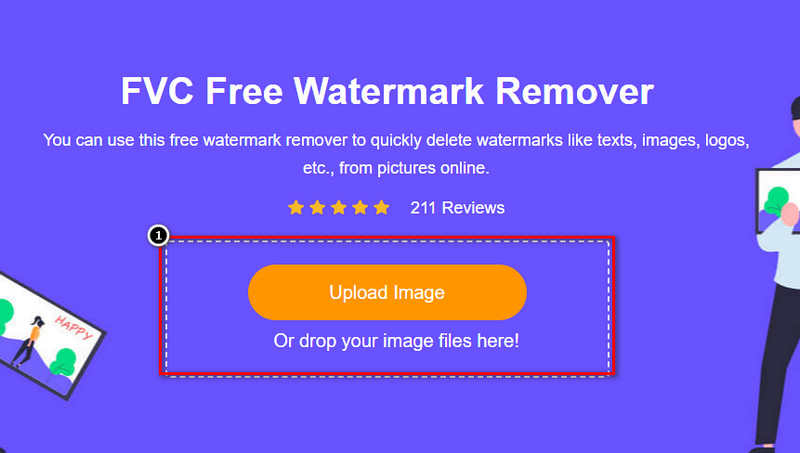
Étape 3. Trois options seront à votre disposition pour surligner le filigrane sur l’image que vous avez téléversée. Choisissez‑en une et surlignez le filigrane avec l’outil sélectionné.
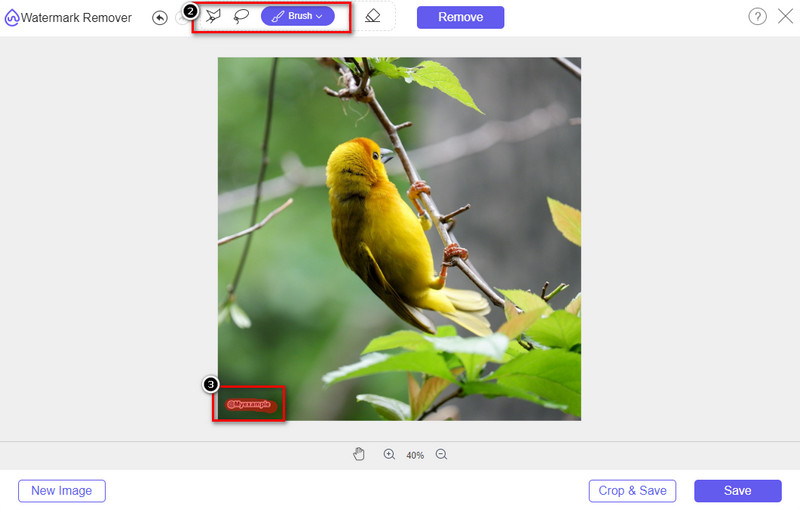
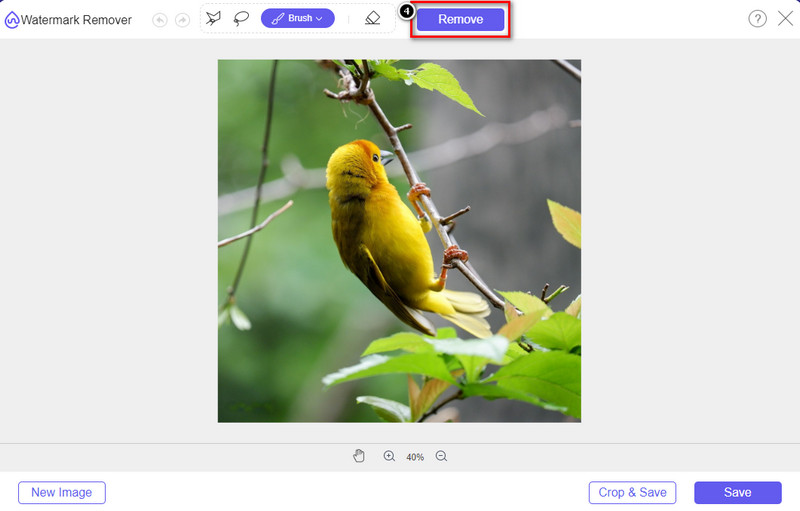
Étape 4. Appuyez sur le bouton Remove pour supprimer l’objet que vous avez surligné à l’étape 3. Tout ce que vous aurez surligné sur l’image sera supprimé.
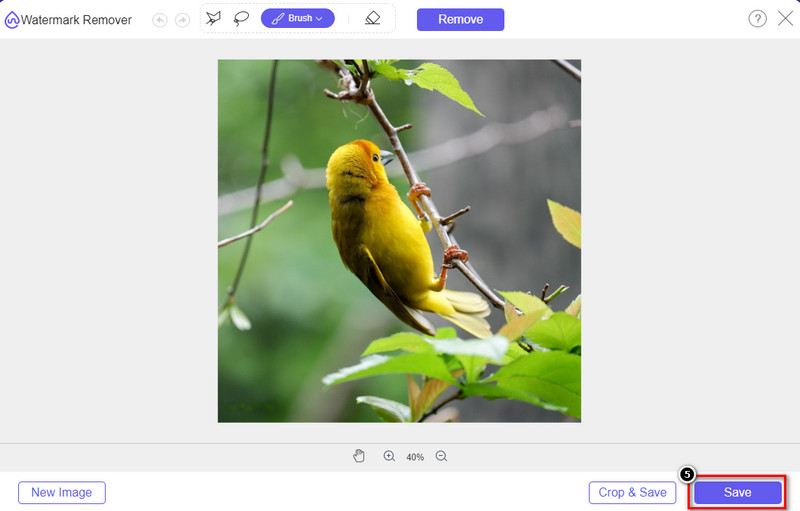
Étape 5. Appuyez sur le bouton Save pour télécharger le résultat final, puis recherchez l’image dans le dossier qui s’affichera sur votre écran.
Pour aller plus loin :
Comment supprimer le filigrane B612 de vos images
Comment supprimer gratuitement le filigrane WOW Slider
Partie 3. FAQ sur la suppression du filigrane dans Lunapic
Lunapic ajoute-t-il un filigrane sur les images modifiées ?
Même si cet éditeur en ligne est accessible gratuitement sur le Web, il n'intègre pas de filigrane de produit sur l'image que vous modifiez ici. Vous n'auriez pas besoin d'un abonnement pour utiliser les outils premium qu'il fournit. Profitez de l'utilisation de l'outil sans aucune limitation ! Visitez son site officiel pour voir et utiliser les outils que vous pouvez utiliser pour éditer les images.
Puis-je ajouter mon filigrane sur Lunapic ?
Absolument, vous pouvez ajouter votre distinction à l'image que vous avez créée pour empêcher l'autre de copier l'image. En ouvrant le site Web, cliquez sur Télécharger pour ajouter l'image que vous souhaitez modifier, cliquez sur l'icône T sur le côté gauche de la barre d'outils et ajoutez le filigrane de texte que vous souhaitez ajouter à l'image que vous téléchargez.
Lunapic a-t-il un outil de suppression d'arrière-plan ?
Oui, Lunapic prend en charge une technologie d'intelligence artificielle capable de détecter l'arrière-plan de l'image et de la supprimer efficacement instantanément. Le nom de la fonctionnalité est Suppression automatique de l'arrière-plan. Ouvrez l'outil et cliquez sur Modifier ; vous verrez la fonctionnalité dont nous parlons qui pourrait vous aider à supprimer l'arrière-plan de l'image. En outre, il prend en charge l'ajout d'un arrière-plan flou si vous souhaitez l'utiliser.
Quels sont les effets disponibles sur Lunapic ?
Lunapic prend en charge diverses sélections en termes d'effets, que vous pouvez utiliser pour ajouter des images, des images, des dégradés, des masques, des dessins animés, des pépins et bien d'autres que vous pouvez appliquer à vos images.
Conclusion
Supprimer un filigrane d'une image à l'aide de Lunapic est incroyablement facile avec le tutoriel que nous ajoutons dans cet article. Vous pouvez suivre les étapes que nous ajoutons à ce blog pour recadrer ou supprimer le filigrane sur l'image que vous avez enregistrée sur votre disque local. Même si vous n'avez pas assez d'expérience pour supprimer le filigrane, vous pouvez maîtriser l'outil en un rien de temps. Mais si vous souhaitez découvrir de nouveaux sommets en supprimant automatiquement le filigrane, vous pouvez utiliser l'alternative que nous ajoutons dans cet article. Visitez son site Web officiel en cliquant sur son nom et découvrez les capacités de cet outil qui nous manquent. Si vous aimez lire ce blog, notez-nous 5 étoiles.
-
 Trucs et astuces pour supprimer facilement le filigrane du filtre Picsart
 Pour supprimer le filigrane du filtre Picsart, vous aurez besoin d'un outil. Continuez à lire cet article pour obtenir un dissolvant de filigrane.
-
 Comment convertir une image basse résolution en haute résolution en ligne
 Si vous souhaitez apprendre à convertir des images basse résolution en images haute résolution en ligne, cet article est pour vous. Lisez complètement pour savoir comment.
-
 Méthodes simples pour supprimer le filigrane Shootproof
 Supprimez le filigrane Shootproof en suivant ces méthodes simples. Utilisez ces incroyables dissolvants de filigrane pour supprimer facilement le filigrane Shootproof de votre image.
