


 Video Converter Ultimate
 Enregistreur d'écran
 Réparation vidéo
 Téléchargement sécurisé
Supprimer l'objet des photos avec les 6 logiciels efficaces [Gratuit]
Des millions de photographes, y compris les débutants, prennent de multiples clichés de couchers de soleil, de plages, de sites touristiques, de la lune, et bien d’autres encore. Avec les images, nous pouvons exprimer qui nous sommes vraiment. En une simple prise, vous pouvez éveiller la créativité de chacun et la bête artistique qui sommeille en eux. Mais chaque prise de vue n’est pas forcément une image parfaite ; parfois, il faut supprimer un objet qui ne devrait pas figurer sur la photo. Avez-vous besoin d’un outil pour supprimer un objet d’une photo ? Ici, nous allons présenter différentes méthodes et différents outils que vous pouvez utiliser pour retirer instantanément les éléments indésirables sur l’image que vous venez de capturer.

Partie 1. Supprimer un objet de la photo à l'aide du meilleur outil de suppression d'objets [service Web]
FVC Free Watermark Remover est notre premier choix pour supprimer gratuitement des objets d’une photo en ligne. Avec cet outil, vous pouvez effacer en un instant tout ce qui gâche votre image parfaite, sans installer de logiciel sur votre ordinateur, même si vous n’avez aucune expérience dans ce type de retouche. Vous pouvez donc compter sur cet outil : il vous suffit de surligner l’objet, et il le supprimera de l’image sans laisser de traces. Nous trouvons cet outil ludique et efficace pour retirer les éléments superflus d’une image ; si vous souhaitez l’utiliser, reproduisez les étapes détaillées ci‑dessous.
Étape 1. Pour ouvrir l’outil de suppression d’objets développé par FVC, cliquez sur ce lien vers le site officiel.
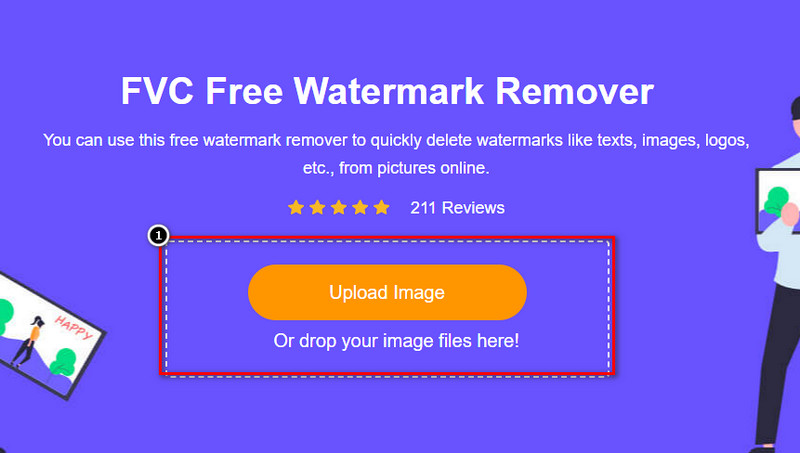
Étape 2. Cliquez sur Upload Image pour importer la photo que vous avez prise et sur laquelle se trouve un objet indésirable.
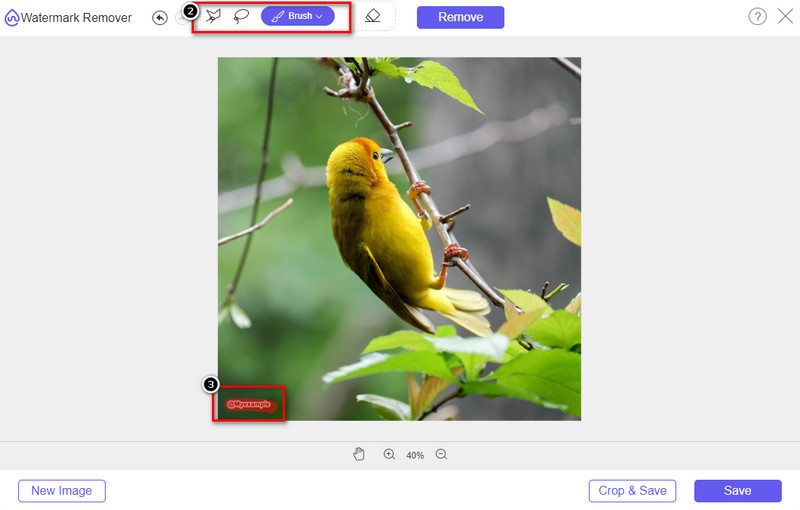
Étape 3. À l’aide des outils disponibles, surlignez l’objet.
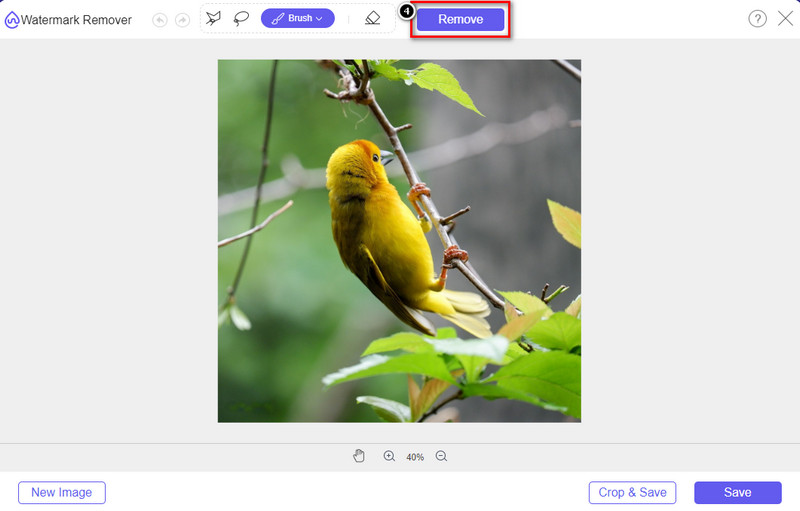
Étape 4. Appuyez sur le bouton Remove pour éliminer l’objet grâce à l’IA intégrée à cet outil.
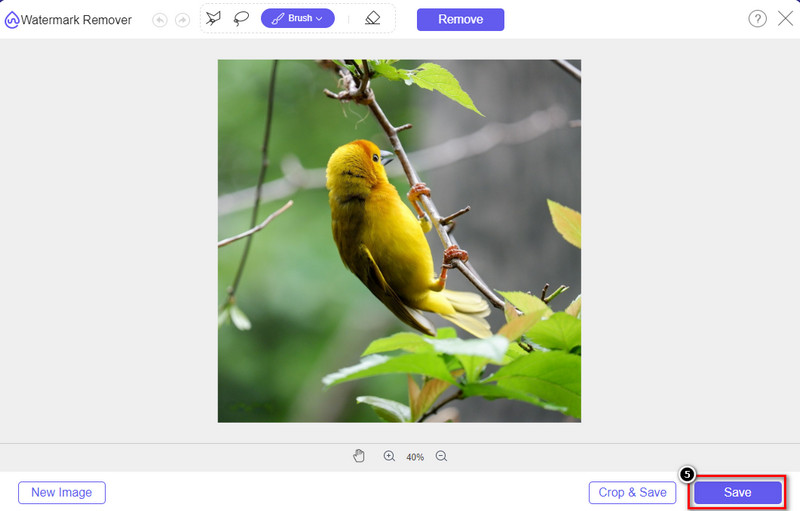
Étape 5. Pour télécharger l’image parfaite que vous avez retouchée, cliquez sur Save.
Partie 2. Supprimer un objet de la photo de manière professionnelle à l'aide de programmes de bureau [Windows et Mac]
Photoshop
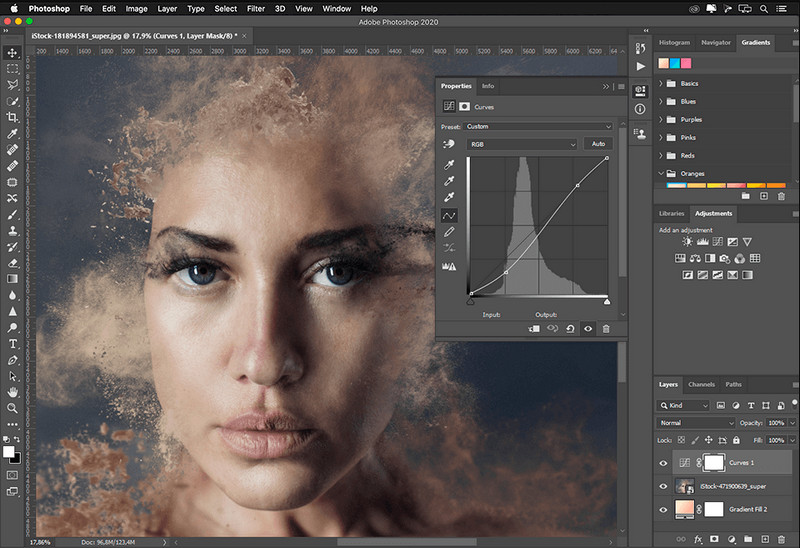
Si vous avez besoin d'un outil professionnel pour supprimer des objets des photos, alors Photoshop est la solution ! Cet outil est un éditeur d'images complet qu'Adobe nous présente fièrement. Rien ne vous empêche de rendre l'image incroyable avec sa fonctionnalité et sa fonction. En raison de sa popularité parmi les professionnels, de nombreux débutants essaient d'utiliser ce logiciel pour éditer et créer leurs images. Donc, si vous voulez savoir comment utiliser cet outil professionnel, vous pouvez suivre le tutoriel que nous ajoutons ci-dessous.
Étape 1. Ouvrez le site officiel d’Adobe, puis téléchargez Photoshop sur votre ordinateur.
Étape 2. Cliquez sur File, puis sur Open pour importer l’image que vous devez retoucher.
Étape 3. Dans la barre d’outils à gauche, sélectionnez le Magic Wand Tool pour détecter automatiquement l’objet sur l’image.
Étape 4. Allez dans le menu Edit et choisissez Content-Aware Fill.
Étape 5. Après l’ouverture de la fonction, le filigrane sera automatiquement supprimé ; cliquez ensuite sur OK.
GIMP
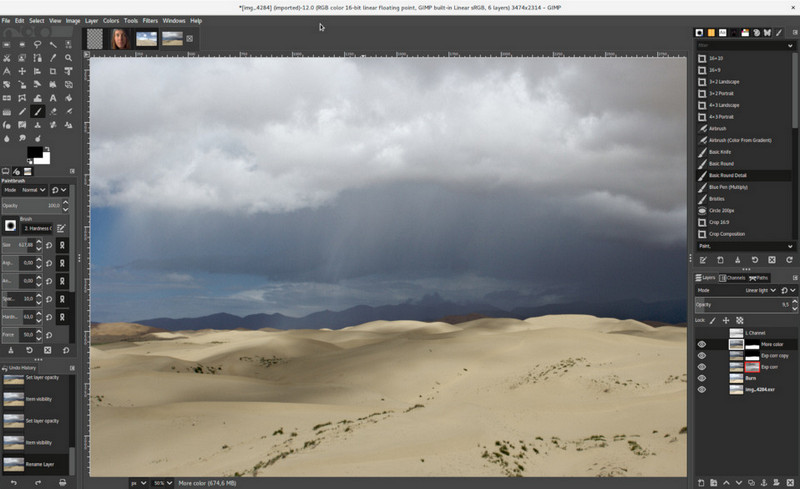
GIMP est un éditeur d’images complet que vous pouvez utiliser gratuitement pour supprimer des objets de vos photos sur Mac, Linux et Windows. C’est un outil fiable, comparable à Photoshop. Bien qu’il soit souvent cité comme l’une des meilleures alternatives à Adobe Photoshop, GIMP est encore en plein développement actif. Avec cet outil, vous pouvez retoucher vos images en profondeur pour les rendre plus attrayantes pour votre public. Vous pouvez également personnaliser son interface afin de faciliter votre travail. Si vous envisagez de télécharger cet outil pour une retouche professionnelle, nous pouvons vous assurer que vous pourrez y parvenir. Même s’il s’agit d’un éditeur open source, l’outil reste en phase de finalisation, car son interface (GUI) est toujours en cours de développement. Donc, si vous souhaitez l’utiliser, les étapes ci‑dessous vous guideront pour apprendre à supprimer un objet d’une photo avec GIMP. Suivez les étapes fournies ci‑après.
Étape 1. Téléchargez puis lancez le logiciel afin de pouvoir importer l’image à retoucher. Téléchargez également son plug‑in, Resynthesizer.
Étape 2. Dans la barre d’outils à gauche, sélectionnez Free Select et changez le mode en Add Current Selection.
Étape 3. Dessinez maintenant le contour de l’objet que vous voulez supprimer ; après l’avoir correctement délimité, appuyez sur Enter sur votre clavier.
Étape 4. Pour utiliser le plug‑in que vous avez téléchargé, allez dans Filter, puis Enhance, et cliquez sur Heal Selection.
Étape 5. Une boîte de dialogue s’affiche ; modifiez la largeur d’échantillonnage si nécessaire, définissez le mode d’échantillonnage sur all-around et l’ordre de remplissage sur random. Appuyez sur OK pour commencer à synthétiser la zone dans l’image.
Application photo sur Mac
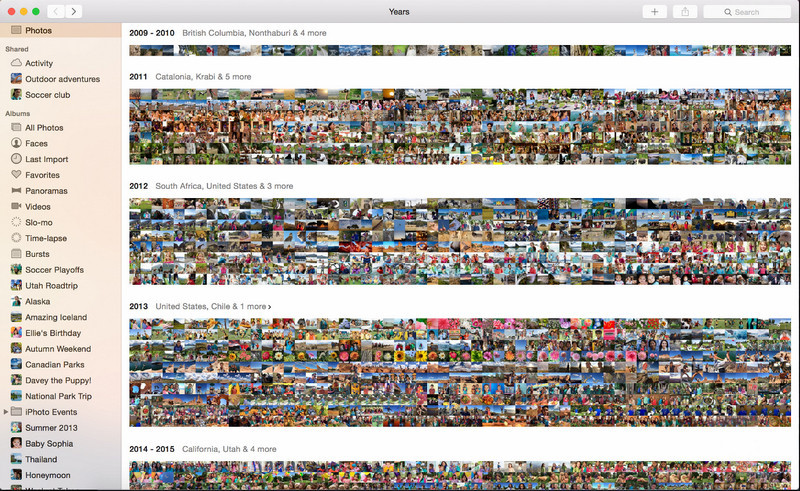
L’application Photos est une fonction intégrée aux appareils Apple récents, comme le Mac. Cette application est préinstallée, vous pouvez donc passer l’étape du téléchargement et l’utiliser immédiatement. Ce logiciel n’est pas un éditeur d’images à proprement parler, car il sert surtout de bibliothèque et de visionneuse de photos sur Mac ou appareils iOS. Même si vous ne disposez pas d’un éditeur professionnel sur Mac, vous pouvez tirer parti de ces fonctions pour obtenir un rendu de qualité professionnelle en un seul clic. Ainsi, si vous souhaitez supprimer un objet avec l’app Photos, suivez les étapes ci‑dessous.
Étape 1. Ouvrez l’app Photos sur votre Mac et sélectionnez l’image contenant un objet indésirable.
Étape 2. En haut à droite, cliquez sur le bouton Edit pour commencer la retouche.
Étape 3. Sur la droite, vous verrez l’option Retouch ; cliquez dessus pour utiliser cette fonction.
Étape 4. Cliquez et faites glisser votre souris sur la zone que vous souhaitez supprimer.
Étape 5. Appuyez sur le bouton Done pour enregistrer les modifications appliquées à l’image.
Partie 3. Supprimer un objet de la photo à l'aide d'une application sur Android et iOS
Photoshop CORRECTIF
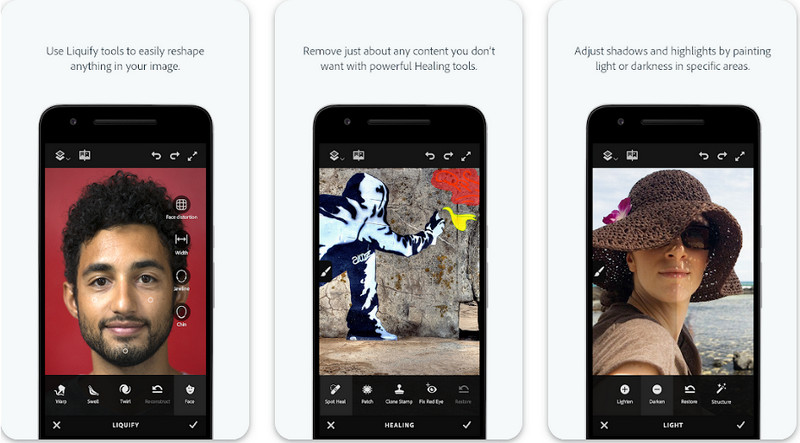
Photoshop FIX est une application Android efficace pour supprimer des objets d’une photo. Elle offre un rendu professionnel tout en restant facile à utiliser. C’est une application open source que vous pouvez télécharger sur votre appareil depuis le Play Store. Même si l’outil est open source, sa fonction de suppression d’objets est incontestablement excellente. C’est l’une des applications les plus téléchargées sur Android pour ce type de tâche. Si vous voulez savoir comment l’utiliser, poursuivez votre lecture.
Étape 1. Téléchargez l’application sur votre appareil Android.
Étape 2. Appuyez sur On My Phone pour afficher toutes les images de votre galerie. Choisissez l’image que vous souhaitez retoucher.
Étape 3. Pour utiliser la fonction de suppression d’objets, cliquez sur Healing.
Étape 4. Vous disposez ici de deux options pour supprimer l’objet. Pour l’effacer au pinceau, choisissez Spot Heal. Mais si vous souhaitez cloner des pixels, choisissez Clone Stamp. Surlignez le filigrane avec l’outil de votre choix.
Étape 5. Enregistrez l’image dans votre pellicule, et c’est terminé !
Retouche photo
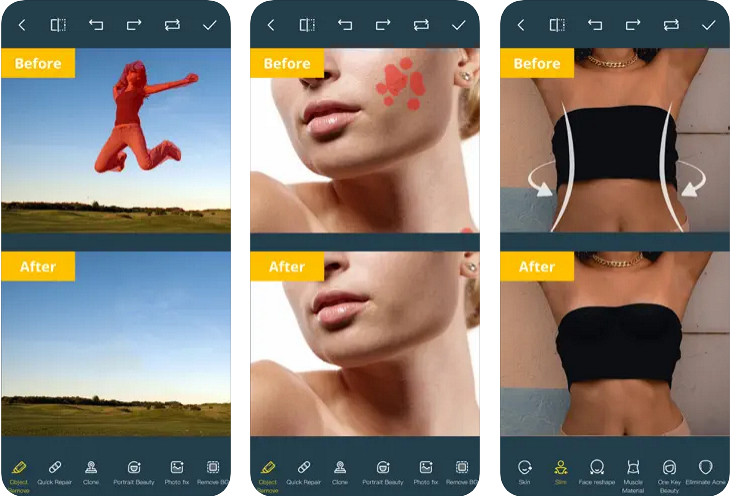
Photo Retouch est une application fiable pour supprimer un objet d’une photo sur iPhone en toute simplicité. Même si vous n’êtes pas expérimenté en suppression d’objets, vous pouvez les retirer efficacement. Vous pouvez télécharger cette application gratuitement sur l’App Store si vous voulez l’essayer. Elle permet aussi de supprimer l’arrière‑plan et les filigranes de vos photos si nécessaire. Si vous êtes prêt à utiliser cette app pour éliminer un objet sur votre image, suivez les étapes ci‑dessous.
Étape 1. Téléchargez l’application officielle, puis lancez‑la.
Étape 2. Cliquez sur Photo Eraser, puis sur Photo. Sélectionnez l’image avec l’arrière‑plan indésirable que vous souhaitez supprimer, et assurez‑vous que la photo se trouve bien dans l’app Photos de votre iPhone.
Étape 3. En bas de l’écran, sélectionnez l’option Object Removal.
Étape 4. Utilisez le pinceau proposé par l’application pour tracer l’objet que vous voulez enlever, puis cliquez sur GO pour le supprimer.
En rapport:
Supprimer le filigrane Dreamstime
Supprimer le filigrane du filtre Picsart
Partie 4. FAQ sur la suppression d'objets de photos
Pourquoi dois-je supprimer des objets des photos ?
Il y a de nombreuses fois où nous capturons quelque chose, et il y a des Photobombers. Cet objet est un problème pour la plupart des professionnels sur d'autres personnes car il ne met pas en valeur l'image que vous capturez. Ainsi, au lieu de reprendre l'image, vous pouvez lire les moyens idéaux suivants pour supprimer l'objet sur votre photo.
Puis-je recadrer l'image pour supprimer des objets ?
Oui, vous pouvez. Si l'objet que vous souhaitez supprimer sur le côté de la photo, vous pouvez essayer de recadrer l'image avec votre éditeur intégré. Cependant, ce choix n'est pas une option, surtout si l'objet se trouve au milieu ou à proximité de l'image que vous capturez. Recadrer l'image découpera la photo, il est donc préférable d'y réfléchir à deux fois si vous souhaitez essayer cette option.
Pourquoi ne puis-je pas télécharger une image pour supprimer l'objet ?
Vous ne pouvez pas télécharger l'image ; soit l'image est corrompue, soit l'extension d'image n'est pas prise en charge. Si votre image est corrompue, il existe des moyens de la réparer. Vous pouvez les trouver sur le Web si vous le recherchez. Habituellement, il peut s'agir de l'extension de fichier de l'image ; pour résoudre ce problème, vous devrez le convertir.
Conclusion
La suppression d'objets de la photo est facile grâce à l'outil et à l'application que nous proposons dans cet article. Alors, quel outil préférez-vous le plus ? Nous espérons que ce guide que nous ajoutons vous aidera à résoudre facilement le problème.
-
 Comment convertir une image basse résolution en haute résolution en ligne
 Si vous souhaitez apprendre à convertir des images basse résolution en images haute résolution en ligne, cet article est pour vous. Lisez complètement pour savoir comment.
-
 Méthodes simples pour supprimer le filigrane Shootproof
 Supprimez le filigrane Shootproof en suivant ces méthodes simples. Utilisez ces incroyables dissolvants de filigrane pour supprimer facilement le filigrane Shootproof de votre image.
-
 Comment supprimer le filigrane Bandicam sans effort [3 façons efficaces]
 Comment supprimer le filigrane Bandicam ? Avec les outils, on rajoute ici vous saurez y faire face efficacement !
