


 Video Converter Ultimate
 Enregistreur d'écran
 Réparation vidéo
 Téléchargement sécurisé
Améliorez la qualité de l'image à l'aide de ces méthodes simples et rapides
Do you have an image that is blurry or has a low quality? The best solution that you must do is to increase the quality of your image. Luckily, numerous tools can help you improve your image’s quality. However, not all applications or tools on a computer have the best features. That’s why we searched for the most popular photo enhancers online, offline, and on iPhone. To learn how to improve image quality, read this post.

Partie 1. Comment améliorer la qualité d'image en ligne
L'utilisation d'un rehausseur d'image en ligne est plus pratique que le téléchargement d'un logiciel sur votre ordinateur. L'avantage d'utiliser un outil en ligne est que vous pouvez y accéder librement sur votre site Web. Cette partie vous montrera comment augmenter la qualité de votre image à l'aide de l'optimiseur de photo en ligne le plus étonnant.
FVC Free Image Upscaler is an online, free-to-use image enhancer popular with many. This online application can set the magnification to 2x, 4x, 6x, and 8x. In addition to that, it supports the most standard image formats, including PNG, JPG, JPEG, and BMP. You can also access it on all web browsers, including Google, Firefox, and Safari. Also, you do not need to worry about the safety of your data because this tool is safe to use.
De plus, il dispose d'une puissante technologie d'intelligence artificielle qui reconnaît automatiquement les parties floues de votre image. En outre, FVC Free Image Upscaler peut corriger les pixels perdus, les textures de couleur et plus de détails. Si vous souhaitez utiliser cet excellent convertisseur ascendant d'image, suivez le guide simple ci-dessous.
Comment améliorer la qualité d'image en ligne à l'aide de FVC Free Image Upscaler :
Step 1. Open your browser and search FVC Free Image Upscaler on the search box. You can go directly to their main page by clicking the link provided.
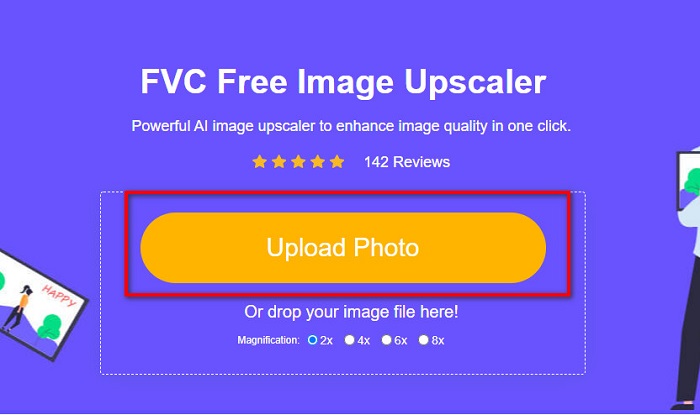
Step 2. Next, click the Upload Photo button on the main interface to upload the image you want to upscale. Wait for your image to upload, then proceed to the next step.
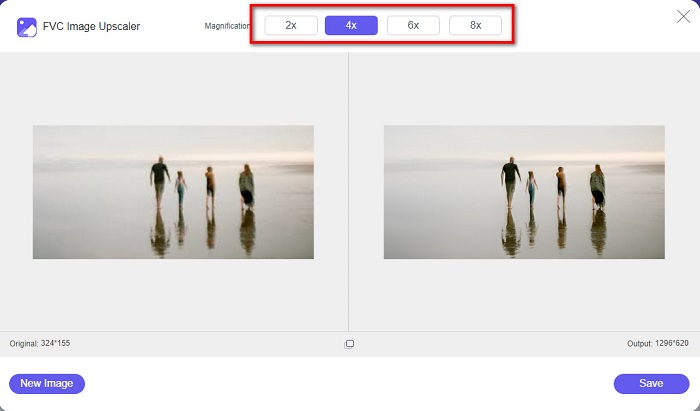
Step 3. And then, choose the Magnification that you want for your image. You can choose between 2x, 4x, 6x, and 8x.
Step 4. You can see the preview of your image, and if you are content with it, click the Save button to save your upscaled image on your device.
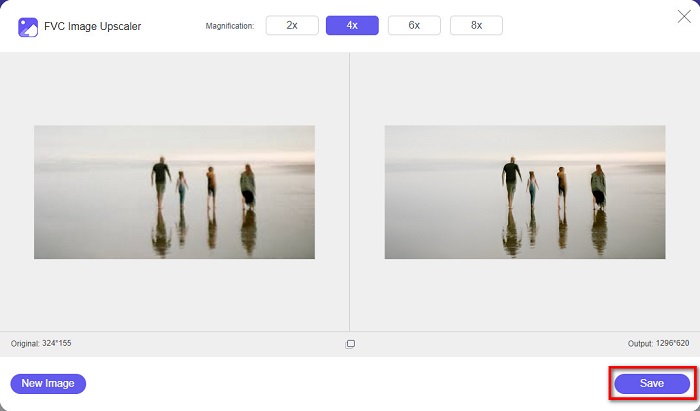
Et c'est tout! Vous pouvez maintenant afficher votre image sur votre ordinateur avec une vue de haute qualité.
Partie 2. Comment améliorer la qualité de l'image dans Photoshop
Nous avons ce qu'il vous faut si vous souhaitez utiliser un outil professionnel pour augmenter la qualité de votre image. Cette partie vous apprendra comment améliorer la qualité des photos à l'aide d'Adobe Photoshop.
Adobe Photoshop is a professional editing app that you can use to enhance the quality of your image. Adobe Photoshop has many editing tools that you can use to edit images. Additionally, many professionals use this tool because it has many functions. Also, this application produces high-quality outputs that you can share on other social media platforms or websites. Moreover, Adobe Photoshop is one of the best creations of Adobe Company which you can download on almost all media platforms. By using this editing application, you can design logos, banners, brochures, and more. But many users do not know that it can also enhance an image. However, many users have difficulty using this tool because it has a hard-to-operate software interface and is a bit costly to download.
Étapes pour améliorer la qualité de l'image dans Photoshop :
Step 1. First, download Adobe Photoshop on your computer. Follow the installation process, then open the app.
Step 2. Go to File > Open on the main interface and select the image you want to improve.
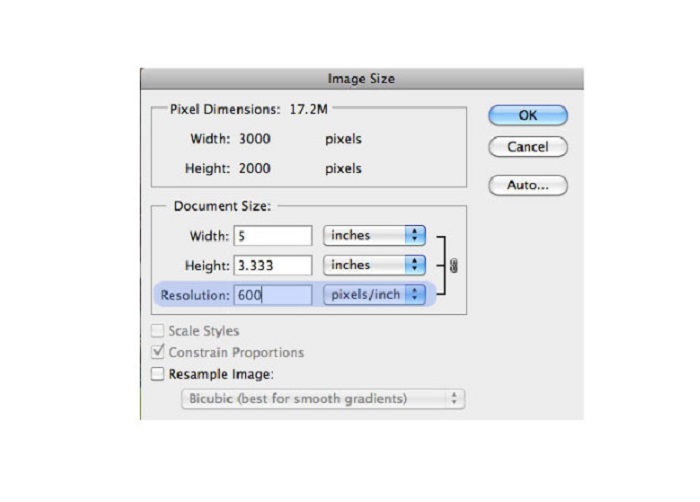
Step 3. And then, go to Image > Image Size. Then a dialog box will prompt where you will uncheck the Resample Image box so that it will only change the resolution of your image. And on the resolution option, type in the resolution that you want for your image.
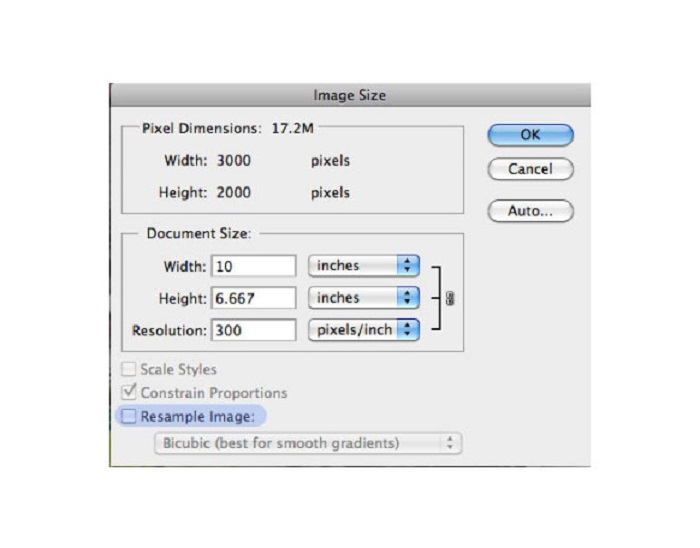
Step 4. Once you change the Resolution, the Width and Height of your image will also change. Then, click the OK button to save the change you made to your image. With this way, you can convert low resolution images to high.
Partie 3. Comment améliorer la qualité d'une photo sur iPhone
Certaines applications peuvent améliorer votre image de mauvaise qualité si vous êtes un utilisateur d'iPhone. Bien que de nombreuses applications d'amélioration de photos soient disponibles sur l'AppStore, nous avons choisi les plus célèbres d'entre elles. Lisez cette partie pour savoir comment améliorer la qualité d'une photo sur un iPhone.
Remini is one of the best apps that you can use to enhance your low-quality image. This amazing app has a simple interface, making it a user-friendly app. Furthermore, it also uses AI technology that automatically detects the blurred parts of your image. It is also a safe-to-use app, so your files are safe when using this app. The downside of this app is that you need to watch an ad to view and download the result, or you can purchase its full version to download the results without watching an ad.
Comment améliorer la qualité d'image sur iPhone à l'aide de l'application Remini :
Step 1. Download the Remini app on AppStore. After downloading it, open the app on your phone.
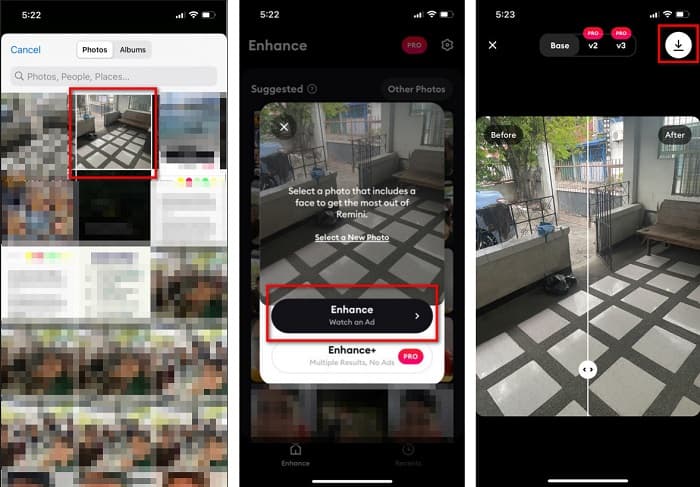
Step 2. And then, on the main app’s interface, select the image you want to upscale.
Step 3. Next, tap the Enhance button to improve the quality of your image. If you avail of the pro version of the app, you do not need to watch an ad. But if not, it will require you to watch an ad to see and save the result.
Step 4. Now, you can view your improved image. Then, tap the Download icon in your screen's top-right corner. And voila! With those easy steps, you can improve the quality of your image.
Partie 4. FAQ sur l'amélioration de la qualité des photos
Existe-t-il une application permettant d'améliorer la qualité d'image sur Android ?
L'outil d'amélioration de la qualité des photos est l'une des meilleures applications d'amélioration de la qualité d'image pour améliorer la qualité de votre image. L'utilisation de l'image Effets d'embellissement donnera à votre image un aspect professionnel.
Comment améliorer la qualité des photos dans Lightroom ?
Adobe Lightroom is another Adobe product that you can use to enhance the resolution of your image. Read the simple steps below to learn how to improve photo quality in Lightroom. 1. Download Adobe Lightroom on your computer. 2. Then, open your image in Lightroom. 3. Click Choose Photo > Enhance. 4. Next, select the Super Resolution, then click Enhance. 5. And then, you will see that Lightroom will increase the resolution of your image and save it as a DNG file.
Cela affectera-t-il la taille du fichier si vous agrandissez votre image ?
Changer la résolution d'impression ne changera pas le nombre de pixels de votre image et n'affectera pas la taille de votre image.
Conclusion
It is easy to improve image quality, especially now that you have a guide to follow. Also, many apps on a computer or iPhone can help you upscale your image. However, if you want to use a free image upscaler that automatically upscales your blurred image, use FVC Free Image Upscaler now.
-
 5 façons de supprimer le filigrane B612 à l'aide des meilleurs outils
 Vous voulez savoir comment supprimer les filigranes B612 de vos photos ? Vous pouvez facilement supprimer le filigrane B612 de vos images à l'aide de ces outils exceptionnels.
-
 Étapes faciles pour supprimer le filigrane du curseur WOW [Résolu]
 WOW Slider est une application pour créer un diaporama fantastique. Cependant, il intègre des filigranes sur sa sortie. Lisez ci-dessous pour savoir comment supprimer le filigrane WOW Slider.
-
 Méthodes simples pour supprimer le filigrane Shootproof
 Supprimez le filigrane Shootproof en suivant ces méthodes simples. Utilisez ces incroyables dissolvants de filigrane pour supprimer facilement le filigrane Shootproof de votre image.
