


 Video Converter Ultimate
 Enregistreur d'écran
 Réparation vidéo
 Téléchargement sécurisé
Guide ultime pour utiliser l'IA pour améliorer la netteté des images sur ordinateur et mobile
Vous est-il déjà arrivé d’avoir une image terne et sans vie ? Peut‑être que votre photo manque de netteté et de précision. Mais le saviez‑vous ? Il existe de nombreuses applications d’accentuation de la netteté d’image que vous pouvez trouver sur Internet. Vous n’avez pas besoin de solutions de bureau coûteuses pour rendre votre image plus nette. En faisant une recherche sur Internet, vous trouverez de nombreuses applications qui peuvent vous aider à améliorer la netteté de vos photos. Mais vous n’avez plus besoin de chercher, car nous répertorions ici les meilleurs outils d’accentuation de la netteté et nous vous montrons comment les utiliser. Lisez cet article jusqu’au bout pour apprendre à accentuer gratuitement la netteté de vos images en ligne ou hors ligne.
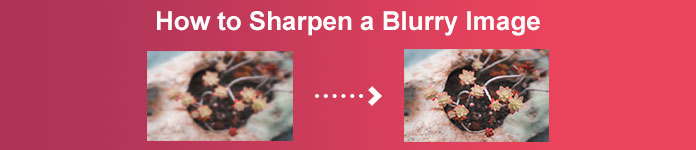
Partie 1 : Comment améliorer la netteté d'une image gratuitement en ligne et sans inscription
Malgré cela, il existe de nombreuses applications pour affiner une image ; il est recommandé d'utiliser l'outil le plus sûr et le plus simple. C'est pourquoi nous avons recherché les meilleurs affûteurs d'image et les avons répertoriés juste pour vous. De plus, nous vous montrerons comment utiliser ces outils de netteté d'image.
Améliorer la netteté de l'image grâce au convertisseur d'image gratuit FVC
FVC Free Image Upscaler est le meilleur outil pour renforcer la netteté d’une image. Si vous recherchez un outil d’accentuation de netteté basé sur l’IA, alors FVC Free Image Upscaler est l’outil qu’il vous faut. De plus, il prend en charge différents formats d’image, comme PNG, JPG, JPEG et BMP. Grâce à sa technologie d’IA (Intelligence Artificielle), vous pouvez améliorer votre image avec un agrandissement de 2x, 4x, 6x ou 8x. Ce qui est encore plus remarquable avec cet outil en ligne, c’est qu’il est accessible depuis tous les navigateurs Web, notamment Google, Firefox et Safari.
De plus, de nombreux débutants préfèrent utiliser cet outil car il possède une interface utilisateur simple. De plus, bien qu'il s'agisse d'une application en ligne, elle dispose d'un processus d'affinage rapide, ce qui la rend pratique à utiliser. Vous pouvez également prévisualiser votre image de sortie avant de la télécharger sur votre appareil. Donc, si vous souhaitez utiliser cet outil pour affiner votre image, suivez les instructions simples ci-dessous.
Comment rendre une image plus nette à l'aide de FVC Free Image Upscaler :
Étape 1. Ouvrez votre navigateur et recherchez FVC Free Image Upscaler dans la barre de recherche. Vous pouvez également cliquer directement sur le lien menant à leur page d’accueil.
Étape 2. Puis, cliquez sur le bouton Upload Photo dans l’interface principale pour importer l’image dont vous souhaitez renforcer la netteté.

Étape 3. Ensuite, choisissez le préréglage de magnification souhaité pour votre image. Vous pouvez sélectionner un agrandissement de 2x, 4x, 6x ou 8x. Vous verrez alors l’aperçu de votre résultat.
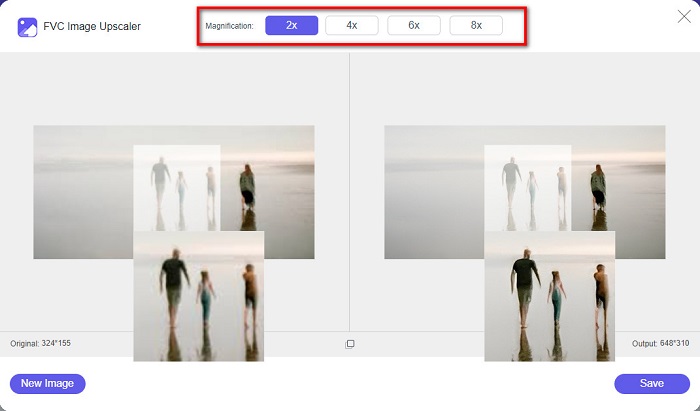
Étape 4. Enfin, pour enregistrer l’image obtenue, cliquez sur le bouton Save. L’application enregistrera automatiquement et rapidement votre image dans les dossiers de votre ordinateur.
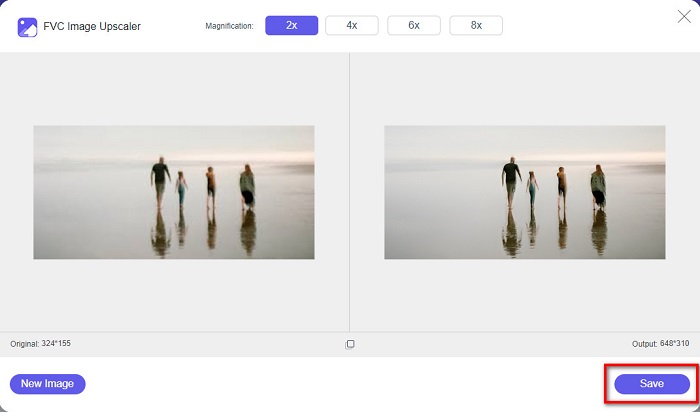
Et c'est tout! Aussi simple que cela, vous pouvez facilement améliorer la partie floue de votre image et lui ajouter de la netteté.
Améliorer la netteté de l'image avec VanceAI
VanceAI est un éditeur d’images en ligne permettant d’accentuer la netteté que vous pouvez utiliser si vous voulez rendre votre image plus nette ou lui ajouter du piqué. En effet, en augmentant la netteté de votre image, elle paraîtra meilleure. Voilà pourquoi, si vous voulez renforcer la netteté de votre photo rapidement, VanceAI est l’outil à utiliser. En outre, vous pouvez l’utiliser gratuitement sur presque tous les navigateurs Web, comme Google et Safari. Il améliore automatiquement les zones floues de votre image en seulement quelques clics. Grâce à son interface simple, les débutants peuvent l’utiliser sans difficulté. De plus, il prend en charge les formats d’image les plus courants, tels que JPG, JPEG et PNG. Cependant, lorsque vous accentuez la netteté de votre image avec VanceAI, un filigrane sera ajouté à votre photo.
Comment rendre une image floue plus nette à l'aide de VanceAI :
Étape 1. Dans votre navigateur, recherchez VanceAI, puis accédez à sa page d’accueil. Ensuite, dans l’interface principale, cliquez sur le bouton Upload Image pour téléverser l’image dont vous voulez augmenter la netteté.
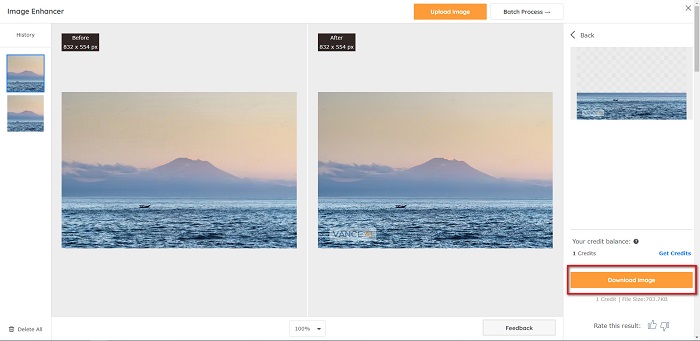
Étape 2. Après avoir importé votre image, cliquez sur le bouton Start to Process dans le coin inférieur droit de l’interface.
Étape 3. Vous verrez alors l’aperçu du résultat. Cliquez ensuite sur le bouton Download Image pour télécharger votre image nette.
Améliorer la netteté d'une image floue à l'aide de PineTools
PineTools est une autre application en ligne d’accentuation de la netteté que vous pouvez utiliser très facilement. Grâce à son interface simple, les débutants peuvent également se servir de cet outil pour corriger la qualité d’une image. Vous pouvez régler l’intensité ou la netteté de votre image à l’aide d’un curseur. En outre, vous pouvez choisir la taille du masque de convolution de votre image, entre 3x3 et 5x5. Autre avantage de cette application en ligne : elle est accessible depuis presque tous les navigateurs Web, y compris Google et Safari. L’inconvénient de PineTools est qu’il contient de nombreuses publicités qui peuvent vous distraire pendant que vous accentuez la netteté de votre image. Néanmoins, de nombreux débutants utilisent cet outil car il est très pratique.
Comment rendre une image floue plus nette avec PineTools
Étape 1. D’abord, recherchez PineTools dans votre navigateur et cliquez sur la page qui mène à son site Web. Puis, cliquez sur le bouton Choose Files sur la première interface pour téléverser la photo dont vous souhaitez renforcer la netteté.

Étape 2. Ensuite, dans le panneau Sharpen, déplacez le mini box jusqu’au niveau d’intensité ou de netteté que vous préférez pour votre image.
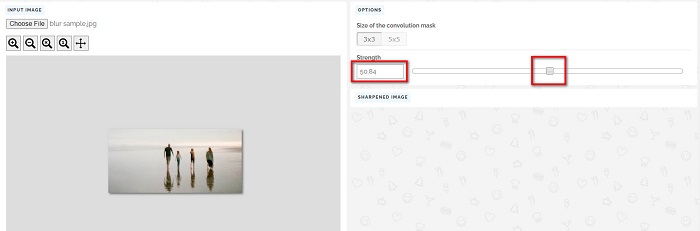
Étape 3. Puis, cliquez sur le bouton Sharpen en bas de l’interface pour accentuer la netteté de votre image. Si vous voulez enregistrer votre image, cliquez sur le format d’image souhaité, et elle sera sauvegardée sur votre appareil.
Partie 2. Comment améliorer la netteté d'une image sous Windows/Mac
Comment améliorer la netteté d'une image dans Photoshop
Adobe Photoshop est un logiciel de retouche d'images puissant et largement utilisé, utilisé par de nombreuses personnes dans le monde entier. Aussi bien pour les débutants que pour les professionnels, il propose de nombreuses fonctionnalités permettant de retoucher des images avec précision et créativité. Des simples ajustements aux designs complexes, Photoshop vous permet de donner vie à vos idées. Ses filtres de netteté améliorent la netteté des photos en modifiant leur contraste et leurs détails. Améliorer la netteté d'une photo dans Photoshop est simple et n'altère pas l'original grâce à ses calques et filtres sophistiqués, idéal pour les images destinées aux réseaux sociaux, la photographie commerciale et le graphisme.
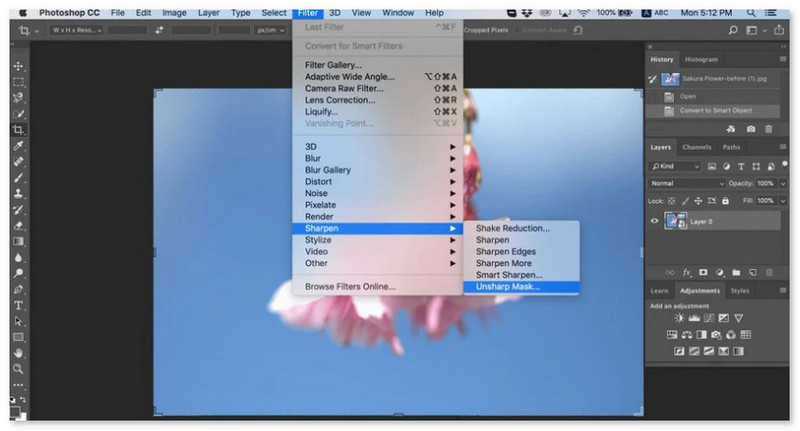
Étape 1. Cliquez sur Layers panel > Filter menu > Convert for Smart Filters.

Étape 2. Choisissez Sharpen > Unsharp Mask under Filter.
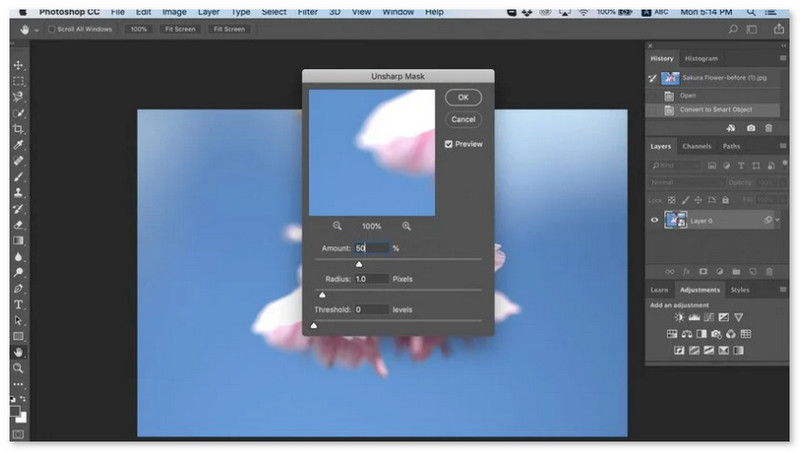
Étape 3. Réglez les paramètres puis cliquez sur OK.
Comment affiner une image dans GIMP
Contrairement à l'application de netteté d'image présentée ci-dessus, GIMP est un outil hors ligne que vous pouvez utiliser si vous souhaitez affiner votre image ou améliorer sa qualité. De plus, de nombreux professionnels utilisent cet outil pour affiner les images et les améliorer. Beaucoup de gens reconnaissent cet outil comme une alternative à Adobe Photoshop. Il prend en charge presque tous les formats d'image, tels que PNG, JPG, JPEG, WebP et BMP. En outre, il dispose de nombreuses fonctionnalités d'édition que vous pouvez utiliser, notamment la retouche photo, la modification des compositions, etc. Mais l'inconvénient de cette application est qu'elle a une interface difficile à utiliser, ce qui la rend difficile à utiliser pour les débutants.
Néanmoins, si vous êtes un pro dans de nombreuses applications de retouche photo, vous trouverez sûrement dans GIMP un excellent outil pour affiner une image.
Comment rendre une image plus nette dans GIMP :
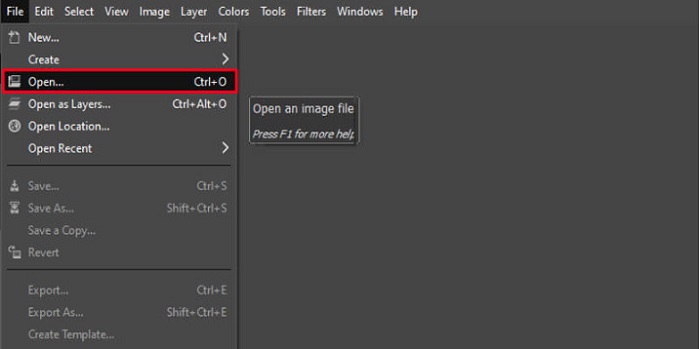
Étape 1. Téléchargez l’outil d’accentuation de netteté GIMP sur votre appareil. Puis, dans l’interface principale du logiciel, importez votre image en cliquant sur File > Open.
Étape 2. Créez ensuite un calque dupliqué en cliquant sur le bouton Layer > Duplicate. Vous pouvez aussi utiliser les raccourcis clavier pour dupliquer les calques : appuyez sur Shift + Ctrl + D et le calque sera dupliqué.
Étape 3. Ensuite, nous allons réduire le bruit en allant sur Filter > Enhance > Noise Reduction. Puis nous utiliserons l’option High Pass pour appliquer la netteté souhaitée. Allez sur Filters > Enhance > puis sélectionnez l’option High Pass.
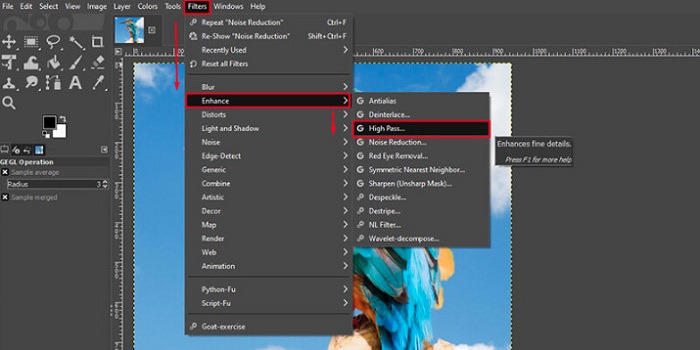
Étape 4. Nous allons ensuite utiliser l’option Vivid Light pour éclaircir notre image et ajouter des détails. Allez sur Option dans la section mode et passez de Normal à Vivid Light.
Étape 5. Créez à nouveau un calque dupliqué pour les retouches finales, puis allez sur Filters > Enhance > Sharpen (Unsharp Mask). Vous pouvez ensuite ajuster le Radius, Amount et Threshold de votre image. Enfin, appuyez sur Ctrl + S sur votre clavier pour enregistrer le résultat.
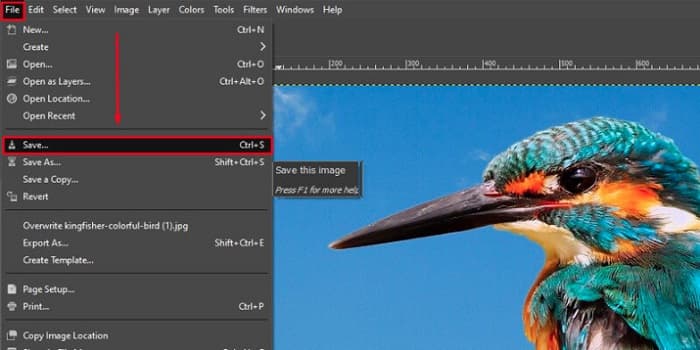
Et voilà ! Si vous faites partie de ceux qui cherchent comment accentuer la netteté d’une image avec GIMP, ce guide est fait pour vous. Suivez simplement ces étapes pour améliorer la qualité de votre image avec GIMP.
Partie 3. Comment améliorer la netteté d'une image sur iPhone/Android
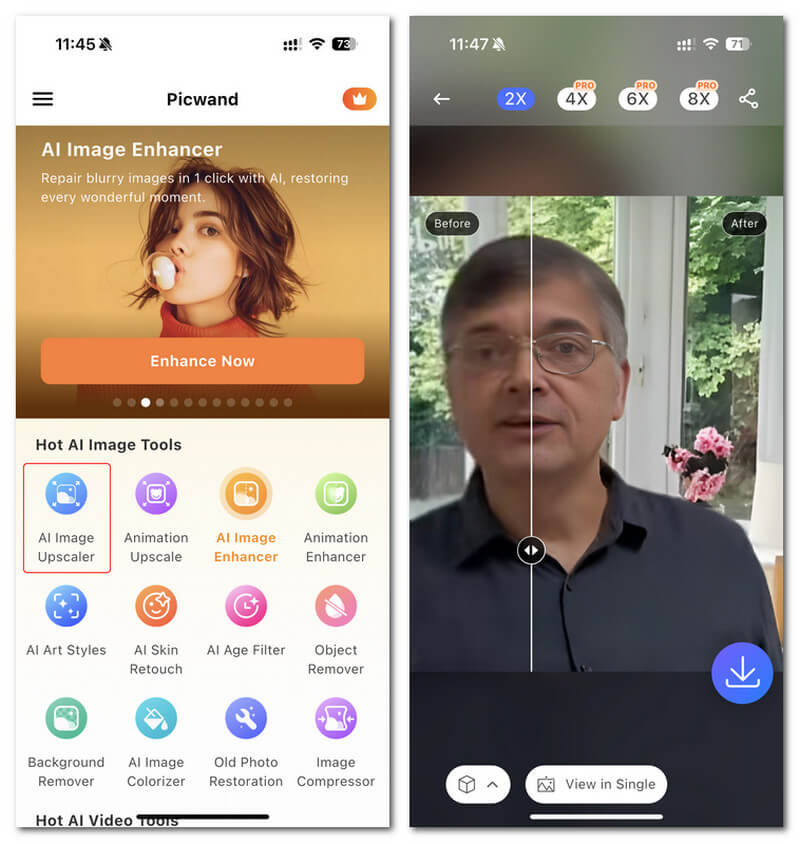
Picwand AI Photo Editor est un éditeur puissant qui vous aide à retoucher vos photos grâce à l'IA. Vous pouvez effectuer vos retouches directement sur le site web de Picwand ou le télécharger sur votre iPhone ou votre appareil Android. Il offre de nombreuses fonctionnalités intelligentes, comme l'agrandissement, le découpage d'arrière-plans, l'extraction d'objets et la clarification des images, grâce à une IA avancée. Corrigez les images floues, retouchez d'anciennes photos ou supprimez les éléments indésirables avec Picwand, et ce, rapidement et avec précision. Son interface simple le rend accessible à tous, quelle que soit votre expérience.
Étape 1. Ouvrez l’application et choisissez AI Image Upscaler.
Étape 2. Importez une image et sélectionnez le facteur d’agrandissement souhaité.
Étape 3. Touchez l’icône de téléchargement pour exporter.
Partie 4. FAQ sur la netteté des images floues
Existe-t-il une application pour corriger les images pixélisées ?
Oui. Vous pouvez utiliser un image upscaler pour ajuster les pixels de votre image. L’un des meilleurs outils pour corriger les images pixelisées est PIXLR. Il est également très efficace pour déflouter une image.
GIMP est-il gratuit ?
GIMP est une application d'édition d'images disponible sur Windows, Mac et Linux. Il s'agit d'une application gratuite, dans laquelle vous pouvez modifier son code source. Cependant, vous devez acheter l'application pour accéder à ses autres fonctionnalités d'édition.
Puis-je affiner une image avec Canva ?
Heureusement, Canva dispose d'une fonctionnalité qui vous permet d'ajouter de la netteté à votre image. Ainsi, Canva pourrait être un outil approprié pour vous si vous avez une image floue.
Conclusion
Nous espérons avoir répondu à vos questions sur la façon de renforcer la netteté des images. Il existe 7 méthodes simples et rapides, notamment avec Video Converter Ultimate, PhotoShop, VanceAI, etc. De plus, si vous recherchez un outil totalement gratuit, vous pouvez porter votre attention sur FVC Free Image Upscaler. C’est un outil en ligne 100 % gratuit.
-
 Top 4 des réducteurs de qualité d'image que vous pouvez utiliser en ligne et hors ligne
 Ces réducteurs de qualité d'image peuvent vous aider à réduire la qualité de votre image pour certaines raisons. Si vous en aviez besoin, vous avez lu cet article !
-
 Façons officielles de mettre à l'échelle l'image en 4k avec un didacticiel pratique
 Pour mettre à l'échelle l'image en 4k, vous aurez besoin d'un logiciel sur votre appareil. Si vous n'en avez pas, vous devrez sélectionner l'outil que nous incluons ici.
-
 Comment modifier la clarté de la photo à l'aide d'applications gratuites et payantes
 Comment modifier la clarté de la photo? Cette question trouvera une réponse au fur et à mesure que vous lirez cet article et nous ajouterons des conseils que vous devrez connaître !
