


 Video Converter Ultimate
 Enregistreur d'écran
 Réparation vidéo
 Téléchargement sécurisé
Comment redimensionner une image sur iPhone en utilisant 3 méthodes efficaces [Gratuit]
Toutes les images que vous enregistrez sur le web avec votre iPhone ne conviennent pas forcément comme fond d’écran ou écran d’accueil, à cause de leur format et de leurs dimensions. Parfois, lorsque vous utilisez une photo avec des dimensions inadaptées comme fond d’écran ou écran d’accueil, elle devient floue et affiche des bandes noires sur les côtés au lieu d’être ajustée à l’écran. Pénible, n’est‑ce pas ? Heureusement, vous pouvez télécharger un redimensionneur de photos sur l’App Store, utiliser Raccourcis ou profiter de l’éditeur d’images intégré à votre portée. Pour redimensionner rapidement une photo sur votre iPhone, prenez quelques minutes pour lire cet article afin de mieux comprendre et de corriger les problèmes de taille que vous rencontrez sur votre appareil.

Partie 1. 3 façons efficaces de redimensionner une image sur iPhone [téléchargeable et intégré]
Utilisation du raccourci [intégré]
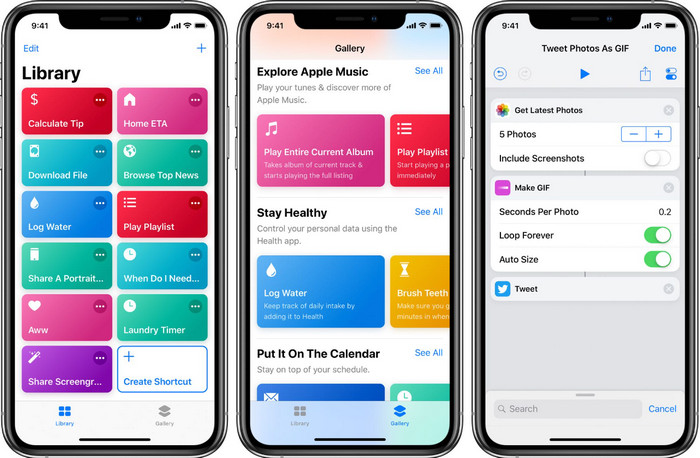
Raccourcis permet aux utilisateurs iOS de créer de puissantes automatisations, par exemple pour redimensionner une image stockée dans vos fichiers locaux. Toutes les versions d’iOS 13 et ultérieures disposent de cette app préinstallée. Comme l’application est relativement récente, les anciennes versions d’iOS ne disposent pas d’un outil aussi complet, mais vous pouvez la télécharger gratuitement sur l’App Store de votre iPhone ou iPad. Pour vous apprendre à redimensionner une image iPhone avec cet outil, suivez les étapes ci‑dessous.
Étape 1. Ouvrez l’application sur votre iPhone, puis touchez le bouton plus en haut pour ajouter un raccourci dédié au redimensionnement sur votre appareil.
Étape 2. Touchez les trois petits points, puis ajoutez le nom du raccourci ; pour ce raccourci, vous pouvez utiliser le nom « Redimensionner photo ». Activez l’option Afficher dans la feuille de partage pour que, chaque fois que vous voudrez partager une image, elle soit automatiquement redimensionnée si vous choisissez ce raccourci.
Étape 3. Dans le type de contenu de la feuille de partage, désélectionnez Tout et ne laissez que Images. Puis appuyez sur OK pour enregistrer les réglages que vous venez de créer.
Étape 4. Avant d’utiliser cette fonction, vous devez appuyer sur l’icône plus, choisir Média, puis appuyer sur Redimensionner l’image. Vous pouvez définir la longueur selon vos besoins et appuyer sur OK pour enregistrer. Désormais, chaque fois que vous partagerez une image, vous aurez la possibilité de la redimensionner automatiquement grâce à ce raccourci.
Utilisation de l'application photo [intégrée]
Une autre application intégrée que vous pouvez utiliser librement sur iPhone, quelle que soit la version, est l’app Photos. Après des années à être l’éditeur et l’outil d’amélioration d’images de référence pour chaque utilisateur d’iPhone, il serait incomplet de ne pas mentionner cette app. Certains savent déjà comment elle permet de redimensionner une image, d’autres non. Donc, pour les utilisateurs qui ne savent pas comment redimensionner une photo sur iPhone, ce tutoriel pourra vous aider.
Étape 1. Ouvrez l’app Photos et touchez la photo que vous voulez redimensionner.
Étape 2. Après avoir sélectionné l’image que vous souhaitez redimensionner, touchez Modifier.
Étape 3. Touchez l’icône de recadrage dans le coin supérieur droit, puis appuyez sur le bouton en forme de carrés.
Étape 4. Plusieurs préréglages de formats d’image y seront proposés ; choisissez celui que vous voulez, puis touchez OK pour enregistrer les modifications.
Utilisation de la taille de l'image [téléchargeable]
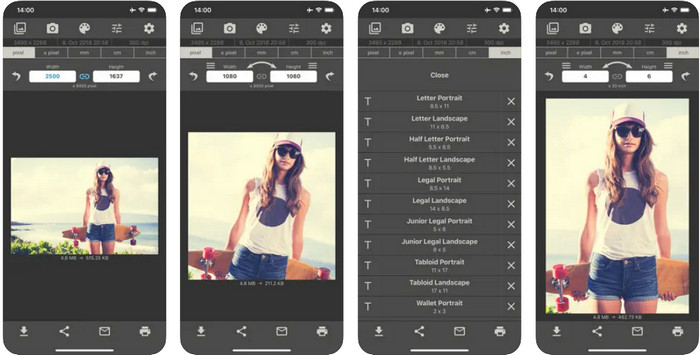
Image Size est une application tierce fiable que vous pouvez télécharger sur iOS pour redimensionner facilement une photo pour un fond d’écran iPhone. Contrairement aux deux méthodes que nous avons présentées, vous devez d’abord télécharger cette app depuis l’App Store avant de l’utiliser. Ce n’est pas une application intégrée à iOS, mais elle est disponible sur la plupart des versions d’iOS et peut être téléchargée immédiatement. Comme elle est gratuite à l’usage et au téléchargement, de nombreuses publicités surgissent pendant son utilisation. Si les pubs ne vous dérangent pas, vous pouvez suivre les étapes ci‑dessous pour utiliser cette application de redimensionnement de photos sur votre iPhone.
Étape 1. Installez ce redimensionneur de photos sur votre appareil iOS, puis ouvrez‑le.
Étape 2. Touchez l’icône image pour importer la photo que vous souhaitez faire redimensionner par l’app.
Étape 3. En haut, vous verrez les mesures appliquées à l’image ; remplacez‑les par la hauteur et la longueur de votre choix.
Étape 4. Touchez le bouton téléchargement pour enregistrer l’image que vous avez redimensionnée.
Partie 2. Meilleur moyen de redimensionner une image en ligne sans publicité ni processus d'installation
Avec FVC Free Image Upscaler, vous pouvez modifier automatiquement les dimensions de n’importe quelle image grâce à l’aide de l’IA. Vous n’avez pas besoin d’une longue expérience du redimensionnement, car c’est très simple avec cette application. Des millions d’utilisateurs s’en servent pour redimensionner, agrandir, améliorer et optimiser la qualité de leurs images en une seule fois. Ce qui rend cet outil encore plus intéressant, c’est que vous pouvez l’utiliser gratuitement. N’est‑ce pas impressionnant ? En effet. Cette application vous propose un éditeur tout‑en‑un. Pour vous aider à redimensionner votre photo, suivez les étapes indiquées et utilisez cet outil.
Étape 1. Vous pouvez ouvrir cet outil en ligne en cliquant sur ce lien ; un nouvel onglet s’affichera alors à l’écran.
Étape 2. Pour ajouter l’image que vous souhaitez redimensionner, cliquez sur Ajouter une image. Recherchez l’image dans le dossier qui s’ouvrira à l’écran, puis appuyez sur Ouvrir pour l’importer ici.
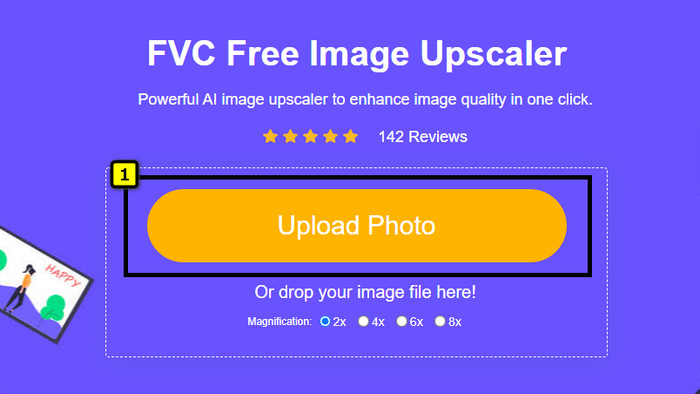
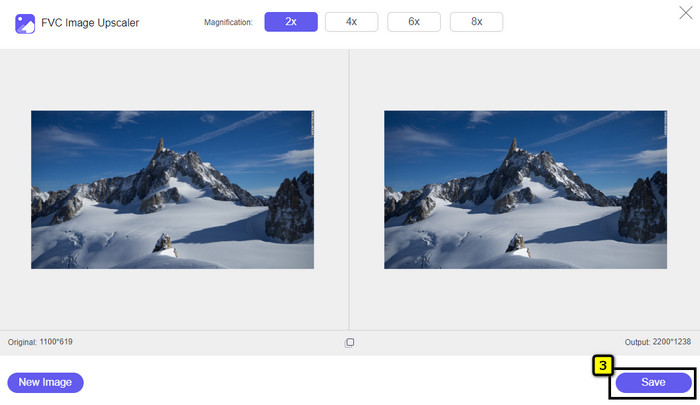
Étape 3. L’application va charger l’image que vous avez envoyée ; sélectionnez ensuite le facteur d’agrandissement que vous voulez appliquer. Elle redimensionnera automatiquement votre photo avec les nouvelles dimensions.
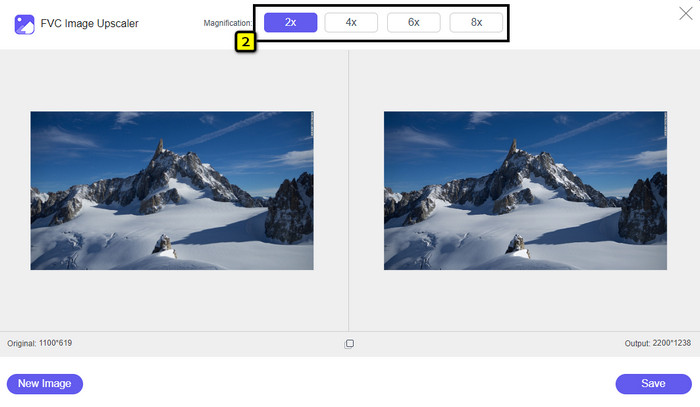
Étape 4. Lorsque vous avez terminé les réglages sur l’image, appuyez sur Enregistrer pour télécharger la version redimensionnée sur votre disque local.
Partie 3. FAQ sur la façon de redimensionner l'image sur iPhone
Quelle est la dimension parfaite à utiliser comme fond d'écran sur iPhone ?
Pour les utilisateurs d'iPhone SE, 6, 6 plus, 7, 7 plus, 8, 8 plus, la dimension standard de l'image à utiliser comme fond d'écran doit être comprise entre 1136 x 640 et 1920 x 1080 px. Il s'agit de la longueur et de la hauteur standard de l'image que vous souhaitez utiliser comme fond d'écran sur les appareils iPhone. Mais pour ceux qui utilisent l'iPhone XR, 11 et 13, vous pouvez désormais utiliser 828 x 1792 ou 3073 x 1420 px comme dimension d'affichage.
Quel est l'inconvénient de recadrer au lieu de redimensionner les images sur l'iPhone ?
Lorsque vous recadrez l'image, vous verrez qu'elle en découpera la dimension. Oui, la taille de l'image changera, mais l'apparence générale de celle-ci n'est pas la même que celle du redimensionnement. Lors du redimensionnement, vous pouvez modifier librement la hauteur et la longueur d'une image sans couper les bords ou quelque sorte que ce soit. Donc, si vous souhaitez utiliser la photo comme fond d'écran et l'adapter, vous feriez mieux de la redimensionner plutôt que de la recadrer sur votre iPhone.
Pourquoi l'agrandissement de l'image est-il devenu flou après le redimensionnement sur iPhone ?
Parce que ces applications et les méthodes que nous incluons dans cet article ne créent pas de PPI, elles étirent l'image redimensionnée sur votre iPhone. Donc, si vous n'aimez pas rencontrer ce type de problème, vous devez utiliser l'outil en ligne que nous incluons ici pour créer des PPI lorsque vous redimensionnez l'image sur votre iPhone.
Conclusion
Vous pouvez compter sur les outils que nous avons trouvés sur iPhone pour redimensionner facilement une photo sur votre iPhone. Même sans télécharger d’application supplémentaire, vous pouvez utiliser celles qui sont déjà intégrées à votre appareil. Si vous voulez être plus précis, vous pouvez utiliser et télécharger les applications que nous avons présentées. Mais si vous voulez redimensionner votre image sans affecter la qualité, utilisez l’outil en ligne que nous avons recommandé. Lisez la partie 2, dans laquelle nous ajoutons un tutoriel expliquant comment l’utiliser.
-
 5 des meilleurs redimensionneurs GIF disponibles sur toutes les plateformes [2022]
 Vous voulez connaître les redimensionneurs GIF que vous pouvez utiliser ? Dans ce cas, les informations fournies ci-dessous parleront des redimensionneurs que vous pouvez utiliser sur vos GIF sur toutes les plateformes.
-
 Comment redimensionner l'image - Adobe Redimensionner l'image [en ligne et hors ligne]
 Si vous recherchez une image de redimensionnement Adobe, nous avons la solution pour vous. Lisez attentivement cet article pour savoir comment redimensionner des images à l'aide d'Adobe sur votre PC.
-
 Comment redimensionner une photo pour Facebook [Étapes rapides et faciles]
 Si vous rencontrez des difficultés pour télécharger une image de grande taille sur Facebook, nous avons une solution pour vous. Terminez cet article pour savoir comment redimensionner des photos pour Facebook.
