


 Video Converter Ultimate
 Enregistreur d'écran
 Réparation vidéo
 Téléchargement sécurisé
Comment supprimer facilement le filigrane Filmora sur les projets/vidéos exportés
Wondershare Filmora est considéré comme un éditeur vidéo de niveau intermédiaire que vous pouvez utiliser pour affiner le projet sur lequel vous travaillez. Bien qu'il s'agisse d'un éditeur de niveau intermédiaire, il possède des fonctionnalités complètes que vous aimeriez utiliser, telles que des effets, des modèles, des plug-ins, etc. Si vous êtes débutant et souhaitez faire l'expérience d'un montage vidéo sans tracas mais produire une sortie fanatique sans aucun doute, cela pourrait être un choix pour vous.
En raison de sa convivialité, de nombreux utilisateurs ont essayé de créer une vidéo avec ce logiciel et ont obtenu un excellent résultat, mais avec un filigrane du produit. Une façon de supprimer ce filigrane est d’acheter une formule mensuelle, annuelle ou perpétuelle ; mais que faire si vous n’avez pas l’argent pour l’acheter ? Ici, nous allons vous expliquer comment supprimer le filigrane Filmora sur chaque vidéo exportée.

Partie 1. Comment supprimer le filigrane Filmora sans redimensionner la vidéo
FVC Video Converter Ultimate est le logiciel de montage vidéo ultime que vous pouvez télécharger pour modifier les filigranes des vidéos, même en résolution 4K. Les utilisateurs Windows et Mac peuvent profiter de cet éditeur non seulement parce qu’il est disponible sur leur système d’exploitation, mais aussi grâce à ses fonctionnalités et à ses performances. Ce n’est peut‑être pas le logiciel de montage vidéo numéro un, mais son efficacité pour supprimer le filigrane d’une vidéo est étonnamment impressionnante.
Même si vous devrez acheter le logiciel, nous considérons son prix moins cher que le Filmora. Avez-vous besoin d'un dissolvant de filigrane Filmora ? C'est votre choix, et voici les étapes pour supprimer efficacement ce dissolvant de filigrane en supprimant le filigrane ou les tampons sur la vidéo.
Étape 1. Téléchargez la version officielle de cet éditeur en cliquant sur le bouton de téléchargement que nous avons ajouté ci‑dessous. Installez‑le, ouvrez le logiciel, et une interface graphique attrayante apparaîtra sur votre écran.
Téléchargement gratuit pour Windows 7 ou version ultérieure Téléchargement sécurisé
Téléchargement gratuit pour macOS 10.7 ou version ultérieure - Téléchargement sécurisé
Étape 2. Maintenant que l’éditeur est ouvert, quatre options sont disponibles dans ce logiciel. Pour pouvoir supprimer le filigrane, ouvrez la Boîte à outils. Sélectionnez le Suppresseur de filigrane vidéo qui se trouve dans le menu Boîte à outils.
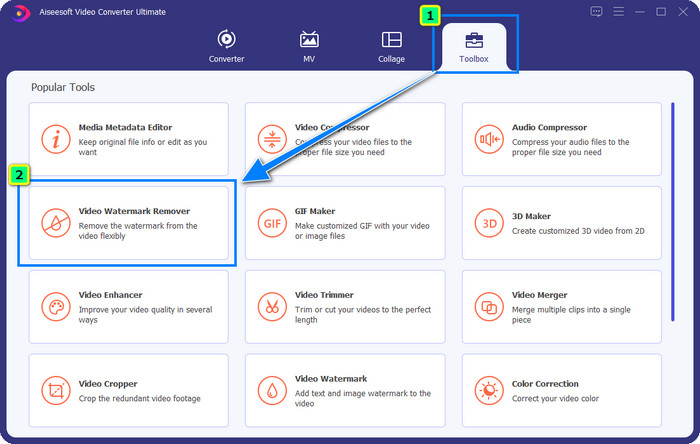
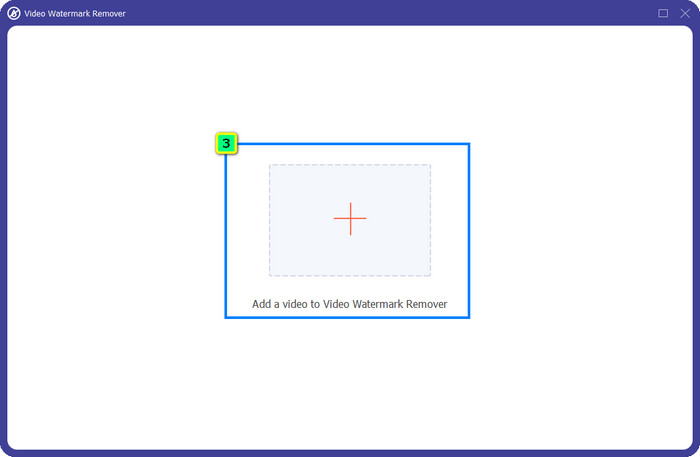
Étape 3. Après avoir cliqué dessus, une nouvelle fenêtre s’affichera sur votre écran. Au centre, cliquez sur l’icône plus pour ajouter le fichier dont vous voulez supprimer le filigrane Wondershare Filmora.
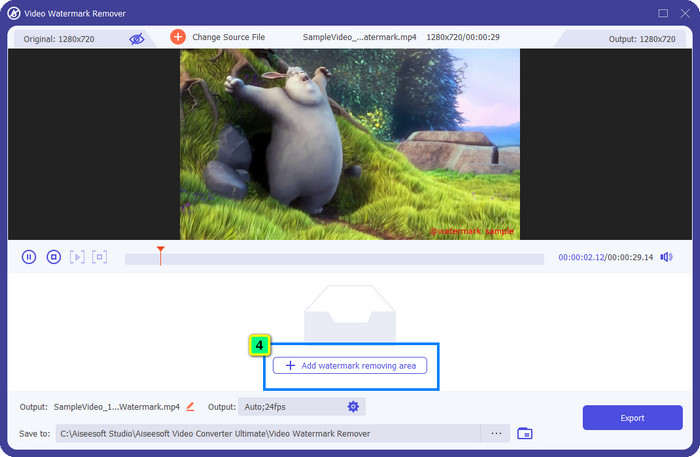
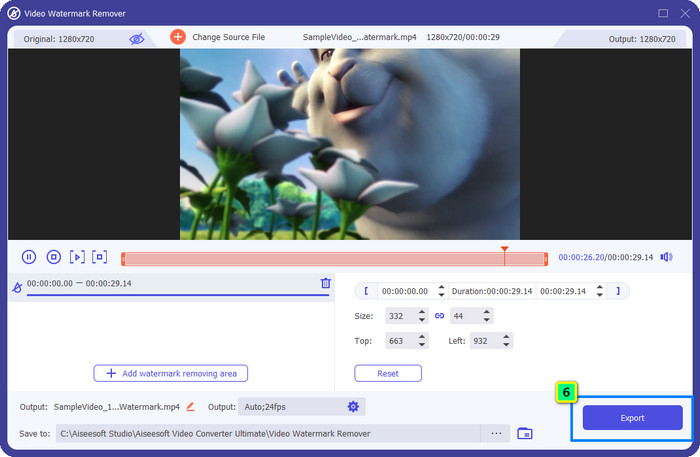
Étape 4. Ensuite, cliquez sur Ajouter une zone de suppression de filigrane pour commencer à utiliser la fonction de suppression de filigrane de cet outil.
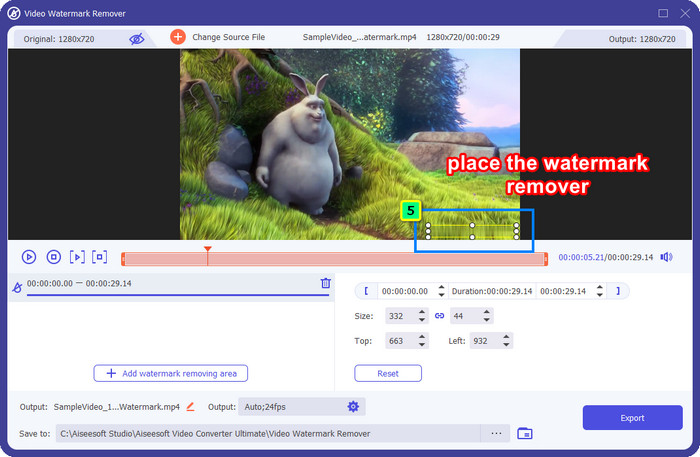
Étape 5. Maintenant, il vous suffit de placer la boîte sur le filigrane et de vous assurer que le filigrane que vous voulez supprimer se trouve bien à l’intérieur de la boîte. Sinon, vous pouvez ajuster la boîte en faisant glisser les points sur les bords pour la redimensionner.
Étape 6. Pour commencer à retirer le filigrane appliqué à votre vidéo, cliquez sur Exporter, et le résultat final sera prêt en quelques secondes, aussi simple que cela.
Partie 2. Comment supprimer le filigrane Filmora en recadrant le filigrane
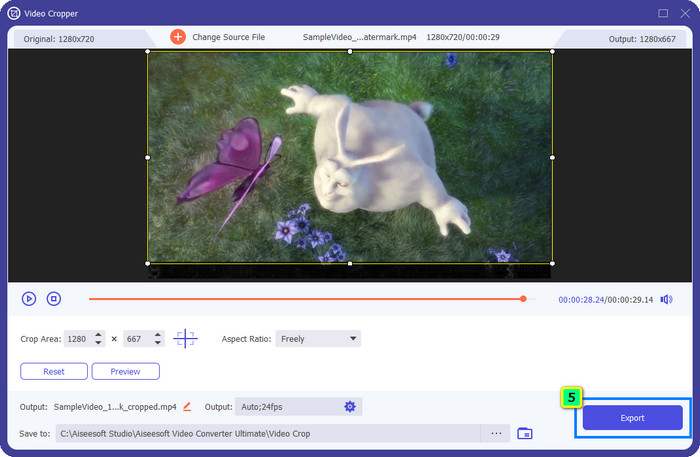
Même si le premier outil de suppression de filigrane que nous présentons est efficace, vous pourriez avoir besoin d’une approche différente avec ce suppresseur de filigrane de Filmora, à savoir le recadrage. FVC Video Converter Ultimate propose un recadreur vidéo alimenté par l’IA que vous pouvez utiliser pour redimensionner la vidéo et supprimer le filigrane intégré. Bien que cette méthode comporte moins d’étapes que le suppresseur de filigrane, elle reste une option secondaire et non le premier choix. Pourquoi ? Parce qu’elle réduit les dimensions de l’image et coupe certaines parties de la vidéo.
Néanmoins, si vous voulez essayer de l'utiliser, vous pouvez l'avoir une fois que vous avez l'outil ultime sur votre appareil.
Téléchargement gratuit pour Windows 7 ou version ultérieure Téléchargement sécurisé
Téléchargement gratuit pour macOS 10.7 ou version ultérieure - Téléchargement sécurisé
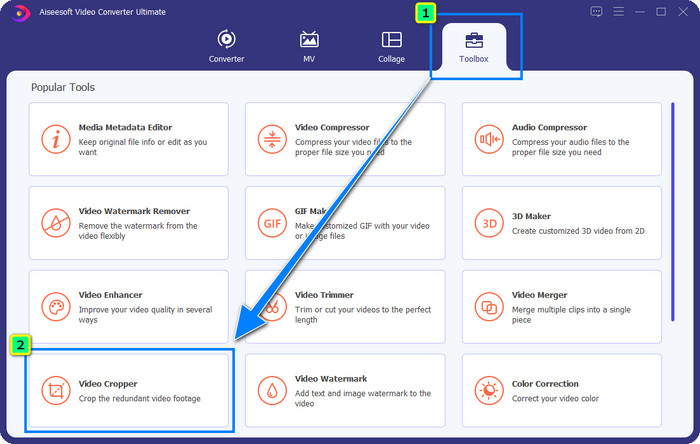
Étape 1. Après avoir téléchargé le logiciel, cliquez sur Boîte à outils et repérez le Recadreur vidéo.
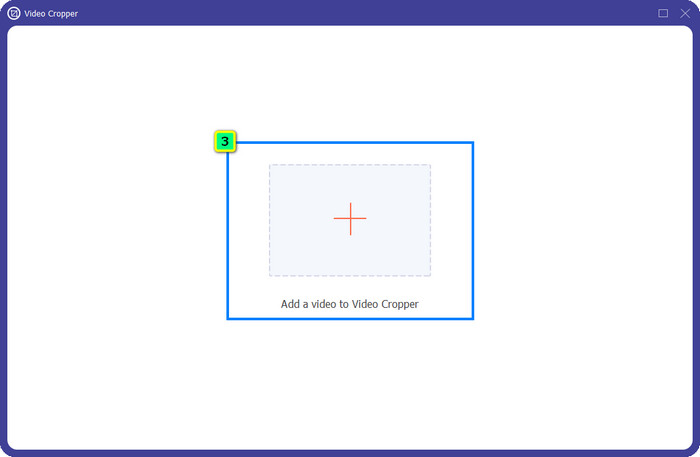
Étape 2. Ajoutez ici la vidéo que vous souhaitez recadrer en cliquant sur le signe plus.
Étape 3. Vous pouvez modifier le cadre en faisant glisser les points selon vos préférences.
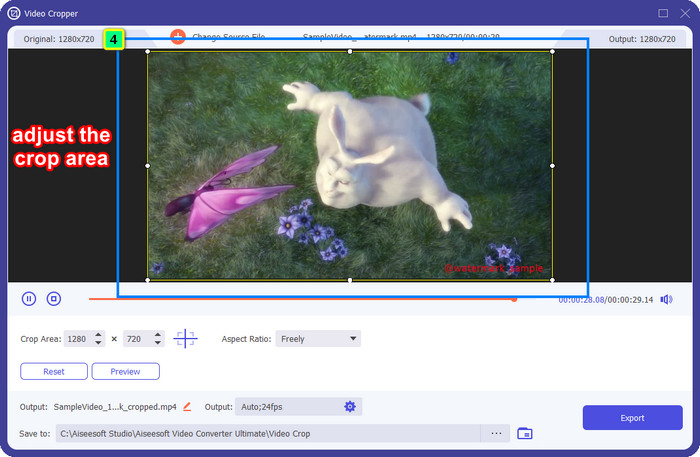
Étape 4. Si vous êtes satisfait de la version recadrée, cliquez sur Exporter, et l’IA recadrera automatiquement la vidéo.
Partie 3. Comment supprimer gratuitement le filigrane Filmora en ligne
Comment supprimer le logo Filmora sans télécharger de logiciel ? Vous pouvez essayer d’utiliser le Video Watermark Remover Online. C’est une solution en ligne pour ceux qui ont besoin de supprimer rapidement un filigrane sur une vidéo sans installer de programme. Polyvalent, cet outil de suppression de filigrane est mentionné dans cet article parce que vous pouvez y accéder depuis différents navigateurs web sur votre appareil.
Étant donné qu'il s'agit d'un outil en ligne, il existe certaines limitations, telles que le nombre de fois que vous pouvez supprimer un filigrane, une petite gamme de formats d'entrée vidéo et la vitesse de traitement. Mais si cela ne vous dérange pas, vous pouvez commencer à suivre les étapes.

Étape 1. Ouvrez votre navigateur web préféré, recherchez son nom, puis cliquez sur le résultat correspondant pour être directement redirigé vers le domaine principal de ce suppresseur de filigrane.
Étape 2. Cliquez sur l’icône de téléversement, ou vous pouvez glisser‑déposer le fichier vidéo contenant un filigrane.
Étape 3. Attendez que l’outil traite la vidéo, car il analyse le filigrane. Puis appuyez sur Remove Watermark.
Partie 4. FAQ sur la suppression du logo Filmora
Comment supprimer le filigrane de Filmora ?
Le moyen officiel de supprimer le filigrane de Filmora consiste à acheter un forfait mensuel, annuel ou perpétuel. Ainsi, chaque fois que vous exportez le projet que vous avez créé ici, il ne laissera pas de filigrane sur la sortie finale. Vous pouvez utiliser différents codes d'enregistrement gratuits disponibles sur le Web si vous n'aimez pas acheter un plan.
Est-il sûr de télécharger une version crackée de Wondershare Filmora ?
Non, ce n'est pas le cas ! Le téléchargement de ce logiciel sur un site Web tiers n'est pas ce que nous recommandons, car certains sites Web ne sont pas sûrs d'accès, et la version de leur piratage peut apporter des logiciels malveillants sur votre ordinateur. Évitez d'accéder à des sites Web tiers malveillants et de les télécharger afin d'éviter tout dommage irréparable.
Quel est le meilleur éditeur vidéo alternatif pour Filmora ?
Pour les utilisateurs Windows, nous vous recommandons de lire les informations que nous avons ajoutées dans cet article, car nous y présentons les 5 meilleurs logiciels de montage vidéo pour Windows que vous pouvez télécharger ou utiliser sur votre système, et qui fonctionnent aussi bien ou mieux que Filmora. Mais si vous utilisez un appareil Mac, vous pouvez découvrir quels sont les meilleurs éditeurs vidéo pour Mac comme alternatives à Wondershare Filmora, qui offrent les meilleures performances sous macOS.
Conclusion
Tout est inclus ! Des informations sur la façon de supprimer le filigrane Filmora sont ajoutées dans cet article. Alors, que pensez-vous des outils que nous ajoutons ? Même si vous n'avez aucune expérience de la suppression des filigranes, vous pouvez suivre le didacticiel sur chaque outil que nous ajoutons. Aujourd'hui, vous pouvez commencer à regarder le projet que vous avez créé sur Filmora sans acheter de plan. Partagez cet article avec d'autres, afin que nous puissions les aider! Partager c'est aimer!
-
 Comment supprimer facilement le filigrane de Wondershare DVD Creator
 Cet article contient des informations sur la façon de supprimer le filigrane de Wondershare DVD Creator. Pour obtenir toutes les informations dont vous avez besoin, il est indispensable de lire ceci.
-
 Apprenez à supprimer gratuitement le filigrane Movavi [Must Have!]
 Exporter une vidéo ou une image sur Movavi laissera un filigrane, mais est-il possible de le supprimer ? Pour apprendre à supprimer le filigrane gratuitement, lisez ceci.
-
 3 façons simples de supprimer le filigrane Fiverr sur Windows et Mac
 Vous êtes sur la bonne page si vous recherchez une application capable de supprimer le filigrane Fiverr. Lisez cet article pour savoir comment supprimer facilement le filigrane Fiverr.
