


 Video Converter Ultimate
 Enregistreur d'écran
 Réparation vidéo
 Téléchargement sécurisé
Excellent moyen de supprimer le filigrane de Camtasia 9 que vous devez essayer
Si vous recherchez le moyen le plus simple et le plus efficace de supprimer le filigrane dans Camtasia 9, vous êtes au bon endroit. Il existe de nombreuses excellentes vidéos que nous souhaitons regarder. Cependant, certaines d’entre elles comportent un gros filigrane, ce qui les rend plus agaçantes et empêche d’apprécier pleinement le contenu de la vidéo. De plus, à cause de ces éléments superflus, certaines parties de la vidéo deviennent invisibles, ce qui déçoit encore davantage les spectateurs. Heureusement, il existe des logiciels dotés de fonctions de suppression de filigrane que vous pouvez utiliser pour enlever les filigranes de vos vidéos et profiter de vos films préférés sans gêne. Si vous voulez en savoir plus sur la manière de retirer rapidement les filigranes de vos vidéos, lisez cet article du début à la fin.

Partie 1 : Meilleur moyen de supprimer le filigrane de Camtasia
Utilisation de Video Converter Ultimate
Si vous cherchez une application performante et fiable avec des outils de suppression de filigrane, Video Converter Ultimate est un excellent logiciel que vous pouvez utiliser. Vous pouvez supprimer les filigranes de vos vidéos avec cette application. Vous pouvez également l’utiliser si votre vidéo comporte des filigranes provenant d’autres applications comme Camtasia. En outre, elle est simple et facile à utiliser, ce qui la rend adaptée aux débutants. De plus, elle propose différents outils de montage dont vous pouvez profiter, comme le compresseur vidéo, l’amélioration vidéo, le découpeur vidéo, le compresseur audio, l’inverseur vidéo, le rotateur vidéo, et bien d’autres. Cet article va présenter deux méthodes pour supprimer les filigranes de vos vidéos à l’aide de Video Converter Ultimate.
1. Utilisation du dissolvant de filigrane vidéo
Étape 1 : Téléchargez Video Converter Ultimate sur votre ordinateur de bureau. Puis procédez à l’installation.
Téléchargement gratuit pour Windows 7 ou version ultérieure Téléchargement sécurisé
Téléchargement gratuit pour macOS 10.7 ou version ultérieure - Téléchargement sécurisé
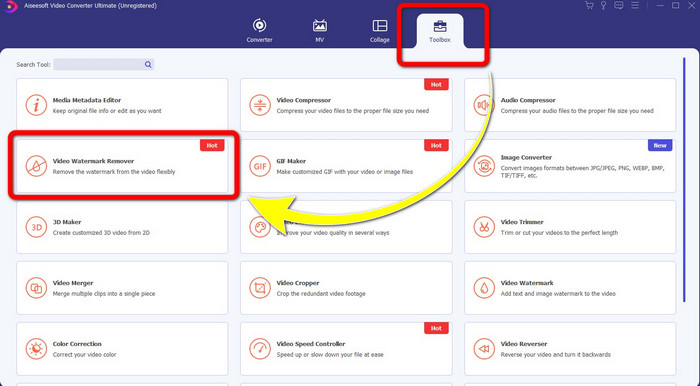
Étape 2 : Une fois l’installation terminée, ouvrez l’application et allez dans Boîte à outils > Suppresseur de filigrane vidéo. Ensuite, une nouvelle interface apparaîtra à l’écran.
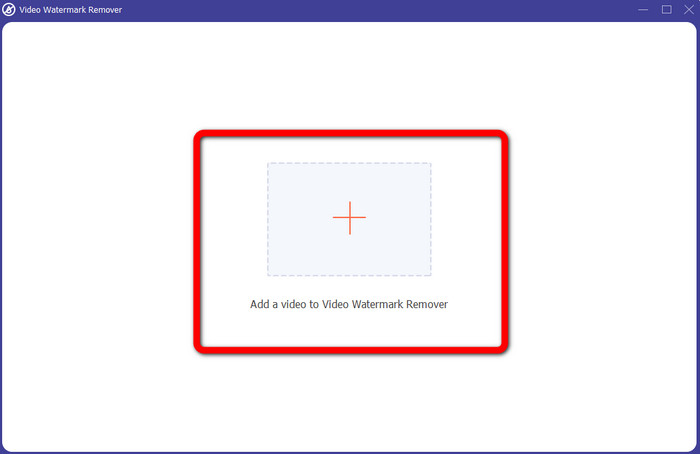
Étape 3 : Quand la nouvelle interface s’affiche, cliquez sur le bouton en forme de Plus et ajoutez la vidéo comportant un filigrane.
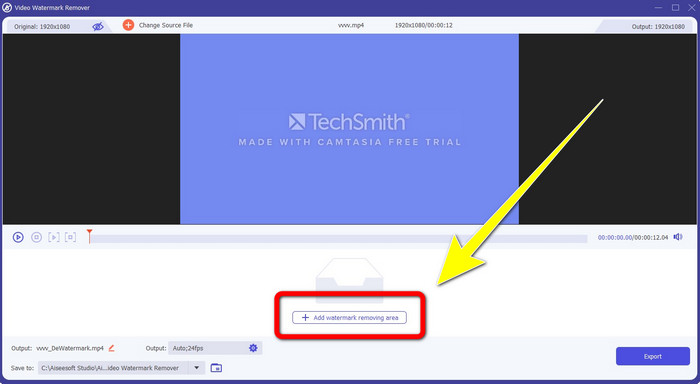
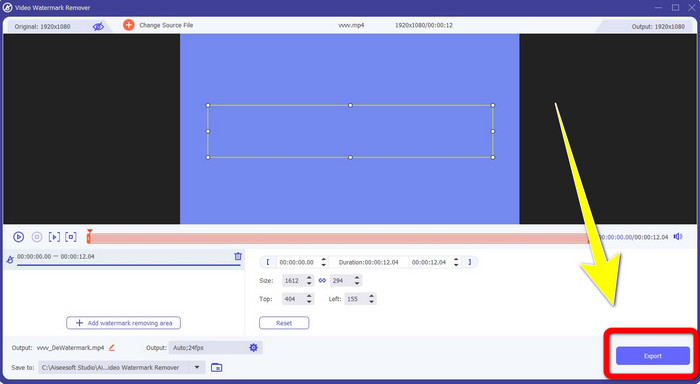
Étape 4 : Après avoir ajouté votre vidéo avec filigrane, cliquez sur Ajouter une zone de suppression de filigrane.
Étape 5 : Un écran en forme de boîte va apparaître. Utilisez cette boîte pour recouvrir le filigrane sur votre vidéo.
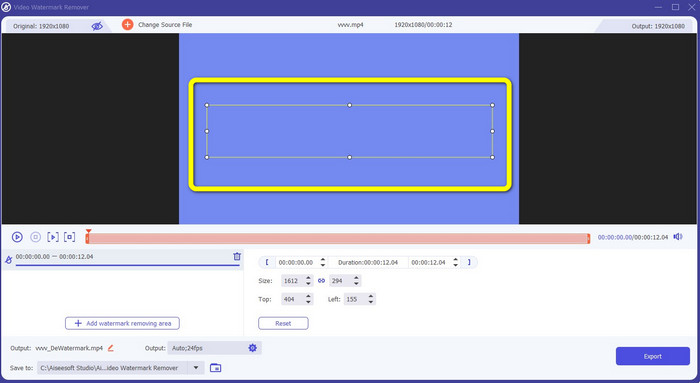
Étape 6 : Lorsque le filigrane est entièrement recouvert, il disparaîtra de votre vidéo. Cliquez sur Exporter pour enregistrer votre vidéo. De cette façon, vous pouvez maintenant retirer le filigrane d’une vidéo provenant de Camtasia.
2. Utilisation des fonctions de recadrage
Une autre méthode que vous pouvez essayer consiste à utiliser la fonction de recadrage de Video Converter Ultimate. C’est l’un des moyens les plus simples de supprimer les filigranes de vos vidéos, surtout si le filigrane se trouve uniquement dans un coin ou sur un bord de l’image. En recadrant vos vidéos, vous pouvez effacer instantanément les éléments inutiles. Suivez ces étapes simples pour supprimer les filigranes à l’aide de l’outil de recadrage.
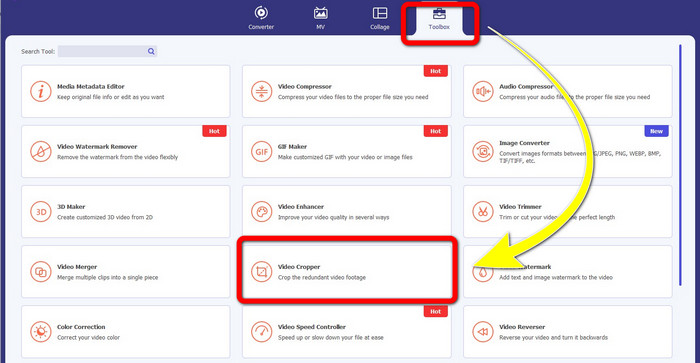
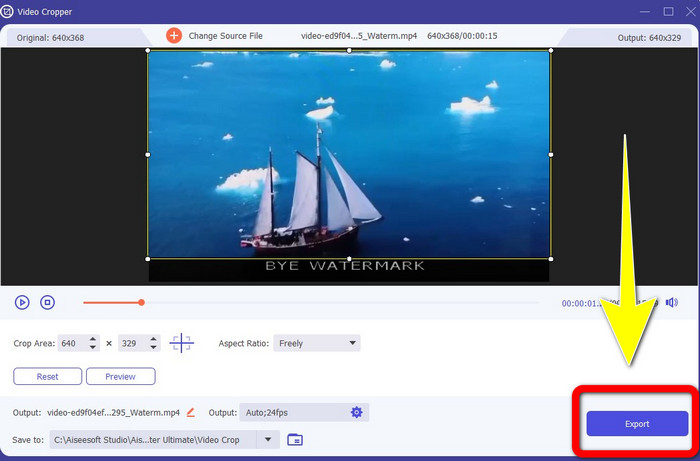
Étape 1 : Ouvrez Video Converter Ultimate. Cliquez sur Boîte à outils > Recadrage vidéo. Puis une nouvelle interface va apparaître à l’écran.
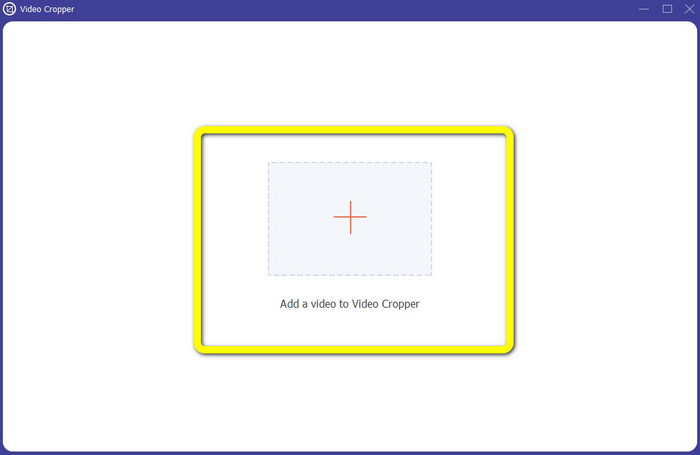
Étape 2 : Cliquez sur le bouton en forme de Plus et ajoutez la vidéo avec filigrane que vous voulez supprimer.
Étape 3 : Une fois que vous avez chargé votre vidéo avec filigrane, vous pouvez maintenant recadrer le bord de votre vidéo jusqu’à la zone où se trouve le filigrane. Ainsi, vous pourrez supprimer le filigrane.
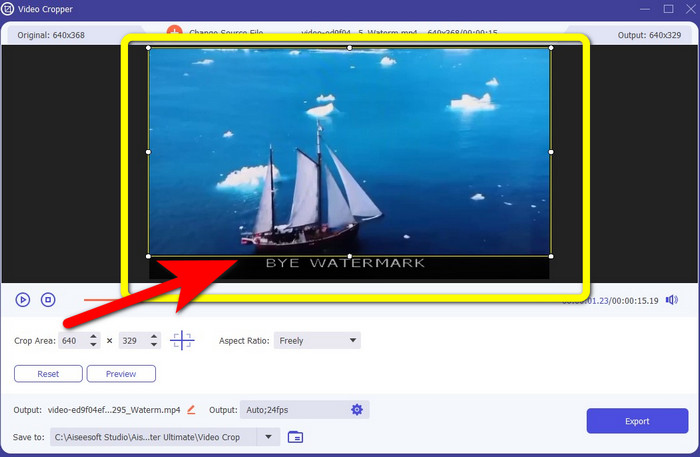
Étape 4 : Si vous avez déjà recadré votre vidéo et constaté que le filigrane a disparu, cliquez sur Exporter pour enregistrer votre vidéo modifiée. Vous pouvez désormais regarder votre vidéo sans aucun filigrane à l’écran.
Partie 2 : Comment produire des vidéos dans Camtasia sans filigrane
Souhaitez-vous apprendre à produire une vidéo Camtasia sans filigrane ? Commençons par définir ce qu’est Camtasia. Camtasia est un outil de montage simple et pratique que vous pouvez utiliser. De plus, c’est également un logiciel d’enregistrement d’écran. En outre, il dispose de nombreuses fonctions d’édition dont vous pouvez profiter, telles que les annotations, les transitions, les animations, les effets audio, les effets vidéo, et bien plus encore. Vous pouvez aussi créer un diaporama avec cette application.
Avec l'aide de cette application, vous pouvez rendre vos vidéos plus attrayantes et uniques pour les téléspectateurs. Dans Camtasia, vous pouvez produire de belles vidéos dont vous pourrez profiter. Cependant, cette application a un filigrane après l'exportation de votre vidéo, sauf si vous achetez l'application. Suivez ces étapes simples pour apprendre beaucoup de choses dans cette application, en particulier la création de vidéos dans Camtasia.
Avec l'aide de cette application, vous pouvez rendre vos vidéos plus attrayantes et uniques pour les téléspectateurs. Dans Camtasia, vous pouvez produire de belles vidéos dont vous pourrez profiter. Cependant, cette application a un filigrane après l'exportation de votre vidéo, sauf si vous achetez l'application. Suivez ces étapes simples pour apprendre beaucoup de choses dans cette application, en particulier la création de vidéos dans Camtasia.
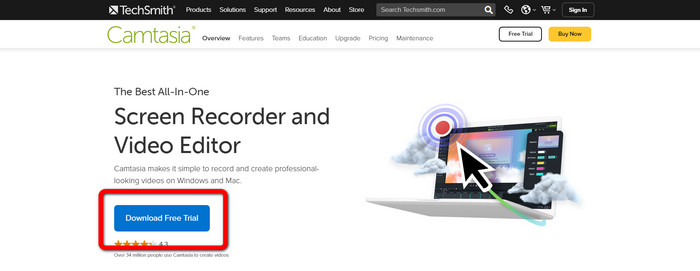
Étape 1 : Vous devez télécharger Camtasia sur votre ordinateur Windows. Cliquez sur le bouton Download Free Trial pour obtenir l’application. Puis ouvrez l’application après l’installation.
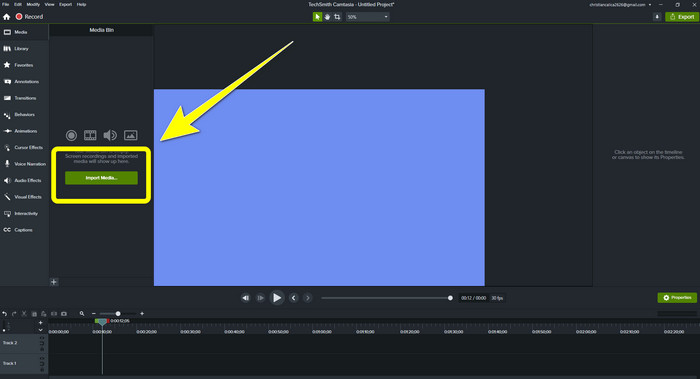
Étape 2 : Après avoir lancé l’application, cliquez sur le bouton Import Media pour ajouter le fichier que vous souhaitez modifier.
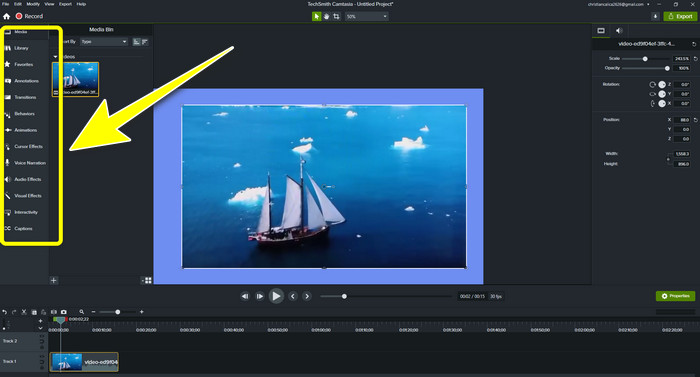
Étape 3 : Vous pouvez maintenant monter vos fichiers dans cette application en utilisant les outils de montage, par exemple en ajoutant des sous-titres, des transitions, des animations, des annotations, des comportements, et bien plus encore.
Étape 4 : Lorsque vous avez terminé et que vous êtes satisfait du montage de vos vidéos, vous pouvez cliquer sur le bouton Export > Local File pour enregistrer votre projet.
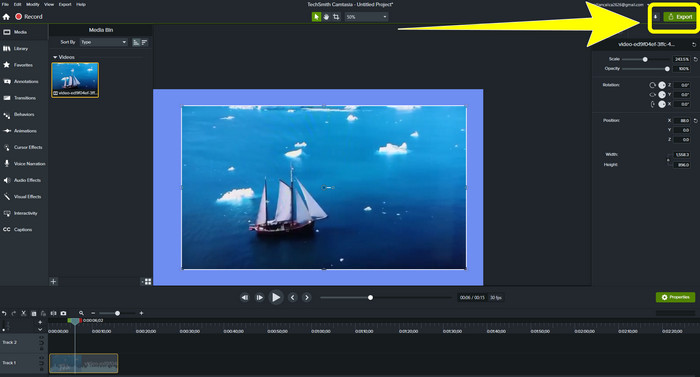
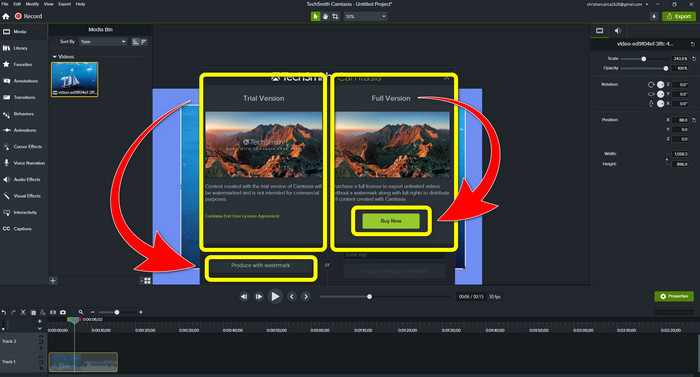
Étape 5 : Après avoir cliqué sur Export > Local File Button, une autre interface apparaît. Si vous souhaitez acheter l’application, cliquez sur le bouton Buy pour produire une vidéo avec Camtasia sans filigrane. Cependant, si vous utilisez uniquement la version d’essai gratuite, votre vidéo comportera un filigrane après l’exportation et l’enregistrement.
En relation avec :
Comment supprimer le filigrane Filmora de vos vidéos ou projets gratuitement
Astuce la plus rapide pour supprimer le filigrane Adobe Stock d’une vidéo [Tutoriel]
Partie 3 : FAQ sur la suppression des filigranes
Existe-t-il un excellent outil de suppression de filigrane que je peux utiliser sur mon Mac ?
Absolument, oui ! Vous pouvez utiliser des applications avec des outils de suppression de filigrane comme Video Converter Ultimate. Elle est capable de supprimer les filigranes de vos vidéos. De plus, cette application est disponible à la fois sur Windows et Mac, ce qui la rend encore plus pratique.
Existe-t-il un moyen de supprimer les filigranes des photos ?
Absolument oui! Vous pouvez utiliser de nombreuses applications sur votre appareil pour supprimer les filigranes des photos. La meilleure chose à faire est de rechercher sur vos navigateurs des outils de suppression de filigrane et de rechercher les 10 meilleurs résultats sur la page de résultats.
Puis-je supprimer les filigranes à l'aide de mon téléphone ?
Oui, vous pouvez! Certaines des applications avec suppression de filigrane sont désormais accessibles sur Mac et Windows et sur les téléphones portables comme les téléphones Android et les iPhones.
Comment puis-je supprimer les filigranes à l'aide d'un outil de recadrage ?
Supprimer les filigranes sur vos photos ou vidéos à l'aide d'un outil de recadrage est un jeu d'enfant, surtout si le filigrane se trouve sur le bord de l'image. Tout ce que vous avez à faire est de le recadrer, d'éliminer le filigrane et le tour est joué.
Conclusion
Comme vous pouvez le constater, cet article présente les meilleures façons de supprimer le filigrane de Camtasia 9. Il propose également une application performante et fiable avec deux méthodes pour supprimer les éléments inutiles de vos vidéos. Cette application est Video Converter Ultimate.
-
 5 façons de supprimer un filigrane d'une vidéo de manière professionnelle
 Besoin de supprimer un filigrane d'une vidéo pour lui donner un aspect professionnel ? Eh bien, lisez cet article car nous ajoutons un tutoriel sur la façon de le faire !
-
 3 des derniers suppresseurs de filigrane Shutterstock dont vous aurez besoin
 Vous n'aimez pas le filigrane Shutterstock attaché à la vidéo exportée ? Vous pouvez utiliser un dissolvant de filigrane Shutterstock pour l'effacer efficacement.
-
 Méthodes les plus simples pour supprimer le filigrane des photos
 Êtes-vous irrité par les filigranes sur votre photo ? Ne t'inquiètes pas! Cet article fournira des méthodes simples et faciles pour supprimer les filigranes de vos photos
