


 Video Converter Ultimate
 Enregistreur d'écran
 Réparation vidéo
 Téléchargement sécurisé
Procédure sans effort pour supprimer les filigranes des vidéos MP4
Rencontrez-vous des problèmes parce que vous ne savez pas comment enlever les filigranes de vos vidéos MP4 sur vos appareils comme Mac et Windows ? Alors cet article contient la meilleure solution pour vous. Si vous faites partie de ces personnes qui aiment regarder des films, des clips et bien plus encore, vous pouvez sans doute comprendre à quel point il est dérangeant et irritant de regarder vos vidéos préférées avec des filigranes ou d’autres éléments inutiles visibles sur vos vidéos MP4. De plus, vous ne pouvez même pas voir l’intégralité de votre écran, car ces filigranes le recouvrent. Et le plus frustrant, c’est que certaines vidéos comportent des filigranes très grands, ce qui vous empêche de profiter pleinement de vos vidéos préférées.
Heureusement, il existe déjà une application logicielle formidable et remarquable avec un outil de suppression de filigrane vidéo que vous pouvez utiliser pour éliminer ces objets inutiles sur vos vidéos, tels que les filigranes, les logos, les textes, les images, etc. Vous pouvez rapidement effacer ou supprimer ces objets et profiter de regarder ou de lire vos vidéos avec ces applications. Avec ces applications, vous ne serez plus jamais frustré ou irrité. Ensuite, si vous êtes captivé par ce sujet, vous devez lire cet article pour vous donner suffisamment d'informations, notamment pour supprimer facilement les filigranes sur vos vidéos MP4.

Partie 1 : Meilleur moyen de supprimer le filigrane d'une vidéo MP4
Si vous recherchez l’application la plus performante et la plus impressionnante pour supprimer les filigranes de vos vidéos MP4, Video Converter Ultimate est le meilleur outil. Cette application est capable d’éliminer les éléments gênants de vos vidéos, comme les filigranes, logos, textes ou images. De plus, vous n’avez pas à attendre longtemps lors de l’enregistrement, car vous pouvez sauvegarder vos vidéos rapidement après avoir supprimé les filigranes.
De plus, Video Converter Ultimate dispose de nombreux outils d'édition que vous pouvez utiliser, tels qu'un amplificateur vidéo, la suppression de filigranes, l'ajout de filigranes, un contrôleur de vitesse vidéo, un créateur de GIF, un créateur de collages, un enregistreur vidéo et audio, un compresseur vidéo/audio, la conversion de divers fichiers formats, tels que MP4, FLV, MOV, TRP, MTS, M2TS, MKV, AAC, MP3, etc. De plus, la meilleure partie est que vous n'avez plus besoin d'acheter ou d'acheter cette application. Vous pouvez l'utiliser gratuitement. De plus, cette application est très simple et facile à utiliser. Si vous souhaitez supprimer les filigranes sur vos vidéos MP4, Video Converter Ultimate peut vous proposer deux méthodes. Lisez en continu pour apprendre ces deux façons d'effacer les filigranes sur vos vidéos.
1. Utilisation du dissolvant de filigrane vidéo
Étape 1 : Rendez-vous sur le site web de Video Converter Ultimate. Téléchargez l’application gratuitement. Puis procédez à l’installation.
Téléchargement gratuit pour Windows 7 ou version ultérieure Téléchargement sécurisé
Téléchargement gratuit pour macOS 10.7 ou version ultérieure - Téléchargement sécurisé
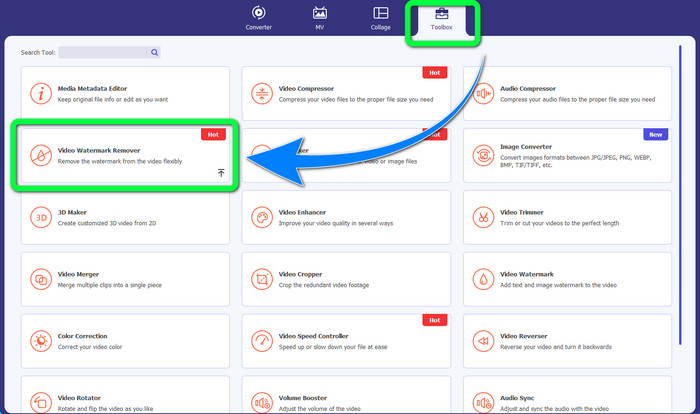
Étape 2 : Lancez l’application. Sélectionnez Boîte à outils > Suppression de filigrane vidéo.
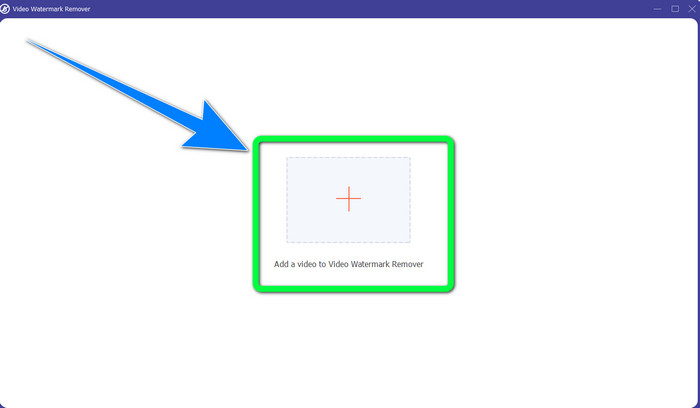
Étape 3 : Une autre interface va apparaître. Cliquez sur le bouton en forme de Plus et ajoutez votre vidéo MP4 contenant un filigrane.
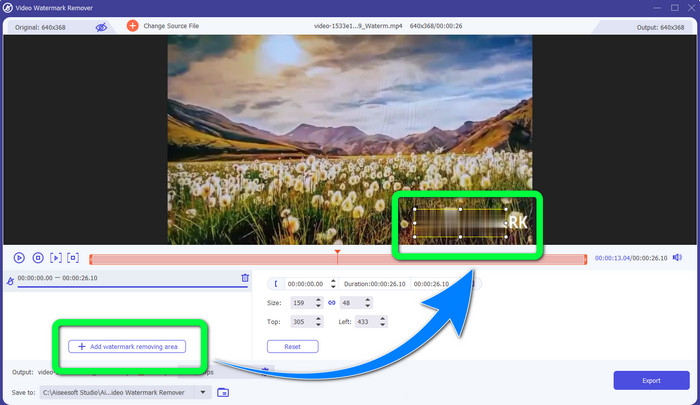
Étape 4 : Cliquez sur le bouton Ajouter une zone de suppression de filigrane. Une petite boîte apparaîtra sur votre vidéo ; faites-la glisser et utilisez-la pour couvrir les filigranes présents sur votre vidéo.
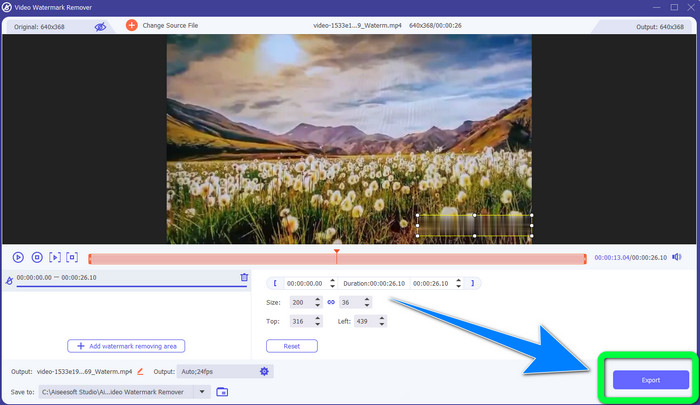
Étape 5 : Lorsque vous avez terminé de supprimer le filigrane, cliquez sur le bouton Exporter pour enregistrer vos vidéos. Vous pouvez maintenant profiter de vos films préférés sans filigranes.
2. Utilisation du recadrage vidéo
Étape 1 : Lancez Video Converter Ultimate. Puis cliquez sur Boîte à outils > Rogneur vidéo.
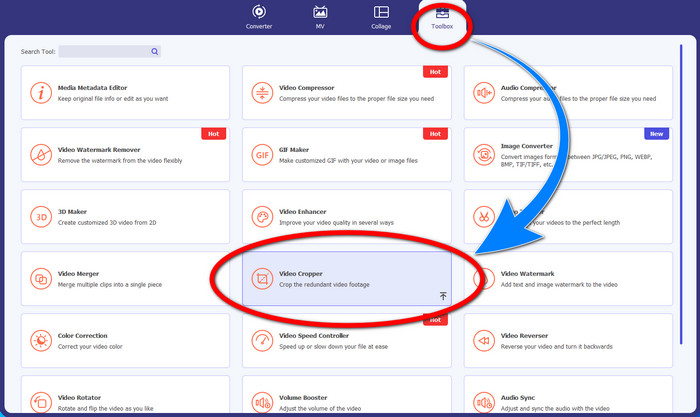
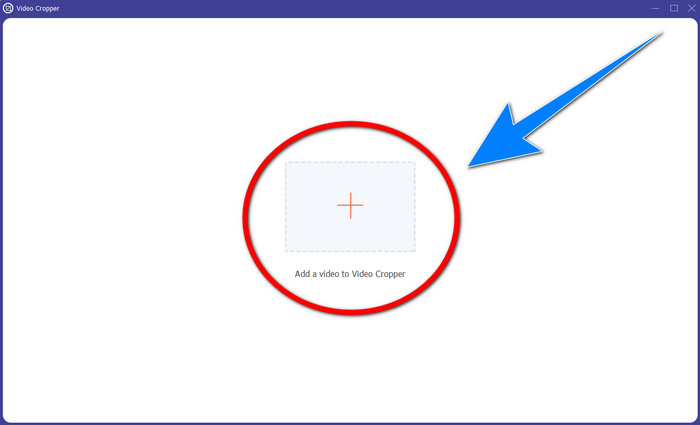
Étape 2 : Une autre interface apparaîtra après avoir cliqué sur Rogneur vidéo. Cliquez sur le symbole Plus pour ajouter votre vidéo MP4 avec un filigrane.
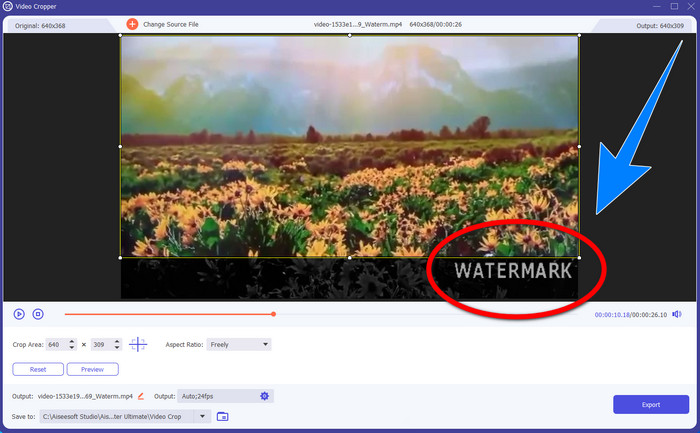
Étape 3 : Une fois votre vidéo ajoutée, vous pouvez rogner votre vidéo MP4 et supprimer le filigrane.
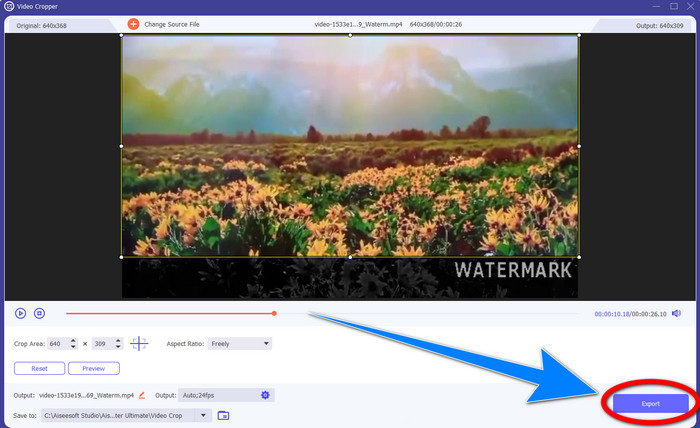
Étape 4 : Lorsque vous avez fini de rogner la vidéo pour enlever le filigrane, cliquez sur le bouton Exporter pour enregistrer votre vidéo. De cette façon, vous pourrez regarder votre vidéo sans filigrane.
Partie 2 : Supprimer le filigrane de la vidéo MP4 en ligne
Vous cherchez une application remarquable que vous pouvez utiliser pour supprimer gratuitement les filigranes de votre vidéo MP4 en ligne ? Dans ce cas, HitPaw Online Watermark Remover est l’application sur laquelle vous pouvez compter. De plus, vous pouvez utiliser cette application sans rien acheter, car elle est totalement gratuite. En outre, vous pouvez supprimer sans limite les filigranes, logos et signatures, et elle ne contient aucune publicité. Elle est également simple et facile à utiliser. Vous pouvez retirer les filigranes de vos vidéos en seulement trois étapes, ce qui est parfait pour les débutants.
HitPaw Online Watermark Remover est accessible à tous les appareils, tels que Windows, Mac, iPhone et Android. Cette application est également sécurisée et garantit que vous êtes le seul à pouvoir visualiser et éditer vos vidéos. Cependant, si vous supprimez les filigranes sur vos vidéos, la zone deviendra parfois floue et dérangeante. De plus, le processus de sauvegarde est lent. Si vous souhaitez supprimer les filigranes sur vos vidéos MP4 en ligne, suivez les étapes simples ci-dessous.
Étape 1 : Rendez-vous sur le site de HitPaw Online Watermark Remover. Cliquez sur Remove Watermark Now, puis sélectionnez Choose File pour ajouter votre vidéo MP4 avec filigranes.
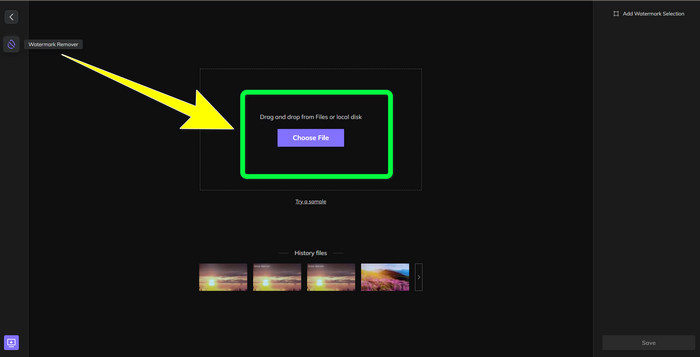
Étape 2 : Après avoir ajouté votre vidéo, un rectangle apparaîtra dessus. Faites-le glisser pour couvrir et supprimer vos filigranes.
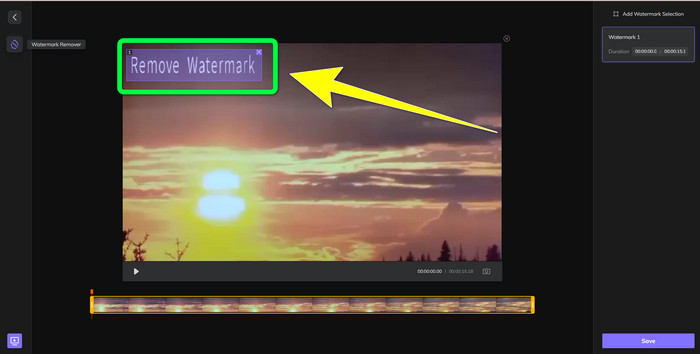
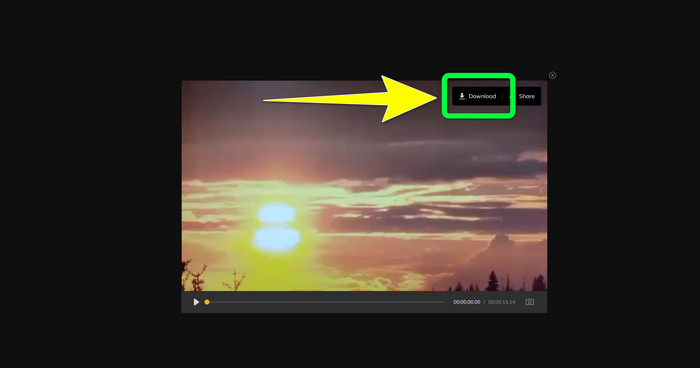
Étape 3 : Après avoir supprimé les filigranes sur votre vidéo, cliquez sur le bouton Save. Patientez pendant le processus d’enregistrement, puis cliquez sur le bouton Download pour la conserver sur votre appareil.
Partie 3 : FAQ sur la suppression du filigrane de MP4
Est-il également possible d'éliminer les signatures sur mes vidéos ?
Oui, c’est possible. Video Converter Ultimate est également capable de supprimer les signatures sur vos vidéos. Tout objet inutile et gênant dans vos vidéos peut être supprimé facilement à l’aide de cette application.
La suppression des filigranes des vidéos MP4 prend-elle du temps ?
Cela dépend des applications que vous utilisez. Si vous souhaitez supprimer les filigranes sur vos vidéos MP4, utilisez Video Converter Ultimate. Il peut supprimer les filigranes instantanément.
Quel est le meilleur outil de suppression de filigrane vidéo que je peux utiliser ?
Si vous recherchez une application fiable pour supprimer les filigranes de votre vidéo, Video Converter Ultimate est un excellent logiciel à utiliser. Vous pouvez retirer les filigranes et enregistrer vos vidéos sans perte de qualité.
Puis-je utiliser l'outil de recadrage sur HitPaw Online Watermark Remover pour éliminer les filigranes ?
Absolument oui! Vous pouvez également utiliser l'outil de recadrage de cette application si vous souhaitez supprimer les filigranes sur vos vidéos, en particulier si les filigranes se trouvaient sur le coin ou le bord de vos vidéos.
Outre la suppression des filigranes, est-il possible d'ajouter des filigranes à l'aide de Video Converter Ultimate sur mes vidéos ?
Définitivement oui! Video Converter Ultimate ne se limite pas seulement à supprimer les filigranes sur vos vidéos. Cette application peut également ajouter des filigranes à vos vidéos, notamment si vous souhaitez mettre du texte, des logos, des signatures, etc.
Conclusion
Comme indiqué plus haut, vous pouvez facilement supprimer les filigranes de vos vidéos MP4 en utilisant Video Converter Ultimate. De plus, cet article vous présente plusieurs logiciels que vous pouvez utiliser pour enlever en ligne les éléments superflus de vos vidéos MP4.
-
 Comment supprimer gratuitement le filigrane Filmora sur vos vidéos ou projets
 Comment supprimer le filigrane Filmora ? Cette question fait le tour du Web, et nous listons ici différentes approches que vous pouvez utiliser !
-
 Astuce la plus rapide pour supprimer le filigrane Adobe Stock d'une vidéo [Tutoriel]
 Vous rencontrez un problème avec le filigrane Adobe Stock ? Lisez ceci et découvrez comment supprimer le filigrane Adobe Stock de la vidéo.
-
 5 façons de supprimer un filigrane d'une vidéo de manière professionnelle
 Besoin de supprimer un filigrane d'une vidéo pour lui donner un aspect professionnel ? Eh bien, lisez cet article car nous ajoutons un tutoriel sur la façon de le faire !
