


 Video Converter Ultimate
 Enregistreur d'écran
 Réparation vidéo
 Téléchargement sécurisé
Méthodes simples pour convertir DV en MP4 en ligne et hors ligne
Le format de fichier DV était autrefois le plus répandu sur presque tous les caméscopes, car il permettait de stocker des vidéos d’excellente qualité pour la lecture et le montage. Cependant, ce type de fichier n’est plus vraiment utilisé à l’ère actuelle. Certains programmes ne prennent pas en charge ce format, ce qui n’est pas idéal pour les utilisateurs qui disposent de vidéos en DV. En revanche, si vous voulez lire vos vidéos dans tous les programmes, vous devez convertir votre fichier DV vers le format le plus populaire aujourd’hui, le format MP4. Vous avez de la chance, car cet article va vous présenter les méthodes les plus efficaces pour convertir un fichier DV en MP4 à l’aide de convertisseurs performants. Lisez donc cet article pour découvrir tous les détails nécessaires.

Partie 1 : Différences entre DV et MP4
Avant de procéder au processus de conversion de fichier, voyons d'abord les différences entre le fichier DV et le format MP4.
| Fichier | VD | MP4 |
| Extension de fichier | .dv | .mp4 |
| Nom et prénom | Vidéo numérique | MPEG-4 |
| La description | Les principaux producteurs d'équipements vidéo ont créé le DV en 1995 en tant que format numérique pour l'enregistrement vidéo magnétique et méthode de compression vidéo. Le format DV utilise un signal vidéo composant numérique de 720 × 576 pixels, 8 bits. Une séquence DIF contenant des données vidéo, audio et de sous-code est utilisée pour transférer les données. Dans la zone de service, l'heure et la date sont enregistrées. | Les normes vidéo MPEG-4 et audio AAC définissent conjointement l'extension MP4. Le conteneur peut contenir n'importe quel média, y compris des graphiques 2D et 3D, de l'audio, de la vidéo et des sous-titres. Sous Windows, pratiquement n'importe quel lecteur peut lire des fichiers MP4, mais sur Mac, vous avez besoin d'un plug-in ou convertissez le fichier MP4 dans un autre format. |
| Développeur | Sony et Panasonic | Le groupe d'experts en images animées |
| Type MIME | vidéo/x-dv | vidéo/mp4 |
| Programmes associés | Lecteur Quick Time Windows Movie Maker VLC Media Player | VLC Media Player MPlayer Lecteur Quick Time Lecteur Windows Media Microsoft Films et TV |
Partie 2 : Meilleure façon de convertir DV en MP4 en ligne
Convertir un fichier DV en MP4 en ligne peut être difficile, surtout lorsque vous ne savez pas quelle application utiliser et à laquelle faire confiance. Mais grâce à FVC Free Video Converter Online, vous pouvez transformer rapidement et instantanément votre fichier DV en format MP4. Cet outil en ligne prend en charge divers fichiers vidéo, comme AVI, FLV, M4V, VOB, WMA, MOV, TS, et bien d’autres. Il offre également une méthode de conversion simple, vous permettant de convertir des fichiers en quelques clics seulement. De plus, si vous prévoyez de convertir plusieurs fichiers DV en un seul fichier MP4, vous pouvez utiliser ce convertisseur, car il propose un procédé de conversion par lots. Vous pouvez aussi utiliser cet outil sur tous les navigateurs, comme Google Chrome, Mozilla Firefox, Safari, Microsoft Edge, etc., ce qui le rend encore plus pratique pour tout le monde. Avec toutes ces fonctionnalités, on peut dire que ce convertisseur en ligne fait partie des applications les plus intéressantes que vous puissiez utiliser. Suivez les instructions simples ci-dessous pour apprendre à convertir un fichier DV en MP4 avec FVC Free Video Converter Online.
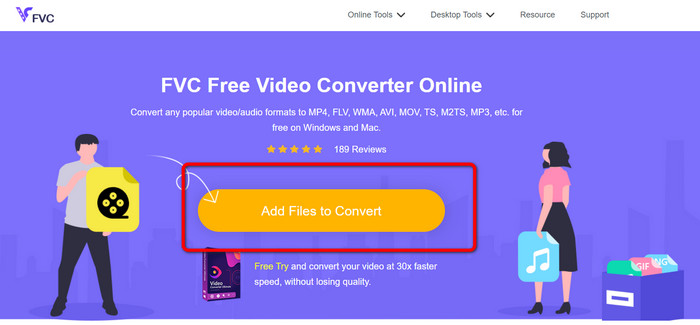
Étape 1 : Commencez par ouvrir votre navigateur et rendez-vous sur le site FVC Free Video Converter Online. Puis, au centre de la page principale, cliquez sur le bouton Add Files to Convert pour importer votre fichier vidéo DV.
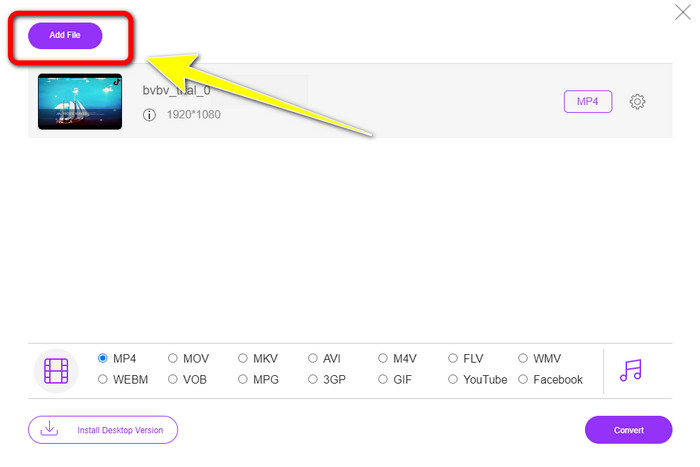
Étape 2 : Si vous souhaitez convertir plusieurs fichiers DV en un seul MP4, cliquez sur le bouton Add File en haut à gauche de l’interface pour ajouter d’autres fichiers.
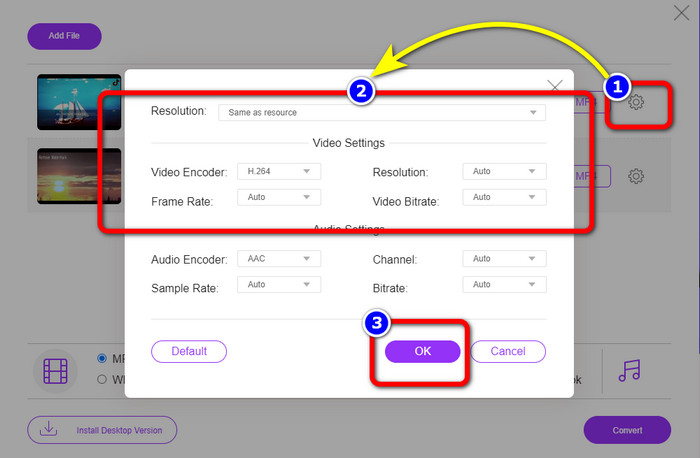
Étape 3 : Cliquez sur l’icône Setting pour ajuster le débit binaire, la fréquence d’images et la résolution de la vidéo. Lorsque vous avez terminé de modifier les paramètres selon vos préférences, cliquez sur OK.
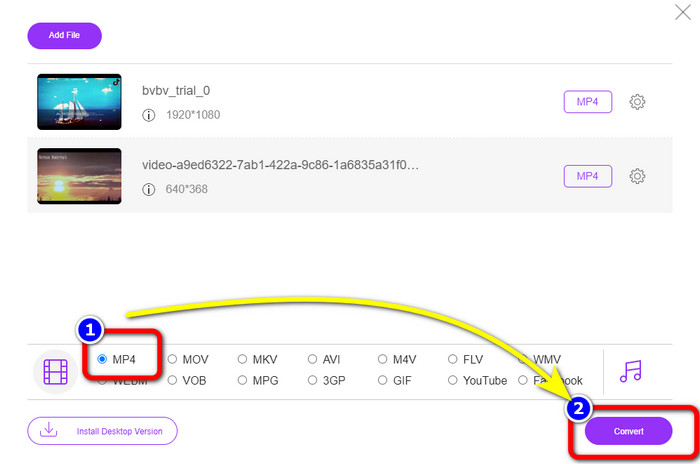
Étape 4 : Après avoir effectué tous les réglages, rendez-vous dans la partie inférieure de l’interface pour voir les options de format. Sélectionnez le format MP4 et appuyez sur Convert pour lancer le processus de conversion.
Partie 3 : Comment convertir DV en MP4 sans perte
Pour ce qui est d’un convertisseur hors ligne, vous pouvez utiliser Video Converter Ultimate pour convertir un fichier DV en MP4 sur Mac et Windows, sans perte de qualité. Vous pouvez convertir différents fichiers vidéo sans dégradation. De plus, avec cette application, vous pouvez convertir plusieurs fichiers simultanément grâce à la conversion par lots. Cet outil hors ligne prend également en charge de nombreux formats vidéo, comme MOV, AVI, FLV, M4V, SWF, MTS, MKV, WMV, VOB, et plus de 100 autres. En outre, Video Converter Ultimate offre une vitesse de conversion ultime, jusqu’à 30 fois plus rapide que la normale, ce qui le rend plus pratique pour tous les utilisateurs. Par ailleurs, la plupart des utilisateurs privilégient une méthode simple pour convertir leurs fichiers. Cette application propose une interface conviviale avec une procédure de conversion très facile. Vous pouvez également éditer vos vidéos pendant la conversion, car elle dispose d’outils de montage. Si vous souhaitez convertir une cassette mini DV au format de fichier MP4, suivez le guide détaillé ci-dessous avec Video Converter Ultimate.
Étape 1 : Téléchargez et installez Video Converter Ultimate sur votre Mac ou votre Windows en cliquant sur le bouton Download. Lancez le logiciel après l’installation.
Téléchargement gratuit pour Windows 7 ou version ultérieure Téléchargement sécurisé
Téléchargement gratuit pour macOS 10.7 ou version ultérieure - Téléchargement sécurisé
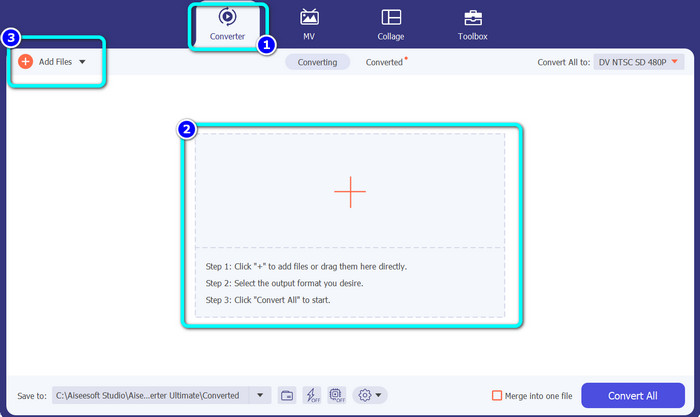
Étape 2 : Appuyez sur l’onglet Converter et cliquez sur le signe Plus pour ajouter le fichier DV. Vous pouvez également cliquer sur le bouton Add Files ou déposer directement le fichier dans la zone prévue.
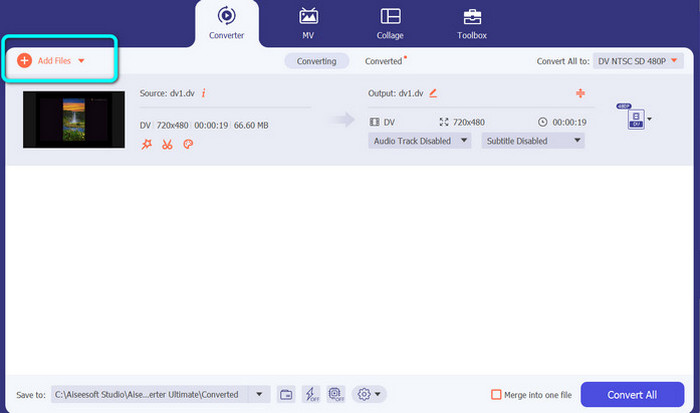
Étape 3 : Si vous souhaitez effectuer une conversion par lots, cliquez sur le bouton Add Files pour ajouter d’autres fichiers vidéo DV.
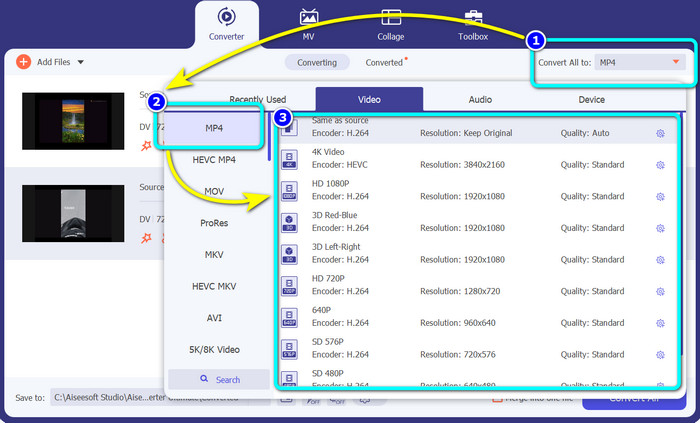
Étape 4 : Après avoir ajouté d’autres fichiers DV, modifiez leur format de sortie en cliquant sur le bouton Convert All to. Les options de format s’afficheront ; sélectionnez le format MP4. Ensuite, choisissez la résolution souhaitée.
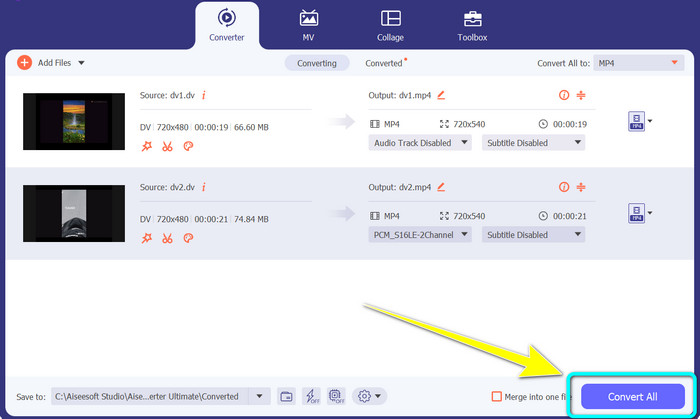
Étape 5 : Pour la dernière étape, lancez le processus de conversion en cliquant sur le bouton Convert All. Enregistrez ensuite votre fichier vidéo à l’emplacement souhaité.
Partie 4 : Méthode simple pour convertir DV en MP4 à l'aide d'un logiciel gratuit
Dans cette partie, vous apprendrez à convertir DV en MP4 à l'aide d'un frein à main. Cet outil hors ligne est également capable de convertir des fichiers vidéo tels que MP4, MKV, WEBM, etc. Il propose également un processus de conversion par lots. Cependant, l'utilisation de cet outil n'est pas facile. Il a de nombreuses options sur l'interface, ce qui est difficile à comprendre, surtout pour les débutants. Suivez les étapes ci-dessous pour convertir DV en MP4.
Étape 1 : Téléchargez l’application Handbrake sur votre ordinateur. Puis lancez-la.
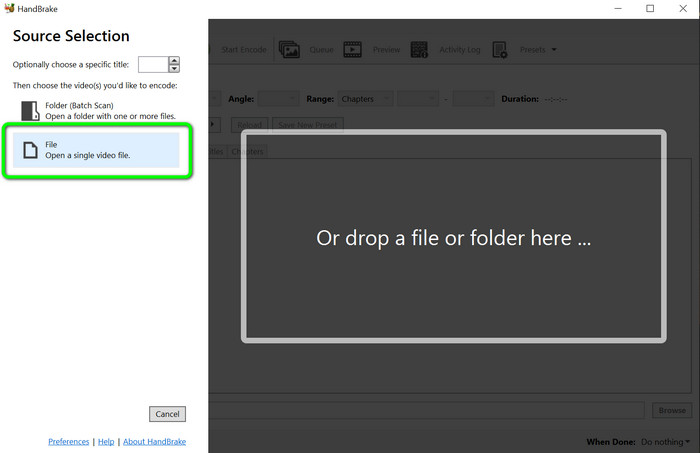
Étape 2 : Après avoir ouvert l’application, sélectionnez le bouton File pour ajouter le fichier DV.
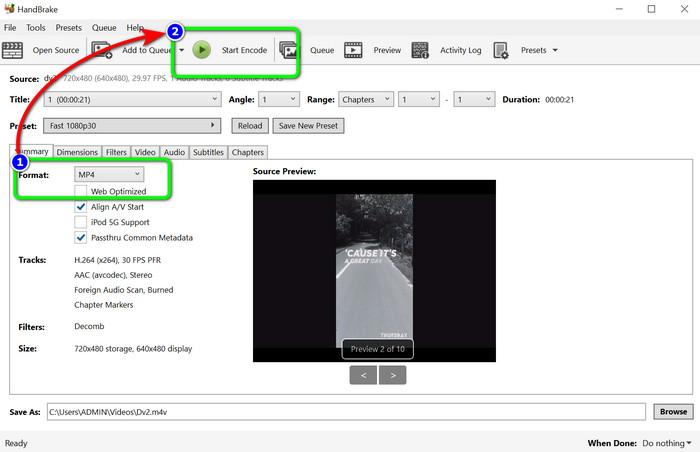
Étape 3 : Dans les options de format, choisissez le format de fichier MP4. Cliquez ensuite sur le bouton Start Encode pour démarrer la conversion.
Lectures complémentaires :
Top 2 des méthodes pour convertir gratuitement des fichiers DV en MOV sur ordinateur et en ligne
Convertisseurs DV vers FLV utiles pour convertir un DV en FLV [2023]
Partie 5 : FAQ sur la conversion de DV en MP4
1. VLC peut-il lire les fichiers DV ?
Oui! VLC Media Player prend en charge le format de fichier DV, vous pouvez donc lire vos vidéos dans ce programme.
2. Quel logiciel en ligne est le meilleur pour la conversion vidéo ?
Vous pouvez utiliser FVC Free Video Converter Online. Cet outil en ligne peut convertir facilement vos vidéos. Vous pouvez également effectuer une conversion par lots et modifier le débit binaire, la fréquence d’images et la résolution de votre vidéo.
3. Quelle est la résolution standard du fichier DV ?
La résolution standard du fichier DV est de 720 pixels horizontaux et 480 lignes entrelacées. La norme haute définition de DV est de 720 et 1080 lignes.
Conclusion
Comme indiqué ci-dessus, il s’agit des meilleures méthodes pour convertir un fichier DV en MP4 en ligne et hors ligne. Vous pouvez utiliser FVC Free Video Converter Online pour convertir des fichiers en ligne. Vous pouvez aussi utiliser Video Converter Ultimate pour convertir des fichiers plus rapidement hors ligne.
-
 Un moyen ultime et gratuit de convertir DV en WMV [en ligne et hors ligne]
 Découvrez quelles sont les meilleures façons de convertir DV en WMV sans tracas. Veulent en savoir plus? Alors lisez cet article pour en savoir plus sur DV et WMV.
-
 Comment convertir F4V en MP4 avec les méthodes les plus efficaces
 Vos vidéos F4V ne sont pas de bonne qualité ? Transformez-le ensuite en fichier MP4. Cet article offrira le meilleur moyen de convertir F4V en MP4 en ligne et hors ligne
-
 Cinq approches populaires pour convertir Xvid au format MP4
 Ayez un aperçu de ces méthodes étonnantes sur la façon de convertir le format de fichier Xvid au format MP4 dans cet article. En outre, vous apprendrez les meilleures applications que vous pouvez utiliser pour convertir
