


 Video Converter Ultimate
 Enregistreur d'écran
 Réparation vidéo
 Téléchargement sécurisé
Comment convertir un fichier EPS en JPG et PNG [Tutoriels détaillés]
Un fichier vectoriel appelé fichier EPS est nécessaire pour une impression d’images professionnelle et de haute qualité. Il est également connu sous le nom d’Encapsulated PostScript. Par conséquent, il est moins connu que des formats comme JPG, PNG et GIF, qui sont largement utilisés. Si vous voulez que votre design soit vu par le grand public en ligne, vous devez convertir un EPS en JPG. De plus, certains programmes ne prennent pas en charge les fichiers EPS, ce qui complique les choses pour les utilisateurs. Ainsi, le convertir vers d’autres formats comme JPG et PNG est la meilleure solution pour vous. Ce guide est parfait si vous prévoyez de convertir le format EPS en d’autres formats comme JPG et PNG. Lisez cet article et apprenez-en davantage sur la conversion d’EPS en JPG et PNG.

Partie 1. Comparer EPS, JPG et PNG
| Format de fichier | PSE | JPG / JPEG | PNG |
| Extension de fichier | .eps | .jpg | .png |
| Nom et prénom | PostScript encapsulé | Groupe mixte d'experts photographiques | Graphique réseau portable |
| Développé par | John Warnock et Chuck Geschke | Groupe mixte d'experts photographiques | Groupe de développement PNG |
| La description | Les fichiers PostScript encapsulés portent l'extension .eps et sont appelés PSE des dossiers. De plus, il inclut des données bitmap qui conservent un codage unique pour la couleur et la taille. Cela implique que les fichiers EPS sont parfaits pour mettre à l'échelle des images haute résolution. | Les utilisateurs utilisent largement JPG des dossiers. Ils l'utilisent pour les images et les graphiques Web. Il est également appelé fichiers JPEG ou JPG. Le format de fichier image JPG était le plus efficace pour la compression d'image. | À partir de 1995, le PNG format d'image signifie Portable Network Graphics. Un professionnel de l'informatique nommé Oliver Fromme a créé le format PING. Plus tard, cependant, il a changé en PNG. |
| Compression | Sans perte | Avec perte | Sans perte |
| Programmes/Navigateurs associés | Adobe Illustrator, Adobe Photoshop, EPS Viewer, GIMP, Google Drive | IrfanView, Peinture, Adobe Photoshop, GIMP, Microsoft, Visionneuse d'images FastStone, Google Chrome, Internet Explorer | Visionneuse d'images FastStone, Adobe Photoshop, GIMP, Microsoft, Paint, Google Chrome, Internet Explorer |
Partie 2. Les moyens les plus simples de convertir EPS en JPG et PNG en ligne
Comment convertir EPS en JPG/PNG sur FVC Free Image Converter
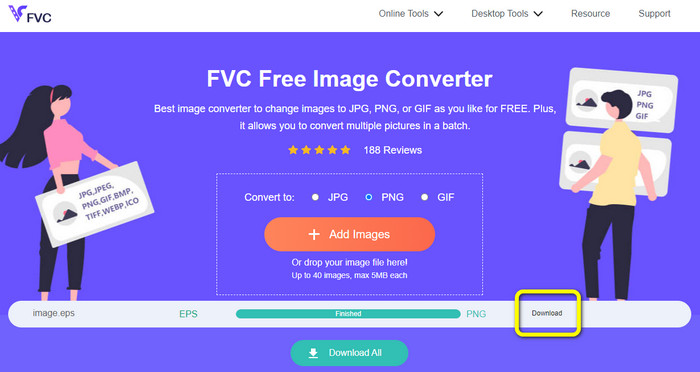
Le format de fichier EPS n’est pas populaire dans certains outils, ce qui rend la conversion difficile. Heureusement, vous pouvez convertir un EPS en JPG ou PNG à l’aide de FVC Free Image Converter. Cet outil en ligne prend en charge divers formats d’entrée, notamment EPS, JPG, PNG, GIF, BMP, et bien d’autres. De cette façon, vous pouvez importer toutes les images que vous voulez. De plus, la conversion d’EPS en JPG/PNG est simple. FVC Free Image Converter propose des méthodes faciles pour convertir les images, ce qui est adapté aux débutants. En outre, le convertisseur dispose d’une fonction de conversion par lot. Vous pouvez convertir jusqu’à 40 images en un seul clic. Vous pouvez accéder au convertisseur d’images depuis tous les navigateurs web comme Google, Firefox, Explorer, et autres. Enfin, après la conversion de vos images, vous n’obtiendrez aucun élément indésirable sur vos images, comme des filigranes, logos, textes, etc.
Convertir EPS en JPG
Étape 1. Ouvrez votre navigateur et rendez-vous sur FVC Free Image Converter. Sélectionnez le format JPG dans l’option Convert to.
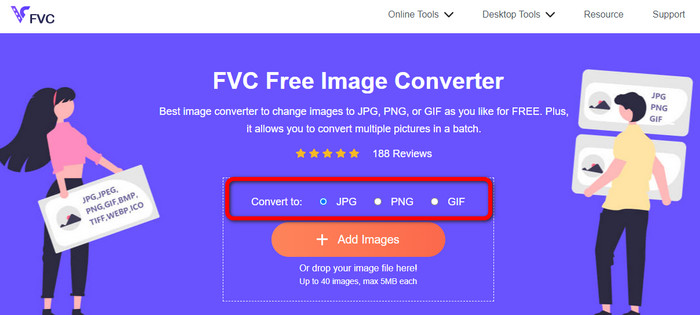
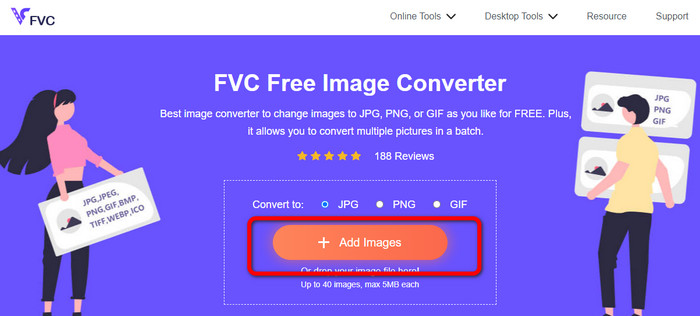
Étape 2. Cliquez sur le bouton Add Images pour importer le fichier image EPS. Ouvrez l’image depuis le dossier de votre ordinateur. Vous pouvez ajouter plusieurs fichiers si vous souhaitez effectuer une conversion par lot.
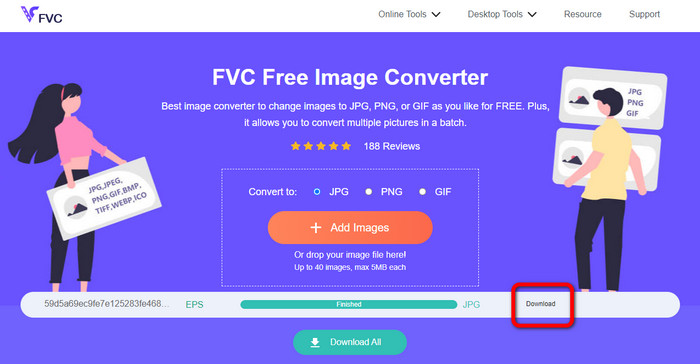
Étape 3. Après le processus de conversion, cliquez sur le bouton Download. De cette manière, vous pouvez enregistrer vos images converties sur votre ordinateur.
Convertir EPS en PNG
Étape 1. Sélectionnez le format de fichier PNG comme format de sortie.
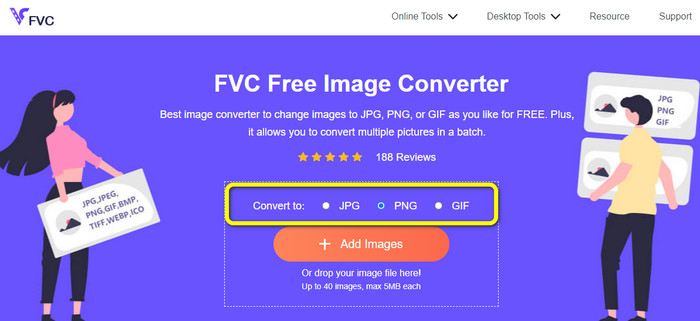
Étape 2. Cliquez sur le bouton Add Images pour importer le fichier image EPS. Ouvrez le fichier EPS depuis le dossier de votre ordinateur. L’autre manière d’importer une image consiste à déposer le fichier image dans la zone prévue.
Étape 3. Enregistrez votre image convertie en cliquant sur le bouton Download. Ouvrez ensuite l’image convertie depuis le dossier de votre ordinateur.
Comment convertir EPS en JPG/PNG sur Aspose
Aspose est un autre outil en ligne utile pour convertir un EPS en JPG ou PNG. Cet outil ne nécessite l’installation d’aucun programme de bureau. Tout peut être converti en ligne depuis n’importe quel système d’exploitation. Windows, Linux, macOS et Android sont tous pris en charge. Aspose ne demande pas d’inscription. Vous pouvez donc lancer immédiatement la procédure de conversion. De nombreuses images peuvent aussi être converties gratuitement. Avec cette méthode, aucun abonnement n’est requis. Outre JPG et PNG, il prend également en charge TIFF, BMP, DIB, GIF, SVG, WEBP et d’autres types de fichiers image. Le fait que cet outil détruise votre image après 24 heures pour garantir la confidentialité le rend également sûr. Cependant, comme il s’agit d’un outil en ligne, vous devez disposer d’un accès à Internet. De plus, il arrive parfois que le programme ne fonctionne pas correctement. La procédure de conversion est également trop lente et ne prend pas en charge la conversion par lot.
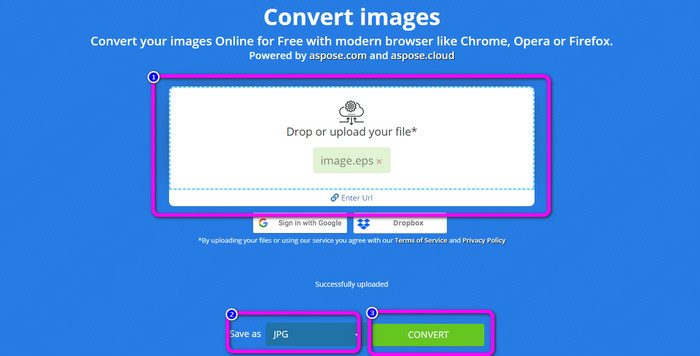
Étape 1. Rendez-vous sur le site officiel d'Aspose. Cliquez sur le bouton Drop or Upload your file. Depuis les fichiers de votre ordinateur, ouvrez l’image EPS que vous devez convertir. Vous pouvez également simplement déposer le fichier EPS dans la zone blanche.
Étape 2. Allez dans l’option Save as et sélectionnez le fichier JPG ou PNG comme format de sortie.
Étape 3. Lancez le processus de conversion en cliquant sur le bouton Convert. Ensuite, enregistrez votre image convertie.
Partie 3. Meilleures méthodes pour convertir EPS en JPG et PNG hors ligne
Comment convertir EPS en JPG/PNG sur Video Converter Ultimate
Trouver une méthode hors ligne pour convertir un EPS en JPG/PNG est difficile. Jusqu’à ce que vous découvriez Video Converter Ultimate. Ce programme vous permet de convertir votre fichier image EPS en JPG/PNG. De plus, vous pouvez convertir plusieurs images en un seul clic grâce à sa fonction de conversion par lot. Le convertisseur possède une interface simple, ce qui le rend facile à comprendre et à utiliser. Vous pouvez également le télécharger sur les systèmes d’exploitation Mac et Windows. Ainsi, vous pouvez accéder facilement au convertisseur. En outre, pendant la conversion de vos images, vous pouvez modifier la qualité de votre image dans les paramètres afin de l’améliorer. Utilisez les instructions simples ci-dessous pour apprendre à convertir EPS en JPG et PNG.
Étape 1. Téléchargez Video Converter Ultimate sur vos ordinateurs Windows ou Mac. Pour obtenir facilement le convertisseur, cliquez sur le bouton Download ci-dessous. Il y a deux boutons ci-dessous, l’un pour Windows et l’autre pour la version Mac.
Téléchargement gratuit pour Windows 7 ou version ultérieure Téléchargement sécurisé
Téléchargement gratuit pour macOS 10.7 ou version ultérieure - Téléchargement sécurisé
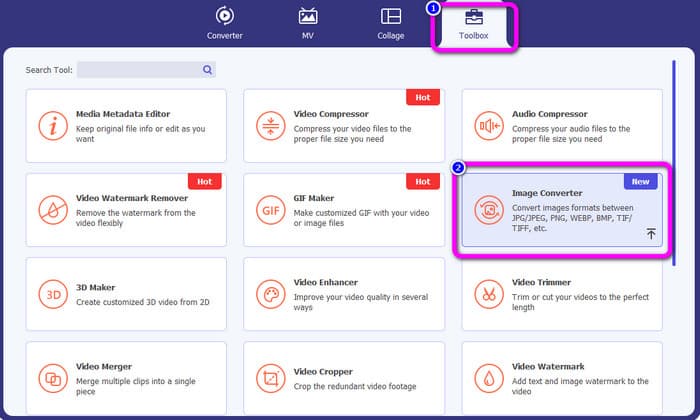
Étape 2. Après avoir lancé le programme, allez dans le panneau Toolbox. Ensuite, sélectionnez l’outil Image Converter.
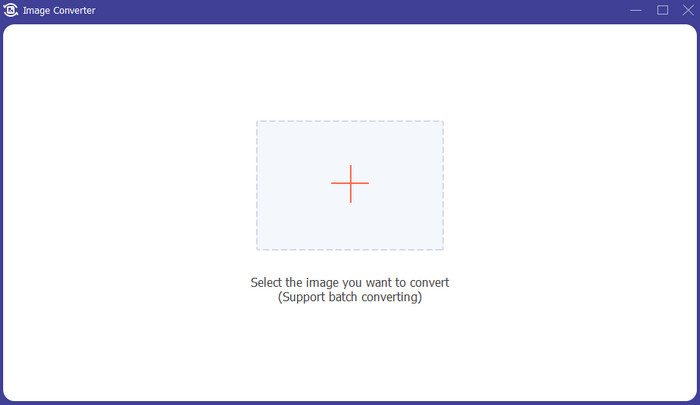
Étape 3. Cliquez sur le bouton Plus pour insérer le fichier image EPS. Vous pouvez également déposer le fichier image dans la zone prévue. De plus, vous pouvez ajouter plusieurs images pour la conversion par lot.
Étape 4. Allez dans les options de format et sélectionnez le format JPG/PNG.
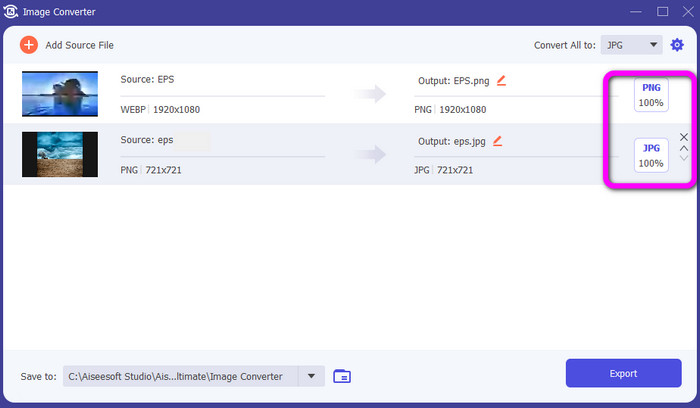
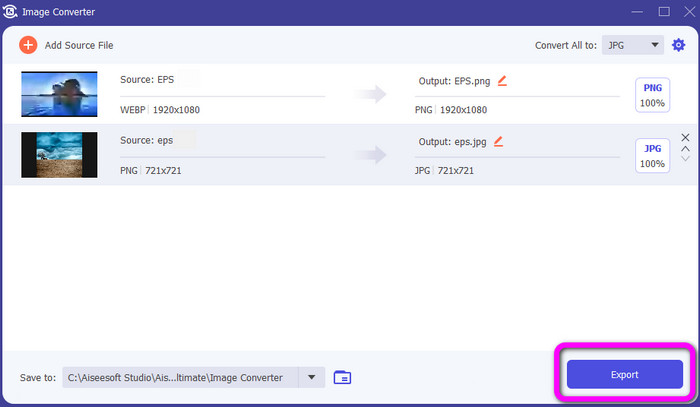
Étape 5. Après avoir sélectionné votre format de sortie souhaité, cliquez sur le bouton Export. Patientez pendant le processus d’exportation, puis vous pourrez ouvrir vos images converties sur votre ordinateur.
Partie 4. FAQ sur la conversion d'EPS en JPG et PNG
1. Pourquoi les gens utilisent-ils des fichiers EPS ?
Les gens utilisent le format de fichier image EPS car il peut réduire et agrandir les images sans perte de qualité.
2. Puis-je ouvrir EPS sur Photoshop ?
Oui, vous pouvez. Cependant, votre image sera pixellisée. Cela signifie qu'il sera verrouillé pour l'édition.
3. Tous les fichiers EPS sont-ils modifiables ?
Oui, ils sont. Si vous souhaitez modifier vos fichiers image EPS, vous pouvez utiliser Illustrator.
Conclusion
Vous avez maintenant une idée de ce que sont les formats EPS, JPG et PNG. De plus, l’article vous a présenté trois méthodes simples pour convertir un fichier EPS en JPG et PNG. Si vous voulez convertir vos fichiers image, utilisez FVC Free Image Converter. Ce convertisseur en ligne vous permet de convertir vos images facilement et rapidement.
-
 Méthodes utiles pour convertir facilement TIFF en JPG/PNG
 Ne manquez pas ces excellents moyens de convertir les formats TIF en JPG/PNG. Cet article vous donnera les informations nécessaires que vous devez savoir. Cela inclut leurs différences.
-
 Méthodes les plus simples pour convertir BMP aux formats JPG et PNG
 Apprenez les meilleures méthodes pour convertir BMP en JPG ou PNG en utilisant d'excellents convertisseurs. Vous découvrirez également la différence entre les formats de fichiers BMP, JPG et PNG.
-
 Détails complets sur les différences entre JPEG, JPG et PNG
 Cet article vous donnera suffisamment d'informations sur les différences entre JPEG, JPG et PNG. De plus, vous apprendrez comment convertir des images vers ces fichiers.
