


 Video Converter Ultimate
 Enregistreur d'écran
 Réparation vidéo
 Téléchargement sécurisé
Façons remarquables de couper une vidéo sur Snapchat [y compris Offline Way]
L’application Snapchat est une autre application qui a gagné en popularité récemment. L’objectif principal de Snapchat était d’échanger des photos privées et personnalisées. Mais vous pouvez désormais l’utiliser pour diverses tâches, comme envoyer des vidéos et participer à des visioconférences en direct. D’un autre côté, vous pouvez aussi utiliser cette application pour couper vos vidéos. Comme nous le savons tous, Snapchat n’accepte que des vidéos d’une durée maximale de 60 secondes. Rogner la vidéo est donc la meilleure solution si vous prévoyez de téléverser ou de publier une vidéo sur cette application mobile. Dans ce cas, lisez cet article pour découvrir en détail les méthodes à essayer pour couper une vidéo sur Snapchat et préparer des vidéos adaptées à Snapchat.

Partie 1. Comment découper une vidéo pour Snapchat à l'aide d'un PC
Snapchat impose une limite de durée lors de la publication d’une vidéo. L’une des meilleures solutions à ce problème est de raccourcir la vidéo. Ainsi, lorsque vous rognezd ou coupez une vidéo, vous pouvez ensuite l’ajouter sur Snapchat. Si vous souhaitez le meilleur logiciel de montage vidéo pour couper une longue vidéo destinée à Snapchat, utilisez Video Converter Ultimate. Ce programme dispose d’une excellente fonction de découpage permettant de scinder votre vidéo en plusieurs parties. De plus, la procédure de découpage des vidéos est idéale pour les utilisateurs non professionnels. Vous pouvez diviser des vidéos en seulement quelques clics. Son interface est également conviviale, ce qui vous permet de comprendre facilement chaque option. En outre, il propose de nombreuses autres fonctionnalités en plus du découpage. Video Converter Ultimate vous permet de recadrer, faire pivoter et améliorer vos vidéos selon vos préférences. Il prend aussi en charge de nombreux formats vidéo, notamment MP4, MOV, MKV, AVI, et bien d’autres. Par ailleurs, les utilisateurs Windows et Mac peuvent accéder au programme, puisqu’il est disponible à la fois sur ordinateurs Mac et Windows.
Étape 1. Cliquez sur le bouton Télécharger ci‑dessous pour télécharger Video Converter Ultimate. Comme le programme est disponible sur Mac et Windows, deux boutons s’affichent ci‑dessous. Cliquez sur le bouton correspondant à l’appareil que vous utilisez. Ensuite, lancez le programme.
Téléchargement gratuit pour Windows 7 ou version ultérieure Téléchargement sécurisé
Téléchargement gratuit pour macOS 10.7 ou version ultérieure - Téléchargement sécurisé
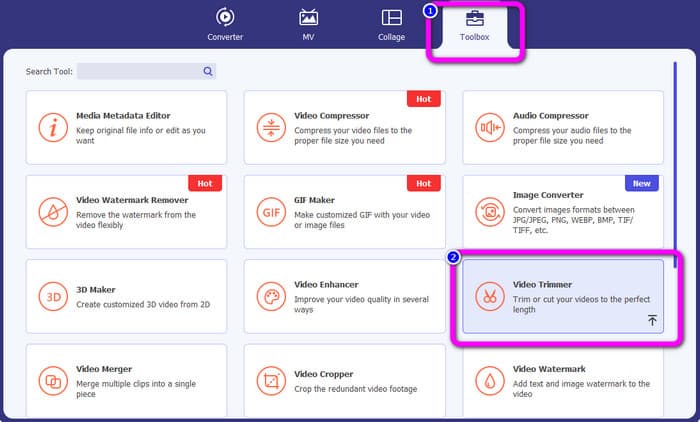
Étape 2. Cliquez sur l’onglet Boîte à outils dans la partie supérieure de l’interface. Lorsque les outils s’affichent sous Boîte à outils, sélectionnez l’outil Découpeur vidéo (Video Trimmer).
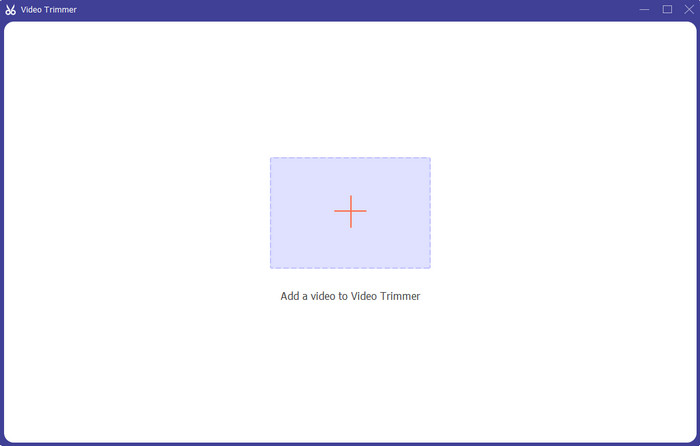
Étape 3. Cliquez sur le symbole Plus au centre de l’interface. Ensuite, sélectionnez la vidéo que vous souhaitez couper dans votre dossier de fichiers.
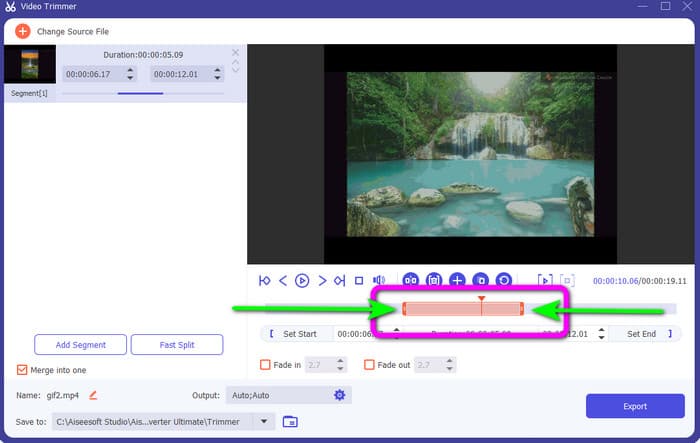
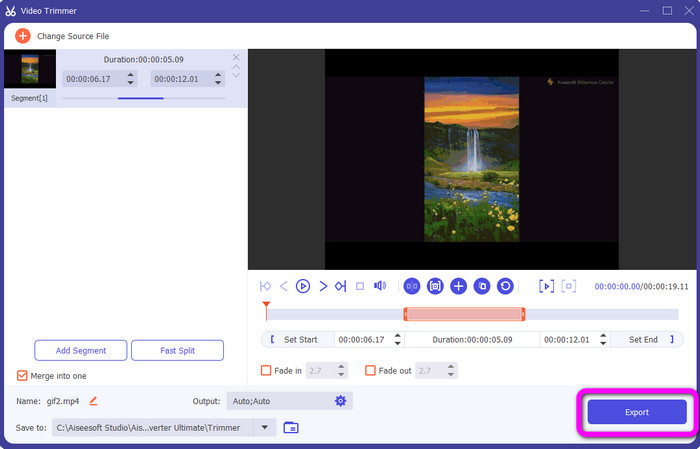
Étape 4. Vous pouvez couper la vidéo en ajustant la barre orange située dans la partie inférieure de la vidéo. Cette barre possède un bord de chaque côté. Ajustez les extrémités de la barre pour rogner la vidéo que vous voulez modifier.
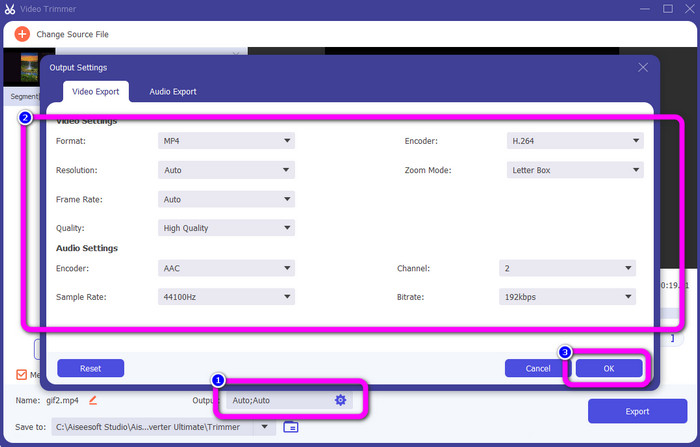
Étape 5. En cliquant sur l’option Paramètres de sortie, vous pouvez modifier la fréquence d’images, la qualité, la résolution et le mode de zoom de la vidéo pour effectuer des réglages supplémentaires. Vous pouvez également changer la fréquence d’échantillonnage et le débit binaire (bitrate) de l’audio. Cliquez ensuite sur OK.
Étape 6. Pour terminer, cliquez sur le bouton Exporter. Patientez pendant le processus final et, après quelques secondes, vous pourrez enregistrer la vidéo finale modifiée sur votre ordinateur.
Partie 2. Comment couper une vidéo sur Snapchat
Dans cette partie, vous apprendrez à découper une vidéo sur Snapchat. Cette application mobile est excellente pour capturer des photos et des vidéos. Il vous donne de nombreux effets pour les améliorer et satisfaire les utilisateurs. Il est également considéré comme une plate-forme de communication pour d'autres personnes. De plus, Snapchat n'est pas seulement capable de ce genre de choses. L'application mobile vous permet également de couper ou de découper une vidéo facilement. En plus de cela, Snapchat vous permet de modifier votre vidéo en modifiant les filtres, en ajoutant des effets, en recadrant, etc. Cependant, comme d'autres applications, Snapchat se concentre sur la capture de photos et de vidéos. Vous ne pouvez donc pas utiliser les outils d'édition avancés de l'application. En outre, il n'accepte que les vidéos courtes, ce qui n'est pas satisfaisant pour les utilisateurs qui souhaitent télécharger de longues vidéos. Voir les procédures ci-dessous pour raccourcir une vidéo sur Snapchat.
Couper une vidéo après l'enregistrement
Étape 1. Téléchargez Snapchat depuis l’App Store ou le Google Play Store. Après avoir installé l’application mobile, ouvrez‑la sur votre téléphone.
Étape 2. Ensuite, enregistrez une vidéo avec Snapchat. Une fois l’enregistrement terminé, un mini‑clip apparaît dans la partie inférieure de l’écran. Appuyez dessus pour commencer le rognage.
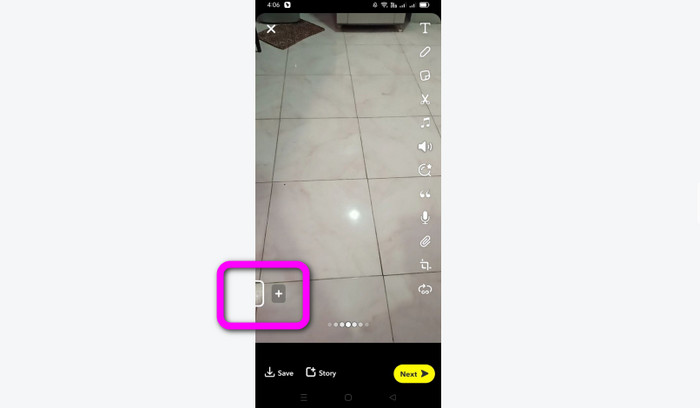
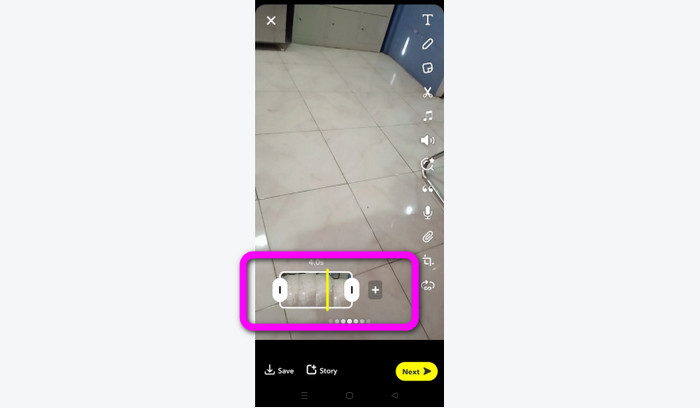
Étape 3. Vous pouvez poursuivre le processus lorsque le clip apparaît à l’écran. Faites glisser les bords du clip et coupez la vidéo selon vos préférences.
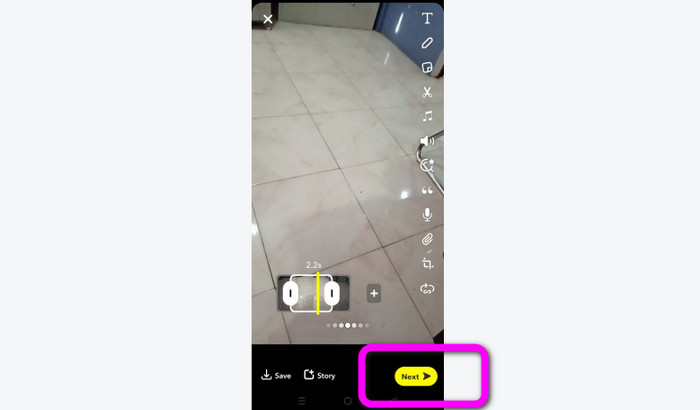
Étape 4. Lorsque vous êtes satisfait du résultat final, appuyez sur le bouton Suivant dans le coin inférieur gauche de l’interface. Vous pourrez ainsi enregistrer votre vidéo rognée.
Couper une vidéo à partir de souvenirs
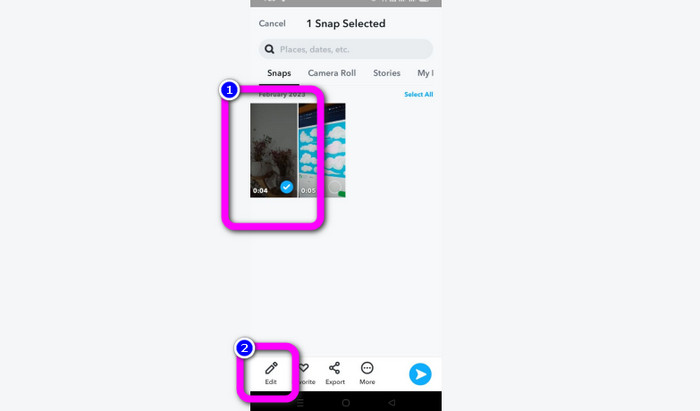
Étape 1. Ouvrez votre application Snapchat sur votre téléphone. Ensuite, allez dans Memories. Dans cette section, vous pouvez voir vos vidéos. Maintenez le doigt sur la vidéo pendant quelques secondes, puis cliquez sur l’option Modifier.
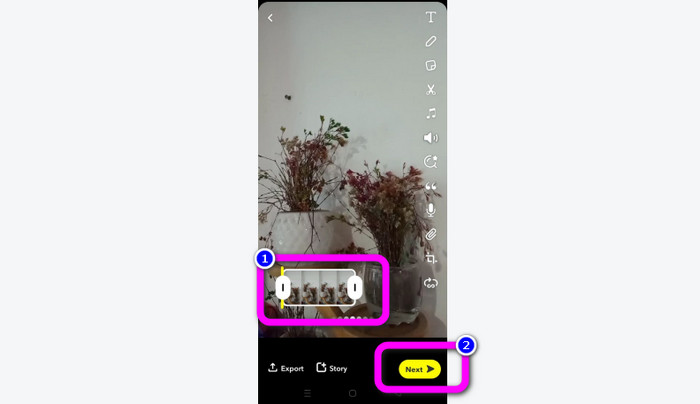
Étape 2. Vous verrez alors la vidéo dans la partie inférieure de l’écran. Cette vidéo vous permet d’ajuster les extrémités du clip pour commencer à rogner. Une fois le rognage terminé, cliquez sur le bouton Suivant pour enregistrer la vidéo finale.
11 remarquables découpeurs de vidéo à utiliser [gratuits et payants]
Excellentes méthodes pour couper une vidéo en ligne facilement
Partie 3. FAQ sur la façon de couper une vidéo sur Snapchat
1. Que signifie couper une vidéo sur Snapchat ?
Couper une vidéo consiste à faire une coupe qui établit une section spécifique comme début et une section spécifique comme fin du clip vidéo. Cette option vous permet de choisir les positions de début et de fin d'une vidéo sur Snapchat. Cette option est idéale si vous souhaitez télécharger des parties d'une vidéo qui ont initialement duré plus de 10 secondes.
2. Pouvez-vous utiliser la fonction de fractionnement sur Snapchat ?
Vous ne pouvez pas utiliser cette fonctionnalité si vous avez téléchargé une vidéo à partir de votre Pellicule. Si vous avez utilisé l'appareil photo Snapchat pour capturer, vous pouvez. Vous pouvez utiliser l'outil Fractionner pour séparer le film en morceaux modifiables et supprimer toutes les parties que vous ne souhaitez pas conserver.
3. Quelle est la taille maximale d'une vidéo Snapchat ?
Si vous transmettez des photos ou des vidéos de votre pellicule à Snapchat, vous ne pouvez envoyer qu'une seule vidéo jusqu'à 2,5 Mo. Vos fichiers sont compressés avant d'être livrés.
Conclusion
Si vous utilisez Snapchat pour couper une vidéo, cet article est fait pour vous. Il vous a présenté la meilleure méthode pour couper une vidéo sur Snapchat. De plus, si vous préférez préparer sur ordinateur une vidéo rognée pour Snapchat, il existe un programme que vous pouvez utiliser. Video Converter Ultimate est un excellent logiciel pour couper des vidéos sur ordinateur. Il possède une interface intuitive et est entièrement gratuit.
-
 6 filtres Snapchat animés Snapchat préférés sur Snapchat
 Vous voulez connaître les meilleures façons d'ajouter des filtres sur les vidéos Snapchat ? Eh bien, vous pouvez cliquer dessus et découvrir les différents filtres que vous pouvez utiliser pour appliquer sur les vidéos Snapchat.
-
 Comment ralentir facilement une vidéo sur Snapchat sur n'importe quel appareil
 La meilleure façon de ralentir une vidéo sur Snapchat est déjà ici. Pour savoir quelles sont ces techniques pour ralentir une vidéo suivez-la attentivement.
-
 Les moyens les plus simples de supprimer le texte de Snapchat d'une capture d'écran
 Supprimons le texte Snapchat des photos et des vidéos à l'aide d'outils fiables en ligne et hors ligne. Nous vous proposerons des moyens simples. Essayez-le maintenant, et essayons !
