


 Video Converter Ultimate
 Enregistreur d'écran
 Réparation vidéo
 Téléchargement sécurisé
Meilleurs convertisseurs MP4 pour booster le contenu - Outils pour des conversions transparentes
La conversion de fichiers vidéo au format MP4 est devenue essentielle pour quiconque souhaite profiter d'une lecture transparente sur tous les appareils. Bien que d'innombrables outils soient disponibles pour convertir des vidéos en MP4, tous n'offrent pas la même qualité et les mêmes performances.
C’est la raison pour laquelle nous avons pris le temps d’examiner et de comparer les meilleurs convertisseurs MP4 du marché, afin que vous puissiez prendre une décision éclairée et optimiser votre flux de travail vidéo. Que vous soyez un vidéaste professionnel, un créateur de contenu ou que vous souhaitiez simplement convertir quelques vidéos pour un usage personnel, notre analyse complète des convertisseurs MP4 les mieux notés vous aidera à trouver l’outil idéal pour vos besoins.

Partie 1. Comparaison des programmes
Si vous souhaitez connaître en un coup d'œil le programme le mieux adapté à vos besoins, vous pouvez consulter le tableau comparant les programmes mentionnés dans cet article. Tous ces programmes garantissent de vous aider à convertir en MP4.
| Programmes | Conversion par lots | Accélération GPU | Caractéristiques supplémentaires |
| Convertisseur Vidéo Gratuit en Ligne | Oui | Non | Personnalisation du format de sortie, conversion par lots |
| Online-Convert.com | Oui | Non | Conversion de divers types de fichiers |
| CloudConvert | Oui | Non | Intégration avec les services de stockage en nuage |
| Convertio | Oui | Non | Intégration avec les services de stockage en nuage, conversion de divers types de fichiers |
| Convertisseur vidéo FVC Ultimate | Oui | Oui | Montage vidéo, créateur de GIF, créateur de 3D |
| VLC Media Player | Non | Non | Lecteur multimédia, streaming vidéo, conversion audio |
| Frein à main | Oui | Non | Montage vidéo, numérisation par lots |
Partie 2. Les 4 meilleurs convertisseurs MP4 en ligne
Avec les convertisseurs de fichiers en ligne, vous pouvez facilement convertir vos fichiers depuis n'importe quel appareil sans avoir à télécharger de logiciel supplémentaire. Les convertisseurs de fichiers en ligne sont également généralement très rapides, gratuits et sécurisés, garantissant que vos données sont protégées contre tout accès non autorisé. Par conséquent, si vous souhaitez convertir en MP4 ou convertir à partir de MP4, vous pouvez consulter ces programmes en ligne.
1. Convertisseur MP4 gratuit en ligne
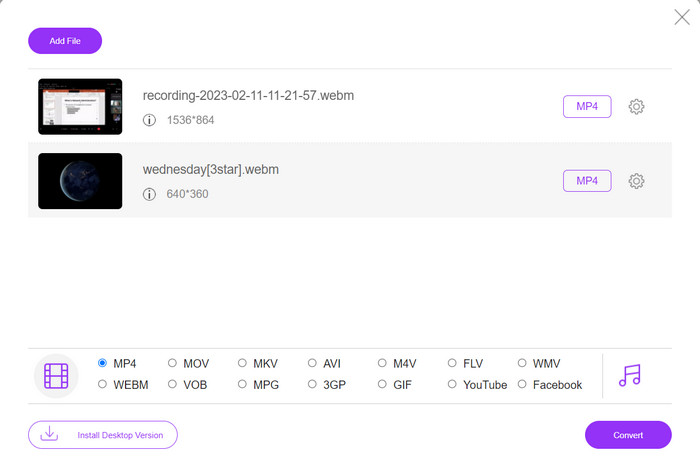
La conversion de fichiers en ligne est très pratique, car vous pouvez le faire depuis n’importe quel appareil connecté à Internet sans avoir à télécharger de logiciel supplémentaire. C’est justement l’objectif du Convertisseur MP4 gratuit en ligne. Cela signifie que vous n’avez rien à installer sur votre appareil pour convertir vos fichiers au format MP4. L’une de ses fonctionnalités remarquables est la possibilité de personnalisation. Les utilisateurs peuvent modifier la résolution vidéo, le débit binaire, la fréquence d’images, etc. De plus, le processus est simple et direct.
Fonctionnalités clés :
◆ Convertissez rapidement des vidéos dans de nombreux formats de sortie.
◆ Il ne limite pas la taille du fichier que les utilisateurs peuvent télécharger.
◆ Accessible depuis n'importe quel navigateur et appareil avec accès à Internet.
Étape 1. Vous pouvez utiliser ce convertisseur vidéo MP4 en visitant son site officiel. Ouvrez simplement n’importe quel navigateur sur votre ordinateur et accédez immédiatement à son site web.
Étape 2. Installez immédiatement le petit lanceur puis importez la ou les vidéos que vous souhaitez convertir en MP4. Dans la liste des formats ci‑dessous, choisissez MP4 en cochant son bouton radio.
Étape 3. Enfin, cliquez sur le bouton Convert pour lancer le processus de conversion des fichiers.
2. Online-Convert.com
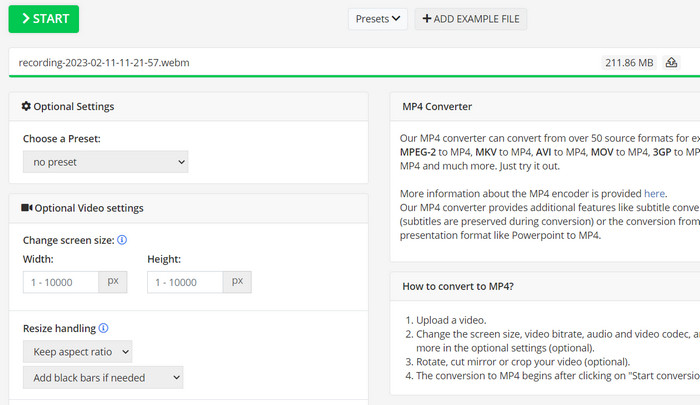
Online-Convert est un convertisseur MP4 en ligne convivial et polyvalent qui prend en charge une large gamme de formats d'entrée et de sortie, y compris la personnalisation des paramètres de sortie tels que la résolution, le débit et la fréquence d'images. L'outil est rapide et fiable, avec une intégration de stockage dans le cloud et des fonctionnalités de sécurité telles que le cryptage SSL pour protéger vos fichiers pendant le processus de téléchargement et de conversion. De plus, son utilisation est entièrement gratuite et sans frais cachés, ce qui en fait une option accessible à tous ceux qui ont besoin de convertir des fichiers vidéo avec un budget limité.
Fonctionnalités clés :
◆ Il est livré avec une large gamme de formats vidéo.
◆ Interface conviviale.
◆ Conversion rapide et fiable.
Étape 1. Allez sur Online-Convert.com et choisissez Video Converter dans la liste des outils.
Étape 2. Cliquez sur Choose Files pour ajouter la vidéo que vous souhaitez convertir. Vous pouvez également faire glisser le fichier et le déposer dans le cadre prévu.
Étape 3. Vous pouvez aussi modifier la résolution, le débit binaire et la fréquence d’images du résultat si vous le souhaitez. Les réglages sont disponibles sous la zone de conversion.
Étape 4. Pour démarrer le processus de conversion, cliquez sur le bouton Start. Une barre de progression affichera l’avancement de la conversion sur la page.
3. CloudConvert
CloudConvert est un convertisseur MP4 en ligne qui offre une gamme complète de fonctionnalités à ses utilisateurs, notamment une prise en charge complète des formats, des paramètres de sortie personnalisables, une interface conviviale, l'intégration du stockage dans le cloud, la sécurité et la confidentialité, l'intégration de l'API et des options gratuites et payantes. De plus, ce convertisseur vidéo en MP4 est un outil fiable et polyvalent pour convertir des fichiers vidéo au format MP4. Ses paramètres de sortie personnalisables en font une excellente option pour les utilisateurs qui ont besoin d'ajuster la qualité et la taille de leurs vidéos pour répondre à leurs besoins spécifiques.
Fonctionnalités clés :
◆ CloudConvert offre une intégration d'API pour intégrer les workflows.
◆ Il utilise le cryptage SSL pour protéger les fichiers de l'utilisateur.
◆ Il prend en charge l'intégration du stockage dans le cloud.
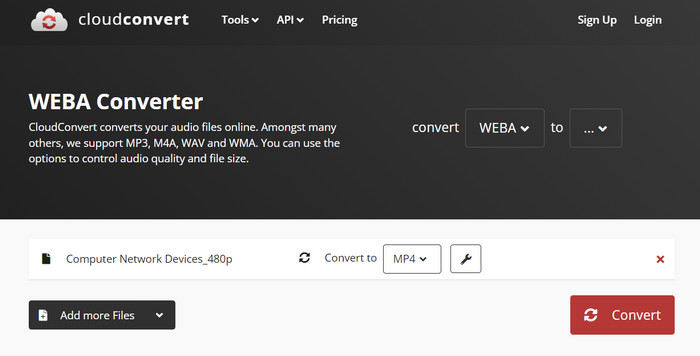
Étape 1. Rendez-vous sur le site de CloudConvert et créez un compte gratuit si ce n’est pas déjà fait.
Étape 2. Cliquez sur Select Files pour ajouter la vidéo que vous souhaitez convertir. Vous pouvez également simplement faire glisser le fichier et le déposer dans la zone de téléversement. Choisissez MP4 dans le menu déroulant comme format de sortie.
Étape 3. Modifiez les options de sortie, telles que la résolution, le débit binaire et la fréquence d’images, si vous le souhaitez.
Étape 4. Cliquez sur le bouton Convert pour lancer le processus de conversion.
4. Convertio
Convertio est un excellent choix si vous souhaitez transformer rapidement vos fichiers vidéo au format MP4. Avec son interface facile à utiliser et ses temps de conversion rapides, il est facile de changer vos films afin qu'ils puissent être visionnés sur une large gamme d'appareils et de plates-formes. Convertio est un outil polyvalent qui peut gérer tous vos besoins de conversion vidéo. Il fonctionne avec le stockage en nuage et vous permet d'utiliser une large gamme de fichiers d'entrée et de sortie. Découvrez comment fonctionne ce convertisseur MP4 gratuit.
Fonctionnalités clés :
◆ Conversion par lots pour plusieurs fichiers.
◆ Intégration avec des services comme Google Drive, Dropbox, etc.
◆ Fonctionnalités avancées telles que l'OCR pour convertir les documents numérisés.
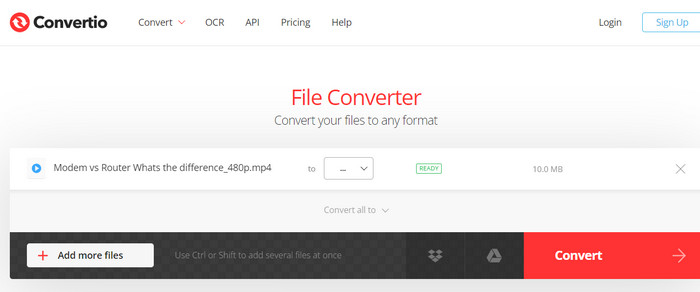
Étape 1. Sur le site Convertio (https://convertio.co/), cliquez sur Choose Files pour ajouter la vidéo que vous souhaitez convertir. Vous pouvez aussi faire glisser le fichier et le déposer dans la zone de téléversement.
Étape 2. Dans la liste déroulante, choisissez MP4 comme format de sortie. Vous pouvez également modifier la résolution, le débit binaire et la fréquence d’images du résultat si vous le souhaitez.
Étape 3. Pour lancer la conversion, cliquez sur le bouton Convert. Une barre de progression affichera l’avancement de la conversion sur la page.
Étape 4. Une fois le processus terminé, vous pouvez cliquer sur Download pour enregistrer le fichier MP4 sur votre ordinateur.
Partie 3. Les 3 meilleurs convertisseurs MP4 hors ligne
Désormais, si, dans certains cas, vous n'avez pas accès à Internet, vous pouvez opter pour des programmes hors ligne dans ces cas. Alors, voici les outils sur lesquels vous pouvez compter.
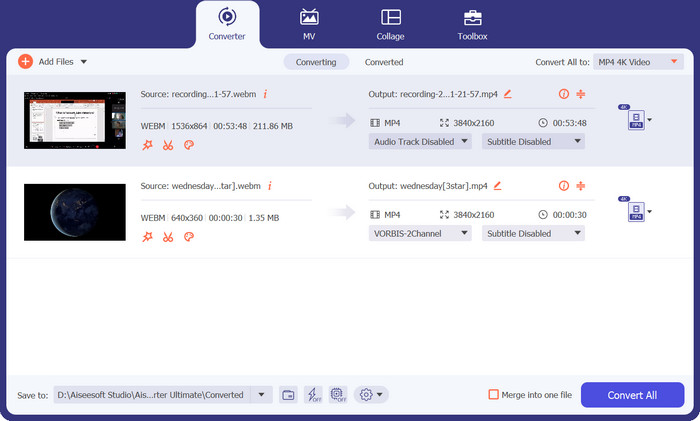
1. FVC Video Converter Ultimate
FVC Video Converter Ultimate est un logiciel puissant qui offre une solution complète pour convertir des fichiers vidéo au format MP4. Il prend en charge un large éventail de formats d’entrée et de sortie, y compris les vidéos HD et 4K, et propose des paramètres de sortie personnalisables afin de garantir une excellente qualité. De plus, ce convertisseur MP4 permet la conversion par lots de plusieurs fichiers à la fois et inclut des outils de montage pour couper, recadrer, ajouter des filigranes, et bien plus encore. Grâce à sa rapidité de conversion et à la haute qualité de ses résultats, FVC Video Converter Ultimate est un outil fiable et polyvalent pour tous vos besoins de conversion en MP4.
Fonctionnalités clés :
◆ Il inclut la prise en charge des vidéos HD et 4K pour conserver des vidéos de haute qualité.
◆ Prise en charge de l'accélération matérielle pour les GPU NVIDIA et AMD.
◆ Il prend en charge divers périphériques de sortie.
Étape 1. La première chose à faire pour utiliser ce convertisseur est de récupérer son programme d’installation, puis de l’installer sur votre appareil. Vous pouvez obtenir l’application en utilisant les boutons Free Download ci‑dessous.
Téléchargement gratuitPour Windows 7 ou version ultérieureTéléchargement sécurisé
Téléchargement gratuitPour macOS 10.7 ou version ultérieureTéléchargement sécurisé
Étape 2. Lancez ensuite l’outil et chargez n’importe quelle vidéo en cliquant sur le signe Plus depuis l’interface principale du programme.
Étape 3. Ensuite, allez dans le menu Profile et sélectionnez MP4 dans l’onglet Video. Enfin, cliquez sur le bouton Convert All pour convertir toutes vos vidéos en fichiers MP4.
2. Lecteur multimédia VLC
VLC Media Player est un lecteur multimédia gratuit largement reconnu pour sa capacité à lire presque tous les formats de fichiers audio ou vidéo. Ce que beaucoup de gens ne savent peut-être pas, c'est que VLC Media Player est également un puissant convertisseur vidéo qui peut facilement convertir vos vidéos au format MP4. Vous trouverez ci-dessous certaines de ses principales caractéristiques pour en savoir plus sur ce programme.
Fonctionnalités clés :
◆ Il peut éditer le codec vidéo et audio, la résolution et le débit binaire.
◆ Il est capable d’ajouter des sous-titres aux vidéos.
◆ Il est capable de prévisualiser les vidéos avant de les convertir.
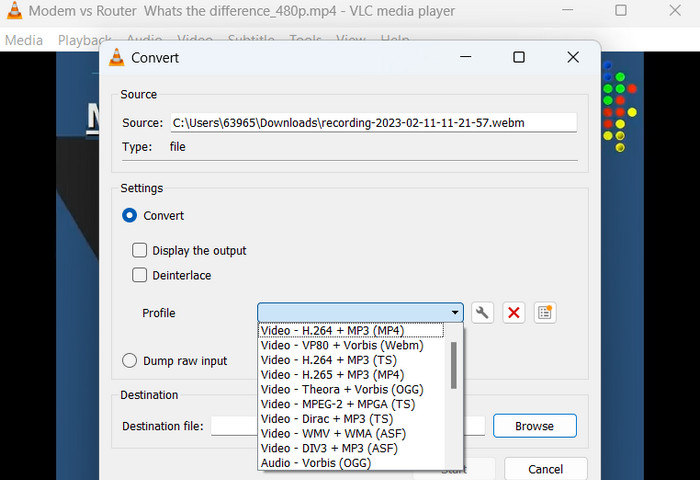
Étape 1. Ouvrez VLC Media Player sur votre ordinateur. Cliquez sur Media dans la barre de menu en haut, puis sélectionnez Convert/Save dans le menu déroulant.
Étape 2. Cliquez sur le bouton Add pour sélectionner la vidéo que vous souhaitez convertir. Une fois le fichier ajouté, cliquez sur le bouton Convert/Save.
Étape 3. Dans la section Profile, sélectionnez Video - H.264 + MP3 (MP4) comme format de sortie. Cliquez sur le bouton Start pour lancer la conversion et attendez que le processus soit terminé.
3. Frein à main
HandBrake est un transcodeur vidéo open source qui vous permet de convertir vos fichiers vidéo dans une variété de formats, y compris MP4. C'est un outil populaire parmi les passionnés de vidéo pour sa facilité d'utilisation et ses fonctionnalités puissantes. De même, ce convertisseur vidéo MP4 propose également un traitement par lots, ce qui vous permet de convertir plusieurs fichiers à la fois, et il dispose d'une gamme de préréglages qui facilitent l'optimisation de vos vidéos pour différents appareils et plates-formes.
Fonctionnalités clés :
◆ Logiciels gratuits et open-source.
◆ Il prend en charge les sous-titres et les créateurs de chapitres.
◆ Préréglages pour optimiser la sortie vidéo.
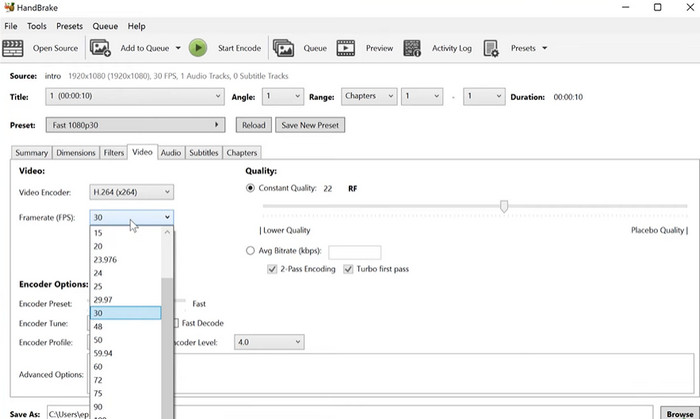
Étape 1. Téléchargez et installez HandBrake depuis le site officiel. Ouvrez HandBrake et sélectionnez la vidéo que vous souhaitez convertir en cliquant sur le bouton Open Source dans le coin supérieur gauche de la fenêtre.
Étape 2. Choisissez un préréglage pour votre fichier de sortie en sélectionnant l’une des options dans le menu Presets en haut de la fenêtre. Si vous ne savez pas quel préréglage utiliser, vous pouvez choisir Fast 1080p30 pour un bon compromis entre vitesse et qualité.
Étape 3. Cliquez sur le bouton Start Encode dans le menu supérieur pour lancer le processus de conversion.
Partie 4. FAQ sur les convertisseurs MP4
Puis-je lire des fichiers MP4 sur mon iPhone ?
Oui. Le format MP4 est déjà pris en charge par les iPhone. MP4 est un format vidéo universel compatible avec la plupart des appareils, y compris les iPhone. Par conséquent, vous n’avez pas besoin d’un convertisseur MP4‑vers‑iPhone. Vous pouvez simplement utiliser le lecteur préinstallé sur l’iPhone ou chercher un lecteur vidéo tiers pour iPhone.
Puis-je télécharger des fichiers MP4 sur TikTok ?
Oui. Vous n'avez pas besoin de trouver un convertisseur MP4 vers TikTok pour télécharger car TikTok accepte les fichiers vidéo MP4 comme l'un des formats pris en charge pour télécharger des vidéos sur la plate-forme.
Puis-je convertir des fichiers MP4 en formats compatibles avec iTunes ?
Oui. Vous n'avez pas besoin de trouver un convertisseur MP4 vers iTunes. Vous pouvez utiliser des convertisseurs, tels que HandBrake, pour vous aider.
Conclusion
Les convertisseurs MP4 sont des outils indispensables pour toute personne souhaitant regarder ou partager ses vidéos sur différents appareils ou plateformes. Ils offrent un moyen pratique et fiable de garantir la compatibilité et une lecture vidéo de haute qualité. C’est pourquoi nous avons rassemblé et comparé les meilleurs programmes disponibles afin de vous aider à choisir l’application la plus adaptée.
-
 Le meilleur éditeur MP4 pour Windows et Mac en 2023
 Que vous utilisiez votre ordinateur pour le montage vidéo MP4 ou que vous travailliez simplement sur votre téléphone, vous pourrez trouver ici d'excellentes options, y compris le meilleur éditeur MP4 pour Windows et Mac.
-
 Comment compresser une vidéo MP4 à une taille plus petite
 La vidéo MP4 est trop volumineuse pour être téléchargée? Vous souhaitez réduire la taille de la vidéo? Voici 3 façons efficaces de compresser un fichier MP4 à une taille plus petite sans limite.
-
 Les 5 meilleurs éditeurs de métadonnées MP4 [Mise à jour 2023]
 Comment puis-je modifier mes métadonnées MP4 ? La meilleure façon de modifier les métadonnées de votre MP4 est d'utiliser un éditeur de balises prenant en charge le format MP4, comme l'exemple que nous énumérons ci-dessous.
