


 Video Converter Ultimate
 Enregistreur d'écran
 Réparation vidéo
 Téléchargement sécurisé
Comment enregistrer sur PS4 via la fonction par défaut et les meilleures alternatives
La PS4, ou PlayStation 4, impressionne de nombreux joueurs par sa puissance remarquable et ses excellentes performances depuis sa sortie. Aujourd’hui encore, elle occupe une place importante dans la vie de beaucoup de gamers grâce à son large catalogue de jeux et à ses fonctions qui vont bien au‑delà du simple jeu vidéo. Lorsque vous jouez à vos titres préférés sur PS4, il est tout à fait naturel de vouloir capturer vos moments épiques pour les partager avec les autres, n’est‑ce pas ? Quelles que soient vos raisons, savoir comment enregistrer sur PS4 est donc très important. C’est précisément pour cela que nous sommes là pour vous aider !
Dans cet article, nous allons détailler les étapes à suivre pour enregistrer votre gameplay sur votre console préférée en utilisant sa méthode par défaut, ainsi que les meilleures alternatives que vous pouvez utiliser ! Alors, faites attention et suivez attentivement pour vous assurer de bien faire les choses.

Partie 1. Comment enregistrer l'écran de la PS4 en pleine qualité sans limite en dehors de la méthode par défaut
Comme la PS4 impose une limite de temps, commençons par la meilleure alternative. Puisque vous cherchez à enregistrer vos sessions de jeu sur console, le FVC Screen Recorder est une option fiable. Il s’agit d’un logiciel de bureau spécialisé dans la capture de gameplay, mais aussi d’écrans, de vidéos, de sons, de téléphones, et plus encore. Avec la prise en charge d’un enregistrement sans perte à 60 images par seconde, vous pouvez capturer votre gameplay de manière fluide et en haute qualité. De plus, il est particulièrement pratique pour celles et ceux qui souhaitent enregistrer une durée de jeu illimitée. En outre, ce FVC Screen Recorder propose des fonctions de montage et de partage de vos clips enregistrés sur diverses plateformes comme YouTube, Twitter, Facebook, Instagram, et bien d’autres.
Ce qui est encore plus intéressant, c'est qu'il propose des préférences qui vous permettent de personnaliser vos enregistrements en fonction de vos besoins. Ainsi, qu'il s'agisse d'ajuster les paramètres de sortie, de nettoyer votre voix off avec la suppression du bruit ou d'intégrer votre webcam dans un mode image dans l'image, cet outil est là pour vous ! De plus, avec des fonctionnalités telles que la capture instantanée, le partage rapide sur des sites Web populaires et l'amélioration, cet enregistreur d'écran reste un outil polyvalent pour les joueurs. Par conséquent, voici comment enregistrer un écran PS4 sans aucune limitation de temps.
Étape 1. Commencez par télécharger la version appropriée de l’enregistreur de jeu sur votre ordinateur et lancez‑le. Avant de démarrer l’enregistrement, assurez‑vous que votre PS4 est connectée au même ordinateur via le partage d’écran Remote Play.
Téléchargement gratuitPour Windows 7 ou version ultérieureTéléchargement sécurisé
Téléchargement gratuitPour macOS 10.7 ou version ultérieureTéléchargement sécurisé
Étape 2. Lorsque le logiciel d’enregistrement s’ouvre, plusieurs options s’offrent à vous. Pour cette tâche, cliquez sur l’outil Game Recorder. Choisissez ensuite la fenêtre où s’affiche votre PS4 en cliquant sur la flèche du premier encadré de sélection. Puis, réglez librement les autres paramètres selon vos préférences.
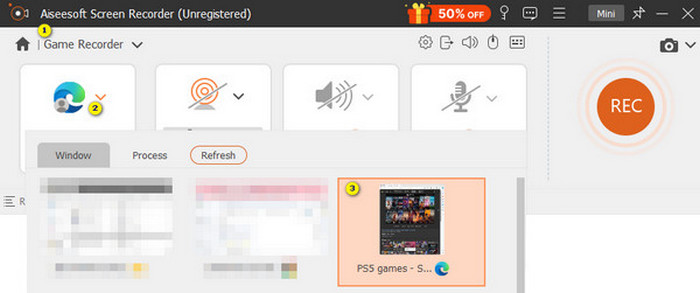
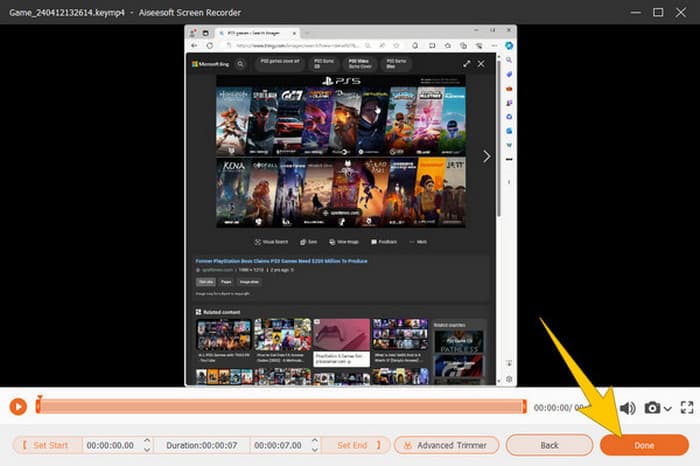
Étape 3. Une fois le paramétrage terminé, cliquez sur le bouton REC pour commencer l’enregistrement. Quand vous avez fini, appuyez sur le bouton Stop. Le logiciel vous mènera alors vers une fenêtre où vous pourrez apporter quelques ajustements à votre enregistrement. Vous pouvez couper le clip, prendre une capture d’écran et régler le volume si vous le souhaitez. Cliquez ensuite sur le bouton Done pour procéder à l’enregistrement du fichier de sortie.
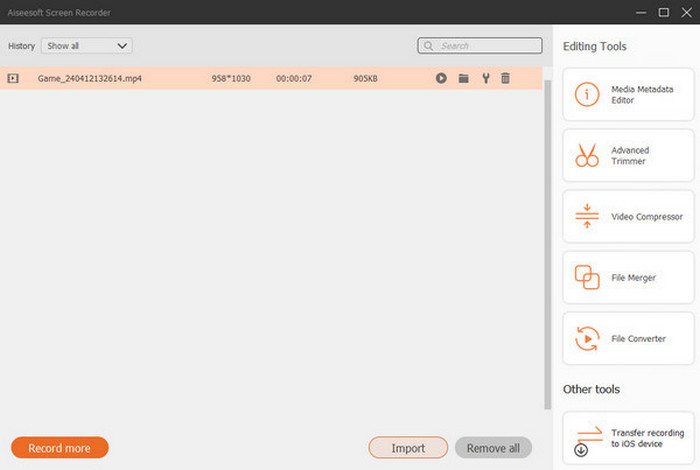
Étape 4. Une fois la vidéo enregistrée, une nouvelle fenêtre apparaît. Vous pouvez faire un clic droit sur votre séquence de jeu enregistrée, puis choisir les paramètres avancés que vous souhaitez appliquer. Vous pouvez également choisir de la partager sur la plateforme de votre choix, si vous le désirez. Voilà comment enregistrer l’écran d’une PS4 sans aucune limite.
Partie 2. Comment enregistrer sur PS4 de la manière par défaut
En plus d’un enregistreur de jeu tiers, vous disposez aussi d’un enregistreur intégré à la PS4. Passons maintenant aux étapes d’utilisation de l’enregistreur intégré de la PS4.
Étape 1. Commencez par allumer votre PS4 et sélectionner le jeu que vous voulez capturer. Lancez ensuite la partie. Lorsque vous êtes prêt à commencer l’enregistrement, appuyez simplement deux fois sur le bouton Share de votre manette.
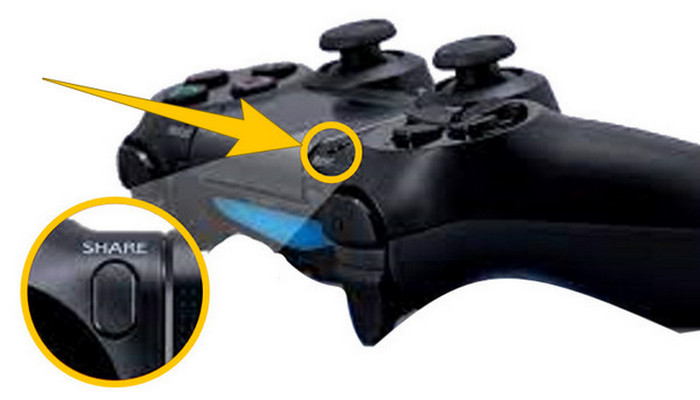
Étape 2. Une notification vous indiquera que l’enregistrement a démarré. Mais comment arrêter l’enregistrement du gameplay sur PS4 une fois terminé ? Pour cela, il vous suffit d’appuyer longuement sur le bouton Share.
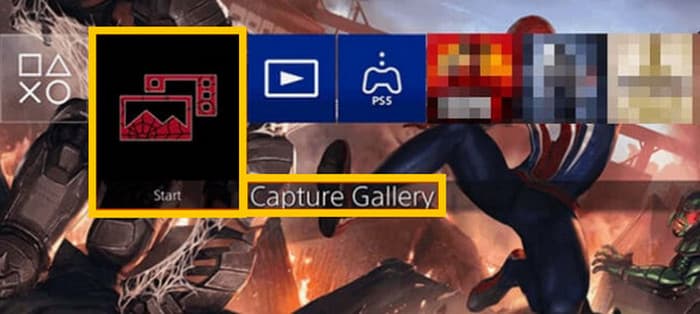
Étape 3. Ensuite, pour voir votre enregistrement, accédez au Menu principal, puis sélectionnez la Capture Gallery parmi les options proposées.
Partie 3. Comment enregistrer une partie sur PS4 à l'aide d'une carte de capture
Une autre alternative populaire à l'enregistreur PS4 par défaut est l'utilisation d'une carte de capture. Bien sûr ! Une carte de capture vous aidera à connecter votre PS4 à d'autres appareils et vous permettra d'enregistrer tout ce qui se trouve sur votre PS4. Si vous ne le saviez pas, continuez à lire et suivez les instructions que nous vous donnons ci-dessous.
Étape 1. Connectez la carte d’acquisition à votre PS4, à votre ordinateur et à votre téléviseur ou moniteur via HDMI. Assurez‑vous ensuite que votre ordinateur dispose d’OBS pour que l’enregistrement fonctionne.

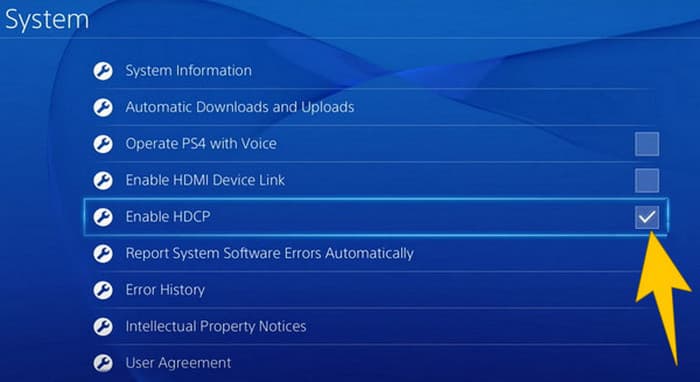
Étape 2. Configurez maintenant votre PS4 en allant dans Settings, puis en sélectionnant System, puis System Information. À partir de là, cochez l’option Activer le HDCP (Enable HDCP).
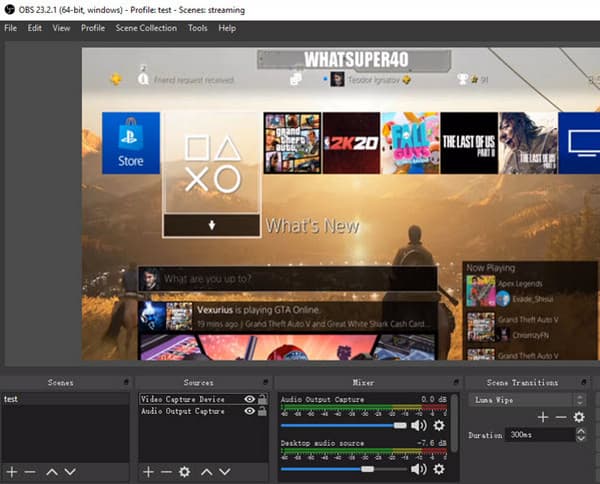
Étape 3. Lancez OBS, puis allez dans la Source Section>Plus>Video Capture Device, puis cliquez sur le bouton OK. Vous pouvez maintenant cliquer sur le bouton Start Recording et commencer à jouer pour enregistrer votre gameplay. Pour arrêter l’enregistrement, cliquez sur le bouton Stop Recording quand vous le souhaitez.
Partie 4. FAQ sur l'enregistrement sur PS4
Comment arrêter l'enregistrement du jeu sur PS4 ?
Pour arrêter l'enregistrement de la partie en utilisant l'enregistreur par défaut de votre PS4, il vous suffit d'appuyer longuement sur le bouton Partager. Après avoir appuyé sur ce bouton, vous verrez l'option Arrêter l'enregistrement sur votre écran. Cliquez dessus pour l'appliquer.
Ai-je besoin d’un logiciel spécial pour utiliser une carte de capture sur ma PS4 ?
Oui. En principe, vous aurez besoin d’un logiciel spécifique comme OBS pour faire fonctionner la carte d’acquisition avec votre PS4. En plus de cela, vous aurez également besoin d’un écran/moniteur et de connecteurs comme des câbles HDMI et USB pour réussir l’enregistrement de l’écran à l’aide d’une carte d’acquisition.
Quelles sont les limites de l'enregistrement sur PS4 sur l'enregistreur intégré ?
Il est vrai que la fonction d'enregistrement intégrée sur PS4 présente des limites en matière d'enregistrement. Les limites les plus courantes concernent la durée et la qualité du gameplay enregistré.
Conclusion
Ce sont là les grandes lignes expliquant comment enregistrer sur PS4. Vous pouvez enregistrer grâce à la fonction intégrée de la console, via une carte d’acquisition ou en utilisant un logiciel spécialisé conçu pour l’enregistrement d’écran. Toutefois, gardez à l’esprit les limites de l’enregistreur intégré, qui vous empêchent de capturer des enregistrements longs et de haute qualité. De la même façon, les cartes d’acquisition peuvent aussi présenter des contraintes liées au matériel et à la capacité de stockage de votre ordinateur. Ainsi, si vous ne voulez pas que ces limitations vous freinent, optez pour le FVC Screen Recorder comme meilleure solution.
-
 Comment enregistrer les cascades épiques, les embrayages ou les didacticiels sur Minecraft
 Vous voulez savoir comment enregistrer vos cascades sur Minecraft ? Alors lisez cet article tel que nous vous le proposons.
-
 Comment enregistrer sur PS5 de 2 manières ultimes sans limite
 Cet article vous montrera les meilleures façons d'apprendre à enregistrer le gameplay sur PS5. Des méthodes par défaut et illimitées sont décrites dans ce guide d'article ! Alors lisez-le maintenant !
-
 Guide détaillé sur la façon de lire des fichiers MKV sur PS4 [Mise à jour 2024]
 En lisant cet article, vous apprendrez comment lire MKV sur PS4 et comment convertir le fichier vidéo au cas où la vidéo ne serait pas lue.
