


 Video Converter Ultimate
 Enregistreur d'écran
 Réparation vidéo
 Téléchargement sécurisé
4 conseils utiles pour réparer le lecteur VLC ne jouera pas à MKV
MKV (Matroska Video file) is a free and open multimedia file format. But it can’t be supported by many frequently-used players, including Windows Media Player and QuickTime Player. So, you may turn to the popular VLC Media Player for the MKV playing. However, many users have encountered the VLC player won’t play MKV problem.

The MKV playback issues can vary, such as the audio track of your MKV file playing is delay, playback stuttering, fuzzy image, and buggy interface quirks and so on. Here in this post, we like to share 4 useful tips for you to fix the MKV files won’t play on VLC issue.
Partie 1. Définir les préférences pour corriger le lecteur VLC ne jouera pas MKV
VLC est un outil de lecture de fichiers multimédias très populaire qui peut prendre en charge la plupart des formats vidéo et audio numériques, notamment MKV, MP4, AVI, FLV, MP3, AAC, M4A, FLAC, etc. et les VCD, CD audio et DVD.
VLC Media Player attire des millions d'utilisateurs car il peut lire tous les fichiers multimédias que vous avez. Mais le lecteur VLC ne lit pas les fichiers MKV, un problème survient de temps en temps. Si le lecteur VLC ignore simplement votre fichier MKV ou HD MKV, vous pouvez personnaliser les préférences pour le corriger.
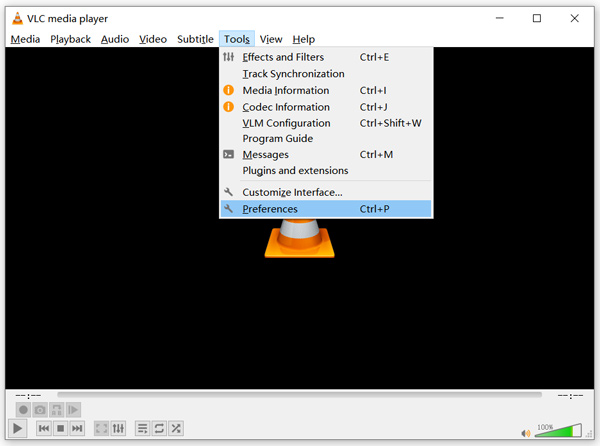
Step 1. Open VLC Media Player and choose the Tools menu. From the drop-down list, select the Preferences option.
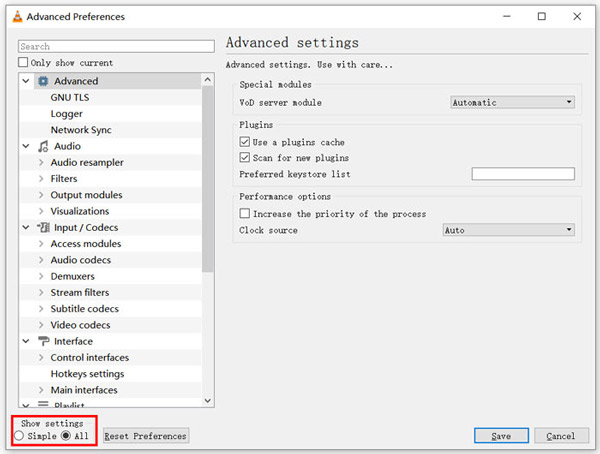
Step 2. Tick All under the Show settings on the bottom left of the dialog window. By doing so, you can display the Advanced Preferences window.
Step 3. Choose the Input/Codecs section on the left, and then locate the File Caching(ms) option on the right. You may need to scroll down to find it.
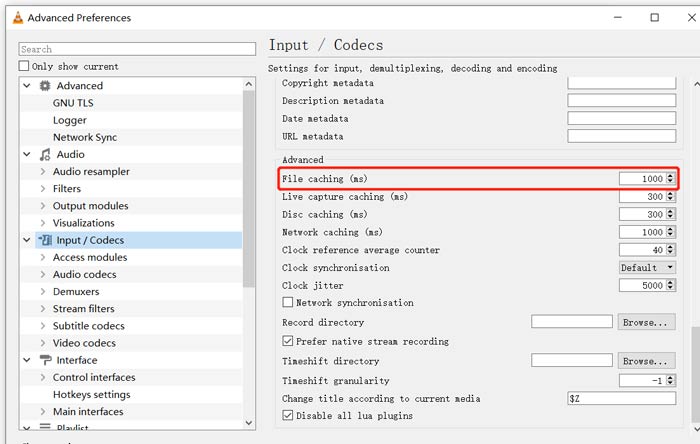
Step 4. Set File Caching to 1000 and then click Save button to confirm your operation. After that, you can restart VLC and replay your MKV file.
Partie 2. Mettre à jour ou réinstaller VLC pour réparer le lecteur ne jouera pas MKV
Si le lecteur VLC ne lit pas le problème MKV existe toujours, vous pouvez choisir de le mettre à niveau vers la dernière version. Il faut savoir qu'une nouvelle version corrigera toujours de nombreux bogues des anciennes versions. Vous pouvez suivre les étapes ci-dessous pour mettre à jour votre VLC Media Player.
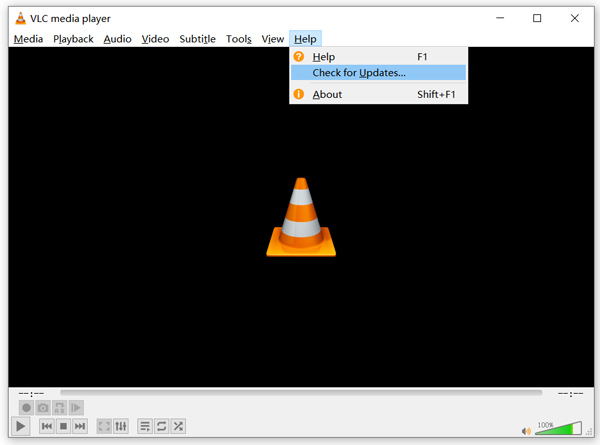
Open VLC and click the Help menu. Select the Check for Updates option from the drop-down list. VLC will start to check if there is an available updating version. Then you can follow the instructions to upgrade VLC to its latest version.
You can also directly remove VLC from your computer, and then go to its official site, VideoLAN to install a right version. When you get a new VLC Media Player installed, you can play your MKV file and check if it can be played normally.
Partie 3. Activer l'audio pour corriger l'absence de son du lecteur VLC lors de la lecture de MKV
Si votre VLC Media Player peut lire un fichier MKV mais pas de son, vous devez vérifier si ses paramètres audio sont corrects.
Step 1. Choose Tools option on VLC menu bar. From the drop-down menus, select Preferences. Then you will be guided to the Simple Preferences window.
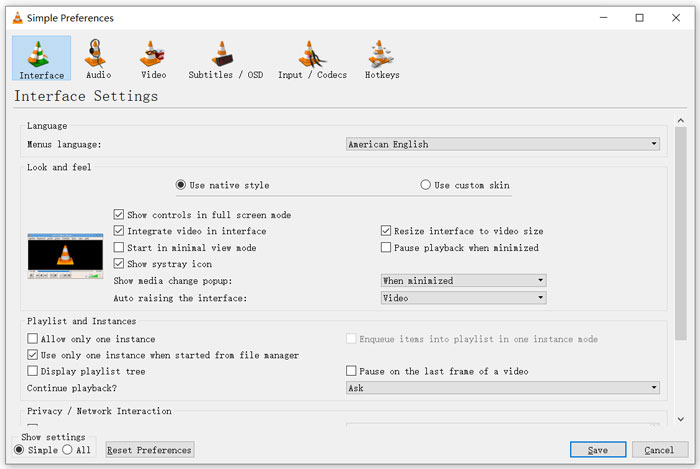
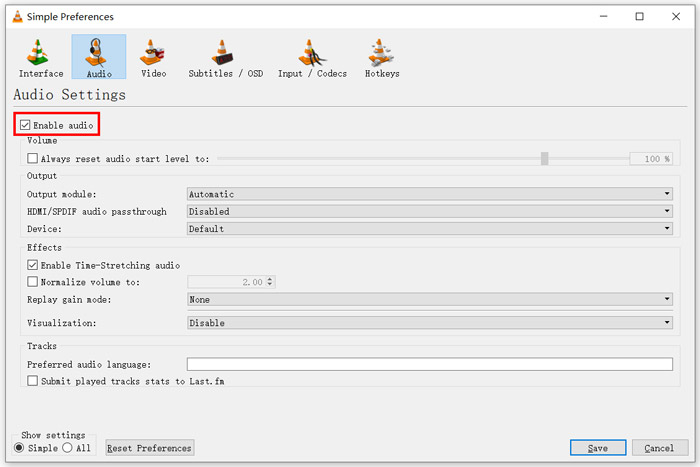
Step 2. Click on the Audio tab, and then check the Enable Audio option. During this step, you are also allowed to custom Output Module, HDMI/SPDIF audio passthrough and Device based on your need. Click Save button to save your changes.
Now you will be back to the main interface of VLC, you can click Media and then Open File to play your MKV file.
Partie 4. Sélectionnez une alternative au lecteur VLC pour lire les fichiers MKV
When you want to watch MKV movies, you can also choose another player to replace VLC. You can give the popular Free Online Video Player a try. Whether you are using a Windows 10/8/7 PC or a Mac, you can rely on it to play any MKV files with high quality.
Ce lecteur en ligne gratuit a la capacité de lire des vidéos 4K, HD 1080p / 720p, SD, des vidéos 3D et des fichiers audio en douceur. Outre MKV, il prend également en charge de nombreux autres formats, notamment MP4, MOV, FLV, AVI, MPEG, WMV, WMA, AAC, MP3, etc.
Step 1. When you want to view MKV files, you can go to this Free Online Video Player site. It is compatible with any web browser like Chrome, IE, Firefox and Safari. Click on the Play Now button to quickly install a small launcher for the MKV playing.
Step 2. Once the installation is complete, this free online MKV file player will be initiated automatically. Click Open File button to import your MKV file. Here you can also click Open Disc to watch a DVD movie.
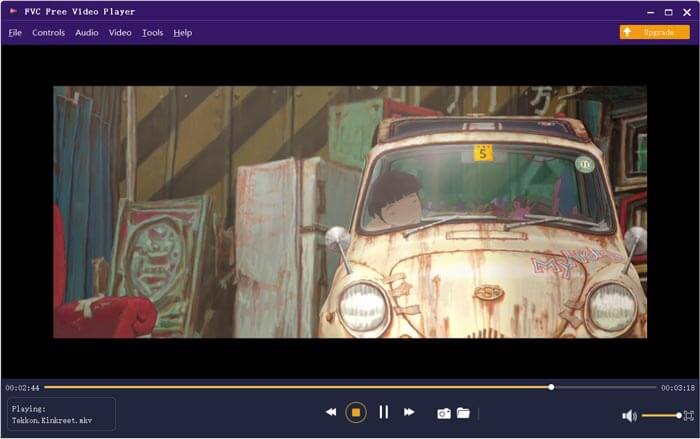
Your MKV video will be played automatically after that. You are given full control of the MKV playing. Compared with VLC Media Player, it gives an easier way to enjoy MKV files. This free online MKV player supports both DTS-HD and Dolby TrueHD to ensure you have a great sound experience.
Partie 5. FAQ de VLC Player ne jouera pas MKV
La smart TV lit-elle les fichiers MKV?
Oui. De nombreux téléviseurs intelligents comme Sony et Samsung peuvent prendre en charge les fichiers MKV. Vous pouvez lire votre MKV via un disque dur externe ou un appareil UBS
Comment lire un DVD avec VLC Media Player?
Lorsque vous souhaitez lire un film DVD avec VLC, vous devez d'abord insérer le disque DVD dans le lecteur de disque de votre ordinateur. Ouvrez VLC, cliquez sur Média dans la barre de menus, puis choisissez Ouvrir le disque. Parcourez et chargez ce film DVD sur VLC et lisez-le.
Comment désactiver le décodage de l'accélération matérielle sur VLC?
Pour désactiver le décodage de l'accélération matérielle sur VLC Media Player, vous devez aller dans les Préférences dans le menu Outils. Choisissez la catégorie Input / Codecs, puis Codecs. Localisez l'option de décodage accéléré par le matériel et désactivez-la à cet endroit.
Conclusion
When you face the VLC player won’t play MKV problem, you can directly use another player like the recommended Free Online Video Player to view your MKV files. Also, you can choose to upgrade VLC Media Player or custom various settings to fix it.
-
 Moyens gratuits et professionnels pour convertir MKV en MOV
 Comment convertir MKV en MOV sur Mac? IMovie peut-il lire MKV? Que signifie le format MOV? Cet article explique 2 façons simples de vous aider à convertir MKV en MOV avec des convertisseurs vidéo gratuits en ligne et professionnels.
-
 Comment convertir M2TS en MKV sans perte de qualité
 Vous souhaitez convertir M2TS en MKV tout en conservant la qualité d'origine? Cet article vous montre des méthodes gratuites et en ligne pour changer M2TS en MKV sans perte.
-
 VLC Media Player - Un bref examen du lecteur vidéo et des meilleures alternatives sur Windows et Mac
 Pourquoi l'audio ne fonctionne pas sur VLC Media Player? Si vous souhaitez en savoir plus sur le lecteur multimédia populaire, vous pouvez en savoir plus sur la critique et les meilleures alternatives à partir de l'article.
