


 Video Converter Ultimate
 Enregistreur d'écran
 Réparation vidéo
 Téléchargement sécurisé
[2026] Guide rapide pour comprendre comment OnStar enregistre une vidéo
Dans le monde d’aujourd’hui, où la technologie et la sécurité routière vont de pair, les systèmes de voiture connectée comme OnStar ont changé notre façon de vivre la route. De la navigation en temps réel à l’assistance d’urgence, OnStar offre bien plus que de la simple commodité. Mais à mesure que les véhicules deviennent plus intelligents, de nombreux conducteurs commencent à se demander : OnStar enregistre‑t‑il aussi des vidéos ? Peut‑il capturer ce qui se passe autour de votre voiture ? Et si oui, comment pouvez‑vous sauvegarder vous‑même ces moments ?
Que vous soyez curieux de savoir comment fonctionne OnStar, que vous vous demandiez s’il enregistre des vidéos ou que vous recherchiez simplement un moyen fiable de capturer et sauvegarder ce qui s’affiche sur votre écran, ce guide est fait pour vous. Nous dévoilerons la vérité sur les fonctions d’enregistrement d’OnStar et nous vous présenterons un outil simple et gratuit qui vous permet d’enregistrer et de conserver vos vidéos sans effort.

Partie 1. Qu’est‑ce qu’OnStar ?
OnStar est un service de véhicule connecté développé par General Motors qui améliore la sécurité, la communication et le confort à bord. Il relie votre voiture à un réseau d’assistance en temps réel et de données via la technologie GPS et cellulaire, vous donnant accès à de l’aide en cas d’urgence et à des fonctions de contrôle à distance du véhicule.
Avec OnStar, vous pouvez :
- Bénéficiez d’une réponse automatique en cas de collision et d’une connexion instantanée avec des opérateurs d’urgence.
- Utilisez l’accès à distance pour verrouiller, déverrouiller ou démarrer votre véhicule via l’application OnStar.
- Localisez votre véhicule grâce à l’assistance et au suivi en cas de vol.
- Profitez de la navigation guidée étape par étape et du Wi‑Fi embarqué pour une connectivité aisée.
En résumé, OnStar est le compagnon intelligent de votre voiture, conçu pour rendre la conduite plus sûre, plus simple et plus connectée.
Partie 2. Comment fonctionne OnStar et OnStar enregistre‑t‑il une vidéo ?
Maintenant que vous avez déjà une idée de ce qu’est OnStar, il est temps d’aller plus loin dans son fonctionnement et de répondre à une question importante : OnStar enregistre‑t‑il une vidéo ?
OnStar fonctionne grâce à une combinaison de capteurs intégrés au véhicule, du GPS et de la connectivité cellulaire. Il surveille en continu des données comme la position de votre véhicule, sa vitesse et ses diagnostics afin de fournir des réponses rapides en cas d’urgence ou d’accident.
Cependant, en ce qui concerne la vidéo, voici la réalité : OnStar en tant que tel n’enregistre ni ne stocke d’images vidéo.
Bien que certains véhicules GM équipés d’OnStar disposent aussi de caméras intégrées, comme des dashcams, des vues 360° ou des systèmes de surveillance du conducteur, ces caméras fonctionnent séparément du service OnStar. Elles peuvent enregistrer des vidéos localement sur la mémoire de votre véhicule ou sur un support externe, mais OnStar ne transmet que des données et des alertes, pas les fichiers vidéo eux‑mêmes.
Cela dit, OnStar peut parfois accéder à des données liées à un événement provenant de ces systèmes pour aider à reconstituer des incidents ou assister les forces de l’ordre si nécessaire.
Partie 3. À quelle fréquence OnStar enregistre‑t‑il une vidéo ?
Puisqu’OnStar n’enregistre pas de vidéo, la réponse à la question de savoir à quelle fréquence OnStar enregistre une vidéo sera : jamais.
Cependant, si votre véhicule GM est équipé d’une dashcam ou d’une caméra de surveillance intégrée, la fréquence d’enregistrement dépend de :
- Vos paramètres.
- Activité de conduite.
- Espace de stockage disponible.
Dans ces cas‑là, OnStar peut avoir accès à des données associées à des fins de sécurité, mais il n’enregistre pas en continu ni de manière indépendante des séquences vidéo.
Partie 4. Bonus : Meilleur enregistreur d’écran en ligne gratuit
Étant donné que la fonction d’enregistrement vidéo d’OnStar n’existe pas, et que vous souhaitez tout de même apprendre à enregistrer facilement votre écran, la meilleure solution est d’utiliser un enregistreur d’écran en ligne fiable. Un bon outil de capture d’écran doit enregistrer une vidéo de haute qualité, offrir des options flexibles de taille d’écran et sauvegarder vos enregistrements dans des formats populaires, le tout sans nécessiter l’installation d’un logiciel.
L’un des meilleurs outils que vous pouvez utiliser est FVC Free Screen Recorder. Cet outil en ligne vous permet d’enregistrer toute activité sur votre écran directement depuis votre navigateur. Que vous souhaitiez sauvegarder un tutoriel, une présentation ou une vidéo en ligne, FVC offre un enregistrement fluide et de haute qualité en quelques clics seulement.
Caractéristiques principales:
- 100% gratuit et basé sur le Web.
- Enregistrer en plein écran ou sur une zone personnalisée.
- Compatible avec Windows et macOS.
- Prend en charge la superposition de la webcam pour des vidéos en incrustation (picture‑in‑picture).
- Offre des outils de dessin en temps réel pour les surlignages et les annotations.
- Exporte les enregistrements en MP4, MOV, AVI et d’autres formats.
- Inclut des options de montage et de découpe après l’enregistrement.
- Interface simple, intuitive et adaptée aux débutants.
Étapes pour enregistrer l’écran avec FVC Free Screen Recorder :
Étape 1. Commencez par ouvrir l’enregistreur d’écran gratuit FVC en ligne, puis cliquez sur Start Recording.

Étape 2. Ensuite, choisissez la zone d’enregistrement. À partir de là, vous pouvez enregistrer à la fois la vidéo et l’audio, mais vous devez activer le Microphone ainsi que le son du système.
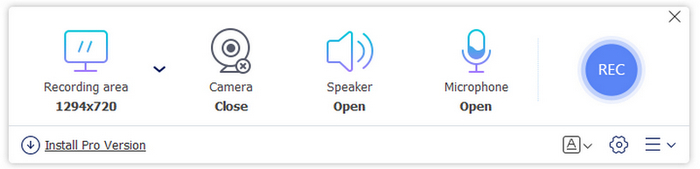
Étape 3. Une fois tous les réglages effectués, cliquez sur le bouton Record.
Choisissez le mode d’enregistrement d’écran qui correspond le mieux à vos besoins. Vous pouvez opter pour le mode plein écran ou pour des tailles d’écran personnalisées, telles que 3840×2160, 2560×1440, 1920×1080, 1280×720, 1024×768, 854×480 et 640×480. Ainsi, vous avez la flexibilité de choisir la façon dont votre écran sera capturé.
Partie 5. FAQ sur l’enregistrement vidéo avec OnStar
Pourquoi les gens pensent-ils qu’OnStar enregistre des vidéos ?
Cette confusion vient souvent de véhicules qui combinent OnStar avec des systèmes de caméras intégrées. Bien qu’OnStar puisse utiliser les données du véhicule pour les rapports d’accident ou des raisons de sécurité, il ne gère ni n’enregistre la vidéo elle-même. Les caméras fonctionnent séparément.
Comment puis-je enregistrer des vidéos ou l’activité de l’écran liées à OnStar ?
Si vous souhaitez enregistrer l’activité de l’écran OnStar ou capturer la lecture vidéo, vous pouvez utiliser un outil en ligne fiable comme FVC Free Screen Recorder. Il vous permet d’enregistrer n’importe quelle partie de votre écran en haute qualité sans installation, ce qui le rend idéal pour sauvegarder ou partager des extraits liés à OnStar.
Puis-je accéder à ou visionner des vidéos via mon compte OnStar ?
Non. OnStar ne permet pas d’accéder à ni de lire des enregistrements vidéo. Cependant, si votre véhicule dispose d’une dashcam ou d’un système de sécurité intégré, vous pouvez consulter ou exporter les séquences via le système d’infodivertissement de votre voiture ou via le support de stockage, mais pas directement par OnStar.
Conclusion
OnStar est conçu pour vous garder en sécurité, connecté et informé pendant la conduite, mais il n’enregistre ni ne stocke de vidéo. Son rôle est de fournir une assistance en temps réel, pas de capturer des images. Si vous souhaitez enregistrer ou sauvegarder ce qui s’affiche sur votre écran, un outil comme FVC Free Screen Recorder est votre meilleure option. Il est simple à utiliser, fonctionne directement dans votre navigateur et vous permet d’enregistrer en haute qualité à tout moment. Ainsi, même si l’enregistrement vidéo via OnStar n’est pas possible, vous disposez tout de même d’un moyen simple de capturer et de sauvegarder ce qui compte le plus.
-
 Test, alternative et téléchargement gratuit d'OBS Screen Recorder [2025]
 Voici une évaluation d'OBS Screen Recorder. Nous examinerons plusieurs aspects pour déterminer sa pertinence et pourquoi il est si bien noté sur le marché.
-
 Pouvez-vous enregistrer les appels vidéo FaceTime ? [iPhone/iPad/Mac]
 Découvrez dans cet article s'il est réellement possible d'enregistrer les appels vidéo FaceTime sur différents appareils et apprenez-en davantage sur un nouvel outil permettant d'enregistrer l'écran lors des appels vidéo FaceTime.
-
 Meilleur enregistreur d’écran avec micro sélectionné pour 2025 [Critique]
 Vous cherchez un enregistreur d'écran avec micro ? Cet article vous présente différents logiciels d'enregistrement d'écran et audio.
