


 Video Converter Ultimate
 Enregistreur d'écran
 Réparation vidéo
 Téléchargement sécurisé
Comment lire MP4 dans Windows Media Player sur un ordinateur Windows 10
Parfois, un fichier MP4 n'est pas lu dans Windows Media Player, mais peut être lu sur d'autres lecteurs comme VLC Media Player ou KM Player. Étant donné que MP4 est le format vidéo le plus populaire, il est compatible avec tous les lecteurs multimédias et appareils multimédias. Vous pouvez avoir de nombreux fichiers vidéo enregistrés au format MP4. C'est assez ennuyeux si le fichier MP4 ne parvient pas à jouer dans Windows Media Player. Alors, comment lire des fichiers MP4 sous Windows 10 ? Eh bien, il n'y a pas besoin de s'inquiéter. Voici toutes les solutions pour réparer Windows Media Player qui ne lit pas les fichiers MP4.

Partie 1. Pourquoi Windows Media Player ne lit pas MP4
Selon Microsoft, toutes les versions de Windows Media Player ne prennent pas en charge le format de fichier MP4. Windows Media Player 7, Windows Media Player pour Windows XP, Windows Media Player 9 Series, Windows Media Player 10/11 ne prennent pas en charge le format de fichier MP4.
Si Windows Media Player ne peut pas lire le clip vidéo MP4, la vidéo MP4 est peut-être endommagée ou corrompue. Dans ce cas, vous pouvez essayer de lire le fichier MP4 illisible dans un autre lecteur multimédia.
Une autre raison pour laquelle Windows Media Player ne lit pas MP4 est que le fichier MP4 n'a pas le pack de codecs approprié.
Partie 2. Jouez au MP4 avec la meilleure alternative à Windows Media Player
Si les vidéos MP4 ne se lisent toujours pas, vous pouvez passer à un lecteur multimédia comme FVC Free Video Player. Il s’agit d’un lecteur vidéo en ligne gratuit qui lit tous les fichiers multimédias populaires comme MP4, MKV, FLV, MOV, AVI, 3GP, MP3, FLAC, AAC, etc. sous Windows et Mac. Basé sur la technologie HTML 5, vous pouvez lire n’importe quel fichier vidéo, qu’il provienne de l’ordinateur local ou qu’il ait été téléchargé.
Étape 1. Rendez-vous sur le site officiel de FVC Free Video Player (https://www.free-videoconverter.net/free-video-player/). Cliquez sur le bouton Play Now pour télécharger et installer le lanceur.

Étape 2. Cliquez sur le bouton Open File pour charger le fichier MP4 que vous souhaitez lire. Vous pouvez également cliquer sur le menu File et sélectionner Open File pour ajouter le fichier MP4.

Une fois la vidéo MP4 importée, elle sera lue automatiquement sur votre ordinateur Windows. Si vous souhaitez modifier les effets vidéo, vous pouvez cliquer sur Tools et sélectionner l’option Effects, puis ajuster la teinte, la luminosité, le contraste, la saturation et le gamma pour améliorer votre vidéo.

Partie 3. Convertir MP4 pour jouer dans Windows Media Player
Si Windows Media Player ne peut pas lire le fichier MP4, une méthode simple consiste à convertir le fichier MP4 vers un autre format pris en charge par Windows Media Player. Vous pouvez utiliser un outil de conversion vidéo comme FVC Video Converter Ultimate pour convertir le MP4 au format de fichier par défaut pour Windows Media Player, comme WMV, ASF ou WMA.
Téléchargement gratuit pour Windows 7 ou version ultérieure Téléchargement sécurisé
Téléchargement gratuit pour macOS 10.7 ou version ultérieure - Téléchargement sécurisé
Étape 1. Téléchargez gratuitement, installez et lancez Video Converter Ultimate sur votre ordinateur Windows. Cliquez sur le bouton Add Files pour ajouter le fichier MP4 que vous voulez lire.

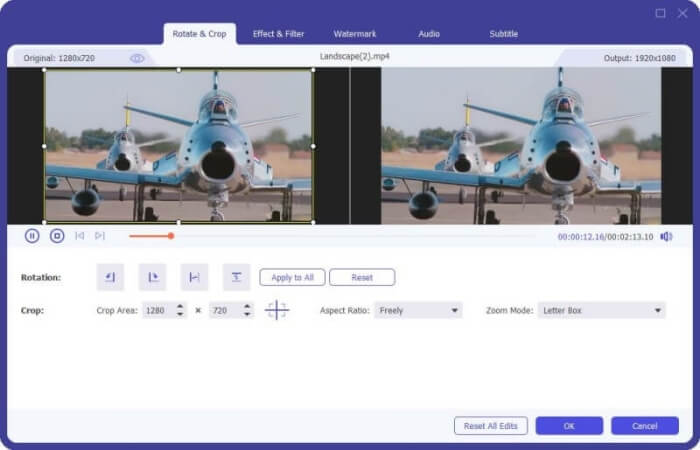
Étape 2. Si vous souhaitez ajouter des effets à votre fichier MP4, vous pouvez cliquer sur l’icône Edit pour entrer dans l’interface de montage. Vous pouvez y ajouter des effets, appliquer un filtre, faire pivoter ou recadrer le fichier MP4, ajouter un filigrane, régler la piste audio et les sous-titres.
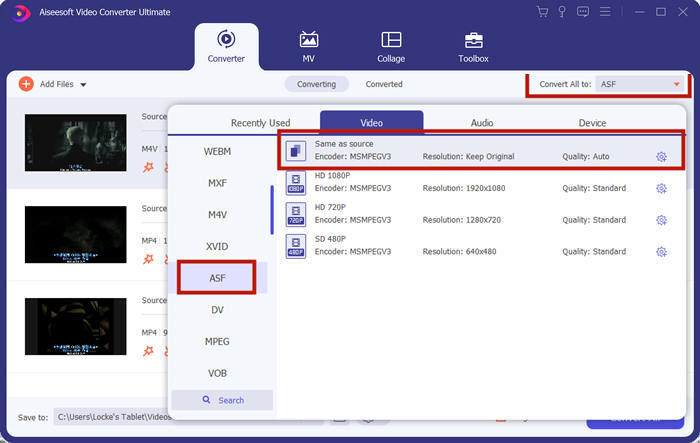
Étape 3. Cliquez ensuite sur la flèche déroulante à côté de Convert All to, allez dans l’onglet Video et sélectionnez ASF ou WMV comme format de sortie.
Étape 4. Enfin, définissez le dossier de sortie dans lequel le fichier MP4 converti sera enregistré. Cliquez sur le bouton Convert All pour convertir le fichier MP4. Après la conversion, vous pourrez lire le fichier MP4 converti dans Windows Media Player.

Partie 4. Conseils courants pour lire MP4 dans Windows Media Player
Pour lire un MP4 sous Windows 10, vous pouvez aller dans le dossier où les fichiers MP4 sont stockés. Cliquez avec le bouton droit sur le fichier MP4 que vous souhaitez lire, sélectionnez Open with et choisissez Windows Media Player. Bien que ce soit très simple, il arrive parfois que vous ne puissiez pas ouvrir un fichier MP4 dans Windows Media Player. Pour résoudre ce problème, vous pouvez essayer les conseils suivants.
1. Lire MP4 avec d'autres lecteurs multimédias
Si votre fichier MP4 ne se lit pas dans Windows Media Player, vous pouvez essayer d’autres lecteurs multimédias pour ouvrir le fichier MP4. Il existe de nombreux lecteurs comme FVC Free Video Player, VLC Media Player, KM Player, Real Player, GOM Player, BS Player, DivX Player et bien d’autres.
2. Installez le bon codec pour Windows Media Player
Il manque des codecs si Windows Media Player ne lit pas le fichier MP4. Pour résoudre le problème, vous devez installer le bon codec pour Windows Media Player.
Étape 1. Ouvrez Windows Media Player. Cliquez sur le menu Organize et sélectionnez Options.
Étape 2. Allez à l’onglet Privacy et cochez l’option Download usage rights automatically when I play or sync a file.
Étape 3. Pour lire le fichier MP4, vous pouvez cliquer sur le bouton OK pour enregistrer les modifications.
3. Exécutez l'utilitaire de résolution des problèmes sous Windows
Si MP4 n'a pas pu être lu dans Windows Media Player, vous pouvez utiliser l'outil de dépannage pour résoudre le problème dans Windows 10. Suivez les étapes pour résoudre le problème.
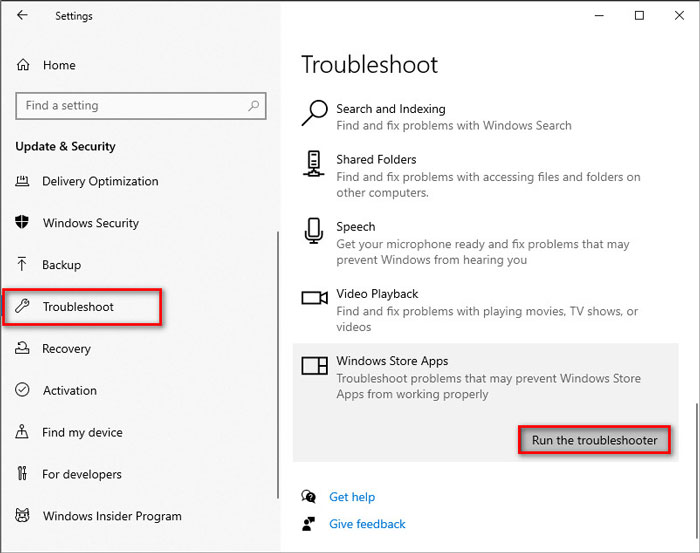
Étape 1. Sur votre ordinateur Windows 10, ouvrez Settings et sélectionnez Update & Security.
Étape 2. Accédez à la section Troubleshoot, puis cliquez sur Windows Store Apps.
Étape 3. Cliquez sur le bouton Run the troubleshooter pour résoudre le problème de lecture de Windows Media Player.
Partie 5. FAQ sur la lecture de MP4 dans Windows Media Player
Quel est le format vidéo par défaut de Windows Media Player ?
Le format de fichier par défaut de Windows Media Player est WMV (Windows Media Video) et WMA (Windows Media Audio). Il prend également en charge ASF (Advanced Systems Format) et son propre format de liste de lecture basé sur XML, Windows Playlist.
Quel est le meilleur lecteur MP4 ?
Il existe de nombreux lecteurs MP4 populaires sur le marché, notamment FVC Free Video Player, VLC Media Player, KM Player, QuickTime Player, RealPlayer, Media Player Classic, GOM Player, PotPlayer et bien d’autres.
Puis-je lire MKV dans Windows Media Player ?
Le Windows Media Player 12 intégré à Windows 10 ne prend pas en charge la lecture MKV. Vous devez installer le codec approprié pour la lecture.
Conclusion
MP4 est le format multimédia numérique le plus populaire qui est couramment utilisé pour stocker de la vidéo et de l'audio. Il est frustrant si le fichier MP4 n'a pas pu être lu dans Windows Media Player. J'espère que vous pourrez lire vos fichiers MP4 couramment sous Windows 10 avec tous nos conseils et solutions. Vous pouvez essayer un autre lecteur vidéo comme FVC Free Video Player pour lire vos fichiers MP4.
-
 Comment lire des fichiers MP4 dans Google Drive
 MP4 ne joue pas dans mon Google Drive ? Comment lire des fichiers MP4 dans Google Drive ? Cet article explique 3 façons de lire des vidéos MP4 dans Google Drive.
-
 Lire des fichiers MP4 sur Chromebook 2021
 Pouvez-vous lire des vidéos sur Chromebook ? Comment lire des fichiers MP4 à partir d'une clé USB sur Chromebook ? Cet article partage 3 façons de lire MP4 sur Chromebook.
-
 Comment lire un DVD sur Windows Media Player en 2021
 Pourquoi mon DVD ne peut-il pas être lu sur Windows Media Player? Comment lire un DVD sur un lecteur multimédia Windows 7? Cet article partage 3 façons de lire des DVD avec ou sans WMP.
