


 Video Converter Ultimate
 Enregistreur d'écran
 Réparation vidéo
 Téléchargement sécurisé
Comment définir une chanson Spotify comme sonnerie - Un guide complet
Spotify propose une vaste bibliothèque de musique, de podcasts et d’autres contenus audio aux utilisateurs du monde entier. Des millions de chansons sont disponibles pour une écoute à la demande. Si vous souhaitez également définir la belle musique qu’elle offre comme sonnerie de smartphone, vous devez d’abord télécharger le fichier audio sélectionné sur votre appareil. L’avantage, c’est que la procédure n’est pas compliquée. Dans cet article, nous allons diviser toute l’opération de comment mettre une chanson Spotify en sonnerie en trois parties et analyser chacune d’elles en détail pour vous. Lors de la préparation de vos sonneries, vous pourriez avoir besoin de couper une partie de l’audio. En gardant cela à l’esprit, nous vous recommanderons aussi l’un des outils d’édition audio et vidéo les plus professionnels. Nous répondrons également à certaines questions fréquemment posées sur la configuration des sonneries.

Partie 1. Télécharger une chanson Spotify pour la sonnerie
Pouvez-vous utiliser Spotify pour les sonneries ? La réponse est oui, bien sûr. Ce que vous devez savoir avant de procéder officiellement, c'est que vous ne pouvez actuellement pas télécharger de musique directement sur votre appareil via Spotify et les définir comme sonneries. Par conséquent, nous avons besoin de l'aide de certains outils. Selon notre enquête, Spotify Downloader est un assez bon choix. Il vous suffit d'ouvrir son site Web officiel dans votre navigateur, de copier le lien vers votre musique préférée et de le coller dans la section correspondante. Ainsi, vous pourrez télécharger le fichier directement sur votre ordinateur. Si vous rencontrez des problèmes avec celui-ci, nous vous expliquerons les étapes à suivre dans la section suivante.
Voici ce que vous devez faire pour télécharger des chansons Spotify pour les sonneries avec Spotify Downloader.
Étape 1. Rendez-vous sur le site officiel de Spotify Downloader à l’aide de votre navigateur.
Étape 2. Ouvrez l’application Spotify sur votre téléphone. Puis, trouvez le son que vous souhaitez télécharger.
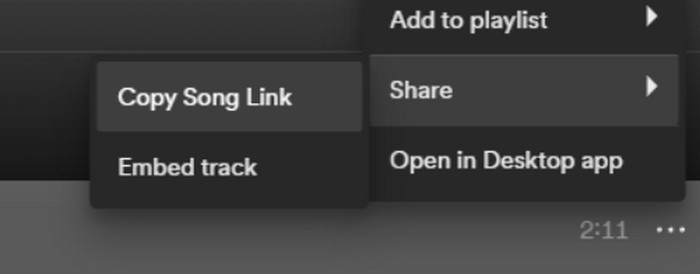
Étape 3. Appuyez sur l’icône avec trois points, puis choisissez Partager > Copier le lien.
Étape 4. Vous pouvez maintenant accéder à la page de Spotify Downloader. Collez le lien copié et cliquez sur Submit.
Étape 5. Lorsque le processus est terminé, cliquez sur Download.

Partie 2. Faites d'une chanson Spotify votre sonnerie
Après avoir téléchargé votre musique préférée sur votre appareil, vous pouvez commencer à la modifier. Nous pouvons modifier le point culminant de la chanson ou votre partie préférée de la chanson et faire d'une chanson Spotify votre sonnerie. Il convient de noter que les téléphones iPhone et Android prennent en charge différents formats audio de sonnerie. Actuellement, l'iPhone ne prend en charge que les sonneries au format M4R, tandis que les téléphones Android prennent actuellement en charge les formats MP3, M4A, WAV et OGG. Si vous constatez que le format de votre fichier audio ne répond pas aux exigences ci-dessus, vous pouvez utiliser un convertisseur de format professionnel pour vous aider.
Dans ce cas, nous vous recommandons d’essayer un outil de montage audio tout‑en‑un, l’outil soigneusement sélectionné FVC Video Converter Ultimate, pour réaliser un montage de chanson en une seule étape. En plus de la conversion de format, sa fonction principale, il permet également de modifier la durée de l’audio, d’ajuster le volume et la piste audio, ainsi que d’ajouter des effets de fondu d’entrée ou de fondu de sortie à vos sonneries. Vous aurez peu ou pas de temps d’attente supplémentaire lorsque vous l’utiliserez pour traiter vos fichiers. Il vous aidera à modifier les paramètres de votre audio avec une grande efficacité.
Téléchargement gratuit pour Windows 7 ou version ultérieure Téléchargement sécurisé
Téléchargement gratuit pour macOS 10.7 ou version ultérieure - Téléchargement sécurisé
Ici, nous vous apprendrons à créer une sonnerie à partir de Spotify avec FVC Video Converter Ultimate.
Étape 1. Téléchargez et installez FVC Video Converter Ultimate sur votre ordinateur. Assurez-vous d’avoir enregistré votre chanson préférée sur votre appareil.
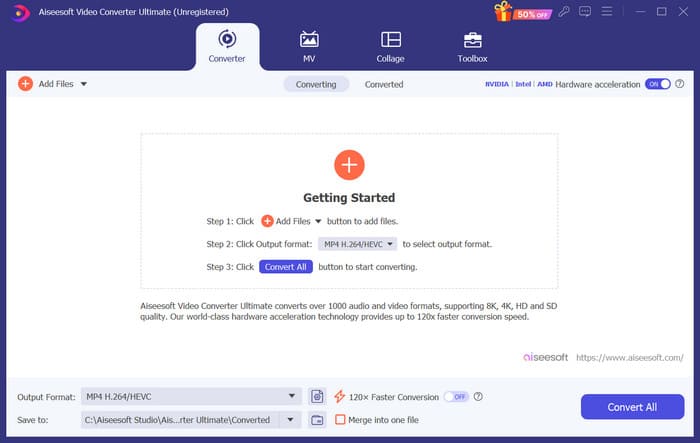
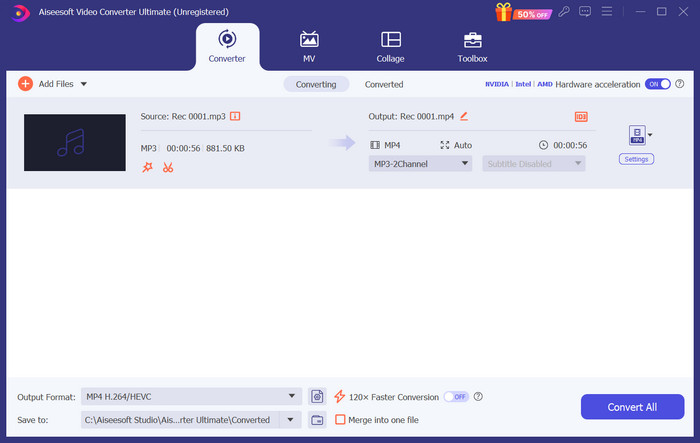
Étape 2. Ouvrez ce logiciel sur votre ordinateur de bureau, puis cliquez sur Add Files pour importer la chanson Spotify sur cette plateforme.
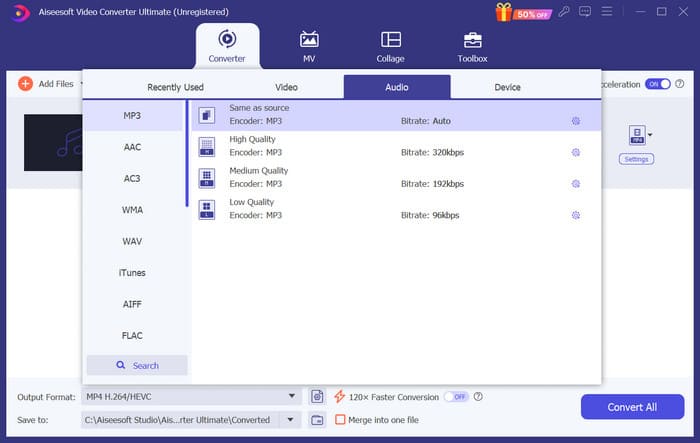
Étape 3. Pour convertir le format de votre sonnerie, déroulez le menu à côté de Output Format. Vous pouvez ensuite choisir votre format cible parmi toutes les options de la section Audio.
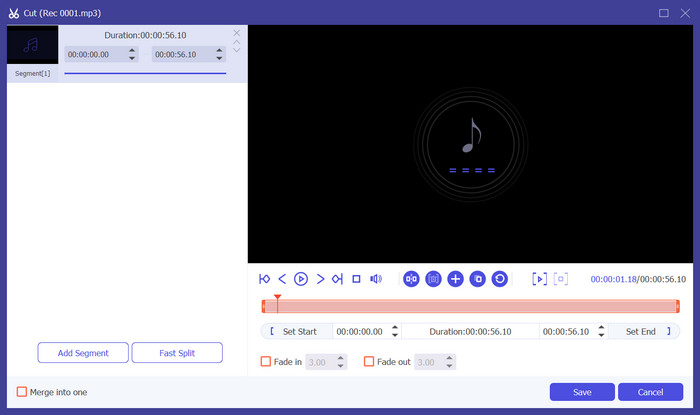
Étape 4. Pour sélectionner une partie de la chanson comme sonnerie de téléphone, cliquez sur Cut. Vous accéderez alors à la page de découpe. Faites glisser le curseur pour choisir la partie que vous souhaitez conserver. Dans cette fenêtre, vous pouvez également ajouter un effet de fondu d’entrée et de fondu de sortie à votre sonnerie.
Étape 5. Pour modifier le volume ou la piste audio de votre fichier, cliquez sur Edit. Sur la nouvelle page, vous pouvez même prévisualiser directement le résultat du montage. Pour conserver les modifications, cliquez sur OK.
Étape 6. Lorsque vous avez terminé de définir votre sonnerie, cliquez sur Convert All pour exporter le fichier.
Partie 3. Définir une chanson Spotify comme sonnerie
Maintenant que notre nouvelle sonnerie est prête et que nous l'avons modifiée à la bonne longueur, nous devons passer à l'étape finale : définir la chanson Spotify comme sonnerie pour les appels entrants sur votre téléphone. Étant donné que les différents appareils fonctionnent différemment, nous vous guiderons dans la configuration de la chanson sur votre appareil, à partir des téléphones iPhone et Android.
Android
Dans cette section, nous vous guiderons dans la configuration des chansons Spotify en sonneries sur votre téléphone Android. Nous utiliserons un téléphone Samsung comme exemple. Avant de commencer, vous devez transférer votre chanson Spotify sur votre téléphone. La transformation via un câble USB ou Bluetooth sont deux méthodes auxquelles vous pouvez faire référence.
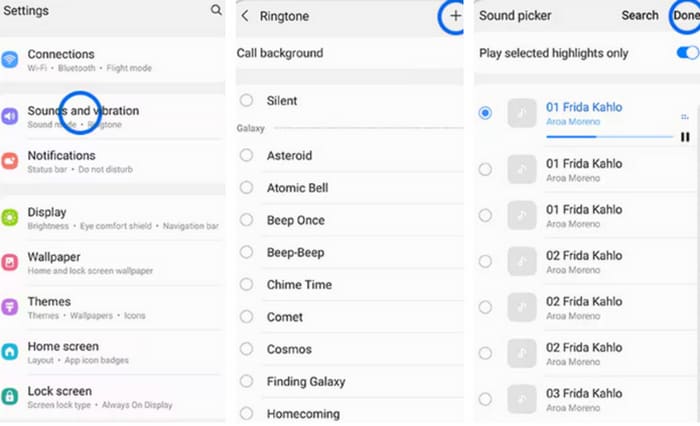
Étape 1. Allez dans les Paramètres de votre téléphone, puis appuyez sur Sons et vibration > Sonnerie du téléphone > Mes sons.
Étape 2. Appuyez sur Add, puis choisissez la chanson Spotify modifiée parmi tous les fichiers présents sur votre téléphone portable.
Étape 3. Pour enregistrer le réglage, appuyez sur Done. Vous avez maintenant ajouté avec succès une chanson Spotify comme sonnerie sur votre Samsung.
iPhone
Si vous souhaitez créer une sonnerie pour votre iPhone, vous devrez peut‑être utiliser des outils tiers. L’outil le plus populaire est GarageBand, et nous allons vous expliquer comment définir des chansons Spotify comme sonneries sur iPhone.
Étape 1. Téléchargez et lancez GarageBand sur votre iPhone. Choisissez Project.
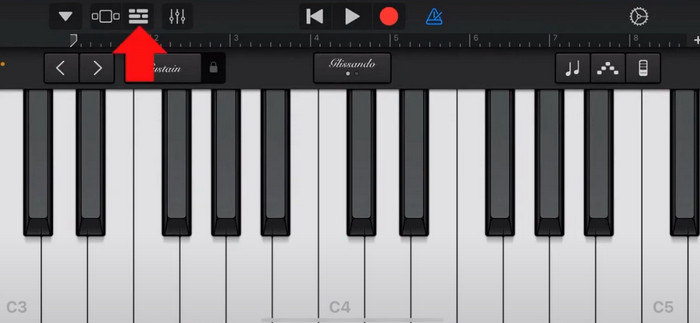
Étape 2. Ensuite, choisissez Loop > Files. Pour sélectionner votre chanson Spotify, choisissez Parcourir les éléments dans l’app Fichiers.
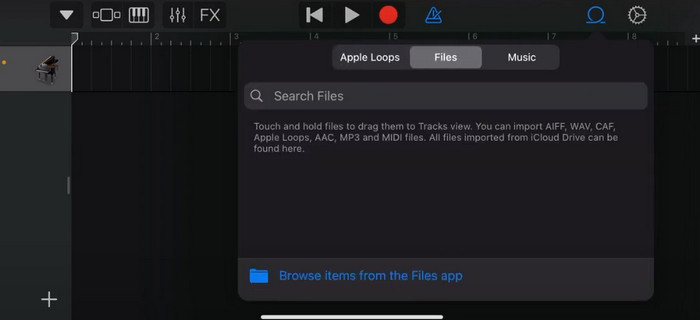
Étape 3. Placez le fichier Spotify découpé sur la timeline.
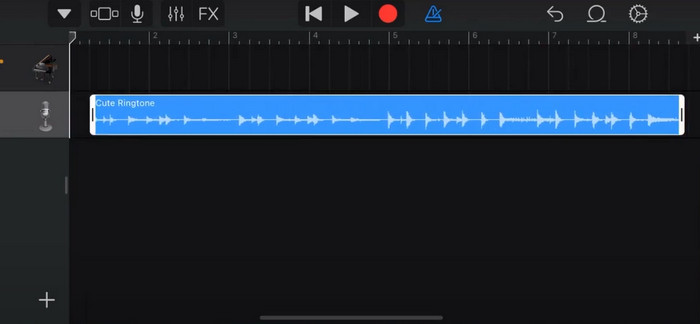
Étape 4. Désactivez le métronome. Puis appuyez sur l’icône de flèche vers le bas et choisissez Mes morceaux.
Étape 5. Maintenez le clip audio enfoncé, puis appuyez sur Partager.
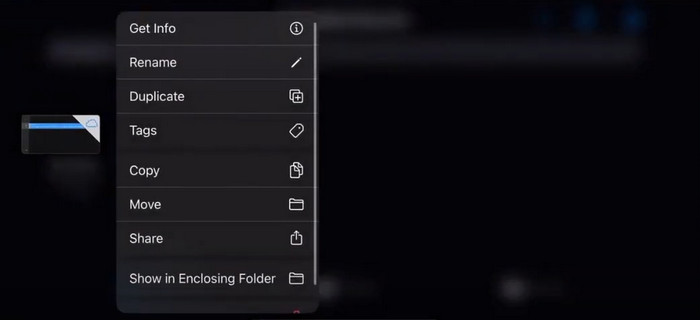
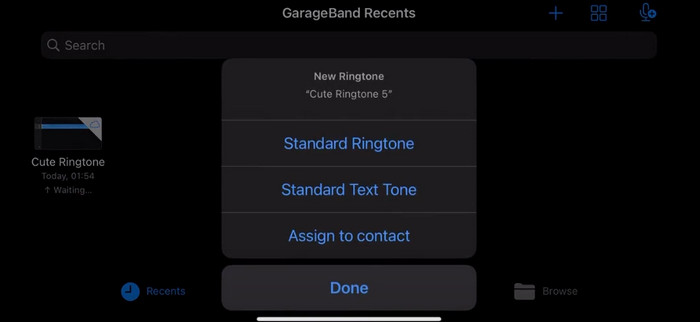
Étape 6. Choisissez Sonnerie > Exporter. Appuyez sur Utiliser le son comme > Sonnerie par défaut.
Partie 4. FAQ sur la création d'une chanson Spotify comme sonnerie
Puis-je utiliser directement une chanson Spotify comme sonnerie ?
Spotify ne permet pas aux utilisateurs d'utiliser directement une chanson de l'application comme sonnerie sur un appareil mobile. Cependant, il existe d'autres méthodes que vous pouvez utiliser pour définir une chanson Spotify comme sonnerie. Vous pouvez acheter la chanson que vous aimez dans une boutique de musique numérique comme iTunes ou Google Play Music. Il existe des outils tiers qui vous permettent de convertir des chansons Spotify en fichiers MP3.
Comment créer une sonnerie personnalisée pour mon iPhone sans iTunes ?
Si vous souhaitez créer une sonnerie personnalisée pour votre iPhone sans utiliser iTunes, vous pouvez utiliser GarageBand, une application musicale disponible sur les appareils iOS. Cette méthode vous permet de personnaliser votre sonnerie avec vos clips audio préférés sur votre appareil.
Comment convertir Spotify en sonnerie iPhone sans ordinateur ?
Convertir une chanson Spotify directement en sonnerie iPhone sans utiliser d'ordinateur est difficile. Cependant, vous pouvez trouver des méthodes alternatives pour obtenir un résultat similaire. Par exemple, vous pouvez utiliser une application de création de sonneries ou choisir GarageBand.
Conclusion
Ci‑dessus, nous vous avons donné une vue d’ensemble complète de la manière de définir une chanson Spotify comme sonnerie pour les appels entrants. Nous avons couvert toutes les étapes et vous avons fourni un outil de montage audio de pointe, Video Converter Ultimate recommandé par FVC, pour vous aider à personnaliser votre chanson. Si vous le souhaitez, cet outil vous permet également de transformer facilement une vidéo en sonnerie. Nous pensons que vous obtiendrez ainsi toutes les instructions nécessaires.
-
 Meilleure procédure pas à pas Comment convertir WAV en sonnerie en un rien de temps
 Vous cherchez à convertir WAV en sonnerie sans effort ? Nos outils conviviaux font le travail ! Profitez d'une conversion audio de haute qualité en un clin d'œil - pas de soucis techniques. Essayez-les dès aujourd'hui !
-
 Comment transformer un mémo vocal en sonnerie sur iPhone et Android
 Si vous souhaitez transformer un mémo vocal en sonnerie, lisez cet article. Que vous soyez un utilisateur d'iPhone ou d'Android, vous pouvez trouver des solutions dans notre contenu.
-
 5 découpeurs MP3 pour couper facilement n'importe quel audio [mise à jour 2024]
 Avez-vous besoin d'un découpeur MP3 pour découper l'audio ? Dans ce cas, lisez cet article car nous fournissons les outils sur lesquels vous pouvez compter pour un découpage audio facile.
