


 Video Converter Ultimate
 Enregistreur d'écran
 Réparation vidéo
2 des meilleurs convertisseurs M4V vers FLV pour Windows/Mac/en ligne
Un conteneur vidéo et audio principalement conçu pour être utilisé dans tout l’écosystème Apple iTunes, le M4V. Ce format est protégé par un système DRM afin d’éviter les problèmes de droits d’auteur. Dans ce cas, le fichier est difficile à lire si vous n’avez pas de compte iTunes avec vos identifiants. Ainsi, si vous voulez regarder les vidéos sur votre PC ou votre téléphone Android, il est indispensable de les convertir en FLV lisible. Pour savoir comment convertir M4V en FLV, lisez cet article et obtenez un bref aperçu des formats M4V et FLV.

Partie 1. 1er choix sur la conversion de M4V en FLV sur Mac et PC
C’est le convertisseur le plus efficace que vous prendrez plaisir à utiliser, surtout si vous convertissez M4V en FLV sur Mac ou sur PC. FVC Video Converter Ultimate est le convertisseur favori sur lequel de nombreux utilisateurs comptent déjà. De plus, si vous souhaitez disposer d’un outil polyvalent offrant un résultat exceptionnel, c’est l’outil qu’il vous faut. Vous pouvez également y convertir n’importe quel fichier multimédia et régler la qualité en SD, HD, 1080p voire en 4K. Attendez‑vous à un outil irréprochable si vous le téléchargez sur votre disque, car, comme l’indique son nom, il est « Ultimate ». En outre, suivez le tutoriel ci‑dessous si vous voulez exploiter au maximum sa capacité de conversion.
Comment convertir M4V en FLV avec l’aide de FVC Video Converter Ultimate :
Étape 1. Cliquez sur le bouton de téléchargement ci‑dessous, puis choisissez le système d’exploitation que vous utilisez actuellement. Après le téléchargement, cliquez sur Installer ; une interface de bienvenue s’affichera, puis appuyez sur Commencer maintenant.
Téléchargement gratuit pour Windows 7 ou version ultérieure Téléchargement sécurisé
Téléchargement gratuit pour macOS 10.7 ou version ultérieure - Téléchargement sécurisé
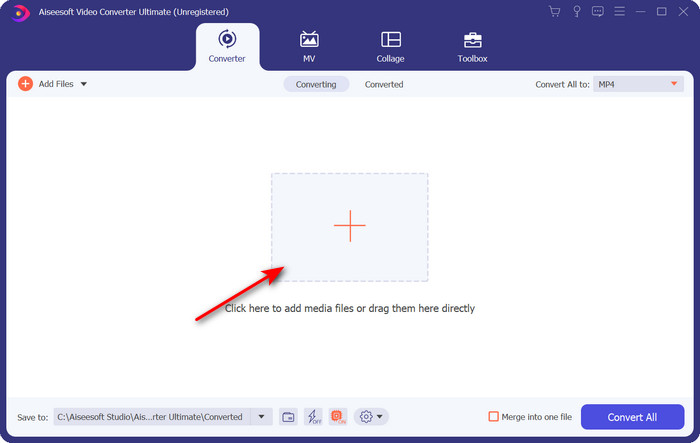
Étape 2. Lancez l’outil, cliquez sur le signe + au centre de l’interface et sélectionnez le fichier .m4v dans le dossier qui s’affiche, cliquez dessus puis appuyez sur Ouvrir.
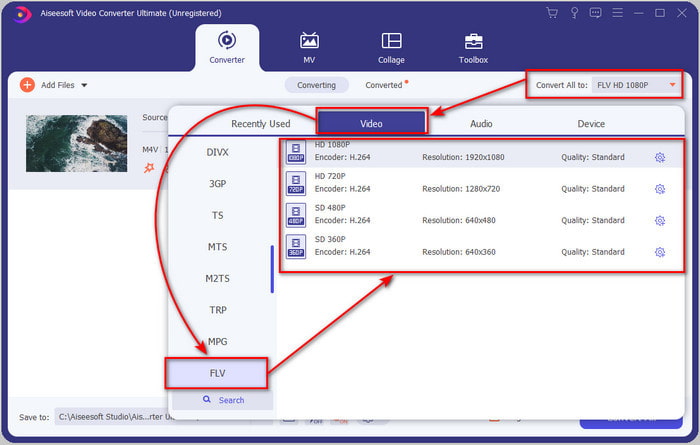
Étape 3. Une fois le fichier .m4v chargé dans l’interface, cliquez sur Tout convertir en et recherchez le format FLV.
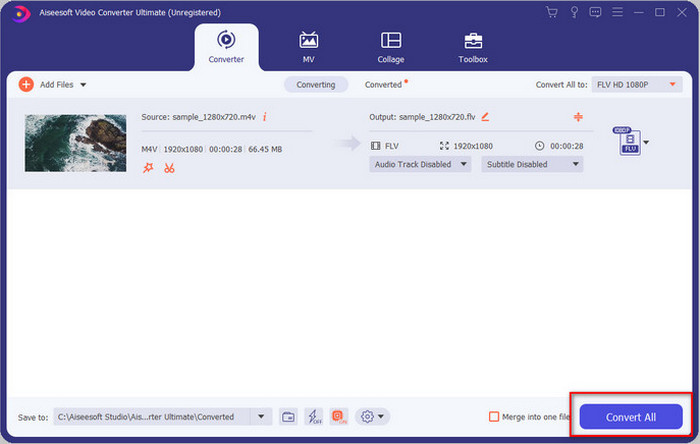
Étape 4. Cliquez ensuite sur Tout convertir pour lancer la conversion de M4V en FLV.
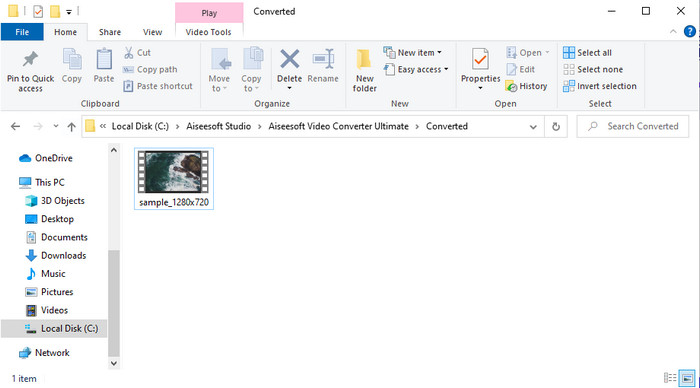
Étape 5. La conversion du fichier prendra moins d’une minute grâce à la rapidité de cet outil. Un dossier affichera votre fichier converti ; cliquez sur le fichier pour le regarder ou le partager en ligne.
Avantages
- La conversion rapide et l'accélération matérielle sont disponibles pour une expérience optimale.
- Disponible sur toutes les plateformes comme PC ou Mac.
- L'édition de vidéos pour les rendre exceptionnelles peut être surpassée ici.
Les inconvénients
- Paiement avant utilisation mais le prix de celui-ci est abordable.
- Téléchargez le logiciel avant utilisation.
Partie 2. 2ème choix sur la conversion gratuite de M4V en FLV via en ligne
Convertir vos fichiers en ligne peut être effectué efficacement si vous utilisez un bon convertisseur M4V en FLV en ligne comme FVC Free Video Converter Online. Cet outil en ligne est le meilleur convertisseur accessible depuis tous les navigateurs web, à condition d’avoir une connexion Internet. De plus, vous pouvez y convertir des fichiers sans limite de taille, mais vous ne pouvez pas y effectuer de conversion par lots. Même si ce logiciel en ligne est excellent, une connexion Internet reste nécessaire, donc si vous n’en avez pas, ce n’est pas une option, comme pour les autres convertisseurs web disponibles. En revanche, si vous disposez d’une connexion et que vous voulez profiter d’une conversion gratuite de grande qualité en ligne, vous devez suivre les étapes ci‑dessous.
Comment convertir M4V en FLV avec l’aide de FVC Free Video Converter Online :
Étape 1. Cliquez sur ce lien pour accéder au convertisseur en ligne gratuit proposé par FVC.
Étape 2. Sur l’interface web, cliquez sur Ajouter des fichiers à convertir pour télécharger le petit programme de lancement. Une fois ce téléchargement terminé, cliquez à nouveau sur Ajouter des fichiers à convertir ; un dossier s’ouvrira, puis sélectionnez le fichier M4V.
Téléchargez la version de bureau pour convertir des fichiers par lots.
Étape 3. Une nouvelle interface web s’affichera ; en bas, choisissez le format FLV en cliquant dessus.
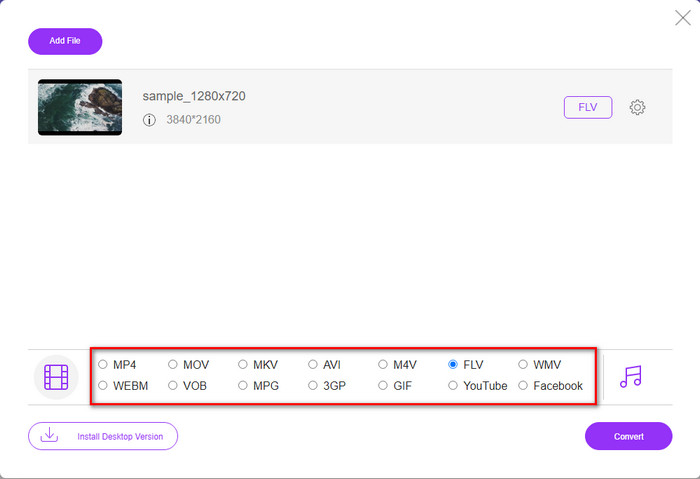
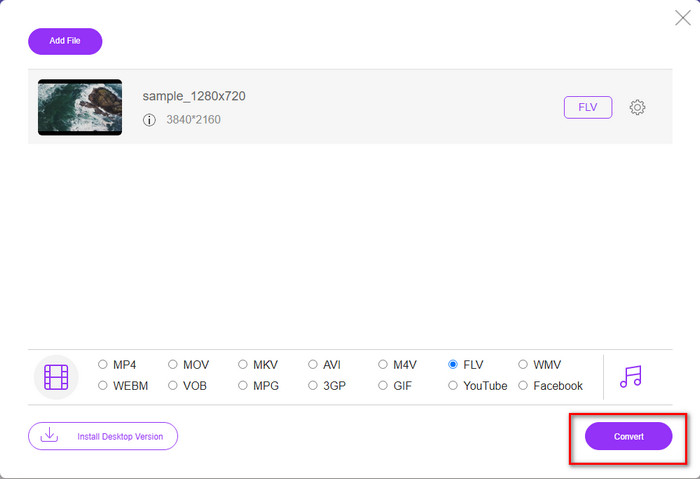
Étape 4. Pour commencer à convertir gratuitement M4V en FLV, cliquez sur Convertir.
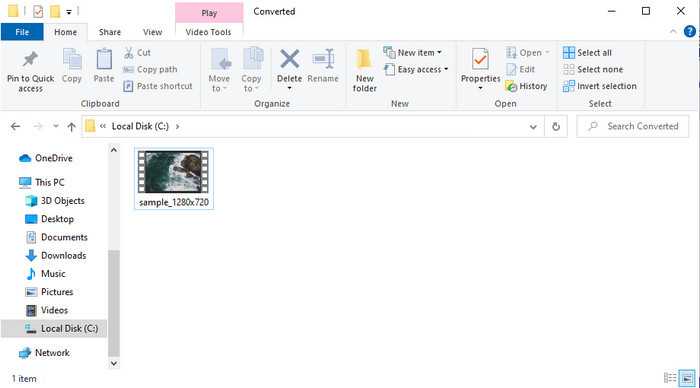
Étape 5. Après la conversion, un dossier s’affichera dans l’interface ; cliquez sur le fichier pour le lire avec votre lecteur multimédia local.
Avantages
- Gratuit et compatible avec tous les navigateurs Web.
- Taille de fichier et conversion illimitées.
- Sûr et sans publicité dans l'outil Web principal.
Les inconvénients
- Il a besoin d'une connexion Internet pour utiliser l'outil.
- Format moins pris en charge pour télécharger et convertir.
Partie 3. Différences entre les formats M4V et FLV
M4V stocke la meilleure qualité vidéo téléchargée sur votre magasin Apple iTunes. Ce format est similaire au MP4 car ils utilisent le codec MPEG-4 comme compresseur. Mais les vidéos M4V sont protégées par la protection des droits d'auteur Apple FairPlay DRM. Ainsi, la lecture de vidéos sous ce format est délicate car elle ne sera pas lue immédiatement si vous les insérez sur un lecteur multimédia autre qu'iTunes ou Quicktime Player. Les fichiers M4V non protégés sont accessibles sur votre lecteur multimédia en changeant l'extension de fichier en .mp4.
En revanche, FLV est utilisé pour transférer des données vidéo et audio sur le Web aussi rapidement que possible. Flash Video est le format le plus favorable qui se trouve sur tous les sites Web HTML 5. Cependant, ce format a été abandonné car Adobe Flash avait déjà pris sa retraite. Cependant, vous pouvez toujours le lire sur les plug-ins de votre lecteur multimédia nécessaires une fois que vous l'avez téléchargé ou converti.
M4V contre FLV
Le M4V est développé par Apple, qui utilise également MPEG 4. Les fichiers M4V sont souvent utilisés pour stocker les vidéos téléchargées à partir de la boutique iTunes d'Apple, comme les vidéos musicales, les épisodes télévisés, etc. Vous pouvez trouver certains fichiers M4V protégés contre la copie car ils utilisent Protection des droits d'auteur FairPlay DRM d'Apple.
Adobe Flash Player a utilisé FLV pour diffuser du contenu vidéo comme des films et des émissions de télévision. Aujourd'hui, Adobe ne développe plus le lecteur et recommande aux utilisateurs de le désinstaller pour des raisons de sécurité. Cependant, vous pouvez toujours utiliser le format FLV sur de nombreux programmes autres qu'Adobe/Macromedia.
Partie 4. FAQ sur la conversion M4V en FLV
Ce qui est mieux; MP4 ou M4V ?
Si vous souhaitez protéger votre fichier, alors M4V est le format que vous devez utiliser car il n'est disponible que sur Apple et il est protégé. Mais supposons que vous souhaitiez un format compatible avec tous les lecteurs multimédias, l'éditeur, etc. Dans ce cas, MP4 est le format multimédia universel que vous aimeriez utiliser.
Puis-je jouer à M4V sur VLC ?
VLC est gratuit, compatible avec toutes les plateformes, et il peut lire presque tous les formats multimédias. Mais les fichiers M4V protégés ne peuvent pas y être lus, car ils sont verrouillés par DRM. Donc, si vous voulez regarder un fichier .m4v avec VLC, il est indispensable de convertir le fichier M4V en MP4 ou en AVI.
Est-ce que je perds la qualité après avoir converti M4V ?
Après la conversion de M4V, la qualité de celui-ci doit conserver le taux standard de la qualité M4V d'origine. Cependant, certains convertisseurs ne prennent pas en charge la conversion de la vidéo en HD, 1080 ou 4k. Ainsi, vous feriez mieux de choisir l'outil parfait et non l'outil correct qui suffira à vos besoins de conversion sans perdre sa qualité.
Conclusion
En résumé, les deux outils en ligne et hors ligne présentés ici sont promis à un grand succès, surtout si vous voulez convertir M4V en FLV. Nous avons également acquis des informations sur les deux formats, M4V et FLV. Bien qu’il soit nécessaire de modifier le M4V pour lire le fichier protégé, choisir le bon outil pour la bonne tâche peut s’avérer délicat. C’est pourquoi nous présentons deux outils que vous pouvez utiliser pour convertir gratuitement ce format avec FVC Free Video Converter Online. Ou bien, découvrez une nouvelle dimension de la conversion en utilisant FVC Video Converter Ultimate. Alors, qu’attendez‑vous si vous voulez regarder gratuitement vos fichiers M4V ? Choisissez l’un des outils ci‑dessus, suivez les étapes simples et rapides présentées plus haut, et voilà, profitez de la vidéo.
-
 [Guide] Comment convertir des vidéos M4V en GIF animés sous Windows/Mac
 Si vous souhaitez créer des fichiers GIF animés à partir de vos vidéos M4V préférées, vous pouvez découvrir 2 manières simples et efficaces de convertir des vidéos M4V en GIF avec des paramètres personnalisés.
-
 3 Programme de conversion vidéo utilisé pour convertir iTunes M4V en AVI sur Mac
 Vous ne savez pas comment convertir MKV au format AVI ? En continuant à lire cet article, nous connaîtrons les 3 outils qui peuvent vous aider à convertir ce format de fichier.
-
 Convertisseur M4V en MOV gratuit - Comment convertir M4V en MOV
 Si votre lecteur multimédia ne prend pas en charge M4V, avez-vous déjà eu du mal à regarder un film sur votre iPhone ? Le sujet principal de cet article est de le convertir en un fichier vidéo MOV.

