


 Video Converter Ultimate
 Enregistreur d'écran
 Réparation vidéo
 Téléchargement sécurisé
Séparateurs GIF : meilleurs outils pour diviser et personnaliser des images animées
Si vous avez déjà voulu utiliser une partie particulière d'un GIF mais que vous vous êtes retrouvé coincé avec l'animation entière, vous n'êtes pas seul. Les GIF sont populaires pour leur capacité à transmettre des émotions et des réactions en peu de temps, mais parfois nous n'avons besoin que d'une partie de la chose pour faire passer notre message. C'est là que l'importance de diviser les fichiers GIF entre en jeu.
Avec l’aide des diviseurs de GIF, vous pouvez facilement extraire la partie exacte du GIF dont vous avez besoin et l’utiliser pour votre projet ou votre publication sur les réseaux sociaux. Cet article va vous présenter certains des meilleurs diviseurs de GIF actuellement disponibles sur le marché.

Partie 1. Un moyen facile de diviser les GIF
1. FVC Video Converter Ultimate
Si vous avez seulement besoin de couper une petite partie d’un GIF, vous pouvez alors utiliser FVC Video Converter Ultimate. Il s’agit d’un logiciel polyvalent qui offre une gamme de fonctionnalités pour la conversion et le montage vidéo. De plus, l’outil prend en charge un large éventail de formats vidéo et permet aux utilisateurs d’ajuster des paramètres tels que la résolution, le débit binaire et la fréquence d’images. Bien qu’il ne dispose pas d’une fonction spécifique de découpe de fichiers GIF, la fonction de découpage vidéo permet d’accomplir cette tâche.
FVC Video Converter Ultimate peut être un outil précieux pour ceux qui recherchent un moyen simple et direct de diviser des fichiers GIF. Avec son interface intuitive et sa fonction de découpage vidéo facile à utiliser, il offre une solution pratique pour les utilisateurs qui n'ont besoin que d'apporter des modifications mineures à leurs GIF. De plus, il est livré avec une gamme d'autres fonctionnalités, telles que le traitement par lots et l'accélération GPU, qui en font un outil complet de conversion et d'édition vidéo. Si vous souhaitez apprendre à diviser les GIF hors ligne, voici les étapes à suivre :
Étape 1. Obtenez le logiciel
Pour commencer, sélectionnez simplement un lien dans la liste des boutons de Téléchargement gratuits ci‑dessous. Ensuite, suivez les instructions à l’écran pour terminer l’installation du programme sur votre appareil. Une fois l’installation terminée, vous pouvez lancer l’application et entrer dans son menu principal.
Téléchargement gratuitPour Windows 7 ou version ultérieureTéléchargement sécurisé
Téléchargement gratuitPour macOS 10.7 ou version ultérieureTéléchargement sécurisé
Étape 2. Importez un fichier image GIF
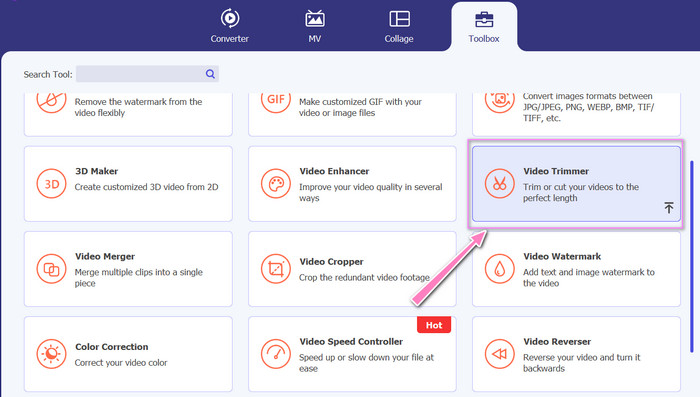
Choisissez l’outil Video Trimmer dans le menu Toolbox. Une fois que c’est fait, cliquez sur le bouton + pour importer un GIF.
Étape 3. Scindez le fichier GIF
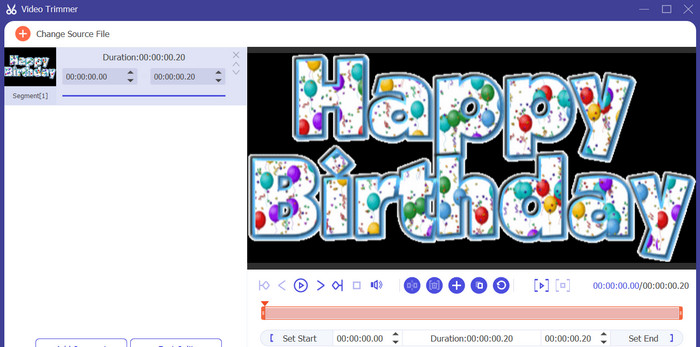
Une fois le GIF téléchargé, il sera affiché sur l'interface du programme pour apporter des modifications. Choisissez les points de début et de fin du GIF que vous souhaitez supprimer à l'aide du curseur.
Étape 4. Conservez le GIF que vous avez créé
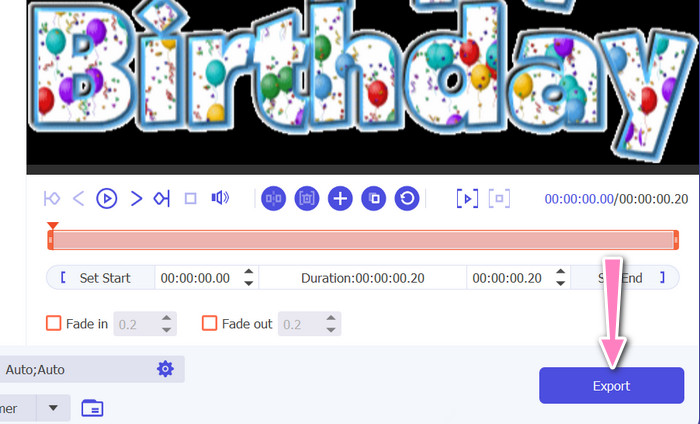
Lorsque vous avez fini de personnaliser le GIF, cliquez sur le bouton Export dans le coin inférieur droit de l’outil pour lancer le processus de rendu.
2. EZGIF
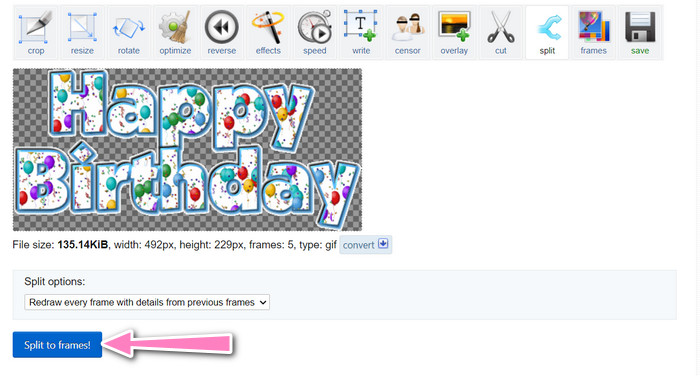
EZGIF est un outil en ligne qui propose une gamme de fonctionnalités pour travailler avec des fichiers GIF. Le site offre divers outils pour créer, éditer et optimiser des GIF, notamment le redimensionnement de GIF, le recadrage et la découpe. Il inclut également des fonctions pour ajouter du texte et des effets spéciaux à vos GIF, et permet même de convertir des vidéos et des images au format GIF. Par conséquent, si vous souhaitez découper des GIF en images en ligne, c’est un excellent choix. De plus, EZGIF est une plateforme conviviale qui ne nécessite ni téléchargement ni installation, ce qui la rend facilement accessible depuis n’importe quel navigateur Web. Découvrez comment cet outil fonctionne et divisez des GIF en images.
Étape 1. Pour découper un GIF avec Ezgif, ouvrez le site EZGIF dans votre navigateur Web.
Étape 2. Sélectionnez l’option Split dans le menu supérieur, puis ajustez les paramètres selon vos besoins.
Étape 3. Cliquez sur le bouton Choose File pour importer le fichier GIF que vous souhaitez découper. Vous pouvez également faire glisser et déposer le fichier dans l’interface d’EZGIF.
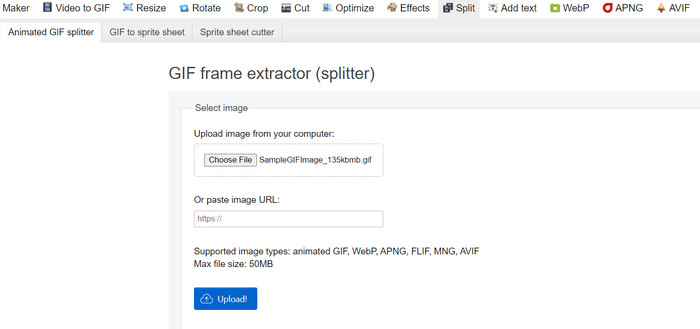
Étape 4. Ensuite, choisissez la méthode de découpe que vous souhaitez utiliser. Vous pouvez découper le GIF selon un nombre spécifique de frames, par intervalles de temps précis, ou en sélectionnant des frames spécifiques à conserver.
Étape 5. Ajustez les paramètres pour la méthode de découpe que vous avez choisie. Cliquez sur le bouton Split to frames! pour lancer le processus de découpe. Il existe également des options pour découper le GIF en PNG ou JPG, selon vos besoins.
Partie 2. Méthode professionnelle pour diviser les fichiers GIF
Il est possible de découper un GIF en images dans Photoshop. Le logiciel offre une grande flexibilité et un contrôle précis lorsque vous travaillez avec des GIF animés. Avec Photoshop, vous pouvez ouvrir un fichier GIF et modifier chaque frame individuelle de l’animation, ce qui vous permet d’apporter des ajustements et d'ajouter un filtre à chaque frame séparément. Cela signifie que vous pouvez créer des animations complexes, ajouter du texte ou des éléments graphiques et ajuster le timing de chaque frame pour obtenir une animation fluide et soignée. Pour en savoir plus sur les options de montage disponibles dans Photoshop pour les GIF, consultez les étapes ci‑dessous :
Étape 1. Ouvrez le fichier GIF dans Photoshop en allant dans File > Open et en sélectionnant le fichier.
Étape 2. Une fois le fichier ouvert, allez dans Window > Timeline pour ouvrir le panneau Timeline.
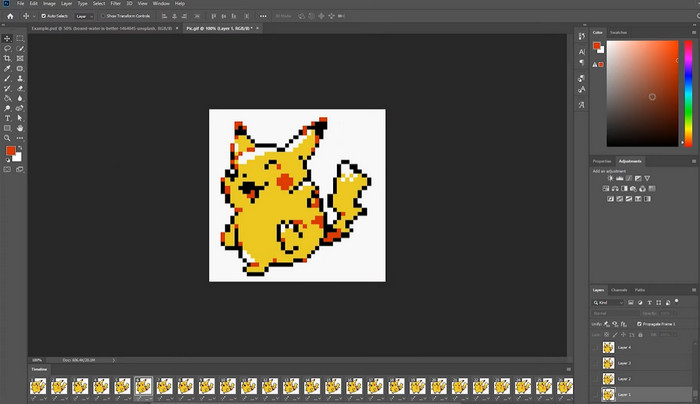
Étape 3. Dans le panneau Timeline, vous devriez voir chaque frame de l’animation représentée comme un calque séparé. Si vous ne voyez pas le panneau Timeline, cliquez sur le bouton de menu dans le coin supérieur droit du panneau et sélectionnez Create Frame Animation.
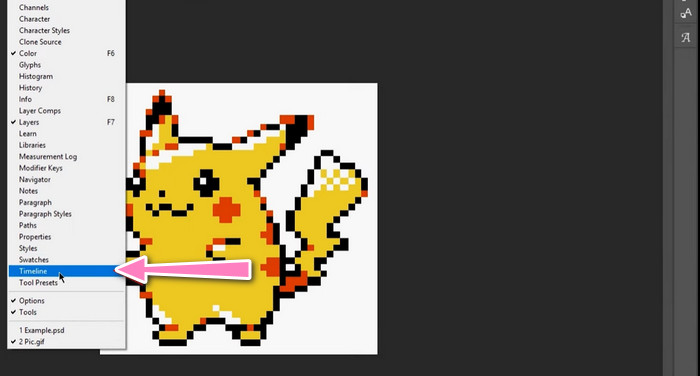
Étape 4. Pour découper le GIF, cliquez sur le bouton de menu dans le panneau Timeline et sélectionnez Make Frames From Layers. Cela créera une frame séparée pour chaque calque de l’animation.
Étape 5. Vous pouvez maintenant modifier chaque frame individuellement en la sélectionnant dans le panneau Timeline et en effectuant les changements souhaités.
Étape 6. Allez dans File > Export > Layers to Files pour exporter chaque frame en tant que fichier distinct. Dans la boîte de dialogue d’exportation, sélectionnez le format de fichier souhaité et le dossier de destination, puis cliquez sur Run pour exporter les fichiers.
Partie 3. FAQ sur le fractionnement des GIF
Puis-je diviser un GIF en sections ou intervalles de temps spécifiques ?
Oui, vous pouvez diviser un GIF en sections ou intervalles de temps spécifiques à l'aide d'outils en ligne ou d'un logiciel de retouche d'image.
Puis-je utiliser un logiciel de montage vidéo pour diviser les GIF ?
Oui, de nombreuses applications logicielles de montage vidéo peuvent être utilisées pour diviser les GIF. Par exemple, FVC Video Converter Ultimate, Adobe Premiere Pro et Final Cut Pro X sont des options populaires.
Comment ajuster la synchronisation des images individuelles dans un GIF ?
Vous pouvez ajuster la synchronisation des images individuelles dans un GIF à l'aide d'un outil en ligne ou d'un logiciel de retouche d'image comme Photoshop.
Conclusion
Découper un fichier GIF peut être une technique utile pour créer de nouvelles animations, modifier des animations existantes ou partager certaines frames ou sections spécifiques. Que vous préfériez utiliser des outils en ligne ou un logiciel de retouche d’images comme Photoshop, plusieurs options sont disponibles pour découper des GIF. En suivant les étapes décrites dans cet article et en explorant les différents outils proposés, vous pouvez facilement découper vos GIF et créer de nouvelles animations.
-
 Méthodes exceptionnelles pour fractionner efficacement des vidéos
 Cet article explique comment diviser une vidéo en plusieurs parties. Donc, si vous êtes intéressé, cliquez sur ce post car nous vous proposons les moyens les plus simples d'essayer.
-
 Apprenez 4 façons de créer des GIF à partir d'images [en ligne et hors ligne]
 Vous voulez savoir comment créer des GIF à partir de la compilation de vos images ? Cliquez ensuite sur ce lien et lisez les exemples suivants.
-
 3 façons les plus simples d'ajouter un filigrane à un GIF en ligne et hors ligne
 Ajouter un filigrane à un GIF peut être aussi simple que 1-2-3 si vous utilisez correctement le bon outil. Les outils du marché sont trop larges, mais nous allons vous présenter les trois outils sur lesquels vous pouvez compter.
