


 Video Converter Ultimate
 Enregistreur d'écran
 Réparation vidéo
 Téléchargement sécurisé
Méthodes professionnelles pour convertir des images en vecteur
Le meilleur format graphique pour les logos et les dessins est le graphique vectoriel. Cela est dû à ses courbes et lignes nettes et distinctes. De plus, au lieu d’utiliser des pixels, ce sont des équations qui servent à les construire. On peut redimensionner les vecteurs à n’importe quelle taille sans perte de netteté. L’utilisateur doit pouvoir convertir des photos en vecteurs. La bonne nouvelle, c’est qu’il est possible d’apprendre tout ce qu’il faut savoir en ligne, grâce à l’abondance d’outils et de tutoriels disponibles. Les designers et les spécialistes du marketing doivent savoir travailler avec ce type de fichier très répandu qu’est l’image vectorielle. Après tout, les panneaux d’affichage et d’autres formes de publicité privilégient ce format. Il existe de nombreuses techniques pour transformer des images en vecteurs. Si vous recherchez la meilleure façon de convertir des images en vecteurs, vous avez une bonne raison de lire ce guide.

Partie 1. Qu'est-ce qu'un vecteur d'image ?
Une image informatique avec des points, des lignes et des courbes est appelée image vectorielle. Basé sur des équations mathématiques, il est utilisé pour créer diverses formes. Chaque équation mathématique a des qualités uniques telles que la couleur, l'épaisseur, la courbe, etc. Pour cette raison, une image vectorielle peut être agrandie et mise à l'échelle vers le haut ou vers le bas sans perdre les détails de l'image. Cela implique que les lignes, les courbes et les points restent lisses quelle que soit la taille ou le degré de zoom de l'image. Il n'y aura jamais de bords flous ou irréguliers dans l'illustration. Les logos sont souvent des fichiers vectoriels. De plus, les couleurs sont divisées en formes distinctes. Aussi simple que de cliquer sur un bouton simplifie le changement des couleurs de ces graphiques.
Partie 2. Meilleure façon de vectoriser une image
Comment vectoriser une image dans Illustrator
Si vous voulez vectoriser vos images, vous pouvez utiliser Illustrator. Ce programme permet de vectoriser une image de manière parfaite. Il dispose de tous les outils et options dont vous avez besoin. Il prend également en charge presque tous les formats d’image les plus courants pour importer des fichiers. Vous pouvez ajouter des JPG, BMP, PNG, EPS, TIFF, et bien plus encore. Cependant, vous devez acheter le programme si vous souhaitez l’utiliser au quotidien. Illustrator ne propose qu’une version d’essai gratuite de quelques jours. De plus, son processus d’installation est déroutant. Si vous êtes débutant, vous aurez du mal à l’utiliser. Vous devrez demander l’aide d’utilisateurs avancés si vous voulez vectoriser vos images avec Illustrator. En outre, le programme comporte des options complexes. Il est nécessaire d’étudier le logiciel avant de l’utiliser. De plus, la vectorisation d’une image implique de nombreuses étapes. Consultez la procédure ci‑dessous pour apprendre à vectoriser une image.
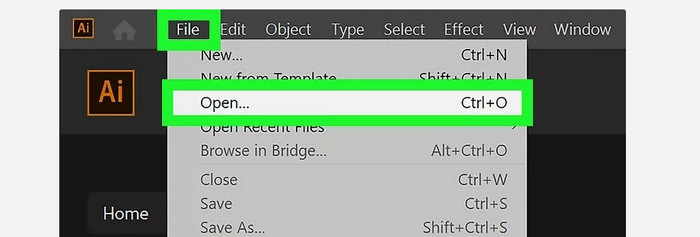
Étape 1. Téléchargez Illustrator sur votre ordinateur de bureau. Vous pouvez utiliser la version d’essai gratuite si vous le souhaitez. Après l’installation, lancez le programme. Allez dans le menu Fichier > Ouvrir pour ajouter l’image que vous souhaitez vectoriser.
Étape 2. Dans la nouvelle fenêtre qui s’affiche, cochez la case Aperçu pour voir votre image en format vectoriel en temps réel.
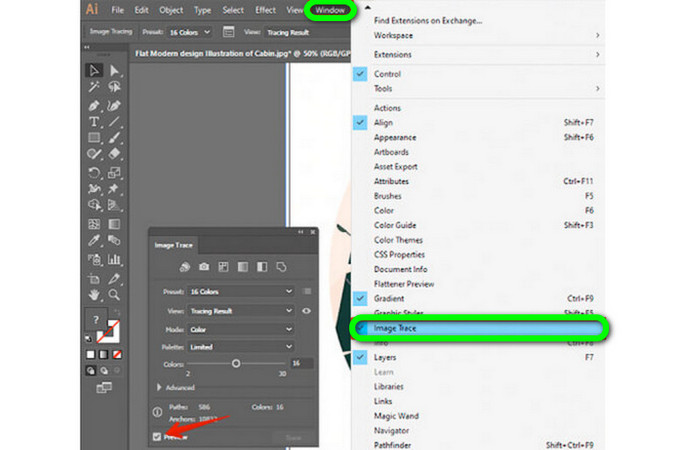
Étape 3. Le choix du mode est l’étape suivante pour comprendre comment vectoriser dans Illustrator. Repérez l’option déroulante Mode dans le panneau Vectorisation de l’image (Image Trace), puis sélectionnez le mode qui s’adapte le mieux à votre création. Les modes possibles sont niveaux de gris, noir et blanc ou couleur.

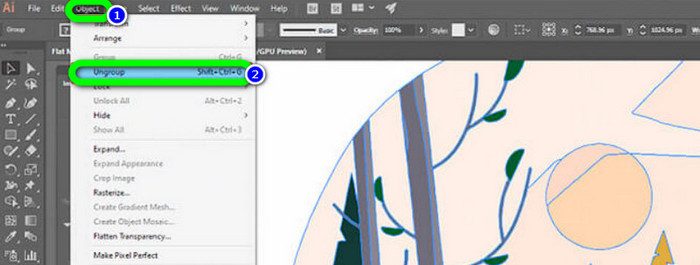
Étape 4. Faites ensuite un clic droit sur votre image. Choisissez Dissocier dans le menu déroulant de l’onglet Objet. Vous pouvez également utiliser les raccourcis Maj+Ctrl+G/Maj+Cmd+G si vous préférez les accès rapides. Cette opération divisera vos formes colorées en différentes parties.
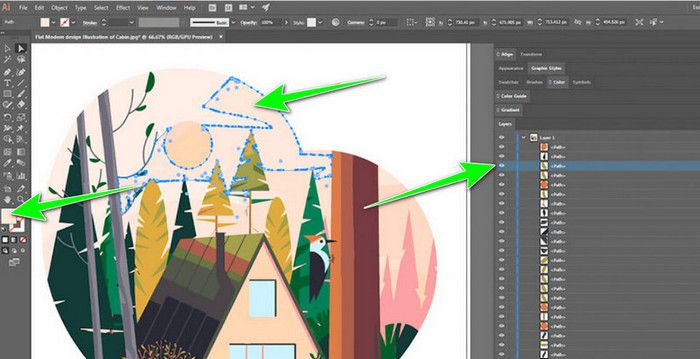
Étape 5. Une fois la conversion terminée, vous pouvez modifier librement l’image. Cliquez sur une forme, puis utilisez Sélection > Même > Couleur de fond (Fill Color) pour supprimer les groupes de couleurs que vous souhaitez.
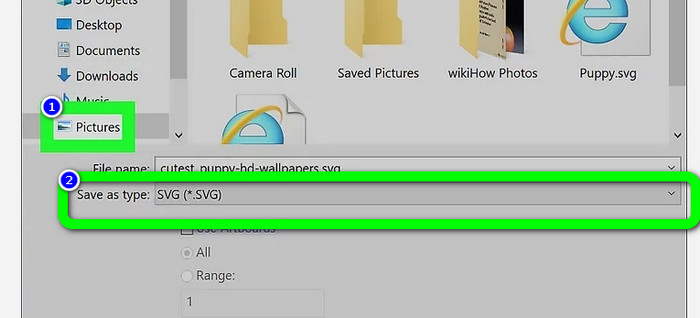
Étape 6. Enfin, enregistrez votre image au format vectoriel. Allez dans l’option Fichier > Enregistrer sous. Puis, choisissez le format de fichier SVG.
Comment vectoriser une image dans Photoshop
Adobe Photoshop est performant pour vectoriser une image. Il propose des méthodes efficaces qui le rendent simple d’utilisation pour tous les utilisateurs. Vous pouvez également vectoriser une image en quelques étapes. De plus, Photoshop est aussi capable de retoucher les images. Si vous souhaitez modifier vos images avant de les enregistrer, vous le pouvez. Cependant, Photoshop présente quelques inconvénients. Il n’offre qu’un essai gratuit de 7 jours. Ensuite, une fois l’essai terminé, vous devez payer un abonnement. Le processus d’installation est également long.
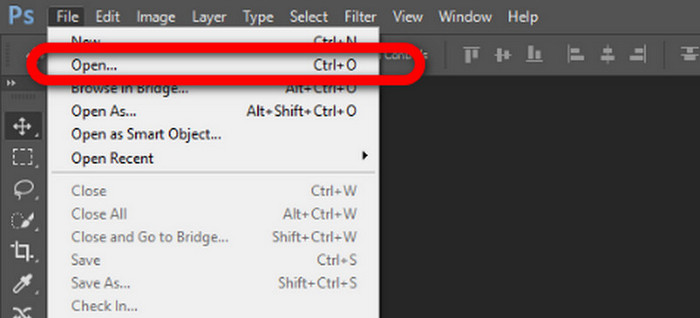
Étape 1. Lancez Adobe Photoshop sur votre ordinateur. Puis, allez dans le menu Fichier et sélectionnez l’option Ouvrir pour ajouter l’image que vous voulez vectoriser.
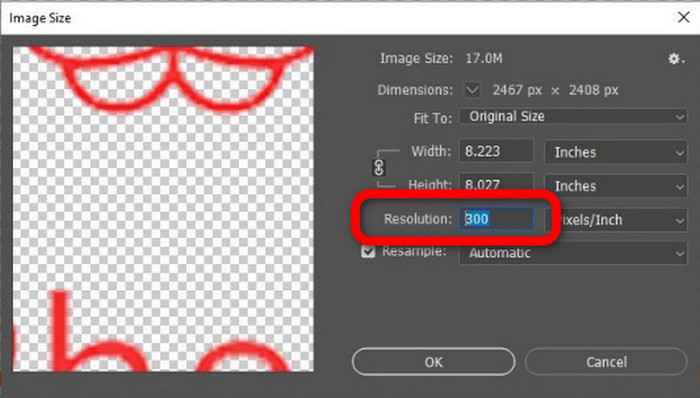
Étape 2. Appuyez sur Ctrl + Alt + I sur votre clavier pour afficher la fenêtre Taille de l’image et réglez la résolution sur 300.
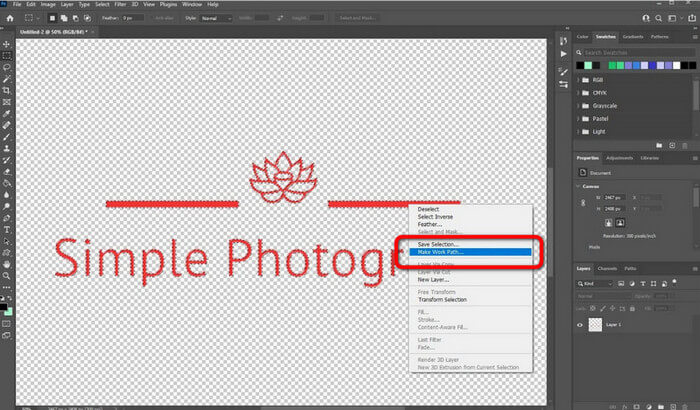
Étape 3. Placez le curseur au‑dessus de la sélection, choisissez l’outil Rectangle de sélection (Marquee) dans le panneau d’outils, puis faites un clic droit. Choisissez ensuite l’option Tracer un travail (Make Work Path) dans le menu.
Étape 4. Appuyez ensuite sur Ctrl + A sur le clavier pour activer l’outil Sélection directe (Direct Selection). Après cela, faites un clic droit sur l’image et sélectionnez l’option Créer un masque vectoriel (Create Vector Mask). De cette façon, un masque vectoriel sera créé sur le calque.
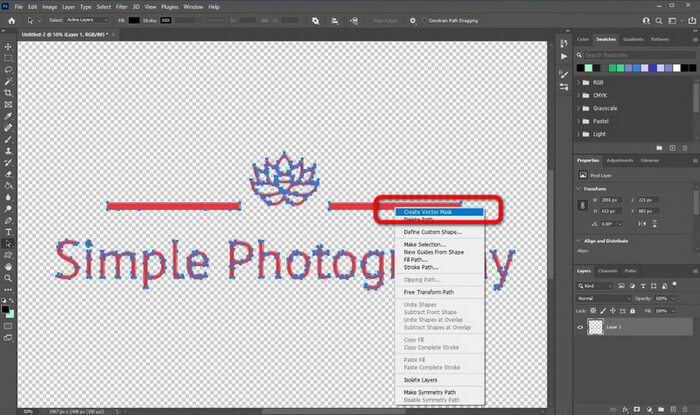
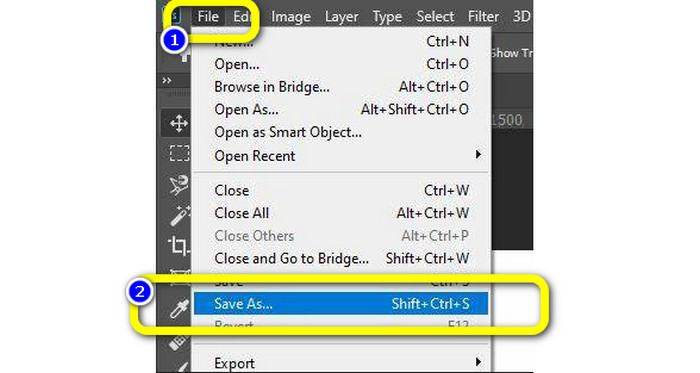
Étape 5. Pour enregistrer l’image vectorisée, allez dans le menu Fichier et sélectionnez l’option Enregistrer sous.
Partie 3. Comment convertir des images vectorielles
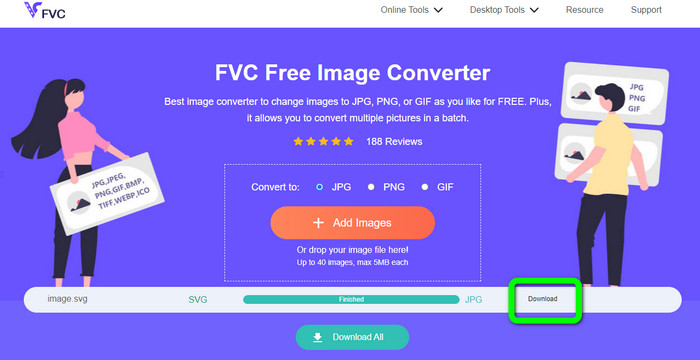
Un excellent convertisseur d’images en ligne est FVC Free Image Converter. Il peut convertir des graphiques vectoriels en d’autres formats comme JPG et PNG. Son interface utilisateur est excellente. Vous pouvez vous concentrer sur la conversion des fichiers, car il n’y a aucune publicité gênante. De plus, il n’est pas nécessaire d’installer ce convertisseur. Vous le contrôlez directement depuis votre navigateur. Par ailleurs, la qualité de l’image restera identique au fichier d’origine après la conversion. Il offre une interface et des instructions faciles à suivre, ce qui est idéal pour les utilisateurs. Il est aussi possible de convertir plusieurs fichiers image. Ce convertisseur d’images permet la conversion par lots. De plus, vous pouvez télécharger de nombreux fichiers convertis en un seul clic. Il accepte également des fichiers d’entrée dans divers autres formats, tels que PNG, BMP, TIFF et GIF. L’absence de publicités intrusives fait partie des points positifs de cet outil. Ainsi, vous êtes sûr que votre résultat final sera agréable à utiliser et à regarder. Avec FVC Free Image Converter, votre confidentialité est protégée. Il ne conserve pas vos données après l’enregistrement de l’image.
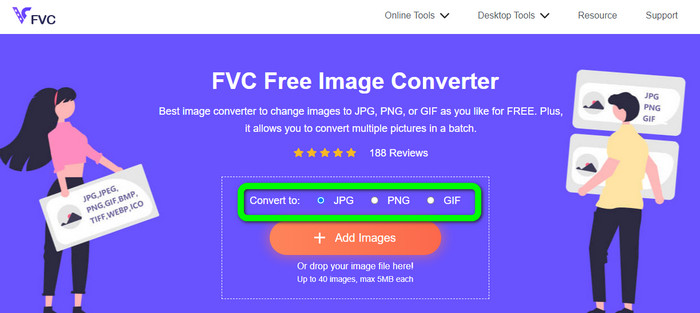
Étape 1. Rendez‑vous sur le site de FVC Free Image Converter. Accédez à l’option de conversion et sélectionnez votre format de sortie souhaité.
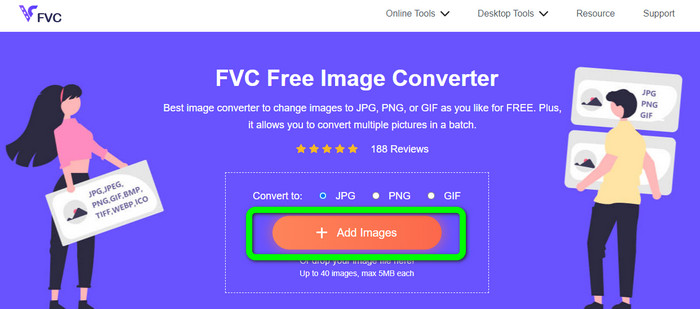
Étape 2. Cliquez sur le bouton Ajouter des images pour téléverser l’image vectorielle. Vous pouvez aussi déposer l’image dans la zone prévue.
Étape 3. Après le téléversement de l’image vectorielle, l’outil convertira automatiquement l’image. Puis, une fois la conversion terminée, cliquez sur le bouton Télécharger.
Relative à:
Méthodes simples pour convertir des images en noir et blanc
Meilleures méthodes pour convertir des images en liens [Méthodes complètes]
Partie 4. FAQ sur la conversion d'images en vecteur
1. Quelles sont les différentes utilisations des images vectorielles ?
Il existe de nombreuses raisons pour lesquelles vous devez utiliser des fichiers vectoriels. Si vous envisagez d'imprimer des images, il est préférable de mettre l'image dans un fichier vectoriel. En plus de l'impression, il est également parfait pour l'animation. Les utilisateurs l'utilisent pour les images image par image qui nécessitent moins de puissance de calcul. En outre, certains concepteurs utilisent des images vectorielles pour les panneaux d'affichage et les publicités.
2. Quels sont les principaux types de formats d'images vectorielles ?
Les principaux formats d'images vectorielles sont Scalable Vectors Graphics (SVG), Windows Metafile (WMF), Adobe Illustrator Artwork (AI), Encapsulated PostScript (APS) et Portable Document Format (PDF).
3. Ai-je toujours besoin d'un fichier vectoriel si j'ai un travail de conception à faire ?
Pas toujours. Il existe des façons d'utiliser différents formats de fichiers. Mais que vous ayez besoin ou non de fichiers vectoriels dépend en fin de compte du type de travail que vous avez effectué. En fin de compte, si vous avez effectué un travail de conception, discutez de vos formats de fichiers avec votre concepteur. De cette façon, vous pouvez rassembler ou générer les fichiers appropriés s'ils ne sont pas disponibles.
4. Comment convertir n'importe quelle image en silhouette vectorielle noir-blanc ?
Pour convertir l'image en noir et blanc, vous pouvez utiliser Photoshop. Allez dans le menu Fichier et sélectionnez l'option Ouvrir pour ajouter l'image. Ensuite, sur l'interface supérieure, cliquez sur le menu Image. Sélectionnez Réglages > Seuil. Ensuite, la fenêtre Seuil apparaîtra. Ensuite, cliquez sur OK.
Conclusion
Les images vectorielles sont excellentes pour des usages comme les publicités, les panneaux d’affichage, et bien plus encore. C’est pourquoi l’article vous a présenté les meilleures méthodes pour vectoriser une image. Vous avez également appris à convertir des images vectorielles vers d’autres formats comme JPG et PNG. Si vous voulez vectoriser une image et convertir des images vers d’autres formats, utilisez FVC Free Image Converter.
-
 Méthodes faciles à comprendre pour convertir PSD en PNG ou JPG
 Cet article vous donnera des étapes gérables pour convertir PSD en JPG ou PNG. Il existe différents convertisseurs que vous pouvez utiliser pour convertir vos fichiers. Lire la suite pour le savoir.
-
 Méthodes testées pour convertir TGA en PNG facilement mais professionnellement
 Consultez ces guides pour savoir comment convertir TGA en PNG à l'aide de convertisseurs d'images en ligne. Cliquez sur l'article pour découvrir tous les détails de la conversion d'image.
-
 Tutoriels incomparables pour convertir des images au format SVG
 Voulez-vous convertir vos photos au format de fichier SVG ? Ensuite, cet article vous donnera d'excellents convertisseurs que vous pourrez utiliser en ligne, hors ligne et sur des appareils mobiles.
