


 Video Converter Ultimate
 Enregistreur d'écran
 Réparation vidéo
3 façons d'ajouter un arrière-plan à une photo en ligne, sur iPhone, Android et ordinateur
Lors de la retouche d’une image, vous devez souvent supprimer l’arrière-plan d’origine et en ajouter un autre. Pour une image avec un arrière‑plan transparent, vous pouvez facilement modifier le fond avec un éditeur d’images. Dans la plupart des cas, il faut d’abord enlever l’arrière‑plan actuel, puis en ajouter un nouveau à la photo. Vous cherchez une bonne application d’édition d’images pour ajouter un arrière‑plan à une photo ?
Cet article explique 3 méthodes efficaces pour ajouter un arrière-plan à une photo. Que vous souhaitiez ajouter un arrière-plan blanc à une photo directement en ligne, ajouter un arrière-plan à une photo sur un iPhone ou modifier l'arrière-plan de l'image sur un appareil Android, vous pouvez suivre la méthode spécifique pour le faire.

Partie 1. Comment ajouter gratuitement un arrière-plan à une photo en ligne
Pour ajouter rapidement un arrière‑plan à une photo, vous pouvez d’abord essayer quelques éditeurs d’images en ligne. Nous vous recommandons vivement l’outil simple d’utilisation Free Background Remover Online pour supprimer l’arrière‑plan d’origine de votre image et lui en ajouter un différent. Cet outil gratuit de modification d’arrière‑plan d’image prend en charge tous les formats courants comme JPG, PNG, GIF, et plus encore. Il vous offre un moyen simple d’ajouter un fond blanc à une photo ou de remplacer l’arrière‑plan actuel par une autre image.
Étape 1. Ouvrez votre navigateur web comme Chrome, Safari, Yahoo, IE ou Firefox, puis accédez à ce site de changement gratuit d’arrière‑plan de photo. Une fois sur la page, cliquez simplement sur le bouton Upload Portrait pour sélectionner et ajouter votre photo en vue de l’éditer.

Étape 2. Grâce à une technologie d’IA avancée, l’outil sélectionnera automatiquement le sujet principal de votre image importée. Vous pouvez ensuite utiliser la fonction Keep or Erase pour effectuer d’autres retouches.
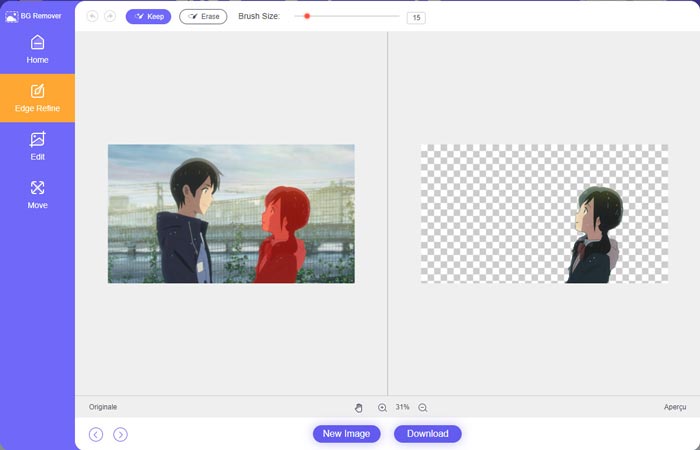
Étape 3. Cliquez sur l’option Edit à gauche, puis vous pourrez choisir de modifier la couleur de l’arrière‑plan ou d’ajouter un arrière‑plan à la photo. À cette étape, vous pouvez également vous servir de la fonction Crop pour personnaliser la taille de l’image selon vos besoins.
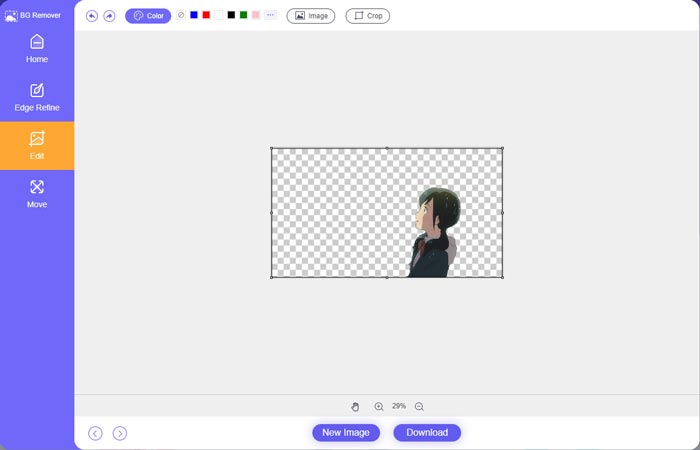
Étape 4. Après avoir ajouté un arrière‑plan adapté à la photo, cliquez sur le bouton Download pour l’enregistrer sur votre ordinateur. Votre image retouchée sera enregistrée au format PNG par défaut.
Partie 2. Comment ajouter un arrière-plan à une photo à l'aide d'Adobe Photoshop
Adobe Photoshop est l'un des éditeurs d'images les plus célèbres qui propose de nombreuses fonctionnalités vous permettant d'éditer des images, des effets personnalisés et d'effectuer d'autres opérations. Si Photoshop est installé sur votre ordinateur, vous pouvez choisir d'ajouter un arrière-plan à la photo dans Photoshop.
Étape 1. Ouvrez le logiciel Photoshop sur votre ordinateur et ajoutez‑y votre photo. Vous pouvez télécharger gratuitement la dernière version de Photoshop depuis le site officiel d’Adobe. Notez qu’Adobe ne propose qu’un essai gratuit de 7 jours pour utiliser Photoshop.
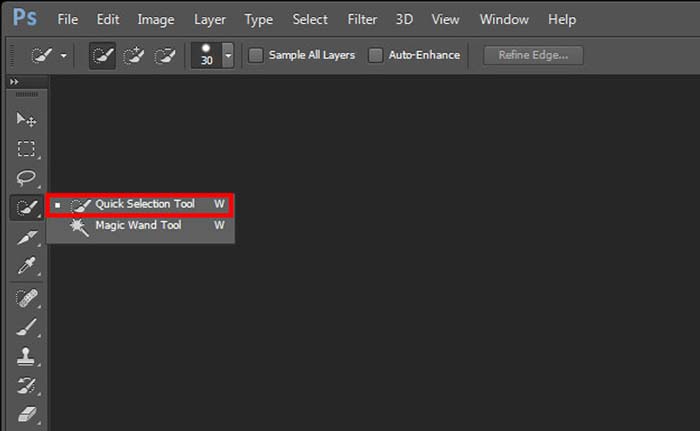
Étape 2. Une fois votre photo chargée dans Photoshop, cliquez sur l’icône de l’outil Quick Selection Tool or Magic Wand Tool dans la boîte à outils de gauche pour sélectionner l’arrière‑plan que vous souhaitez modifier.
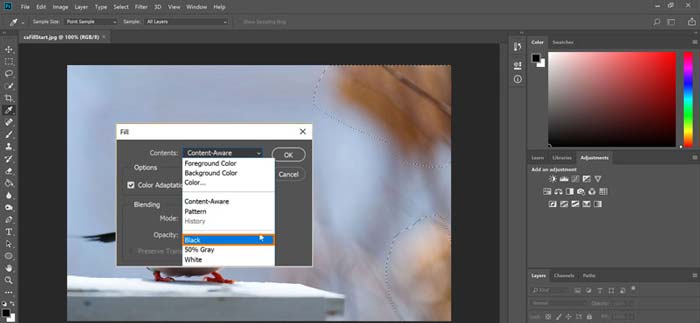
Étape 3. Après avoir sélectionné l’arrière‑plan de la photo, faites un clic droit dessus et choisissez l’option Fill. Vous pouvez maintenant simplement ajouter un fond blanc à la photo ou changer l’arrière‑plan pour une autre couleur comme le noir, le bleu, le gris ou toute autre couleur dont vous avez besoin.
Étape 4. Si vous souhaitez ajouter une nouvelle image comme arrière‑plan, vous devez d’abord supprimer l’arrière‑plan sélectionné. Vous pouvez appuyer sur la touche Suppr de votre clavier pour vous débarrasser de l’arrière‑plan actuel. Ensuite, ajoutez le fichier image dans Photoshop et faites glisser son calque sous le calque d’arrière‑plan. De cette façon, vous pouvez facilement remplacer l’arrière‑plan d’origine par une nouvelle image.
Étape 5. Après avoir ajouté un arrière‑plan à une photo dans Photoshop, cliquez sur le menu Fichier en haut, puis choisissez l’option Enregistrer sous dans la liste déroulante. Sélectionnez le format d’image approprié pour cette photo et enregistrez‑la sur votre ordinateur.
Partie 3. Comment ajouter un arrière-plan à une photo sur iPhone et téléphone Android
Lorsque vous souhaitez ajouter un arrière-plan à une photo sur un iPhone, un iPad ou un téléphone Android, vous devez trouver une bonne application d'édition d'arrière-plan d'image.
LightX est une application de retouche photo complète pour les utilisateurs iOS et Android. Elle offre un moyen pratique de supprimer un arrière‑plan indésirable, d’ajouter un nouvel arrière‑plan à la photo, d’appliquer différents effets, de créer des selfies de haute qualité, et bien plus encore directement sur votre téléphone. De nombreux outils avancés de retouche d’image sont intégrés dans l’application LightX, comme le mélange de couleurs, la saturation personnalisée de la photo, le contraste, la teinte, les courbes, etc. Vous pouvez la télécharger depuis l’App Store ou le Google Play Store.
Étape 1. Installez et ouvrez l’application LightX sur votre iPhone, iPad ou téléphone Android. Autorisez l’application à accéder aux photos de votre appareil. Ajoutez votre photo pour la modifier ensuite en arrière‑plan.
Étape 2. Pour supprimer l’arrière‑plan actuel de la photo et le remplacer par autre chose, faites glisser vers la gauche pour faire apparaître de nombreuses options différentes. Sous Creative, vous pouvez choisir la fonction Cutout pour ajouter un arrière‑plan à la photo. Vous devez maintenant sélectionner manuellement le sujet principal et effacer l’arrière‑plan d’origine.
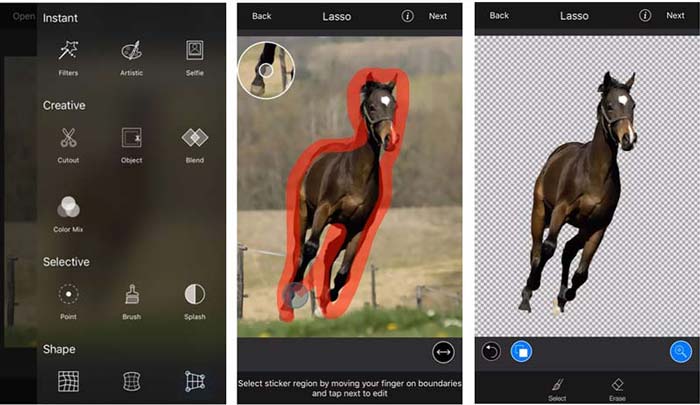
Étape 3. Après avoir supprimé l’arrière‑plan, touchez Next dans l’angle supérieur droit pour continuer. Vous pouvez ensuite utiliser la fonction Crop pour redimensionner l’image. Touchez Done pour confirmer votre opération. Après cela, vous pouvez toucher BG Image en bas de l’écran pour ajouter un arrière‑plan différent à la photo. Vous pouvez ajuster librement les effets du nouvel arrière‑plan selon vos besoins.
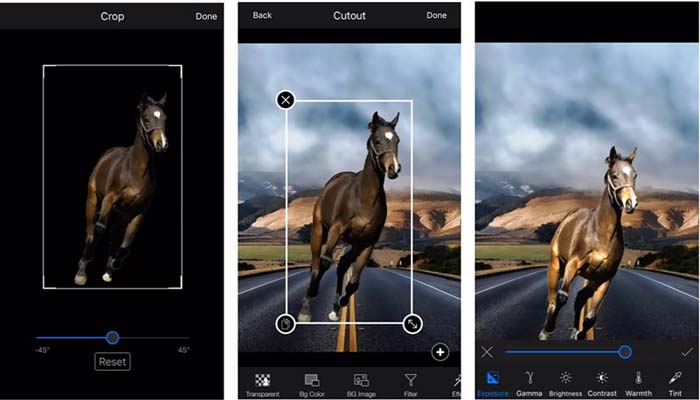
Que vous utilisiez un appareil iOS ou Android, vous pouvez suivre des étapes similaires pour ajouter un arrière-plan à une photo à l'aide de l'application LightX. Notez qu'en tant qu'utilisateur iOS, vous devez payer $3.99 pour cette application d'ajout d'arrière-plan. Si vous êtes un utilisateur Android, vous pouvez l'installer à partir du Google Play Store. Pour passer à une version premium, vous devez payer le même prix.
En rapport:
Qu’est-ce que la résolution vidéo : analyse approfondie de la résolution et plus encore
6 filtres animés Snapchat préférés sur Snapchat
Partie 4. FAQ sur la façon d'ajouter un arrière-plan à une photo
Comment ajouter un arrière-plan différent à une photo sur mon Mac ?
Vous pouvez utiliser les deux premières méthodes pour simplement modifier l’arrière‑plan de votre photo sur un Mac. En plus du Free Background Remover Online recommandé et d’Adobe Photoshop, vous pouvez également compter sur d’autres éditeurs d’images pour ajouter un nouvel arrière‑plan à votre photo.
Comment changer le fond d'écran sur un iPhone ?
iOS offre un moyen simple de changer le fond d'écran sur un iPhone ou un iPad. Vous pouvez accéder à l'application Paramètres, appuyer sur l'option Fond d'écran, puis appuyer sur Choisir un nouveau fond d'écran.
Puis-je ajouter un arrière-plan à une photo en direct sur mon iPhone ?
Non. L'iPhone ne vous offre pas de moyen direct de modifier l'arrière-plan d'une photo en direct. Vous êtes uniquement autorisé à le recadrer, à appliquer des filtres, à ajuster les effets et à le transformer en image fixe.
Conclusion
Cet article partage 3 méthodes utiles pour ajouter un arrière-plan à une photo. Lorsque vous avez besoin de supprimer l'arrière-plan de la photo d'origine et d'en ajouter un nouveau, vous pouvez sélectionner votre éditeur d'image préféré pour le faire.
-
 Les 3 meilleures façons d'ajouter des filtres sur GIF avec les meilleurs éditeurs GIF [Favori]
 Voulez-vous savoir comment ajouter un filtre au GIF pour le rendre meilleur ? Dans ce blog, vous apprendrez facilement les différentes techniques pour ajouter des filtres à vos GIF.
-
 3 façons les plus simples d'ajouter un filigrane à un GIF en ligne et hors ligne
 Ajouter un filigrane à un GIF peut être aussi simple que 1-2-3 si vous utilisez correctement le bon outil. Les outils du marché sont trop larges, mais nous allons vous présenter les trois outils sur lesquels vous pouvez compter.
-
 5 meilleures façons de changer l'image en GIF animé [Mise à jour 2022]
 Besoin d'un convertisseur d'image en GIF ? Cet article fournira les cinq meilleurs convertisseurs que nous pouvons trouver sur le marché. Alors, découvrons ces outils en lisant cet article.
