


 Video Converter Ultimate
 Enregistreur d'écran
 Réparation vidéo
 Téléchargement sécurisé
Correction étonnante de la qualité d'image à l'aide des outils les plus fantastiques
Avoir une image de mauvaise qualité est assez dérangeant. Si vous avez vous aussi une image de mauvaise qualité, vous devez en améliorer la qualité. Mais comment faire ? Il existe de nombreux agrandisseurs d’images que vous pouvez utiliser sur votre ordinateur pour augmenter la qualité de votre image. Et si vous vous demandez comment corriger la qualité de votre image, nous allons vous aider. Lisez cet article en entier pour apprendre comment corriger la qualité d’une image rapidement.

Partie 1. Comment réparer la qualité d'image en ligne gratuitement
Il existe des tonnes d'upscaler d'image que vous pouvez télécharger sur votre PC. Cependant, vous devez les acheter avant de pouvoir améliorer la qualité de votre image. Et si vous recherchez un upscaler d'image gratuit, nous avons le bon outil. Lisez attentivement cette partie pour savoir comment améliorer gratuitement la qualité d'image à l'aide des deux outils en ligne les plus fantastiques.
Conversion ascendante d'images gratuites FVC
FVC Free Image Upscaler est une application en ligne gratuite qui va vous aider à corriger la qualité d’une image. Cet outil en ligne est adapté aux débutants, car son interface est facile à utiliser. De plus, il peut vous fournir quatre niveaux de résultat avec des agrandissements en 2x, 4x, 6x et 8x, offrant d’excellents rendus. Vous n’avez pas non plus à vous inquiéter pour la sécurité de vos données, car FVC Free Image Upscaler vous garantit une utilisation sûre. Ce qui est encore plus impressionnant avec cet outil, c’est qu’il utilise une technologie d’IA qui reconnaît automatiquement les zones floues. En outre, cet outil vous permet de corriger parfaitement les pixels perdus, les textures de couleur et d’autres détails. Si vous voulez utiliser cet outil pour améliorer la qualité de votre image, lisez les instructions ci‑dessous.
Comment corriger la qualité des photos en ligne à l'aide de FVC Free Image Upscaler :
Étape 1. Dans le navigateur que vous utilisez, recherchez FVC Free Image Upscaler dans la barre de recherche. Cliquez sur ce lien pour aller directement à leur page principale.
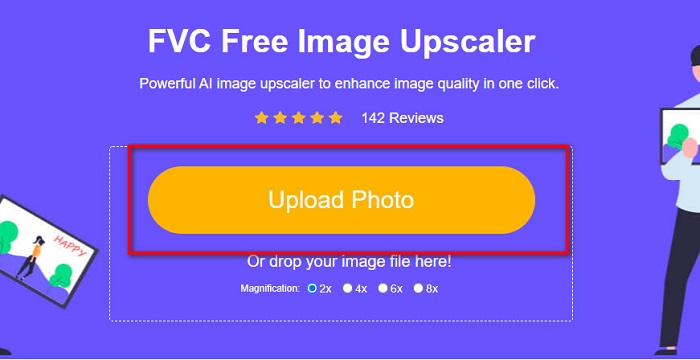
Étape 2. Sur l’interface principale, cliquez sur le bouton Upload Photo pour envoyer l’image que vous souhaitez agrandir. Les fichiers de votre ordinateur s’ouvriront et vous sélectionnerez votre image de mauvaise qualité à importer.
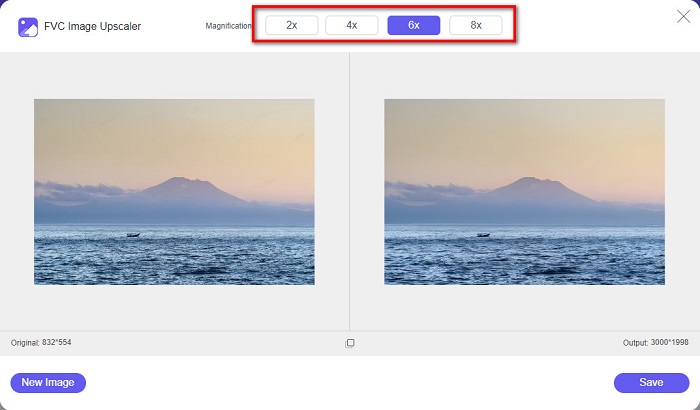
Étape 3. Ensuite, sélectionnez le taux d’agrandissement que vous souhaitez pour votre image. Plus le taux d’agrandissement est élevé, meilleure est la qualité. Vous pouvez choisir entre 2x, 4x, 6x et 8x.
Étape 4. Puis, appuyez sur le bouton Save pour enregistrer votre image améliorée dans les dossiers de votre ordinateur.
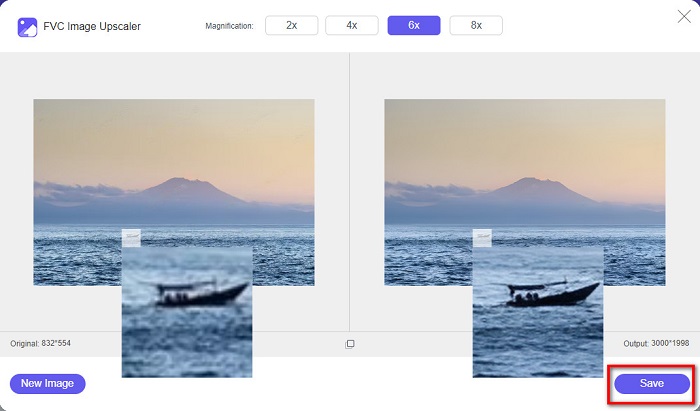
Simple, n’est‑ce pas ? Aussi facile que A‑B‑C, vous pouvez corriger la qualité d’une image avec FVC Free Image Upscaler.
Icons8.com
Icons8.com est un autre agrandisseur d’images en ligne accessible sur presque tous les navigateurs web, notamment Google, Firefox et Safari. Cette application en ligne est facile à utiliser, car elle dispose d’une interface simple. De plus, cet outil en ligne utilise une technologie d’IA qui détecte automatiquement les parties floues de l’image. En outre, vos images peuvent être agrandies jusqu’à 7680 x 7680 px. Toutefois, un filigrane est ajouté au résultat. Néanmoins, cela reste un outil efficace pour agrandir votre image.
Comment réparer une image de mauvaise qualité sur Icons8.com :
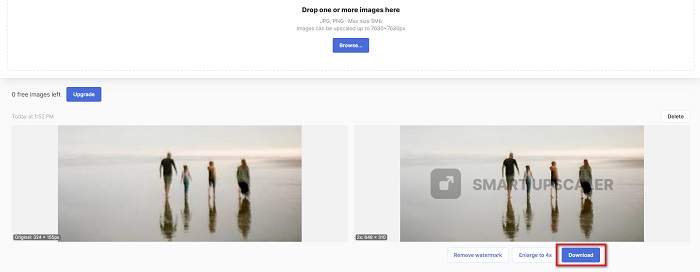
Étape 1. Ouvrez votre navigateur et recherchez Icons8.com. Puis, sur l’interface principale, cliquez sur le bouton Browse.
Étape 2. Comme Icons8.com utilise également la technologie IA, il détecte automatiquement les parties floues de votre image.
Étape 3. Enfin, cliquez sur le bouton Download pour enregistrer votre image sur votre ordinateur.
Partie 2. Comment réparer des images de mauvaise qualité dans Photoshop
Il n'est pas difficile d'améliorer l'image de votre qualité. Mais utiliser Photoshop pour mettre à l'échelle votre image peut être assez difficile en raison de son interface et de ses fonctions. Mais ne vous inquiétez pas, car nous allons vous apprendre à utiliser Adobe Photoshop pour améliorer la qualité de votre image.
Adobe Photoshop excelle dans l’édition et la retouche photo. Ce logiciel de retouche est utilisé par de nombreux professionnels dans le monde entier. En outre, il dispose de nombreux outils d’édition avancés que vous pouvez utiliser pour modifier votre image. De plus, Adobe Photoshop est téléchargeable sur toutes les principales plateformes, notamment Windows, Mac et Linux. Vous pouvez également créer et modifier des bannières, logos, brochures, et bien plus encore avec cette application d’édition. Et ce que beaucoup d’utilisateurs ignorent, c’est qu’elle peut aussi améliorer la qualité de vos images. Bien que vous deviez l’acheter avant de le télécharger, Adobe Photoshop vaut votre investissement.
Comment réparer les images de mauvaise qualité dans Photoshop :
Dans ce tutoriel, nous allons améliorer la qualité d'une image en l'agrandissant pour voir sa résolution.
Étape 1. Téléchargez Adobe Photoshop sur votre ordinateur. Suivez le processus d’installation, puis lancez l’application sur votre machine.
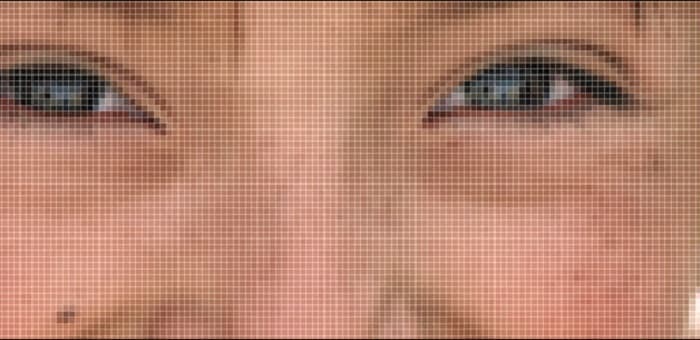
Étape 2. Ouvrez votre image en basse résolution dans Adobe Photoshop. Voici un exemple d’image agrandie à 100%. Comme vous pouvez le constater, l’image est en basse résolution.
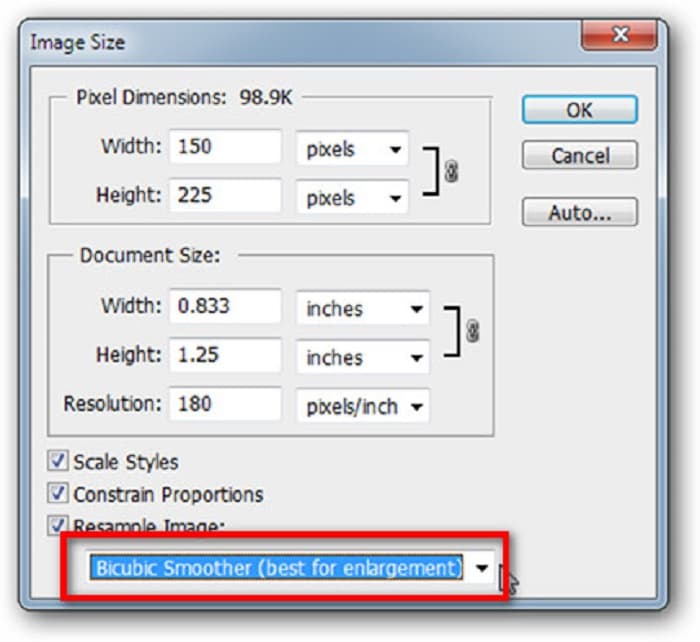
Étape 3. Puis, allez dans Image > Taille de l’image (Image Size). Ensuite, modifiez le type d’anticrénelage pour agrandir et lisser votre image dans Rééchantillonner l’image (Resample Image). Changez‑le pour Bicubic Smoother, qui est le plus adapté pour l’agrandissement.
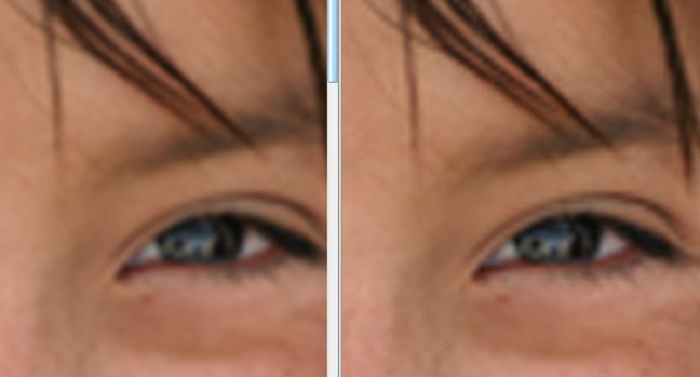
Étape 4. Vous pouvez voir la différence entre les deux images ci‑dessous après l’avoir changé pour la version Bicubic Smoother. Modifier l’anticrénelage fait une énorme différence dans la douceur de votre image.
Étape 5. Nous allons maintenant améliorer l’image agrandie en modifiant ses détails. La plupart des utilisateurs de Photoshop ne dépassent pas les modes RVB (RGB) et CMJN (CMYK). Aujourd’hui, nous allons utiliser un autre mode colorimétrique, le mode Lab Color. Allez dans Image > Mode > Lab Color.
Étape 6. Ensuite, assurez‑vous d’ouvrir un panneau en allant dans Fenêtre (Windows) > Couches (Channels) > canal Lightness. Vous pouvez également cliquer sur l’icône de masquage du calque à côté des canaux a et b.
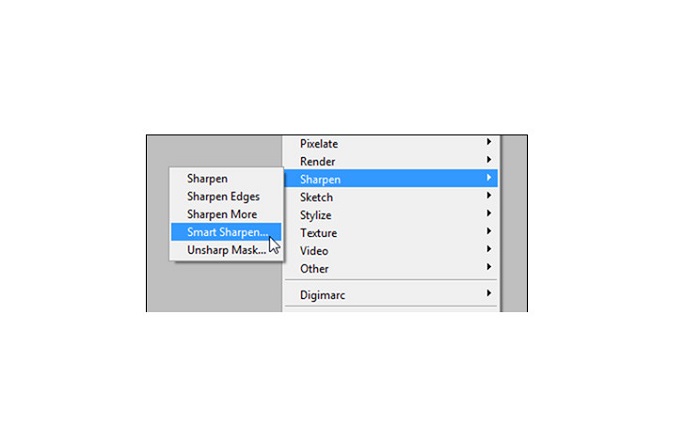
Étape 7. Après avoir sélectionné le canal Lightness, allez dans Filtre (Filter) > Netteté optimisée (Smart Sharpen) > Sharpen pour ajouter le filtre Smart Sharpen.
Étape 8. Puis, vous pouvez ajuster les paramètres de votre photo et trouver le rendu souhaité. Rappelez‑vous toujours que vous devez laisser le paramètre Remove sur Gaussian Blur.
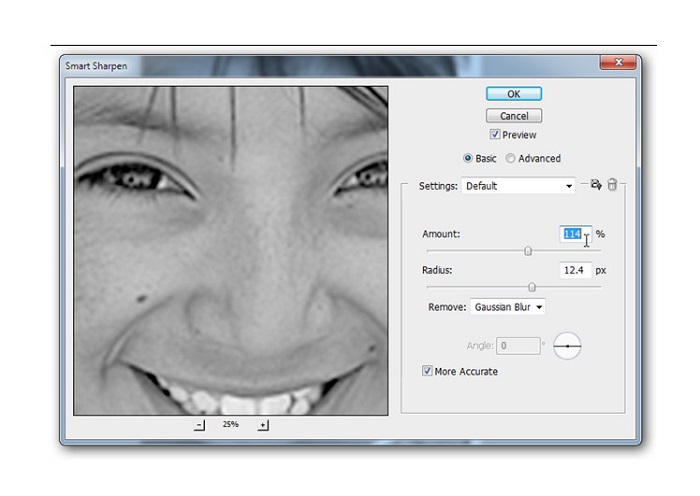
Étape 9. Vous pouvez choisir de conserver votre image en mode Lab Color ou de la repasser en RVB (RGB). Et voilà ! Voici le résultat de votre image. Vous remarquerez que la qualité de l’image est améliorée et que la texture est plus riche.
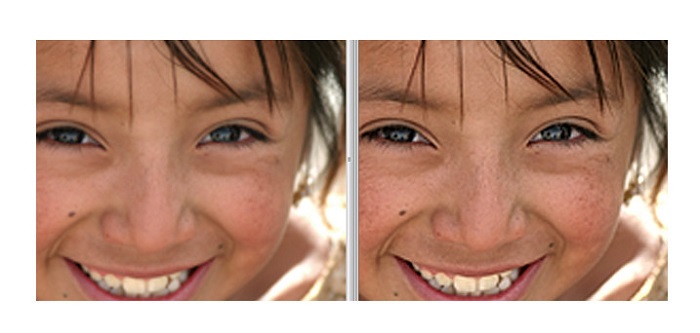
Et voila ! En suivant le guide ci-dessus sur la façon de corriger les images de mauvaise qualité dans Photoshop, vous pouvez améliorer la qualité de votre image.
Partie 3. FAQ sur la façon de corriger la qualité de l'image
Puis-je améliorer les images de mauvaise qualité sur l'iPhone ?
Oui. Vous pouvez télécharger de nombreuses applications sur votre iPhone qui vous aideront à améliorer la qualité de votre image. L'une des meilleures applications d'upscaler d'image est Remini, une application conviviale.
Puis-je changer la résolution des images JPEG ?
Vous pouvez modifier la résolution de n'importe quel format d'image que vous souhaitez mettre à l'échelle. Vous pouvez utiliser les outils mentionnés ci-dessus pour améliorer la qualité de votre image JPEG.
Comment réparer la qualité d'image sur Instagram?
Pour corriger la qualité de vos photos sur Instagram, modifiez le paramètre Image Resolution du plug‑in afin d’augmenter la taille de l’image pour qu’elle s’affiche avec la bonne résolution. Vous pouvez le faire en suivant ce chemin : Instagram Feed > Customize > Posts > Photos > Image Resolution.
Conclusion
Nous espérons avoir répondu à votre question sur comment corriger la qualité d’une image. Vous pouvez choisir l’outil qui vous convient le mieux parmi ceux présentés ci‑dessus. Adobe Photoshop est peut‑être un outil plus professionnel, mais il n’est pas très convivial. Donc, si vous souhaitez utiliser un agrandisseur d’images gratuit et simple d’utilisation, optez pour FVC Free Image Upscaler.
-
 Comment convertir une image basse résolution en haute résolution en ligne
 Si vous souhaitez apprendre à convertir des images basse résolution en images haute résolution en ligne, cet article est pour vous. Lisez complètement pour savoir comment.
-
 Supprimer le filigrane DaVinci Resolve sur les vidéos exportées avec un didacticiel complet
 Pour supprimer le filigrane Davinci Resolve, vous devrez utiliser un outil ou en acheter la version officielle, continuez à lire ceci pour en savoir plus.
-
 Comment se débarrasser gratuitement du filigrane Power Director [Terminé]
 Comment se débarrasser gratuitement du filigrane Power Director ? Les meilleurs outils pour éliminer le filigrane sont ici, alors apprenez-les en lisant ceci.
