


 Video Converter Ultimate
 Enregistreur d'écran
 Réparation vidéo
 Téléchargement sécurisé
Comment redimensionner une image ou une image dans Word [2 façons]
Lorsque nous importons des images dans Microsoft Word, elles gardent parfois leur taille d’origine. Or, nous n’avons souvent pas besoin de cette taille dans notre document, car elle casse la mise en page sur laquelle nous travaillons. De plus, lorsqu’une image est très grande dans un document, le fichier devient généralement lourd. Et ce n’est pas ce que nous souhaitons pour notre document. C’est pourquoi, dans cet article, nous allons vous présenter deux méthodes pour redimensionner une photo ou une image dans Word. Le redimensionnement d’une image peut également être effectué avec FVC Free Image Upscaler. Installez-vous confortablement avec une tasse de café pendant que vous lisez cette page.

Partie 1. Comment redimensionner une image dans Word
Microsoft Word est un traitement de texte commercial populaire développé par Microsoft. Avec Microsoft Word, vous pouvez créer des documents que vous pouvez partager avec d'autres ou publier sur différentes plateformes. De nombreux professionnels utilisent ce programme dans leur domaine de travail. Et il arrive parfois que vous deviez redimensionner une image que vous avez importée sur l'application. Par conséquent, lisez continuellement cette partie si vous souhaitez redimensionner votre image dans Microsoft Word.
Méthode 1
Souvent, notre erreur lorsque nous travaillons avec les images sur Word est que nous ne redimensionnons que la hauteur ou la largeur de l'image, pas les deux. Lorsque nous redimensionnons des images, nous ne devons pas déformer l'image. Par conséquent, lorsque nous redimensionnons une photo, nous devons nous assurer que la largeur et la hauteur du dimensionnement opposé sont automatiquement ajustées. Cela parle du rapport d'aspect de l'image.
Étape 1. Si Microsoft Word n’est pas encore installé sur votre ordinateur, téléchargez-le maintenant. Puis ouvrez un document existant contenant une image, ou créez-en un nouveau et insérez une image. Pour insérer une image, allez dans Insertion > Images, puis ouvrez une image à partir de vos dossiers sur l’ordinateur.
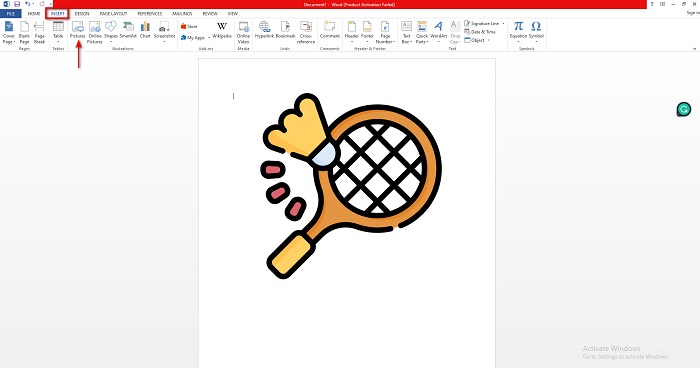
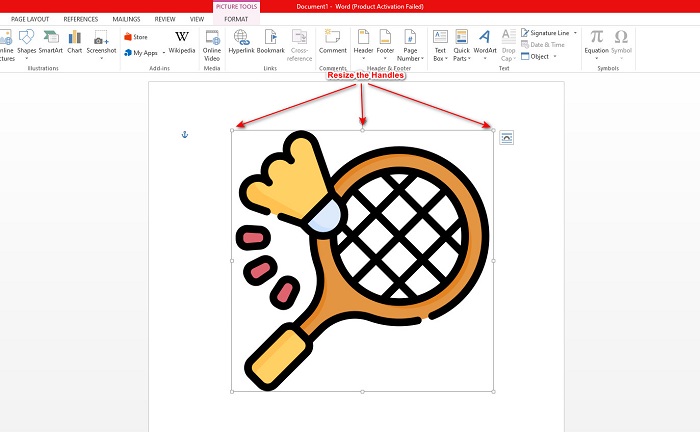
Étape 2. Ensuite, cliquez sur l’image afin que les poignées de redimensionnement apparaissent. Vous verrez alors s’afficher l’onglet Outils Image > Format dans le Ruban. Cliquez dessus pour afficher les options disponibles.
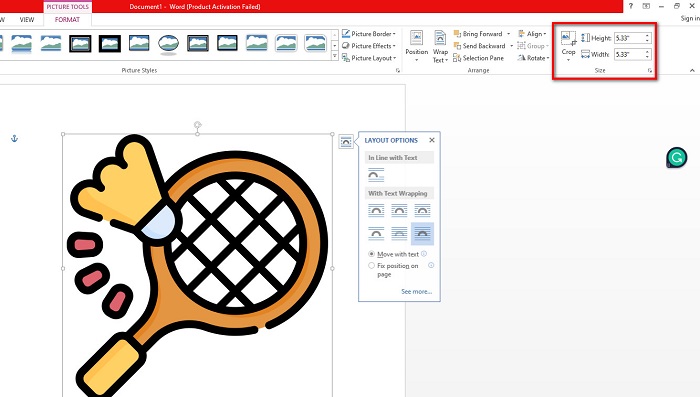
Étape 3. Après cela, une fois que vous avez cliqué sur Format, vous pouvez utiliser les fonctions du groupe Taille pour saisir la taille exacte de la hauteur ou de la largeur de votre photo. Vous pouvez cliquer sur les flèches haut et bas situées à côté de la hauteur et de la largeur pour ajuster la taille selon vos préférences.
Étape 4. Mais si vous souhaitez ajuster la taille de votre image manuellement, vous pouvez utiliser votre souris et maintenir puis faire glisser les poignées de redimensionnement. Faites glisser les poignées vers le centre de l’image si vous voulez la réduire ou diminuer sa taille. Faites glisser les poignées vers le bord de l’écran si vous voulez l’agrandir ou augmenter sa taille.
Étape 5. Gardez toujours à l’esprit que lorsque vous redimensionnez manuellement votre image dans Word, il est préférable d’utiliser les poignées situées dans les coins. Cela permet de redimensionner simultanément la hauteur et la largeur de votre image et de conserver le rapport hauteur/largeur de votre photo.
Méthode 2
Une autre option que vous pouvez utiliser pour redimensionner une image à l'aide de Microsoft Word consiste à utiliser des pourcentages. Si vous souhaitez redimensionner votre image avec la proportion exacte en utilisant des pourcentages, vous pouvez utiliser cette méthode.
Étape 1. Sélectionnez l’image que vous souhaitez redimensionner en cliquant dessus avec le bouton gauche de la souris.
Étape 2. Ensuite, allez dans l’onglet Format de l’image, puis cliquez sur Position, puis sur Autres options de disposition.
Étape 3. Après, cliquez sur l’onglet Taille. Dans le panneau Échelle, cochez la case Conserver les proportions. Vous pouvez maintenant saisir les pourcentages souhaités pour la hauteur et la largeur de votre image.
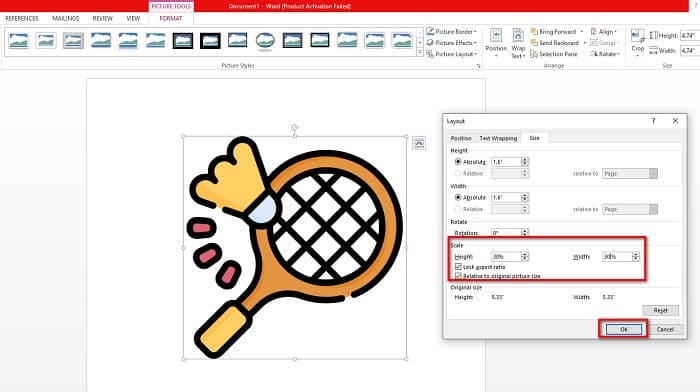
Étape 4. Enfin, appuyez sur OK pour enregistrer les modifications que vous avez apportées à la taille de votre image.
Partie 2. Comment redimensionner une image en ligne
Nous couvrons vos arrières si vous souhaitez utiliser une application en ligne pour redimensionner une image. Dans cette partie, nous vous montrerons le meilleur redimensionneur de photos en ligne et comment vous pouvez l'utiliser pour redimensionner votre photo.
FVC Free Image Upscaler est un redimensionneur d’images en ligne que vous pouvez utiliser pour ajuster la taille de vos images. Vous pouvez redimensionner votre photo avec cet outil en modifiant ou en augmentant le facteur d’agrandissement de votre image. Par exemple, si vous avez une image floue, vous pouvez utiliser FVC Free Image Upscaler pour l’améliorer. De plus, sa technologie d’IA (Intelligence Artificielle) détecte les parties de faible qualité d’une image, puis les améliore. Cet outil en ligne prend également en charge les formats d’image les plus courants, comme PNG, JPG, JPEG et WebP. C’est aussi une application adaptée aux débutants grâce à son interface simple et intuitive.
De plus, vous pouvez améliorer votre image avec un grossissement de 2x, 4x, 6x et 8x. Et si vous voulez vérifier le résultat avant d'enregistrer la sortie, cet outil vous permet d'avoir l'Aperçu de votre sortie. Ce qui est même excellent à propos de FVC Free Image Upscaler, c'est qu'il est sûr à utiliser et ne vous obligera pas à vous connecter à un compte.
Comment redimensionner une image en ligne à l'aide de FVC Free Image Upscaler
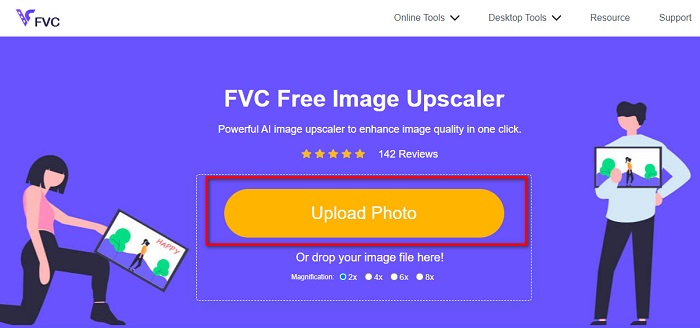
Étape 1. Ouvrez votre navigateur et recherchez FVC Free Image Upscaler dans la barre de recherche. Vous pouvez aussi cliquer sur ce lien pour accéder directement à la page d’accueil. Puis cliquez sur le bouton Upload Photo pour lancer le programme sur votre appareil.
Étape 2. Ensuite, cliquez de nouveau sur le bouton Upload Photo pour importer l’image que vous souhaitez redimensionner. Dans les fichiers de votre ordinateur, repérez l’image, puis cliquez sur Ouvrir pour la téléverser.
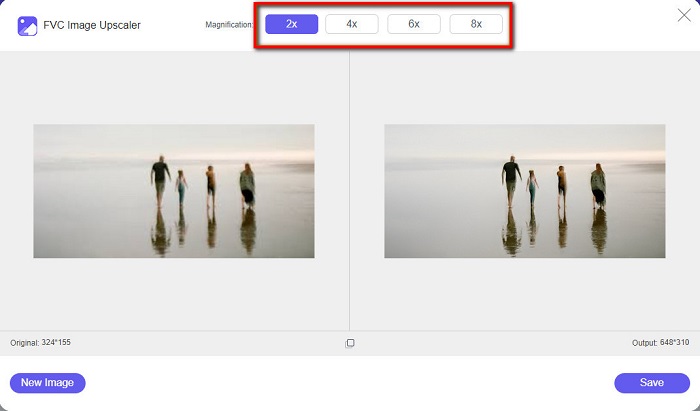
Étape 3. Puis, choisissez le facteur d’agrandissement souhaité pour votre image. Vous pouvez choisir entre 2x, 4x, 6x et 8x. Gardez toujours à l’esprit que plus le facteur d’agrandissement est élevé, plus la taille du fichier sera grande.
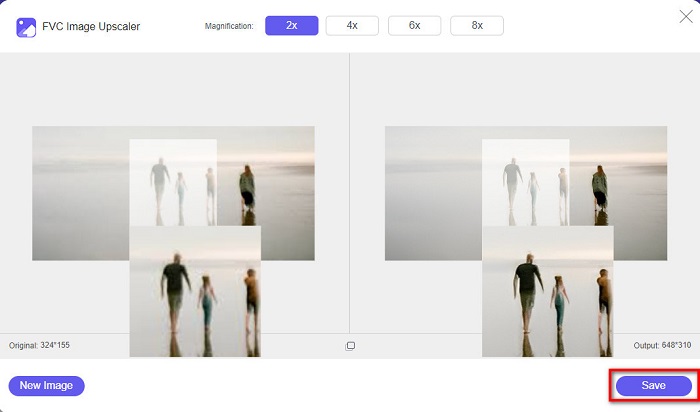
Étape 4. Pour prévisualiser votre résultat, faites glisser le curseur sur le côté droit de votre image afin de voir les changements et les améliorations. Cliquez sur le bouton Save une fois que vous êtes satisfait du résultat obtenu avec ce redimensionneur de photos.
Partie 3. FAQ sur le redimensionnement d'une image dans Word
L'image sera-t-elle floue après l'avoir redimensionnée dans Microsoft Word ?
Non. Lorsque vous redimensionnez votre photo dans Microsoft Word, la qualité de votre image n’est pas affectée. Mais si vous rencontrez ce type de problème, il est possible que votre image soit floue à cause d’une compression.
La taille du fichier diminuera-t-elle si je rétrécis mon image dans Word ?
Oui. La taille de votre fichier de document peut diminuer si vous réduisez l'image qu'il contient. Les images importées dans un document peuvent avoir une résolution élevée. Par conséquent, lorsque vous redimensionnez une image, la taille de l'ensemble du document sera affectée.
Puis-je redimensionner une image dans Excel ?
Bien sûr. Vous pouvez redimensionner une image ou un objet importé dans Excel en cliquant sur l'image et en ajustant les poignées.
Conclusion
Il est très simple de redimensionner une image dans Word, surtout si vous suivez les étapes ci-dessus. Ainsi, la prochaine fois que vous importerez une image dans Word et voudrez ajuster sa taille, vous saurez quoi faire. Mais si vous préférez utiliser une application en ligne pour redimensionner une image destinée à Word, vous pouvez utiliser FVC Free Image Upscaler.
-
 5 des meilleurs redimensionneurs GIF disponibles sur toutes les plateformes #91;2022]
 Vous voulez connaître les redimensionneurs GIF que vous pouvez utiliser ? Dans ce cas, les informations fournies ci-dessous parleront des redimensionneurs que vous pouvez utiliser sur vos GIF sur toutes les plateformes.
-
 Meilleure application Photo Resizer en ligne, hors ligne, Android et iPhone
 Quelles sont les meilleures applications de redimensionnement de photos ? Cliquez sur la page pour découvrir les cinq applications de redimensionnement de photos les plus puissantes que vous pouvez utiliser pour améliorer ou redimensionner votre fichier.
-
 Comment redimensionner une image dans PowerPoint [Moyen le plus rapide pour changer la taille]
 Apprendre à redimensionner des images dans PowerPoint est essentiel, surtout si vous souhaitez l'utiliser dans votre présentation. Lisez cet article pour savoir comment faire.
