


 Video Converter Ultimate
 Enregistreur d'écran
 Réparation vidéo
6 outils gratuits pour supprimer l’arrière-plan d’une image : rapides et précis
Le fait de pouvoir supprimer les arrière-plans des images avec une telle facilité est devenu un véritable tournant dans l’industrie de la retouche photo. De plus, rechercher l’outil qui vous convient vraiment et répond à vos besoins devrait être une priorité pour un utilisateur comme vous ; imaginez un outil innovant qui permette aux utilisateurs de supprimer l’arrière-plan d’une image en toute simplicité, afin de transformer ensuite leurs visuels en créations spectaculaires. Dans cet article, nous explorons justement l’art de la suppression d’arrière-plan, en passant en revue six des meilleurs outils de détourage, des plus populaires aux plus méconnus. Nous parcourrons également leurs fonctionnalités et des étapes simplifiées pour vous apprendre à les utiliser efficacement et à choisir ceux qui vous conviennent. Alors, qu’attendez-vous ? Commencez à lire cet article dès aujourd’hui et découvrez le pouvoir transformateur de la suppression d’arrière-plan pour un flux de travail fluide et rapide.

Partie 1. Comment supprimer l'arrière-plan d'une image
FVC Free Background Remover
FVC Free Background Remover est un outil en ligne conçu pour les utilisateurs à la recherche d’une solution économique pour la suppression d’arrière-plan. Cet outil convivial s’adresse à celles et ceux qui ont un budget limité, tout en offrant des fonctionnalités comparables, voire supérieures, à celles de certaines alternatives payantes. FVC est réputé pour son interface claire, qui met tout le monde à l’aise. L’outil privilégie l’accessibilité et est disponible sur de multiples appareils et plateformes. Par ailleurs, FVC Free Background Remover accorde une grande importance à la sécurité, offrant un environnement fiable et sûr pour améliorer vos images en toute confiance. Vous trouverez ci‑dessous les fonctionnalités de FVC Free Background Remover ainsi que les étapes pour l’utiliser.
◆ Suppression automatique de l’arrière-plan par IA. Il utilise l’intelligence artificielle pour supprimer l’arrière-plan des images, ce qui en fait un outil capable de traiter automatiquement les photos et d’identifier de manière intelligente les parties de l’image à retirer. L’IA fait l’objet de tests approfondis afin de garantir des résultats aussi parfaits que possible.
◆ Suppression et modification d’arrière-plan. En plus de supprimer l’arrière-plan des images, il peut aussi le remplacer par une couleur unie, ce qui en fait un outil polyvalent à utiliser.
◆ Prise en charge de l’édition. Cet outil convivial permet aux utilisateurs de retoucher simplement leurs images, notamment en les recadrant, en les faisant pivoter ou en les retournant. Ces petites fonctions de détail contribuent au rendu final de vos images traitées et vous permettent de prévisualiser et de ajuster vos visuels.
◆ Téléchargement de qualité. Bénéficiez d’une haute qualité de sortie lorsque vous utilisez notre fonction de suppression d’arrière-plan. Une fois l’arrière-plan supprimé, l’image conserve sa qualité d’origine lors de l’enregistrement du résultat retouché.
◆ Prise en charge de plusieurs formats. Il accepte en entrée les images JPG, JPEG et PNG, et génère des fichiers PNG en sortie afin de préserver une qualité sans perte lors de l’enregistrement sur votre ordinateur.
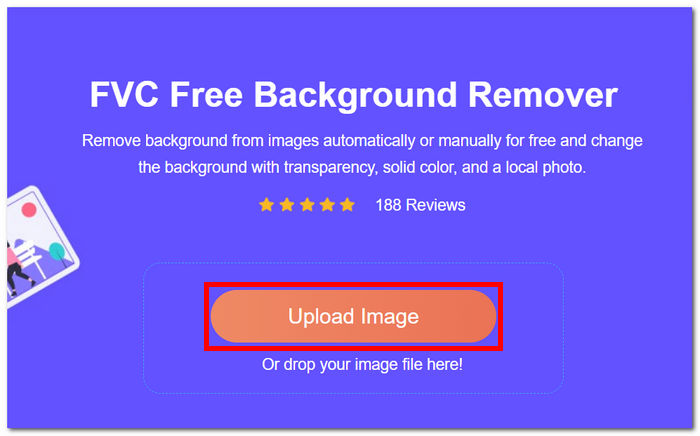
Étape 1. Commencez par accéder au site FVC Free Background Remover et importez l’image de votre choix dans le champ indiqué Upload Image.
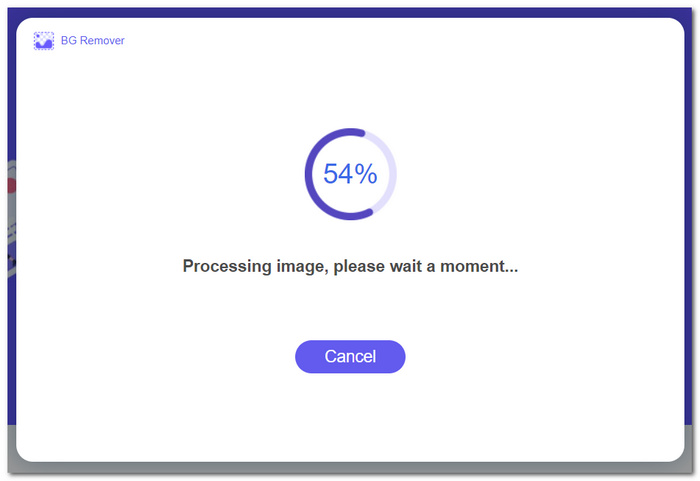
Étape 2. En tirant parti de la puissance de l’IA, laissez l’outil analyser puis supprimer automatiquement l’arrière-plan de l’image que vous avez téléchargée.
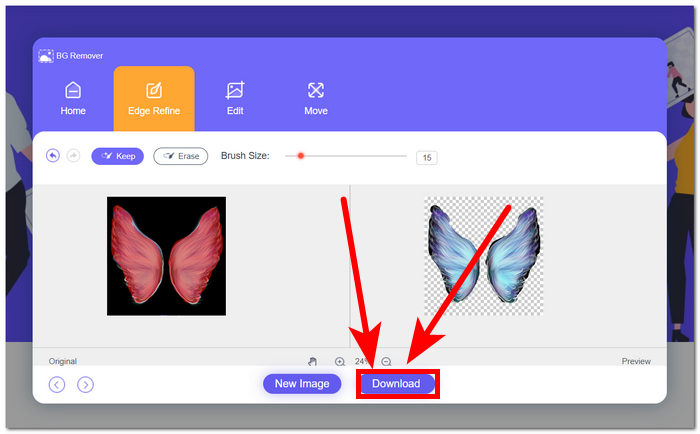
Étape 3. Une fois la suppression de l’arrière-plan terminée, enregistrez votre image avec l’arrière-plan retiré en cliquant sur le bouton Download.
FVC Free Background Remover se distingue comme un outil sous-estimé, souvent négligé par de nombreux utilisateurs. Malgré son statut moins connu, ce joyau caché offre un service précieux et gratuit, contribuant aux efforts créatifs des utilisateurs qui découvrent ses capacités. Alliant simplicité et efficacité, il reste un allié incontournable dans le processus de retouche d’image.
Toile
Canva, où la créativité ne connaît pas de limites ! Sa plate-forme intuitive permet aux utilisateurs de supprimer sans effort les arrière-plans de leurs images, ouvrant ainsi un monde de possibilités de conception. Supprimer l’arrière-plan des images dans Canva peut être difficile pour les utilisateurs qui ne sont pas familiers avec l’interface ; cela est dû au fait que Canva est un logiciel d'édition, ce qui signifie que de nombreux outils sont présents dans le logiciel de suppression d'arrière-plan d'image qui peuvent submerger les utilisateurs. Par conséquent, son outil de suppression d’arrière-plan est considéré comme le premier niveau dans la catégorie des logiciels, car l’IA exécute et alimente l’outil. Vous trouverez ci-dessous certaines de ses fonctionnalités en matière de suppression d’arrière-plan et les étapes d’utilisation de Canva.
◆ Outil de suppression d’arrière-plan. La suppression de l’arrière-plan est instantanée et s’accompagne d’outils supplémentaires comme la gomme magique et le remplacement magique, qui vous permettent de peaufiner efficacement vos images dans l’interface.
◆ Technologie intégrant l’IA. Son IA est suffisamment performante pour reconnaître les éléments parasites de votre image et les effacer instantanément.
◆ Logiciel multi‑éditeur. Il s’agit d’un outil tout‑en‑un qui permet de concevoir des présentations, de retoucher des photos et des vidéos, de créer des documents et de réaliser des détourages d’arrière-plan.
Étape 1. Téléchargez et installez Canva sur votre ordinateur, ou accédez à la version web du logiciel.
Étape 2. Sur l’interface principale, uploadez votre image dans le champ prévu à l’écran.
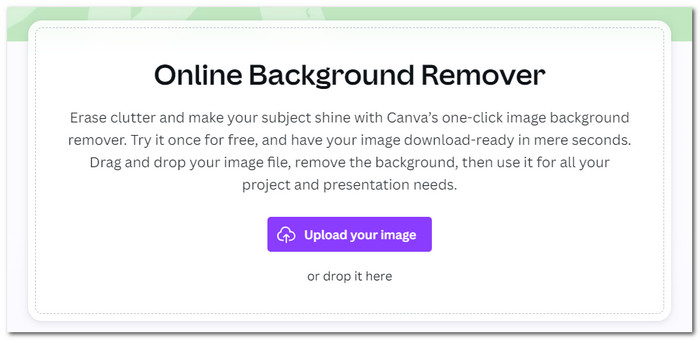
Étape 3. Une fois votre image chargée dans Canva, cliquez sur BG Remover pour supprimer instantanément l’arrière-plan.
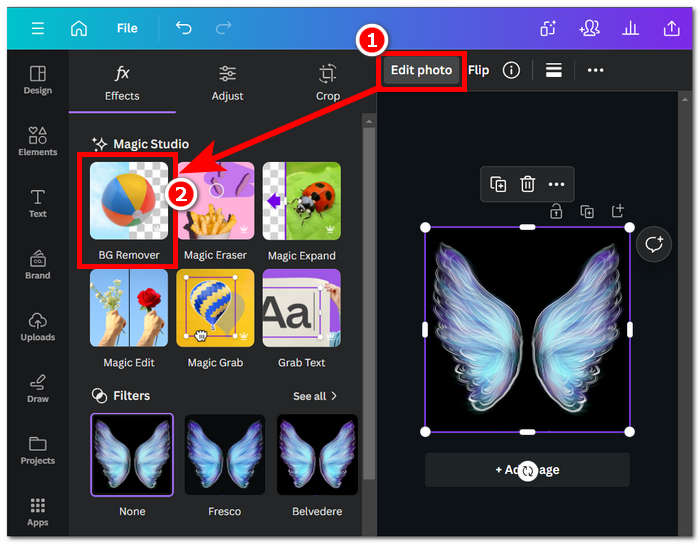
Étape 4. Lorsque le traitement est terminé, cliquez sur l’icône de partage située en haut à droite de l’écran, puis sur Download afin de l’enregistrer sur votre ordinateur.
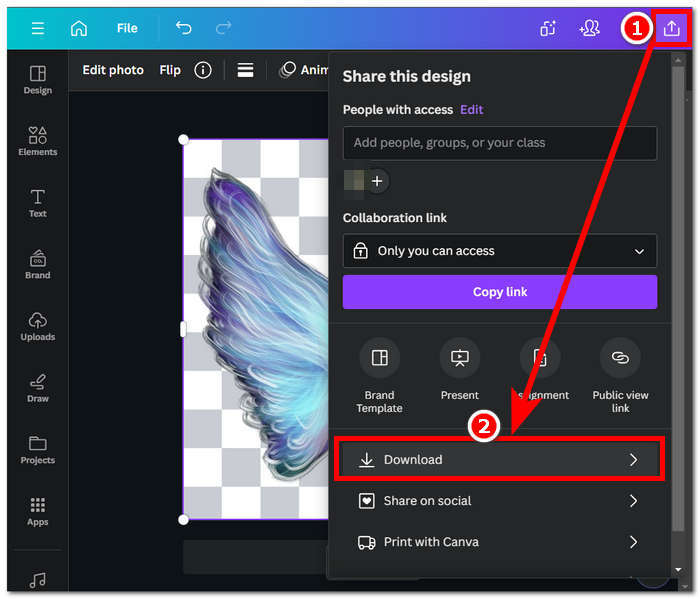
L'exploration de l'interface de Canva peut vous prendre du temps dans votre tâche de suppression en arrière-plan, mais cela vaut la peine d'essayer de découvrir cette impressionnante capacité logicielle. Cependant, les utilisateurs gratuits ne peuvent pas maximiser le potentiel de Canva en matière de suppression en arrière-plan, car le logiciel propose des abonnements payants et a un filigrane limité sur l'utilisation gratuite du logiciel.
AdobeExpress
Adobe Express, une fonctionnalité dynamique de la suite Adobe Creative Cloud, redéfinit l'édition d'images grâce à ses puissantes capacités de suppression d'arrière-plan. Conçu pour une accessibilité conviviale, cet outil offre une expérience transparente pour éliminer sans effort les arrière-plans de vos images.
◆ Outil de suppression d’arrière-plan de qualité professionnelle. Cet outil supprime l’arrière-plan de vos images de manière professionnelle, rapide et fluide.
◆ Interface simple et directe. La simplicité de son interface le rend très facile à utiliser. Aucune expérience préalable des logiciels Adobe n’est requise.
◆ Détourage de l’arrière-plan. Il met en valeur le sujet de votre image, ce qui permet d’obtenir un détourage précis de l’arrière-plan.
Étape 1. Rendez‑vous sur le site Adobe Express Background Remover dans votre navigateur, puis cliquez sur « Upload your photo » dans l’interface du site.
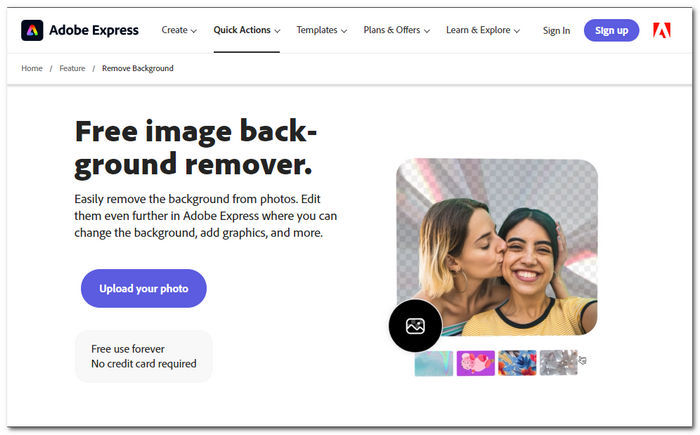
Étape 2. Après avoir cliqué sur « Upload your photo », cliquez sur le champ de sélection d’image pour importer votre photo dans l’outil.
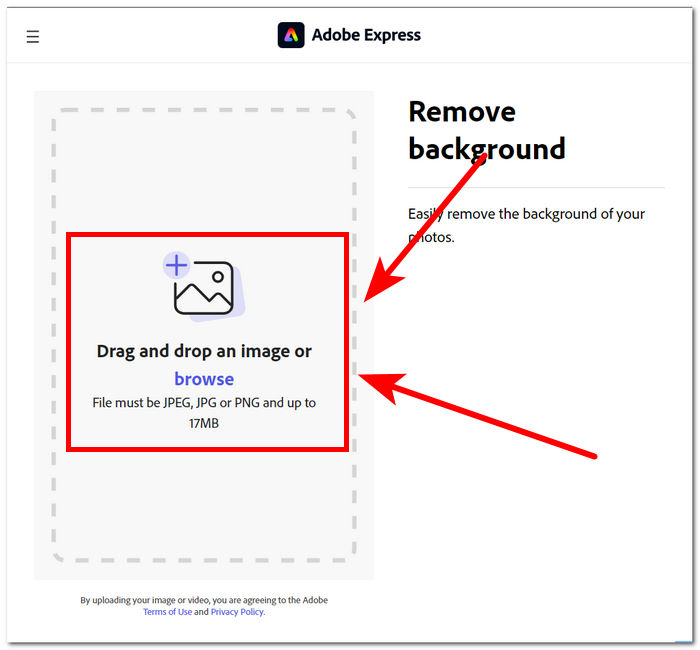
Étape 3. Pendant que l’image se téléverse, l’outil supprime automatiquement son arrière-plan.
Étape 4. Cliquez sur Download, situé juste à côté de votre image, pour l’enregistrer sur votre ordinateur.
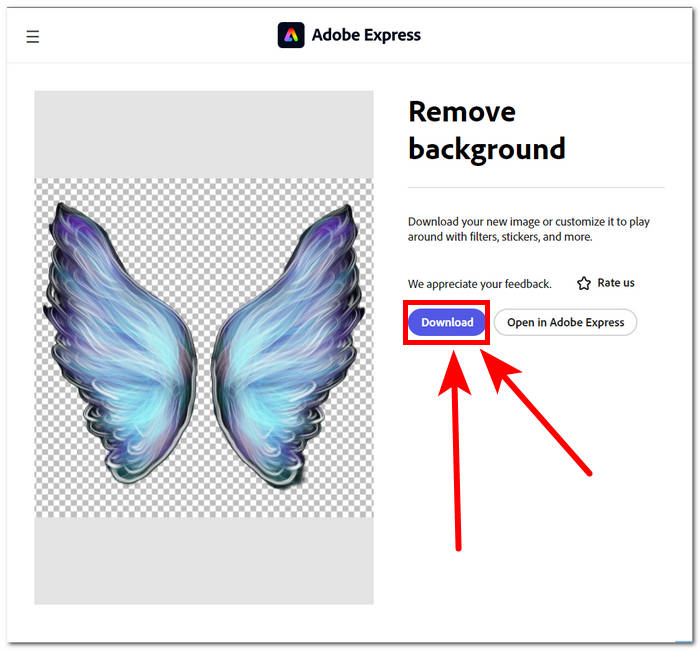
En conclusion, Adobe Express apparaît comme un outil de qualité professionnelle suffisamment puissant pour supprimer les moindres détails de l'arrière-plan de vos images. Cet outil peut avoir une approche simple dans son interface pour le processus de suppression de l'arrière-plan, mais il nécessite toujours que vous vous inscriviez pour pouvoir enregistrer votre image sur votre bureau.
Partie 2. Comment supprimer l'arrière-plan du bureau d'images
Adobe Photoshop
Adobe Photoshop s’impose comme l’un des logiciels les plus performants dans le domaine de la retouche d’images, notamment pour la suppression d’arrière-plan. Il offre aux utilisateurs une vaste palette d’outils et de fonctionnalités puissants permettant d’accomplir presque n’importe quelle tâche dans un seul programme. Une suppression impeccable de l’arrière-plan commence par une bonne sélection entre votre sujet et le fond ; veillez aussi à vous familiariser avec l’utilisation des outils de détourage dans Photoshop afin de tirer pleinement parti de ses capacités en matière de suppression d’arrière-plan.
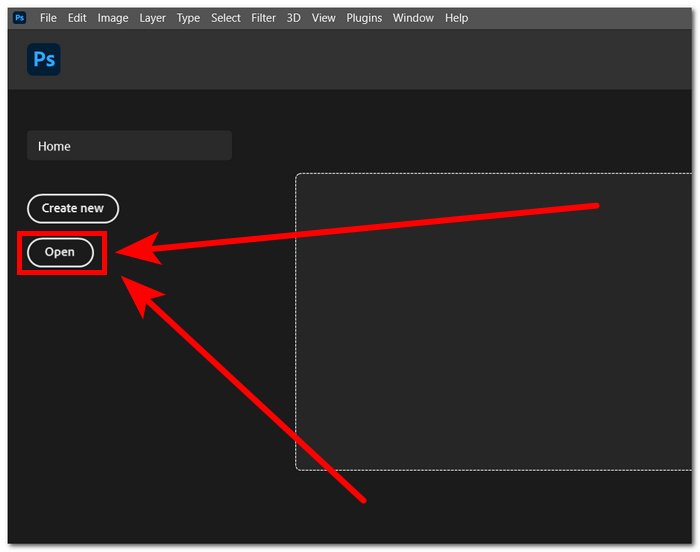
Étape 1. Ouvrez Adobe Photoshop sur votre ordinateur et importez votre photo en cliquant sur le bouton Open dans l’interface du logiciel.
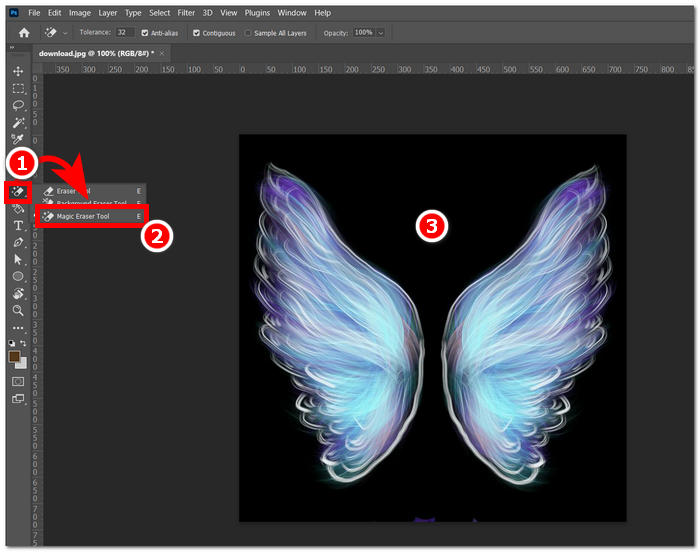
Étape 2. Une fois l’image chargée dans le logiciel, repérez l’outil Eraser Tool dans la barre d’outils à gauche, puis sélectionnez le Magic Eraser Tool.
Étape 3. Lorsque le Magic Eraser Tool est sélectionné, cliquez sur l’arrière-plan de votre image pour le supprimer automatiquement.
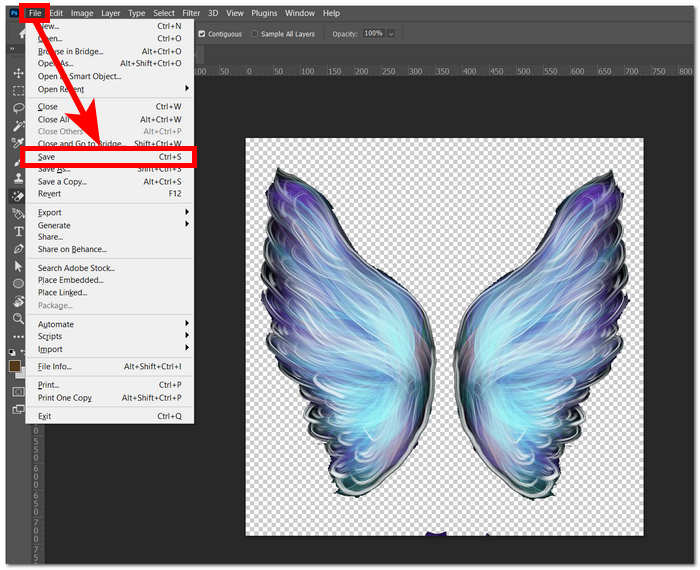
Étape 4. Une fois l’arrière-plan supprimé, cliquez sur le menu File en haut à gauche de l’écran, puis sur Save ou Export pour télécharger l’image sur votre ordinateur.
Grâce à une combinaison de technologies et de fonctionnalités avancées, Photoshop responsabilise et libère le créateur qui sommeille en chaque utilisateur. Adobe supprime l'arrière-plan des images grâce à son interface intuitive, garantissant qu'aucune tâche difficile n'est possible dans le logiciel Adobe.
GIMP
GIMP est une application open source permettant aux utilisateurs de supprimer les arrière-plans blancs des images ou tout arrière-plan indésirable, ce qui en fait un choix idéal pour les passionnés de graphisme et les débutants en édition d'images. Au-delà de ses fonctionnalités de suppression d'arrière-plan, GIMP dispose d'un ensemble polyvalent d'outils et de fonctionnalités, et approfondir les capacités de GIMP peut aider à maximiser et à exceller dans la suppression d'arrière-plan et facilite également un spectre plus large d'amélioration et de manipulation visuelles.
Étape 1. Ouvrez le logiciel GIMP, puis importez votre image via le menu File en haut à gauche de l’écran et cliquez sur Open pour l’ajouter.
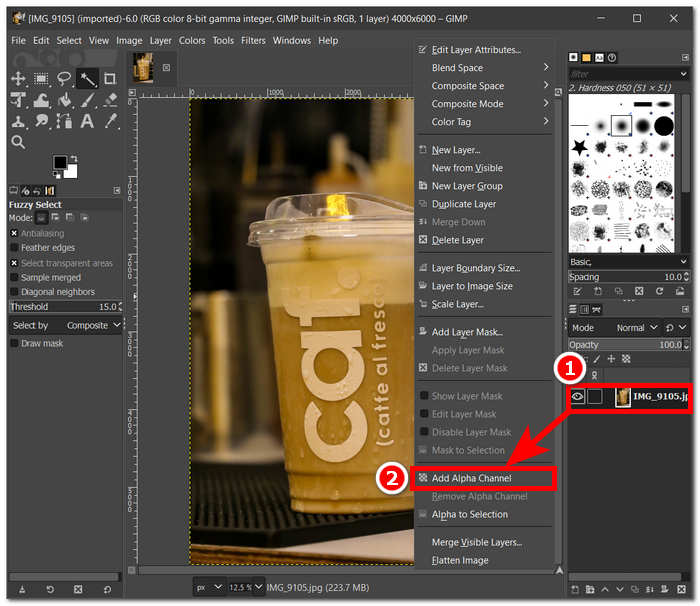
Étape 2. Après l’apparition de votre image dans le logiciel, allez en bas à droite, sélectionnez le calque, faites un clic droit dessus, puis choisissez Add Alpha Channel dans les options.
Étape 3. Cliquez sur l’outil Fuzzy Select dans le coin supérieur gauche. Une fois l’outil activé, faites‑le glisser sur la zone que vous souhaitez retirer de l’image.
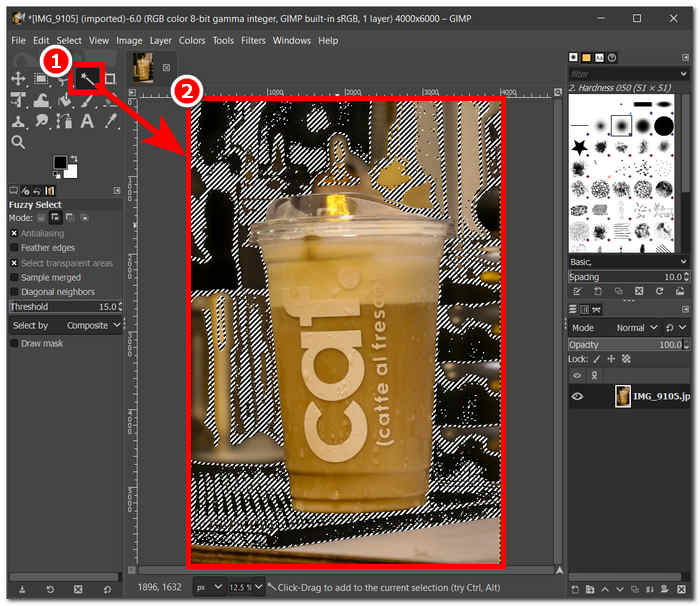
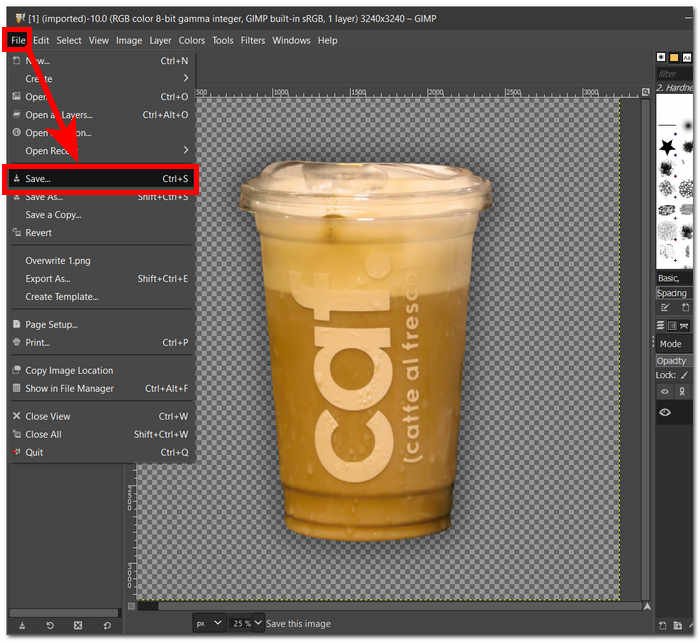
Étape 4. Un contour en pointillés apparaît sur la zone sélectionnée ; pour supprimer l’arrière-plan, appuyez simplement sur la touche Suppr de votre clavier. Une fois satisfait du résultat, repérez l’option Save dans le menu File en haut à gauche de l’écran pour enregistrer votre image sur l’ordinateur.
GIMP s’impose comme un outil idéal pour les professionnels aguerris comme pour les débutants, grâce à son interface conviviale. Il propose de multiples options de suppression d’arrière-plan, selon vos préférences. Il met à votre disposition des outils pratiques comme les outils de couleur, les tracés, les masques de calque et l’outil de sélection floue, ce qui en fait un logiciel particulièrement polyvalent.
Picsart
Picsart est un outil incontournable pour les débutants, populaire pour sa version d'application sur les appareils mobiles. Son outil de suppression offre un résultat simple et instantané. Sa précision dans la suppression de l’arrière-plan et ses moyens rapides et efficaces de le supprimer proviennent de l’IA qu’il utilise. L'une de ses fonctionnalités, outre la suppression de l'arrière-plan, est qu'il peut remplacer ou ajouter un arrière-plan à partir de vos images, ce qui rend cet outil sympathique. Comment supprimer l'arrière-plan d'une image ? Ne vous inquiétez plus et suivez simplement les étapes simples répertoriées ci-dessous.
Étape 1. Rendez‑vous sur l’outil Picsart Background Remover dans votre navigateur, puis cliquez sur Browse Files pour importer votre image dans l’outil.
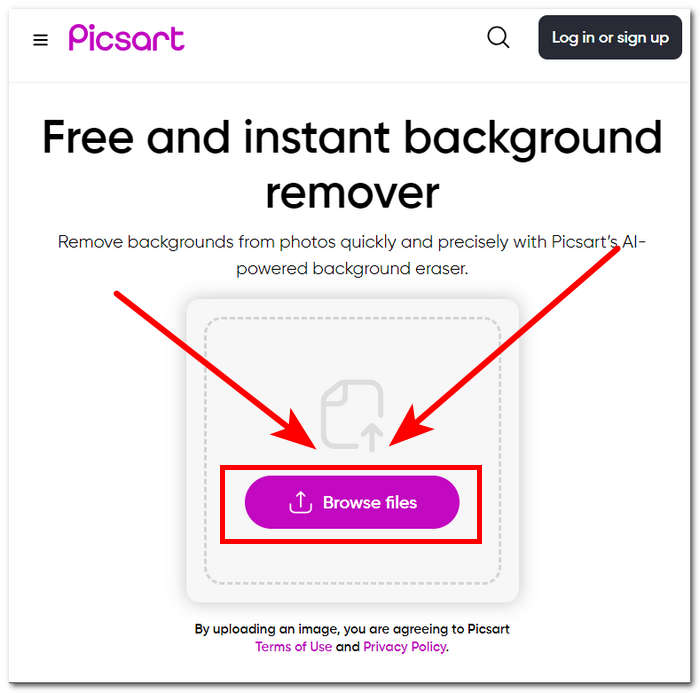
Étape 2. Une fois le téléversement lancé, l’outil va automatiquement identifier et analyser votre image, ce qui supprimera l’arrière-plan au passage.
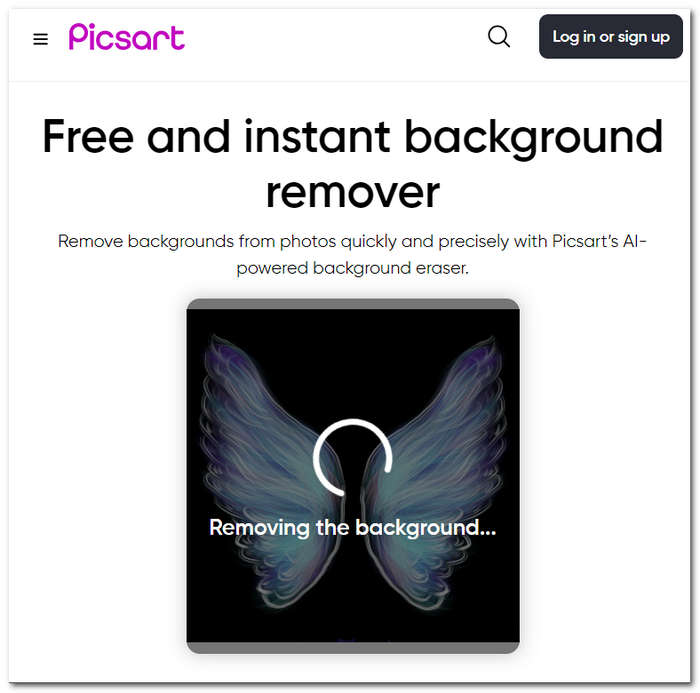
Étape 3. Lorsque le processus est terminé, vous pouvez prévisualiser et retoucher votre image ; une fois satisfait du rendu, enregistrez‑la en cliquant sur le bouton Download.
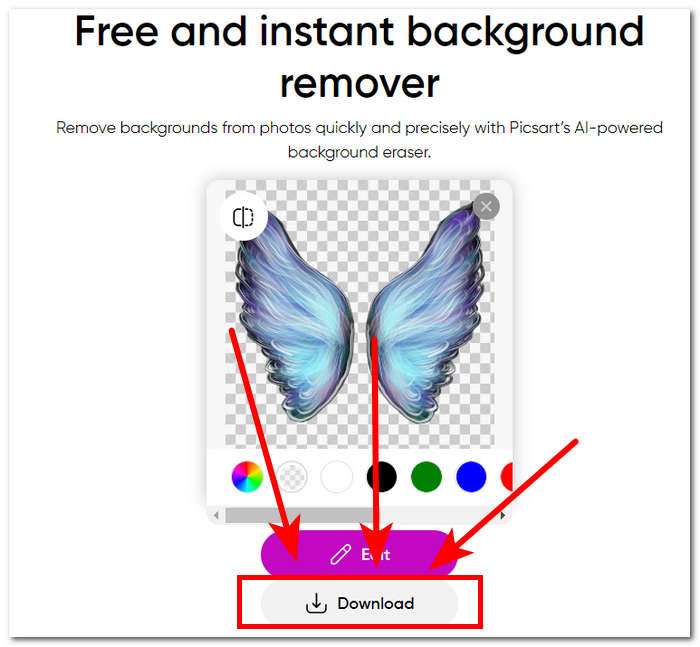
En conclusion, la popularité de Picsart en tant qu'application d'édition d'images s'est adaptée et a investi pour que l'outil réponde à tous les types de besoins d'édition visuelle. Son outil de suppression d'arrière-plan fait sûrement son travail en un instant avec précision. Par conséquent, vous devrez toujours vous inscrire pour pouvoir télécharger entièrement votre image en haute résolution. Sinon, vous vous retrouverez avec des résultats en basse résolution.
Partie 3. FAQ sur la façon de supprimer l'arrière-plan d'une image
Pouvez-vous supprimer automatiquement l’arrière-plan de l’image ?
Oui, de nombreux outils avancés d'édition d'images, notamment FVC Free Background Remover, Adobe Express et Canva, utilisent des algorithmes d'intelligence artificielle pour détecter et supprimer automatiquement les arrière-plans des images. Cette fonctionnalité rationalise le processus d'édition, le rendant plus rapide et plus efficace pour les utilisateurs.
Pouvez-vous supprimer l'arrière-plan de l'image automatiquement ?
Oui, de nombreux outils avancés d'édition d'images, notamment FVC Free Background Remover, Adobe Express et Canva, utilisent des algorithmes d'intelligence artificielle pour détecter et supprimer automatiquement les arrière-plans des images. Cette fonctionnalité rationalise le processus d'édition, le rendant plus rapide et plus efficace pour les utilisateurs.
Pouvez-vous supprimer l’arrière-plan des images JPG ?
Absolument, les outils de suppression d'arrière-plan prennent en charge les formats d'image JPG. La polyvalence des outils s'étend à différents formats d'image, garantissant que les utilisateurs peuvent facilement modifier et améliorer leurs fichiers JPEG. Par conséquent, cela dépend toujours des outils ou logiciels que vous utilisez, car certains nécessitent un abonnement pour pouvoir supprimer l'arrière-plan dans les formats JPG, etc.
Le PNG est-il le seul format d’image prenant en charge un arrière-plan transparent ?
Bien que PNG soit un format couramment utilisé pour les images avec un arrière-plan transparent, d'autres formats comme GIF et TIFF prennent également en charge la transparence. Cependant, les outils similaires mentionnés ci-dessus fournissent souvent des résultats optimaux avec PNG en raison de sa compatibilité largement acceptée avec les paramètres de transparence.
Que puis-je utiliser pour supprimer l’arrière-plan d’une image ?
Vous pouvez utiliser un logiciel de retouche d'image dédié comme Adobe Express et Photoshop ou des outils en ligne spécialisés tels que FVC Free Background Remover. Ces outils offrent généralement des interfaces conviviales et des fonctionnalités avancées, vous permettant d'obtenir des résultats précis et d'aspect professionnel.
Conclusion
En résumé, le processus de suppression de l’arrière-plan d’une image ne dépend pas d’une application, d’un logiciel ou d’un outil en particulier. Son efficacité repose plutôt sur la capacité de l’utilisateur à exploiter et à optimiser les fonctionnalités des outils disponibles. En fin de compte, la réussite d’un détourage se mesure à l’aboutissement du projet, ce qui souligne que le choix de l’outil doit d’abord s’aligner sur les préférences de l’utilisateur, quel que soit l’outil utilisé.
-
 Examen de PicWish Photo Enhancer et outil alternatif à essayer
 Découvrez la magie que l'amplificateur d'image PicWish apporte au monde de la retouche photo. Un examen approfondi et l’exploration d’alternatives viables à essayer.
-
 Comment supprimer du texte d'une image sur Windows/Mac/en ligne
 Dites adieu au texte distrayant dans vos images ! Découvrez comment effacer le texte des images avec ces solutions fluides conçues de manière transparente pour la suppression du texte.
-
 Examen Fotor pour la suppression d'arrière-plan et l'amélioration de photos
 Tout ce que vous devez savoir sur Fotor Background Remover et Photo Enhancer. Examinez certaines de ses fonctionnalités et voyez l’alternative suggérée qui correspond à vos besoins.
