


 Video Converter Ultimate
 Enregistreur d'écran
 Réparation vidéo
 Téléchargement sécurisé
Comment supprimer gratuitement le filigrane WOW Slider
WOW Slider est l’un des créateurs de diaporamas les plus populaires que vous pouvez utiliser pour réaliser de superbes présentations d’images. Cette application est gratuite à télécharger et n’occupe pas beaucoup d’espace de stockage sur votre appareil. De plus, elle possède une interface utilisateur intuitive, ce qui vous permet de créer facilement des diaporamas. Contrairement à d’autres plateformes d’images, WOW Slider n’utilise pas Flash et ne nécessite aucun plug‑in. Cependant, WOW Slider ajoute des filigranes au diaporama que vous créez. Ainsi, de nombreux utilisateurs recherchent une méthode pour supprimer gratuitement le filigrane WOW Slider. Lisez la suite pour découvrir comment supprimer gratuitement le filigrane WOW Slider.

Partie 1. Comment supprimer le filigrane WOW Slider sans achat
Vous pouvez supprimer le filigrane à l'aide de l'application si vous avez acheté le WOW Slider. Mais sinon, vous pouvez utiliser des outils pour supprimer le filigrane WOW Slider sur votre diaporama. Par conséquent, lisez attentivement cette partie pour savoir comment supprimer le curseur WOW sans achat.
FVC Free Watermark Remover
FVC Free Watermark Remover fait partie des effaceurs de filigrane en ligne les plus populaires, accessibles sur tous les navigateurs Web, comme Google, Firefox et Safari. Cet outil en ligne est sûr, gratuit et ne nécessite aucun abonnement. En outre, c’est une application adaptée aux débutants grâce à son interface utilisateur intuitive. Elle prend également en charge de nombreux formats d’image, notamment PNG, JPG, JPEG, BMP, etc. Ce qui est impressionnant avec cet outil, c’est que vous pouvez choisir différents outils de sélection pour supprimer le filigrane de votre image. Donc, si vous souhaitez utiliser ce suppresseur de filigrane gratuit, suivez les étapes ci‑dessous.
Comment supprimer le filigrane WOW Slider à l'aide du FVC Free Watermark Remover :
Étape 1. Commencez par ouvrir votre navigateur et rechercher FVC Free Watermark Remover. Pour un accès rapide, cliquez sur le lien fourni.
Étape 2. Ensuite, cliquez sur le bouton Upload Image pour importer l’image WOW Slider dont vous voulez supprimer le filigrane.

Étape 3. Après avoir importé votre image, sélectionnez l’outil de sélection que vous souhaitez utiliser pour enlever le filigrane. Vous pouvez choisir entre Lasso, Polygonal ou Brush.
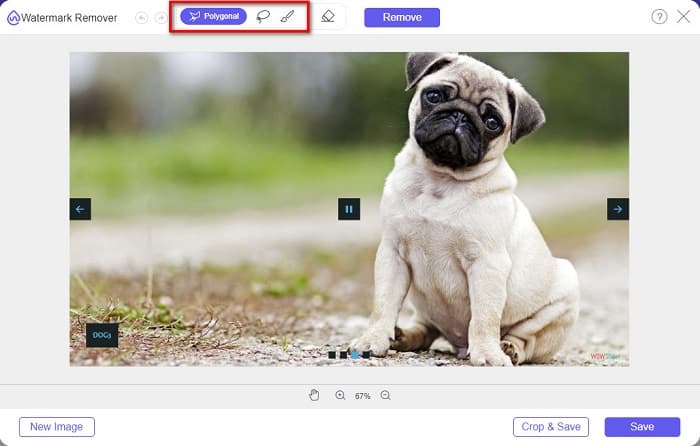
Étape 4. Puis, tracez la zone où se trouve le filigrane WOW Slider. Cliquez ensuite sur Remove pour effacer le filigrane sur votre image.
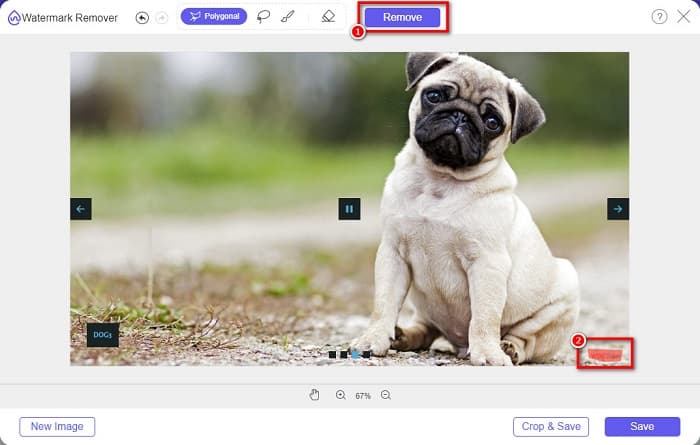
Étape 5. Enfin, cliquez sur le bouton Save pour enregistrer votre image sur votre ordinateur.
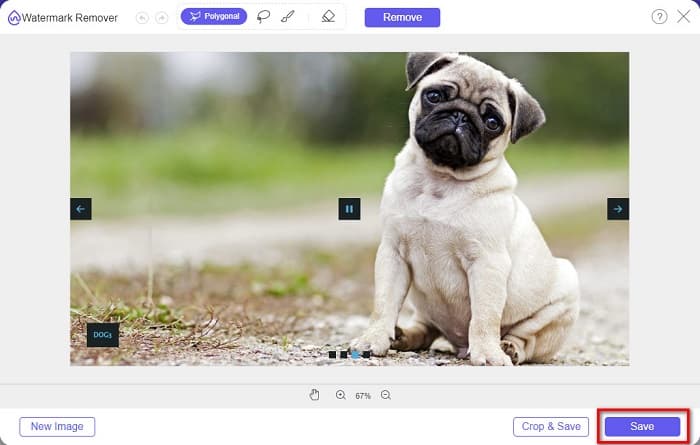
Et c'est tout! Vous pouvez maintenant afficher votre image WOW Slider sans le filigrane WOW Slider.
Expert en filigrane Bitwar
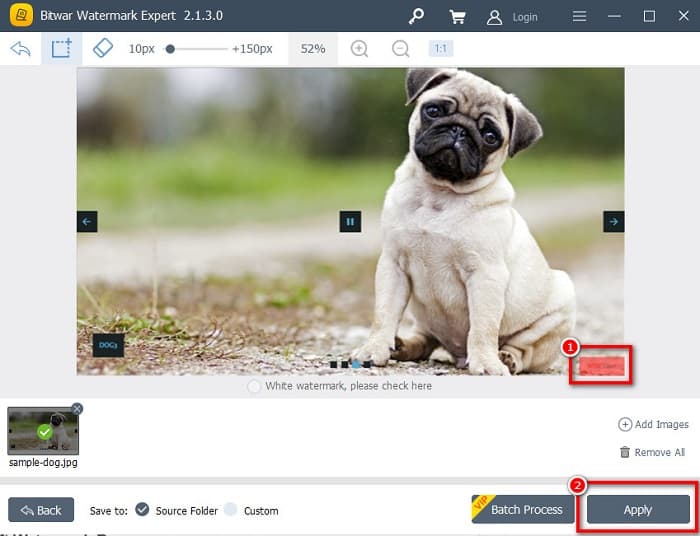
Bitwar Watermark Expert est un outil de suppression de filigrane qui peut enlever le filigrane WOW Slider sur votre diaporama. Ce logiciel hors ligne de suppression de filigrane dispose d’une interface simple, ce qui en fait un outil adapté aux débutants. De plus, il vous permet de supprimer ou d’ajouter des filigranes sur vos images ou vos vidéos. Et dans sa version VIP, vous pouvez traiter par lots les vidéos dont vous voulez supprimer le filigrane. Vous pouvez télécharger ce logiciel sur votre ordinateur Windows. Cependant, vous devez acheter l’application pour accéder à ses autres fonctionnalités. Néanmoins, Bitwar Watermark Expert est un excellent outil pour supprimer les filigranes sur votre diaporama WOW Slider.
Supprimez le filigrane WOW Slider sur votre diaporama à l'aide de Bitwar Watermark Expert :
Étape 1. Téléchargez Bitwar Watermark Expert sur votre appareil, puis ouvrez-le après le téléchargement.
Étape 2. Sur l’interface principale du logiciel, vous verrez quatre options. Cliquez sur Photo Watermark Remover.
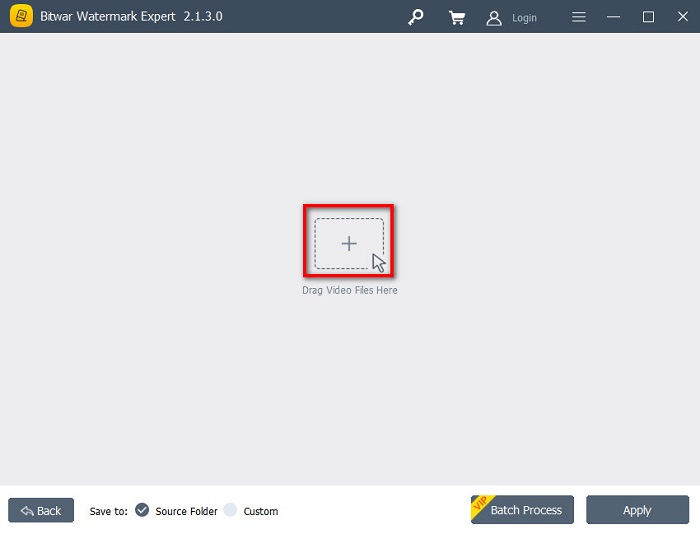
Étape 3. Puis, cliquez sur le bouton avec le signe + au centre de votre écran pour importer l’image WOW Slider.
Étape 4. Ensuite, sélectionnez un outil de sélection que vous souhaitez utiliser pour retirer le filigrane de votre image. Puis, sélectionnez la zone du filigrane sur votre image.
Étape 5. Enfin, cliquez sur le bouton Apply pour supprimer le filigrane de votre diaporama WOW Slider. En suivant ces étapes, vous pouvez également supprimer les filigranes de Placeit.
Suppresseur de filigrane Apowersoft
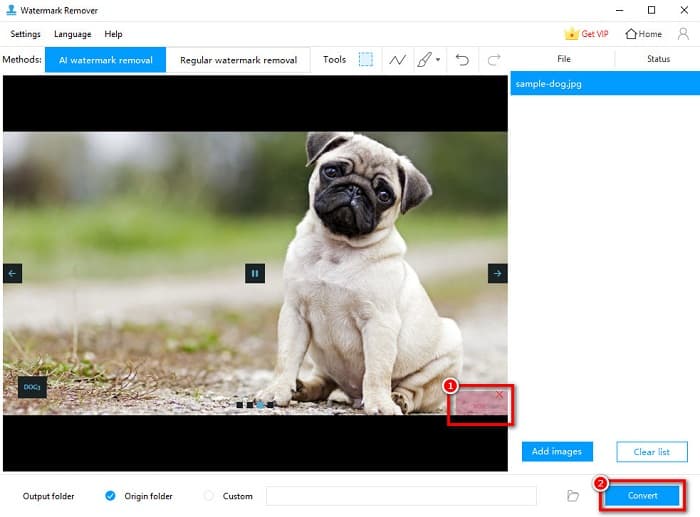
Un autre logiciel hors ligne de suppression de filigrane que vous pouvez utiliser est Apowersoft Watermark Remover. Ce programme permet de retirer facilement tout type de filigrane (logo, texte, image) sur vos vidéos. Vous pouvez également le télécharger sur presque toutes les plateformes, notamment Windows et Mac. De plus, il dispose d’une fonction qui permet de supprimer et d’ajouter des filigranes à votre image. Il propose aussi trois outils de sélection de filigrane pour retirer le filigrane WOW Slider sur votre diaporama. En outre, c’est un outil convivial avec une interface simple à utiliser. Le point faible de cet outil est qu’il offre peu de fonctions d’édition.
Comment supprimer le logo du filigrane WOW Slider à l'aide d'Apowersoft Watermark Remover :
Étape 1. Sur votre appareil, téléchargez Apowersoft Watermark Remover. Suivez le processus d’installation, puis ouvrez l’application.
Étape 2. Cliquez ensuite sur l’option Remove watermark from the image. Puis faites glisser et déposez la photo dont vous voulez supprimer le filigrane.
Étape 3. Vous verrez les outils de suppression de filigrane dans le panneau Tools. Cliquez alors sur l’outil de sélection que vous souhaitez utiliser. Ensuite, tracez ou sélectionnez le filigrane sur votre image.
Étape 4. Lorsque vous avez terminé, cliquez sur le bouton Convert pour enregistrer votre résultat.
Partie 2. Comment supprimer le filigrane du curseur WOW en achetant
Vous voudrez peut-être lire cette partie si vous cherchez comment supprimer le filigrane de WOW Slider.
En utilisant WOW Slider, vous pouvez créer des diaporamas incroyables avec une qualité incroyable. Grâce à son interface logicielle facile à utiliser, vous pouvez produire des diaporamas de haute qualité que vous pouvez partager avec vos amis. De plus, si vous souhaitez créer un souvenir pour votre meilleur ami, créer un diaporama à l'aide de WOW Slider est une bonne idée.
Le point négatif lorsque vous créez un diaporama avec WOW Slider, c’est qu’un filigrane est ajouté à votre résultat. Mais si vous achetez l’application WOW Slider, vous n’aurez plus à supprimer de filigrane, car vos exports ne comporteront plus le filigrane WOW Slider. Nous allons donc vous expliquer comment supprimer le filigrane en achetant une licence.
Étape 1. Téléchargez WOW Slider sur votre appareil et, juste après le téléchargement, assurez-vous de payer et de saisir votre code de licence pour l’enregistrer.
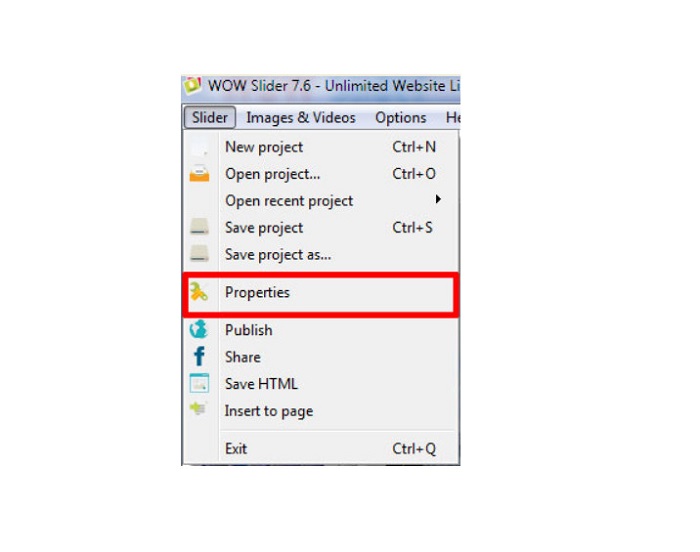
Étape 2. Après l’enregistrement, désactivez le filigrane via le chemin Menu panel > Slider > Properties.
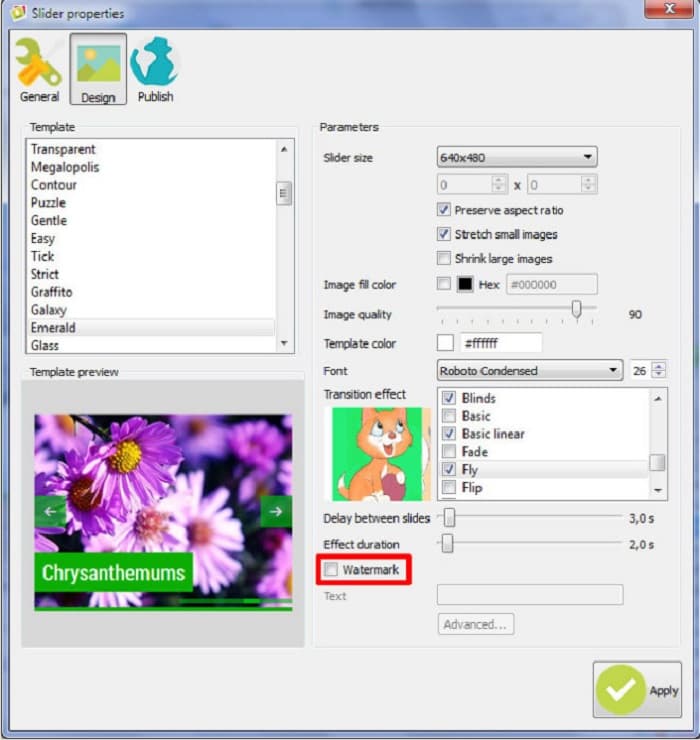
Étape 3. Une fenêtre de propriétés s’affiche, puis cliquez sur Design. option.
Étape 4. Dans l’onglet Design, vous verrez une case à cocher intitulée Watermark. Décochez cette case pour désactiver le filigrane sur votre diaporama.
Étape 5. Vous pouvez publier votre diaporama sur votre site Web sans le filigrane WOW Slider.
Partie 3. FAQ sur la suppression du filigrane WOW Slider
Pourquoi WOW Slider met-il des filigranes sur les diaporamas produits ?
WOW Slider intègre un filigrane sur leurs sorties de diaporama afin que les utilisateurs soient encouragés à utiliser la version sans filigrane. L'application ne laissera pas de filigrane sur votre sortie si vous achetez l'application.
Pouvez-vous supprimer plusieurs filigranes de votre vidéo ?
Oui. Les nettoyeurs de filigrane vous permettent de supprimer deux filigranes ou plus sur votre vidéo. Si vous souhaitez supprimer plusieurs filigranes sur votre vidéo, utilisez FVC Video Converter Ultimate.
Quel est le meilleur dissolvant de filigrane en ligne à utiliser ?
Il existe de nombreux effaceurs de filigrane en ligne que vous pouvez trouver sur Internet. Mais beaucoup de personnes recommandent FVC Free Watermark Remover parce qu’il est sûr et gratuit.
Conclusion
Votre problème concernant la façon de supprimer le filigrane WOW Slider est maintenant résolu ! En utilisant les outils de suppression de filigrane mentionnés ci‑dessus, vous pouvez facilement enlever le filigrane WOW Slider de votre diaporama. Mais si vous voulez une application en ligne gratuite et sûre à utiliser, optez pour FVC Free Watermark Remover.
-
 Des moyens gratuits pour supprimer le filigrane VideoShop sur les vidéos [sans effort]
 Pour supprimer le filigrane VideoShop, votre appareil aura besoin d'un dissolvant de filigrane. Pour savoir de quoi il s'agit, lisez cet article.
-
 3 approches pour supprimer le filigrane Viva Video sur les vidéos [moyen le plus rapide]
 Vous aurez besoin d'un dissolvant de filigrane dédié pour supprimer le filigrane Viva Video sur les vidéos. Lisez cet article pour en savoir plus !
-
 Outils ultimes pour supprimer le filigrane des vidéos exportées par Renderforest
 Pour supprimer le filigrane de Renderforest, vous aurez besoin d'un dissolvant de filigrane sur votre appareil, tous les outils que vous pouvez utiliser sont ici.
