


 Video Converter Ultimate
 Enregistreur d'écran
 Réparation vidéo
 Téléchargement sécurisé
Méthodes simples pour supprimer le filigrane dans Lightroom Mobile
Apposer un filigrane sur vos photos est une excellente idée, surtout si vous voulez protéger vos images. Cependant, il arrive que vous souhaitiez seulement conserver la photo, et les filigranes deviennent alors gênants. Cet article va vous présenter plusieurs applications offrant des méthodes simples pour supprimer les filigranes de vos images. Vous apprendrez également comment supprimer les filigranes dans Lightroom mobile. Si ce sujet vous intéresse, lisez ce guide pour découvrir des informations plus détaillées.

Partie 1 : Comment désactiver la fonctionnalité de filigrane de l'application mobile Lightroom avant l'exportation
Lightroom mobile est fiable pour supprimer les objets gênants de vos images, comme les filigranes, les logos, les signatures, etc. Vous pouvez les supprimer en quelques clics. Ce logiciel convivial est conçu pour tous les utilisateurs, en particulier les utilisateurs non professionnels. Si vous souhaitez découvrir les moyens les plus simples de supprimer les filigranes dans l'application mobile Lightroom, voici comment procéder. Suivez les guides simples ci-dessous.
Étape 1 : Téléchargez et installez l’application Lightroom sur votre téléphone mobile. Lancez-la et ouvrez la timeline.

Étape 2 : Dans le coin supérieur gauche de votre écran, touchez l’icône Lr.
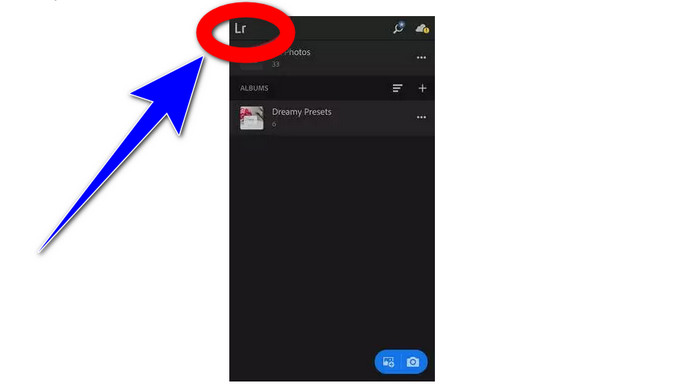
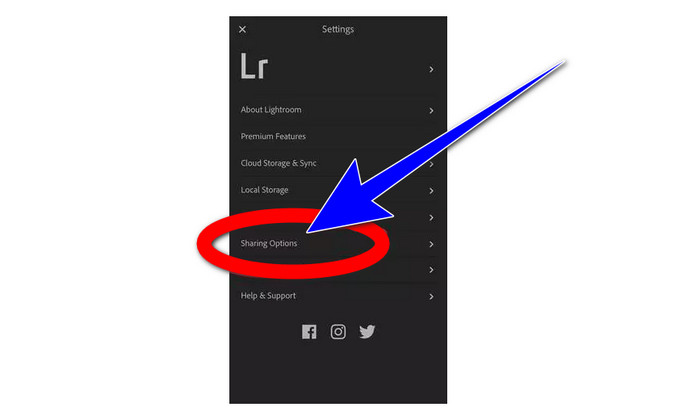
Étape 3 : Pour l’étape suivante, accédez aux options de partage et cliquez dessus.
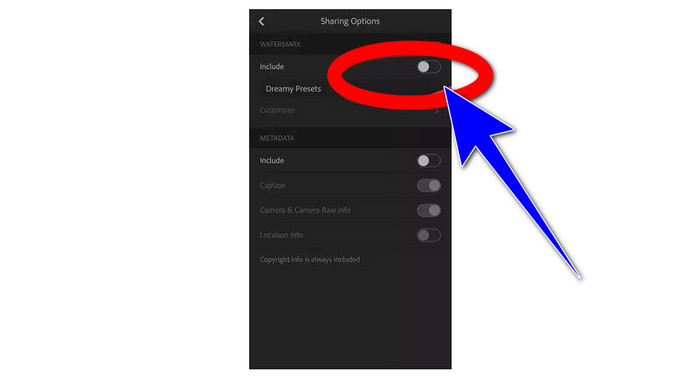
Étape 4 : Après avoir cliqué sur les options de partage, désactivez l’option Dreamy Prest pour enlever le filigrane. Cliquez sur cette option et mettez-la hors service.
Partie 2 : Comment supprimer le filigrane des photos sans lightroom
En plus de Lightroom mobile, vous pouvez supprimer les filigranes de vos images avec le FVC Free Watermark Remover. C’est l’un des meilleurs outils de suppression de filigrane que vous pouvez utiliser sur Internet. Il peut aussi retirer d’autres éléments gênants de vos photos, comme les logos, légendes, autocollants, tampons, signatures, et bien plus encore, en plus des filigranes. Vous pouvez également enregistrer votre photo dans le même format que l’original après la suppression du filigrane. Divers outils de suppression, dont Lasso, Pinceau et Polygone, simplifient la suppression des filigranes. De plus, ce logiciel de suppression de filigrane propose un outil de recadrage, que vous pouvez utiliser si la zone de filigrane se trouve sur le bord ou dans le coin de votre photo. Par ailleurs, cet outil de suppression de filigrane est entièrement gratuit. Vous n’avez pas besoin de souscrire un abonnement, contrairement à d’autres outils similaires.
De plus, il possède une interface et des procédures simples pour supprimer les filigranes, ce qui convient aux débutants. Enfin, vos fichiers garantissent la confidentialité, vous êtes le seul à pouvoir consulter votre travail. Suivez les étapes détaillées ci-dessous pour supprimer les filigranes de vos images à l'aide de FVC Free Watermark Remover.
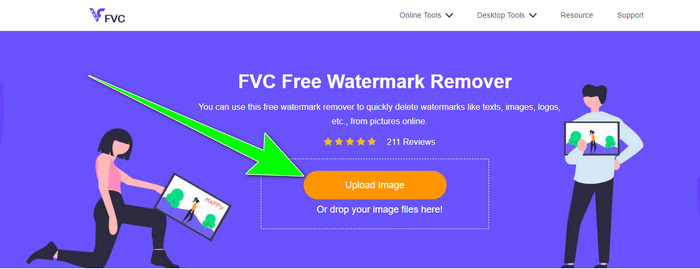
Étape 1 : Rendez-vous sur le site de FVC Free Watermark Remover. Importez votre photo en cliquant sur le bouton Upload Image.
Étape 2 : Après avoir importé votre photo, surlignez les filigranes à l’aide des outils de suppression de filigrane. Comme vous pouvez le voir, la zone du filigrane se trouve au milieu de la photo, ce qui signifie que vous ne pouvez pas utiliser l’outil de recadrage. Dans ce cas, nous utiliserons l’outil Polygone, l’un des outils de suppression de filigrane.
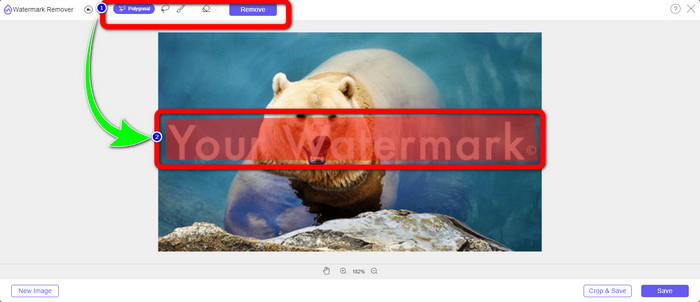
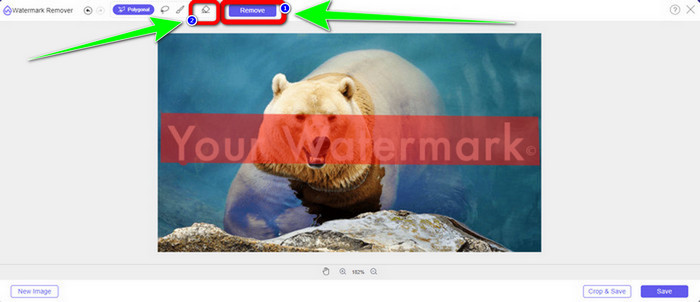
Étape 3 : Si vous souhaitez sélectionner à nouveau la zone surlignée, utilisez le bouton Erase. Une fois que vous avez terminé de surligner les filigranes sur votre photo, cliquez sur le bouton Remove et attendez la fin du processus de suppression.
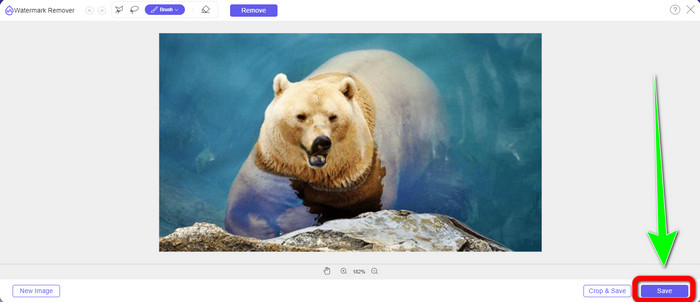
Étape 4 : Lorsque les filigranes ont été supprimés, vous pouvez cliquer sur le bouton Save et télécharger votre photo sur votre ordinateur.
Utilisation de WatermarkRemover.io
Si vous souhaitez utiliser un autre outil en ligne pour supprimer les filigranes de vos images, vous pouvez essayer WatermarkRemover.io. Ce service en ligne est capable de retirer tout objet inutile de vos photos, comme les logos, textes, tampons, et bien plus encore. Vous pouvez également supprimer plusieurs filigranes d’une même image. Il dispose en outre d’une interface simple et de méthodes de base adaptées aux débutants. Cet outil en ligne prend en charge différents formats d’image, comme PNG, JPG, WEBP et JPEG. Cependant, la version gratuite comporte des limites. Vous ne pouvez téléverser que 50 images au maximum, et vous ne disposez que de 25 Go de stockage. Vous devez acheter un abonnement si vous voulez importer plus d’images et bénéficier de davantage de stockage, ce qui est un peu coûteux. Si vous voulez effacer les éléments gênants de vos images avec WatermarkRemover.io, suivez les étapes simples ci-dessous.
Étape 1 : Allez sur le site de WatermarRemover.io. Cliquez sur le bouton Upload Image pour ajouter la photo contenant le filigrane que vous souhaitez supprimer.
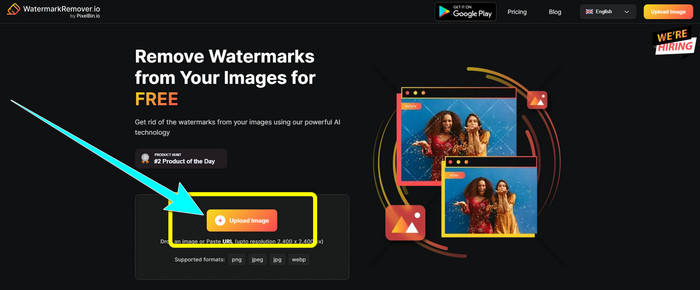
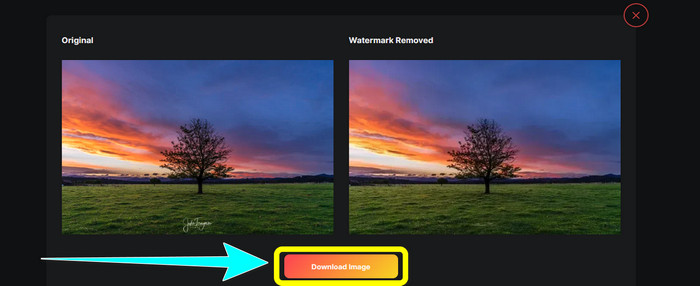
Étape 2 : Après avoir ajouté votre photo, les filigranes seront automatiquement supprimés. Cliquez sur le bouton Download Image pour enregistrer la photo sur votre ordinateur.
Utiliser Apowersoft Watermark Remover en ligne
Apowersoft Video Watermark Remover Online fait partie des outils utiles si vous recherchez une autre solution en ligne pour supprimer les filigranes de vos photos. Vous pouvez effacer facilement les filigranes de vos images avec cet outil en ligne. De plus, il s’agit d’une application simple et conviviale, ce qui la rend adaptée aux débutants souhaitant se débarrasser des filigranes. Apowersoft ne se contente pas d’effacer les filigranes sur les photos : vous pouvez également supprimer les filigranes de vos vidéos, ce qui est très pratique pour les utilisateurs. Comme il s’agit d’un programme en ligne, vous n’avez pas besoin de l’installer sur votre ordinateur. Votre fichier sera automatiquement supprimé après la suppression du filigrane et l’enregistrement de votre résultat, vous n’avez donc pas à vous inquiéter pour vos données. En revanche, vous devez disposer d’une connexion Internet rapide pour que cet outil fonctionne correctement. De plus, le processus de suppression est assez long, ce qui peut être chronophage pour les utilisateurs. Suivez les étapes ci-dessous pour supprimer les filigranes avec Apowersoft Online Watermark Remover.
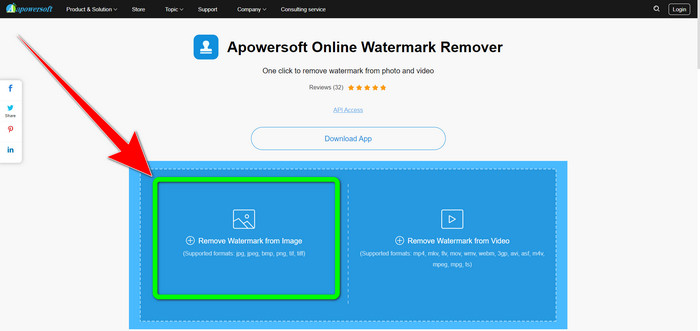
Étape 1 : Rendez-vous sur le site de Apowersoft Online Video Watermark Remover. Cliquez sur le bouton Remove Watermark from Image pour téléverser votre photo avec filigrane.
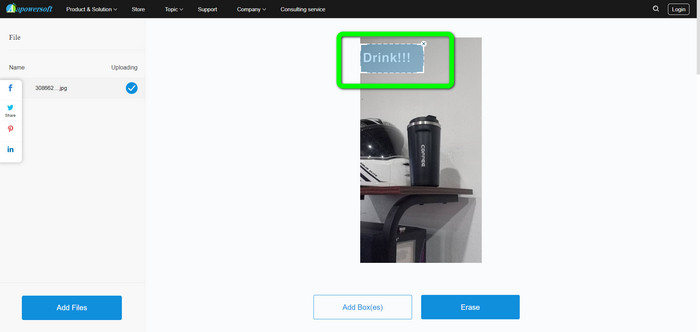
Étape 2 : Vous verrez un élément de forme carrée après l’importation de votre photo. Faites-le glisser afin de couvrir les filigranes sur votre image.
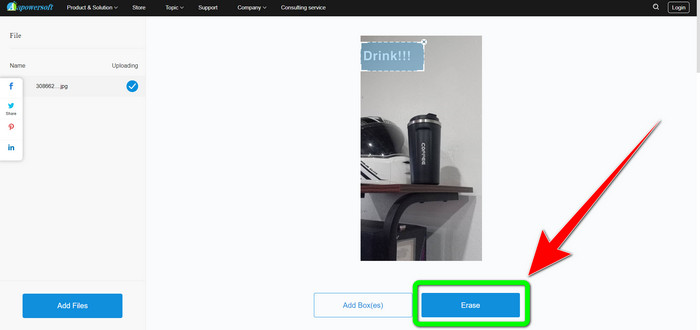
Étape 3 : Une fois que vous avez recouvert le filigrane, cliquez sur le bouton Erase pour le supprimer. Attendez la fin du processus, puis téléchargez votre photo finale sans filigrane.
Partie 3 : FAQ sur la suppression des filigranes des photos dans Lightroom
Comment supprimer un filigrane du bord de l'image ?
Si le filigrane se trouve sur le bord ou dans un coin de votre image, vous pouvez facilement le supprimer à l’aide de l’outil de recadrage. Vous pouvez trouver l’outil de recadrage dans la barre d’outils située dans la partie supérieure de votre photo. Mais si vous ne voulez pas couper une partie de votre image, vous pouvez utiliser un logiciel de suppression de filigrane comme FVC Free Watermark Remover. Cet outil peut vous aider à enlever les éléments gênants de vos photos, tels que les filigranes, logos, signatures, et bien plus encore.
Les filigranes sont-ils protégés par le droit d'auteur ?
Pour plus d'informations, le filigrane lui-même n'est pas un droit d'auteur. Le filigrane peut rappeler aux gens de ne pas voler vos photographies car votre travail est déjà protégé par le droit d'auteur au moment où il est réalisé.
Puis-je supprimer un filigrane d'une capture d'écran ?
Oui, vous pouvez. Un filigrane d'une capture d'écran peut être facilement supprimé à l'aide d'outils de suppression de filigrane, tels que FVC Free Watermark Remover, WatermarkRemover.io, Apowersoft Online Watermark Remover, Inpaint, etc.
Quelle est la différence entre un logo et un filigrane ?
Le filigrane est une version plus simplifiée et translucide du logo, qui est leur principale distinction. Il est généralement placé sur votre image pour empêcher les autres de l'exploiter comme la leur et n'est généralement qu'une seule couleur, blanc ou noir.
Existe-t-il une gomme dans Lightroom ?
Oui il y a. Cette option nous permet de corriger et de supprimer les coups de pinceau que nous avons involontairement peints. Il vous suffit de cliquer sur 'Eraser' pour l'utiliser. Tout comme vous le feriez si vous utilisiez l'outil Pinceau, passez généralement sur les zones que vous souhaitez supprimer.
Conclusion
Cet article vous montre la meilleure façon de supprimer les filigranes dans Lightroom mobile. De plus, nous avons présenté différentes méthodes que vous pouvez essayer pour supprimer les filigranes sans passer par l’application Lightroom. Si vous privilégiez des méthodes simples pour retirer instantanément les filigranes et tout élément inutile de vos photos, utilisez FVC Free Watermark Remover.
-
 Guides étape par étape sur la façon de supprimer les emojis de la vidéo
 Vous vous sentez ennuyé par les emojis sur vos vidéos ? Cet article vous apportera les meilleures procédures pour supprimer instantanément les emojis de vos vidéos à l'aide d'excellents outils.
-
 Comment supprimer facilement les filigranes des vidéos dans After Effects
 Cet article vous aidera à supprimer les filigranes de la vidéo à l'aide d'After Effects. En outre, il fournira les meilleures alternatives pour éliminer les objets gênants.
-
 Façons de supprimer facilement les filigranes Reddit des images
 Si vous êtes ici, vous recherchez peut-être un excellent outil de suppression de filigrane Reddit. Dans ce cas, nous vous montrerons la méthode la plus simple pour supprimer les filigranes Reddit.
