


 Video Converter Ultimate
 Enregistreur d'écran
 Réparation vidéo
 Téléchargement sécurisé
Étapes faciles pour redimensionner une photo pour Facebook
De nombreux millennials et adultes utilisent Facebook comme principal réseau social. Facebook est une application où vous pouvez téléverser des images et les partager ou les envoyer à vos amis. Et beaucoup de personnes souhaitent avoir une image de grande qualité à publier sur Facebook. Si vous voulez vous aussi téléverser des photos en haute résolution et de haute qualité, nous avons l’outil qu’il vous faut. Heureusement, nous avons trouvé des applications sur iPhone, Android et en ligne qui peuvent redimensionner les images rapidement et efficacement. Alors attachez vos ceintures, car dans cet article, vous allez apprendre rapidement comment redimensionner des photos pour Facebook.

Partie 1. Comment redimensionner une photo sur iPhone pour Facebook
Si vous utilisez un appareil iPhone, des applications peuvent être téléchargées sur votre AppStore pour vous aider à redimensionner votre photo. De plus, il existe des applications gratuites que vous pouvez utiliser sur votre appareil iPhone. Cependant, toutes les applications ne produisent pas des sorties de haute qualité. C'est pourquoi nous avons recherché la meilleure application pour redimensionner les images instantanément.
Remini est l’application de redimensionnement de photos la plus populaire que vous puissiez télécharger sur votre iPhone. Cette application possède une interface conviviale grâce à ses fonctions intuitives. De plus, Remini peut améliorer votre image grâce à son optimiseur IA (Intelligence Artificielle), qui redimensionne automatiquement votre image et l’améliore avec une excellente qualité. Et ce n’est pas tout : avec cette application, vous pouvez aussi améliorer vos vidéos grâce à sa fonction d’amélioration vidéo. En outre, elle prend en charge tous les formats d’image courants, comme JPEG, JPG et PNG. Ce qui est également fantastique avec cette application, c’est que vous pouvez la télécharger gratuitement sur l’App Store. Donc, si vous souhaitez utiliser cette application pour redimensionner une photo pour une couverture Facebook, suivez les étapes ci‑dessous.
Comment redimensionner une image à l'aide de l'application Remini :
Étape 1. Ouvrez l’App Store, recherchez l’application Remini et téléchargez‑la sur votre appareil. Après l’installation de l’application, ouvrez‑la.
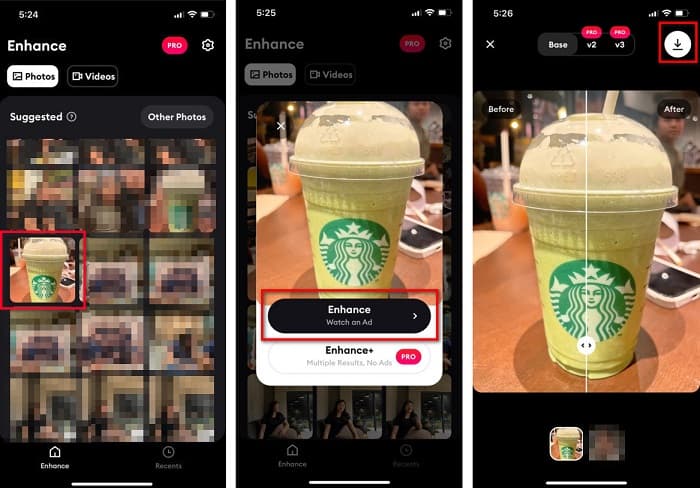
Étape 2. Après avoir ouvert l’application, vous verrez vos photos et sélectionnerez l’image que vous voulez améliorer. Puis touchez le bouton Enhance pour passer à l’interface suivante.
Étape 3. Avant de passer à l’interface suivante, vous devez d’abord regarder une publicité. Ensuite, vous verrez le avant/après de votre image. Touchez l’icône de téléchargement en haut à droite de votre écran.
Partie 2. Comment redimensionner une photo sur Android pour Facebook
Êtes-vous un utilisateur Android ? Ne t'en fais pas; nous vous présenterons également une application permettant de redimensionner une image. Bien qu'il existe de nombreuses applications que vous pouvez télécharger sur le PlayStore, nous avons choisi les meilleures d'entre elles pour vous les présenter. Lisez ci-dessous pour savoir comment redimensionner les images pour Facebook sur Android.
AI Photo Enhancer & PixelLeap est une autre excellente application qui vous aidera à redimensionner votre image pour une meilleure qualité. Ce redimensionneur de photos est gratuit à télécharger depuis le Play Store et son utilisation est sûre. De plus, si vous voulez améliorer ou restaurer une vieille image, alors AI Photo Enhancer & PixelLeap est fait pour vous. Grâce à sa technologie d’IA, il vous suffit de téléverser l’image que vous souhaitez redimensionner et l’application l’améliorera automatiquement. En outre, elle dispose d’une interface simple, ce qui en fait une très bonne application si vous êtes débutant. Elle propose aussi d’autres fonctions d’édition que vous pouvez utiliser, comme corriger, coloriser, animer, ajouter des émotions et éclaircir votre image. Cependant, le problème de cette application est qu’elle contient de nombreuses publicités qui prennent du temps et ajoute un filigrane à votre résultat. Néanmoins, cette application est la solution si vous voulez redimensionner une photo pour Facebook sans recadrage.
Comment redimensionner une image avec AI Photo Enhancer & PixelLeap :
Étape 1. Installez AI Photo Enhancer & PixelLeap sur votre appareil Android.
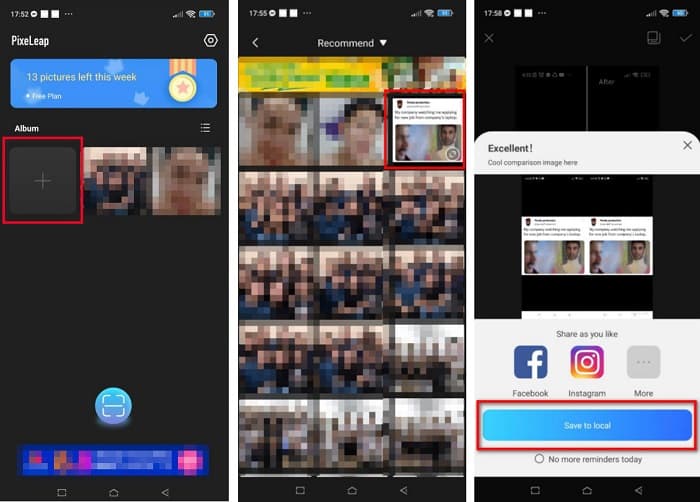
Étape 2. Ensuite, sur l’interface principale de l’application, touchez la boîte avec le signe + pour téléverser l’image que vous voulez redimensionner. Puis l’application vous fera regarder une publicité avant de passer à l’interface suivante.
Étape 3. Parcourez et choisissez l’image que vous souhaitez redimensionner, puis touchez‑la. Après avoir sélectionné l’image, touchez l’option Enhance. L’application améliorera alors automatiquement votre image. Touchez Save to local pour télécharger votre résultat.
Partie 3. Comment redimensionner une photo en ligne pour Facebook
L'avantage d'utiliser une application en ligne est qu'elle vous permet d'économiser de l'espace sur votre appareil. En plus de cela, il existe de nombreuses applications Web gratuites que vous pouvez utiliser sur votre navigateur. Ainsi, si vous souhaitez utiliser une application en ligne pour redimensionner une image à uploader sur Facebook, nous allons vous montrer comment redimensionner une photo pour Facebook.
FVC Free Image Upscaler est le meilleur redimensionneur de photos en ligne qui vous permet d’agrandir votre image jusqu’à un facteur de 2x, 4x, 6x ou 8x. Avec son interface simple, les débutants peuvent facilement redimensionner une image. De plus, il prend en charge tous les formats d’image, y compris JPEG, JPG, PNG et BMP. Ce qui est encore plus impressionnant avec cette application, c’est qu’elle utilise une technologie d’IA qui détecte automatiquement les parties en basse résolution d’une image puis les améliore. En outre, elle peut réparer la perte de pixels, les textures de couleur et d’autres détails de manière complète et parfaite. Elle est également accessible sur tous les navigateurs web, y compris Google, Firefox et Safari. Par conséquent, si vous souhaitez utiliser FVC Free Image Upscaler pour redimensionner ou améliorer votre image, suivez les étapes simples ci‑dessous.
Comment redimensionner une image pour Facebook à l'aide de FVC Free Image Upscaler :
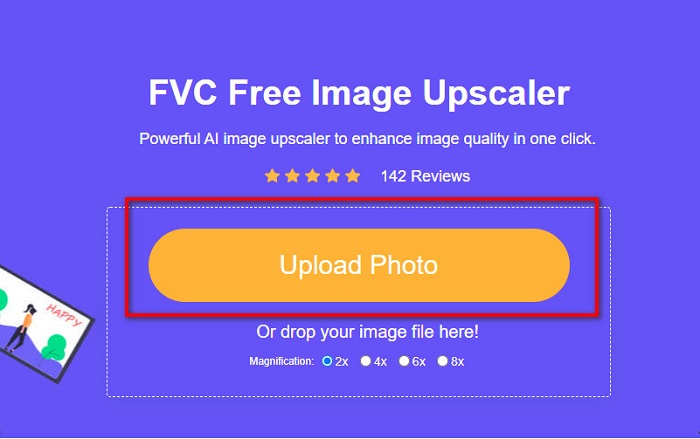
Étape 1. Ouvrez votre navigateur et tapez FVC Free Image Upscaler dans la barre de recherche. Vous pouvez cliquer sur le lien fourni pour être dirigé vers le site. Cliquez sur Upload Photo pour lancer l’application.
Étape 2. Sur l’interface principale du logiciel, cliquez sur Upload Photo pour importer l’image que vous souhaitez redimensionner.
Étape 3. Sur l’interface suivante, sélectionnez le niveau de grossissement souhaité pour le résultat de votre image. Vous pouvez choisir entre un agrandissement 2x, 4x, 6x et 8x. Puis passez à l’étape suivante.
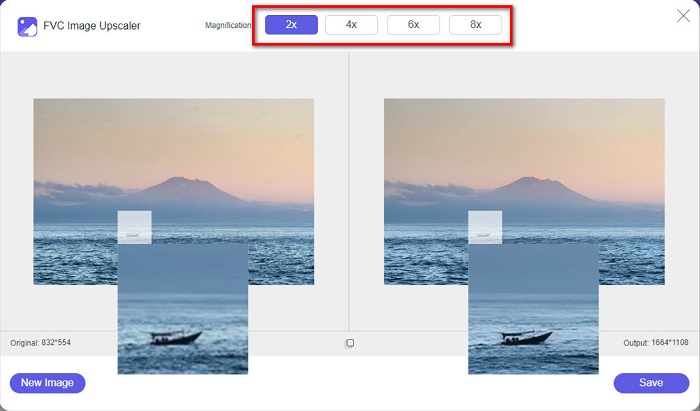
Étape 4. Enfin, cochez le bouton Save pour enregistrer votre résultat sur votre ordinateur. Vous verrez alors la différence entre votre fichier original et l’image redimensionnée. En quelques secondes seulement, votre image sera enregistrée.
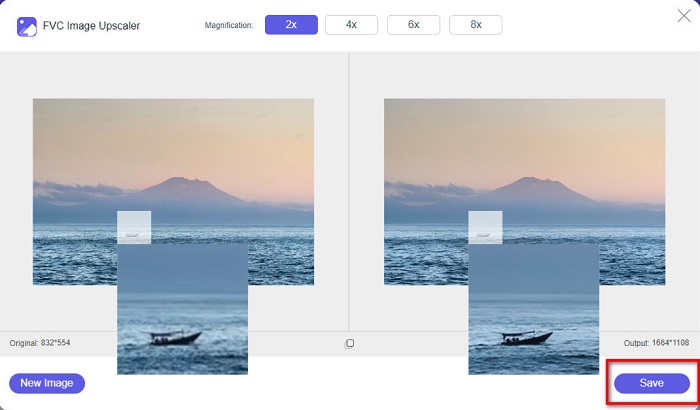
Et c'est tout! Aussi simple qu'ABC, votre image est maintenant améliorée et redimensionnée.
En relation avec :
Comment accentuer la netteté d’une image en ligne et hors ligne en 4 méthodes simples
Comment redimensionner une image – Adobe Resize Image [en ligne et hors ligne]
Partie 4. FAQ sur la façon de redimensionner une photo pour Facebook
Quel est le meilleur ratio photo pour Facebook ?
En ce qui concerne le rapport photo, il est préférable d'utiliser une image verticale avec un rapport d'aspect de 4: 5 et 1200 x 1500 px. Et si vous voulez une image carrée, la résolution doit être de 1080 x 1080 px.
Quelle est la taille d'une publication Facebook ?
La taille d'image recommandée pour une publication Facebook est de 1200 x 630 pixels pour éviter la pixellisation et avoir un temps de chargement plus rapide.
Quel est le meilleur format d'image à télécharger sur Facebook ?
Le meilleur format d'image recommandé à télécharger sur Facebook est le format JPG. Il est préférable de télécharger un format JPG avec une couleur RVB inférieure à 15 Mo.
Conclusion
Nous avons présenté ci‑dessus plusieurs solutions si vous souhaitez redimensionner une photo pour Facebook. En lisant attentivement cet article, nous espérons que vous avez appris tout ce qu’il est nécessaire de faire. Vous pouvez sans aucun doute redimensionner n’importe quelle image à l’aide d’applications sur iPhone, Android ou en ligne. Mais pour de meilleurs résultats, utilisez FVC Free Image Upscaler, qui vous permettra également d’économiser de l’espace sur votre appareil.
-
 Meilleure application Photo Resizer en ligne, hors ligne, Android et iPhone
 Quelles sont les meilleures applications de redimensionnement de photos ? Cliquez sur la page pour découvrir les cinq applications de redimensionnement de photos les plus puissantes que vous pouvez utiliser pour améliorer ou redimensionner votre fichier.
-
 Comment redimensionner l'image - Adobe Redimensionner l'image [en ligne et hors ligne]
 Si vous recherchez une image de redimensionnement Adobe, nous avons la solution pour vous. Lisez attentivement cet article pour savoir comment redimensionner des images à l'aide d'Adobe sur votre PC.
-
 Top 4 des agrandisseurs GIF hors ligne et en ligne à ne pas manquer
 Cet article est pour vous si vous recherchez les meilleurs agrandisseurs GIF. Nous avons répertorié les agrandisseurs GIF en ligne et hors ligne les plus performants pour votre ordinateur.
